Nothing is more frustrating than dropping into a match, gathering your favorite loot, and suddenly teleporting straight into an enemy’s crosshairs because of a lag spike. High ping can ruin your competitive experience, but you do not always need to spend money to solve it.
Before you rush to buy expensive gear, try these software and system tweaks to stabilize your connection.
⚠️ Affiliate Disclosure: TechPlayGrid is reader-supported. When you buy through links on our site, we may earn an affiliate commission at no extra cost to you.
Quick Fortnite Settings to Lower Ping
Photo credit: Fortnite website. For illustrative purposes only.
Your first stop should always be the in-game settings. Sometimes, the game itself is routing you inefficiently.
Choose the Right Matchmaking Region
Fortnite usually sets your server region to “Auto,” which is supposed to connect you to the closest server. However, during off-peak hours, it might route you to a server further away to find a match faster.
Open the Settings menu in Fortnite.
Go to the Game tab (the gear icon).
Under Language & Region, manually select the server with the lowest “ms” number.
Close Bandwidth-Heavy Background Apps
Your game might be competing for bandwidth with other applications on your PC. Web browsers with dozens of tabs, game launchers downloading updates in the background, and voice chat software can cause major lag.
Pro Tip: If you use Discord to communicate with your squad and notice performance drops, make sure to read our complete guide on how to fix Discord lag while gaming to keep your system running smoothly.
Optimize Your Current Connection
You can make your existing internet setup more efficient without touching a single cable.
Flush Your DNS
Clearing your PC’s network cache can force a fresh, faster route to the Epic Games servers.
Type cmd in your Windows search bar, right-click, and select Run as administrator.
Type ipconfig /flushdns and press Enter.
Switch to a Public DNS
Sometimes, your internet provider’s default DNS is slow. Switching to Google’s public DNS can reduce your ping slightly. Go to your Windows Network Settings, find your adapter properties, and change the IPv4 DNS servers to 8.8.8.8 and 8.8.4.4.
When You Actually Need Hardware Upgrades
If you have tried the steps above and your ping is still holding you back, your local hardware might be the bottleneck. Here is what to look for on Amazon US if you decide to upgrade.
Get the Best Ethernet Cable Under $15
The absolute best fix for high ping is getting off Wi-Fi. A wired connection is immune to wireless interference. You do not need anything expensive. The Amazon Basics RJ45 Cat-6 Ethernet Cable or the UGREEN Cat 6 Ethernet Cable are both highly rated, consistently in stock on Amazon US, and will deliver zero packet loss for under $15.
Consider a Budget Gaming Router
Photo credit: Fortnite website. For illustrative purposes only.
If you absolutely must use Wi-Fi (for example, if your console or PC is too far from the modem), and your router is more than 5 years old, an upgrade might be necessary. Look for routers with Wi-Fi 6 technology. The TP-Link Archer AX21 (AX1800) is a proven best-seller on Amazon US that offers excellent traffic prioritization for gaming without breaking the bank.
While a stable connection fixes your network delay, having a smooth visual experience is just as important. Check out our recommendations for the best 144Hz monitors under budget to ensure you see every frame clearly.
You launch Discord screen share to watch a game with friends. Instantly: your keyboard feels sluggish, your audio cuts out mid-sentence, or your friends see a stuttering, frozen image of your screen while you’re playing fine on your end.
This is Discord screen share input lag — and it’s a different beast from the regular Discord lag you might have fixed before. If you already followed our Discord lag fix for Valorant, you know the drill: free fixes first, hardware only if nothing else works. This guide follows the same structure but targets the specific causes that only appear when screen sharing is active.
⚠️ Affiliate Disclosure: TechPlayGrid is reader-supported. When you buy through links on our site, we may earn an affiliate commission at no extra cost to you.
🔍 Why Screen Sharing Causes Its Own Input Lag
Regular Discord voice chat is lightweight. Screen sharing is not. When you share your screen, Discord must encode or decode video, capture your screen, render an overlay, and use GPU acceleration in the background — all simultaneously. On a system already close to full load, that extra workload is enough to cause stutter, input delay, or sudden frame dips.
The result is a problem with three distinct symptoms, each with different causes:
Symptom
What It Looks Like
Root Cause
Keyboard input lag
Keys register late in-game while sharing
CPU/GPU bottleneck from dual encoding
Audio delay/cutout
Voice lags or cuts when sharing starts
Discord audio subsystem conflict
Friends see frozen/choppy stream
Your screen looks fine, theirs doesn’t
Encoder settings or bandwidth issue
💡 Pro Tip: The most important diagnostic step: does the lag start the moment you enable screen share, or does it appear gradually? If it’s immediate, it’s a settings conflict. If it builds over time, it’s a thermal or memory issue.
✅ Fix 1 — Toggle Hardware Acceleration (The #1 Cause)
Hardware acceleration shifts demanding tasks like encoding for video calls and high-resolution image scaling to your GPU. When your GPU is already hitting maximum utilization during gaming, Discord may struggle to find the cycles it needs to render its own interface — causing input lag, audio drops, and choppy streams.
The confusing part: for some systems, turning it off fixes the problem. For others, turning it on fixes it. You have to test both.
If Hardware Acceleration is currently ON → Turn it OFF:
Open Discord → Settings (gear icon) → Advanced
Toggle Hardware Acceleration → OFF
Click “Okay” when Discord asks to restart
Relaunch Discord and test screen share
If it’s currently OFF → Turn it ON and test.
💡 Pro Tip: This single setting causes more confusion than any other in Discord because the best choice depends entirely on your specific hardware and what you’re doing. There’s no universal answer — test both and keep whichever works.
✅ Fix 2 — Disable Hardware-Accelerated GPU Scheduling (HAGS) in Windows
This is the fix most guides miss — and it’s been the most impactful for screen share input lag since 2024. Microsoft has acknowledged that Windows 11 version 24H2 introduced compatibility issues with Hardware-Accelerated GPU Scheduling (HAGS), causing conflicts with streaming applications like Discord. Additionally, some users may experience NVENC encoder failures after updates, which directly impacts screen sharing capabilities.
How to disable HAGS:
Press Windows + I → System → Display
Scroll down to Graphics → Click Change default graphics settings
Toggle Hardware-accelerated GPU scheduling → OFF
Restart your PC completely
Test screen sharing again after the reboot. This fix resolves keyboard input lag during screen share for a significant portion of affected users.
✅ Fix 3 — Switch the Screen Share Encoder (H.264 vs. H.265 vs. Software)
Time: 3 minutes | Difficulty: Easy | Impact: ⭐⭐⭐⭐
Disabling hardware-accelerated encoding can prevent overlay lag that frequently disrupts gameplay. To implement a permanent screen share lag fix, navigate to Voice & Video settings and adjust the H.264 Video Codec options.
Steps:
Discord → Settings → Voice & Video
Scroll to Video Codec
Try toggling H.264 Hardware Acceleration — if ON, turn OFF (or vice versa)
Also try switching between H.264 and H.265 if available
Why this matters specifically for screen share:
When screen sharing a game, Discord uses your GPU’s video encoder (NVENC for NVIDIA, AMF for AMD). If the driver has bugs, poor support for a newer game, or issues with hardware video encoding, you may see stuttering, sudden frame drops, black screens, or desync between audio and video. Switching to software encoding removes the GPU from the equation — more CPU usage, but more stability.
Lowering your broadcast to 720p at 30 FPS reduces the demand on your video encoder, providing a smoother experience for both you and your viewers.
Streaming your screen at 1080p 60fps to friends requires significant encoding overhead. Unless you have a dedicated streaming PC, this competes directly with your game for CPU and GPU resources.
How to set resolution before sharing:
Click the Screen Share button in Discord (monitor icon)
Before confirming, click Stream Quality settings
Set Resolution → 720p
Set Frame Rate → 30 FPS (or 15 FPS for very low-end systems)
💡 Pro Tip: For watching together with friends, 720p 30fps is completely watchable. The difference between 1080p 60fps and 720p 30fps is only noticeable in fast-moving action — and the input lag elimination is immediately perceptible.
✅ Fix 5 — Disable the Discord In-Game Overlay
Time: 2 minutes | Difficulty: Easy | Impact: ⭐⭐⭐⭐
The overlay draws a transparent layer over your game, hooks into the game’s rendering pipeline, and can cause input lag. Multiple overlays running simultaneously multiply the GPU and CPU overhead — Discord’s overlay conflicting with other overlays is a common hidden cause of input delay.
Disable Discord overlay completely:
Discord → Settings → Game Overlay
Toggle Enable in-game overlay → OFF
Also disable it per-game: under Games tab → find your game → toggle overlay off
Also disable competing overlays:
GeForce Experience: Settings → General → Toggle “In-Game Overlay” → OFF
Xbox Game Bar: Windows Settings → Gaming → Xbox Game Bar → OFF
Games running fullscreen can block Discord from capturing them properly. Running Discord as administrator gives it the permissions needed to capture fullscreen applications correctly. Without admin rights, Discord’s capture can fail silently — causing black screens, extra encoding attempts, and associated lag.
Close Discord completely (right-click taskbar icon → Quit Discord)
Find the Discord shortcut (Desktop or Start Menu)
Right-click → Properties → Compatibility tab
Check Run this program as an administrator
Click Apply → OK → Relaunch Discord
✅ Fix 8 — Clear Discord Cache
Time: 3 minutes | Difficulty: Easy | Impact: ⭐⭐⭐
Corrupted cache files can cause erratic performance during screen share, especially after Discord updates.
Close Discord completely
Press Windows + R → type %appdata%\discord
Delete the Cache and Code Cache folders
Relaunch Discord
✅ Fix 9 — Update GPU Drivers (Clean Install)
Time: 10 minutes | Difficulty: Medium | Impact: ⭐⭐⭐⭐
Disabling Xbox Game Bar and background recording removes a layer of GPU capture overhead that compounds with Discord’s own screen share or overlay features. When sharing your screen, Discord may rely on your GPU to capture, encode, and render video. If the driver has bugs or has issues with hardware video encoding, you may see stuttering, sudden frame drops, black screens, or desync between audio and video.
For NVIDIA:
Download latest Game Ready Driver from nvidia.com
Run installer → Custom → Check Perform a clean installation
For AMD:
Download AMD Adrenalin Edition from amd.com
Run installer → Select Factory Reset option
📊 Fix Priority Cheat Sheet
Fix
Symptom It Solves
Time
Impact
Toggle Hardware Acceleration
All three symptoms
2 min
⭐⭐⭐⭐⭐
Disable HAGS in Windows
Keyboard lag, encoder failures
3 min
⭐⭐⭐⭐⭐
Switch encoder (H.264 toggle)
Choppy stream, desync
3 min
⭐⭐⭐⭐
Lower resolution to 720p 30fps
All three symptoms
2 min
⭐⭐⭐⭐
Disable all overlays
Keyboard lag, FPS drops
2 min
⭐⭐⭐⭐
Audio subsystem → Legacy
Audio lag/cutout only
1 min
⭐⭐⭐⭐
Run Discord as Administrator
Black screen, capture lag
1 min
⭐⭐⭐
Clear Discord cache
Erratic behavior after updates
3 min
⭐⭐⭐
Clean GPU driver install
All three symptoms
10 min
⭐⭐⭐⭐
💻 Still Lagging? Hardware Upgrades That Actually Help
If you’ve applied all fixes above and screen sharing still causes input lag, your hardware is the ceiling.
Option A — Add More RAM
Screen share + game + Discord’s Electron framework together can push 16GB RAM to its limit. If Task Manager shows RAM usage above 85% during screen sharing, an upgrade will help.
If your friends see lag but you don’t, the issue is your upload bandwidth stability. <cite index=”38-1″>RTC Connecting issues and stream lag for viewers are often caused by Wi-Fi instability rather than hardware — a wired connection eliminates packet loss entirely.</cite>
Option C — Upgrade Your Headset (for Audio Lag Specifically)
If audio-only lag persists after all fixes, a USB headset with its own onboard DAC bypasses Windows audio routing entirely — eliminating software-layer audio delay.
Yes — directly. <cite index=”26-1″>Discord streaming adds extra CPU, GPU, memory, and disk activity on top of the game you are sharing. If your system is already close to full load, the stream can push it over the edge and cause FPS drops, stuttering, delayed audio, or input lag.</cite> Fix 1 (Hardware Acceleration) and Fix 5 (overlay) have the most impact on FPS specifically.
Why does my keyboard lag only during screen share, not during normal gaming?
The screen capture and encoding pipeline runs on the same CPU threads that handle input polling. <cite index=”36-1″>The overlay is the most common cause of input delay when gaming with Discord — it draws a transparent layer over your game and hooks into the game’s rendering pipeline.</cite> Disabling the overlay (Fix 5) and HAGS (Fix 2) typically resolves keyboard-specific lag.
Why do my friends see lag but I don’t feel any?
This is an upload/encoding issue, not a local performance issue. Your PC is encoding the stream correctly from your perspective but struggling to maintain consistent upload bitrate for your friends. Fix 3 (lower stream resolution) and Fix 9 (GPU driver) address this specifically.
Is Discord Nitro required for higher-quality screen sharing?
Yes — Discord Nitro unlocks 1080p 60fps screen share. Free accounts are limited to 720p 30fps. However, for gaming watch parties, 720p 30fps is typically sufficient, and the lower quality actually reduces the encoding load that causes input lag.
Should I use Discord’s screen share or stream through OBS instead?
For serious streaming, OBS with the “Share to Discord” integration is significantly more efficient — OBS uses hardware encoding properly, unlike Discord’s capture pipeline. For casual friend groups, fixing Discord settings is simpler and adequate.
Last updated: July 2026 | Verified for Discord Stable + PTB versions
⚠️ Affiliate Disclosure: TechPlayGrid participates in the Amazon Associates Program and other affiliate programs. We earn a commission on qualifying purchases at no extra cost to you.
🏷️ SEO Metadata
Title: Fix Discord Input Lag for No Lag While Screen Sharing
Meta Description: Discord causing keyboard lag or audio delay when screen sharing? These 9 free fixes target the specific causes — no upgrade needed. Step-by-step guide for 2026.
Tags: discord input lag screen sharing, discord screen share lag fix, discord keyboard lag fix, discord audio delay screen share, discord screen share fix 2026, discord lag while streaming, fix discord overlay lag
Post Summary: Discord screen share input lag is a distinct problem from regular Discord lag — and it needs its own fixes. This guide covers 9 free solutions in order of impact: toggling Hardware Acceleration, disabling Windows HAGS (the most overlooked fix for 2024–2026), switching the H.264 encoder, lowering stream resolution to 720p, disabling all overlays, switching the audio subsystem to Legacy, running Discord as administrator, clearing cache, and doing a clean GPU driver install. Hardware upgrade options are included for cases where software fixes aren’t enough.
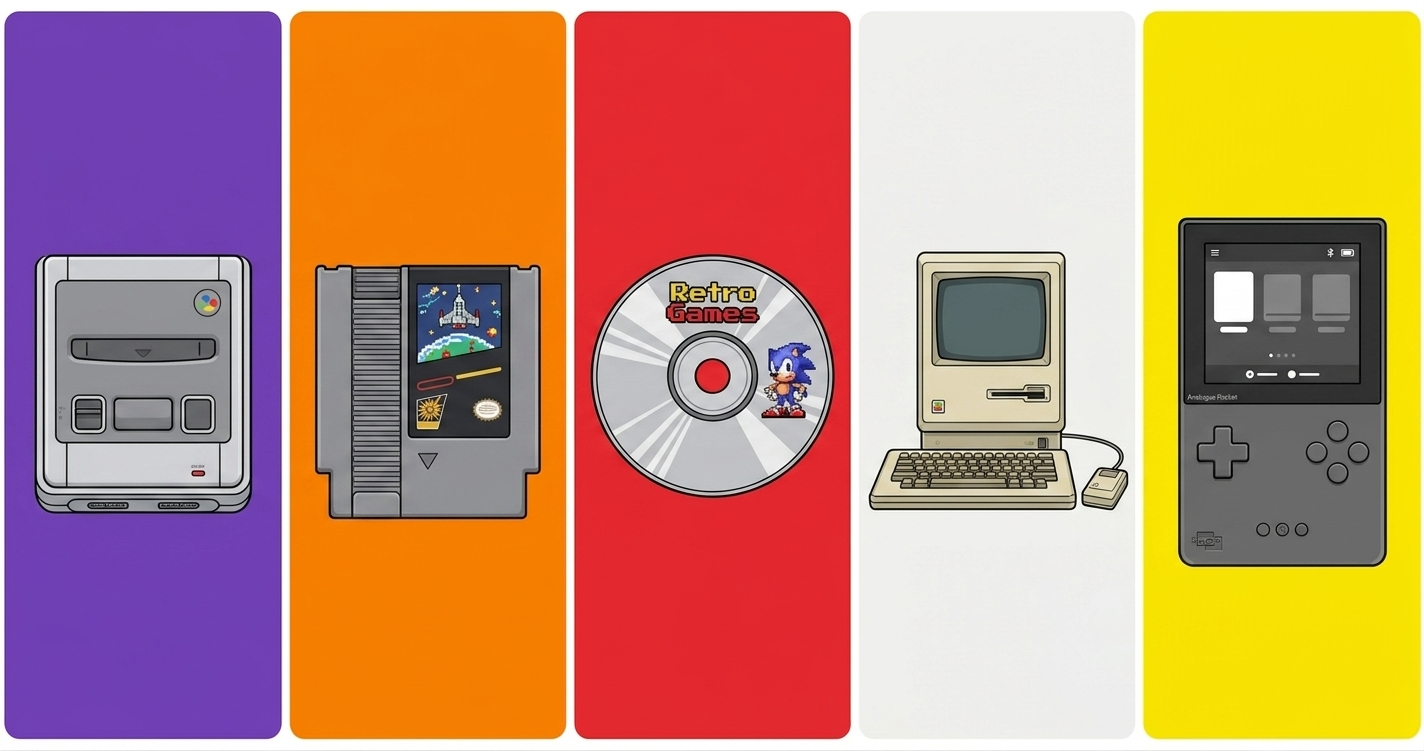
The popularity of retro handheld consoles and pixel-art classics has brought back a topic that often raises questions: emulation. In this article, we’ll explain in simple terms what emulation is, the role of emulators, what ROMs are, and how all this connects to copyright and piracy. The goal is to help you better understand how this technology works, what legitimate uses exist, and which precautions to take so you don’t run into legal trouble while revisiting your favorite games. At the end of the post, learn about some retro console models available on the market.
Legal Notice
The following content is for informational purposes only. Nothing here should be interpreted as encouragement of piracy or legal advice. Each reader is responsible for how they use emulators, ROMs, and ISOs, and for knowing and respecting their country’s copyright laws.
This post contains affiliate purchase links. When you buy through them, you help Tech Play Grid keep producing more content at no extra cost to you. For any questions about privacy or our affiliates, you can read our Privacy Policy and Affiliate Notice.
What is emulation?
When we talk about emulation in gaming, we mean programs that make a computer, phone, or modern console “behave” like an old video game system. In other words, an emulator imitates the original console’s hardware so you can run the same games on a completely different device.
In practice, this lets you play NES, SNES, Mega Drive, PlayStation 1 and many other classic system titles on PCs, phones, retro handhelds, or even modern consoles prepared for it. Many emulators also add features the original hardware never had, like save states, image filters, support for multiple controllers, and fast-forward.
What are emulators?
Emulators are the programs responsible for that “imitation” of the original console. They try to reproduce how the game system works internally: CPU, video, audio, controls and other components, so the game “thinks” it’s running on the device it was released for decades ago. There are emulators for a single console and multi-system emulators that run several consoles in the same interface. They are widely used by retro gamers, preservationists who want to keep old games accessible, and even developers who make new games for classic platforms.
It’s important to highlight: emulators by themselves are not automatically illegal. Emulation technology is legitimate; the problem lies in how and with what files it is used.
What are ROMs and ISOs?
To play something on an emulator, you need a digital copy of the game. These copies are usually called ROMs (when they come from cartridges) or ISOs/disk images (when they come from CDs and DVDs).
Simply put:
ROMis the copy of a cartridge’s data, such as an NES, SNES, Mega Drive or Game Boy game.
ISO or disk image is the copy of a game that came on optical media, like PlayStation 1 or 2.
Technically, it’s possible to create these copies from physical media you own, using specific equipment to dump cartridges or discs. However, on the internet most ROMs and ISOs are distributed by sites that don’t have authorization from the rights holders, which raises issues of piracy and copyright infringement.
Emulation is not the same as piracy
An important point is that emulation and piracy are not synonyms, although many people confuse them.
Emulation is the technology that allows software to run on hardware different from the original.
Piracy is obtaining, sharing or using copies of games without permission from the rights holders.
You can use an emulator to run:
games you ripped yourself from media you own;
games legally distributed in stores or official services;
games released for free by their creators (homebrew or titles made free).
The same emulator can also be used to run ROMs downloaded from sites that offer entire libraries without authorization, which in most cases is considered copyright infringement. In other words, what defines piracy is the source of the game file, not the fact that you are using an emulator.
Copyright, ROMs and the piracy issue
Most commercial games remain protected by copyright for many years, even when the title is no longer sold officially. This means that, under many laws, downloading ROMs of games you did not buy, or that are distributed without permission, is considered copyright infringement.
Some points often discussed in legal contexts:
An old or “out of print” game is not automatically legal to download.
In some countries, the law may allow making a personal copy of a game you own, but this usually does not authorize downloading copies someone else uploaded to the internet.
Companies like Nintendo and other major developers are strict about protecting their intellectual property and have sued ROM sites and projects linked to unauthorized distribution.
Laws such as the DMCA in the United States also have rules about circumventing technical protections (like DRM and encryption) to access games on modern consoles, which adds more complexity..
Because each country has its own laws and interpretations, the best approach is to learn about local legislation and, if in doubt, choose the most conservative path regarding copyright.
Emulation and preservation of retro games
Despite the controversies around piracy, emulation also plays an important role in preserving the history of video games. Many old consoles are physically deteriorating, spare parts are scarce, and several games are no longer sold, with no official way to access them.
Museums, researchers and preservation communities use emulators to document and keep the experience of these games alive for future generations. At the same time, official initiatives from companies are re-releasing collections or offering classic game catalogs through legal services, which gives legitimate options for revisiting those titles.
For the average player, safer paths include:
prioritizing legal ways to play, such as official collections, digital re-releases and subscription services that include classic games;
when using emulation, preferring files obtained legitimately and avoiding sites that distribute commercial game libraries without authorization.
Emulation is a powerful tool for those who love retro games and want to relive classics on modern devices, but it comes with responsibilities. Understanding the difference between emulation technology and piracy, knowing the legal limits and making informed choices are important steps to enjoy this world without disrespecting the work of those who created the games that marked our history.
Below are some console suggestions. Remember that by clicking these links you will be redirected to our partners’ sites and this helps Tech Play Grid keep bringing news and content :).
Enjoyed our content? Want more tips on games, tech or buying suggestions? Follow us on our Social Media or visit our Contact page and sign up to receive more updates and content.
A popularidade dos consoles portáteis retrô e dos clássicos em pixel art trouxe de volta um tema que sempre gera dúvidas: emulação. Neste artigo, vamos explicar de forma simples o que é emulação, o papel dos emuladores, o que são as famosas ROMs e como tudo isso se conecta com direitos autorais e pirataria. A ideia é ajudar você a entender melhor como essa tecnologia funciona, quais são os usos legítimos e quais cuidados tomar para não esbarrar na lei ao reviver seus jogos favoritos. Ao final da postagem, conheça alguns modelos de retro consoles disponíveis no mercado.
Aviso legal
O conteúdo a seguir tem finalidade apenas informativa. Nada aqui deve ser interpretado como incentivo à pirataria ou aconselhamento jurídico. Cada leitor é responsável por como utiliza emuladores, ROMs e ISOs, bem como por conhecer e respeitar as leis de direitos autorais do seu país.
Este post contém links de compras de afiliados. Ao comprar por eles, você ajuda o Tech Play Grid a continuar produzindo cada vez mais conteúdo, sem pagar nada a mais por isso. Qualquer dúvida sobre privacidade ou dos nossos afiliados, você pode ler a nossa Política de Privacidade e o nosso Aviso de Afiliados.
O que é emulação?
Quando falamos de emulação em jogos, estamos falando de programas que fazem um computador, celular ou console moderno “se comportar” como se fosse um videogame antigo. Em outras palavras, o emulador imita o hardware do console original para que você consiga rodar os mesmos jogos em um aparelho totalmente diferente.
Na prática, isso permite jogar títulos de NES, SNES, Mega Drive, PlayStation 1 e muitos outros sistemas clássicos em PCs, celulares, portáteis retrô ou até mesmo em consoles atuais preparados para isso. Além disso, muitos emuladores trazem recursos que o hardware original nunca teve, como save state, filtros de imagem, suporte a vários controles e até fast‑forward.
O que são emuladores?
Emuladores são os programas responsáveis por essa “imitação” do console original. Eles tentam reproduzir o funcionamento interno do videogame: processador, vídeo, som, controles e outros componentes, para que o jogo “pense” que está rodando no aparelho em que foi lançado décadas atrás.
Existem emuladores específicos para um único console e também emuladores multi‑sistema, que rodam vários consoles diferentes na mesma interface. Eles são muito usados por quem gosta de retro gaming, por preservacionistas que querem manter jogos antigos acessíveis e até por desenvolvedores que criam novos jogos para plataformas clássicas.
É importante destacar: emuladores, por si só, não são automaticamente ilegais. A tecnologia de emulação é legítima; o problema está em como e com quais arquivos ela é utilizada.
O que são ROMs e ISOs?
Para jogar alguma coisa em um emulador, você precisa de uma cópia digital do jogo. Essas cópias costumam ser chamadas de ROMs (quando vêm de cartuchos) ou ISOs/imagens de disco (quando vêm de CDs e DVDs).
De forma simples:
ROM é a cópia dos dados de um cartucho, como um jogo de NES, SNES, Mega Drive ou Game Boy.
ISO ou imagem de disco é a cópia de um jogo que veio em mídia óptica, como PlayStation 1 ou 2.
Tecnicamente, é possível criar essas cópias a partir de mídias físicas que você já possui, usando equipamentos específicos para “dump” de cartuchos ou discos. Porém, na internet, a maioria das ROMs e ISOs é distribuída por sites que não têm autorização dos donos dos direitos, o que levanta questões de pirataria e infração de copyright.
Emulação não é a mesma coisa que pirataria
Um ponto importante é que emulação e pirataria não são sinônimos, embora muita gente misture os conceitos.
Emulação é a tecnologia que permite rodar um software em um hardware diferente do original.
Pirataria é obter, compartilhar ou usar cópias de jogos sem autorização dos detentores dos direitos.
Você pode usar um emulador para rodar:
jogos que você mesmo copiou de mídias que possui;
jogos distribuídos legalmente em lojas ou serviços oficiais;
jogos liberados gratuitamente pelos próprios criadores (homebrew ou títulos tornados gratuitos).
O mesmo emulador também pode ser usado para rodar ROMs baixadas de sites que oferecem bibliotecas inteiras de forma não autorizada, o que, na maioria dos casos, é considerado violação de direitos autorais. Em outras palavras, o que define se há pirataria ou não é a origem do arquivo do jogo, e não o fato de você estar usando um emulador.
Direitos autorais, ROMs e a questão da pirataria
A maior parte dos jogos comerciais continua protegida por direitos autorais por muitos anos, mesmo quando o título não é mais vendido oficialmente. Isso significa que, em boa parte das legislações, baixar ROMs de jogos que você não comprou, ou que são distribuídas sem autorização, é considerado infração de copyright.
Alguns pontos que aparecem com frequência em discussões jurídicas:
Um jogo ser antigo ou “fora de catálogo” não torna seu download automaticamente legal.
Em alguns países, a lei pode permitir uma cópia para uso pessoal de um jogo físico que você já possui, mas isso não costuma autorizar baixar cópias que outra pessoa colocou na internet.
Empresas como a Nintendo e outras desenvolvedoras conhecidas são bastante rigorosas na proteção de suas propriedades intelectuais e já processaram sites de ROMs e projetos ligados à distribuição não autorizada de jogos.
Leis como o DMCA, nos Estados Unidos, também trazem regras específicas sobre contornar proteções técnicas (como DRM e criptografia) para acessar jogos em consoles modernos, o que adiciona mais complexidade ao tema.
Como cada país tem suas próprias leis e interpretações, o ideal é que o usuário se informe sobre a legislação local e, em caso de dúvida, opte pelo caminho mais conservador em relação a direitos autorais.
Emulação e preservação dos jogos retrô
Apesar das polêmicas em torno de pirataria, emulação também desempenha um papel importante na preservação da história dos videogames. Muitos consoles antigos estão se deteriorando fisicamente, peças de reposição ficaram raras e diversos jogos simplesmente deixaram de ser comercializados, sem alternativa oficial de acesso.
Museus, pesquisadores e comunidades de preservação utilizam emuladores para documentar e manter viva a experiência desses jogos para futuras gerações. Ao mesmo tempo, surgem iniciativas oficiais de empresas relançando coleções retrô ou oferecendo catálogos de jogos clássicos em serviços legais, o que dá opções legítimas para quem quer revisitar esses títulos.
Para o jogador comum, alguns caminhos mais seguros são:
Priorizar formas legais de jogar, como coletâneas oficiais, relançamentos digitais e serviços de assinatura que incluam jogos clássicos.
Quando usar emulação, preferir arquivos obtidos de forma legítima e evitar sites que distribuem bibliotecas de jogos comerciais sem autorização.
Emulação é uma ferramenta poderosa para quem ama jogos retrô e quer reviver clássicos em aparelhos modernos, mas ela vem acompanhada de responsabilidades. Entender a diferença entre a tecnologia de emulação e a prática de pirataria, conhecer os limites da lei e fazer escolhas mais conscientes são passos importantes para aproveitar o melhor desse universo sem desrespeitar o trabalho de quem criou os jogos que marcaram a nossa história.
Abaixo, alguns sugestões de consoles retrô. Lembrando que ao clicar nesses links, você será redirecionado ao sites dos nossos parceiros e isso ajudará o Tech Play Grid a sempre estar trazendo novidades e conteúdo :).
Gostou dos nossos conteúdo? Quer saber mais dicas sobre games, tecnologias ou sugestões de compras? Siga a gente nas nossas Redes Sociais ou visite a nossa página de Contato, se cadastre para receber mais novidades e conteúdo :).