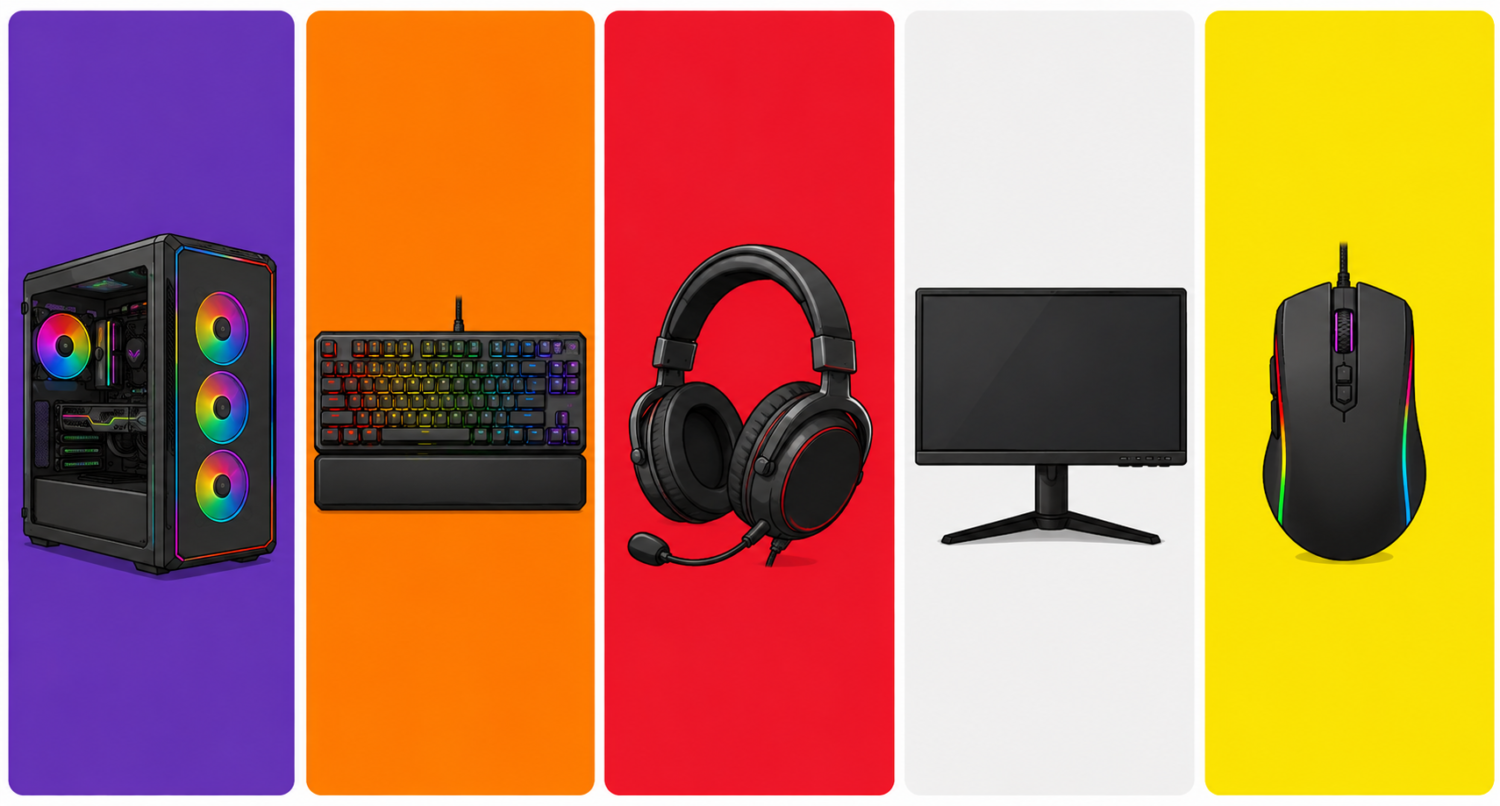
Categoria: Acessórios e periféricos

  • Best Gaming Mouse for Large Hands — Top Picks 2026

    Best Gaming Mouse for Large Hands — Top Picks 2026


    Most gaming mouse reviews ignore one critical variable: hand size. What feels perfectly sculpted to an average-handed reviewer might feel like gripping a bar of soap to someone with large hands. If you’ve ever finished a session with cramps, a strained pinky, or an aching palm — your mouse is the problem, not your grip.

    This guide is built specifically for gamers with large hands (19cm+ length / 10cm+ width), covering the best mice by grip style with real size data, not vague descriptions.

    ⚠️ Affiliate Disclosure: TechPlayGrid is reader-supported. When you buy through links on our site, we may earn an affiliate commission at no extra cost to you.


    📏 Hand Size Reference Chart

    Before buying, measure your hand. Lay it flat and measure from the base of the palm to the tip of your middle finger.

    Hand LengthHand WidthSize Category
    Under 17cmUnder 8.5cmSmall
    17–19cm8.5–10cmMedium
    19–21cm10–11cmLarge
    21cm+11cm+Extra Large

    💡 Pro Tip: If you’re between categories, measure your width too. Wide hands often need a broader mouse body even more than extra length.


    🖱️ Grip Styles Explained

    Your grip determines which mouse shape works for you:

    Grip StyleDescriptionBest Mouse Shape
    Palm gripFull hand rests on mouseLong, tall body
    Claw gripFingers arched, palm on backMid-height with distinct hump
    Fingertip gripOnly fingertips touch mouseLightweight, flat, wide

    Large-handed players most commonly use palm grip, which means size and shape matter enormously.


    🏆 Best Gaming Mice for Large Hands (2026)

    🥇 Best Overall — Logitech G502 X Plus (Wireless)
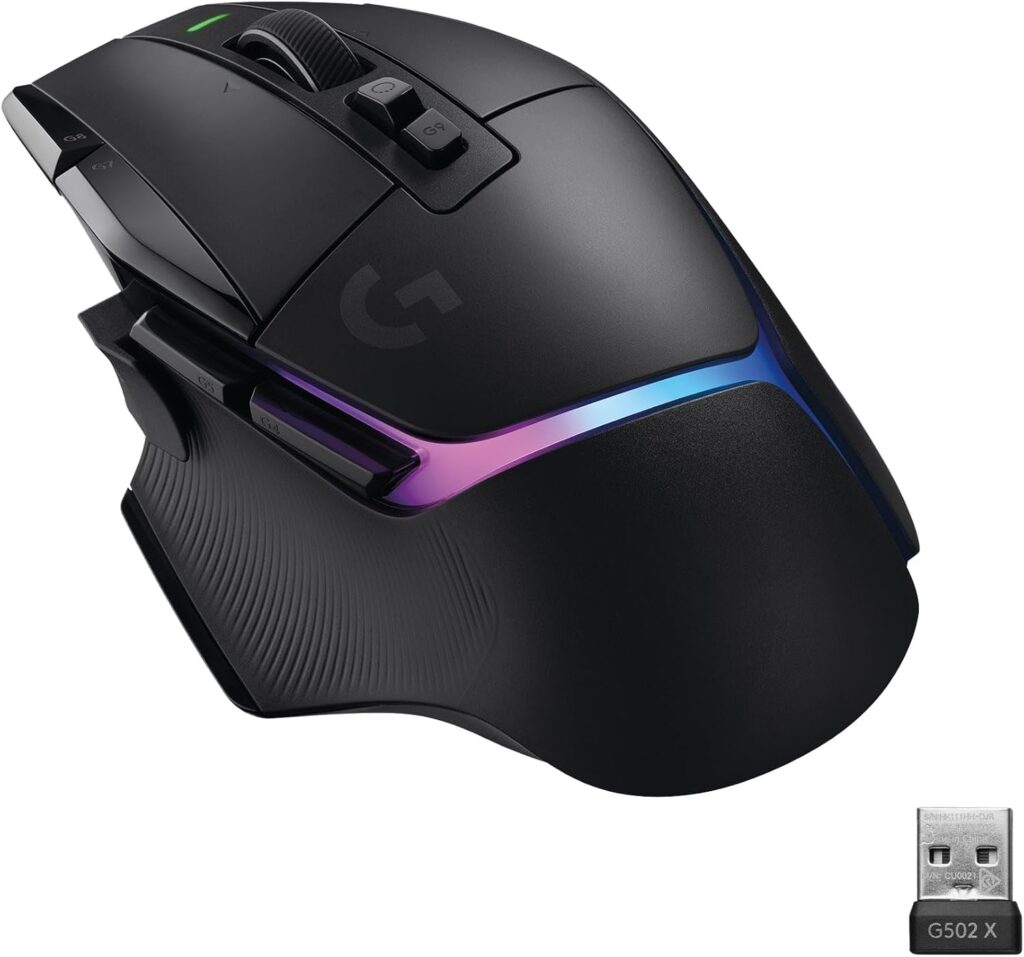
    For illustrative purposes only. Model: Logitech G502 X Plus

    👉 Check price on Amazon

    Hand size fit: Large to XL | Grip: Palm / Claw | Length: 131.7mm | Weight: 89g

    The G502 X Plus is the evolved version of one of the most popular gaming mice ever made. Logitech’s LIGHTFORCE hybrid switches, LIGHTSPEED wireless, and a massive, sculpted body make it ideal for large-handed palm grippers who want zero compromises on performance.

    SpecValue
    SensorHERO 25K
    DPI Range100–25,600
    Buttons13 programmable
    Battery Life~130 hours
    ConnectionWireless (LIGHTSPEED)

    Pros:

    • Exceptional build quality and button feel
    • Comfortable for very long sessions
    • Best-in-class sensor accuracy

    Cons:

    • Premium price point
    • Right-handed only

    🥈 Best for Fingertip/Claw Grip — Razer DeathAdder V3 HyperSpeed
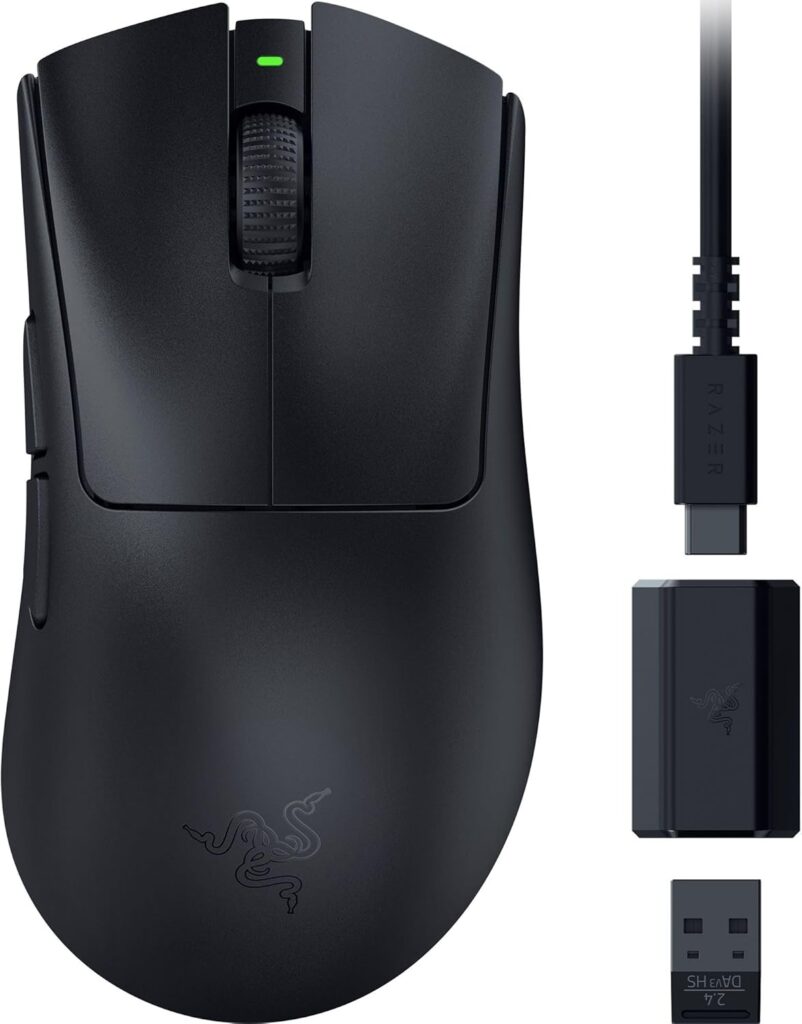
    For illustrative purposes only. Model: Razer DeathAdder V3 HyperSpeed

    👉 Check price on Amazon 👉 Check price on Razer.com

    Hand size fit: Large | Grip: Claw / Fingertip | Length: 128mm | Weight: 64g

    The DeathAdder V3 HyperSpeed strips away every gram of excess and delivers one of the best large-hand wireless mice under $100. The iconic DeathAdder ergonomic shape has always favored larger hands, and the V3 refines it to near-perfection.

    SpecValue
    SensorRazer Focus X
    DPI Range100–18,000
    Buttons6 programmable
    Battery Life~300 hours
    ConnectionWireless (HyperSpeed)

    Pros:

    • Exceptional battery life for wireless
    • Lightweight and fatigue-free
    • Very affordable for a wireless gaming mouse

    Cons:

    • No RGB
    • Focus X sensor is good but not flagship-tier

    🥉 Best Budget Pick — Logitech G703 LIGHTSPEED
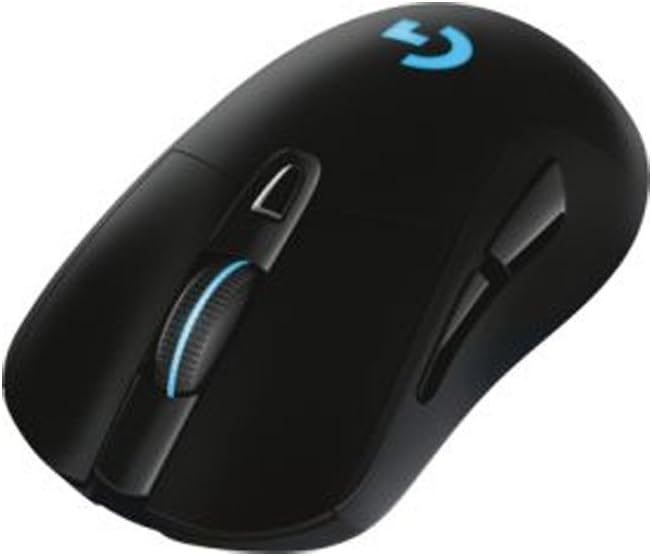
    For illustrative purposes only. Model: Logitech G703

    👉 Check price on Amazon

    Hand size fit: Large | Grip: Palm | Length: 124mm | Weight: 95g

    The G703 doesn’t get the attention it deserves. It’s a large, comfortable palm-grip mouse with Logitech’s premium LIGHTSPEED wireless and HERO sensor at a price that regularly dips well below $80. If budget is the priority and your hands are large, this is the best value on the market.

    SpecValue
    SensorHERO 25K
    DPI Range100–25,600
    Buttons6 programmable
    Battery Life~35 hours (with RGB off: ~60h)
    ConnectionWireless (LIGHTSPEED)

    Pros:

    • Premium sensor at a mid-range price
    • Excellent palm shape for large hands
    • Proven reliability

    Cons:

    • Shorter battery life than competitors
    • Older design compared to newer options

    🎯 Best for FPS — SteelSeries Rival 650 Wireless
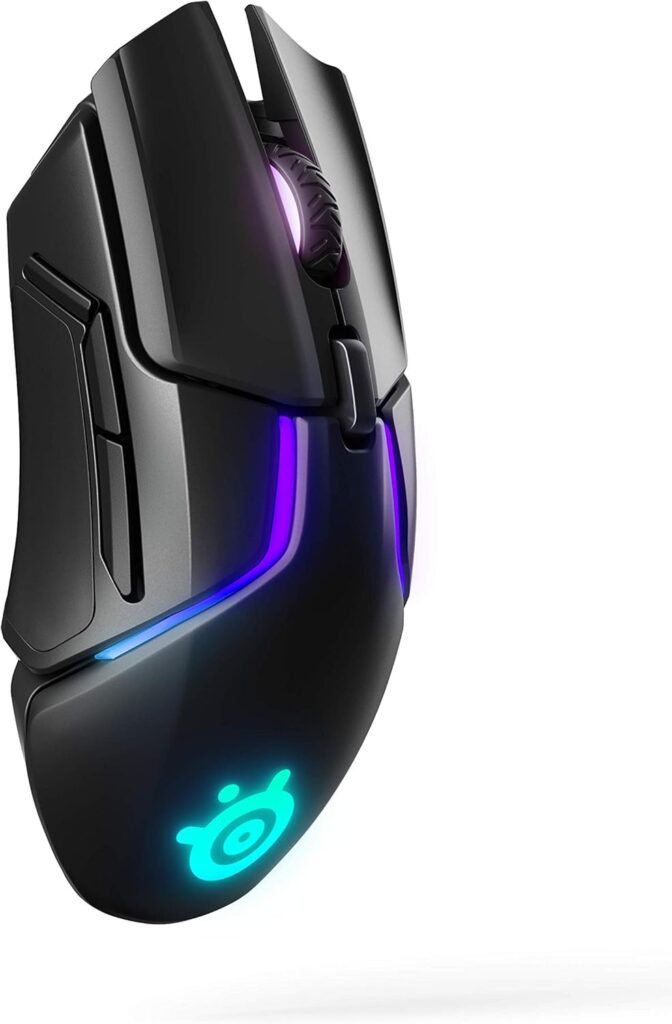
    For illustrative purposes only. Model: SteelSeries Rival 650

    👉 Check price on Amazon 👉 Check price on SteelSeries.com

    Hand size fit: Large to XL | Grip: Palm | Length: 131mm | Weight: 121g (with weights)

    The Rival 650 features SteelSeries’ unique customizable weight system, letting you fine-tune the feel from 96g to 121g. For large-handed FPS players who have strong opinions about mouse weight, nothing else offers this level of personalization.

    SpecValue
    SensorTrueMove3+ Dual Sensor
    DPI Range100–12,000
    Buttons7 programmable
    Battery Life~24 hours
    ConnectionWireless + Wired

    Pros:

    • Customizable weight system is genuinely useful
    • Premium build quality
    • Dual sensor system for lift-off precision

    Cons:

    • One of the heavier mice on this list
    • Battery life is shorter than Logitech/Razer competitors

    🖱️ Best Wired Option — Glorious Model D
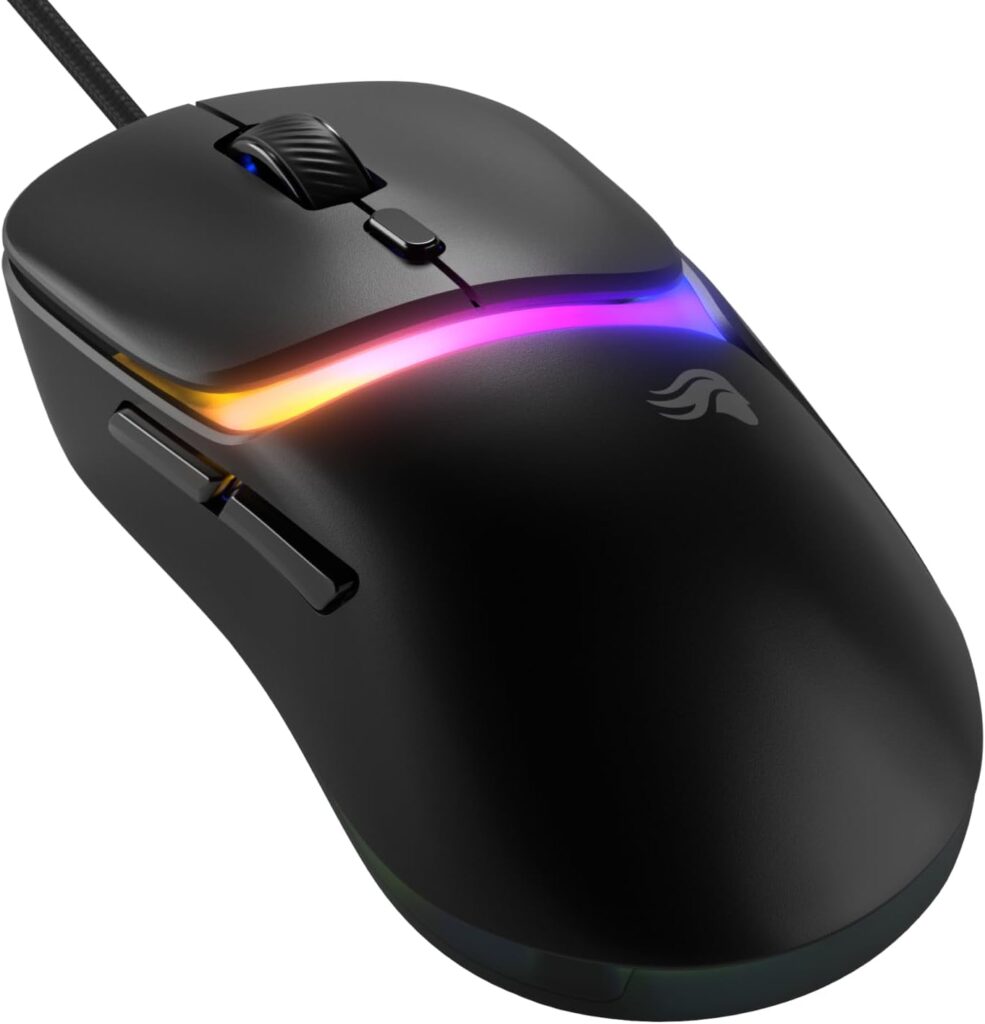
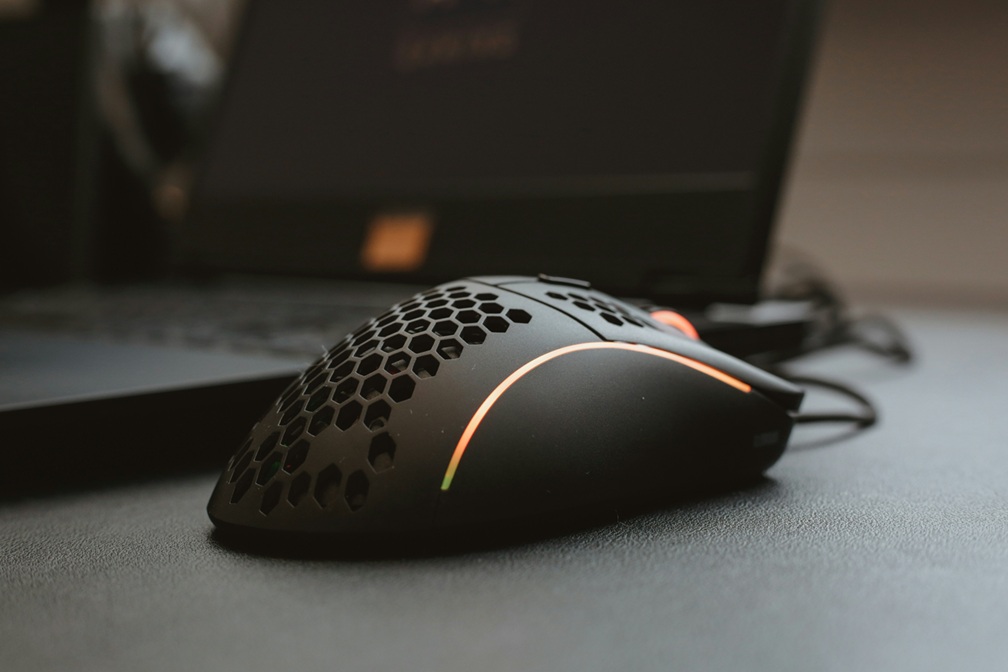
    For illustrative purposes only. Model: Glorious Model D

    👉 Check price on Amazon

    Hand size fit: Large to XL | Grip: Claw / Fingertip | Length: 130mm | Weight: 68g

    If you prefer wired (lower latency, no battery anxiety) and have large hands, the Glorious Model D is one of the best-value mice ever made. Its honeycomb shell keeps weight minimal while the ergonomic right-handed shape fits large palms naturally.

    SpecValue
    SensorPixart 3360
    DPI Range400–12,000
    Buttons6 programmable
    CableAscended Cord (flexible)
    ConnectionWired USB

    Pros:

    • Ultralight at 68g
    • Excellent for large-hand claw and fingertip grippers
    • Very affordable

    Cons:

    • Wired only
    • Honeycomb shell looks polarizing

    📊 Full Comparison Table

    MouseLengthWeightGrip StyleWirelessPrice Range
    Logitech G502 X Plus131.7mm89gPalm / Claw~$130–$150
    Razer DeathAdder V3 HyperSpeed128mm64gClaw / Fingertip~$70–$90
    Logitech G703 LIGHTSPEED124mm95gPalm~$70–$85
    SteelSeries Rival 650131mm96–121gPalm~$90–$110
    Glorious Model D130mm68gClaw / Fingertip~$45–$60

    🤔 Which Mouse Should You Buy?

    • Best all-around for large hands: → Logitech G502 X Plus
    • Budget wireless: → Razer DeathAdder V3 HyperSpeed
    • Best wired + ultralight: → Glorious Model D
    • Custom weight preference: → SteelSeries Rival 650
    • Value palm grip pick: → Logitech G703 LIGHTSPEED

    🔗 Related on TechPlayGrid


    ❓ FAQ

    What’s considered a “large” hand for gaming mice? Generally 19cm or longer from palm base to middle fingertip, and/or 10cm+ in width.

    Does grip style matter more than hand size? Both matter equally. A large mouse with the wrong shape for your grip will still cause discomfort.

    Are ambidextrous mice good for large hands? Some are — the Razer Viper V3 HyperSpeed (ambidextrous) is a great large-hand option if you prefer a symmetrical shape.

    Is heavier better for large hands? Not necessarily. Many large-handed players prefer lighter mice (under 80g) for reduced fatigue during long sessions.


    Last updated: June 2026 | Prices may vary by retailer.

    ⚠️ Affiliate Disclosure: TechPlayGrid participates in the Amazon Associates Program and affiliate programs including Razer and SteelSeries. We earn a commission on qualifying purchases at no extra cost to you.


    🏷️ SEO Metadata

    Title: Best Gaming Mouse for Large Hands — Top Picks 2026

    Meta Description: Large hands cramping up mid-match? We tested the best gaming mice for big hands by grip style, size, and budget. Find your perfect fit before you buy.

    Tags: best gaming mouse large hands, gaming mouse for big hands, palm grip gaming mouse, large hand mouse 2026, ergonomic gaming mouse, logitech g502 large hands, razer deathadder large hands

    Post Summary: Gaming mice are almost never designed with large hands in mind — and that costs you comfort and performance. This guide covers the five best gaming mice for large hands in 2026, broken down by grip style (palm, claw, fingertip) with full specs, size data, and honest pros and cons. Whether you’re a budget buyer or want the best wireless option money can buy, there’s a pick here that will fit.
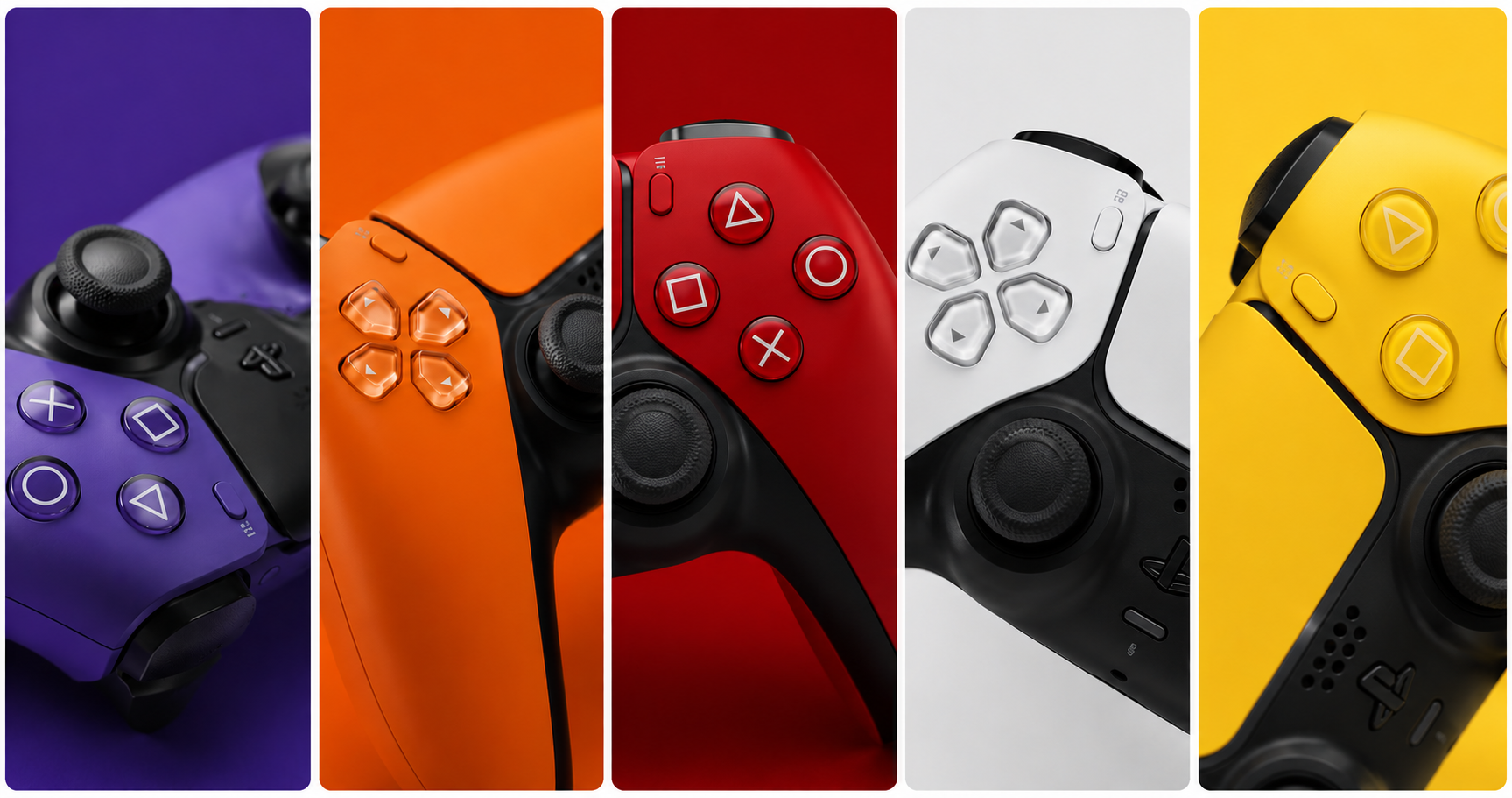
  • PS5 Controller Drifting? Fix It Before You Buy New

    PS5 Controller Drifting? Fix It Before You Buy New


    Your character walks forward on its own. You aim and the crosshair drifts left. Your camera spins while you’re doing absolutely nothing. Welcome to the most frustrating hardware issue in console gaming: PS5 DualSense controller drift.

    Before you spend $70 on a new controller, there’s a real chance you can fix this in under 15 minutes — for free. We’ve compiled every known fix, from the easiest to the most involved, so you can make an informed decision.

    ⚠️ Affiliate Disclosure: TechPlayGrid is reader-supported. When you buy through links on our site, we may earn an affiliate commission at no extra cost to you.


    🔍 What Is Controller Drift — and Why Does It Happen?

    Drift occurs when your controller registers joystick input without you touching it. The three main causes:

    CauseDescriptionFixable?
    Dust/debris under thumbstickParticles push against the sensor✅ Yes — compressed air
    Worn joystick potentiometerSensor loses calibration over time✅ Sometimes — calibration fix
    Dead analog stick modulePhysical component failure⚠️ Requires repair/replacement

    Most drift starts as cause #1 or #2, which means most drift is fixable at home.


    ✅ Fix 1 — Clean Around the Thumbstick (Start Here)

    Time: 2 minutes | Cost: Free (or $5 for compressed air)

    Dust and debris are the #1 cause of drift. Before anything else, try this.

    1. Grab a can of compressed air (or use your mouth carefully)
    2. Hold the thumbstick to one side, exposing the base gap
    3. Blast air around the base of the thumbstick in short bursts
    4. Rotate the stick and repeat from multiple angles
    5. Test the controller

    👉 Falcon Dust-Off Compressed Air — Amazon

    💡 Pro Tip: Do this over a table or white surface so you can see the debris that comes out. Sometimes you’ll be shocked how much dust accumulates under there.


    ✅ Fix 2 — Recalibrate via PS5 System Settings

    Time: 3 minutes | Cost: Free

    Your PS5 has a built-in joystick calibration tool that can reset the dead zone and reduce drift caused by sensor miscalibration.

    1. Go to Settings → Accessories → Controllers
    2. Select Adjust Joystick Dead Zone
    3. Follow the on-screen calibration steps
    4. Set Dead Zone slightly higher than default if drift persists

    💡 Pro Tip: Increasing the dead zone requires a more deliberate movement before the game registers input. It’s a workaround, not a permanent fix — but it can make many games feel completely drift-free.


    ✅ Fix 3 — Reset the DualSense Controller

    Time: 2 minutes | Cost: Free

    A hard reset can clear firmware glitches causing phantom input.

    1. Turn off your PS5 completely
    2. Find the small reset hole on the back of the DualSense (near the L2 trigger)
    3. Insert a pin, toothpick, or SIM tool and hold for 5 seconds
    4. Reconnect the controller via USB cable
    5. Press the PS button

    ✅ Fix 4 — Update the Controller Firmware

    Time: 5 minutes | Cost: Free

    Sony has released multiple firmware updates specifically addressing drift on the DualSense.

    1. Connect your DualSense to the PS5 with a USB-C cable
    2. Go to Settings → Accessories → Controllers
    3. Select DualSense Wireless Controller Device Software
    4. Install any available update

    ✅ Fix 5 — Clean with Isopropyl Alcohol

    Time: 5 minutes | Cost: ~$5

    For more stubborn drift caused by residue under the stick module, isopropyl alcohol (90%+) can dissolve it without damaging the internals.

    1. Slightly push the thumbstick to the side
    2. Apply a small amount of 90%+ isopropyl alcohol around the base with a cotton swab
    3. Work the thumbstick in full circles for 30 seconds
    4. Let it dry for 10–15 minutes before testing

    👉 Amazon Basics 99% Isopropyl Alcohol — Amazon

    ⚠️ Warning: Use 90% or higher. Lower concentrations have too much water and can cause corrosion.


    ✅ Fix 6 — Use Sony’s Warranty Replacement

    Time: Varies | Cost: Free (if under warranty)

    Sony’s DualSense controllers come with a 1-year limited warranty. If your controller is drifting within that period, Sony will often repair or replace it at no cost.

    1. Visit PlayStation Repairs
    2. Register your controller and describe the drift issue
    3. Ship it in — Sony covers return shipping

    💡 Pro Tip: Even if your warranty has expired, it’s worth checking. Sony has faced class action lawsuits over DualSense drift and in some regions has extended coverage.


    📊 Fix Summary Table

    FixTimeCostSuccess Rate
    Compressed air cleaning2 minFree–$5⭐⭐⭐⭐⭐
    Dead zone recalibration3 minFree⭐⭐⭐⭐
    Controller reset2 minFree⭐⭐⭐
    Firmware update5 minFree⭐⭐⭐
    Isopropyl alcohol5 min~$5⭐⭐⭐⭐
    Sony warranty repairVariesFree⭐⭐⭐⭐⭐

    🛒 Nothing Worked? Time to Replace

    If you’ve tried everything and your DualSense still drifts, it’s likely a dead analog module — which requires either soldering skills or a replacement controller.

    Option A — Official DualSense Replacement

    👉 Sony DualSense Wireless Controller — Amazon

    The official controller. Best build quality, full haptic feedback and adaptive trigger support.

    Option B — Third-Party Controllers with Hall Effect Sticks

    Hall effect joysticks use magnets instead of resistive contacts and are virtually drift-proof by design.

    👉 GameSir G7 SE (Hall Effect, Xbox/PC) — Amazon 👉 GuliKit KingKong 2 Pro (Hall Effect, PS5-compatible) — Amazon

    💡 Pro Tip: Hall effect controllers are the future. They cost slightly more upfront but can last 3–5x longer without drift. If you’re replacing a drifted controller, seriously consider the upgrade.

    Option C — Buy a Spare and Rotate

    Many competitive players keep two controllers and rotate them, reducing wear on any single unit.


    🔗 Related on TechPlayGrid


    ❓ FAQ

    Is PS5 controller drift covered by warranty? Yes — Sony’s DualSense has a 1-year limited warranty. Contact PlayStation Support or visit repairs.playstation.com.

    Can drift come back after cleaning? Yes, if it’s caused by a worn analog module. Cleaning fixes debris-related drift; physical wear requires replacement.

    Are third-party controllers as good as the DualSense? For most games, yes. However, haptic feedback and adaptive triggers are DualSense-exclusive features and won’t work on third-party controllers.

    How long do DualSense controllers last? Sony rates the DualSense thumbsticks for around 2 million input cycles. Heavy daily gaming can wear them out in 1–2 years.


    Last updated: June 2026

    ⚠️ Affiliate Disclosure: TechPlayGrid participates in the Amazon Associates Program and other affiliate programs. We earn a small commission on qualifying purchases at no extra cost to you.


    🏷️ SEO Metadata

    Title: PS5 Controller Drifting? Fix It Before You Buy New

    Meta Description: PS5 controller drifting on its own? Try these 6 free fixes before spending $70 on a new DualSense. Clean, calibrate, reset — step-by-step guide inside.

    Tags: ps5 controller drift, dualsense drift fix, ps5 thumbstick fix, controller drift repair, ps5 accessories, gaming controller tips, playstation 5 troubleshooting

    Post Summary: Is your PS5 DualSense drifting and sending your character wandering on its own? Before spending money on a replacement, this guide walks you through six proven fixes — from compressed air cleaning and dead zone calibration to isopropyl alcohol treatment and Sony’s warranty program. Only if everything fails do we recommend replacement controllers, including hall effect options that are virtually drift-proof for life.

  • Best 144Hz Monitor Under $300 for PS5 and Xbox Series X (2026)

    Best 144Hz Monitor Under $300 for PS5 and Xbox Series X (2026)


    So you grabbed a PS5 or an Xbox Series X, and now your old 60Hz TV is making you feel like you’re playing underwater. We get it. The difference between 60Hz and 144Hz is night and day — faster response, buttery-smooth motion, and a genuine competitive edge in shooters and racing games.

    The good news? You don’t need to spend a fortune. There are excellent 144Hz monitors under $300 that pair perfectly with current-gen consoles. We tested and researched the top options on the market so you don’t have to.

    Let’s break it down.

    ⚠️ Affiliate Disclosure: TechPlayGrid is reader-supported. When you buy through links on our site, we may earn an affiliate commission at no extra cost to you.


    🎮 What to Look For in a Console Gaming Monitor

    Before jumping into the list, here’s a quick cheat sheet of specs that actually matter for PS5 and Xbox Series X:

    SpecWhy It MattersRecommended
    Refresh RateSmoother motion, less blur144Hz minimum
    ResolutionImage sharpness1080p (budget) or 1440p (sweet spot)
    Panel TypeColor & response timeIPS (best balance) or VA (better contrast)
    Response TimeGhosting reduction1ms–5ms
    HDR SupportBetter highlights/shadowsHDR400 or better
    HDMI VersionConsole compatibilityHDMI 2.1 for full bandwidth
    VRR / FreeSyncTear-free gamingEssential for consoles

    💡 Pro Tip: PS5 supports up to 120Hz via HDMI 2.1. A 144Hz monitor will cap at 120Hz on PS5, which is still a massive upgrade over 60Hz — and future-proofs you for PC gaming too.


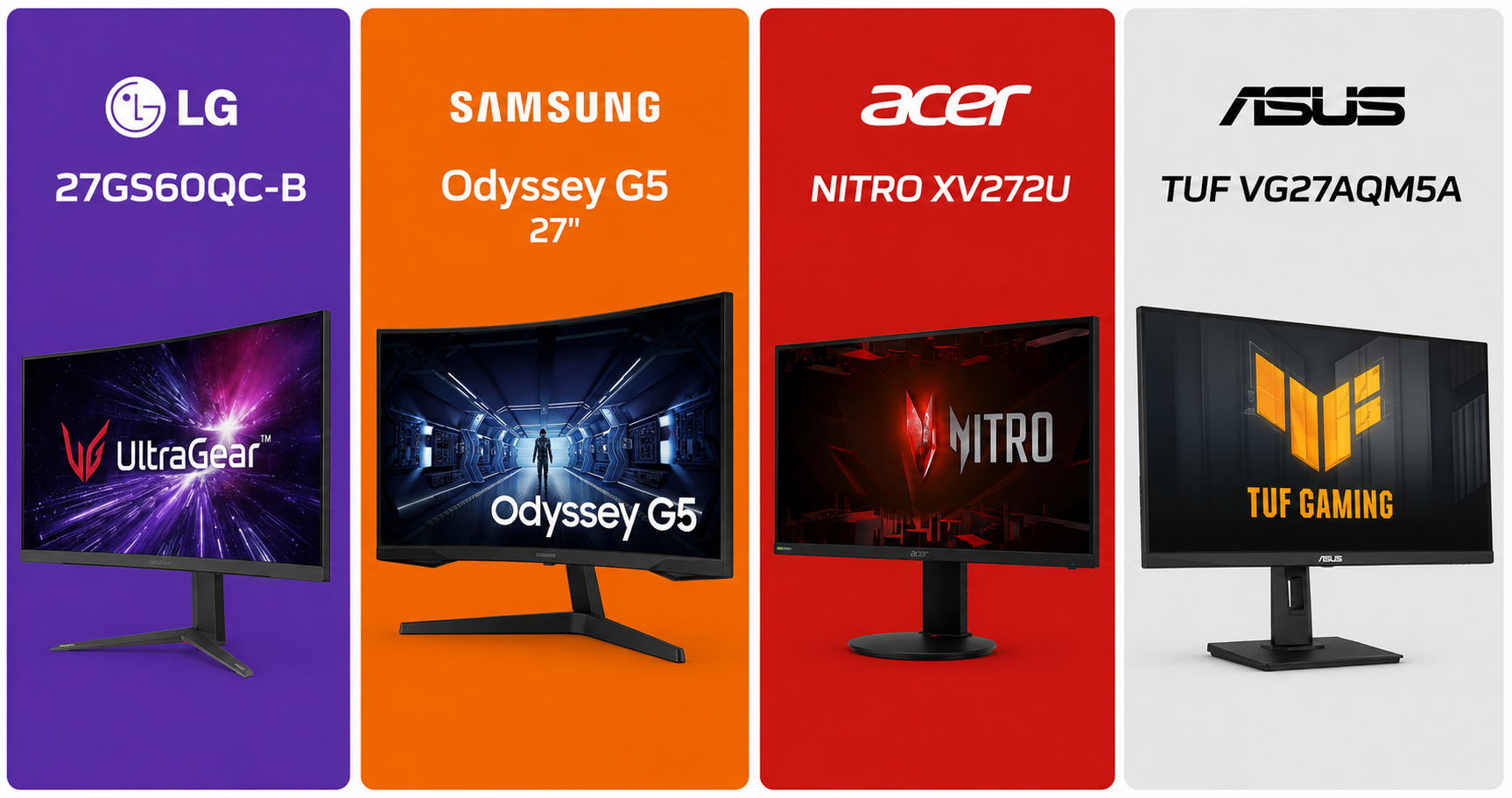
    🏆 Best 144Hz Monitors Under $300 for Consoles (2026)

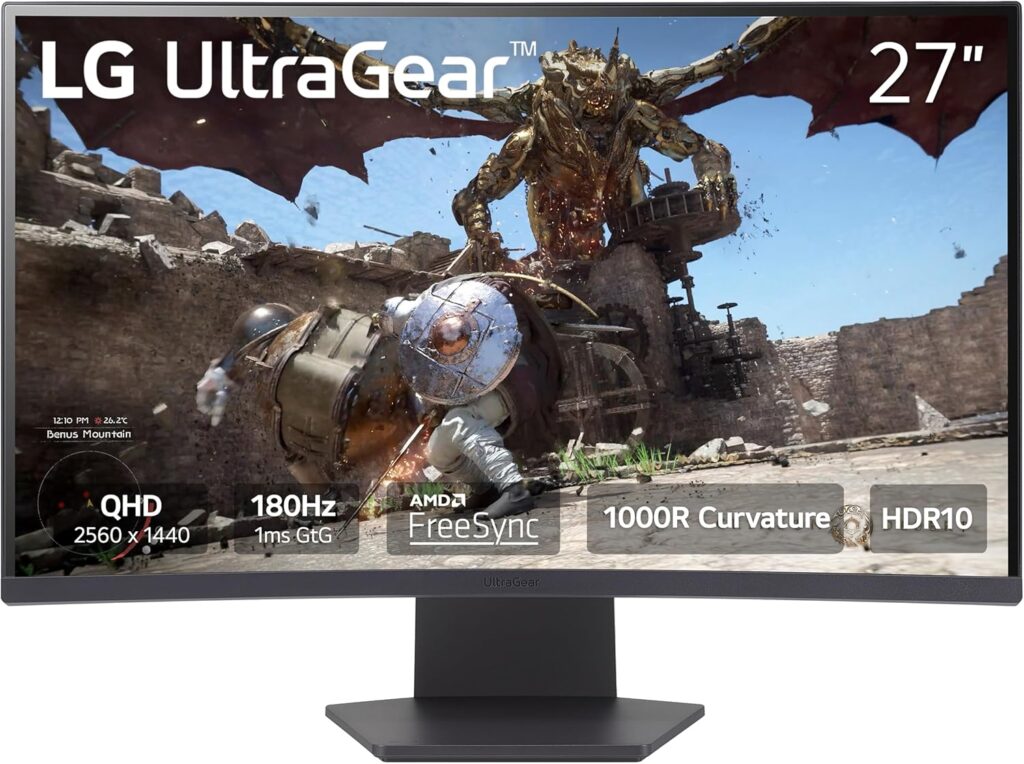
    🥇 Best Overall — LG 27GS60QC-B Ultragear (27″ QHD 180Hz IPS)

    LG57GS60QC-B fundo branco fonte Amazon US
    For illustrative purposes only. Model: LG27GS60QC-B

    👉 Check price on Amazon

    Why we love it: This is the gold standard in the under-$300 range. LG’s Nano IPS panel delivers stunning color accuracy, ultra-fast 1ms response time, and support for NVIDIA G-Sync and AMD FreeSync Premium. At 1440p and 180Hz, it makes Xbox Series X content look absolutely gorgeous.

    Specs at a glance:

    • Panel: Nano IPS
    • Resolution: 2560×1440 (1440p)
    • Refresh Rate: 180Hz (120Hz on PS5/Xbox via HDMI 2.1)
    • Response Time: 1ms GtG
    • HDR: HDR400
    • Ports: 2x HDMI 2.0, 1x DisplayPort 1.4, 2x USB-A

    Pros:

    • Exceptional color accuracy out of the box
    • 180Hz feels silky even on consoles at 120Hz
    • Slim bezels, premium build quality
    • Great for both gaming and content creation

    Cons:

    • HDMI 2.0 means PS5 won’t hit full 4K@120Hz (HDMI 2.1 is needed for that)
    • HDR400 is entry-level HDR

    Best for: Xbox Series X owners and PC+console hybrid setups.


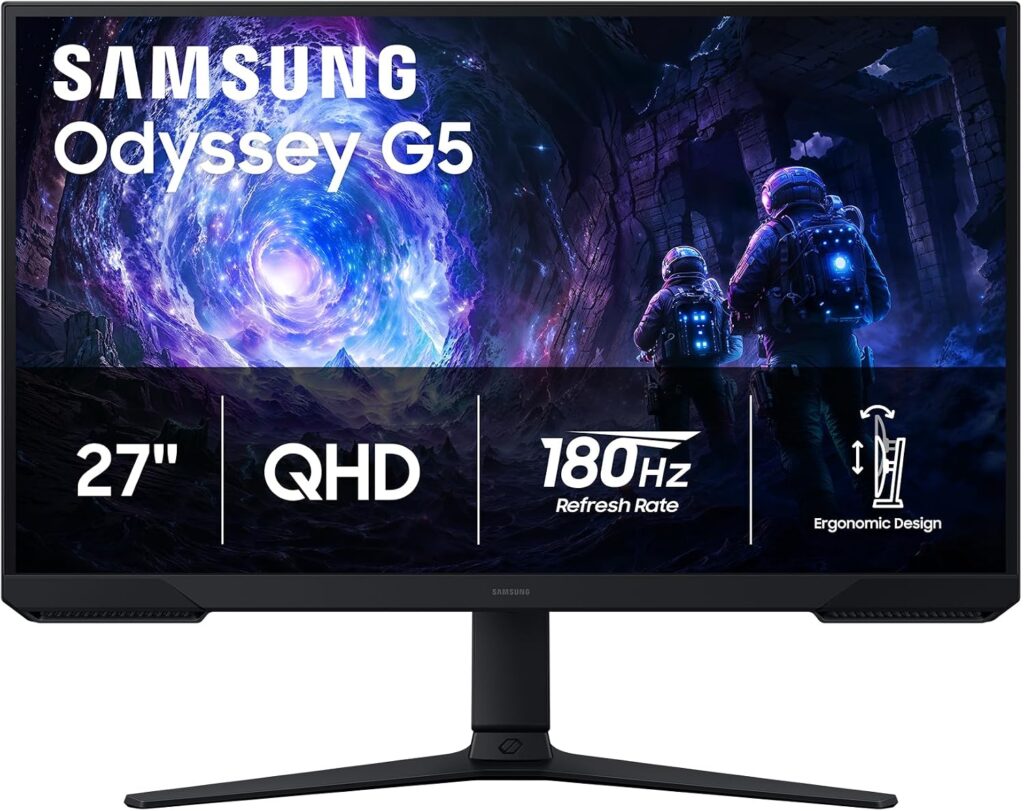
    🥈 Best Value Pick — Samsung Odyssey G5 (27″ 1440p 180Hz IPS)

    Samsung Odyssey G5 com fundo branco, fonte Amazon US
    For illustrative purposes only. Model: Odyssey G5

    👉 Check price on Amazon

    Why we love it: If you play fast-paced competitive games like Valorant, Fortnite, or Call of Duty on console, the Odyssey G5 is a beast. 180Hz is overkill for consoles right now, but you get a monitor that will never feel sluggish, with Samsung’s IPS Black technology for deeper blacks than typical IPS panels.

    Specs at a glance:

    • Panel: IPS Black
    • Resolution: 2560 x 1440 (1440p)
    • Refresh Rate: 180Hz
    • Response Time: 1ms GtG
    • HDR: HDR10
    • Ports: 2x HDMI 1.4, 3x USB 3.0

    Pros:

    • Insanely fast refresh rate
    • Better contrast than standard IPS
    • Excellent motion clarity

    Cons:

    • 1440p shows pixel grid on 27″ up close
    • No HDMI 2.1

    Best for: Competitive console players who prioritize speed over resolution.


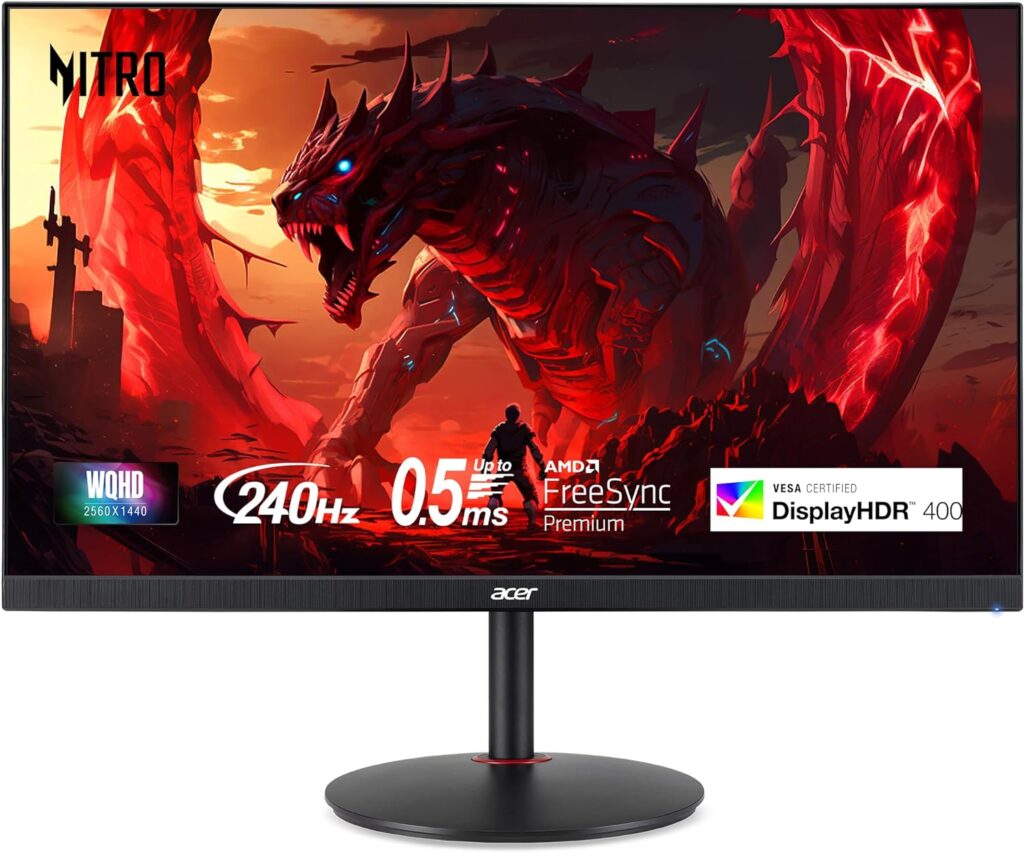
    🥉 Best Budget Option — Acer Nitro XV272U (27″ 1440p 144Hz IPS)

    Monitor Acer Nitro XV272U no fundo branco, fonte Amazon US
    For illustrative purposes only. Model: Acer XV272U

    👉 Check price on Amazon

    Why we love it: The Nitro XV272U punches well above its price tag. It’s one of the cheapest ways to get into 1440p at 144Hz, with solid IPS colors and AMD FreeSync Premium support. Not the flashiest monitor on this list, but it gets the job done reliably.

    Specs at a glance:

    • Panel: IPS
    • Resolution: 2560×1440 (1440p)
    • Refresh Rate: 144Hz
    • Response Time: 1ms VRB
    • HDR: HDR400
    • Ports: 2x HDMI 2.0, 1x DisplayPort 1.4

    Pros:

    • Affordable entry into 1440p gaming
    • Good factory color calibration
    • Sturdy stand with height adjustment

    Cons:

    • Backlight bleed can be present on some units
    • No HDMI 2.1

    Best for: Budget-conscious buyers who want 1440p without breaking the bank.


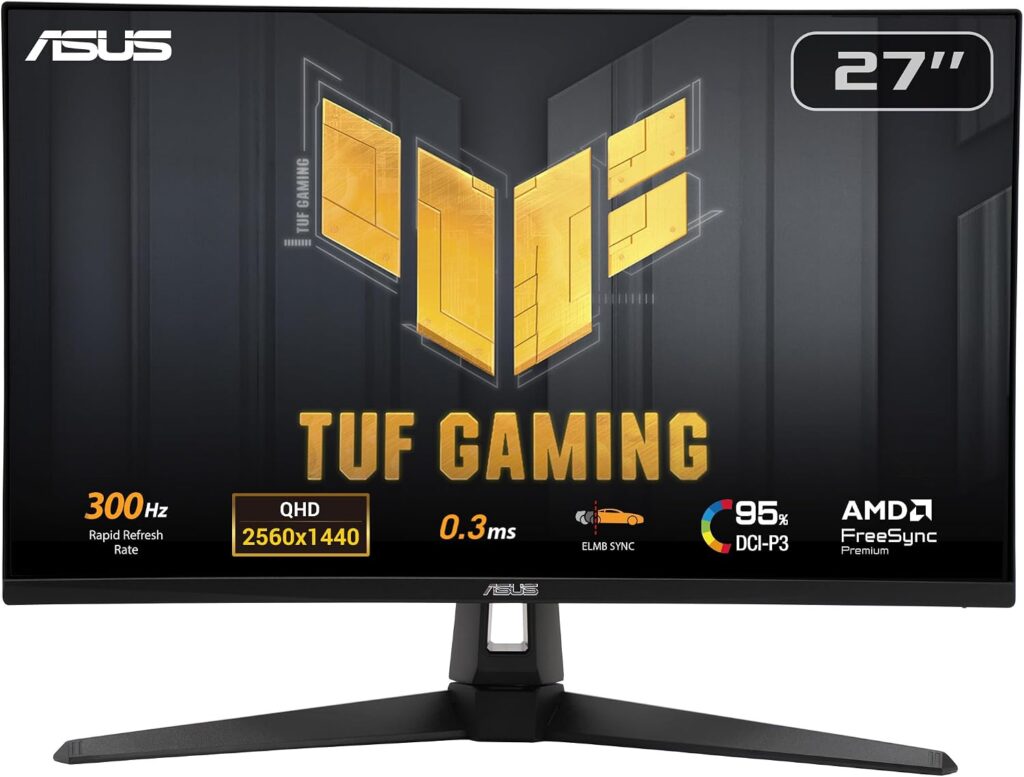
    🎯 Best for PS5 Specifically — ASUS TUF Gaming VG27AQM5A (27″ QHD 300Hz)

    Monitor Asus VG27AQM5A no fundo branco, fonte Amazon US
    For illustrative purposes only. Model: Asus VG27AQM5A

    👉 Check price on Amazon

    Why we love it: This is the wild card. At the $300 budget (prices fluctuate — grab it on sale), the VG27AQM5A is one of the few monitors with HDMI 2.1, unlocking true 2K@300Hz on PS5 and Xbox Series X. If you want the full next-gen experience, this is your monitor.

    Specs at a glance:

    • Panel: IPS
    • Resolution: 2560×1440 (2K)
    • Refresh Rate: 300Hz (PC) / 120Hz @ 4K (console via HDMI 2.1)
    • Response Time: 1ms GtG
    • HDR: HDR400
    • Ports: 2x HDMI 2.1, 1x DisplayPort 1.4

    Pros:

    • True HDMI 2.1 for 2K@120Hz on PS5
    • Future-proof resolution
    • VRR and FreeSync Premium support

    Cons:

    • HDR performance is still entry-level

    Best for: PS5 owners who want the definitive console gaming display.


    📊 Full Comparison Table

    MonitorSizeResolutionHzPanelHDMI 2.1Price Range
    LG 27GS60QC-B27″1440p180HzVA~$250–$280
    Samsung Odyssey G527″1440p180HzVA~$200–$230
    Acer Nitro XV272U27″1440p144HzIPS~$180–$220
    ASUS TUF VG27AQM5A27″1440p300HzIPS~$280–$320

    🤔 Which Monitor Should You Buy?

    • Best all-around pick: → LG 27GS60QC-B. Stunning image, fast panel, great for any console.
    • Tight budget: → Acer Nitro XV272U. Reliable 1440p without the premium price.
    • Competitive multiplayer focus: → Samsung Odyssey G5. Speed above all else.
    • PS5 true 2K@300Hz: → ASUS TUF VG27AQM5A. The only one with HDMI 2.1 on this list.

    ❓ FAQ

    Does PS5 support 144Hz? No — PS5 maxes out at 120Hz over HDMI 2.1. A 144Hz monitor will cap at 120Hz, which is still a massive upgrade over 60Hz.

    Do I need HDMI 2.1 for PS5? Only if you want 4K@120Hz simultaneously. At 1080p or 1440p@120Hz, HDMI 2.0 is sufficient.

    Is 1440p worth it over 1080p for consoles? Yes, especially on screens 27″ and above. The image quality difference is clearly visible in open-world and cinematic games.

    Will these monitors work with PC too? Absolutely — all picks on this list are excellent for PC gaming as well.

    Did you see our post about Build the Ultimate Gaming Setup in 2026? Check it now!


    Last updated: June 2026 | Prices may vary by retailer and region.

    ⚠️ Affiliate Disclosure: TechPlayGrid participates in the Amazon Associates Program and other affiliate programs. We earn a small commission on qualifying purchases at no extra cost to you. Our recommendations are always based on honest research and testing.

  • How to Build the Ultimate Gaming Setup in 2026: Desk, Monitor, Chair & Lighting Guide

    How to Build the Ultimate Gaming Setup in 2026: Desk, Monitor, Chair & Lighting Guide

    From $500 to $2,000+: Build your dream gaming setup at any budget


    Estimated reading time: 12 minutes


    Whether you’re a casual gamer who just wants a comfortable space to play after work or a competitive streamer looking to build a professional-grade battle station, one thing is clear: your gaming setup matters. The right gear doesn’t just look good — it reduces fatigue, improves reaction times, and makes every session more enjoyable.

    In this guide, we break down everything you need to build the ultimate gaming setup in 2026, from the desk and chair to the monitor, lighting, and audio. We’ll cover three budget tiers so you can build smart at any price point.


    Why Your Gaming Setup Matters More Than Ever

    Gaming in 2026 isn’t a hobby you do at a cramped desk on a wobbly chair anymore. With the global gaming audience surpassing 3.6 billion players and the U.S. market leading in both revenue and innovation, the standards for what a proper gaming space should look like have risen dramatically.

    More people are spending 3 to 6+ hours a day in front of their setups — and that kind of screen time demands real ergonomic investment. A bad chair can cause chronic back pain. A low-refresh monitor can literally make you lose competitive matches. Harsh lighting strains your eyes after an hour.

    The good news? You don’t need to spend a fortune. Let’s break it down by tier.


    🎮 Budget Tiers at a Glance

    TierBudgetWho It’s For
    🥉 Starter~$500First-time setup, casual gamers
    🥈 Mid-Range~$1,000–$1,200Everyday competitive players
    🥇 Premium$1,800–$2,500+Streamers, esports enthusiasts, WFH gamers

    🖥️ 1. Gaming Monitor: The Most Important Purchase You’ll Make

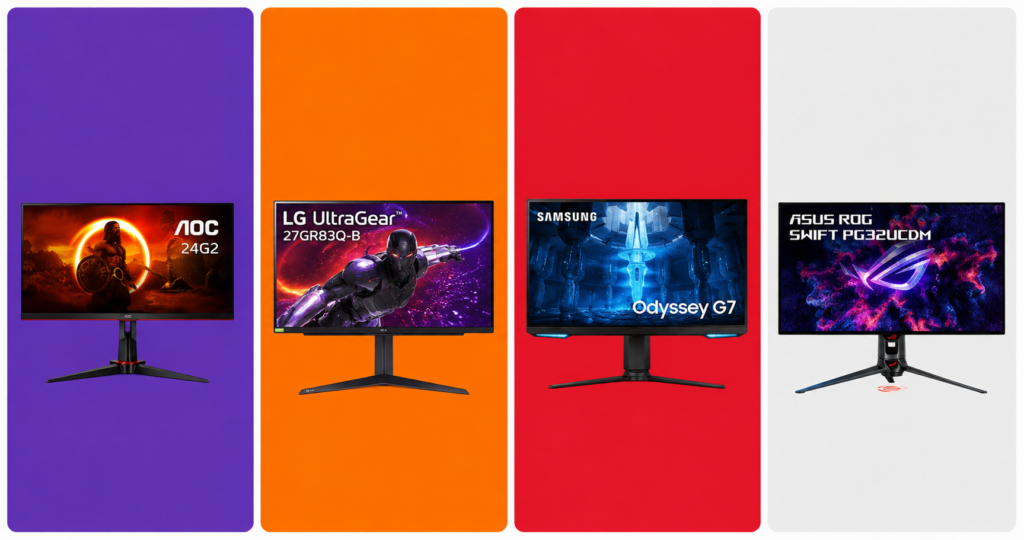
    monitores AOC24G2, LG 27GR83Q-B, Samsung Odyssey G7 e ASUS ROG Swift PG32UCDM no fundo padrão do blog
    Image for illustrative purposes only: Monitors models AOC24G2, LG 27GR83Q-B, Samsung Odyssey G7 e ASUS PG32UCDM

    Your monitor is the window to every game you play. No other upgrade delivers as immediate and noticeable an improvement as going from a 60Hz standard screen to a high-refresh gaming display.

    What to Look For in 2026

    • Refresh rate: 144Hz minimum for casual play; 240Hz or higher for competitive FPS titles like Valorant and CS2
    • Resolution: 1080p for budget builds, 1440p (QHD) for the sweet spot between performance and image quality, 4K for cinematic single-player experiences
    • Panel type: IPS for color accuracy and wide viewing angles; VA for deep blacks; TN for the fastest response times
    • Response time: 1ms is ideal for competitive gaming
    • HDR: HDR400 is the entry point; HDR600 and above actually makes a visible difference

    Our Picks by Budget

    🥉 Starter (~$150–$180) The AOC 24G2 remains one of the best value 1080p 144Hz IPS monitors on the market. Fast, accurate colors, and widely available. 👉 AOC 24G2 on Amazon

    🥈 Mid-Range (~$300–$380) The LG 27GR83Q-B at 27-inch 1440p 240Hz IPS hits the perfect balance for competitive and story-driven gaming alike. Stunning colors out of the box. 👉 LG 27GR83Q-B on Amzon

    🥇 Premium (~$600–$900) The Samsung Odyssey G7 32″ OLED or ASUS ROG Swift PG32UCDM deliver a jaw-dropping 4K experience with ultra-fast refresh rates for serious enthusiasts. 👉 Samsung Odyssey G7 / ASUS ROG Swift on Amazon

    Pro Tip: Always prioritize refresh rate over resolution if you play competitive multiplayer games. A 1080p 240Hz monitor will beat a 4K 60Hz screen for your kill-death ratio every single time.


    🪑 2. Gaming Chair: Your Back Will Thank You

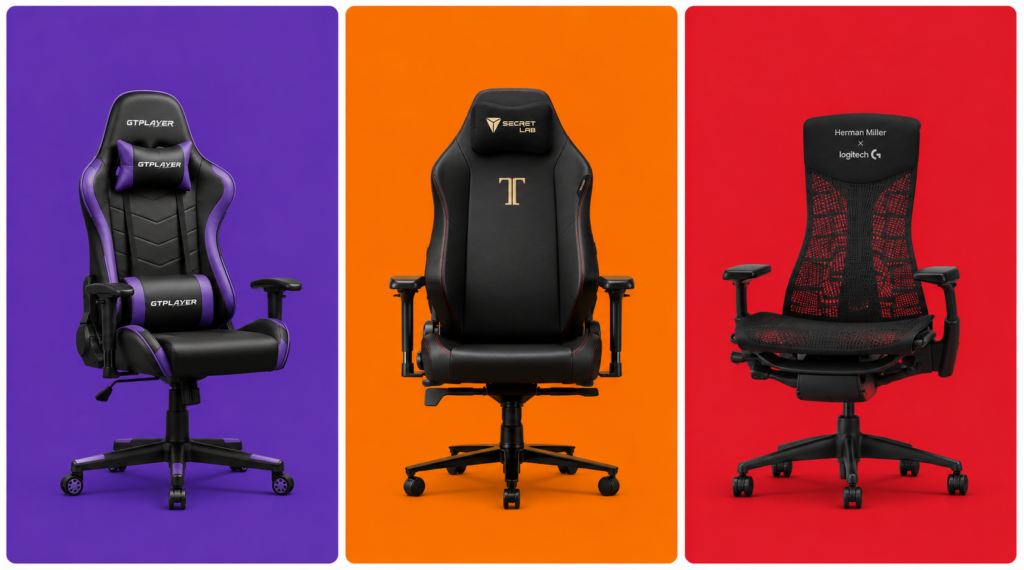
    cadeiras GTPLAYER Gaming Chair, Secretlab Titan Evo e Herman Miller x Logitech Embody no fundo padrão do blog
    Image for illustrative purposes only: Models GTPLAYER, Secretlab Titan Evo and Herman Miller Embody

    After spending thousands on a PC and monitor, most gamers cheap out on their chair — and then spend years dealing with lower back pain. Don’t be that person.

    What to Look For

    • Lumbar support: Adjustable, ideally with a separate pillow or built-in curve
    • Armrest adjustability: 4D armrests (up/down, side/side, forward/back, pivot) are the gold standard
    • Seat depth and width: Make sure it fits your body type
    • Material: Fabric breathes better than PU leather; PU leather is easier to clean
    • Tilt and recline: Look for at least 120–160° recline for gaming sessions that run long

    Our Picks by Budget

    🥉 Starter (~$150–$200) The GTPLAYER Gaming Chair offers surprisingly solid lumbar support and build quality at a very accessible price for a first gaming chair. 👉 GTPLAYER Gaming Chair on Amazon

    🥈 Mid-Range (~$350–$500) The Secretlab Titan Evo is the most recommended chair in the gaming community for a reason — impeccable build quality, cold-cure foam that doesn’t flatten after a year, and genuinely good ergonomics. Available in multiple sizes (Small, Regular, XL). 👉 Secretlab Titan Evo on Amazon

    🥇 Premium (~$700–$1,400) If you want to go full professional, the Herman Miller x Logitech Embody blends Herman Miller’s legendary ergonomics with gaming-specific design. Built to last 12+ years. 👉 Herman Miller Embody Gaming — Herman Miller or Amazon

    Pro Tip: Measure your desk height before buying a chair. Ideally your elbows should rest at a 90° angle while your feet are flat on the floor. Add a footrest (~$30 on Amazon) if your desk isn’t height-adjustable.


    🗂️ 3. Gaming Desk: Your Command Center

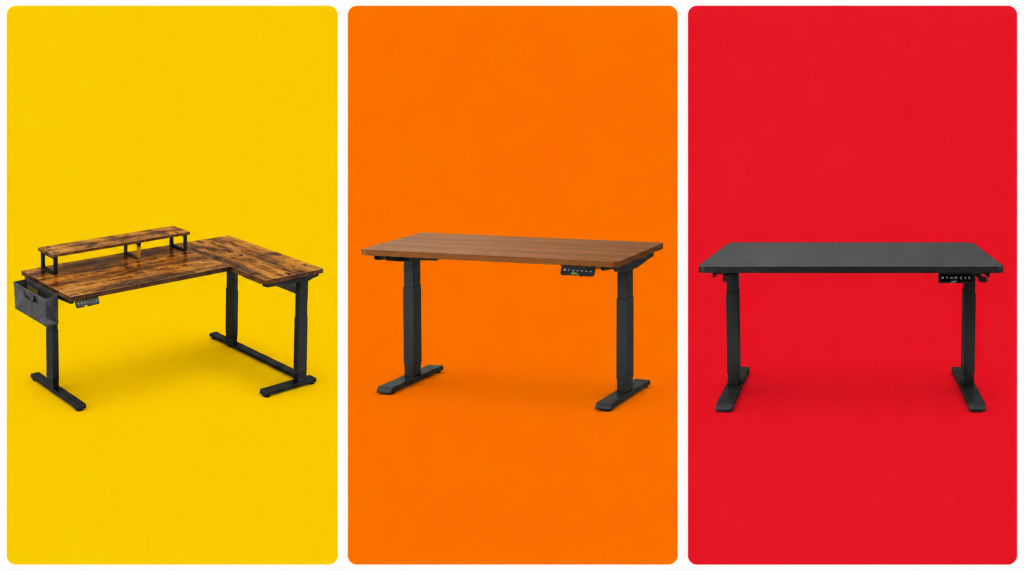
    mesas Bestier L-Shaped Desk, Flexispot E7 e Uplift V2 Commercial no fundo padrão do blog
    Image for illustrative purposes only: Desks models Bestier L-Shaped, Flexispot E7 and Uplift V2

    Your desk anchors the entire setup. In 2026, the biggest trend is the rise of sit-stand desks (also called standing desks), which have moved from office furniture into gaming setups thanks to their flexibility and health benefits.

    What to Look For

    • Size: At minimum 55 inches wide for a dual-monitor or ultrawide setup; 63+ inches if you want room to spare
    • Depth: 27–30 inches gives you proper monitor distance without feeling cramped
    • Cable management: Built-in grommets, under-desk trays, or cable channels are hugely valuable for keeping things clean
    • Weight capacity: If you’re mounting multiple monitors or a heavy setup, check the load rating
    • Motorized vs. fixed: A height-adjustable electric desk changes your life if you also work from home

    Our Picks by Budget

    🥉 Starter (~$80–$130) The Bestier L-Shaped Desk gives you maximum surface space at a budget price. Solid for most setups. Cable grommets included. 👉 Bestier L-Shaped Desk on Amazon

    🥈 Mid-Range (~$300–$450) The Flexispot E7 is the go-to recommendation for gamers who want a motorized sit-stand desk without breaking the bank. Dual-motor system, quiet, and rock solid at full height. 👉 Flexispot E7 on Amazon or Flexispot.com

    🥇 Premium (~$800–$1,200) The Uplift V2 Commercial or Autonomous SmartDesk Pro represent the premium tier — deeper customization, better build materials, and longer warranties. Worth it if you’ll be at your desk 8+ hours a day. 👉 Uplift V2 on Amazon


    🖱️ 4. Peripherals: Mouse, Keyboard & Headset

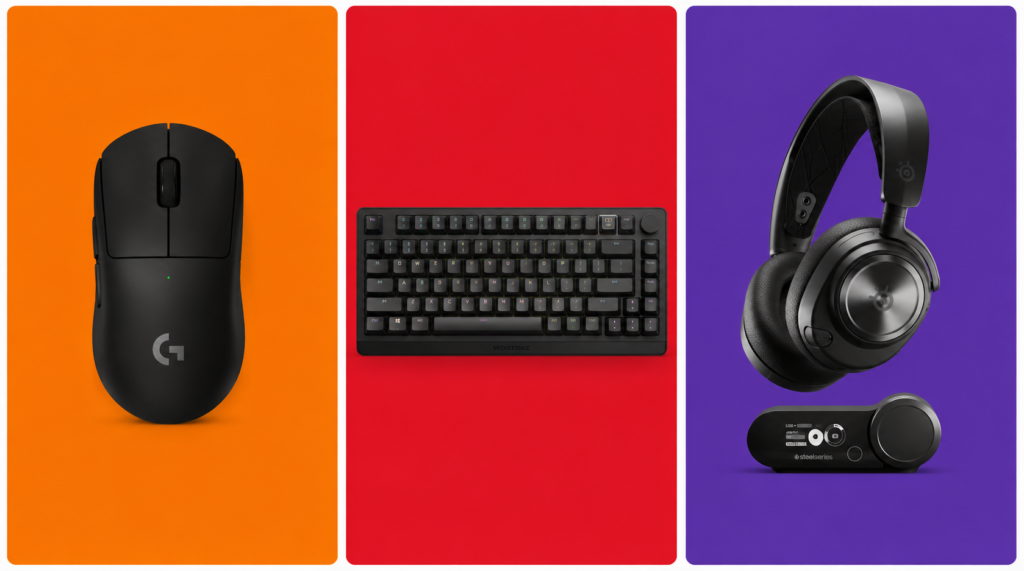
    mouse Logitech G Pro X Superlight 2, teclado Wooting 80HE e headset SteelSeries Arctis Nova Pro no fundo padrão blog
    Image for illustrative purposes only: Models Mouse Logitech G Pro X, Keyboard Wooting 80HE and SteelSeries Arctis Nova Pro headset

    No gaming setup is complete without a great set of peripherals. These directly impact your performance and comfort every single session.

    Gaming Mouse

    Look for a mouse with a high-quality optical sensor, a weight that fits your grip style, and wireless if your budget allows (wireless gaming mice in 2026 have zero perceptible lag).

    Starter (~$30–$50): Logitech G305 — Wireless, lightweight, 12,000 DPI sensor. Unbeatable value. 👉 Logitech G305 on Amazon

    Mid-Range (~$80–$110): Razer DeathAdder V3 HyperSpeed — Ergonomic masterclass, ultra-accurate sensor, up to 300 hours battery life. 👉 Razer DeathAdder V3 on Amazon or Razer.com

    Premium (~$150–$160): Logitech G Pro X Superlight 2 — The choice of top esports professionals. 60g, HERO 2 sensor, virtually flawless tracking. 👉 Logitech G Pro X Superlight 2 on Amazon

    Gaming Keyboard

    Starter (~$40–$60): Redragon K552 Kumara — Compact TKL layout, clicky blue switches, solid build for the price. 👉 Redragon K552 on Amazon

    Mid-Range (~$130–$170): Razer Huntsman V3 Pro — Analog optical switches with rapid trigger support. A must-have for competitive FPS players. 👉 Razer Huntsman V3 Pro on Amazon

    Premium (~$200–$250): Wooting 80HE — Hall effect rapid trigger, USB polling at 8000Hz, and a devoted esports following. The technical ceiling of mechanical keyboards in 2026. 👉 Wooting 80HE on Amazon

    Gaming Headset

    Starter (~$50–$70): HyperX Cloud Stinger 2 — Comfortable, decent sound stage, plug-and-play. Great for beginners. 👉 HyperX Cloud Stinger 2 on Amazon

    Mid-Range (~$130–$180): SteelSeries Arctis Nova 7 — Wireless, 38-hour battery, solid surround sound. Works on PC, PS5, Switch 2, and mobile. 👉 SteelSeries Arctis Nova 7 on Amazon

    Premium (~$280–$350): SteelSeries Arctis Nova Pro Wireless — Dual wireless (2.4GHz + Bluetooth), swappable battery system, and active noise cancellation. The flagship for serious gamers. 👉 SteelSeries Arctis Nova Pro Wireless on Amazon


    💡 5. RGB Lighting: Set the Mood, Reduce Eye Strain

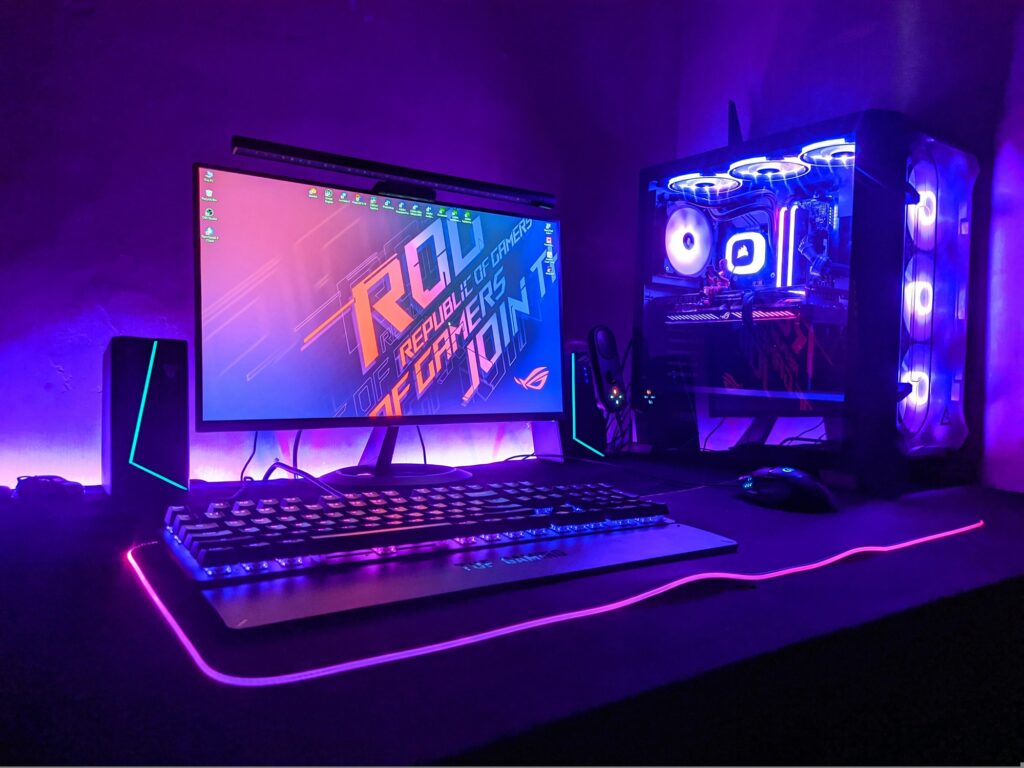
    Foto gaming setup

    RGB gets a bad reputation for being purely cosmetic, but proper ambient lighting in a gaming room actually reduces eye strain significantly by balancing the brightness difference between your monitor and the surrounding environment.

    Must-Have Lighting Pieces

    Bias Lighting (behind your monitor): The Govee TV Backlight strips are affordable, sync with your on-screen content via camera or HDMI passthrough, and create a stunning halo effect that makes colors pop. 👉 Govee TV Backlight T2 on Amazon

    Desk LED Strip: Govee M1 RGBIC Strips or Philips Hue Play Gradient offer millions of color combinations and app control for full customization. 👉 Govee M1 / Philips Hue Play on Amazon

    Smart Key Light / Ring Light (for streamers): The Elgato Key Light Air is the industry standard for clean, even lighting that makes your face look professional on stream or video calls. 👉 Elgato Key Light Air on Amazon

    Pro Tip: Set your bias lighting to a warm white or soft blue (~5500–6500K) during long sessions. It’s much easier on the eyes than pure RGB cycling effects, which look great in photos but cause fatigue over time.


    🔌 6. Don’t Forget These Essentials

    These are the often-overlooked items that complete a serious gaming setup:

    Monitor Arm (~$30–$120): Frees up desk space and puts your screen at the perfect ergonomic height. The Ergotron LX is the community favorite. 👉 Ergotron LX on Amazon

    Gaming Router (~$100–$300): For competitive online gaming, a Wi-Fi 6E or Wi-Fi 7 router makes a real difference. The ASUS ROG Rapture GT-BE98 is the top-tier pick for dedicated gamers. 👉 ASUS ROG Rapture on Amazon

    UPS / Surge Protector: Protect your entire setup from power surges and unexpected outages. The APC Back-UPS Pro 1500VA is a reliable, trusted option. 👉 APC Back-UPS Pro on Amazon

    XL Mousepad (~$20–$40): A large desk mat unifies your setup aesthetically and gives your mouse consistent tracking across the entire desk. The SteelSeries QcK XXL is the most popular choice among competitive players. 👉 SteelSeries QcK XXL on Amazon


    🏆 Full Setup Recommendations by Budget

    🥉 Starter Setup — ~$500

    ItemPickPrice
    MonitorAOC 24G2 (1080p 144Hz)~$160
    ChairHomall Gaming Chair~$180
    DeskBestier L-Shaped~$110
    MouseLogitech G305~$35
    KeyboardRedragon K552~$45
    HeadsetHyperX Cloud Stinger 2~$50
    MousepadAmazon Basics XL~$15
    Total~$595

    🥈 Mid-Range Setup — ~$1,100

    ItemPickPrice
    MonitorLG 27GP850-B (1440p 165Hz)~$330
    ChairSecretlab Titan Evo~$450
    DeskFlexispot E7 (standing desk)~$370
    MouseRazer DeathAdder V3 HyperSpeed~$90
    KeyboardRazer Huntsman V3 Pro~$150
    HeadsetSteelSeries Arctis Nova 7~$150
    LightingGovee TV Backlight + Strips~$60
    MousepadSteelSeries QcK XXL~$30
    Total~$1,630

    🥇 Premium Setup — ~$2,500+

    ItemPickPrice
    MonitorSamsung Odyssey G7 32″ OLED~$800
    ChairHerman Miller x Logitech Embody~$995
    DeskUplift V2 Commercial~$950
    MouseLogitech G Pro X Superlight 2~$155
    KeyboardWooting 80HE~$220
    HeadsetSteelSeries Arctis Nova Pro Wireless~$320
    LightingPhilips Hue Play Gradient + Key Light Air~$250
    Monitor ArmErgotron LX~$120
    RouterASUS ROG Rapture GT-BE98~$280
    Total~$4,090

    Final Thoughts

    Building a great gaming setup in 2026 doesn’t require spending $4,000 all at once. Start with the fundamentals — a decent monitor, a chair that won’t destroy your back, and a desk that fits your space. Then upgrade piece by piece as your budget allows.

    The single best bang-for-your-buck upgrade for most gamers is the chair. It’s the one thing you’ll feel immediately, every single session. Once you sit in a proper gaming chair with lumbar support and 4D armrests, going back is painful — literally.

    Happy gaming. Build smart.


    This post contains affiliate links. If you purchase through our links, we may earn a small commission at no extra cost to you. We only recommend products we genuinely stand behind.


    Tags: gaming setup 2026, best gaming chair, gaming desk guide, gaming monitor buying guide, RGB lighting setup, gaming peripherals, budget gaming setup, ultimate battle station

  • Som e Informação: Os Melhores Headsets Gamer Para Cada Bolso

    Som e Informação: Os Melhores Headsets Gamer Para Cada Bolso

    Analisamos tudo o que há de melhor de Headsets Gamer

    Em games competitivos, ouvir o inimigo antes de vê-lo pode ser a diferença entre a vitória e a derrota. Em jogos de aventura e história, um bom headset transforma completamente a imersão. Por isso, seja qual for o seu estilo de jogo, o headset é um dos periféricos mais importantes do seu setup — e muitas vezes o mais negligenciado.

    Em 2026, no entanto, o mercado de headsets atingiu um nível sem precedentes. Baterias que duram semanas, microfones com cancelamento de ruído impulsionado por IA e drivers que antes eram exclusivos para audiófilos agora estão na mesa dos gamers. Em outras palavras: nunca foi tão fácil encontrar um headset excelente para qualquer faixa de preço.

    Sendo assim, neste guia comparamos os melhores modelos disponíveis no Brasil em 2026, organizados por perfil e orçamento. Vamos lá.


    🎧 Antes de Comprar: O Que Realmente Importa num Headset

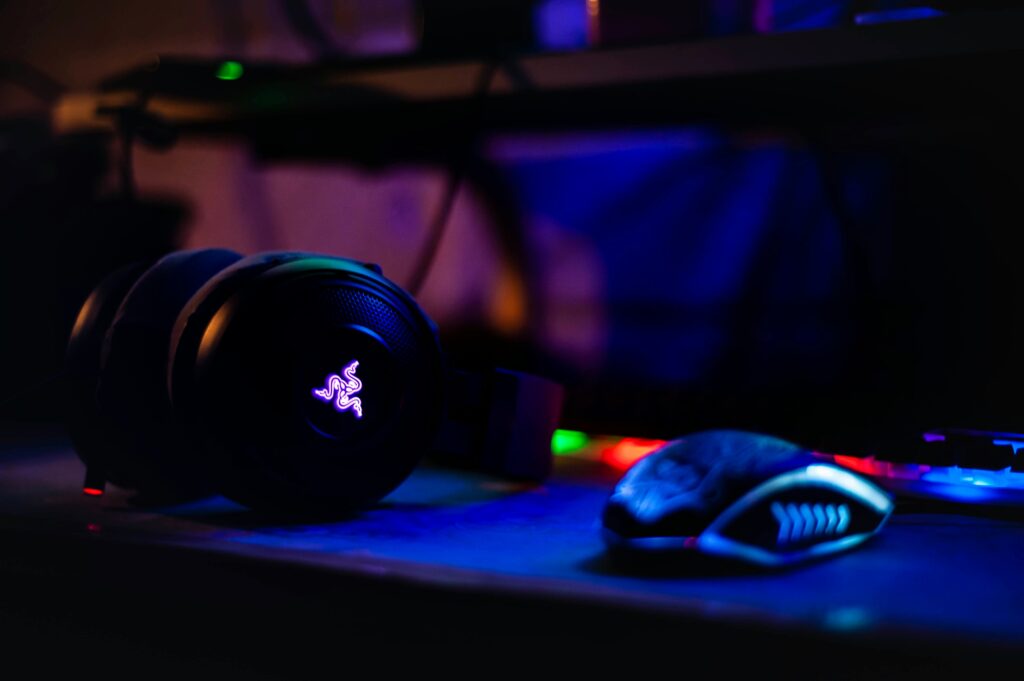
    headset gamer e mouse com fundo preto

    Antes de partir para os modelos, vale entender os critérios que separam um headset excelente de um headset apenas razoável. Afinal, o marketing da embalagem nem sempre reflete a experiência real de uso.

    Qualidade dos drivers: drivers maiores (40mm a 53mm) geralmente produzem um som mais rico e detalhado. No entanto, o tamanho não é tudo — a qualidade do material do driver importa tanto quanto o diâmetro.

    Com fio vs. sem fio: o atraso (latência) nos headsets sem fio 2.4GHz de 2026 é praticamente inexistente. Portanto, apenas evite jogar games competitivos via Bluetooth direto — prefira a conexão 2.4GHz para latência mínima garantida.

    Conforto: um headset pode ter o melhor áudio do mundo, mas se apertar suas orelhas após 40 minutos, é inútil. Procure modelos com espumas em tecido ou memory foam respirável, especialmente para sessões longas.

    Microfone: para quem joga online ou faz streams, o microfone é tão importante quanto o áudio. Modelos com microfone destacável ou flip-to-mute são os mais práticos no dia a dia.

    Compatibilidade: verifique sempre se o headset é compatível com a sua plataforma antes de comprar. Nem todo headset sem fio funciona em todos os consoles — detalhe que faz toda a diferença.


    🟢 Faixa Iniciante — Até R$ 200

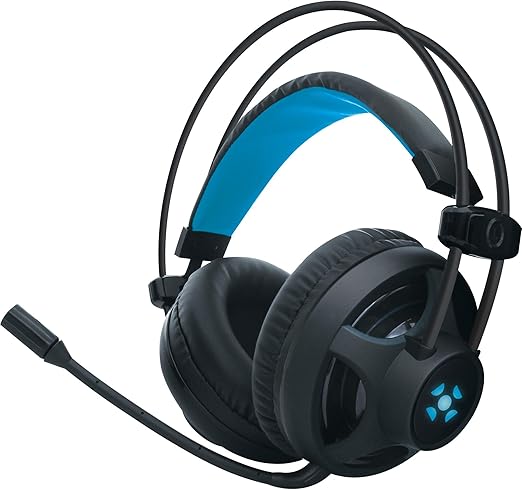
    Fortrek Pro H2 — O Mais Acessível que Funciona de Verdade

    fortrek pro com fundo branco

    Para quem busca um headset custo-benefício abaixo dos R$ 100, o Fortrek Pro H2 é uma opção bacana. Com alças flexíveis, fones acolchoados e pesando apenas 318 gramas, ele é leve e confortável, permitindo horas de uso sem desconforto. Além disso, o design moderno inclui iluminação LED azul nas laterais. Os drivers de 40mm entregam uma qualidade de áudio satisfatória para o preço.

    Para quem é: iniciantes que querem entrar no mundo dos headsets gamer sem comprometer o orçamento.

    Compare os preços (os preços podem variar dependendo de quando você acessar o site):

    👉 Fortrek Pro H2 no Amazon

    👉 Fortrek Pro H2 no Kabum!

    (Os links nesta página são de afiliados. Ao comprar através deles, você ajuda a manter o TechPlayGrid sem custo extra para você — obrigado! Dúvidas? Basta clicar no nosso Aviso de Afiliados e/ou na nossa Política de Privacidade.)


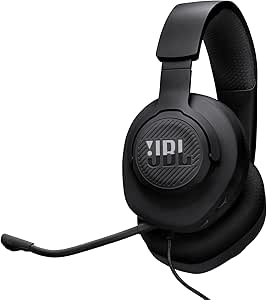
    JBL Quantum 100 — Qualidade de Marca por Menos de R$ 150

    jbl quantum 100 em fundo branco

    O headset custo-benefício JBL Quantum 100 se destaca pela combinação de áudio de qualidade e preço competitivo, sendo uma excelente escolha tanto para iniciantes quanto para gamers mais experientes. A JBL é uma das marcas de áudio mais respeitadas do mundo, e isso se reflete mesmo nas linhas de entrada.

    Para quem é: quem quer qualidade de áudio confiável de uma marca sólida sem gastar muito.

    Compare os preços:

    👉 JBL Quantum 100 no Amazon

    👉 JBL Quantum 100 no Kabum!


    🟡 Faixa Intermediária — R$ 200 a R$ 600

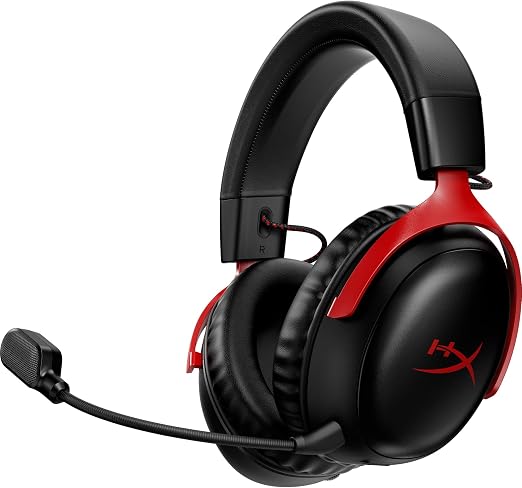
    HyperX Cloud III — O Melhor Headset Com Fio do Mercado

    hyper cloud x3 em fundo branco

    O HyperX Cloud III é ainda o headset mais confortável já testado pela Tom’s Hardware, e oferece ótimo áudio, um microfone decente e uma conexão com fio sólida — com duas formas de conectividade, algo raro entre os headsets com fio. Seus drivers de 53mm entregam um som equilibrado e detalhado, ideal tanto para games competitivos quanto para jogos de imersão.

    Para quem pode investir um pouco mais, o HyperX Cloud III é o melhor headset custo-benefício de 2026. Ele oferece excelente construção em metal, conforto absoluto com espuma de memória, áudio imersivo e microfone removível de alta qualidade, garantindo ótimo equilíbrio entre preço e desempenho.

    Para quem é: gamers que querem o melhor headset com fio disponível sem pagar preço premium.

    Compare os preços:

    👉 HyperX Cloud III no Amazon

    👉 HyperX Cloud III no Kabum!


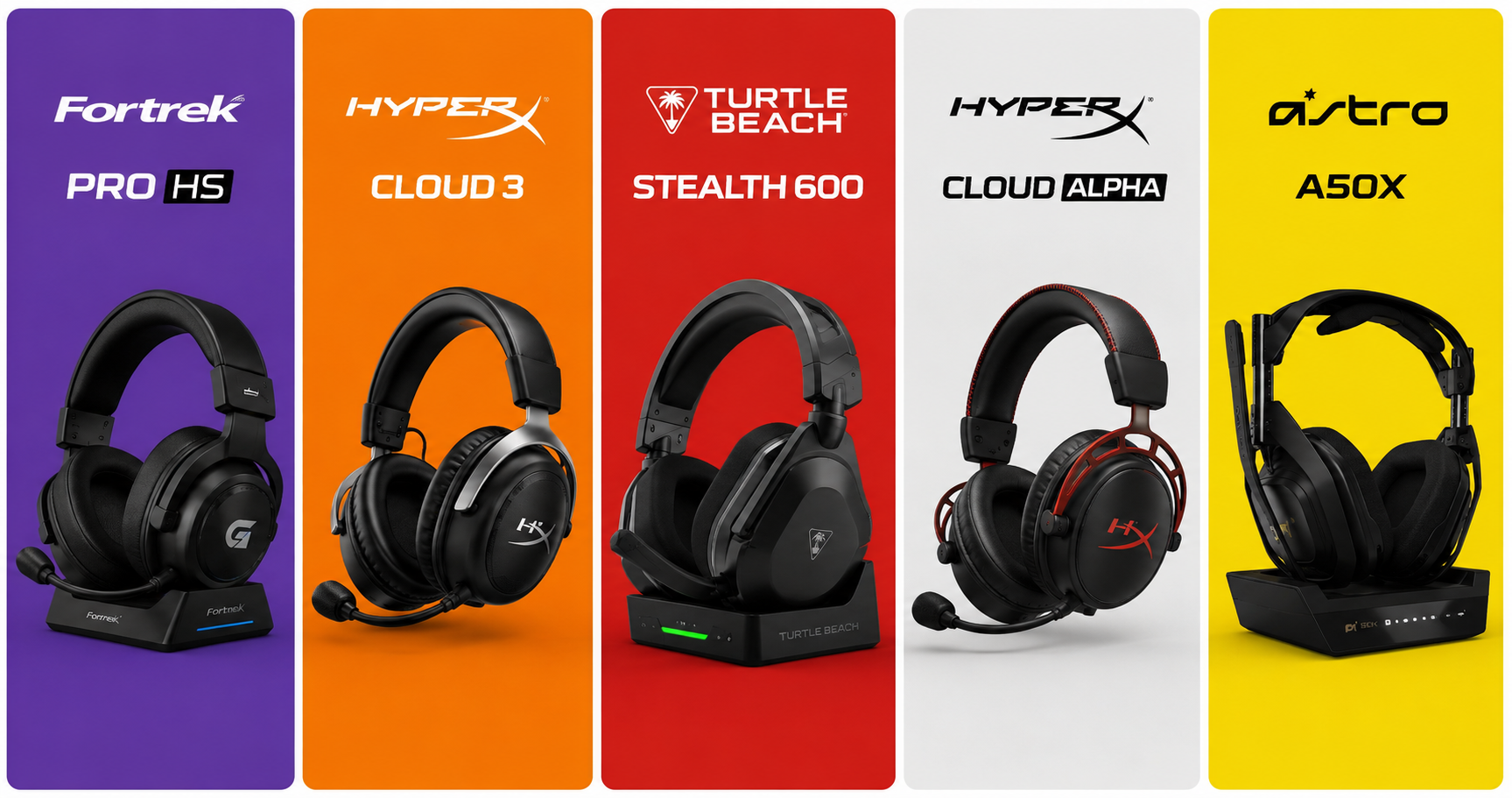
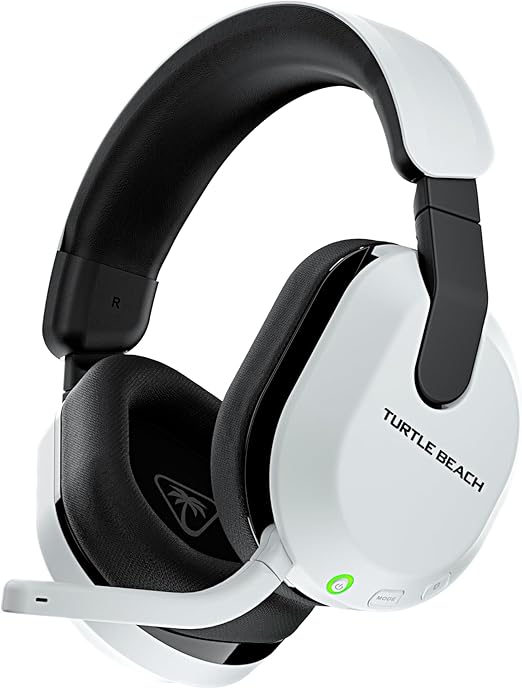
    Turtle Beach Stealth 600 Gen 3 — Melhor Sem Fio Intermediário

    turtle beach stealth em fundo branco

    O Stealth 600 Gen 3 entrega um custo-benefício excelente. Com 80 horas de bateria e um microfone flip-to-mute que usa IA para cancelar o ruído de fundo — como o teclado mecânico ou o ventilador do quarto — ele isola muito bem a sua voz. Além disso, o áudio espacial DTS Headphone:X integrado garante imersão de alto nível para um headset nessa faixa de preço.

    Para quem é: quem quer liberdade sem fio com bateria duradoura e microfone com cancelamento de ruído por IA.

    Compare os preços:

    👉 Turtle Beach Stealth 600 Gen 3 no Amazon

    👉 Turtle Beach Stealth 600 Gen 3 no Mercado Livre


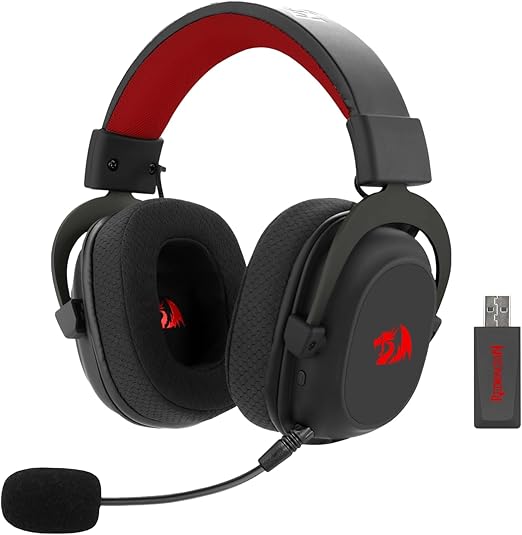
    Redragon Zeus H510-PRO — Sem Fio 7.1 com Preço Justo

    redragon zeus em fundo branco

    O Redragon Zeus H510-PRO é uma das escolhas mais equilibradas de 2026 para quem busca o melhor headset custo-benefício 7.1 sem fio. Ele reúne qualidade de som, conforto e versatilidade de conexão em um único produto, sem pesar no bolso. Com design ergonômico e moderno, o modelo oferece uma experiência confortável mesmo durante várias horas de uso, graças às almofadas macias.

    Para quem é: gamers brasileiros que querem som surround 7.1 sem fio por um preço acessível.

    Compare os preços:

    👉 Redragon Zeus H510-PRO no Amazon

    👉 Redragon Zeus H510-PRO no Kabum!


    🔴 Faixa Premium — Acima de R$ 600

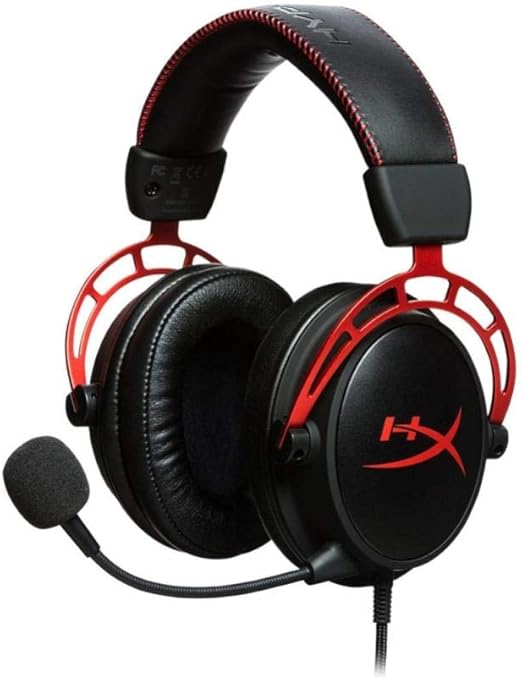
    HyperX Cloud Alpha Wireless — 300 Horas de Bateria (Isso Mesmo)

    hyperx cloud alpha

    O HyperX Cloud Alpha Wireless traz algo que nenhum concorrente conseguiu igualar: 300 horas de bateria verificadas em uma única carga — confirmadas pela SoundGuys em 327 horas de teste contínuo. Na prática, você carrega o headset uma vez por mês. Além disso, o áudio com imagem de médios precisa e o microfone flip-up confiável completam um pacote difícil de bater nessa faixa.

    Para quem é: gamers que odeiam carregar dispositivos e querem a melhor bateria do mercado — de longe.

    Compare os preços:

    👉 HyperX Cloud Alpha Wireless no Mercado Livre

    👉 HyperX Cloud Alpha Wireless no Amazon


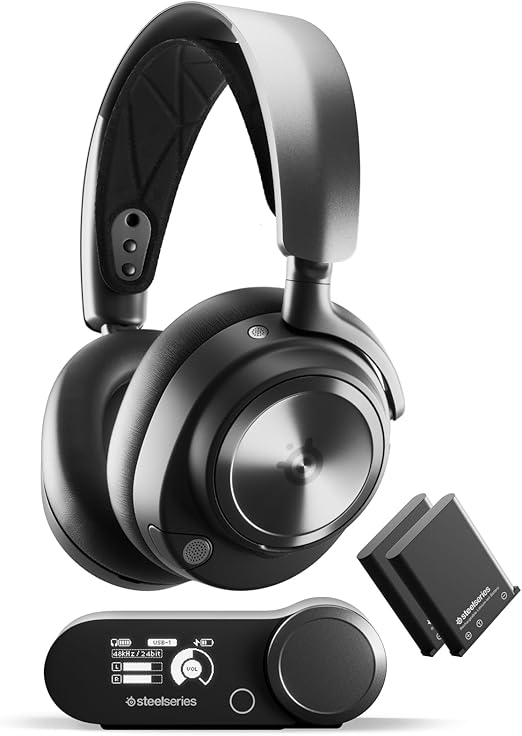
    SteelSeries Arctis Nova Pro Wireless — O Melhor Headset Gamer de 2026

    steelseries nova em fundo branco

    O SteelSeries Arctis Nova Pro Wireless é o headset mais completo de 2026: baterias duplas intercambiáveis que tornam o carregamento irrelevante, cancelamento de ruído ativo, drivers de áudio de alta resolução e conexão simultânea para múltiplos dispositivos em um único pacote premium.

    O Nova Pro Elite é equipado com drivers de fibra de carbono incrivelmente equilibrados, com sub-graves ricos e profundos, médios naturais e articulados, e agudos limpos. Nada é extremo demais — apenas execução perfeita em todo o espectro de áudio. O app SteelSeries Sonar com EQ paramétrico é o melhor software de headset disponível em 2026.

    Para quem é: gamers exigentes que querem o melhor disponível no mercado sem comprometer em nenhum aspecto.

    Compare os preços:

    👉 SteelSeries Arctis Nova Pro Wireless no Amazon

    👉 SteelSeries Arctis Nova Pro Wireless no Kabum!


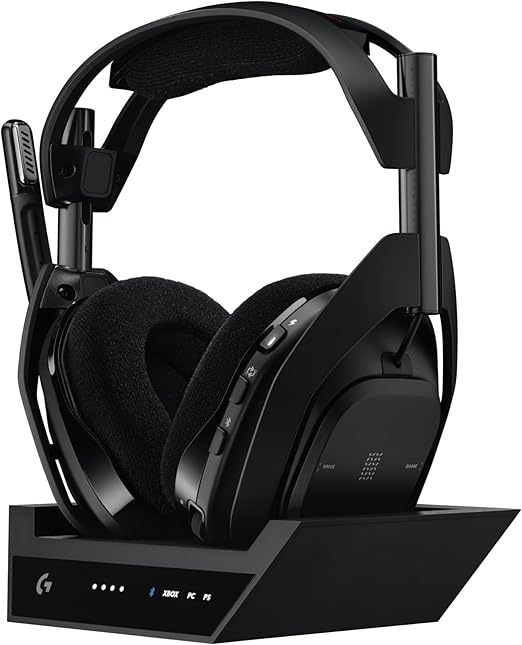
    Astro A50 X — O Centro do Seu Setup Multiplataforma

    astro a50 x em fundo branco

    O Astro A50 X resolve um problema diferente dos demais: é o único headset da lista com três portas HDMI 2.1 passthrough, permitindo que ele fique no centro do seu setup inteiro e alterne entre todas as plataformas com o apertar de um botão. Em termos de qualidade sonora, o A50 X compete com o Audeze Maxwell e o SteelSeries Arctis Nova Pro Wireless nos melhores headsets do mercado.

    Para quem é: gamers que têm PS5, Xbox e PC e querem um único headset que controla tudo sem trocar cabos.

    Compare os preços:

    👉 Astro A50 X no Amazon

    👉 Astro A50 X no Kabum! Corre que tem cupom de desconto! Use: GOL100 (com tempo de validade)


    📋 Resumo: Qual Headset Comprar em 2026?

    ModeloFio/Sem FioDestaqueFaixa de PreçoMelhor Para
    Fortrek Pro H2Com fioLevíssimo, acessívelAté R$ 100Primeiro headset gamer
    JBL Quantum 100Com fioQualidade de marcaAté R$ 150Qualidade confiável barata
    HyperX Cloud IIICom fioConforto + drivers 53mmR$ 300–400Melhor com fio do mercado
    Turtle Beach Stealth 600 G3Sem fio80h bateria + mic IAR$ 400–500Custo-benefício sem fio
    Redragon Zeus H510-PROSem fio7.1 sem fio baratoR$ 300–450Som surround acessível
    HyperX Cloud Alpha WirelessSem fio300h de bateriaR$ 600–800Quem odeia carregar
    SteelSeries Arctis Nova ProSem fioMelhor geral 2026R$ 1.200–1.500Máxima performance
    Astro A50 XSem fioHub HDMI multiplataformaR$ 1.500–2.000Setup com múltiplas plataformas

    💡 Dica Final: Headset com Fio ou Sem Fio?

    A resposta depende do seu uso. O HyperX Cloud III por volta de R$ 350 é a melhor opção com fio — melhor qualidade de driver e construção do que qualquer headset sem fio no mesmo preço. Por outro lado, se você prefere liberdade de movimento e sessões longas sem se preocupar com cabos, o investimento num sem fio de qualidade vale cada centavo.

    O mais importante, no entanto, é simples: não economize no headset se você passa horas por dia jogando. É o periférico que mais impacta tanto a sua performance competitiva quanto a sua imersão nos jogos — e um bom headset dura anos.

    💡 Montando seu setup completo? Confira também nosso guia de Setup PC Gamer: Tudo Que Você Precisa em 2026 — com configurações de PC e periféricos por faixa de preço.

    Qual headset você usa hoje? Tem alguma dúvida antes de comprar? Deixa nos comentários! 👇


    (Lembrando que os links acima são de afiliados. Ao comprar através deles não haverá nenhum custo extra pra você e ainda ajuda a manter o TechPlayGrid a trazer mais novidades. Os preços mencionados na postagem podem variar e cupons expirarem dependendo de quando você acessar o site)


    Fontes: TechTudo, Tom’s Hardware, GamesRadar, ClarityPick, StreamTechReviews, AdoroCupom, OsMelhoresdoSom, GuiadosPeriféricos

  • PC Gaming Setup: Everything You Need to Get Started

    PC Gaming Setup: Everything You Need to Get Started

    So you’ve decided to jump into the world of PC gaming. Great choice. The PC is the platform with the largest game library in the world, full compatibility with controllers, keyboard and mouse, and total freedom to customize everything your way.

    However, the first question that comes up for beginners is always the same: where do I start, and how much should I spend?

    That’s why, in this guide, we split the setup into two parts: the PC itself (the “heart” of the setup) and the peripherals (everything you plug into it). In addition, everything is organized by budget, with realistic recommendations for 2026.


    First Things First: Pre-Built or Build Your Own?

    This is the first decision you’ll need to make. Both options have their advantages and disadvantages, so it’s worth understanding each one before choosing.

    Pre-built gaming PC: more convenient and generally comes with a warranty for the whole unit, so you don’t need to understand component compatibility. On the other hand, it tends to be more expensive for the same performance — or deliver lower performance than what you want or can afford.

    Building from scratch: more cost-effective in the long run and gives you total control over your components, making future upgrades much easier. The downside, however, is that it requires research, patience, and some experience with PC assembly — or you’ll need to pay a professional to put it together.

    In short, for beginners with no hardware experience, a pre-built from a reputable retailer is a safe choice. But if you have time to do your research, building your own is absolutely worth it.


    💻 The PC: Configurations by Budget

    🟢 Entry Level — Up to US$ 500

    Yes, you can build a gaming PC in the US$ 400–500 range that runs the most popular games out there. The key, in this case, is choosing the right parts.

    Suggested build:

    • CPU: AMD Ryzen 5 5600 (~US$ 100) — 6 cores, excellent for gaming and multitasking
    • GPU: AMD RX 6600 (~US$ 120) — handles all popular games at high 1080p settings
    • RAM: 16 GB DDR4 (~US$ 40)
    • Storage: 480 GB NVMe SSD (~US$ 35) — essential; never use an HDD as your main drive
    • Motherboard: B450 or B550 compatible with Ryzen 5000 (~US$ 80)
    • Power Supply: 550W 80 Plus Bronze (~US$ 50)
    • Case: basic with good airflow (~US$ 40)

    As a result, this build runs Fortnite, Valorant, CS2, FIFA, GTA V and most popular titles at 1080p on medium to high settings.

    💡 Affiliate tip: You can often find pre-built PCs in this price range on sale. Check out the options available:


    🟡 Mid-Range — US$ 800 to US$ 1,200

    At this level, the performance jump is significant. Therefore, you can start playing demanding titles at max 1080p or at 1440p with quality settings.

    Suggested build:

    • CPU: AMD Ryzen 5 7600 (~US$ 170) — modern AM5 platform, ready for future upgrades
    • GPU: NVIDIA RTX 4060 (~US$ 300) — maxes out 1080p, with DLSS 3 and Ray Tracing support
    • RAM: 16 GB DDR5 (~US$ 70) — required, since the AM5 platform uses DDR5
    • Storage: Kingston NV2 1 TB NVMe SSD (~US$ 60)
    • Motherboard: MSI B650M Gaming Plus WIFI (~US$ 150) — comes with Wi-Fi 6E built in
    • Power Supply: Corsair CX650 650W 80 Plus Bronze (~US$ 80)
    • Cooler: Cooler Master Hyper 212 (~US$ 35)
    • Case: with good airflow (~US$ 60)

    In practical terms, this build runs every current game at max 1080p with high frame rates. Furthermore, it will handle GTA VI very comfortably (check out our full GTA VI article — everything you need to know).

    💡 Affiliate tip:


    🖥️ Peripherals: What You’ll Need

    Having a good PC is only half the setup. That’s why peripherals make all the difference in your gaming experience — and the value for money can be excellent even on a tight budget.

    Monitor

    The monitor is just as important as the graphics card. After all, there’s no point having a powerful GPU and pairing it with a 60Hz monitor with slow response times.

    For 1080p / entry level:

    • Look for at least 144Hz and an IPS or VA panel (better image quality than TN)
    • Ideal size: 24 to 27 inches
    • Price range: US$ 150 to US$ 250

    👉 144Hz gaming monitors on Amazon

    For 1440p / mid-range:

    • 165Hz or higher, IPS panel
    • Ideal size: 27 inches
    • Price range: US$ 300 to US$ 500

    Gaming Mouse

    Don’t fall into the high-DPI trap. What actually matters is the sensor quality at low DPI settings (400–1600) and ergonomics. For example, a no-name 30,000 DPI mouse will easily lose to a quality 6,400 DPI sensor in real gameplay.

    Entry level (up to US$ 30):

    • Redragon M711 Cobra — precise sensor, ergonomic design, excellent value for money
    • Redragon keyboard + mouse combo — practical for those who want everything at once

    👉 Redragon gaming mouse on Amazon

    Mid-range (US$ 30 to US$ 70):

    • Logitech G502 HERO — high-precision sensor, comfortable for long sessions
    • It’s also worth noting that the trend in 2026 is ultralight mice under 60g, which significantly reduce fatigue during long gaming sessions

    👉 Logitech G502 on Amazon


    Gaming Keyboard

    The main choice here is between a membrane keyboard (cheaper and quieter) and a mechanical keyboard (more precise, durable, and with better feel). For gaming, mechanical is always the better option — and you can get into that world for under US$ 50.

    Important tip: avoid Blue switches for gaming. The click sound is great for typing; however, the high reset point gets in the way during competitive play. For that reason, go for Red (linear, quiet) or Brown (tactile, balanced) switches instead.

    Entry level (up to US$ 50):

    • Redragon K552 Kumara — mechanical with Red switches, solid build quality, great for first-time mechanical users

    👉 Mechanical gaming keyboard on Amazon

    Mid-range (US$ 50 to US$ 120):

    • Mechanical keyboards with Red or Brown switches from brands like HyperX, Logitech, or Corsair

    Gaming Headset

    In gaming, sound is information. In other words, knowing where an enemy is coming from before you see them is a real competitive advantage. Similarly, in story-driven games, a good headset completely transforms your immersion.

    Entry level (up to US$ 50):

    • HyperX Cloud Stinger 2 — solid sound quality for the price, with a functional microphone

    👉 Gaming headset under $50 on Amazon

    Mid-range (US$ 50 to US$ 120):

    • HyperX Cloud III Wireless — excellent audio quality, wireless, with long battery life
    • In addition, look for models with 50mm drivers and 7.1 virtual surround sound support

    👉 HyperX Cloud III on Amazon


    Mousepad

    Simple, cheap, and frequently overlooked. Even so, a large extended mousepad that covers your whole desk significantly improves precision and protects your surface.

    • Speed models: more glide; therefore, better for games requiring fast aim movements
    • Control models: more friction and, for that reason, better for slow, precise movements

    👉 Extended gaming mousepad on Amazon


    🎮 What About a Controller? Do You Need One?

    It depends on your play style. For fighting, platformer, racing, and adventure games, a controller is superior to keyboard and mouse. On the other hand, for FPS and competitive games, keyboard and mouse wins by a wide margin.

    The good news is that, on PC, you can use both without any issue. The most compatible options are:

    • Xbox Series X/S controller — plug and play on Windows, no additional drivers needed
    • DualSense (PS5) — works via USB or Bluetooth, though it requires minimal setup
    • Generic USB controller — works well for platformers and fighting games

    📋 Summary: Full Setup by Budget

    ItemEntry Level (~US$ 500 total)Mid-Range (~US$ 1,200 total)
    PCRyzen 5 5600 + RX 6600Ryzen 5 7600 + RTX 4060
    Monitor24″ IPS 144Hz27″ IPS 165Hz 1440p
    MouseRedragon M711 CobraLogitech G502 HERO
    KeyboardRedragon K552 MechanicalHyperX Red/Brown Mechanical
    HeadsetHyperX Cloud Stinger 2HyperX Cloud III Wireless
    MousepadBasic extendedPremium extended

    Conclusion: Start With What You Have, Upgrade Over Time

    The most common mistake among first-time builders is wanting everything at maximum level all at once. However, it doesn’t have to be that way. You can start with a simple PC and basic peripherals and then upgrade piece by piece over time.

    In any case, there are three things you should never compromise on from day one: an SSD as your main drive (never an HDD), at least 16 GB of RAM, and a 144Hz monitor. These three factors make more of a difference in your day-to-day experience than any other upgrade.

    Everything else can be adjusted according to your preferences and your budget. Got a question about a specific part or peripheral? Drop it in the comments and we’ll help — or follow TechPlayGrid on Instagram! 👇


    (The links above are affiliate links. Buying through them supports TechPlayGrid at no extra cost to you — thank you!)

  • Setup Gamer no PC: Tudo Que Você Precisa Para Começar em 2026 (Por Faixa de Preço)

    Setup Gamer no PC: Tudo Que Você Precisa Para Começar em 2026 (Por Faixa de Preço)

    Então você decidiu entrar de vez no mundo dos games no PC. Boa escolha. O PC é a plataforma com o maior catálogo de jogos do mundo, compatibilidade com controles, teclado e mouse, e total liberdade para personalizar tudo do seu jeito.

    No entanto, a primeira dúvida que aparece para quem está começando é sempre a mesma: por onde começar e quanto gastar?

    Por isso, neste guia, a gente divide o setup em duas partes: o PC em si (o “coração” do setup) e os periféricos (tudo que você conecta nele). Além disso, tudo organizado por faixa de preço, com indicações realistas para o mercado brasileiro em 2026.


    Antes de Tudo: PC Pronto ou Montar Peça a Peça?

    Essa é a primeira decisão. Ambas as opções têm vantagens e desvantagens, portanto vale entender cada uma antes de escolher.

    PC pré-montado (gamer pronto): mais prático, geralmente vem com garantia do conjunto e você não precisa entender de compatibilidade. Por outro lado, costuma ser mais caro para a mesma performance ou entregar performance inferior ao que se deseja ter ou pode pagar.

    Montar peça a peça: é mais barato a longo prazo e oferece total controle sobre as peças, além de facilitar upgrades no futuro. A desvantagem, no entanto, é que exige pesquisa, paciência e um pouco de experiência em montagens — ou você vai ter que pagar um profissional para montar, se não tiver aquele amigo para quebrar o seu galho.

    Em resumo, para quem está começando sem experiência com hardware, um PC pré-montado de boa loja (como Pichau, KaBuM, Terabyteshop) é uma opção segura. Mas se você tem tempo para pesquisar, montar peça a peça vale muito mais a pena.


    💻 O PC: Configurações por Faixa de Preço

    🟢 Faixa Iniciante — até R$ 2.500

    Sim, dá para montar um PC gamer por volta de R$ 2.000–2.500 que roda os jogos mais populares do Brasil. A chave, nesse caso, é escolher as peças certas.

    Configuração sugerida:

    • Processador: AMD Ryzen 5 5600 (~R$ 500) — 6 núcleos, excelente para jogos e multitarefa
    • Placa de vídeo: AMD RX 6600 (~R$ 600) — roda todos os jogos populares em 1080p alto
    • Memória RAM: 16 GB DDR4 (~R$ 200)
    • Armazenamento: SSD NVMe 480 GB (~R$ 150) — essencial, não use HD como drive principal
    • Placa-mãe: B450 ou B550 compatível com Ryzen 5000 (~R$ 400)
    • Fonte: 550W 80 Plus Bronze (~R$ 250)
    • Gabinete: básico com boa ventilação (~R$ 150)

    O que roda: Como resultado, essa configuração roda Free Fire, Valorant, CS2, FIFA, GTA V e a maioria dos jogos populares em 1080p com configurações médias/altas.

    💡 Dica de afiliado: Você pode encontrar PCs pré-montados nessa faixa em promoções frequentes. Confira as opções disponíveis:

    👉 PCs gamer no Amazon.com.br


    🟡 Faixa Intermediária — R$ 3.500 a R$ 5.000

    Aqui o salto de qualidade é significativo. Sendo assim, você começa a jogar títulos mais pesados em 1080p no máximo ou em 1440p com qualidade.

    Configuração sugerida:

    • Processador: AMD Ryzen 5 7600 (~R$ 800) — plataforma AM5 moderna, compatível com futuros upgrades
    • Placa de vídeo: NVIDIA RTX 4060 (~R$ 2.200) — 1080p no máximo, com suporte a DLSS 3 e Ray Tracing
    • Memória RAM: 16 GB DDR5 (~R$ 350) — necessária, pois a plataforma AM5 usa DDR5
    • Armazenamento: SSD NVMe 1 TB Kingston NV2 (~R$ 300)
    • Placa-mãe: MSI B650M Gaming Plus WIFI (~R$ 700) — já vem com Wi-Fi 6E incluso
    • Fonte: Corsair CX650 650W 80 Plus Bronze (~R$ 550)
    • Cooler: Cooler Master Hyper 212 (~R$ 200)
    • Gabinete: com bom fluxo de ar (~R$ 250)

    O que roda: Em termos práticos, essa configuração roda todos os jogos atuais em 1080p máximo com frames altos. Além disso, o GTA VI vai rodar muito bem nessa configuração (leia o nosso artigo sobre GTA VI – Saiba tudo sobre).

    💡 Dica de afiliado:


    🖥️ Periféricos: O Que Você Vai Precisar

    Ter um bom PC é só metade do setup. Por isso, os periféricos fazem toda a diferença na experiência de jogo — e o custo-benefício pode ser excelente mesmo com orçamento limitado.

    Monitor

    O monitor é tão importante quanto a placa de vídeo. Afinal, não adianta ter uma GPU potente e usar um monitor de 60Hz com tempo de resposta lento.

    Para 1080p / iniciante:

    • Busque ao menos 144Hz e painel IPS ou VA (imagem melhor que TN)
    • Tamanho ideal: 24 a 27 polegadas
    • Faixa de preço: R$ 700 a R$ 1.200

    👉 Monitores gamer 144Hz no Amazon

    Para 1440p / intermediário:

    • 165Hz ou mais, painel IPS
    • Tamanho ideal: 27 polegadas
    • Faixa de preço: R$ 1.500 a R$ 2.500

    Mouse Gamer

    Não caia na armadilha do DPI alto. O que realmente importa é a qualidade do sensor em DPIs baixos (400–1600) e a ergonomia. Por exemplo, um mouse de 30.000 DPI de marca desconhecida perde feio para um de 6.400 DPI de qualidade.

    Iniciante (até R$ 150):

    • Redragon Cobra M711 — sensor preciso, design ergonômico, ótimo custo-benefício
    • Kit Redragon teclado + mouse — prático para quem quer tudo de uma vez

    👉 Mouse Redragon no Amazon

    Intermediário (R$ 150 a R$ 350):

    • Logitech G502 HERO — sensor de alta precisão, confortável para longas sessões
    • Vale destacar que a tendência de 2026 são os mouses ultraleves abaixo de 60g, que reduzem a fadiga em longas sessões

    👉 Mouse Logitech G502 no Amazon


    Teclado Gamer

    A grande divisão aqui é entre teclado de membrana (mais barato e silencioso) e teclado mecânico (mais preciso, durável e com sensação melhor). Para gaming, o mecânico é sempre superior — e você consegue entrar nesse mundo por menos de R$ 200.

    Dica importante: evite switches Blue para jogos. O barulho do clique é ótimo para digitação; no entanto, o ponto de reset alto atrapalha em jogos competitivos. Por isso, prefira switches Red (linear, silencioso) ou Brown (tátil, equilibrado).

    Iniciante (até R$ 200):

    • Redragon Dark Avenger — semi-mecânico, boa durabilidade, bom para quem está migrando de membrana

    👉 Teclado mecânico gamer no Amazon

    Intermediário (R$ 200 a R$ 500):

    • Teclados com switches Red ou Brown de marcas como Redragon, HyperX, Logitech ou Corsair

    Headset Gamer

    No mundo dos games, som é informação. Ou seja, saber de onde vem um inimigo antes de vê-lo é uma vantagem real em qualquer jogo competitivo. Da mesma forma, nos jogos de história, um bom headset transforma completamente a imersão.

    Iniciante (até R$ 200):

    • Havit HV-H2232d — boa qualidade sonora para o preço, com microfone funcional

    👉 Headset gamer até R$ 200 no Amazon

    Intermediário (R$ 200 a R$ 500):

    • HyperX Cloud III Wireless — excelente qualidade de áudio, sem fio, bateria de longa duração
    • Além disso, busque modelos com drivers de 50mm e suporte a som surround 7.1 virtual

    👉 HyperX Cloud III no Amazon


    Mousepad

    Simples, barato e frequentemente esquecido. Mesmo assim, um mousepad de tamanho grande (extended) que cubra toda a mesa melhora muito a precisão e protege a superfície.

    • Modelos Speed: deslizam mais, são bons para jogos de mira rápida
    • Modelos Control: têm mais atrito e, por isso, são melhores para movimentos lentos e precisos

    👉 Mousepad gamer extended no Amazon


    🎮 E o Controle? Precisa?

    Depende do seu estilo de jogo. Para jogos de luta, plataforma, corrida e aventura, o controle é superior ao teclado/mouse. Por outro lado, para FPS e jogos competitivos, o teclado/mouse vence com folga.

    A boa notícia é que, no PC, você pode usar os dois sem problema. Os controles mais compatíveis são:

    • Xbox Series X/S — plug and play no Windows, sem necessidade de driver adicional
    • DualSense (PS5) — funciona via USB ou Bluetooth, porém exige configuração mínima
    • Controle genérico USB — funciona para jogos de plataforma e luta

    📋 Resumo: Setup Completo por Faixa de Preço

    ItemIniciante (até R$ 2.500 total)Intermediário (R$ 5.000+ total)
    PCRyzen 5 5600 + RX 6600Ryzen 5 7600 + RTX 4060
    Monitor24″ IPS 144Hz27″ IPS 165Hz 1440p
    MouseRedragon Cobra M711Logitech G502 HERO
    TecladoRedragon semi-mecânicoMecânico Red/Brown HyperX
    HeadsetHavit HV-H2232dHyperX Cloud III Wireless
    MousepadExtended básicoExtended premium

    Conclusão: Comece Com o Que Tem, Evolua Com o Tempo

    O erro mais comum de quem está montando o primeiro setup é querer tudo de uma vez no nível máximo. No entanto, não precisa ser assim. Você pode começar com um PC simples e periféricos básicos e, em seguida, ir evoluindo peça por peça ao longo do tempo.

    Em todo caso, o que não dá para abrir mão desde o começo são três itens: um SSD como drive principal (nunca HD), pelo menos 16 GB de RAM e um monitor de 144Hz. Esses três fatores fazem mais diferença na experiência do dia a dia do que qualquer outro upgrade.

    O resto é ajustar conforme o seu gosto e o seu bolso.

    Tem dúvida sobre alguma peça ou periférico específico? Deixa nos comentários que a gente responde ou siga o Tech Play Grid no Instagram! 👇


    (Os links acima são de afiliado. Ao comprar através deles, você ajuda a manter o TechPlayGrid sem custo extra para você — obrigado!)