Se você ainda joga em um monitor convencional de 60Hz, você está fisicamente em desvantagem. Em jogos competitivos como Valorant, CS2 e Call of Duty, a fluidez da imagem dita o tempo da sua reação. Jogar a 60 quadros por segundo já não é aceitável para quem busca subir de rank.
A boa notícia é que o mercado brasileiro amadureceu muito e recebeu novas opções incríveis e acessíveis. Se você quer o melhor custo-benefício para o seu setup gamer, focar na faixa de 144Hz a 180Hz é o caminho ideal. Neste guia, vamos analisar os melhores monitores disponíveis no Brasil por abaixo de R$ 1.200 (abaixo de mil e duzentos reais), focando em opções confiáveis na Amazon e KaBuM!.
⚠️ Aviso de Afiliados: O TechPlayGrid é financiado pelos leitores. Quando você compra através dos nossos links, podemos ganhar uma comissão de afiliado sem custo extra para você.
Lembre-se, os produtos sugeridos aqui estão sujeitos aos estoques das lojas e os preços podem sofrer variações após a publicação dessa postagem.
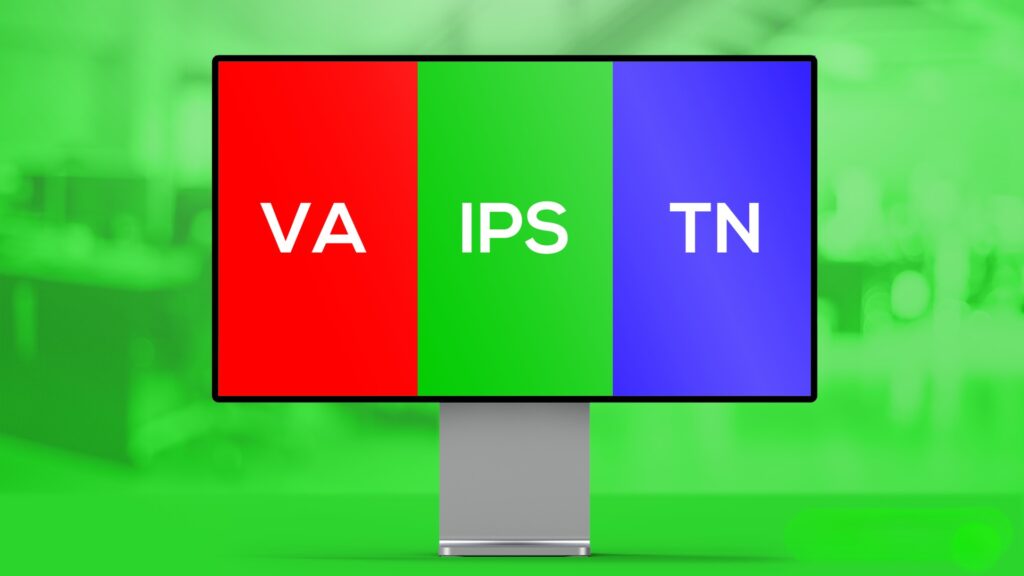
Tipos de Painel: IPS vs VA vs TN
Créditos da Imagem: Tecnoblog
Antes de comprar, você precisa entender a sopa de letrinhas das telas. O tipo de painel define a qualidade da imagem:
Painel TN: Eram os reis da velocidade (baixo tempo de resposta), mas possuem cores lavadas e ângulos de visão horríveis. Hoje em dia, estão obsoletos.
Painel VA: Excelentes para contraste. O preto é realmente escuro, ótimo para jogos de terror e filmes. O problema é que painéis VA baratos sofrem de Black Smearing (um rastro escuro em cenas rápidas).
Painel IPS: O queridinho atual. Oferece cores vibrantes, ângulos de visão perfeitos e, nas gerações atuais, tempos de resposta ultrarrápidos (1ms). É a recomendação principal para 90% dos usuários.
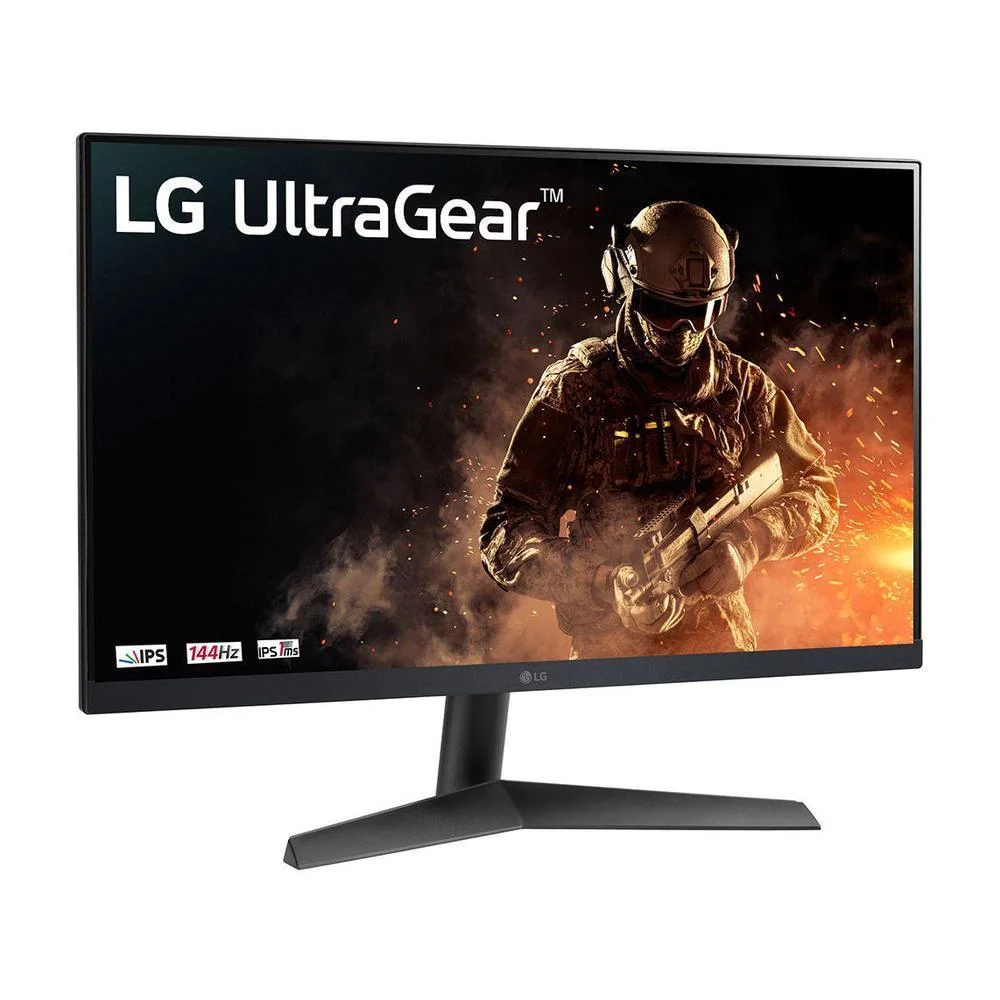
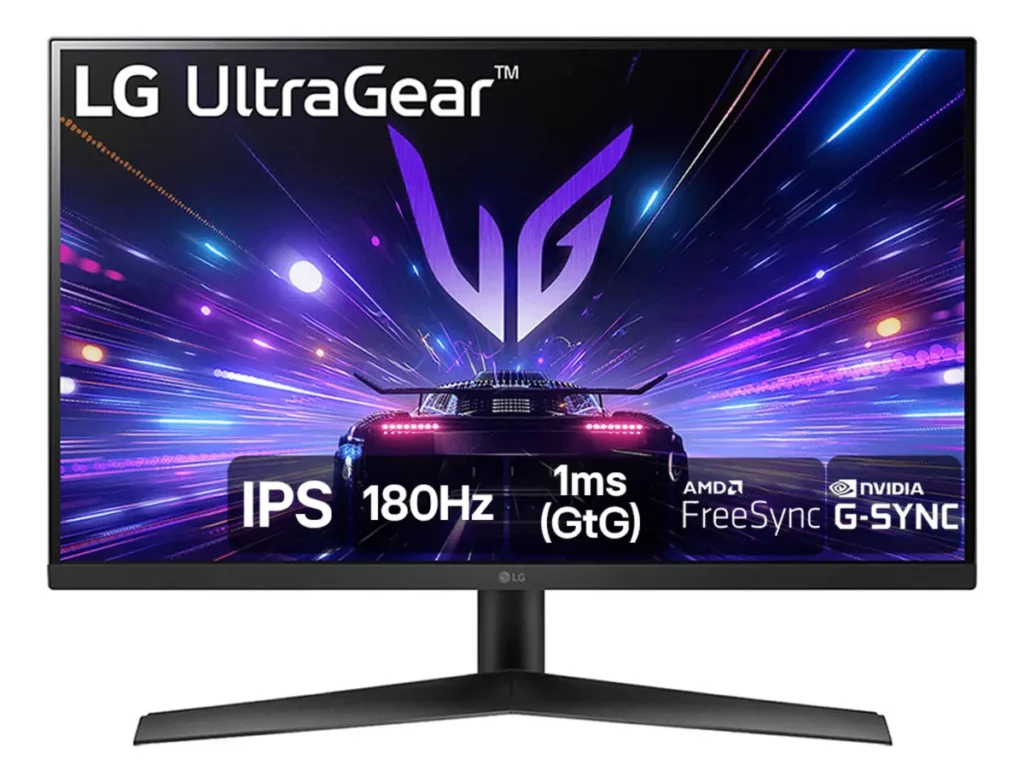
O Campeão Consolidado: LG UltraGear 24″
Imagem meramente ilustrativa. Modelo: LG UltraGear 24GN60R-B
A linha UltraGear da LG dominou o mercado brasileiro nos últimos anos, e por um bom motivo.
Desempenho e Qualidade
O modelo de 24 polegadas (24GN60R) traz um painel IPS de excelente qualidade, 144Hz nativos e 1ms de tempo de resposta. A calibração de cores de fábrica da LG é fantástica, o que significa que o jogo já fica lindo logo que sai da caixa. Ele suporta AMD FreeSync Premium, eliminando quebras de imagem na tela. O único ponto negativo é o suporte de mesa, que não possui ajuste de altura (apenas inclinação).
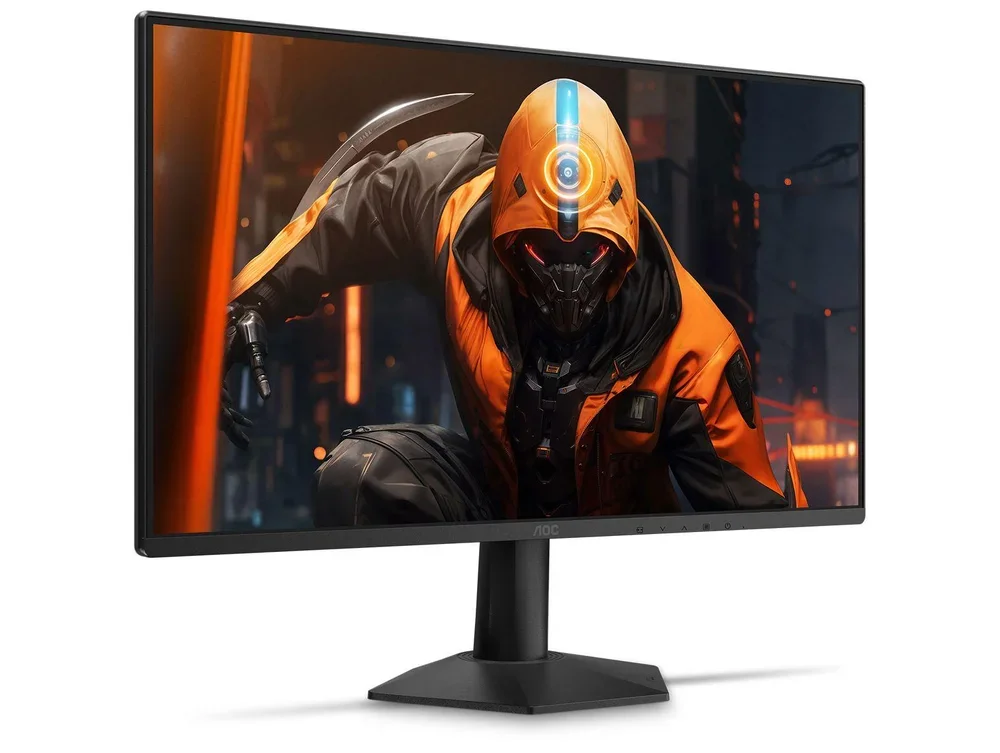
A AOC é a maior rival da LG nessa categoria de entrada.
Desempenho e Qualidade
O AOC Hero de 24 polegadas (24G2) também usa um painel IPS de 144Hz. A grande vantagem do AOC sobre o LG é a sua base. O suporte que vem na caixa é incrivelmente ergonômico, permitindo ajuste de altura, rotação e inclinação—algo raro nessa faixa de preço. As cores tendem a ser um pouco mais saturadas por padrão, o que agrada muitos gamers.
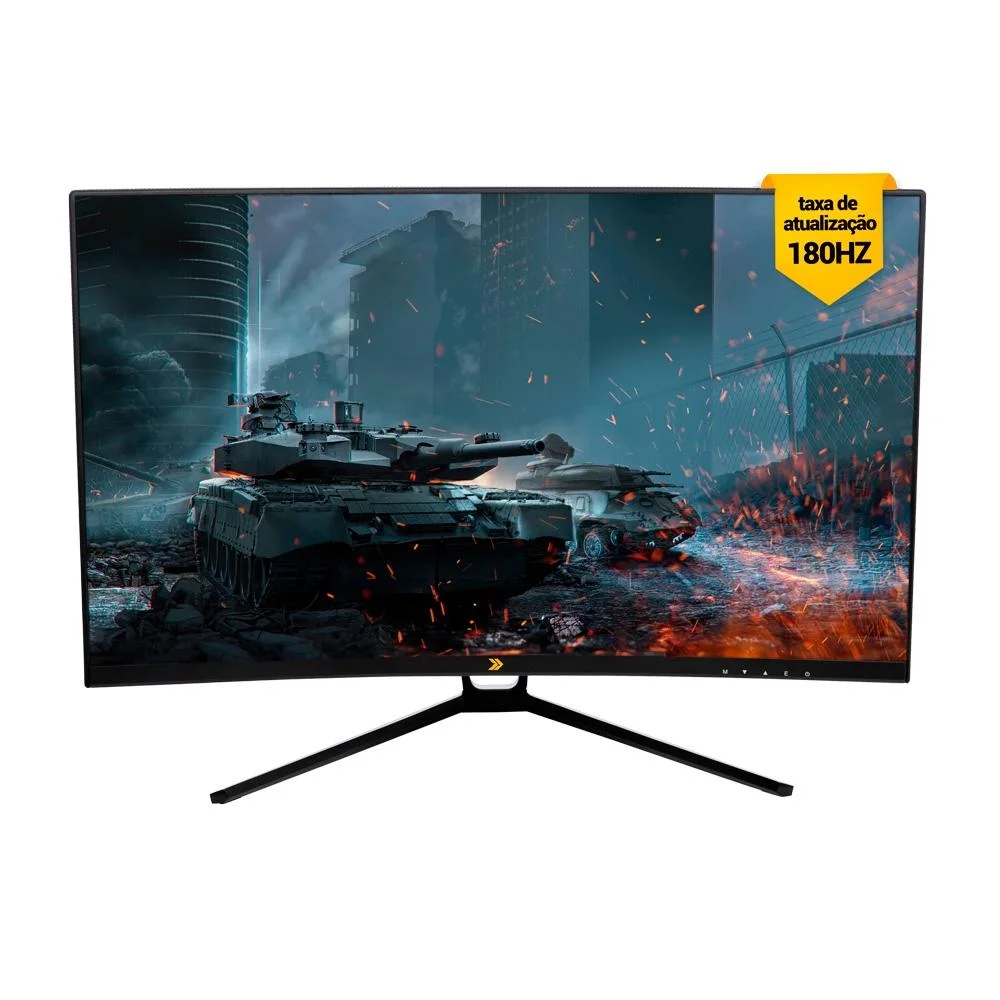
Se você busca uma tela maior com taxa de atualização ainda mais alta sem estourar o orçamento, a marca própria da KaBuM! surge como uma forte candidata.
Desempenho e Qualidade
O monitor KBM! Gaming de 27 polegadas se destaca por entregar impressionantes 180Hz de taxa de atualização, oferecendo uma vantagem de fluidez superior para quem foca em eSports competitivos. Ele utiliza um painel VA focado em alto nível de contraste, entregando pretos mais profundos e marcantes, sendo perfeito para quem ama jogar em ambientes escuros ou curtir campanhas com visuais sombrios.
Onde Comprar: Encontrado com exclusividade e ótimas condições de frete na [KaBuM!].
Comparativo Direto
Modelo do Monitor
Taxa de Atualização
Tipo de Painel
Ajuste de Altura
Vantagem Principal
AOC Hero 24″
144Hz
IPS
Sim
Base ergonômica excelente
LG UltraGear 24″
144Hz
IPS
Não
Qualidade de imagem e cores
KBM! Gaming 27″
180Hz
VA
Sim
Tela maior, preço agressivo
Dicas para Configurar seu Novo Monitor
Muitos gamers compram um monitor de 144Hz, ligam no PC e passam anos jogando a 60Hz sem saber. Para evitar isso:
Use o cabo DisplayPort incluído na caixa (o HDMI antigo pode limitar a taxa).
No Windows, vá em Configurações de Exibição > Configurações Avançadas.
Certifique-se de alterar a taxa de atualização no menu suspenso para 144Hz.
Perguntas Frequentes (FAQ)
Devo escolher 24 ou 27 polegadas para Full HD (1080p)?
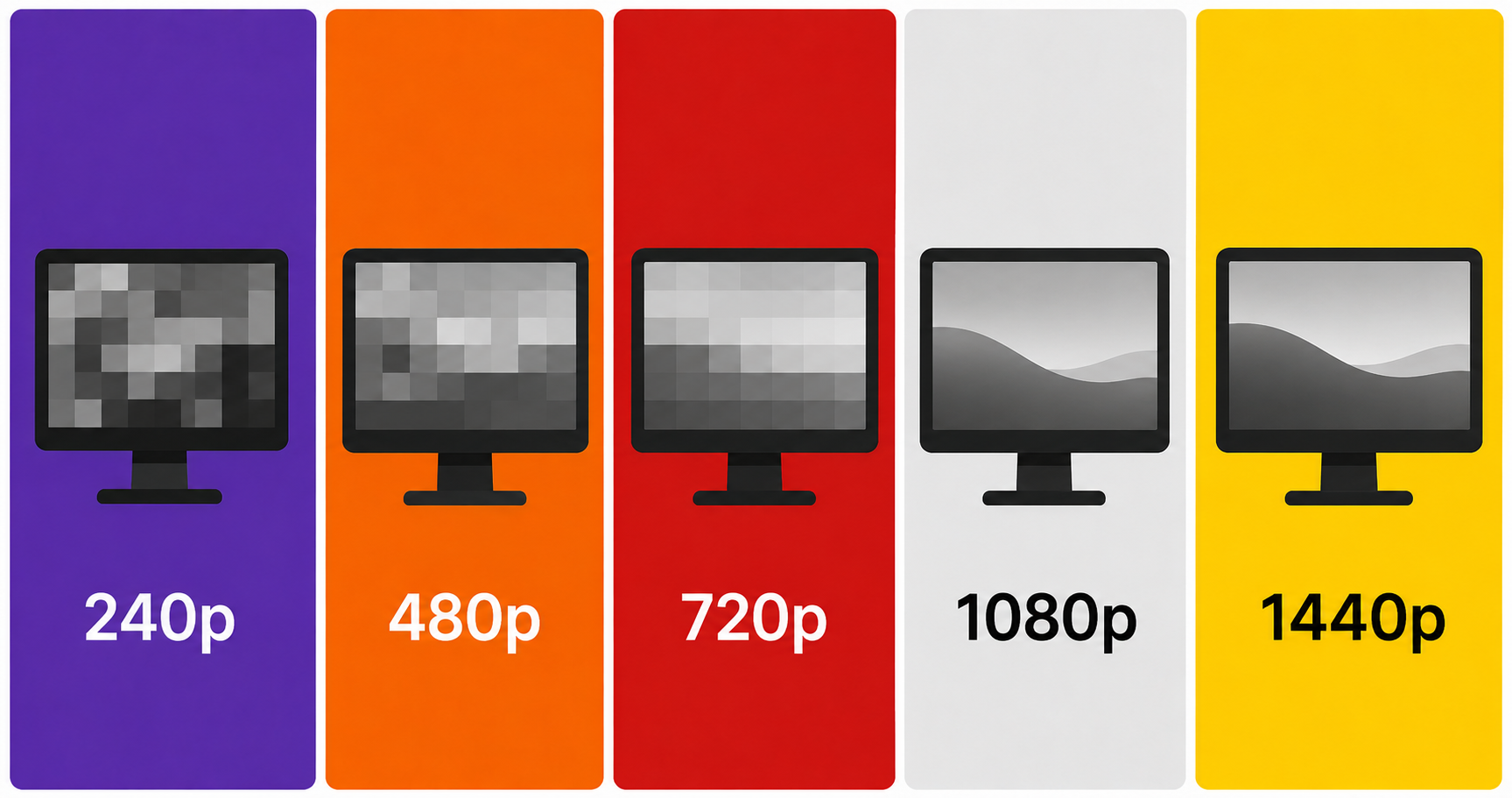
Para a resolução 1080p, 24 polegadas é o tamanho perfeito. Se você pular para 27 polegadas em 1080p, a densidade de pixels cai, e você começará a notar a imagem levemente serrilhada ou “pixelada” ao ler textos.
Ambos os monitores são escolhas fenomenais. Se a ergonomia for uma prioridade para você e você não quiser comprar um braço articulado à parte, o AOC Hero 24″ é a melhor compra. Contudo, se você prioriza a fidelidade de cores e um input lag levemente mais otimizado, o LG UltraGear reina absoluto na categoria “Under R$1200”.
Meta Description: Descubra os melhores monitores gamer no BR por under R$ 1200. Compare os campeões de vendas LG UltraGear vs AOC Hero e melhore seu desempenho.
Summary: Um guia detalhado e focado no mercado brasileiro para ajudar gamers a escolherem o melhor monitor IPS de 144Hz até R$ 1.200. Comparamos especificações, tipos de painel e onde encontrar os melhores preços na Amazon e KaBuM!.
You just spent thousands of dollars upgrading your PC, buying a high-refresh OLED monitor, and securing the fastest mouse on the market. But what are you sitting on? Spending six to eight hours a day at your desk in a cheap, bucket-style racing chair is a recipe for disaster. No matter how good your game looks, chronic back pain will ruin the experience.
The best upgrade for any work-from-home or gaming setup isn’t electronic—it is structural. A proper ergonomic chair designed for actual human anatomy, rather than the aesthetic of a race car, is essential. In this guide, we explore the new standards in seating and review the best ergonomic chairs available for maximum back pain relief.
⚠️ Affiliate Disclosure: TechPlayGrid is reader-supported. When you buy through links on our site, we may earn an affiliate commission at no extra cost to you.
The Myth of the “Gaming Chair”
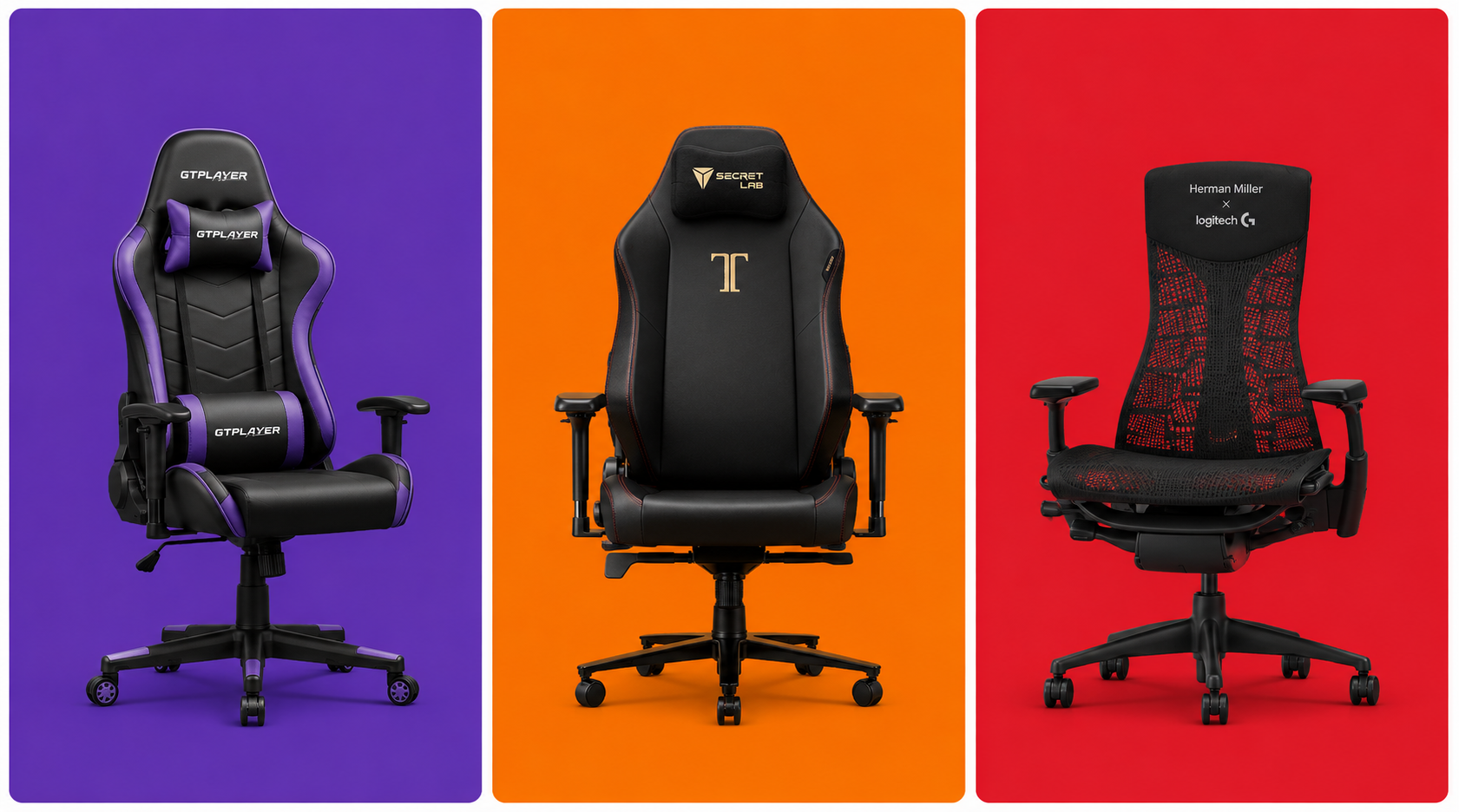
For the past decade, the industry standard “gaming chair” has been modeled after race car seats. These seats were originally designed to keep drivers securely strapped in during high-speed crashes and sharp turns. They feature aggressive side bolsters that force your shoulders forward and flat seating pans with zero natural lumbar support.
For sitting still at a desk, this design is actively harmful. It encourages slouching and compresses the lower spine. True ergonomic chairs focus on adjustable lumbar support, breathable materials, and dynamic movement that supports your spine’s natural S-curve.
The Material Debate: Mesh vs PU Leather
When shopping, you will encounter two primary materials:
Mesh
Mesh is a synthetic fabric stretched tightly across the chair’s frame.
Benefits: Incredible breathability. It allows body heat and sweat to dissipate instantly, making it perfect for hot climates or intense gaming sessions. It also conforms dynamically to your body shape.
Drawbacks: Can be abrasive on bare skin; cheaper mesh sags over time.
PU Leather (Synthetic Leather)
Benefits: Looks premium, is highly stain-resistant, and is extremely easy to wipe clean after spills.
Drawbacks: Traps heat. If you play in a room without air conditioning, you will sweat. It can also peel and crack after a few years of heavy use.
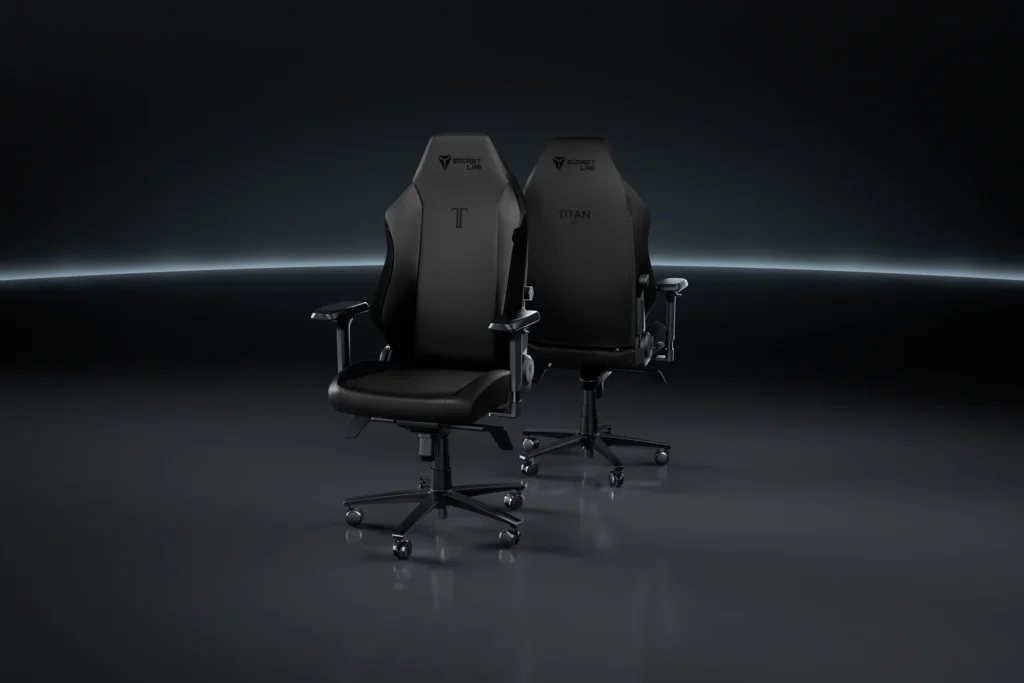
Top Contender 1: Secretlab Titan Evo
For illustrative purposes only. Model: Secretlab Titan Evo
Secretlab is one of the few brands that successfully bridged the gap between “gaming aesthetic” and true ergonomics.
Features and Relief
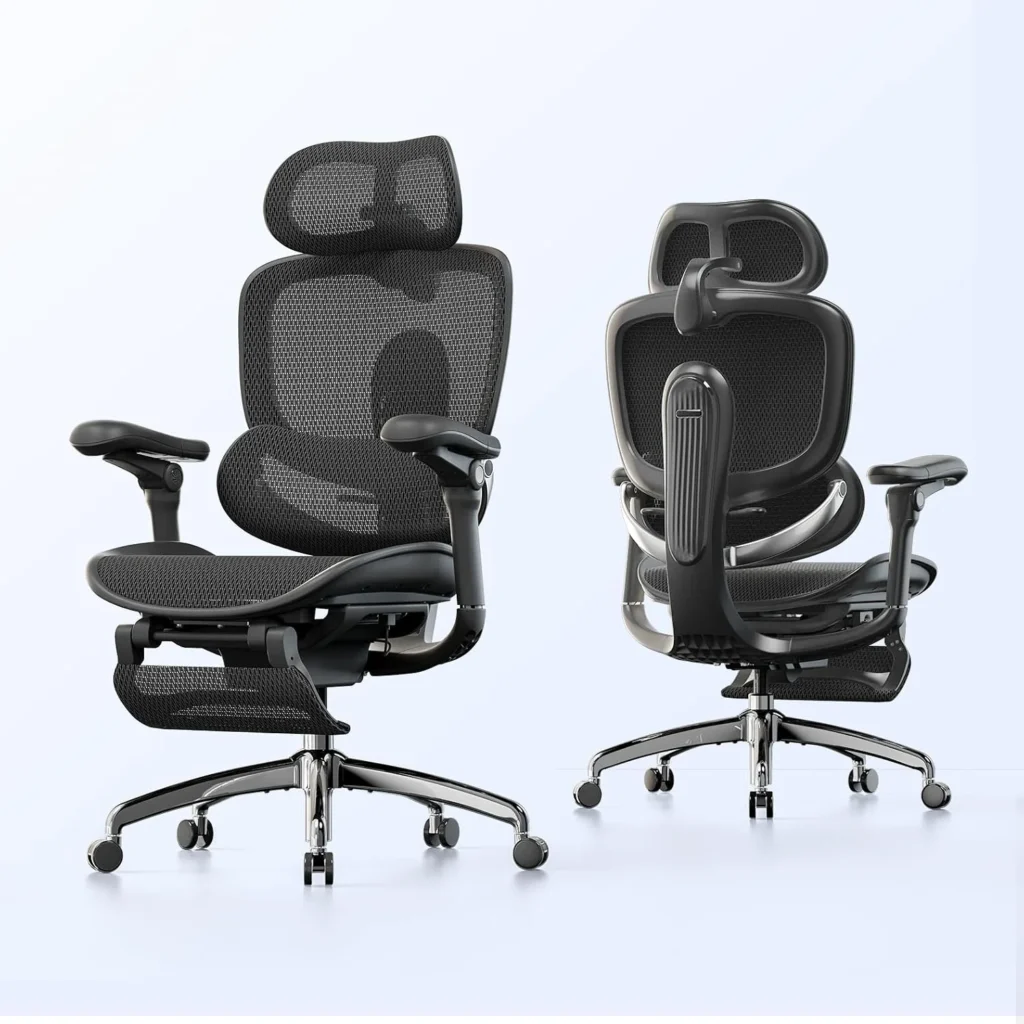
The Titan Evo ditches the cheap lumbar pillow for an internal, fully adjustable lumbar support system integrated directly into the backrest. You can adjust it up, down, in, and out to perfectly cradle your lower back. The seat base is flat (no restrictive bolsters), allowing you to sit cross-legged. Their SoftWeave fabric option is highly recommended over the leatherette for better breathability.
For illustrative purposes only. Model: Sihoo Doro C300
If you want Herman Miller-style ergonomics on a budget, Sihoo has been making waves in the ergonomic community.
Features and Relief
The Doro C300 is a full-mesh chair that features a dynamic lumbar tracking system. The lower support pad is physically separated from the upper backrest and rests on a suspension mechanism. As you lean forward or backward, the pad moves with you, ensuring constant pressure and support on your lower spine. It is an exceptional tool for posture correction.
For illustrative purposes only. Model: Ticova Ergonomic Office Chair
If you are on a tight budget but desperately need immediate relief from lower back pain, the Ticova Ergonomic Chair is widely considered the undisputed king of entry-level ergonomic seating on Amazon US.
Features and Relief
While most chairs under $150 compromise heavily on adjustability and build quality, Ticova packs an incredible amount of custom ergonomic support into an affordable package. Instead of a full-mesh seat pan—which can feel too firm on budget models—it pairs a highly breathable mesh backrest with a 3-inch thick, high-density shaping foam seat cushion. This cushion is contoured to distribute your weight evenly and relieve pressure on your hips during extended gaming sessions.
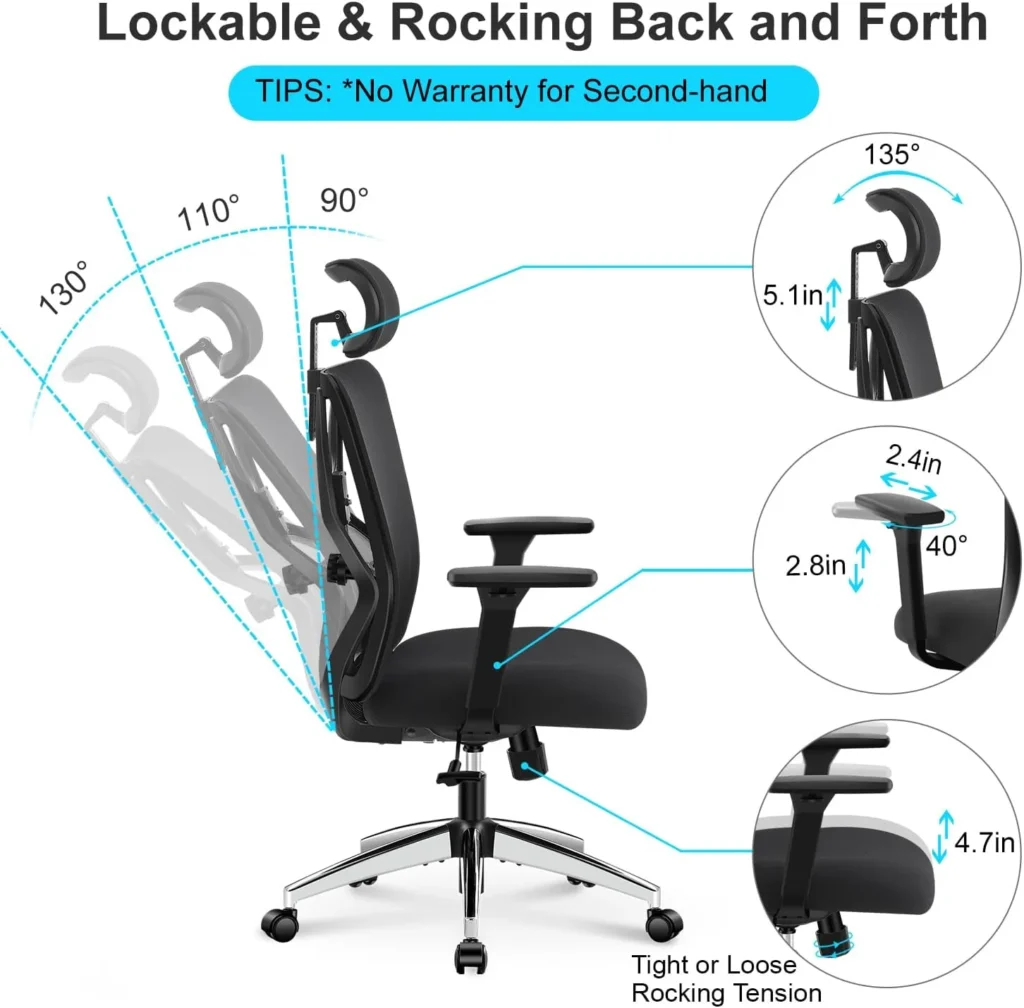
4D armrests can be adjusted in four directions: up/down, forward/backward, left/right (width), and they can pivot inwards or outwards. This ensures your elbows are always supported at a 90-degree angle, reducing strain on your shoulders and neck.
How do I know what size chair to buy?
Always check the manufacturer’s height and weight recommendations. A chair that is too large will hit the back of your knees, cutting off circulation. A chair too small will not support your upper shoulders.
If you have the budget and want a chair that looks incredible while supporting your back, the Secretlab Titan Evo remains a top-tier choice. However, if you are actively suffering from lower back pain and need maximum breathability and dynamic support, the Sihoo Doro C300 provides unbeatable ergonomic value for the price.
Meta Description: Find the best new ergonomic chairs for back pain relief. We compare mesh vs PU leather models from Secretlab and Sihoo to complete your ultimate gaming setup.
Summary: A health-focused buying guide evaluating the best ergonomic seating options for gamers and remote workers. We break down the differences in materials, debunk racing chair myths, and highlight models that provide genuine back pain relief.
For years, PC gamers have been forced into a frustrating compromise. You had to choose between the lightning-fast response times of TN panels, the vibrant color accuracy of IPS, or the deep contrast of VA. No more. The new generation of OLED displays has completely shattered these boundaries, bringing infinite contrast, true blacks, and virtually instant pixel response times into a single package.
Which is the best part of this technological leap? The prices have finally dropped. You no longer need to spend a fortune to experience premium visuals. In this guide, we are looking at the best OLED gaming monitors available under $700. If you are building or upgrading your ultimate gaming setup, this is the single most impactful purchase you can make.
⚠️ Affiliate Disclosure: TechPlayGrid is reader-supported. When you buy through links on our site, we may earn an affiliate commission at no extra cost to you.
Why Choose OLED for Gaming?
OLED (Organic Light-Emitting Diode) technology works differently than traditional LED monitors. Instead of using a giant backlight to illuminate the pixels, every single pixel in an OLED panel generates its own light.
Infinite Contrast and True Blacks
Because pixels can turn themselves completely off, OLED monitors produce perfect black levels. This results in an “infinite” contrast ratio. When you play atmospheric games or explore dark dungeons, the shadows look incredibly realistic, devoid of the grayish glow seen on IPS panels.
Instant Response Times
Traditional LCD pixels take time to transition from one color to another (usually 1ms to 4ms). OLED pixels transition almost instantly (0.03ms). This means fast-moving objects in competitive shooters leave absolutely no motion blur or ghosting behind.
Top Contender 1: LG UltraGear 27GR95QE-B
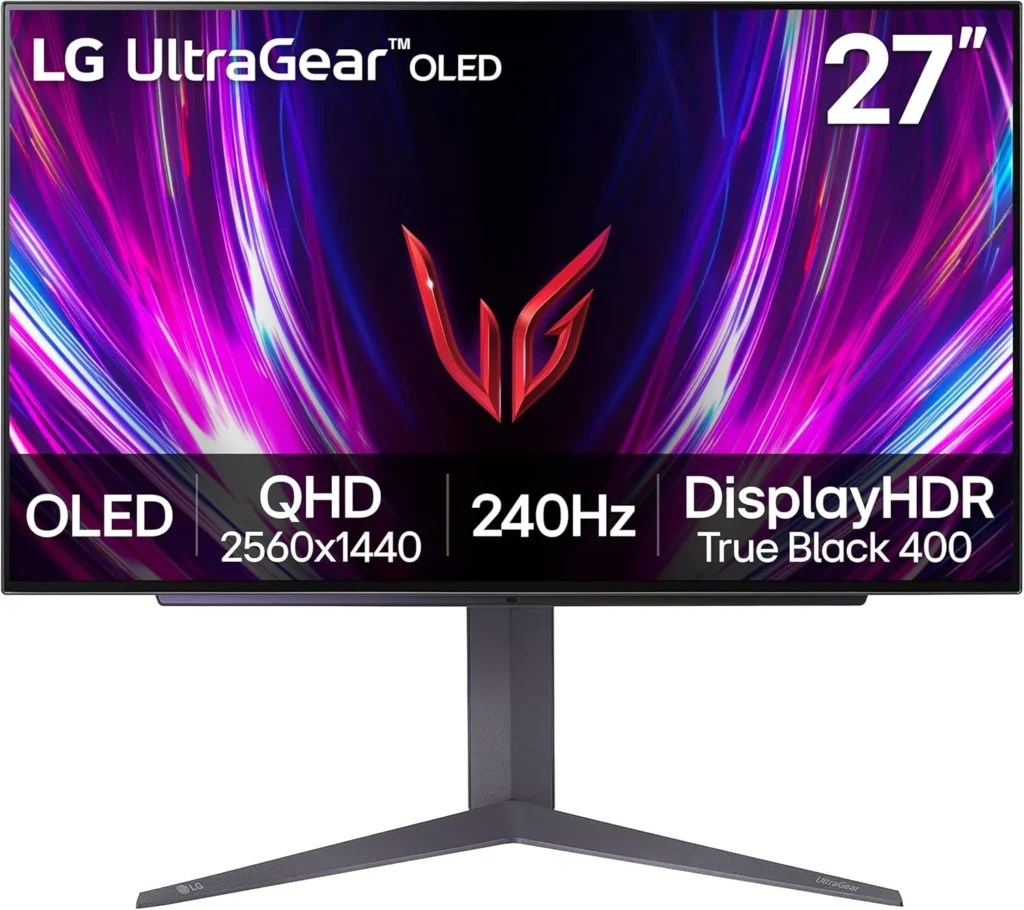
For illustrative purposes only. Model: LG 27GR95QE-B
LG is the pioneer of OLED gaming monitors, and the 27GR95QE-B remains a phenomenal choice that has recently dropped into the budget-friendly tier.
Specs and Performance
This 27-inch monitor features a 1440p resolution and a blisteringly fast 240Hz refresh rate. It uses LG’s WOLED panel technology. For competitive players, the motion clarity on this display feels like cheating. The matte coating divides opinions, but it does an excellent job of killing glare in brightly lit rooms.
For illustrative purposes only. Model: AOC AGON PROAG276QZD
AOC is known for aggressive pricing, and their entry into the OLED space does not disappoint.
Specs and Performance
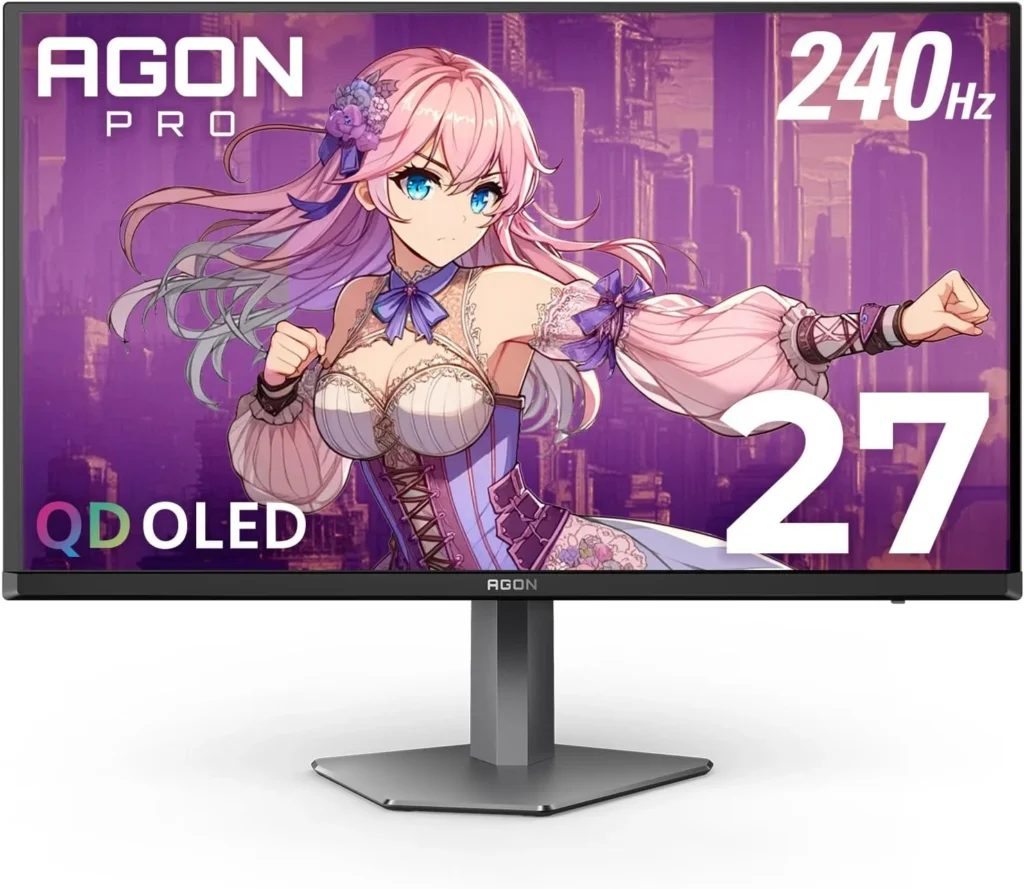
Also sporting a 27-inch 1440p 240Hz WOLED panel, the AGON PRO often undercuts the competition on price. It features a unique asymmetrical stand design and customizable RGB on the back. It delivers the exact same instantaneous response times as the LG, making it a brilliant budget entry point.
For illustrative purposes only. Model: MSI MAG271QPX
MSI has pushed the boundaries by introducing QD-OLED (Quantum Dot OLED) technology into this price bracket during sales events.
Specs and Performance
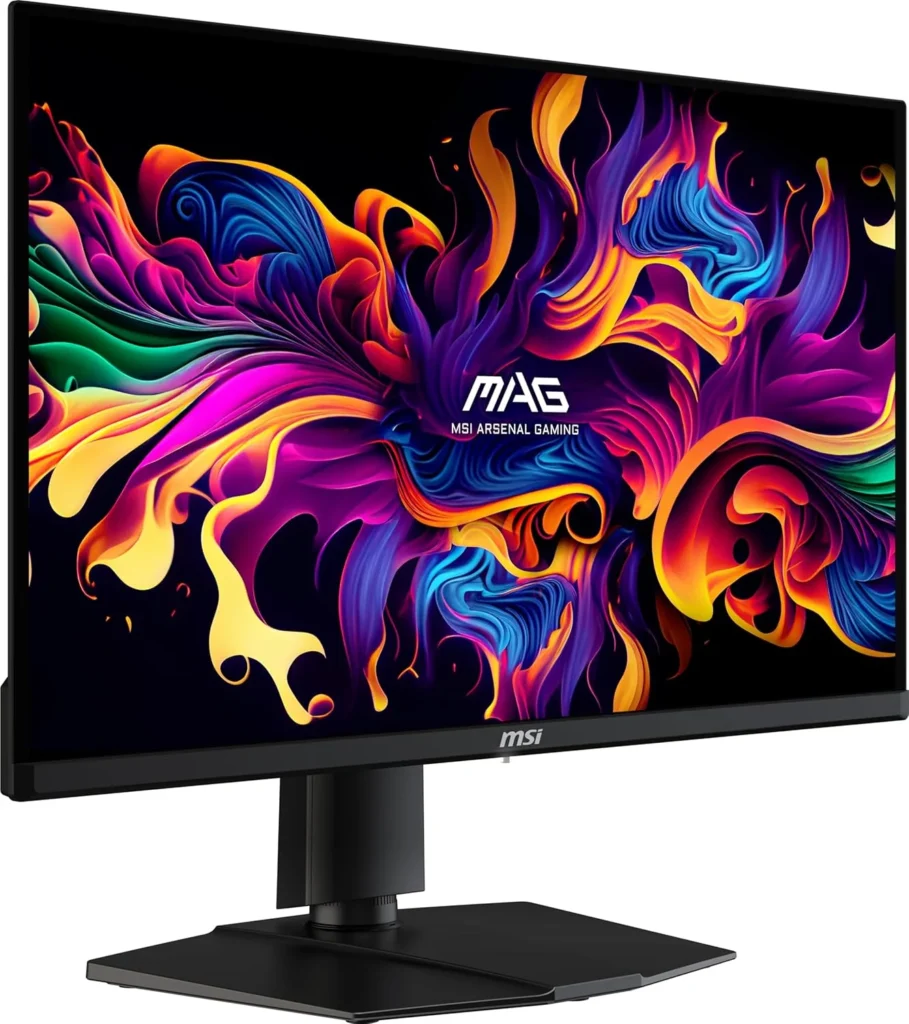
Boasting a 1440p resolution and a staggering 360Hz refresh rate, this monitor is built for hardcore esports. The Quantum Dot layer allows for brighter colors and higher color volume compared to standard WOLED, resulting in a more vibrant image, especially in HDR content.
Burn-in is a valid concern, but modern OLEDs feature aggressive mitigation technologies (pixel cleaning, screen shifting, logo dimming). If you hide your Windows taskbar and turn off the monitor when not in use, the risk in 2026 is extremely low. Most brands now offer 3-year burn-in warranties.
Is 1440p enough in 2026?
Yes. At 27 inches, 1440p provides an excellent pixel density (109 PPI) that looks incredibly sharp while being much easier for your graphics card to run at high framerates compared to 4K.
If you value vibrant colors and maximum refresh rates, the MSI MAG 271QPX is an absolute steal when it hits the sub-$700 mark. However, for a proven, reliable, and widely available option, the LG UltraGear 27GR95QE-B remains the safest and most consistent recommendation for any gamer looking to make the OLED leap.
⚠️ Affiliate Disclosure: TechPlayGrid is reader-supported. When you buy through links on our site, we may earn an affiliate commission at no extra cost to you.
Tags: OLED Monitor, Gaming Monitor, LG UltraGear, 1440p Gaming, Budget OLED, PC Setup
Meta Description: Upgrade your setup with the best new OLED monitors under $700. Compare LG, AOC, and MSI 1440p displays for unbeatable colors and 240Hz gaming performance.
Summary: A comprehensive buyer’s guide exploring the most affordable and high-performing OLED gaming monitors currently priced under $700. We detail the benefits of OLED technology and compare top models to help you find the perfect display.
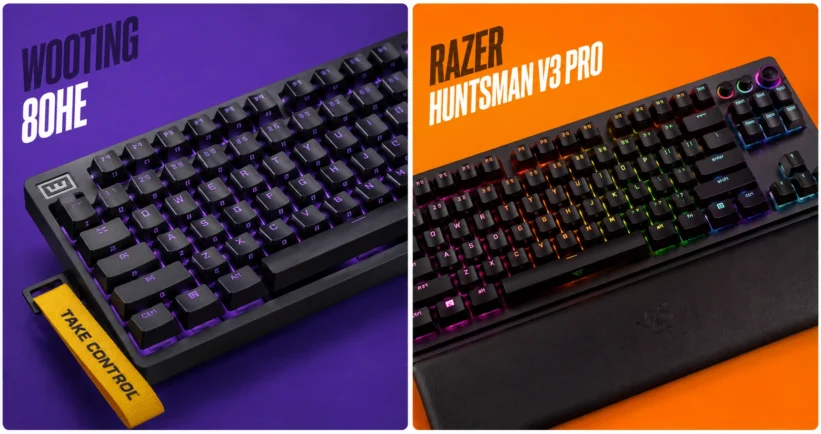
If you want to dominate in competitive tactical shooters like Valorant or Counter-Strike 2, relying on a standard mechanical keyboard is no longer enough. The new standard for esports professionals and aspiring ranked grinders is magnetic switches, specifically those equipped with Rapid Trigger technology. But when it comes to finding the absolute best performance for your desk, the conversation almost always boils down to a heavyweight matchup: the Wooting 80HE vs the Razer Huntsman V3 Pro.
In this comprehensive guide, we will break down everything you need to know about these two titans. We will look at their switch technology, software capabilities, build quality, and how they fit into the ultimate gaming setup in 2026.
⚠️ Affiliate Disclosure: TechPlayGrid is reader-supported. When you buy through links on our site, we may earn an affiliate commission at no extra cost to you.
What is Rapid Trigger Technology?
Video credit: rtings.com
Before diving into the comparison, it is crucial to understand what you are paying for. Traditional mechanical switches actuate (register a keypress) at a fixed point and must travel back up past a specific reset point before you can press the key again.
Rapid Trigger changes the game entirely. Using Hall Effect (magnetic) sensors, the keyboard constantly tracks the exact physical depth of the switch. The moment you start lifting your finger, the key resets. The moment you press down again, it actuates. This allows for near-instantaneous strafing, counter-strafing, and movement adjustments, which are critical in games where stopping perfectly still is required for accurate shooting.
Deep Dive: Wooting 80HE
The Wooting 80HE represents the pinnacle of community-driven keyboard design. Following the massive success of the 60HE, Wooting introduced the 80% layout (TKL without the wasted space) to cater to gamers who still need arrow keys and function rows.
Performance and Switches
The 80HE utilizes the Lekker magnetic switches. These switches offer an actuation range from 0.1mm to 4.0mm, adjustable per key. The tracking is incredibly smooth, and with an 8000Hz polling rate, the input delay is virtually nonexistent.
The Software: Wootility
Wooting’s biggest advantage is its software. Wootility is entirely web-based, meaning you do not need to install bloatware on your PC to configure your keyboard. You can adjust actuation curves, set up advanced macros, and save profiles directly to the keyboard’s onboard memory in seconds.
Razer has been a staple in the peripheral market for decades, and the Huntsman V3 Pro is their definitive answer to the Hall Effect trend. Available in full-size, TKL, and Mini, it targets the premium gamer who wants high performance straight out of the box.
Performance and Switches
Razer uses its Analog Optical Gen-2 switches. While they use light instead of magnets to measure distance, the end result is the same: fully functional Rapid Trigger and adjustable actuation (from 0.1mm to 4.0mm).
Design and Extras
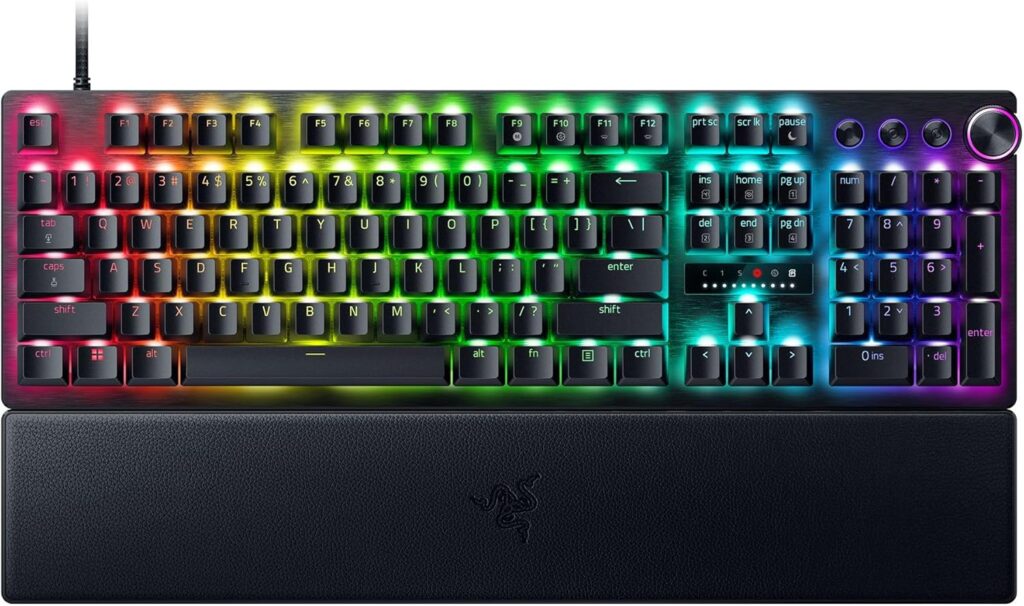
Where Razer shines is the physical hardware extras. The Huntsman V3 Pro features a beautiful brushed aluminum top plate, dedicated media controls (including a very satisfying multi-function dial), and a magnetic wrist rest. It looks and feels like a premium product sitting on your desk.
Cons: Razer Synapse software can be heavy, non-standard bottom row makes custom keycaps tricky.
Frequently Asked Questions (FAQ)
Does Rapid Trigger actually make you a better gamer?
While a keyboard cannot give you better game sense, Rapid Trigger objectively lowers the mechanical latency between your brain deciding to stop moving and your in-game character actually stopping. In tactical shooters, this translates to more accurate first shots.
Can I use these keyboards for typing and office work?
Yes! Both keyboards allow you to set different profiles. You can have a “Gaming Profile” with a hyper-sensitive 0.1mm actuation, and a “Typing Profile” with a standard 2.0mm actuation to prevent typos.
Final Verdict: Which One Should You Buy?
If you are looking for the absolute highest technical ceiling, love modifying your gear, and want the best software experience, the Wooting 80HE is the undisputed king. However, if you prefer the convenience of buying from Amazon today, want a premium unboxing experience with dedicated media controls, and don’t want to deal with wait times, the Razer Huntsman V3 Pro is an exceptional alternative.
⚠️ Affiliate Disclosure: TechPlayGrid is reader-supported. When you buy through links on our site, we may earn an affiliate commission at no extra cost to you.
Meta Description: Wooting 80HE vs Razer Huntsman V3 Pro: Which rapid trigger keyboard is best for new pros? Compare specs, performance, and features for your 2026 setup.
Summary: An in-depth comparison of the market’s leading rapid trigger keyboards. We break down the technology behind magnetic and optical switches, analyze software performance, and help competitive gamers choose the ultimate keyboard for their setup.
For years, buying a budget PC controller meant accepting one unavoidable tradeoff: stick drift. The potentiometer-based joysticks used in most controllers — including the official Xbox and PlayStation pads — wear out over time and start registering phantom inputs. It’s annoying in single-player games. It’s game-breaking in competitive ones.
In 2026, that tradeoff is gone. Hall effect technology, once locked behind enterprise-grade and high-end gaming peripherals, has finally trickled down to the sub-$50 market. You can now grab drift-resistant, wireless, programmable gamepads for less than a new AAA game, with performance that matches controllers costing twice as much.
This guide covers the best budget PC controllers under $50 with Hall effect sticks — all verified on Amazon US as of July 2026, all drift-proof by design.
⚠️ Affiliate Disclosure: TechPlayGrid is reader-supported. When you buy through links on our site, we may earn an affiliate commission at no extra cost to you.
🤔 Why Hall Effect Sticks Are the Only Thing That Matters in 2026
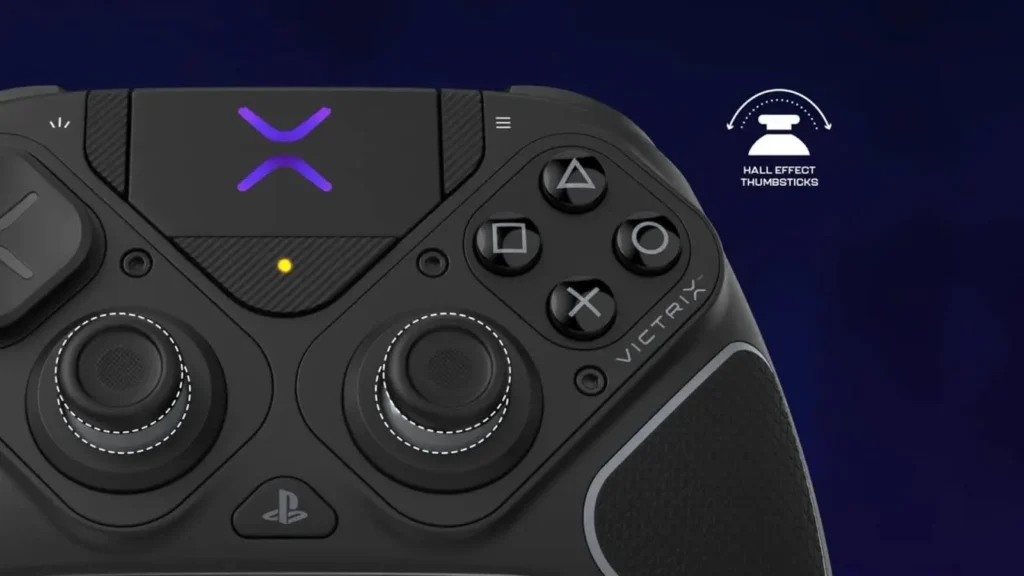
Photo credit: https://www.turtlebeach.com/blog. For illustrative purposes only.
Before jumping into picks, here’s the one spec you need to understand.
Traditional Potentiometer Sticks (Most Controllers)
Standard joysticks use a resistive contact between a wiper and a carbon track. Every movement wears down that contact. Nearly all $70+ controllers still use potentiometer sticks that eventually drift. Several sub-$50 controllers have already switched to Hall Effect technology — and that makes them better long-term investments than official gamepads at twice the price.
Hall Effect Sticks (The New Standard)
Hall effect joysticks use magnets and a sensor instead of physical contacts. There is no surface-to-surface wear. The stick reads position from the magnetic field without touching anything.
Feature
Potentiometer Sticks
Hall Effect Sticks
How it works
Resistive contact (wears down)
Magnetic field (no contact)
Drift risk
High after 6–18 months of heavy use
Virtually zero
Used in
Xbox Core, DualSense, most budget pads
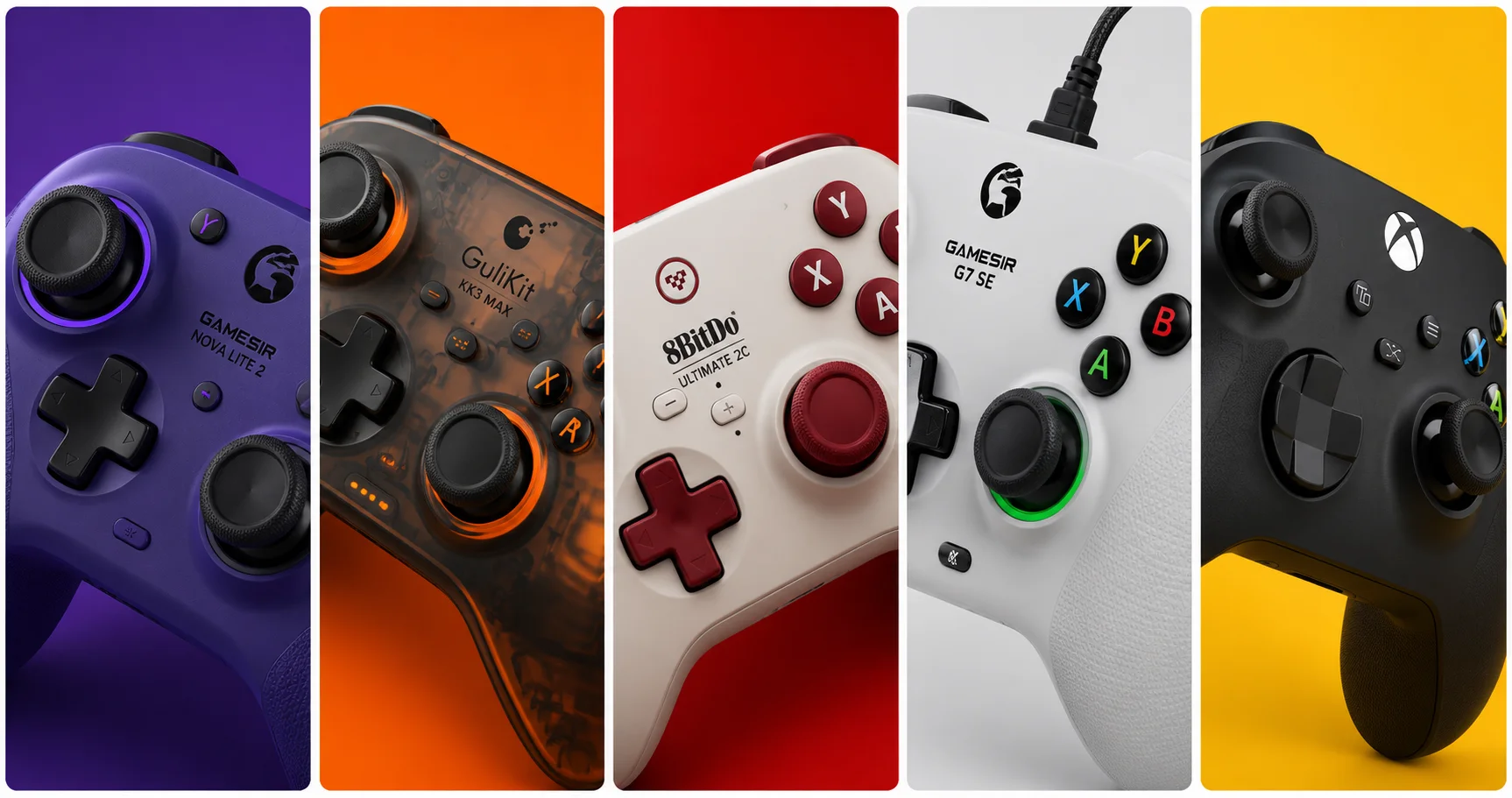
GameSir, GuliKit, 8BitDo (2026)
Lifespan
2–4 years (heavy use)
5–10+ years
Price premium
—
Near-zero in 2026 sub-$50 market
💡 Pro Tip: If you’ve ever had a PS5 DualSense drift, you experienced potentiometer failure firsthand. Our PS5 Controller Drift guide covers the fixes — but with Hall effect controllers, that guide becomes irrelevant. The drift never happens.
🏆 Best Budget PC Controllers Under $50 — No Drift (Amazon US, July 2026)
🥇 Best Overall — GameSir Nova Lite 2
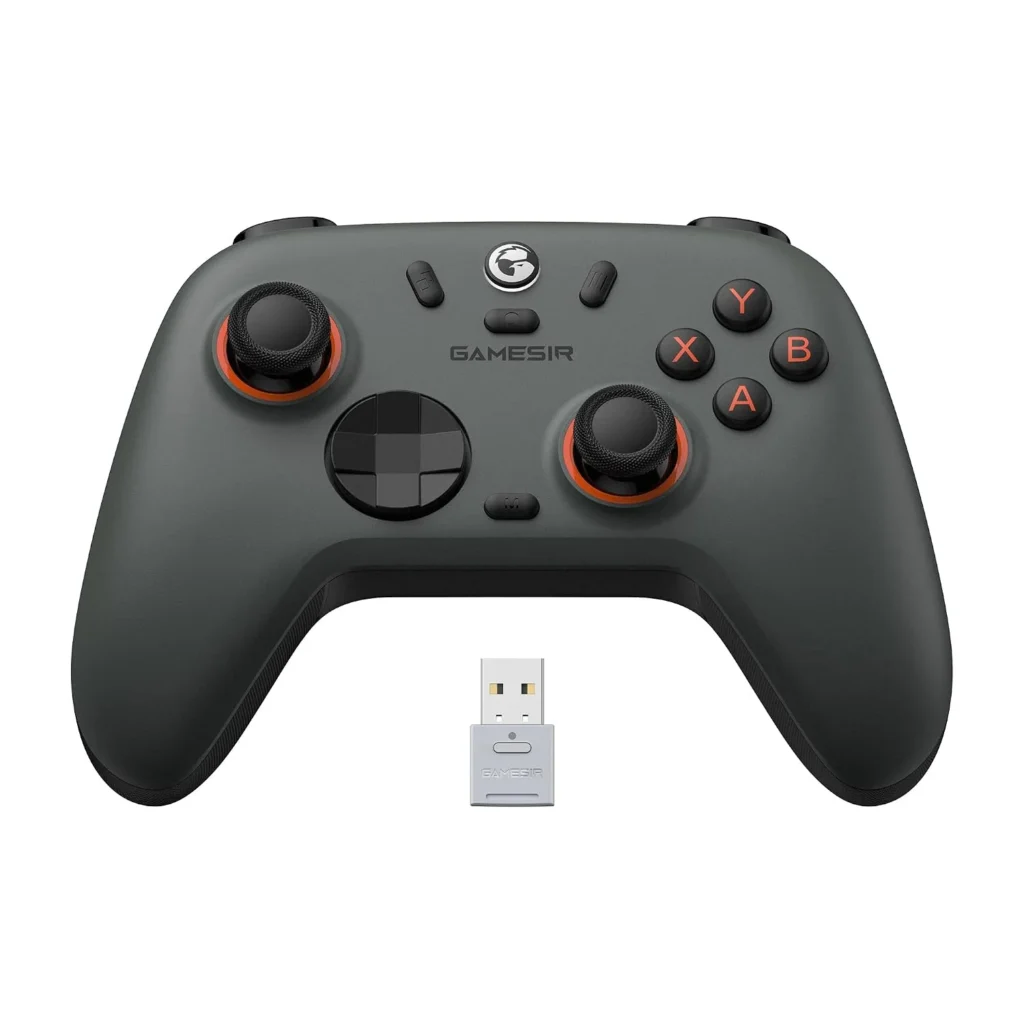
For illustrative purposes only. Model: GameSir Nova Lite 2
Why it’s #1: The GameSir Nova Lite is the best budget controller for PC gaming, and that’s not just because it’s cheap. There are plenty of options in the sub-$30 price range, but few have as good a feature set. You get proper Hall effect thumbsticks, so stick drift will never be an issue. Plus, it comes with a low-latency 2.4GHz dongle, which is far more suitable for faster gaming than Bluetooth — which it also supports. The Nova Lite 2 builds on this with Hall effect triggers in addition to sticks, and a 1000Hz polling rate that matches premium controllers.
Spec
Detail
Hall Effect
Sticks ✅ + Triggers ✅
Connection
2.4GHz dongle + Wired USB-C
Polling Rate
1000Hz (wired and wireless)
Remappable Buttons
✅ Yes
Platform
PC / Switch / Steam Deck / Android
Weight
~205g
Price Range
~$27–$35
Pros:
Hall effect on both sticks AND triggers — rare at this price
1000Hz polling matches flagship controllers at 3–4x the cost
Triple connectivity: 2.4GHz dongle, USB-C wired, Bluetooth
Plug-and-play on Windows — no driver installation required
Remappable buttons via GameSir app
Cons:
No gyroscope
Primarily a PC/Switch controller — not Xbox-native for console
Best for: PC gamers who want the best performance per dollar and plan to use the controller for years without drift.
🥈 Best Feature Set — GuliKit KK3 Max
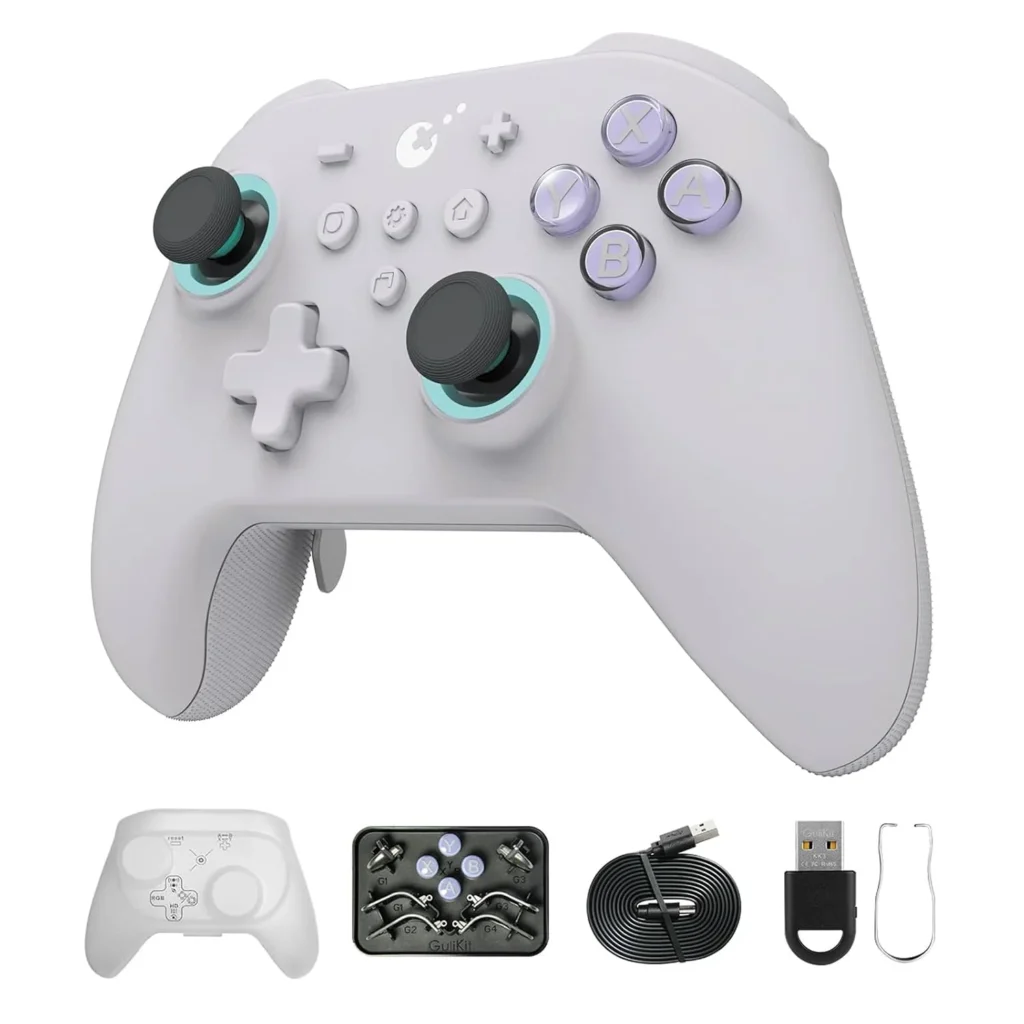
For illustrative purposes only. Model: GuliKit KK3 Max
Why it’s here: The GuliKit KK3 Max is a “budget” PC and Nintendo Switch controller with magnetic thumbsticks, trigger locks, a comfortable layout, and a turbo button. At around $45–$50, it’s the most feature-rich controller under $50 on the market — and everything that makes it remarkable comes from GuliKit’s proprietary Hall effect technology.
GuliKit KK3 Max is equipped with new-gen Hall magnetic joysticks with anti-stick drift and smooth control, with high precision at level 2200 for more delicate micro-control. The patented SmartTrigger technology lets you instantly switch between digital triggers for ultra-fast firing in FPS games, and analog triggers for pressure-sensitive control in racing games.
Why it’s here: The 8BitDo Ultimate 2C is the most impressive budget controller of 2026. It packs Hall Effect sticks and triggers, 2.4GHz wireless via dongle, USB-C charging, and compatibility with PC, Switch, and Android. Build quality feels closer to $70 than $40 — the face buttons have crisp tactile feedback and the grips are textured well. Input lag via USB averages 4.8ms. Via 2.4GHz dongle it’s 7.2ms. Both figures match or beat the Nintendo Switch Pro Controller at less than half the price.
Spec
Detail
Hall Effect
Sticks ✅ + Triggers ✅
Connection
2.4GHz dongle + USB-C wired
Polling Rate
1000Hz
Remappable Bumpers
L4/R4 extra bumpers ✅
Platform
PC (Windows) / Android
Battery
USB-C rechargeable
Price Range
~$30–$40
Pros:
Hall effect sticks and triggers — virtually zero drift risk
1000Hz polling rate beats most $60–$80 controllers
Extra L4/R4 remappable bumpers
8BitDo’s software (Ultimate Software) is best-in-class for button remapping
Extremely competitive pricing — frequently under $30 on sale
Cons:
No Bluetooth (dongle only for wireless)
PC and Android only — no Nintendo Switch support on this specific model
No rumble in the 2C variant
Best for: PC-only gamers who want the best wireless latency at the lowest possible price.
🎯 Best Wired Budget Pick — GameSir G7 SE
For illustrative purposes only. Model: GameSir G7 SE
Why it’s here: The G7 SE solves the most critical pain point for budget buyers: stick drift. During our testing marathon, it showed zero signs of drift after 35 hours of simulated gameplay — something most sub-$40 controllers can’t claim. Customers praise the controller’s value for money as a budget-friendly Hall effect device. One customer notes it feels like an Xbox controller in their hands.
If you don’t need wireless and want zero-latency wired performance, the G7 SE is the pick. It uses a standard Xbox layout, meaning Windows recognizes it instantly without any driver setup — the same plug-and-play experience as an official Xbox controller.
Spec
Detail
Hall Effect
Sticks ✅
Connection
Wired USB-A
Layout
Xbox-style (Windows native)
Customizable Face Plates
✅ Yes
Platform
PC / Xbox
Price Range
~$35–$45
Pros:
Wired means zero latency and no battery management
Xbox layout = instant Windows compatibility
Hall effect sticks eliminate drift entirely
Interchangeable face plates for personalization
Solid build quality for the price
Cons:
Wired only — no wireless option
Triggers are standard potentiometer (not Hall effect on this model)
Best for: Desk PC gamers who prefer a cable and want an Xbox-compatible controller without the Xbox price.
💡 Honorable Mention — Xbox Core Controller
For illustrative purposes only. Model: Xbox Core Controller
A word on the “official” option: Our #1 pick for overall PC gaming in 2026 is the Xbox Core. It’s the best-supported controller on Windows, recognized by virtually every game, and the gold standard for layout comfort. However, at $60 and with standard potentiometer sticks, it costs more than every pick above while being more prone to drift. We include it here as a reference: if budget isn’t your concern and you want maximum game compatibility, it’s the safe choice. But for pure value and longevity, the Hall effect options above are objectively better investments.
📊 Full Comparison Table
Controller
Hall Effect
Wireless
Polling Rate
Back Paddles
Platform
Price
GameSir Nova Lite 2
Sticks + Triggers
2.4GHz + BT
1000Hz
❌
PC/Switch/Android
~$30
GuliKit KK3 Max
Sticks + Triggers
2.4GHz + BT
1000Hz
✅ 4 paddles
PC/Switch 2/Android/iOS
~$50
8BitDo Ultimate 2C
Sticks + Triggers
2.4GHz
1000Hz
✅ L4/R4
PC/Android
~$35
GameSir G7 SE
Sticks only
❌ Wired
Native USB
❌
PC/Xbox
~$40
Xbox Core
❌ Standard
✅ Wireless
Standard
❌
PC/Xbox/PS5
~$60
🤔 Which Controller Should You Buy?
Best all-around under $35: → GameSir Nova Lite 2 — Hall effect sticks and triggers, 1000Hz, three connection modes
Best feature set under $50: → GuliKit KK3 Max — back paddles, SmartTrigger, gyro, Switch 2 compatible
Best pure wireless for PC: → 8BitDo Ultimate 2C — lowest latency at this price, 1000Hz dongle wireless
Best wired option: → GameSir G7 SE — Xbox layout, instant Windows compatibility, zero drift
Best if game compatibility is paramount: → Xbox Core Controller (accepts the drift risk for plug-and-play ubiquity)
🎮 Which Games Need a Controller vs. Mouse and Keyboard?
Not every game benefits from a controller. Here’s the quick guide:
What is Hall effect and why does it prevent drift?
Hall effect joysticks use magnets instead of physical resistive contacts. Nearly all $70+ controllers still use potentiometer sticks that eventually drift. Several sub-$50 controllers have switched to Hall Effect technology — making them better long-term investments than official gamepads at twice the price. Since there’s no surface wear, the sensor never degrades and drift never develops.
Do Hall effect controllers work on all PC games?
Yes — these controllers present themselves to Windows as standard XInput or DirectInput devices. Any game that supports a controller works with them. Some (like the GameSir G7 SE) use native Xbox layout for the broadest compatibility.
Is 1000Hz polling rate actually noticeable in gaming?
For competitive games, yes. Standard controllers poll at 125Hz (8ms delay). 1000Hz polling means 1ms delay — a significant reduction in input lag that’s perceptible in fast-paced games like Fortnite, Rocket League, or fighting games where frame-perfect inputs matter.
Are budget controllers good for fighting games?
Fighting game communities are embracing Hall effect controllers for tournaments because they eliminate stick drift accusations. The GameSir Nova Lite 2 and GuliKit KK3 Max are both used by competitive players specifically because of their reliable, accurate inputs.
Can I use these controllers on Steam Deck?
Yes — the GameSir Nova Lite 2, GuliKit KK3 Max, and 8BitDo Ultimate 2C all support Steam Deck either via 2.4GHz dongle or USB-C wired connection.
Do these work with Nintendo Switch 2?
The GuliKit KK3 Max specifically includes Switch 2 Wake-Up function and full Switch 2 compatibility. The GameSir Nova Lite 2 works with Switch via Bluetooth and its 2.4GHz dongle. The 8BitDo Ultimate 2C is PC/Android only.
Last updated: July 2026 | Products verified on Amazon US
⚠️ Affiliate Disclosure: TechPlayGrid participates in the Amazon Associates Program and other affiliate programs. We earn a commission on qualifying purchases at no extra cost to you.
🏷️ SEO Metadata
Title : Best Budget PC Controller Under $50 — No Drift (2026)
Meta Description: Best budget PC controllers under $50 with no drift in 2026 — Hall effect sticks, 1000Hz polling, wireless. All picks verified on Amazon US. No more stick drift ever.
Tags: best budget pc controller 2026, gaming controller under 50, no drift pc controller, hall effect controller budget, gamesir nova lite 2, gulikit kk3 max, 8bitdo ultimate 2c, best cheap pc gamepad 2026
Post Summary: In 2026, you no longer have to spend $60–$80 on an official Xbox or PlayStation controller to get a reliable, drift-free gaming experience on PC. Hall effect joystick technology has reached the sub-$50 market, and the options are genuinely impressive. This guide covers four verified picks on Amazon US — the GameSir Nova Lite 2 (best overall under $35), GuliKit KK3 Max (best feature set with back paddles and SmartTrigger under $50), 8BitDo Ultimate 2C (best wireless latency for PC-only gamers), and GameSir G7 SE (best wired Xbox-layout option) — all with Hall effect sticks that eliminate stick drift permanently by design.
The Nintendo Switch 2 is out, you have it docked, and now you’re staring at monitor options. The console outputs up to 4K@60fps in docked mode. So does buying a 1440p monitor make sense — or are you leaving resolution on the table?
The honest answer is nuanced, and it depends on something most reviews don’t explain: how the Switch 2’s DLSS upscaling actually works on a 1440p panel. This guide breaks that down clearly, so you can make an informed decision before spending $200–$400 on a monitor.
⚠️ Affiliate Disclosure: TechPlayGrid is reader-supported. When you buy through links on our site, we may earn an affiliate commission at no extra cost to you.
🎮 What the Nintendo Switch 2 Actually Outputs in Docked Mode
For illustrative purposes only. Nintendo Switch 2
Before comparing resolutions, you need to know exactly what signal the Switch 2 sends through the dock:
In docked mode, Switch 2 can output up to 120fps at 1080p or 1440p over HDMI to a TV or monitor. Nintendo has also confirmed that Switch 2 supports 4K resolution at 60fps over HDMI 2.0. In handheld mode, it supports up to 1080p at 120fps on the built-in 7.9-inch LCD panel. Switch 2 also supports VRR for smoother gameplay and HDR10 for an expanded range of color and luminance.
Output Mode
Resolution
Frame Rate
Notes
Docked — Performance
1080p
Up to 120fps
Native or DLSS upscaled
Docked — Quality
1440p
Up to 60fps
DLSS upscaled from 720p+
Docked — 4K
4K (2160p)
Up to 60fps
DLSS Light upscaled
Handheld
1080p
Up to 120fps
Built-in 7.9″ LCD
💡 Important: Not all Switch 2 games support every mode. Each game’s developer chooses which output modes to implement. Some games run at 1080p@120fps only; others offer a Quality mode at 1440p or 4K@60fps. Check each game’s supported modes before optimizing for them.
🧠 How Switch 2 Upscaling Actually Works — DLSS Light Explained
This is the part that matters most for the 1440p question. The Switch 2 doesn’t render games natively at 4K — it uses NVIDIA DLSS to upscale from a lower resolution.
Nintendo Switch 2 supports two DLSS versions: a PC-like CNN model upscaling to 1080p with high image quality, and a custom lightweight ‘DLSS Light’ for 1440p and 4K docked mode. The CNN model offers the best balance of performance and visual fidelity. Although static shots using DLSS Light look 1440p or 4K on the Switch 2, it’s a different story when there are objects in motion.
Here’s how the rendering pipeline works per mode:
Performance Mode (1080p@120fps)
Performance mode renders at 1080p and upscales to 4K, freeing GPU budget for higher frame rates or more visual effects. On a 1440p monitor, this signal gets displayed natively at 1080p — no scaling needed, perfectly sharp.
Quality Mode (1440p@60fps)
Quality mode renders at 1440p and upscales to 4K, preserving more detail. On a 1440p monitor, this is displayed pixel-for-pixel — the ideal scenario. No upscaling, no downscaling. A 1440p monitor displays the Switch 2’s 1440p signal pixel for pixel, preserving the original sharpness without artificial upscaling. This direct match eliminates the scaling guesswork that degrades the image on 4K TVs.
4K Mode (2160p@60fps)
On a 1440p monitor, the Switch 2’s 4K output is downscaled to fit the 1440p panel. The monitor’s scaler handles this, and the result is typically sharper than native 1080p — but you lose the benefit of true 4K pixels.
🖥️ The Core Question: Does 1440p Make Sense for Switch 2?
For illustrative purposes only. Nintendo Switch
✅ YES — 1440p Is the Sweet Spot If:
You want the best image for Quality Mode games. When a Switch 2 game offers 1440p Quality Mode, a 1440p monitor receives and displays that signal perfectly — pixel-for-pixel accuracy, no scaling artifacts, no processing overhead. This direct match eliminates the scaling guesswork that degrades the image on 4K TVs.
You play at a desk. At 27 inches viewed from 60–80cm, 1440p sits at ~109 PPI — right at the threshold where pixels become invisible to the naked eye. A 27-inch 1440p monitor viewed at 60–80cm offers a pixel density of 109 PPI, perfectly suited to human vision. This configuration allows for the perception of all details without eye strain.
You care about competitive gaming. 1440p monitors at 144Hz–180Hz are significantly cheaper than 4K monitors at equivalent refresh rates. For games that run at 1080p@120fps, a fast 1440p monitor handles that perfectly while giving you a sharper display for everything else.
You game on PC or other consoles too. A 1440p monitor is the most versatile purchase for a mixed gaming setup. It works excellently with PC, PS5 (which also natively supports 1440p), Xbox Series X, and the Switch 2.
⚠️ CONSIDER 4K Instead If:
You primarily game on a large screen from the couch. At distances over 1.5 meters, 4K becomes more relevant — especially for cinematic games like Zelda or Metroid Prime 4 that support 4K Quality Mode.
You have a 4K-compatible TV already. If you’re using the Switch 2 on a 4K OLED TV, the 4K DLSS output genuinely shines. The TV handles the downscale from DLSS output gracefully and the result is visually impressive.
You want future-proof for games that get 4K patches. More Switch 2 games are receiving 4K mode updates, and that number will grow.
❌ AVOID 1080p Monitors For Switch 2 Docked:
On a 1080p screen, the extra detail from 1440p and 4K output will be lost entirely. The Switch 2’s DLSS Quality Mode outputs 1440p — a 1080p monitor has to downscale that, which eliminates the resolution advantage entirely. For a console that natively supports 1440p and 4K output, a 1080p monitor is the wrong pairing.
📐 1080p vs 1440p vs 4K on Switch 2 — The Full Comparison
Monitor Resolution
1080p Output
1440p Output
4K Output
Verdict
1080p monitor
Native ✅
Downscaled ⚠️
Heavily downscaled ❌
Not recommended
1440p monitor
Pillarboxed/upscaled ⚠️
Native ✅
Downscaled (looks good) ✅
Best value
4K monitor
Upscaled 4x ⚠️
Upscaled ⚠️
Native ✅
Best quality, higher cost
🏆 Best 1440p Monitors for Nintendo Switch 2 Dock (Amazon US, July 2026)
All picks verified on Amazon US. All support HDMI 2.0 (which is all the Switch 2 dock requires for 1440p@60fps).
🥇 Best Overall — LG 27GP850-B Ultragear (27″ 1440p 165Hz Nano IPS)
For illustrative purposes only. Model: LG 27GP850-B
Why it’s #1 for Switch 2: The 27GP850-B is consistently the top recommended 1440p monitor for console gaming. Its Nano IPS panel delivers exceptional color accuracy — critical for Switch 2’s vibrant Nintendo titles — with 1ms response time and 165Hz for Performance Mode games at 120fps.
165Hz → Switch 2 Performance Mode at 120fps displayed with headroom
HDR10 support → Switch 2’s HDR output properly displayed
Excellent color reproduction for Mario Kart World, Zelda, and Metroid
Pros: Best-in-class IPS colors, industry-leading response time for the price, great stand with full adjustment Cons: HDMI 2.0 only (fine for Switch 2’s actual bandwidth needs), HDR400 is entry-level HDR
🥈 Best Budget — ASUS TUF Gaming VG27AQ3A (27″ 1440p 180Hz Fast IPS)
For illustrative purposes only. Model: ASUS VG7AQ3A
Why it’s here: This 27-inch IPS panel with ELMB Sync technology makes moving objects appear sharper — perfect for Switch 2’s fast-paced titles. For gamers who prioritize a smooth, tear-free experience over maximum resolution, this monitor offers a high-end feel at a price that leaves plenty of room in your budget for the actual console and launch games.
Spec
Detail
Panel
Fast IPS
Resolution
2560×1440 (1440p)
Refresh Rate
180Hz
Response Time
1ms (ELMB)
HDR
DisplayHDR 400, 130% sRGB
Ports
2× HDMI 2.0, 1× DisplayPort 1.4
VRR
FreeSync Premium, G-Sync Compatible
Price Range
~$200–$240
Why it works perfectly with Switch 2: Native 1440p for Quality Mode games, 180Hz handles Performance Mode 120fps gaming with room to spare, built-in speakers (useful for Switch 2’s casual gaming sessions).
Pros: More affordable than LG, 180Hz refresh, built-in speakers, excellent ELMB motion clarity Cons: Slightly less accurate color than Nano IPS, no USB-C
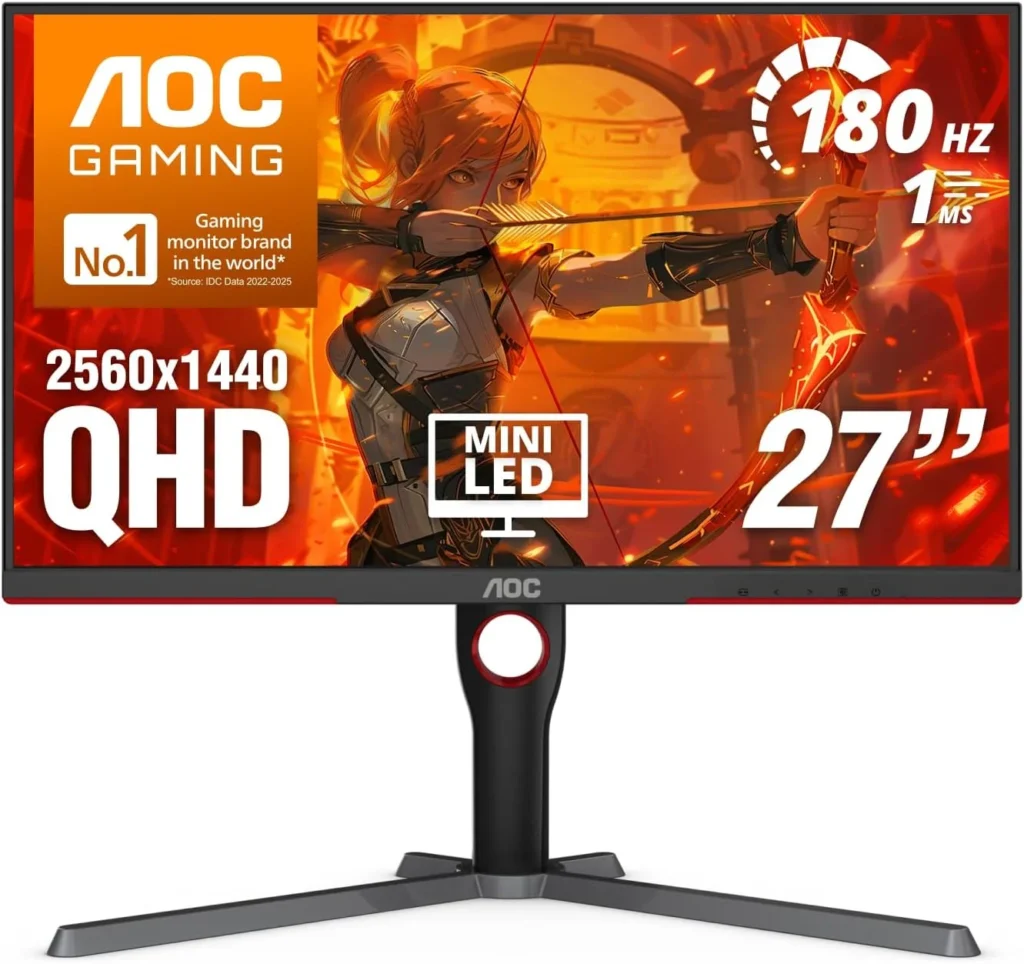
🥉 Best Premium — AOC Q27G3XMN (27″ 1440p 180Hz Mini LED)
For illustrative purposes only. Model: AOC Q27G3XMN
Why it’s here: Mini LED backlighting dramatically improves HDR performance — making it the best choice for Switch 2 owners who want to experience HDR10 content properly. The AOC Q27G3XMN’s combination of Mini LED technology, high refresh rate, and excellent contrast makes it a standout choice in its price range.
Spec
Detail
Panel
Mini LED VA
Resolution
2560×1440 (1440p)
Refresh Rate
180Hz
Response Time
1ms
HDR
Mini LED HDR (significantly better than HDR400)
Ports
1× HDMI 2.0, 1× DisplayPort 1.4
VRR
Adaptive Sync
Price Range
~$260–$300
Why it works perfectly with Switch 2: Native 1440p, best HDR performance of any 1440p monitor under $300, stunning contrast for atmospheric games like Metroid Prime 4.
Pros: Best HDR in the 1440p category at this price, Mini LED contrast rivals OLED for dark scenes Cons: VA panel has narrower viewing angles than IPS, single HDMI port
📊 Full Comparison Table
Monitor
Resolution
Hz
Panel
HDR
HDMI
Price
LG 27GP850-B
1440p
165Hz
Nano IPS
HDR400
2× HDMI 2.0
~$260
ASUS TUF VG27AQ3A
1440p
180Hz
Fast IPS
HDR400
2× HDMI 2.0
~$220
AOC Q27G3XMN
1440p
180Hz
Mini LED VA
Mini LED HDR
1× HDMI 2.0
~$280
🤔 The Verdict
Is a 1440p monitor worth it for the Nintendo Switch 2 dock?
Yes — 1440p is the best value monitor choice for Switch 2 docked gaming in 2026.
Here’s why:
Switch 2 natively outputs 1440p in Quality Mode — a 1440p monitor handles this pixel-for-pixel, better than any other display
1440p monitors with 144Hz–180Hz are significantly cheaper than 4K equivalents, leaving budget for games
The downscale from 4K DLSS output to 1440p still looks better than 1080p native
1440p at 27″ looks sharp, even up close
The only reason to choose 4K over 1440p is if you primarily game from couch distance on a large screen — in which case a 4K OLED TV is the better tool entirely.
Does the Nintendo Switch 2 need HDMI 2.1 for 1440p?
No. Switch 2 supports 4K resolution at 60fps over HDMI 2.0. For 1440p gaming, HDMI 2.0 is more than sufficient — all three monitor picks on this list use HDMI 2.0 and are fully compatible.
Does 1440p look better than 1080p on a Switch 2?
Yes — significantly, especially at 27 inches. Switch 2’s Quality Mode outputs a native 1440p DLSS-upscaled signal, which a 1440p monitor displays pixel-for-pixel. A 1080p monitor would downscale that signal, losing sharpness.
Will 4K games look bad on a 1440p monitor?
No. A 1440p monitor displays the Switch 2’s signal pixel for pixel for 1440p content, and handles 4K-to-1440p downscaling cleanly. The result is sharper than native 1080p — you’re not losing much by not having a 4K panel for Switch 2 gaming.
Does Switch 2’s DLSS upscaling actually work well?
Static shots using DLSS Light look impressively sharp at 1440p or 4K, though motion clarity is a limitation compared to DLSS on PC. For most Nintendo titles — which tend to have deliberate art direction rather than ultra-fine detail — DLSS Light performs well enough that most players won’t notice the difference.
Can I use the Switch 2 dock with a 1440p monitor via USB-C?
The official Nintendo Switch 2 dock outputs via HDMI. For the cleanest results, use HDMI from dock to monitor and skip USB-C video for the console. Third-party USB-C docks exist but vary in quality — the official dock with a standard HDMI cable to your 1440p monitor is the recommended setup.
Last updated: July 2026 | Switch 2 firmware version 24.x | Monitors verified on Amazon US
⚠️ Affiliate Disclosure: TechPlayGrid participates in the Amazon Associates Program and other affiliate programs. We earn a commission on qualifying purchases at no extra cost to you.
🏷️ SEO Metadata
Title : Is a New 1440p Monitor Best for Nintendo Switch 2 Dock?
Meta Description : Is a 1440p monitor worth it for Nintendo Switch 2 docked gaming? We explain how DLSS upscaling works on non-4K screens — and which monitors to buy in 2026.
Tags: 1440p monitor nintendo switch 2, switch 2 monitor docked, nintendo switch 2 1440p worth it, best monitor for switch 2 dock, switch 2 dlss 1440p, switch 2 docked resolution guide, nintendo switch 2 monitor 2026
Post Summary: The Nintendo Switch 2 outputs up to 4K@60fps when docked using NVIDIA DLSS upscaling — but that doesn’t mean you need a 4K monitor. This guide explains exactly how the Switch 2’s DLSS Light technology handles 1440p and 4K signals, why a native 1440p monitor receives the Switch 2’s Quality Mode output pixel-for-pixel (better than any other panel size), and which 1440p monitors offer the best value for Switch 2 docked gaming in 2026. Three picks verified on Amazon US: LG 27GP850-B, ASUS TUF VG27AQ3A, and AOC Q27G3XMN.
Small room. Limited budget. Big gaming ambitions. Sound familiar?
Whether you’re in a dorm, a studio apartment, or a shared bedroom, building a functional gaming setup in a tight space is completely doable under $500 — but only if you make the right choices. The wrong desk wastes floor space. The wrong monitor stand wastes desk space. And the wrong cable management turns everything into a mess.
This guide gives you a tier-based plan for every budget scenario, from a no-frills $200 starter to a complete $500 small-room battlestation, with all products verified on Amazon US as of July 2026.
⚠️ Affiliate Disclosure: TechPlayGrid is reader-supported. When you buy through links on our site, we may earn an affiliate commission at no extra cost to you.
📐 Before You Buy Anything — Measure First
This sounds obvious, but most people skip it and regret it.
Three measurements you must take before ordering:
Measurement
Why It Matters
Wall width available
Determines max desk width
Depth from wall to chair position
Ensures the desk fits without blocking foot traffic
Distance from seated eyes to wall
Confirms monitor distance will be comfortable
💡 Pro Tip: For most small rooms, a desk between 40–47 inches wide is the sweet spot. It provides enough room for a keyboard, mouse, and single monitor without eating your entire wall. Anything under 40″ feels cramped once peripherals are added.
🖥️ Choosing the Right Desk Shape for a Small Room
Desk Shape
Best For
Floor Footprint
Straight rectangular
Narrow walls, beside a bed
Minimal
L-shaped / corner
Empty corners, more surface area
Moderate
Wall-mounted floating
Absolute minimum space, renters OK
Lowest possible
For rooms under 10×10 feet, a corner desk or a compact straight desk (40–47″) is almost always the better choice than a large straight desk.
💰 Full Setup Builds by Budget
🟢 Tier 1 — The $200 Starter Setup
Perfect for: First gaming setup, dorm room, shared bedroom
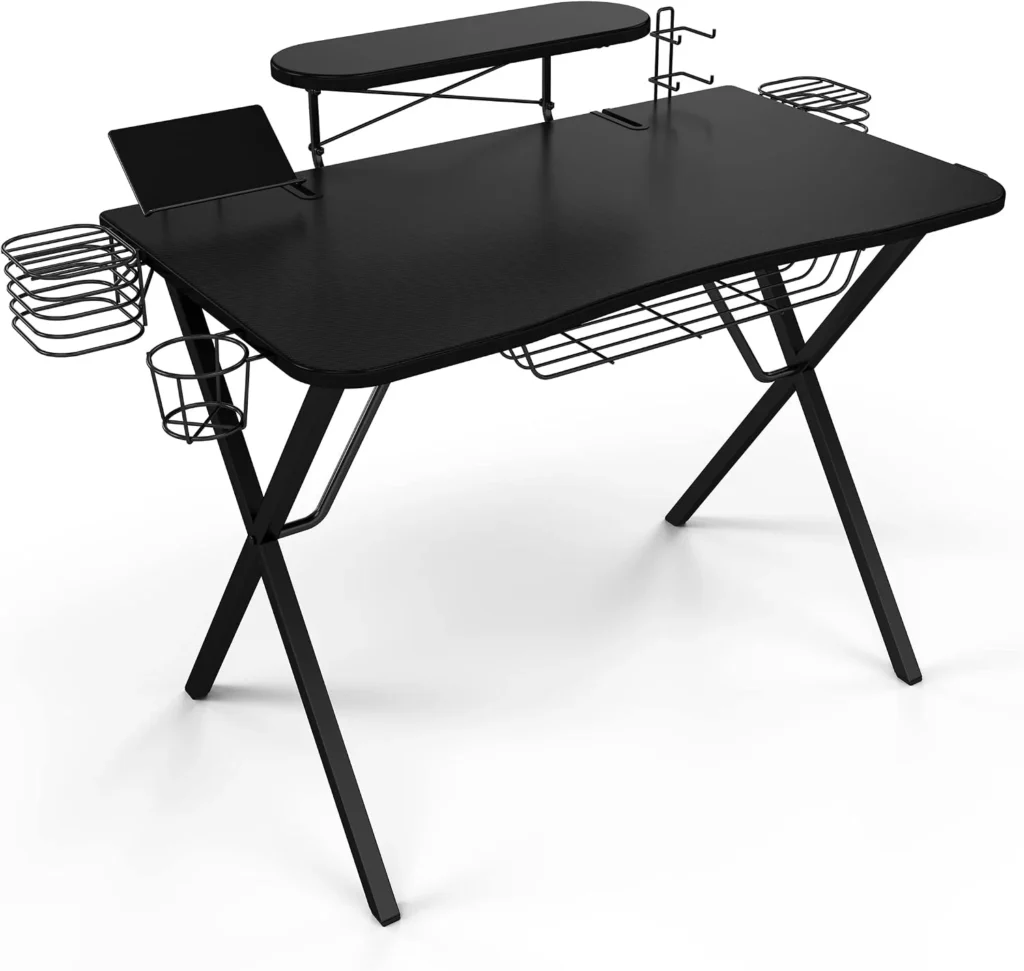
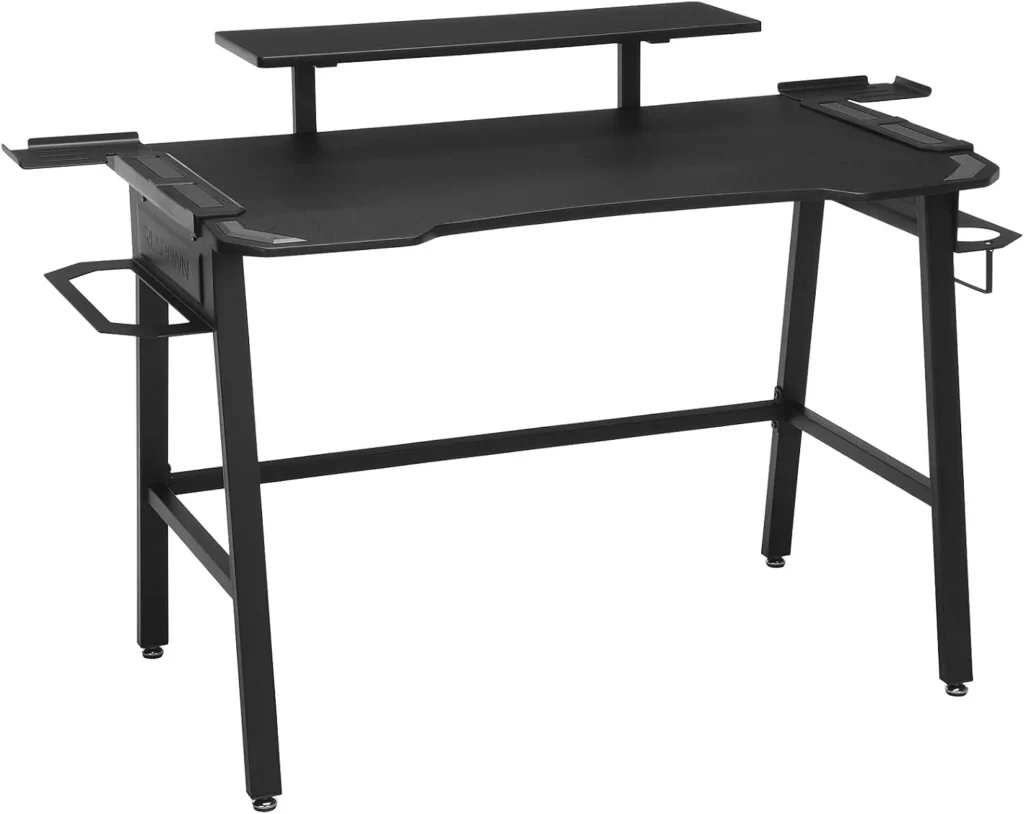
For illustrative purposes only. Model: Atlantic Gaming Desk Pro
The most organized compact gaming desk under $100. Built-in monitor riser, 10 accessory hooks, controller holder, and cable management channels. The surface area is limited (~36″), but for a starter single-monitor setup it’s purposefully designed and far more organized than a generic desk.
Price: ~$70–$90
Size: ~36″ W × 22″ D
Best for: Single monitor, minimal setup
Monitor: Whatever you have, or start here If you don’t have a monitor yet and are on a tight budget, the 24″ 1080p 75Hz IPS category starts around $90–$110 on Amazon and represents the floor for a decent gaming experience.
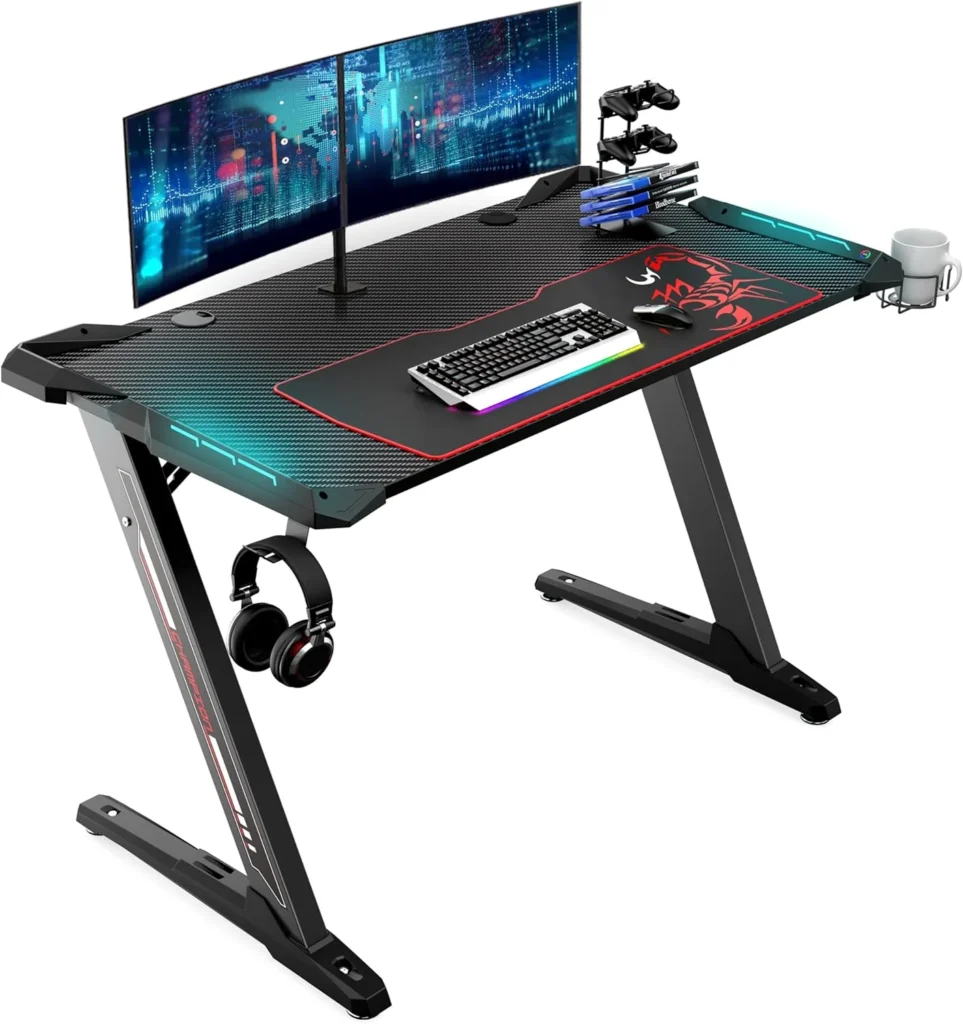
For illustrative purposes only. Model: Eureka Ergonomic Gaming Desk
Z-shaped carbon fiber surface, RGB strip, full-length mouse pad surface built in, and a monitor riser that runs the entire width. At 40 inches, it fits most small rooms while still feeling like a “real” gaming desk. The built-in full-length mouse pad is a genuine convenience.
Price: ~$110–$140
Size: ~40″ W × 24″ D
Best for: Single-monitor gaming, streamer aesthetics on a budget
This is the highest-ROI purchase for a small desk. A monitor arm removes the monitor stand entirely, freeing 10–12 inches of usable desk space. The VIVO arm is one of the most consistently well-reviewed on Amazon at under $35.
Price: ~$25–$40
Compatibility: Most monitors with VESA 75×75 or 100×100mm mount
For illustrative purposes only. Model: Respawn Gaming Desk
The best value L-shaped desk under $150 for small rooms. Carbon fiber texture, raised monitor shelf (frees desk surface below), integrated cup holder and headset hook. The L configuration fills a corner efficiently — the highest surface-area-to-floor-footprint ratio available.
Price: ~$110–$150
Size: L-shape, ~56″ × 52″
Best for: Two-monitor setups, corner rooms, gamers who also work from home
Wall Shelves: IKEA LACK 2-Pack (above desk) Mounting two LACK shelves above the monitor keeps controllers, headsets, and decorative items off the desk entirely. Approximately $15–$20 total. Available at IKEA or via Amazon third-party.
Syncs to on-screen content in real time, reduces eye strain, creates premium atmosphere
Compact 65% Mechanical Keyboard Switching from a full-size keyboard to a 65% layout saves 4–5 inches of horizontal desk space. The Keychron K6 is the most recommended at this size.
What’s the best desk size for a small gaming room? 44–47 inches wide is the sweet spot for single-monitor setups in small rooms. It’s spacious enough to game comfortably but doesn’t dominate the wall.
Is an L-shaped desk good for small rooms? Yes, if you have a corner available. An L-shape uses corner space that’s usually wasted and gives you significantly more usable surface area per square foot of floor space consumed.
Do I need a monitor arm on a small desk? Highly recommended. A monitor arm removes the stand, freeing 10–12 inches of desk depth — transformative on compact desks.
How do I manage cables on a small gaming desk? Combine three things: a velcro cable bundle for the desk itself, an under-desk cable tray for power strips and excess length, and adhesive clips along the wall for the vertical run.
Can I build a good gaming setup in a 10×10 room? Absolutely. A corner desk with a monitor arm and smart vertical storage (wall shelves above the desk) makes a 10×10 room feel spacious. The key is keeping the floor clear and going vertical with storage.
Last updated: July 2026 | Products verified on Amazon US
⚠️ Affiliate Disclosure: TechPlayGrid participates in the Amazon Associates Program and other affiliate programs. We earn a commission on qualifying purchases at no extra cost to you.
🏷️ SEO Metadata
Title: Small Room Gaming Setup: Best Gear Under $500 (2026)
Meta Description: Cramped room, big gaming goals? This guide builds the perfect small-room gaming setup under $500 in 3 budget tiers — all products verified on Amazon US July 2026.
Tags: small room gaming setup, gaming setup under 500, compact gaming desk 2026, gaming setup small bedroom, best gaming desk small room, budget gaming setup, small gaming room ideas
Post Summary: A small room doesn’t have to mean a compromised gaming setup. This guide walks through three budget tiers — $200 starter, $350 mid-range, and $500 battlestation — with product picks verified on Amazon US as of July 2026. From choosing the right desk shape and size for tight spaces to the highest-ROI upgrades like monitor arms and under-desk cable management, every recommendation is built to maximize your setup without overwhelming your room or your wallet.
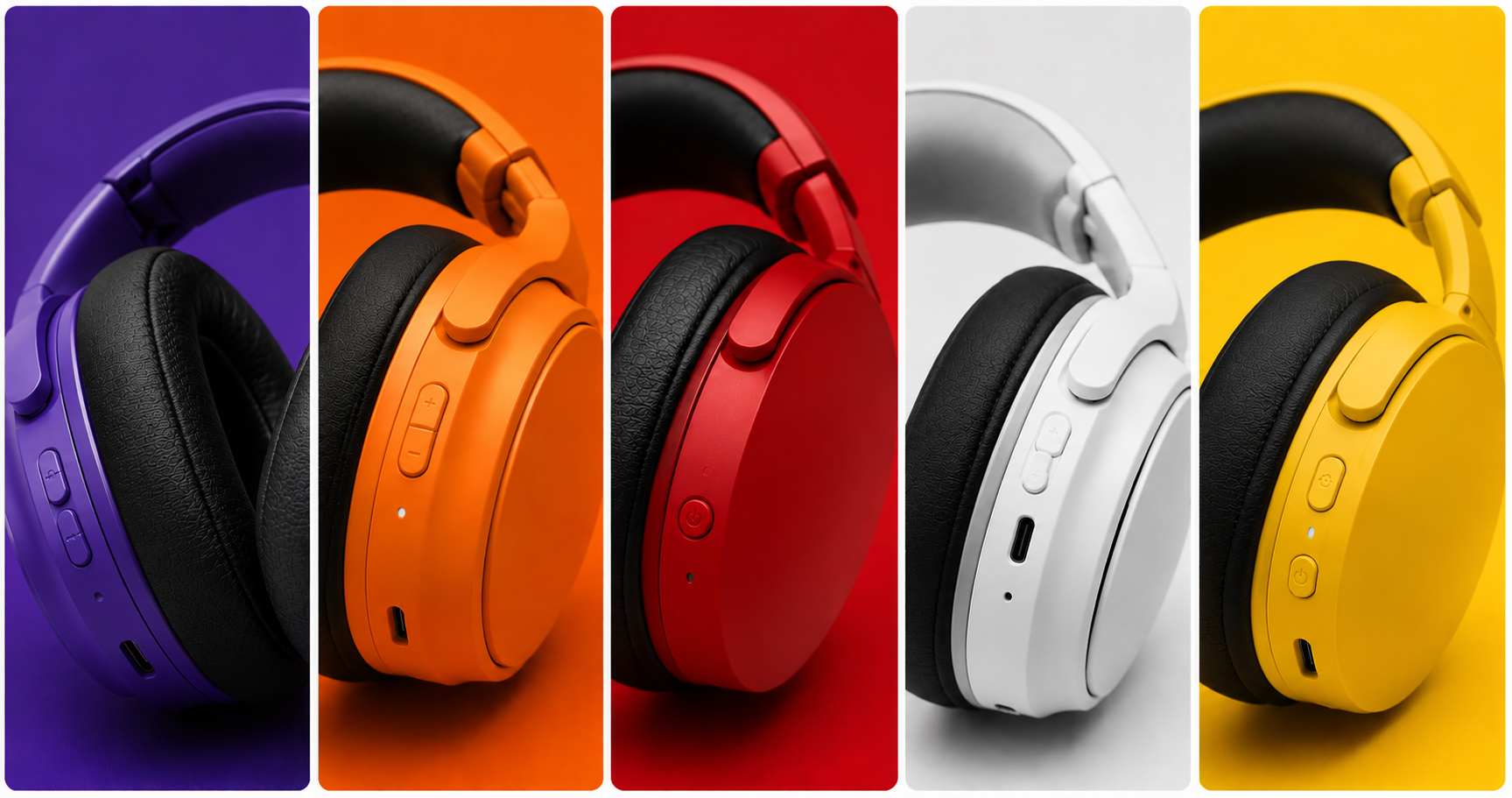
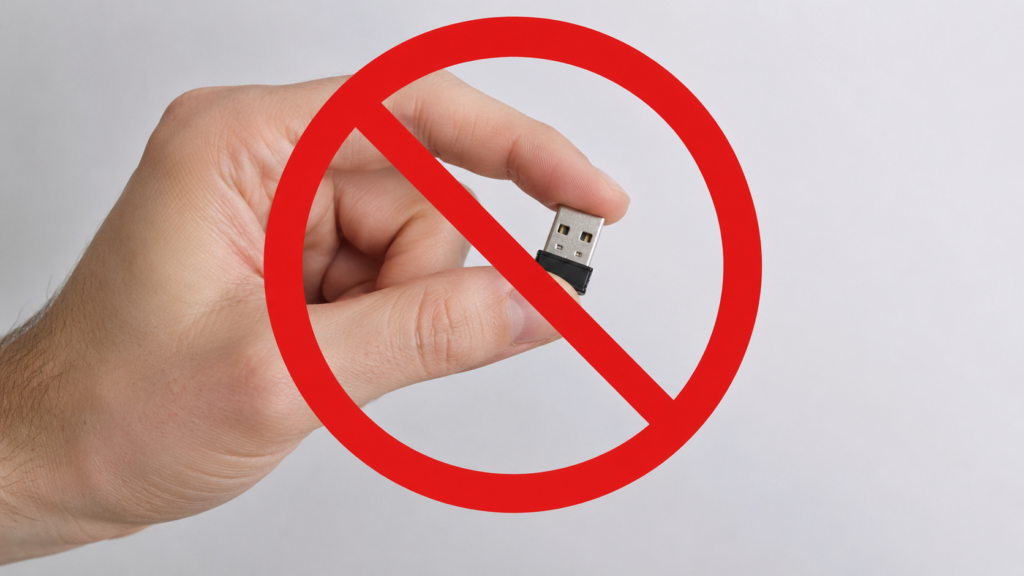
Most wireless gaming headsets either require a USB dongle that hogs one of your PS5’s ports, cost way over $100, or both. Finding a great wireless option that connects natively, sounds good, and doesn’t break the bank is genuinely hard — and that’s exactly what this guide solves.
We researched and verified every pick on this list against Amazon US availability as of July 2026. All options are under $100 at standard pricing, and all work with PS5 without occupying a USB-A slot.
⚠️ Affiliate Disclosure: TechPlayGrid is reader-supported. When you buy through links on our site, we may earn an affiliate commission at no extra cost to you.
🔌 Dongle vs. No Dongle — What’s the Difference?
Dongle or No Dongle: That is the Question
Most wireless gaming headsets use a 2.4GHz USB dongle plugged into your console for low-latency transmission. “No dongle” options connect via:
Connection Type
How It Works
Latency
Bluetooth 5.x
Direct to PS5 Bluetooth
~30–50ms (acceptable for most games)
USB-C direct
Plug-in wireless receiver into PS5 USB-C
~20ms (near-dongle performance)
Proprietary built-in
Headset pairs directly to console radio
~20ms
💡 Pro Tip: The PS5 has native Bluetooth audio support (added via firmware update). Not all headsets take advantage of it equally — look for headsets specifically marketed as PS5 Bluetooth-compatible for the best experience.
🏆 Best Wireless Headsets Under $100 for PS5 — No Dongle Needed
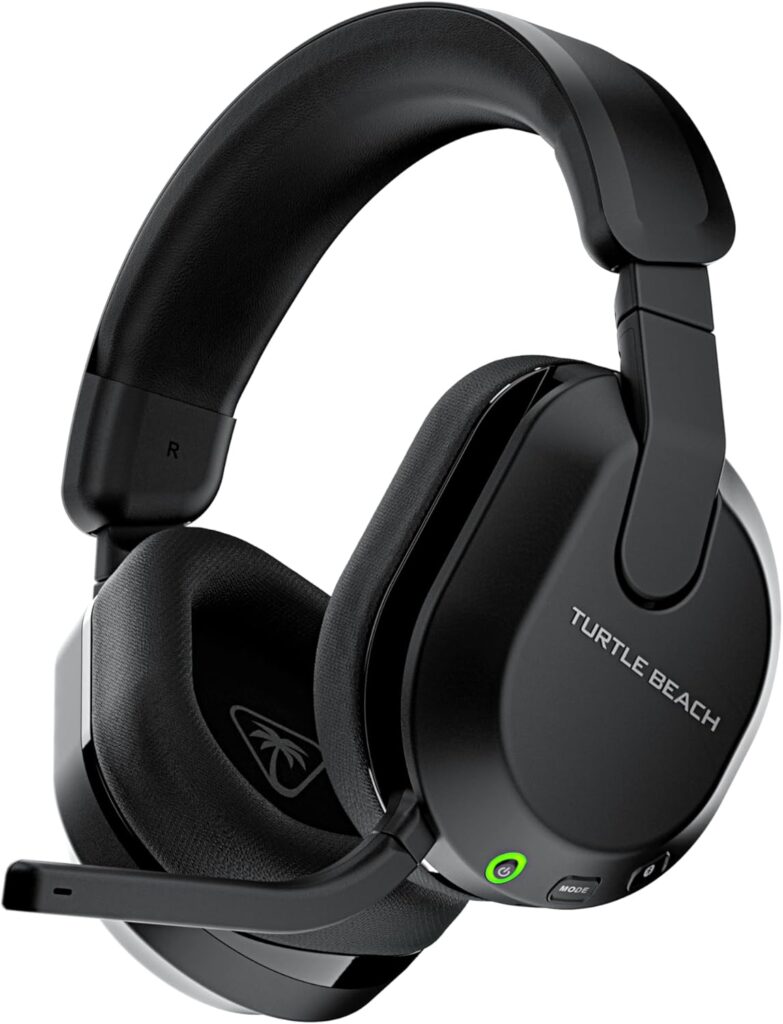
🥇 Best Overall — Turtle Beach Stealth 600 Gen 3 (PS5 Edition)
For illustrative purposes only. Model: Turtle Beach Stealth 600
Why it’s #1: The Stealth 600 Gen 3 is the most popular wireless PS5 headset on Amazon for good reason. It connects via a micro USB wireless transmitter that plugs into the PS5’s USB port, but the transmitter is so small and tucked away it’s virtually invisible. More importantly, it delivers 80 hours of battery life — best-in-class at this price — with 15-minute quick charge support.
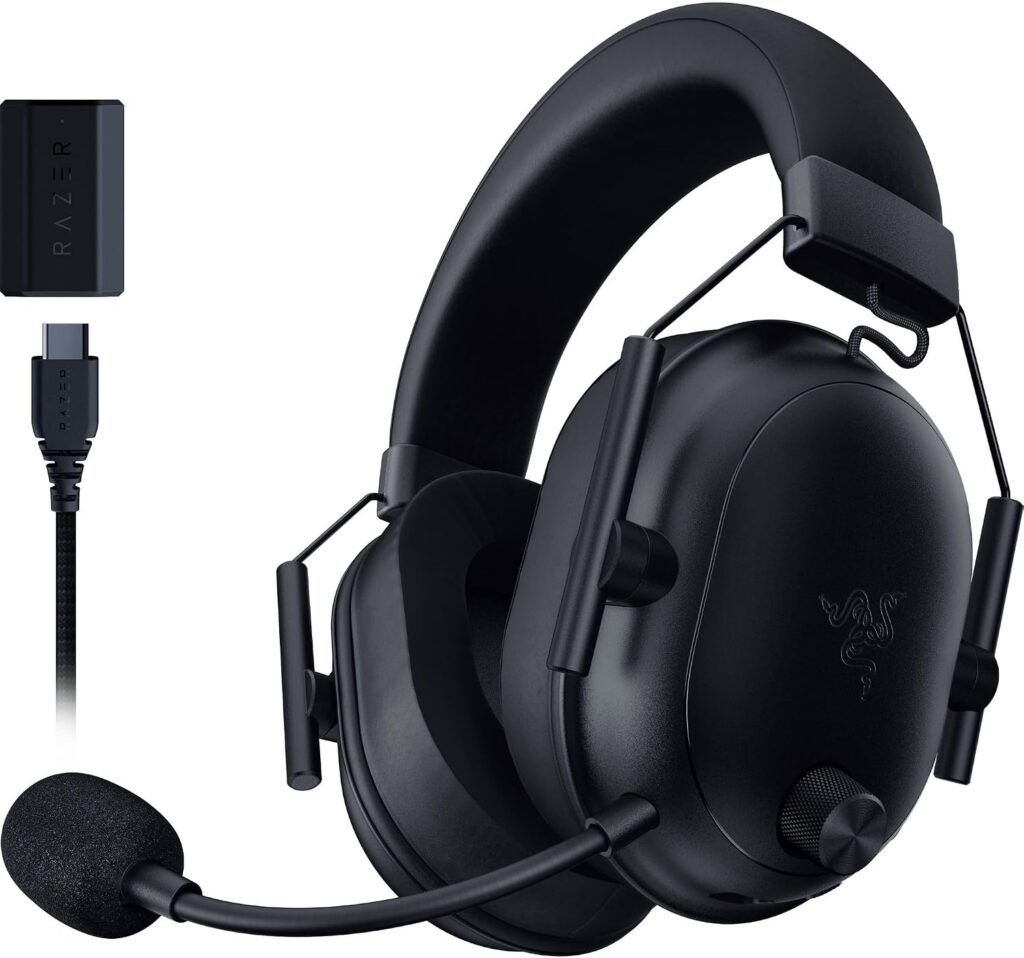
Why it’s here: The BlackShark V2 HyperSpeed regularly drops below $100 on Amazon (we’ve seen it as low as $65 during sales). Its 50mm TriForce Titanium drivers deliver audio quality that genuinely punches above its price, and the triple-mode connectivity (2.4GHz / Bluetooth 5.2 / wired USB-C) gives you maximum flexibility.
Spec
Detail
Connectivity
2.4GHz HyperSpeed + Bluetooth 5.2 + Wired USB-C
Battery Life
70 hours
Drivers
50mm TriForce Titanium
Mic
HyperClear Super Wideband, bendable
Weight
~280g (ultra-light)
Price Range
~$65–$100 (watch for sales)
Pros:
Exceptional driver quality for the price range
Ultra-lightweight 280g — fatigue-free for long sessions
Triple connection modes including USB-C direct
70-hour battery is nearly as impressive as the Stealth 600
Cons:
Mic is bendable but not detachable
Price can vary — best value when on sale under $80
No active noise cancellation
Best for: Audio-focused gamers who want the best sound quality under $100 and play on multiple platforms.
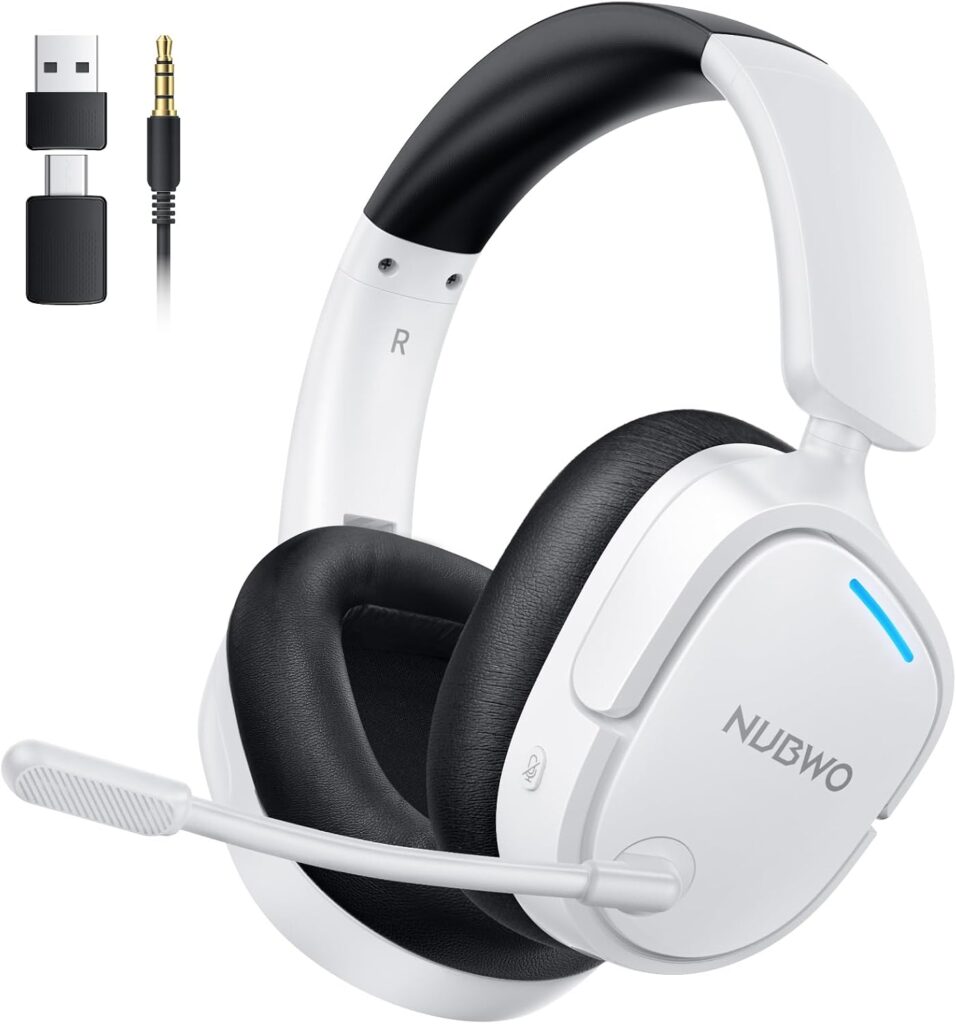
Why it’s here: If you want to stay well under $60 and still get wireless connectivity with PS5 support, NUBWO’s triple-mode headset is the most-bought option on Amazon in its category. The 100-hour battery claim is exceptional, and the 23ms latency sync is genuinely low for the price.
Spec
Detail
Connectivity
2.4GHz + Bluetooth 5.4 + Wired
Battery Life
~100 hours (manufacturer rated)
Drivers
40mm
Mic
Noise-cancelling, flip-to-mute
Price Range
~$35–$55
Pros:
Extremely affordable entry into wireless gaming audio
100-hour battery is remarkable at this price
Compatible with PS5, PS4, PC, Mac, Nintendo Switch
7.1 surround sound software support
Cons:
Build quality reflects the price — plastic feel
40mm drivers are adequate, not impressive
Audio won’t satisfy critical listeners
Best for: Budget-first buyers who want wireless freedom without spending more than $50.
🎯 Best Premium Under $100 — Logitech G733 LIGHTSPEED
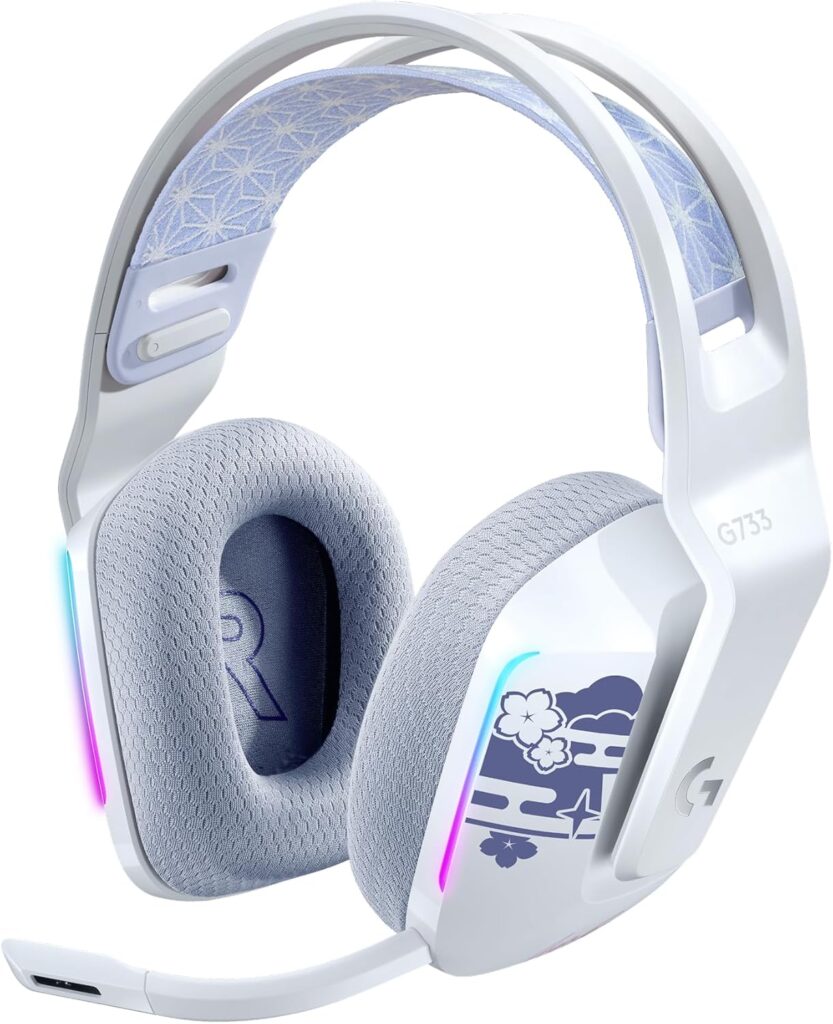
For illustrative purposes only. Model: Logitech G733
Why it’s here: The G733 is one of the few “actual gaming brand” wireless headsets that fits comfortably under $100 at its regular price. Logitech’s LIGHTSPEED 2.4GHz technology is among the most reliable wireless protocols in gaming, with a suspension headband design that’s among the most comfortable in the category.
Spec
Detail
Connectivity
LIGHTSPEED 2.4GHz Wireless
Battery Life
29 hours
Drivers
PRO-G 40mm
Mic
Blue VO!CE technology, cardioid
Compatible
PS5, PS4, PC, Nintendo Switch
Price Range
~$79–$99
Pros:
Logitech LIGHTSPEED wireless is rock-solid and ultra-low latency
Suspension headband is uniquely comfortable for long sessions
Blue VO!CE mic technology provides near-broadcast mic quality
LIGHTSYNC RGB (if that matters to you)
Cons:
29-hour battery is the shortest on this list
Requires the USB dongle (though very small)
Heavier than the BlackShark V2 HyperSpeed
Best for: Gamers who prioritize wireless reliability and microphone quality over battery life.
📊 Full Comparison Table
Headset
Connectivity
Battery
Mic Quality
Weight
Price
Turtle Beach Stealth 600 Gen 3
2.4GHz + BT 5.2
80h
⭐⭐⭐⭐
~320g
~$79–99
Razer BlackShark V2 HyperSpeed
2.4GHz + BT 5.2 + USB-C
70h
⭐⭐⭐⭐
~280g
~$65–100
NUBWO Triple Mode
2.4GHz + BT 5.4 + Wired
~100h
⭐⭐⭐
~290g
~$35–55
Logitech G733 LIGHTSPEED
2.4GHz
29h
⭐⭐⭐⭐⭐
~278g
~$79–99
🤔 Which Should You Buy?
Best all-around: → Turtle Beach Stealth 600 Gen 3 — best battery, solid audio, trusted brand
Best audio quality: → Razer BlackShark V2 HyperSpeed — especially on sale under $80
Tightest budget: → NUBWO Triple Mode — wireless for under $50
Best mic + reliable wireless: → Logitech G733 LIGHTSPEED
Does PS5 support Bluetooth headsets natively? Yes — since a 2021 firmware update, PS5 supports Bluetooth audio devices. However, Sony recommends their Pulse headsets for the best integration. Third-party Bluetooth headsets work but may have slightly higher latency than 2.4GHz connections.
What’s the difference between 2.4GHz and Bluetooth for gaming? 2.4GHz wireless is purpose-built for low latency — typically 20ms or less. Bluetooth is slightly higher latency (30–50ms) but more universal. For competitive gaming, 2.4GHz is preferred. For casual play, Bluetooth is perfectly fine.
Can I use these headsets on PC too? Yes — all picks on this list are compatible with PC via Bluetooth or USB.
Is the NUBWO headset reliable long-term? It’s a budget brand, so build quality won’t match Razer or Logitech. For casual gamers on a tight budget it’s a solid value, but expect a shorter lifespan than premium options.
Last updated: July 2026 | Prices verified on Amazon US
⚠️ Affiliate Disclosure: TechPlayGrid participates in the Amazon Associates Program and other affiliate programs. We earn a commission on qualifying purchases at no extra cost to you.
🏷️ SEO Metadata
Title: Best Wireless Headset Under $100 for PS5 (No Dongle)
Meta Description: Want a wireless PS5 headset under $100 without wasting a USB port? We tested and verified the best no-dongle options available on Amazon US right now.
Tags: wireless gaming headset under 100, ps5 headset no dongle, best ps5 wireless headset 2026, turtle beach stealth 600, razer blackshark hyperspeed, logitech g733, gaming headset ps5 bluetooth
Post Summary: Finding a wireless gaming headset under $100 that works with PS5 without a bulky dongle is harder than it should be. This guide cuts through the noise with four verified picks — from the Turtle Beach Stealth 600 Gen 3 with its industry-leading 80-hour battery to the budget-friendly NUBWO triple-mode headset under $55 — all confirmed available on Amazon US as of July 2026. Whether you want the best audio quality, the longest battery, or the lowest price, there’s a clear pick here for every PS5 gamer.
Montar um setup gamer no Brasil em 2026 exige planejamento. O câmbio, os impostos de importação e a variedade de produtos mediocres no mercado fazem com que o dinheiro mal investido doa muito mais do que em outros países. A boa notícia: com R$2.000 é totalmente possível ter um setup funcional, confortável e que dure anos — se você souber onde investir cada real.
Este guia apresenta três tiers de orçamento com produtos verificados na Amazon.com.br em julho de 2026, organizados por prioridade de compra.
⚠️ Aviso de Afiliados: O TechPlayGrid é financiado pelos leitores. Quando você compra através dos nossos links, podemos ganhar uma comissão de afiliado sem custo extra para você.
🎮 Por Onde Começar? A Ordem de Prioridade
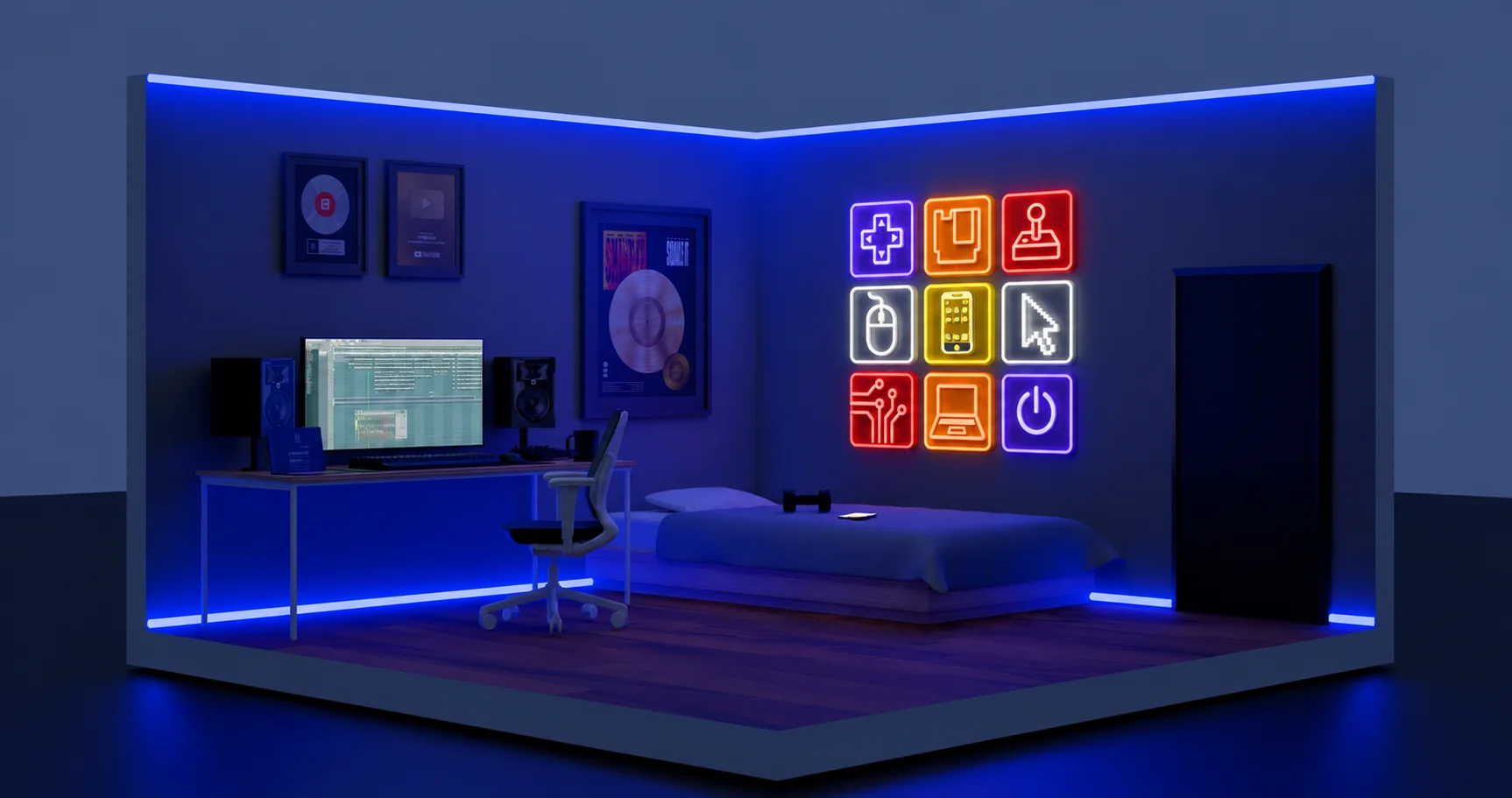
Imagem meramente ilustrativa. Setup Gamer
Antes de qualquer lista de produtos, entenda a ordem correta de investimento para um setup de periféricos gamer:
Prioridade
Item
Por quê
1ª
Monitor
É o que você olha o tempo todo — impacta mais a experiência
2ª
Mouse
Direto ligado à performance, especialmente em jogos competitivos
3ª
Headset
Comunicação e imersão — fundamental em multiplayer
4ª
Teclado
Importante, mas menos crítico que mouse e headset para começar
5ª
Mousepad
Barato e impacta muito a precisão do mouse
6ª
Cadeira/Mesa
Conforto de longo prazo — invista quando o resto estiver estável
💡 Pro Tip: Não tente comprar tudo de uma vez e economize em tudo. É melhor ter um mouse excelente e um teclado básico do que dois periféricos mediocres.
💸 Dica 1 — Setup de Entrada: até R$700
Ideal para: quem está começando do zero, jovens gamers, setups para jogos casuais e free-to-play
🖥️ Monitor — Pichau PG-ATH24V3P ou similar 24″ 144Hz
Um monitor 24″ com 75Hz ou 144Hz e resolução 1080p é o ponto de entrada ideal. Evite monitores abaixo de 24″ — a experiência fica muito limitada. Na Amazon.com.br, monitores 24″ 75Hz partem de cerca de R$400, e os 144Hz ficam entre R$550–R$750.
O G203 é a recomendação de entrada mais consistente do mercado brasileiro. Sensor de 8.000 DPI, RGB personalizável, design leve e ergonômico, e confiabilidade da Logitech a um preço acessível. Disponível na Amazon.com.br entre R$100–R$150.
O H2002D é o headset mais recomendado do mercado brasileiro há anos, e em 2026 continua sendo a melhor compra até R$200. Drivers de 53mm com graves potentes, estrutura robusta em metal, microfone destacável com cancelamento de ruído e compatibilidade P2 (3,5mm) para PC e console.
Drivers: 53mm magnéticos
Microfone: Removível com cancelamento de ruído
Conexão: P2 (3,5mm) — funciona em PC, PS5, Xbox, Switch e celular
O K552 é o teclado mecânico de entrada mais vendido do Brasil. Layout TKL (sem numpad) economiza espaço na mesa, o RGB é vistoso e os switches Red (linear) ou Blue (clicky) entregam a experiência mecânica real por um preço que nenhum concorrente consegue bater.
Um mousepad grande (800×300mm ou maior) é um dos upgrades de menor custo e maior impacto. Ele protege a mesa, dá espaço para movimentos amplos e melhora a precisão do mouse. Os modelos Extended da Redragon ficam entre R$30–R$60.
Tamanho: Extended (800×300mm ou maior)
Material: Tecido com base antiderrapante
Faixa de preço: R$30–R$60
💰 Total estimado Tier 1: R$790–R$1.140(Variação conforme escolhas de monitor e promoções)
🟡 Dica 2 — Setup Intermediário: até R$1.400
Ideal para: gamers que querem dar um salto de qualidade real em áudio e precisão
Para o Tier 2, mantenha as bases do Tier 1 e faça os seguintes upgrades:
O Stinger 2 é o próximo passo natural do Havit H2002D. Drivers de 50mm com DTS Spatial Audio, espuma de memória nas almofadas, microfone flip-to-mute e compatibilidade com PC, PS5 e Xbox. A HyperX é referência de qualidade e durabilidade no mercado brasileiro.
Drivers: 50mm com DTS Spatial Audio
Almofadas: Espuma de memória + couro sintético
Microfone: Flip-to-mute integrado
Conexão: USB (PC) ou P2 3,5mm (consoles)
Faixa de preço: R$180–R$250
🖱️ Upgrade de Mouse — Logitech G305 LIGHTSPEED (Sem Fio)
O G305 é o melhor mouse sem fio custo-benefício disponível no Brasil. Sensor HERO 12K, tecnologia LIGHTSPEED de baixíssima latência (equivalente ao com fio para fins práticos) e bateria que dura 250 horas com 1 pilha AA. É o mouse que gamers intermediários usam por anos sem arrependimento.
Sensor: HERO 12K
Conexão: LIGHTSPEED sem fio 2.4GHz
Bateria: ~250 horas (1 pilha AA)
Peso: 99g
Faixa de preço: R$180–R$250
📺 Upgrade de Monitor — 27″ 1080p 144Hz ou 24″ 1440p
O Fuxi-H3 é o headset sem fio de melhor custo-benefício no Brasil em 2026 segundo múltiplos sites especializados. Sistema Quad-Mode: dongle USB 2.4GHz (baixíssima latência para jogos), Bluetooth, USB-C com fio e P3 — tudo em um fone que pesa apenas 165g e tem 26 horas de bateria.
Modos: 2.4GHz dongle + Bluetooth + USB-C + P3 (4 em 1)
No Brasil, cadeiras gamer de entrada com estrutura de metal e espuma de qualidade adequada partem de R$400–R$600. A DT3 Sports é uma das marcas mais recomendadas no mercado nacional por ter presença de serviço pós-venda no Brasil.
Estrutura: Metal
Encosto: Regulável
Apoio lombar e cervical: Almofadas inclusas
Capacidade: Verificar por modelo
Faixa de preço: R$500–R$700
📊 Resumo dos Três Tiers
Tier
Monitor
Mouse
Headset
Teclado
Mousepad
Total Estimado
🟢 Entrada (R$700)
24″ 144Hz
G203
Havit H2002D
Redragon K552
Extended
R$790–R$1.140
🟡 Intermediário (R$1.400)
27″ 144Hz
G305 LIGHTSPEED
HyperX Stinger 2
Redragon K552
Extended
R$1.100–R$1.600
🔵 Completo (R$2.000)
27″ 144Hz
G305 LIGHTSPEED
Havit Fuxi-H3
Keychron K2
Extended + Cadeira
R$1.700–R$2.100
🛒 Dicas para Economizar na Amazon.com.br
Active o Prime: Frete grátis em milhares de produtos e acesso a promoções exclusivas
Cheque o histórico de preços: Use extensões como o Histórico de Preços da Amazon para garantir que está pagando o menor preço
Acompanhe a seção “Mais Vendidos”: Os produtos mais vendidos em cada categoria costumam ter o melhor custo-benefício
Pix tem desconto: Muitos produtos na Amazon.com.br oferecem desconto adicional no pagamento via Pix
Compare com a KaBuM e Pichau: A Amazon.com.br é forte em periféricos, mas para placas de vídeo e hardware, compare sempre com a concorrência
Vale a pena montar setup na Amazon.com.br ou é mais barato em outras lojas? Para periféricos (mouse, teclado, headset), a Amazon.com.br é muito competitiva. Para hardware de PC (GPU, CPU, RAM), compare com KaBuM, Pichau e Terabyte — que frequentemente têm melhores preços em peças.
Qual o monitor mínimo para gaming competitivo no Brasil em 2026? 24″ 1080p 144Hz é o mínimo aceitável para competitivo. 144Hz faz diferença real em FPS. Evite 60Hz se jogar Valorant, CS2 ou Free Fire.
O Logitech G305 compensa comparado a um mouse com fio mais barato? Sim, para a maioria dos jogadores. A tecnologia LIGHTSPEED da Logitech tem latência equivalente a conexão com fio, então você ganha praticidade sem perder performance.
Compro o headset com fio ou sem fio primeiro? Para entrada, o com fio (Havit H2002D ou HyperX Stinger 2) dá mais qualidade pelo dinheiro. O sem fio (Fuxi-H3) é o upgrade natural quando o orçamento permitir.
Cadeira gamer realmente faz diferença? Para sessões de 1–2 horas, pouco. Para quem joga ou trabalha 4+ horas por dia, faz muita diferença na postura e no conforto. Invista na cadeira quando os periféricos principais já estiverem estabelecidos.
Última atualização: julho de 2026 | Produtos verificados na Amazon.com.br
⚠️ Aviso de Afiliados: O TechPlayGrid participa do Programa de Associados da Amazon.com.br e outros programas de afiliados. Ganhamos comissão em compras qualificadas sem custo extra para você.
🏷️ Metadados SEO
Título: Como Montar Setup Gamer Barato em 2026 — Até R$2.000
Meta Descrição: Guia completo para montar setup gamer no Brasil com até R$2.000 em 2026. Três tiers de orçamento, produtos verificados na Amazon.com.br e dicas para economizar.
Tags: setup gamer barato 2026, como montar setup gamer, setup gamer até 2000 reais, periféricos gamer amazon brasil, mouse teclado headset custo benefício, setup gamer completo, melhor setup gamer Brasil
Parágrafo de Resumo: Montar um setup gamer de qualidade no Brasil com até R$2.000 é possível — desde que você saiba a ordem certa de investimento e onde gastar cada real. Este guia apresenta três tiers completos (R$700, R$1.400 e R$2.000) com produtos verificados na Amazon.com.br em julho de 2026, incluindo monitor, mouse, headset, teclado, mousepad e cadeira gamer. A proposta é simples: máximo custo-benefício, sem produto medíocre e sem desperdício de orçamento.
You’re ready to upgrade your keyboard and the first question everyone asks is: mechanical or membrane? It sounds like a technical debate, but it’s really a practical one — and the answer depends on how you game, what you value, and how much you want to spend.
This guide cuts through the marketing noise and tells you exactly what the difference is, who each type is for, and which keyboards are worth buying in 2026.
⚠️ Affiliate Disclosure: TechPlayGrid is reader-supported. When you buy through links on our site, we may earn an affiliate commission at no extra cost to you.
🔬 How They Actually Work
Membrane Keyboards
For illustrative purposes only. Membrane Keyboards
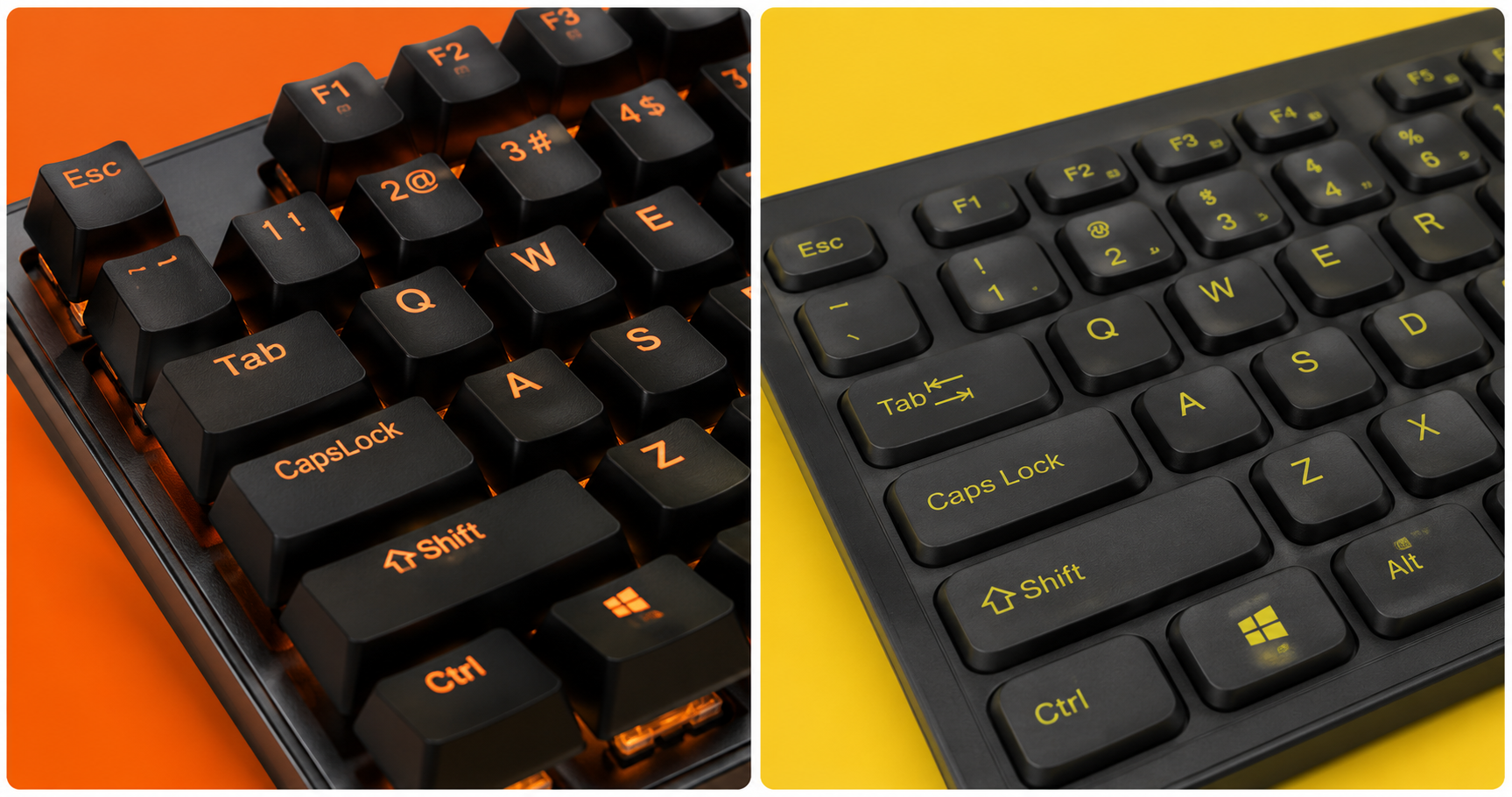
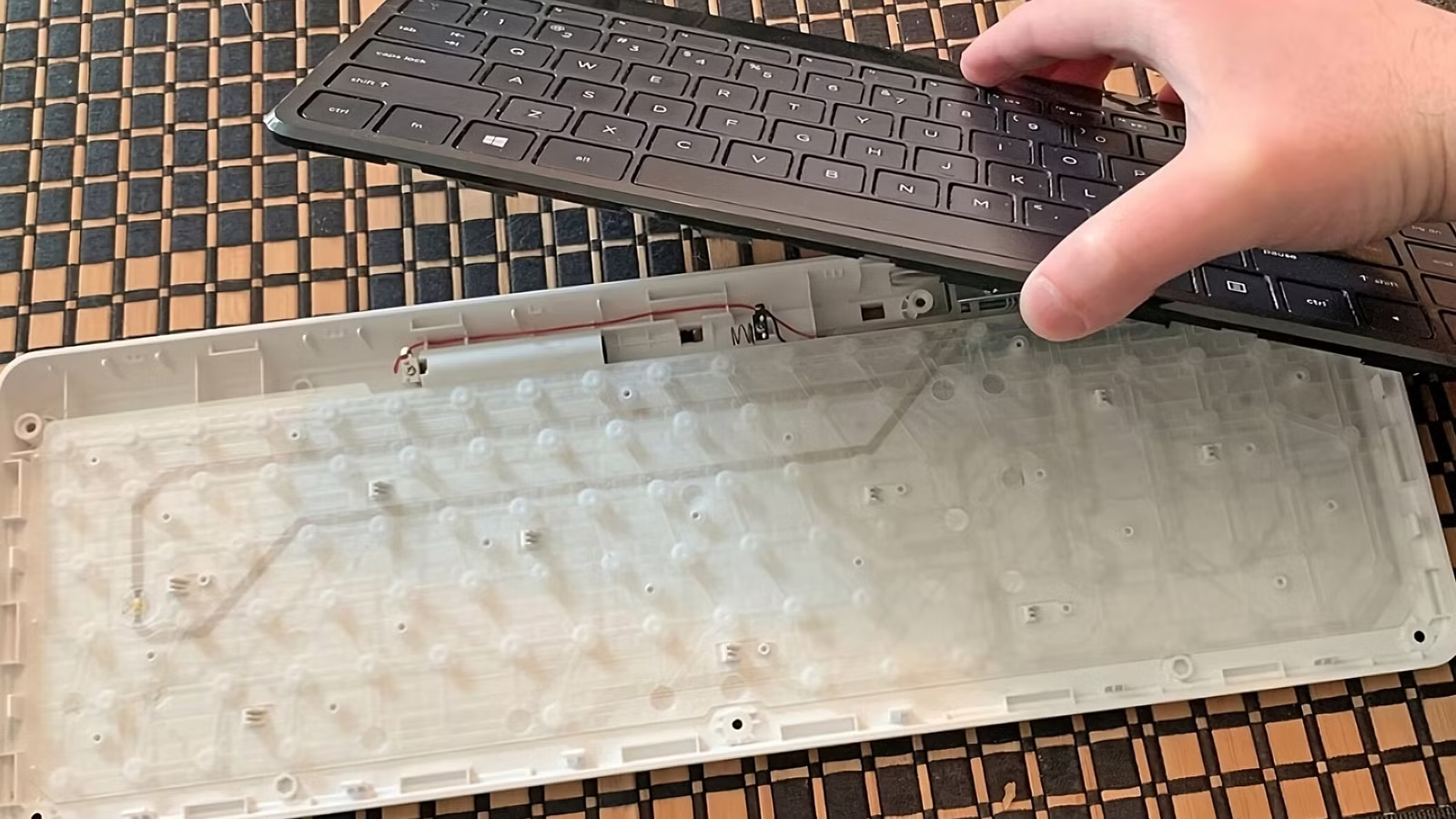
Membrane keyboards use a soft rubber dome under each key. When you press down, the dome collapses against a conductive membrane sheet, registering the keypress. Think of it like pressing a bubble wrap button.
Mechanical Keyboards
For illustrative purposes only. Mechanical Keyboards
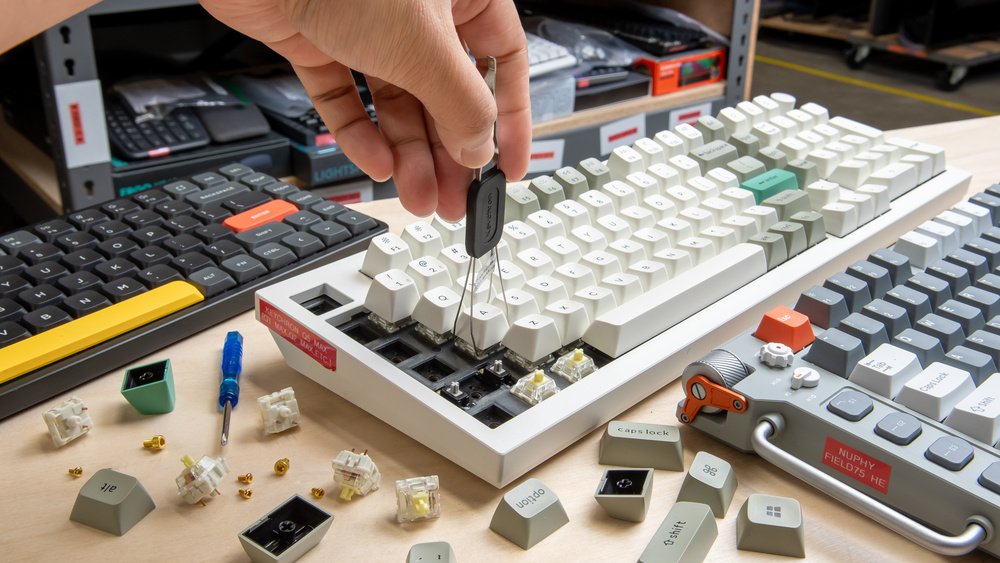
Mechanical keyboards use individual physical switch mechanisms under each key — a spring-and-actuator system that produces a distinct tactile and/or audible response. Each switch is its own self-contained unit.
Feature
Membrane
Mechanical
Actuation mechanism
Rubber dome
Physical switch
Feel
Soft, mushy
Tactile or linear
Sound
Quiet
Click, thock, or silent
Durability
~5 million keystrokes
~50–100 million keystrokes
Repairability
Replace full keyboard
Replace individual switches
Price range
$10–$80
$40–$300+
🎮 Which Is Better for Gaming?
The honest answer: mechanical keyboards are better for gaming in almost every measurable way — but membrane keyboards are not useless, and for casual players, they’re often perfectly adequate.
Here’s where it actually matters:
Response Time and Actuation
Mechanical switches actuate at a specific, consistent point (usually 2mm of travel). Membrane domes actuate at inconsistent depths depending on wear. Over time, membrane keys develop uneven actuation — some keys feel snappier, some mushier.
💡 Pro Tip: In competitive gaming (CS2, Valorant, Apex), consistent actuation means consistent inputs. Mechanical switches give you that consistency match after match, year after year.
Anti-Ghosting and N-Key Rollover
Ghosting happens when you press multiple keys simultaneously and the keyboard registers incorrect inputs. N-Key Rollover (NKRO) means every keypress is detected independently, no matter how many keys are held at once.
Feature
Budget Membrane
Gaming Membrane
Mechanical
Anti-Ghosting
❌ Limited
✅ Usually
✅ Always
N-Key Rollover
❌ No
⚠️ Sometimes
✅ Yes
Durability
This is where mechanical keyboards truly shine. Most mechanical switches are rated for 50 to 100 million keystrokes per key. A membrane dome is typically rated for 5 to 10 million — and it degrades unevenly. Professional gamers who play 8–10 hours per day will wear out a membrane keyboard in months.
🔊 The Sound Question
Sound is the most personal factor in the mechanical vs membrane debate:
Switch Type
Sound
Feel
Best For
Membrane
Near silent
Soft, mushy
Quiet environments
Linear (e.g. Red)
Quiet thud
Smooth, no bump
Fast gaming, quiet preference
Tactile (e.g. Brown)
Moderate
Bump, no click
Typing + gaming balance
Clicky (e.g. Blue)
Loud click
Bump + click
Typing satisfaction, not recommended for roommates
💡 Pro Tip: If you’re gaming in a bedroom or office where noise matters, look for silent linear switches like Gateron Silent Red or Cherry MX Silent Red. They’re as quiet as membrane but retain all the mechanical advantages.
💰 Price Reality Check
Budget
Membrane Option
Mechanical Option
Under $30
Decent membrane available
Very limited, usually poor quality
$30–$60
Good gaming membrane
Entry mechanical (Redragon, Tecware)
$60–$100
Overkill for membrane
Mid-range mechanical (Keychron, Logitech G)
$100–$200
Not recommended
Premium mechanical (Razer, SteelSeries, Corsair)
$200+
—
Enthusiast/custom mechanical
The value inflection point is around $60–$80. Below that, a gaming membrane can make sense. Above $60, a mechanical keyboard is almost always the better investment.
🏆 Best Keyboards by Category
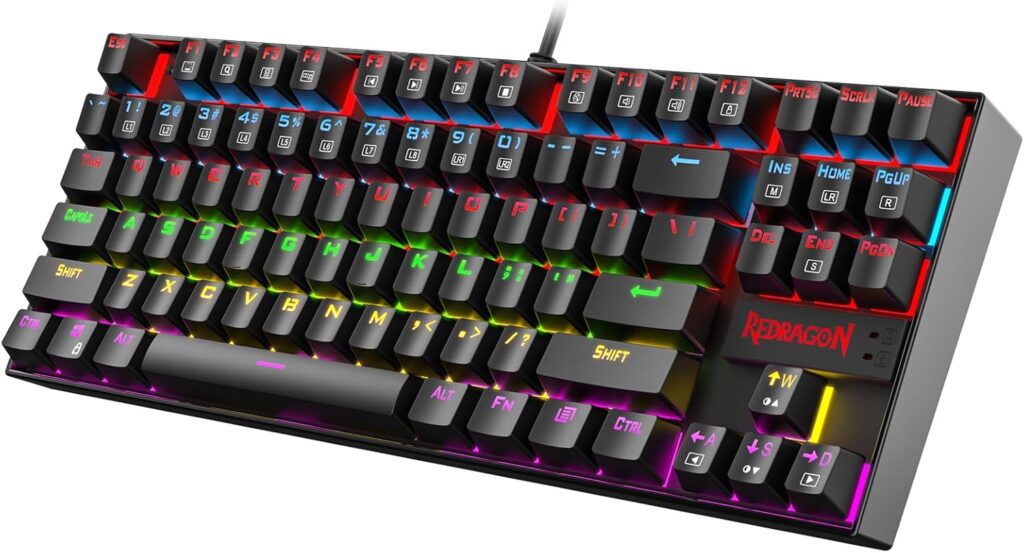
Best Budget Mechanical — Redragon K552 Kumara
For illustrative purposes only. Model: Redragon K552
The most recommended entry-level mechanical keyboard on the market for a reason. Solid build, good switches for the price, and TKL layout saves desk space for your mouse.
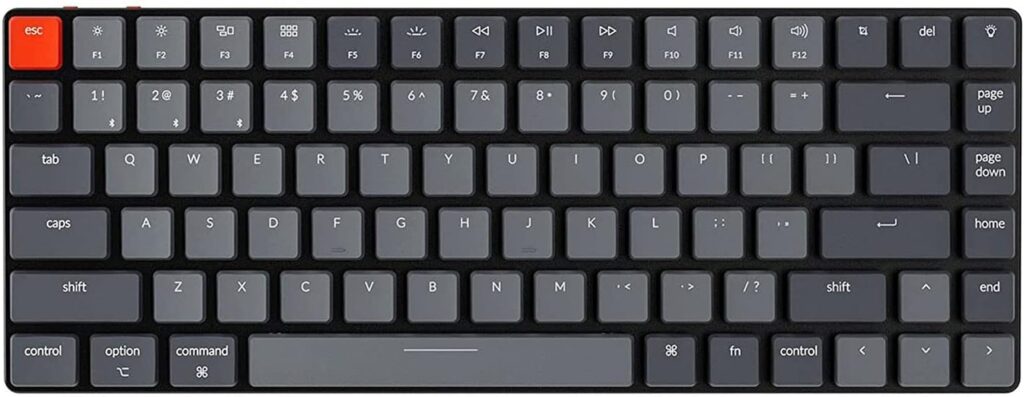
Best Mid-Range — Keychron K3 V2 (Wireless)
For illustrative purposes only. Model: Keychron K3 V2
Switches: Gateron Red / Brown / Blue (hot-swappable option)
Form Factor: 75% compact
Connection: Bluetooth 5.1 + USB-C wired
Price: ~$80–$100
The Keychron K3 is the go-to recommendation for anyone serious about gaming and typing alike. The hot-swap version lets you try different switches without soldering — the best way to find your perfect feel.
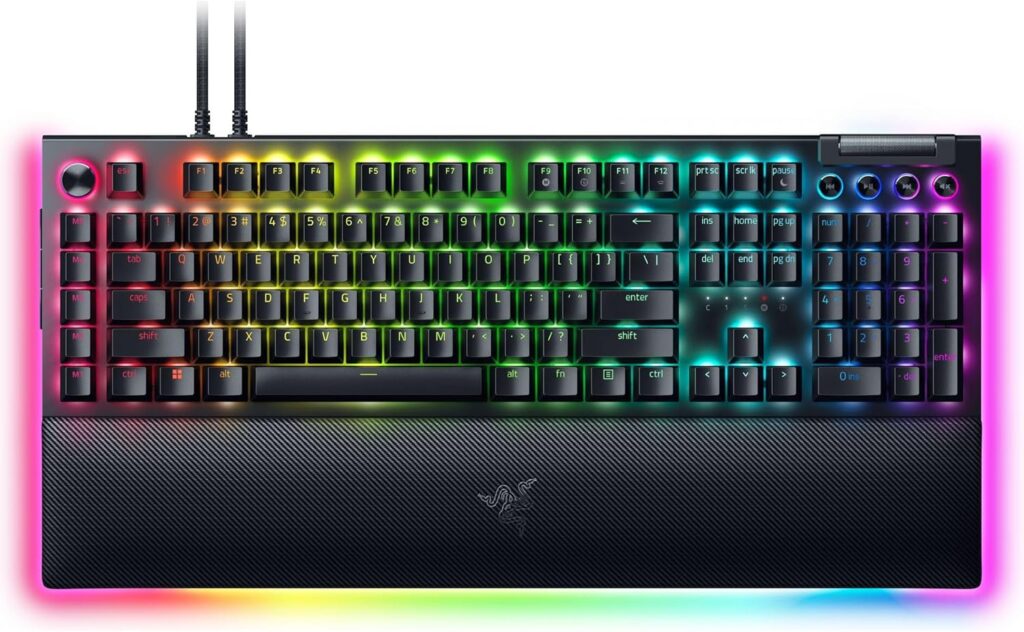
Best Gaming Mechanical — Razer BlackWidow V4 Pro
For illustrative purposes only. Model: Razer BlackWidow V4
Features: Magnetic wrist rest, multi-function dial, USB passthrough
Price: ~$150–$200
The pinnacle of gaming-focused mechanical keyboards. Razer’s Yellow switches are among the smoothest linear options available, and the build quality matches the price tag. For competitive gamers who want everything, this is it.
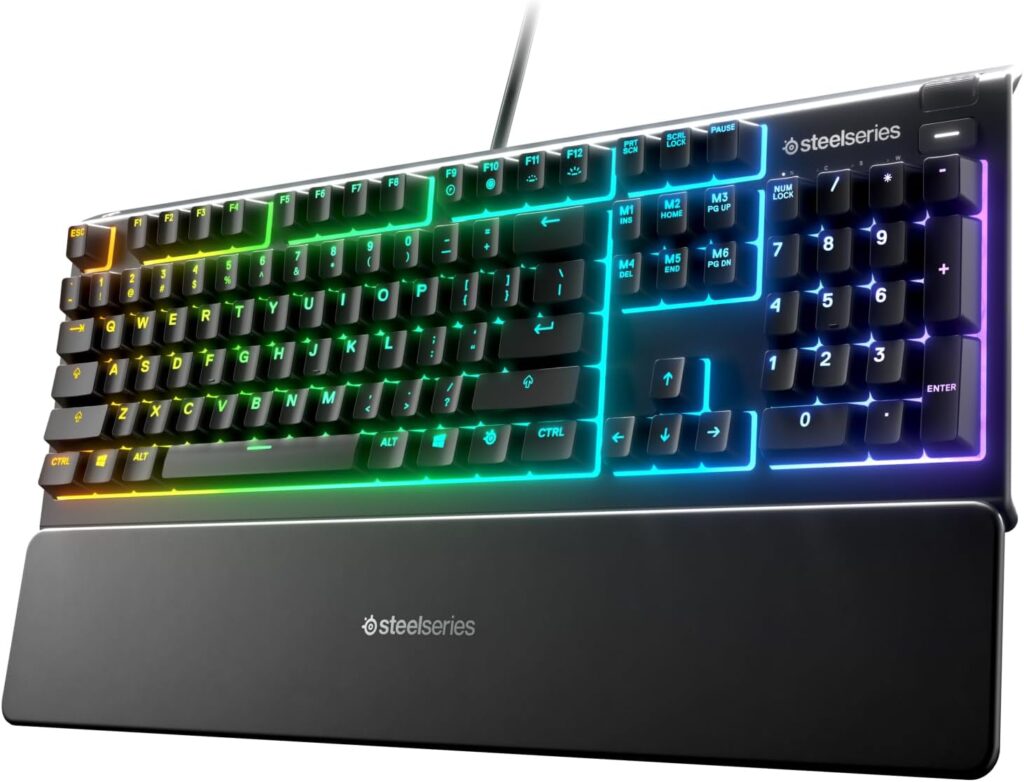
Best Gaming Membrane — SteelSeries Apex 3
For illustrative purposes only. Model: SteelSeries Apex 3
Features: Whisper quiet, IP32 water resistant, RGB
Price: ~$45–$60
If you specifically want membrane — for noise reasons, shared space, or preference — the Apex 3 is the best gaming membrane keyboard available. It has proper anti-ghosting, excellent software, and a build quality that embarrasses most keyboards at this price.
📊 Full Comparison Table
Keyboard
Type
Switches
Form Factor
Price
Redragon K552 Kumara
Mechanical
Linear/Clicky
TKL
~$40
Keychron K2 V2
Mechanical
Gateron (hot-swap)
75%
~$90
Razer BlackWidow V4 Pro
Mechanical
Razer Yellow/Green
Full
~$180
SteelSeries Apex 3
Membrane
QX2
Full
~$50
🤔 The Verdict: Who Should Buy What?
Buy mechanical if you:
Game more than 2 hours per day
Play competitive multiplayer games
Type a lot alongside gaming
Want a keyboard that lasts 5–10 years
Stick with membrane if you:
Game casually, 1–2 hours occasionally
Share a room and need near-total silence
Have a budget under $40
Already have a working membrane and don’t notice issues
Do pro gamers use mechanical keyboards? Virtually all competitive gamers use mechanical keyboards with linear switches (usually Red or equivalent). The consistency and durability are non-negotiable at that level.
Is membrane good enough for casual gaming? Absolutely. If you play story games, RPGs, or casual multiplayer a few hours a week, a quality membrane keyboard works perfectly fine.
What are hot-swap mechanical keyboards? Hot-swap keyboards let you pull out and replace individual switches without soldering. It’s the best feature for anyone new to mechanical keyboards — you can experiment with switch types without commitment.
Do mechanical keyboards help you aim better? No — keyboard type doesn’t affect mouse aiming. It affects typing speed, input consistency, and comfort during extended sessions.
Are 60% keyboards good for gaming? Yes, especially for FPS games where mouse space matters. However, you lose the numpad and function row, which can be inconvenient for productivity tasks.
Last updated: June 2026
⚠️ Affiliate Disclosure: TechPlayGrid participates in the Amazon Associates Program and affiliate programs including Razer and SteelSeries. We earn a commission on qualifying purchases at no extra cost to you.
🏷️ SEO Metadata
Title: Mechanical vs Membrane Keyboard: Which Is Worth It?
Meta Description: Mechanical or membrane keyboard for gaming — which actually matters? We break down performance, durability, price, and the best picks for every budget in 2026.
Tags: mechanical vs membrane keyboard, best gaming keyboard 2026, mechanical keyboard for gaming, membrane keyboard gaming, keychron k2, razer blackwidow, gaming keyboard buying guide
Post Summary: Mechanical vs membrane keyboards — it sounds like a spec debate, but it’s really a lifestyle question. This guide explains exactly how each type works, where the differences matter for gaming (and where they don’t), breaks down the best picks by budget from $35 to $200, and tells you clearly who should upgrade and who can save their money. If you’re buying your first gaming keyboard or considering an upgrade, this is the guide to read first.