
Three hours into a session, your eyes start burning. Text on screen gets harder to read. By the end of the night, you’ve got a headache and your eyes feel like sandpaper. Sound familiar? The eye strain.
Eye strain during long gaming sessions is one of the most common complaints among gamers — and one of the most ignored. The good news: most of it is preventable, and half the fixes cost nothing. This guide covers every adjustment from free monitor settings to affordable gear that makes a real difference.
⚠️ Affiliate Disclosure: TechPlayGrid is reader-supported. When you buy through links on our site, we may earn an affiliate commission at no extra cost to you.
🔬 Why Gaming Causes Eye Strain
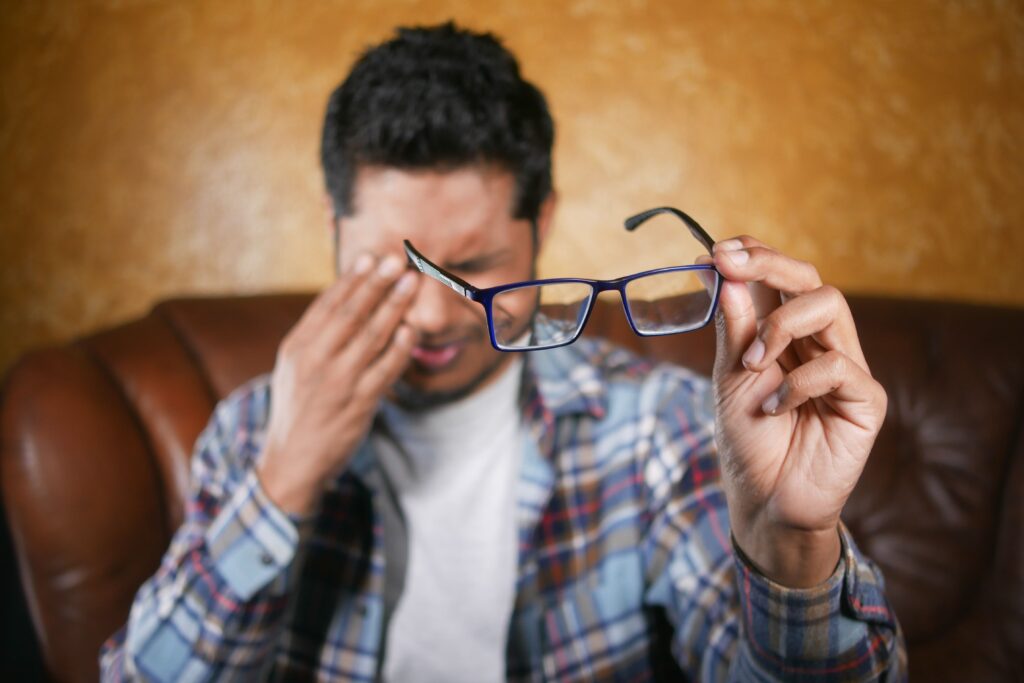
Understanding the cause helps you target the fix:
| Cause | What Happens |
|---|---|
| High screen brightness | Forces pupils to constantly contract |
| Blue light emission | Suppresses melatonin, disrupts circadian rhythm and causes fatigue |
| Low refresh rate | Screen flicker (imperceptible but cumulative) strains eyes |
| Screen glare | Constant adjustment between bright reflections and dark screen content |
| Reduced blinking | We blink 66% less while staring at screens — leading to dry eyes |
| Wrong viewing distance | Too close forces sustained eye muscle effort |
| Poor room lighting | High contrast between dark room and bright screen exhausts pupils |
✅ Free Fixes — Start Here
👁️ Fix 1 — Follow the 20-20-20 Rule
Every 20 minutes, look at something 20 feet away for 20 seconds. This relaxes the ciliary muscles in your eyes that stay contracted while focusing on a close screen.
Set a recurring timer on your phone. It sounds disruptive but becomes automatic within a week.
👁️ Fix 2 — Calibrate Your Monitor Brightness
Your monitor should not be brighter than the ambient light in your room. A display blazing at 300 nits in a dark room is a guaranteed headache by hour two.
Quick brightness test: Hold a white piece of paper next to your screen. If the screen looks brighter than the paper, your brightness is too high.
Recommended settings:
- Brightness: Match to room lighting (typically 80–120 nits in dim rooms)
- Contrast: 70–80%
- Gamma: 2.2 (standard default, don’t change unless calibrating)
👁️ Fix 3 — Enable Night Mode / Blue Light Filter on Windows
Windows 10/11 has a built-in blue light filter called Night Light:
- Settings → System → Display → Night Light
- Set strength to 30–50%
- Enable on a schedule (sunset to sunrise works well)
On macOS: System Settings → Displays → Night Shift
💡 Pro Tip: Don’t use Night Light at full strength during competitive gaming — it shifts colors too warmly and throws off your color perception. 30–40% strength is the sweet spot that reduces strain without distorting your display.
👁️ Fix 4 — Set Correct Monitor Height and Distance
- Distance: Your monitor should be 50–70cm (20–28 inches) from your eyes
- Height: The top of the screen should be at or slightly below eye level
- Angle: Tilt the screen back 10–20 degrees
Most gamers sit too close. Increasing viewing distance is one of the fastest ways to reduce eye fatigue.
👁️ Fix 5 — Consciously Blink More
Put a sticky note on your monitor that says “BLINK.” Seriously — it works. Gamers blink so infrequently during sessions that eyes dry out significantly, causing burning and irritation that’s often mistaken for screen-related strain.
👁️ Fix 6 — Improve Room Lighting
Gaming in a completely dark room creates extreme contrast between the bright display and the black environment. Your eyes spend the whole session adjusting.
The fix: Add bias lighting behind your monitor. It raises the ambient brightness in your peripheral vision, reducing the contrast ratio your eyes have to process.
DIY version: put a lamp behind your monitor. Proper version: see the gear section below.
🛒 Gear That Actually Helps
💡 Bias Lighting — Govee Immersion TV Backlight
Bias lighting sits behind your monitor and projects a soft glow onto the wall. It reduces the perceived contrast between your bright screen and the dark room, which is one of the most effective ways to cut gaming-related eye fatigue.
The Govee Immersion version uses a camera to match the backlight color to your on-screen content in real time — it’s genuinely impressive and costs under $60.
Pair with: any monitor 24″–32″
🖥️ Low Blue Light Monitor — ASUS ProArt PA278QV
ASUS Eye Care monitors include hardware-level blue light filtering (not just software), flicker-free backlighting, and ultra-low glare panels — all certified by TÜV Rheinland. The PA278QV is the best value in this category at 27″ 1440p.
Key eye comfort features:
- Flicker-free IPS backlight (eliminates PWM flicker)
- Low Blue Light+ hardware filter
- Anti-glare matte coating
- TÜV Rheinland Eye Care certified
👉 Also consider: BenQ MOBIUZ EX270QM — gaming + eye care
👓 Blue Light Blocking Glasses — Gunnar Optiks Intercept
If you wear glasses or find monitor software filters affect your color accuracy too much, dedicated gaming glasses are the alternative. Gunnar’s amber-tinted lenses filter blue light at the source — before it reaches your eyes.
💡 Pro Tip: Clear-lens blue light glasses (marketed heavily online) filter very little blue light — around 10–20%. Amber-tinted lenses like Gunnar’s filter 65%+. The tint is noticeable but eye fatigue drops significantly within the first week.
💧 Preservative-Free Eye Drops — Refresh Optive
For gamers with chronically dry eyes, lubricating eye drops are a simple, immediate relief. Preservative-free formulas are gentler for frequent use. Apply before starting a long session and when eyes feel dry — not just after symptoms worsen.
📱 Monitor Calibration Tool — Datacolor SpyderX Pro
Most monitors ship with poor factory calibration — too bright, wrong gamma, incorrect white balance. A hardware calibration tool like the SpyderX Pro takes 5 minutes to create a custom profile that’s accurate, appropriately bright, and reduces unnecessary strain from oversaturated or too-bright settings.
📊 Impact vs Cost Summary
| Fix | Cost | Eye Strain Reduction |
|---|---|---|
| 20-20-20 Rule | Free | ⭐⭐⭐⭐ |
| Calibrate brightness | Free | ⭐⭐⭐⭐⭐ |
| Windows Night Light | Free | ⭐⭐⭐⭐ |
| Correct viewing distance | Free | ⭐⭐⭐⭐ |
| Blink reminders | Free | ⭐⭐⭐ |
| Bias lighting | ~$50 | ⭐⭐⭐⭐ |
| Low blue light monitor | ~$300 | ⭐⭐⭐⭐⭐ |
| Blue light glasses | ~$40–$80 | ⭐⭐⭐ |
| Eye drops | ~$10–$20 | ⭐⭐⭐ |
| Monitor calibration tool | ~$100 | ⭐⭐⭐ |
🔗 Related on TechPlayGrid
- 👉 Best 144Hz Monitor Under $300 for PS5 and Xbox (2026)
- 👉 1080p vs 1440p for Console Gaming — Does It Matter on 27″?
- 👉 Best Gaming Setup Guide — Budget, Mid-Range & Premium
❓ FAQ
Does higher refresh rate reduce eye strain? Yes — significantly. Lower refresh rates (60Hz) cause imperceptible flicker that accumulates over hours. 144Hz+ monitors are noticeably easier on the eyes, especially during fast motion.
Do blue light glasses actually work? Amber-tinted ones (65%+ blue light filtering) yes. Clear lens “gaming glasses” marketed without tint provide very limited benefit. The science on blue light and eye strain is still developing, but the practical benefits of amber glasses during extended sessions are widely reported.
Is OLED better for eye strain than IPS? OLED screens have true black levels (eliminating backlight bleed) and no PWM flicker, which reduces some forms of eye fatigue. However, they can be very bright at peak HDR and burn-in risk applies to static gaming UIs. For eye strain specifically, a well-calibrated IPS with flicker-free backlight is comparable.
How far should I sit from a 27″ monitor? 60–80cm (24–32 inches) is ideal for 27″ monitors. At 1440p resolution, text and detail remain sharp at this distance.
Should I game in a dark room or a lit room? A moderately lit room is best — not pitch dark, not blazing bright. Bias lighting behind the monitor bridges the gap perfectly.
Last updated: June 2026
⚠️ Affiliate Disclosure: TechPlayGrid participates in the Amazon Associates Program and other affiliate programs. We earn a commission on qualifying purchases at no extra cost to you.
🏷️ SEO Metadata
Title: Reduce Eye Strain in Long Gaming Sessions: Tips & Gear
Meta Description : Eyes burning after long gaming sessions? These free monitor settings and affordable gear picks can dramatically reduce eye strain — no doctor visit required.
Tags: eye strain gaming, reduce eye strain monitor, gaming eye fatigue, blue light filter gaming, bias lighting gaming, best monitor eye care, gaming glasses blue light
Post Summary: Eye strain during long gaming sessions isn’t inevitable — it’s preventable. This guide covers six free fixes (brightness calibration, Night Light, the 20-20-20 rule, room lighting) and the best affordable gear for gamers who need more: bias lighting, low-blue-light monitors, Gunnar glasses, and eye drops. Whether you have 5 minutes or $300, there’s a meaningful improvement here for every gamer dealing with fatigue, dryness, or headaches after long sessions.