

Valorant is a game where a single frame can determine whether your shot registers or misses. At 60 frames per second, each frame lasts approximately 16 milliseconds. High ping — particularly anything above 80ms — puts you at a measurable disadvantage on every exchange, regardless of how well you aim.
The frustrating part is that most guides recommend a VPN as a solution. In practice, a VPN routes your traffic through an additional server, which in most cases increases latency rather than reducing it. The genuine fixes for high ping in Valorant are almost entirely free and do not require any paid service or new hardware.
This guide covers the most effective methods in order, starting with the simplest changes and ending with the options that require a bit more technical confidence. If you have already fixed your Discord audio issues using our Discord lag guide, this is the natural next step.
⚠️ Affiliate Disclosure: TechPlayGrid is reader-supported. When you buy through links on our site, we may earn an affiliate commission at no extra cost to you.
Understanding the Difference Between Ping, FPS, and Packet Loss
Before making any changes, it helps to confirm you are dealing with a ping problem specifically. Three different issues feel similar during gameplay but have completely different causes.
High ping means the time it takes for data to travel between your device and Riot’s servers is too long. FPS drops mean your hardware is struggling to render frames quickly enough. Packet loss means data is being dropped entirely during transmission, which causes players to teleport or freeze briefly.
To check your actual numbers in Valorant, go to Settings, then Video, and enable the Network Graph option in the Stats section. This displays your ping, frames per second, and packet loss simultaneously during matches. If your ping is consistently above 80ms or spikes regularly during fights, the steps below apply directly to your situation.
Fix 1 — Select Your Server Region Manually
This is the single most impactful change the majority of players can make, and it takes under two minutes. Valorant’s automatic server selection prioritizes available capacity over your geographical proximity. During peak hours, that means the system may assign you to a server that is farther away simply because the nearest one is congested.
To change it manually, open Valorant and locate the small icon showing signal bars next to your name in the lobby. Click it. A dropdown will appear showing all available regions alongside their current estimated ping. Select the server displaying the lowest number. This change applies to your next match immediately and does not require a restart.
If you are based in the eastern United States, for example, verify that you are connecting to a US East server rather than being silently routed to US West or even Europe.
Fix 2 — Switch from Wi-Fi to a Wired Ethernet Connection

Wireless connections introduce a type of latency variation called jitter, which is not always visible in your average ping number but is highly destructive to competitive gameplay. Your average ping might show 45ms over Wi-Fi, but if it spikes to 120ms for two frames during a fight, you will miss shots that should have connected.
A direct Ethernet cable between your router and computer eliminates jitter almost entirely. The improvement in connection stability is often more noticeable than the improvement in average ping numbers. This applies whether you are playing on PC, PlayStation 5, or Xbox.
If running a cable through your home is not practical, placing your computer or console closer to the router and connecting to the 5 GHz band rather than 2.4 GHz is the next best option. The 5 GHz band has shorter range but significantly less interference from neighboring devices.
If switching to wired is not currently possible, a Cat 6 Ethernet cable is the most straightforward hardware upgrade and costs very little.
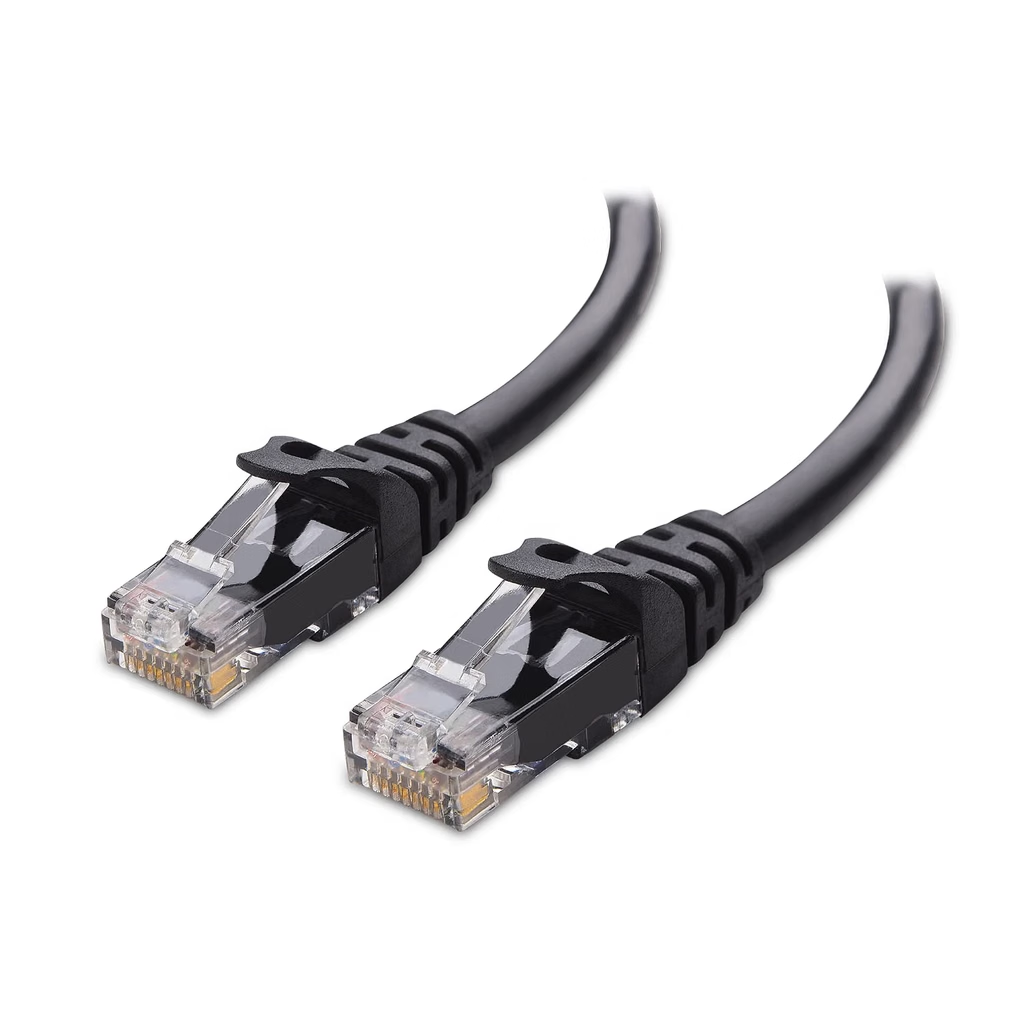
Search for “Cat 6 Ethernet cable 25ft” on Amazon to check current pricing
Fix 3 — Close Background Applications Using Bandwidth
Valorant itself requires a very modest amount of bandwidth during matches — typically between 50 and 150 Mbps. However, background applications that download data or stream content while you play compete for that bandwidth and can cause brief but significant ping spikes.
Before launching Valorant, open your Task Manager using Ctrl + Shift + Esc. Click the Network column to sort applications by their current bandwidth usage. Close any browsers with open tabs, pause cloud storage syncing from services like OneDrive or Google Drive, stop any downloads in Steam or the Epic Games Launcher, and ensure Windows Update is not running in the background.
Leaving Discord voice chat open is generally safe. Discord’s voice transmission uses a negligible amount of bandwidth during normal conversation. Screen sharing, however, uses substantially more, and running it simultaneously with Valorant can contribute to ping instability.
Fix 4 — Change Your DNS to Cloudflare or Google
Your Internet Service Provider assigns a DNS server by default, and that server is responsible for resolving domain addresses — essentially translating a website or game server name into an IP address your connection can reach. ISP-provided DNS servers are often slower and more congested than public alternatives.
Switching to Cloudflare’s DNS addresses (1.1.1.1 and 1.0.0.1) or Google’s (8.8.8.8 and 8.8.4.4) reduces the time it takes to establish that initial connection. While DNS does not directly reduce in-game latency during an active match, it can eliminate brief connection hiccups that appear as ping spikes at the start of rounds.
On Windows, open the Control Panel, go to Network and Internet, select Change Adapter Settings, right-click your active connection, choose Properties, select Internet Protocol Version 4, and enter the preferred and alternate DNS addresses manually. On PlayStation 5 and Xbox, DNS settings are available under Network, then Advanced Settings, then DNS Settings.
⚠️ Please note that prices and product availability are subject to change without notice. Always verify the current price and stock on the retailer’s website before purchasing.
Fix 5 — Flush Your DNS Cache and Reset the Network Stack
Even after changing your DNS server, old routing data stored in your system’s cache can override the new settings temporarily. Flushing the DNS cache forces your system to use the updated configuration immediately.
On Windows, open Command Prompt as Administrator. Type each of the following commands and press Enter after each one: ipconfig /flushdns, ipconfig /release, ipconfig /renew, and netsh winsock reset. Restart your computer after the final command. This process takes approximately three minutes and has no negative effect on your system.
Fix 6 — Update Your Network Adapter Driver
An outdated driver for your Ethernet card or Wi-Fi adapter can cause inconsistent packet delivery that shows up as irregular ping spikes during matches. Updating is straightforward. On Windows, open Device Manager, expand the Network Adapters section, right-click your active adapter, and choose Update Driver.
Alternatively, visit your motherboard manufacturer’s website directly — ASUS, MSI, Gigabyte, or ASRock — and download the most recent LAN or Wi-Fi driver for your specific model. Manufacturer websites often offer newer driver versions than Windows Update.
When Hardware Is Actually the Problem 🙁
The fixes above resolve the majority of Valorant ping issues. If your ping remains persistently above 100ms after working through all of them, the limitation is likely your physical connection to the internet rather than your settings.
In that case, the most effective hardware change is switching from Wi-Fi to a wired connection if you have not already done so. If your router is located in a different room and running a cable is not practical, a powerline adapter kit uses your home’s electrical wiring to create a stable wired connection between rooms without drilling or routing cable through walls.
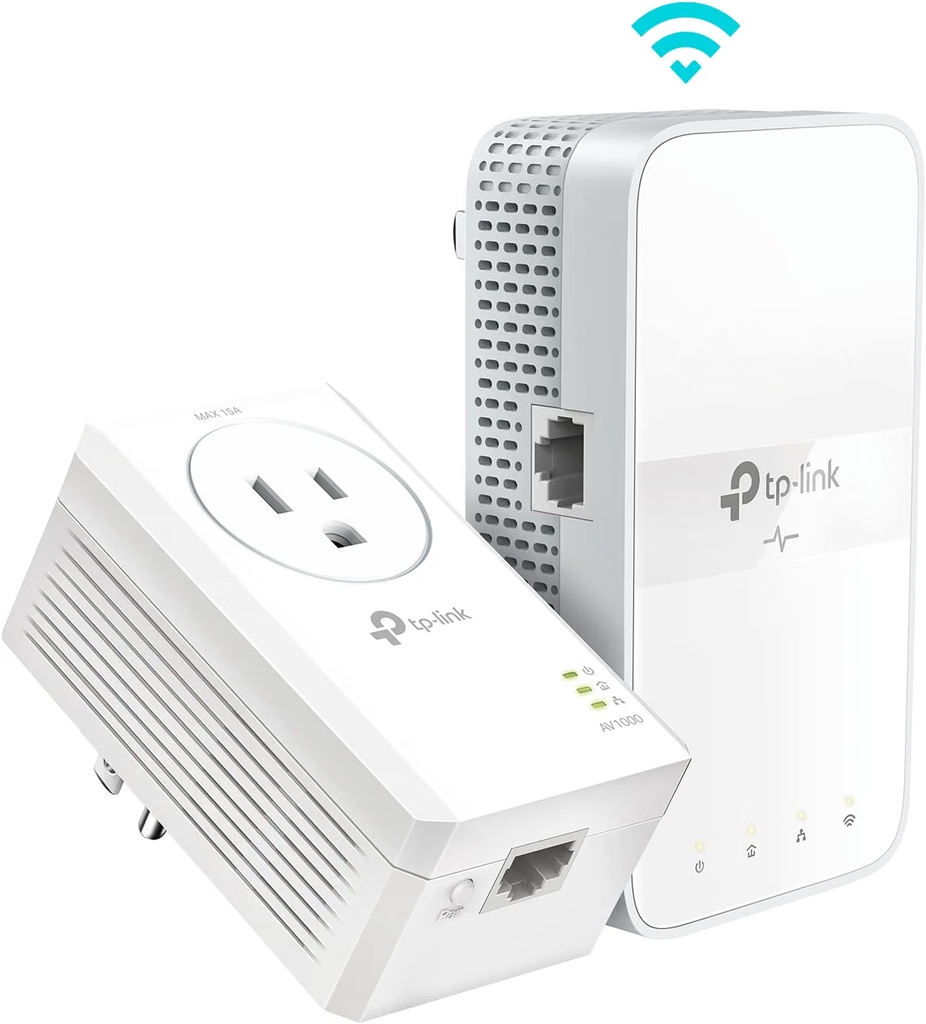
[IMAGEM: TP-Link Powerline Adapter Kit gaming — gerar via SiteStripe / buscar ASIN na amazon.com/s?k=TP-Link+AV1000+powerline+adapter+kit] A powerline adapter kit creates a stable wired connection using your home’s existing electrical wiring. (Image: Amazon US)
Search for “TP-Link powerline adapter kit” on Amazon
Related on TechPlayGrid
- 👉 How to Fix Discord Lag While Playing Valorant
- 👉 Best Valorant Settings for Low-End PC — New FPS Boost Guide
- 👉 Fix Discord Input Lag for No Lag While Screen Sharing
- 👉 How to Fix FPS Drops in Fortnite — No Upgrade Needed
Sources
- Riot Games, Valorant Network Settings Documentation — playvalorant.com
- Hone.gg, “How to Lower Ping in Valorant” — hone.gg
- alviran.net, “VALORANT High Ping Fix 2026” — alviran.net
- Driver Easy, “How to Fix High Ping in Valorant” — drivereasy.com
Focus Keyword: high ping Valorant fix no VPN
SEO Title: Fix High Ping in Valorant — No VPN Needed (2026 Guide)
Permalink: fix-high-ping-valorant-no-vpn-2026
Meta Description: High ping in Valorant killing your ranked games? Here are 6 free fixes — no VPN, no new hardware — that actually work in 2026. Region selection, DNS, and more.
Tags: valorant high ping fix, how to fix ping valorant, valorant lag fix 2026, reduce ping valorant, valorant ping spikes, valorant network fix, fix valorant latency no VPN
Post Summary: High ping in Valorant is rarely a hardware problem — it is almost always a configuration issue. This guide covers six free fixes in order of impact: manually selecting the correct server region, switching to a wired Ethernet connection, closing background applications consuming bandwidth, changing DNS to Cloudflare or Google, flushing the network cache, and updating the network adapter driver. VPNs are not recommended and are not part of this guide. Every step works in 2026 on PC and consoles without additional purchases.