In-depth reviews and comparisons of gaming peripherals and displays. Find the best OLED monitors, mechanical keyboards, and internal components to upgrade your PC.
Introduction: Transforming Your Smartphone into a Console
Cloud gaming services like Xbox Cloud Gaming (xCloud), NVIDIA GeForce NOW, and high-performance mobile emulators have transformed smartphones into formidable gaming handhelds. Modern smartphone processors rival dedicated portable consoles in graphical capabilities. However, touch-screen virtual controls remain a major bottleneck—offering zero physical tactile feedback, blocking visual screen area, and causing hand cramps during extended gaming sessions.
While Bluetooth mobile controllers have existed for years, they suffer from physical input latency and require separate battery charging. The modern solution is a telescopic USB-C mobile controller that clamps directly onto your phone. By establishing a direct hardwired connection through the Type-C port, these controllers eliminate input lag entirely while drawing minimal power directly from your smartphone. In this guide, we evaluate the best USB-C mobile controllers available on Amazon featuring zero-drift Hall Effect technology.
⚠️ Affiliate Disclosure: TechPlayGrid is reader-supported. When you buy through links on our site, we may earn an affiliate commission at no extra cost to you.
Why Hall Effect Sensors Are Essential for Mobile Gaming
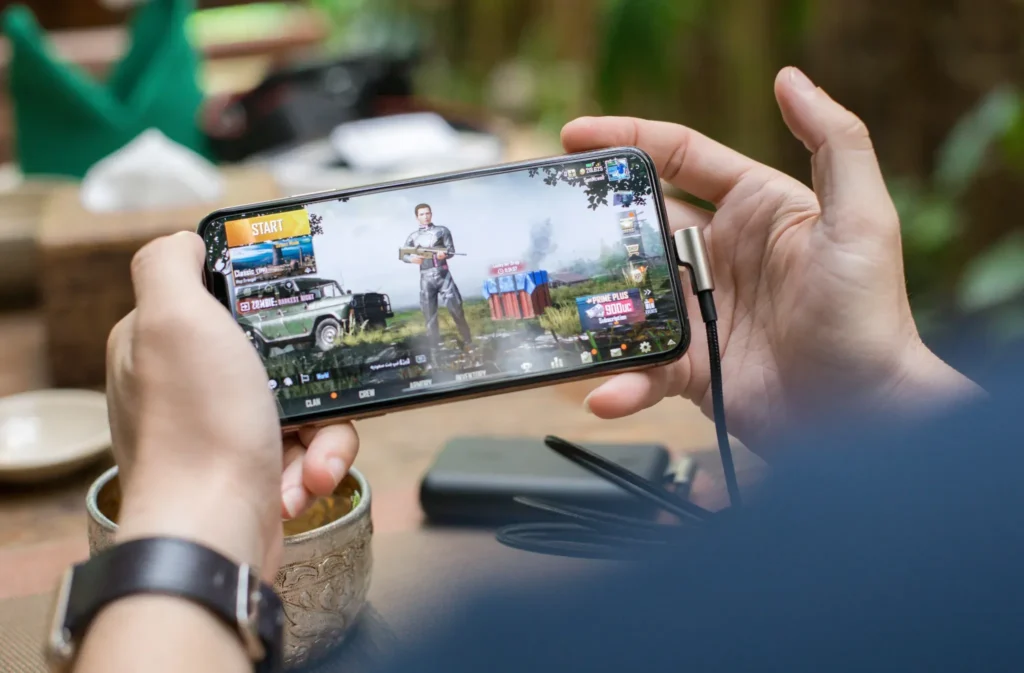
Cellphone Gaming
Mobile gamepads are constantly shoved into backpacks, pockets, and travel cases. Traditional analog joysticks rely on mechanical potentiometers with internal carbon tracks that wear out quickly when subjected to dust and travel friction, leading to stick drift. Hall Effect joysticks utilize permanent magnets and electromagnetic sensors. Because no physical components touch inside the sensor housing, friction is eliminated—ensuring your mobile controller maintains deadzone precision for years without developing drift.
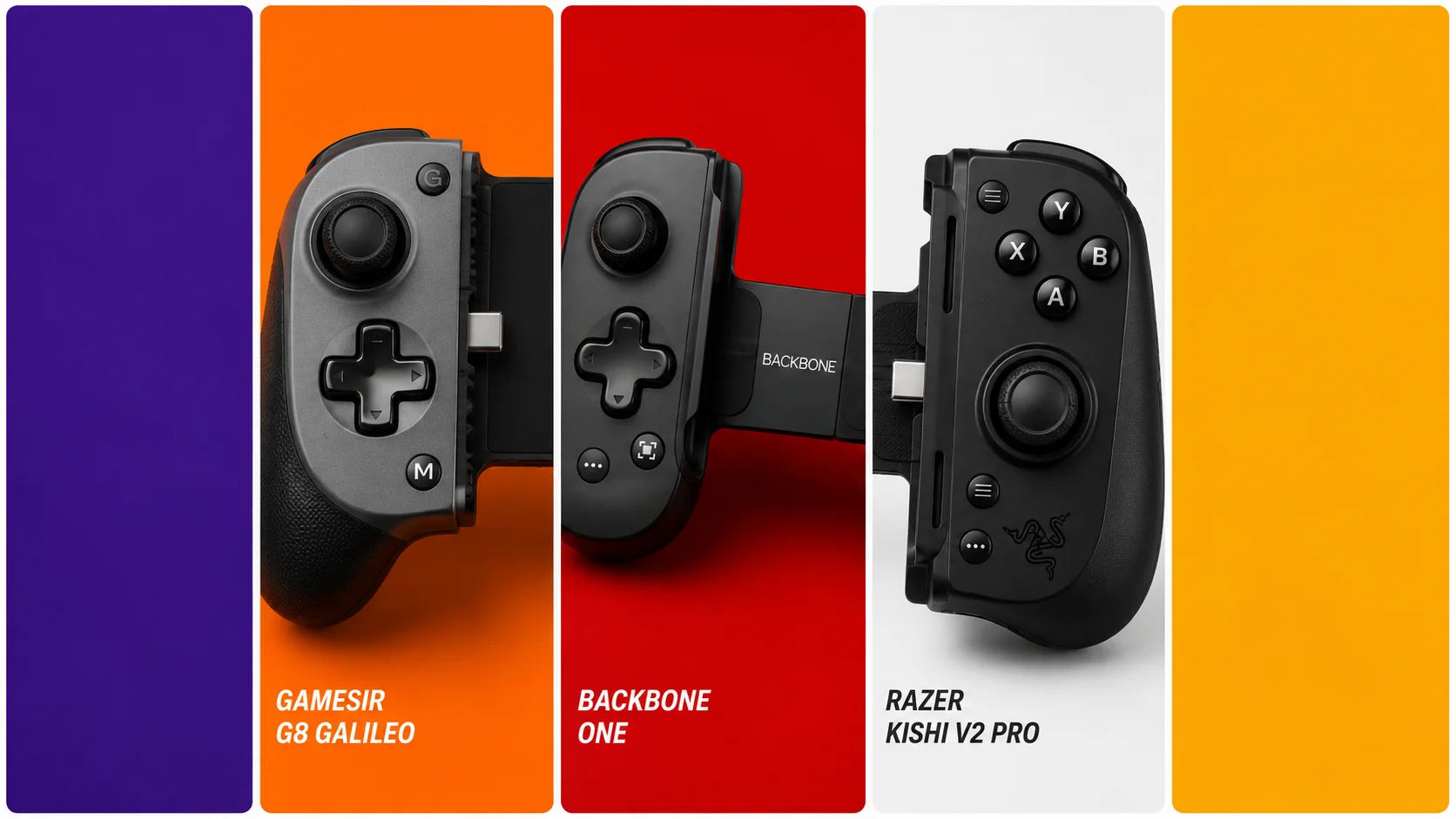
Top Contender 1: GameSir G8 Galileo
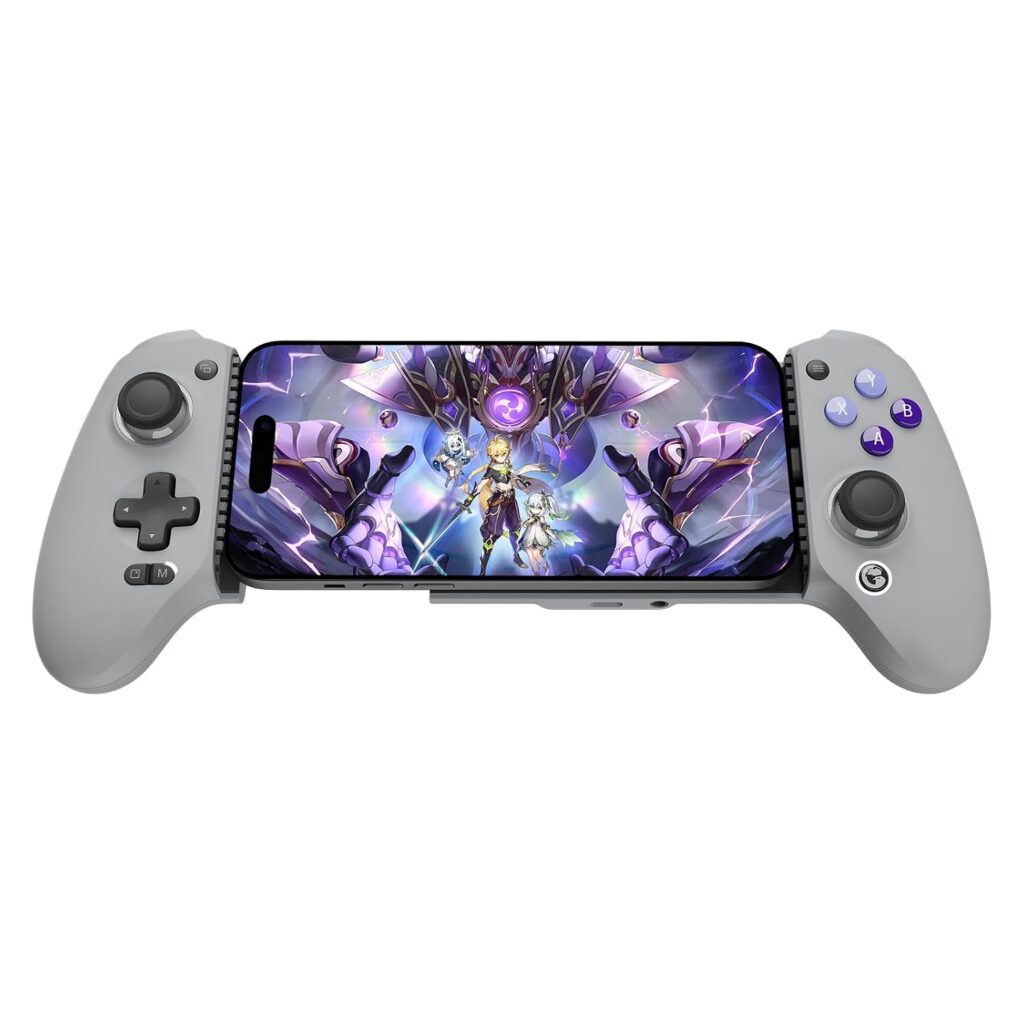
Official design of the GameSir G8 Galileo. (Image: Amazon US)
The GameSir G8 Galileo has established itself as the benchmark for ergonomic mobile gamepads, offering a full-sized console controller feel for smartphones.
Ergonomics and Control Precision
Unlike compact mobile controllers that feel cramped, the G8 Galileo features full-sized console grips, full-travel analog triggers, and precision Hall Effect joysticks. It includes a flexible USB-C connector port that tilts to prevent damage when attaching or removing your phone. It also features a 3.5mm headphone jack, pass-through USB-C charging, and magnetic faceplates that allow you to swap out thumbsticks easily.
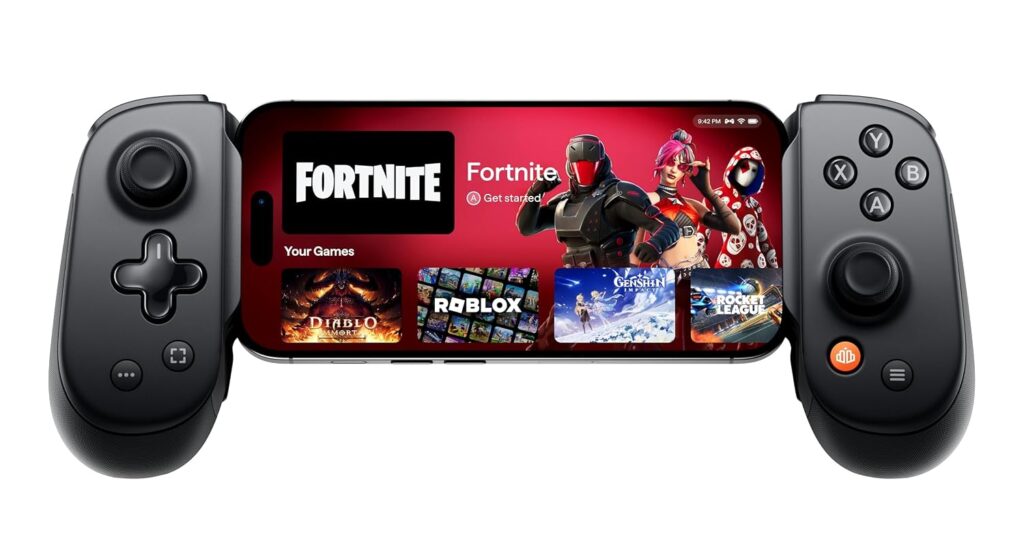
Official design of the Backbone One (Image: Amazon US)
If portability and sleek software integration are your top priorities, the Backbone One (Gen 2) is a beautifully engineered mobile controller.
Ergonomics and Control Precision
The Gen 2 revision of the Backbone One features updated magnetic adapters that allow the controller to fit comfortably over smartphones without removing their protective cases. Its ultra-compact, lightweight design collapses down for easy travel. The companion Backbone App serves as a unified launcher for your mobile games, Xbox remote play, and cloud titles, delivering an intuitive console-like interface.
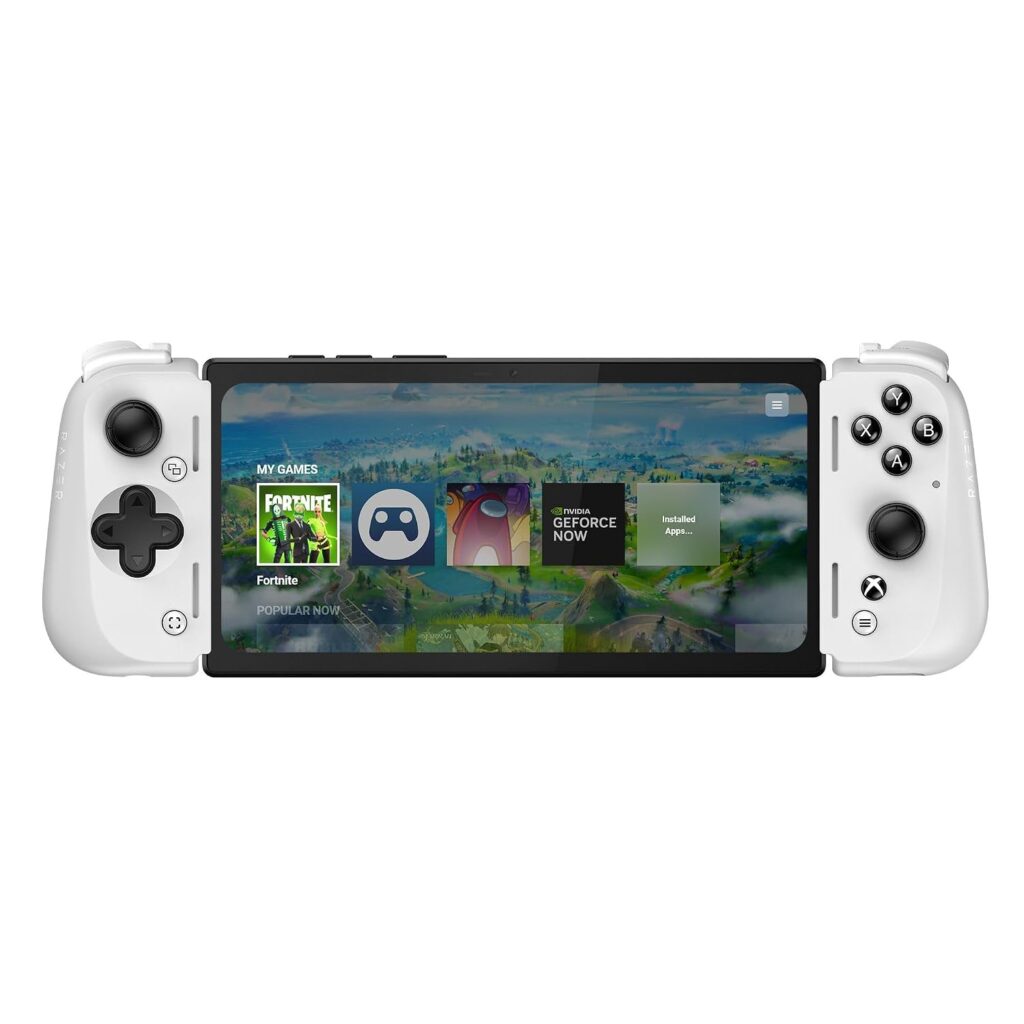
Official design of the Razer Kishi V2 Pro (Image: Amazon US)
Designed for competitive mobile players, the Razer Kishi V2 Pro incorporates tactile microswitch buttons and advanced haptic feedback.
Ergonomics and Control Precision
The Razer Kishi V2 Pro features microswitch D-pad and action buttons that provide a clicky, responsive feel similar to high-end esports controllers. It incorporates Razer HyperSense haptics, translating in-game audio cues into immersive physical vibrations. With programmable multi-function bridge buttons located next to the bumpers, it gives you rapid access to key in-game actions.
Will these controllers work with the iPhone 15 and iPhone 16 series?
Yes. Since Apple adopted the standardized USB-C port starting with the iPhone 15 series, all USB-C mobile controllers designed for Android are fully compatible with modern iPhones without requiring extra adapters.
Does a wired USB-C controller drain my phone battery fast?
No. The power draw of a hardwired mobile controller is extremely low (typically less than 50mA), which has a negligible impact on your smartphone’s battery duration.
Final Verdict
For gamers who prioritize ultra-compact travel size and seamless app software, the Backbone One (Gen 2) is an exceptional accessory. However, if your goal is long-term durability, maximum ergonomic comfort during long sessions, and zero stick drift thanks to Hall Effect sensors, the GameSir G8 Galileo is the absolute best mobile gaming controller you can buy today.
Focus Keyword: best usb c mobile gaming controllers
Tags: Mobile Controller, GameSir G8, Backbone One, Razer Kishi, Android Gaming, Hall Effect
Meta Description: Discover the best USB-C mobile gaming controllers for Android and iPhone. Compare top Hall Effect telescopic gamepads from GameSir, Backbone, and Razer.
Summary: An educational guide reviewing hardwired USB-C mobile gamepads for Android and iPhone 15/16. We analyze input latency, Hall Effect stick precision, case compatibility, and ergonomics across top models on Amazon US.
Mechanical keyboards are universally praised for their satisfying tactile feedback and superior durability. Whether you are typing a long essay or playing intense competitive matches, a mechanical board elevates your home setup. However, this superior performance comes with a significant drawback: noise.
The loud, high-pitched clacking of plastic switches hitting a metal backplate can be incredibly distracting for your coworkers, your family, or your teammates listening through your microphone on Discord. If you love the feel of mechanical keys but desperately need to reduce the volume, you have two primary solutions: installing dedicated silent switches or modifying your current board with silicone O-Rings. In this guide, we analyze the best methods to silence your typing experience.
⚠️ Affiliate Disclosure: TechPlayGrid is reader-supported. When you buy through links on our site, we may earn an affiliate commission at no extra cost to you. Our links redirect to your local region’s store. Prices and stock availability are subject to change.
Why Mechanical Keyboards Are So Loud
Mechanical Keyboards
The noise generated by a mechanical keyboard comes from three distinct sources. First is the internal mechanism of the switch itself (especially “Clicky” Blue switches designed to make a sharp noise). Second is the “bottoming out” sound, which occurs when the plastic keycap violently strikes the switch housing. Finally, there is the acoustic resonance; hollow plastic keyboard cases act like a drum, amplifying the vibrations of every keystroke.
Option 1: Silent Mechanical Switches (Linear Red or Brown)
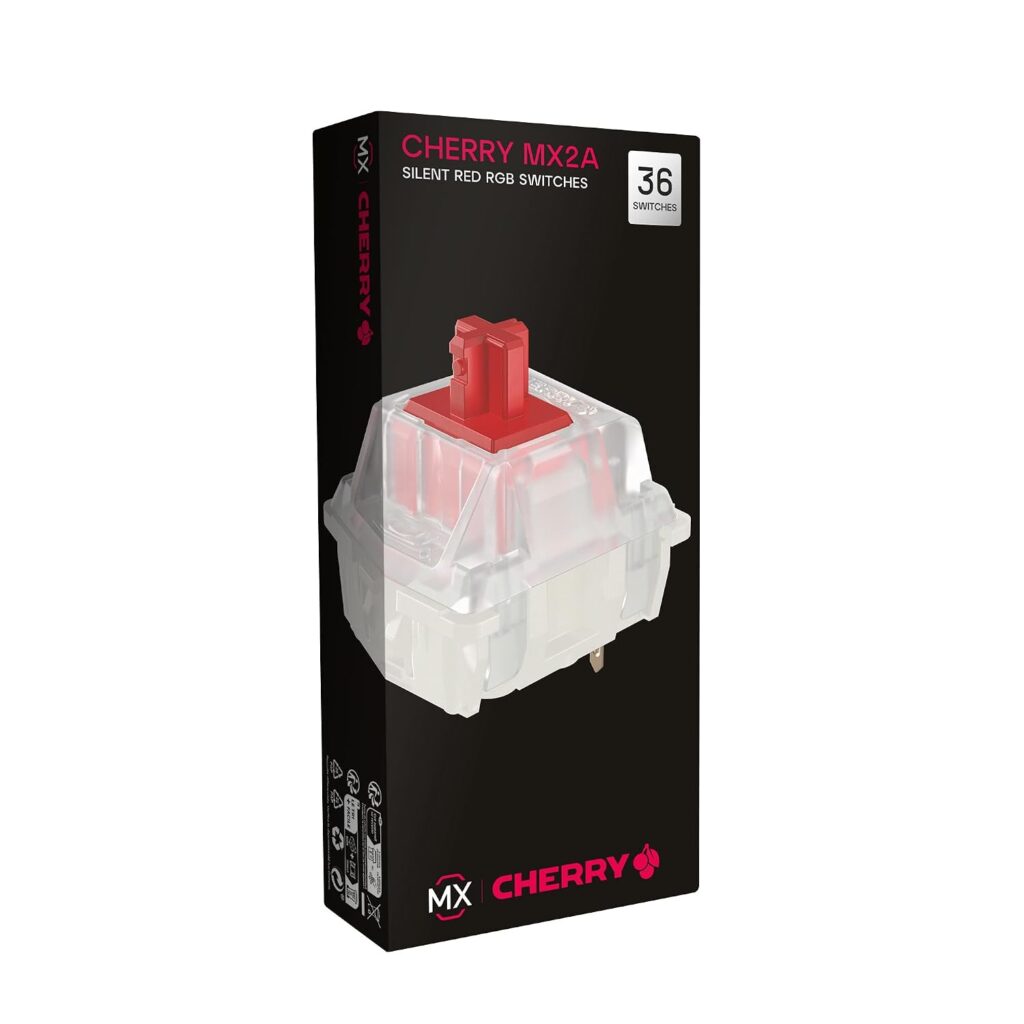
Official design of the Cherry MX. (Image: Amazon US)
The most effective way to eliminate keyboard noise is to replace the switches entirely, provided you own a hot-swappable keyboard.
Performance and Sound Reduction
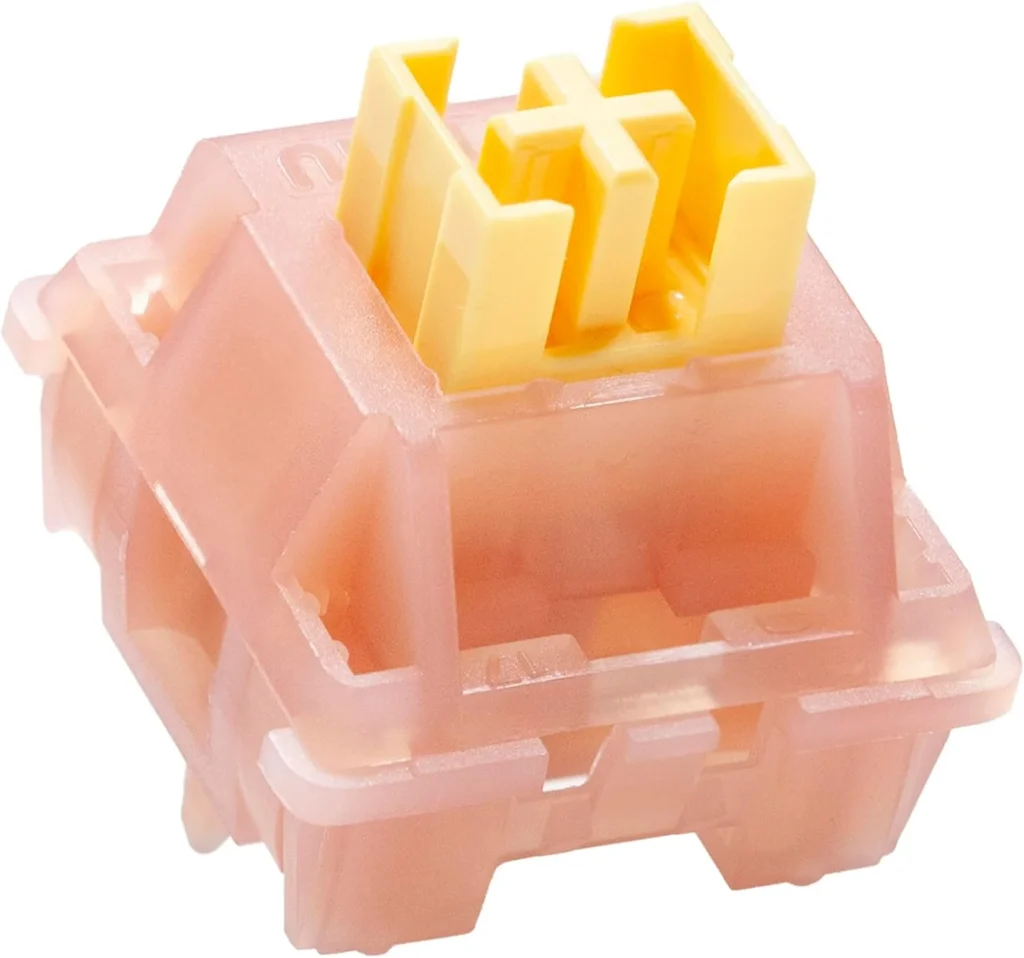
Standard Red (Linear) or Brown (Tactile) switches are already quieter than Blue switches, but dedicated “Silent” variants go a step further. Switches like the Cherry MX Silent Red or Outemu Silent Peach feature tiny rubber dampening pads built directly into the internal stem. These internal pads cushion the plastic-on-plastic impact both when you press the key down and when the spring pushes it back up. The result is a muted, deep “thud” instead of a sharp “clack.”
Official design of the Outemu Silent Peach. (Image: Amazon US)
If you do not have a hot-swappable keyboard or do not want to spend money replacing all your switches, O-Rings are a highly affordable acoustic modification.
Performance and Sound Reduction
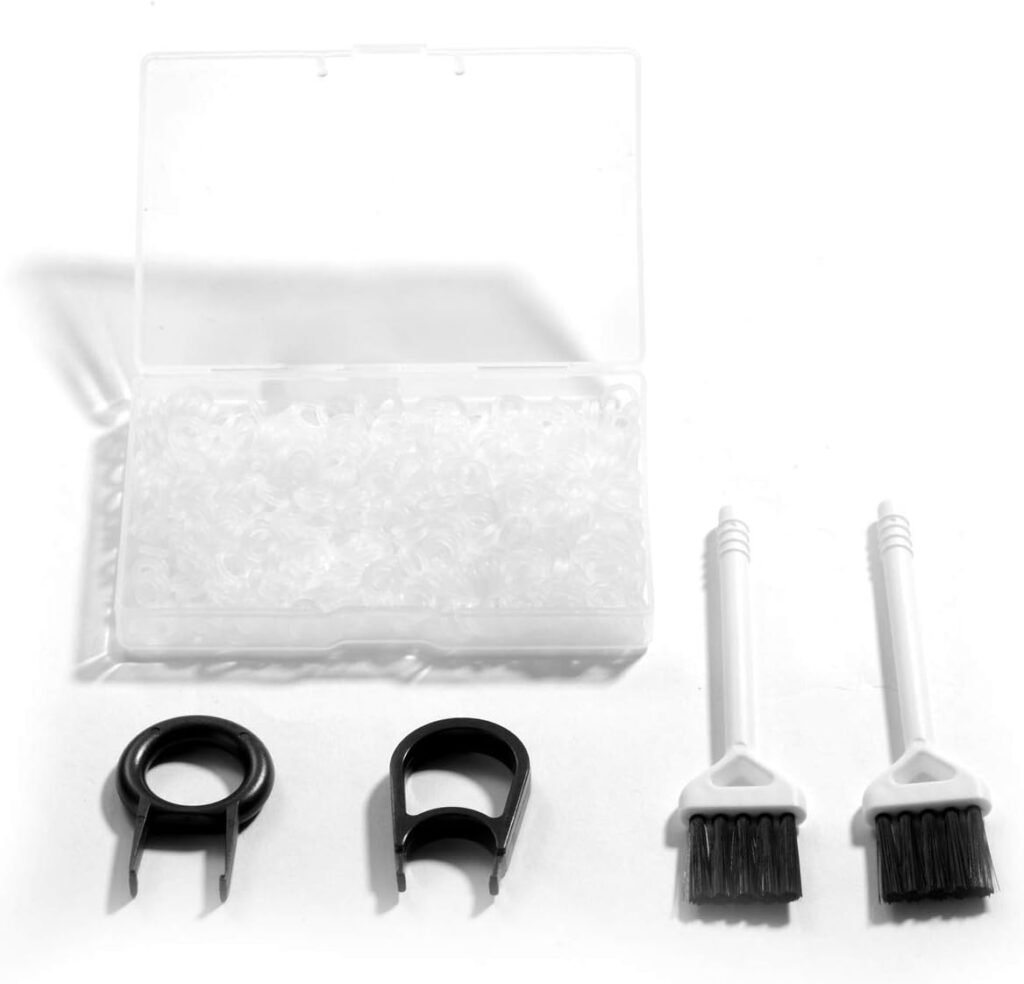
Detailed view of the Silicone O-Rings. (Image: Amazon)
O-Rings are tiny silicone rubber bands that you stretch over the circular stem underneath every individual keycap. When you press the key, the O-Ring acts as a shock absorber between the keycap and the switch housing, eliminating the harsh “bottoming out” sound. While they are very cheap and easy to install with a keycap puller, they do alter the typing feel. O-Rings reduce the total travel distance of the key and can make the keyboard feel slightly “mushy” compared to its original crispness.
Sometimes, the switches are not the problem; the hollow chassis of the keyboard is amplifying the sound.
Performance and Sound Reduction
Placing a thick, high-density extended mousepad (desk mat) under your keyboard absorbs downward acoustic vibrations before they can echo through your wooden desk. For advanced users, opening the keyboard case and packing the empty internal space with EVA foam or specialized sound-dampening cotton eliminates structural reverberation, resulting in a premium, dense acoustic profile.
When evaluating silent switches versus O-rings, the superior choice depends on your budget. If you want a perfectly quiet, smooth typing experience without compromising the crisp feel of your keys, upgrading to Silent Mechanical Switches is the ultimate solution. However, if you are looking for a quick, $10 fix to stop annoying your friends on voice chat, a pack of Silicone O-Rings combined with a thick desk mat will drastically improve your acoustic footprint.
Meta Description : Compare the best quiet switches versus O-rings to silence your mechanical keyboard. Learn how to eliminate typing noise for a better gaming environment.
Summary: An educational guide explaining the mechanical causes of keyboard noise. We compare the effectiveness, cost, and typing feel of installing silent mechanical switches versus using affordable silicone O-rings, helping users create a quieter workspace.
When discussing a modern gaming setup, enthusiasts often focus on high-refresh-rate monitors and mechanical keyboards. However, the physical interface between you and your computer—your mouse—is frequently overlooked until physical discomfort begins. Using a traditional symmetrical mouse forces your forearm into a pronated (flat) position. Over thousands of hours of gaming or office work, this unnatural posture can lead to repetitive strain injuries (RSI), carpal tunnel syndrome, and severe wrist pain.
Fortunately, a new category of ergonomic peripherals has emerged. Vertical mice are designed to keep your hand in a natural “handshake” position, drastically reducing the tension in your forearm muscles and wrist tendons. In this comprehensive guide, we will examine the best options available today to help you maintain a healthy posture without sacrificing precision.
⚠️ Affiliate Disclosure: TechPlayGrid is reader-supported. When you buy through links on our site, we may earn an affiliate commission at no extra cost to you. Our links redirect to your local region’s store. Prices and stock availability are subject to change.
Understanding Wrist Pain and Ergonomics
Before upgrading your hardware, it is crucial to understand why standard mice cause fatigue. A standard mouse requires you to twist your forearm bones (the radius and ulna) to lay your palm flat against the desk. This constant twisting strains the muscles. A vertical mouse angles the primary buttons between 50 and 70 degrees. This shifts the movement control from the delicate wrist joint to the larger, more robust muscles of your shoulder and forearm.
Top Contender 1: Logitech MX Vertical
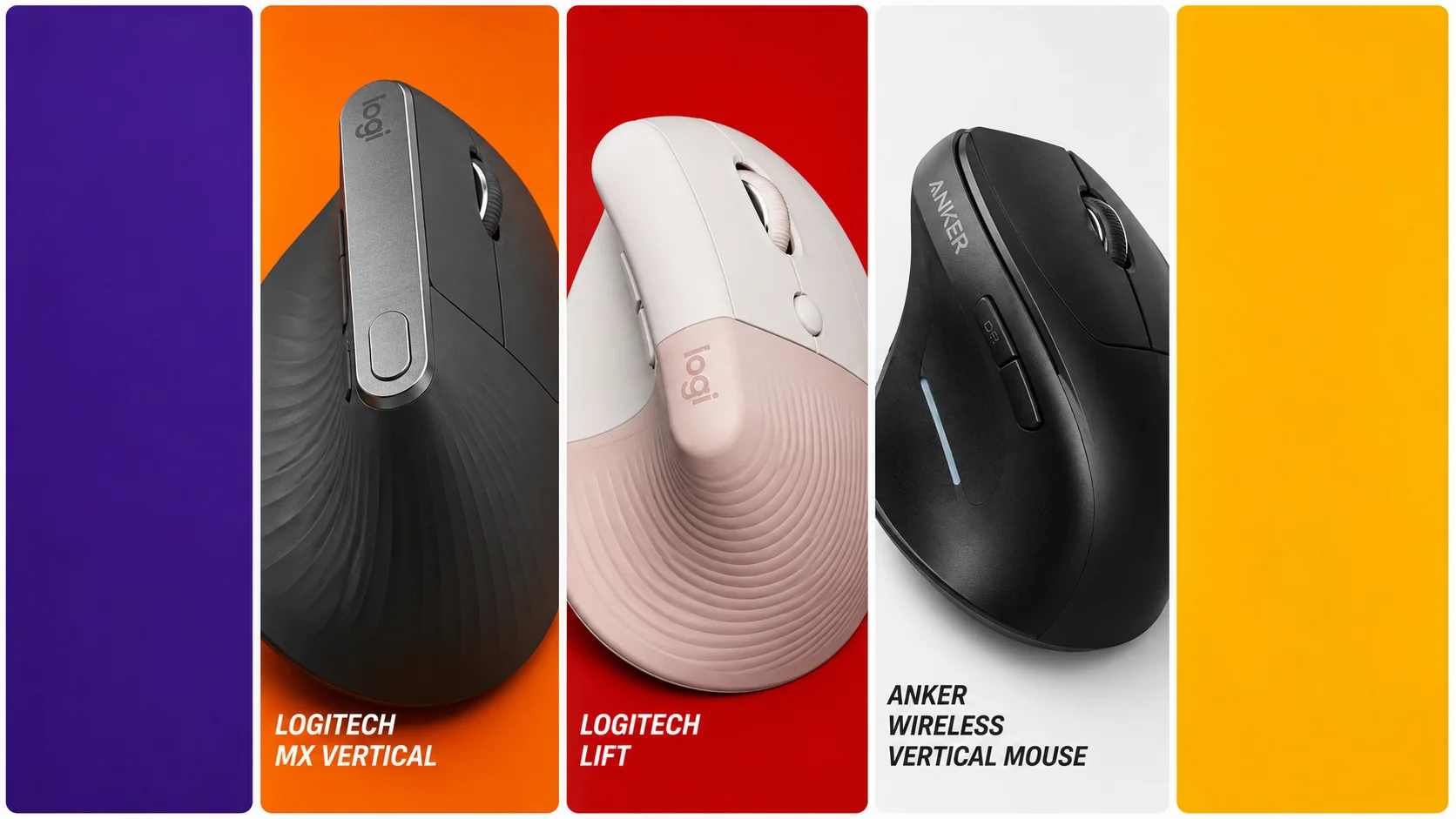
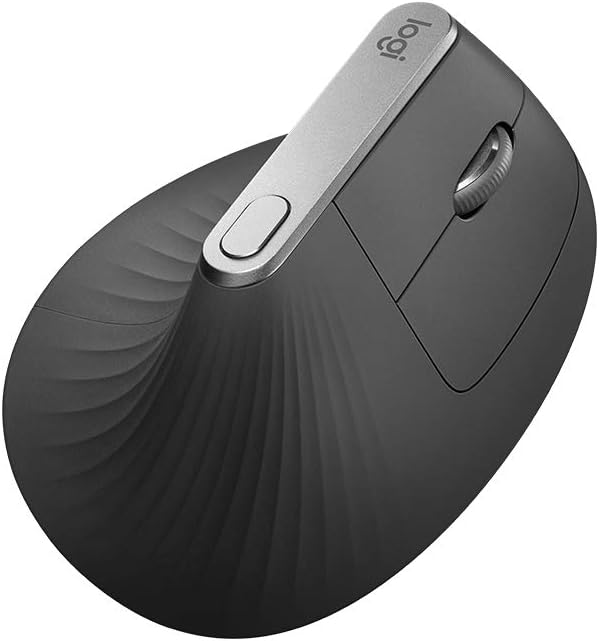
Official design of the Logitech MX Vertical. (Image: Amazon US)
The Logitech MX Vertical is widely considered the gold standard for ergonomic productivity and casual gaming.
Performance and Comfort
Logitech engineered this mouse with a precise 57-degree vertical angle, which they claim reduces muscular strain by 10% compared to a traditional non-vertical mouse. It features a highly accurate 4000 DPI optical sensor, ensuring you do not need to move your arm excessively to cross a large dual-monitor setup. The textured rubber surface provides an excellent grip, and the built-in rechargeable battery lasts up to four months on a single full charge. While it is slightly heavier than a dedicated esports mouse, its unparalleled comfort makes it perfect for strategy games and long editing sessions.
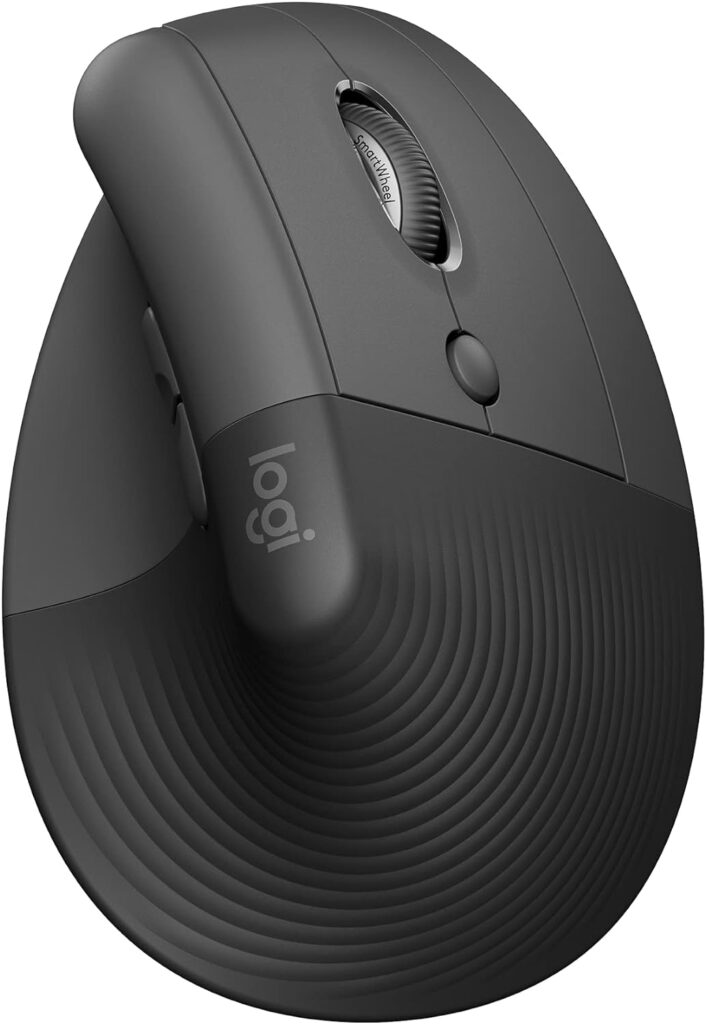
Official design of the Logitech Lift. (Image: Amazon US)
If the MX Vertical is too large for your hands, the Logitech Lift offers premium ergonomic features in a more compact footprint.
Performance and Comfort
The Logitech Lift shares the same therapeutic 57-degree angle as its larger sibling but is specifically tailored for small to medium-sized hands. One of its standout features is the “SmartWheel,” which allows for seamless, silent scrolling. Furthermore, the left and right click buttons utilize silent switches, making it an incredibly discreet option for office environments or late-night gaming. It runs on a single AA battery that can provide up to two years of uninterrupted use.
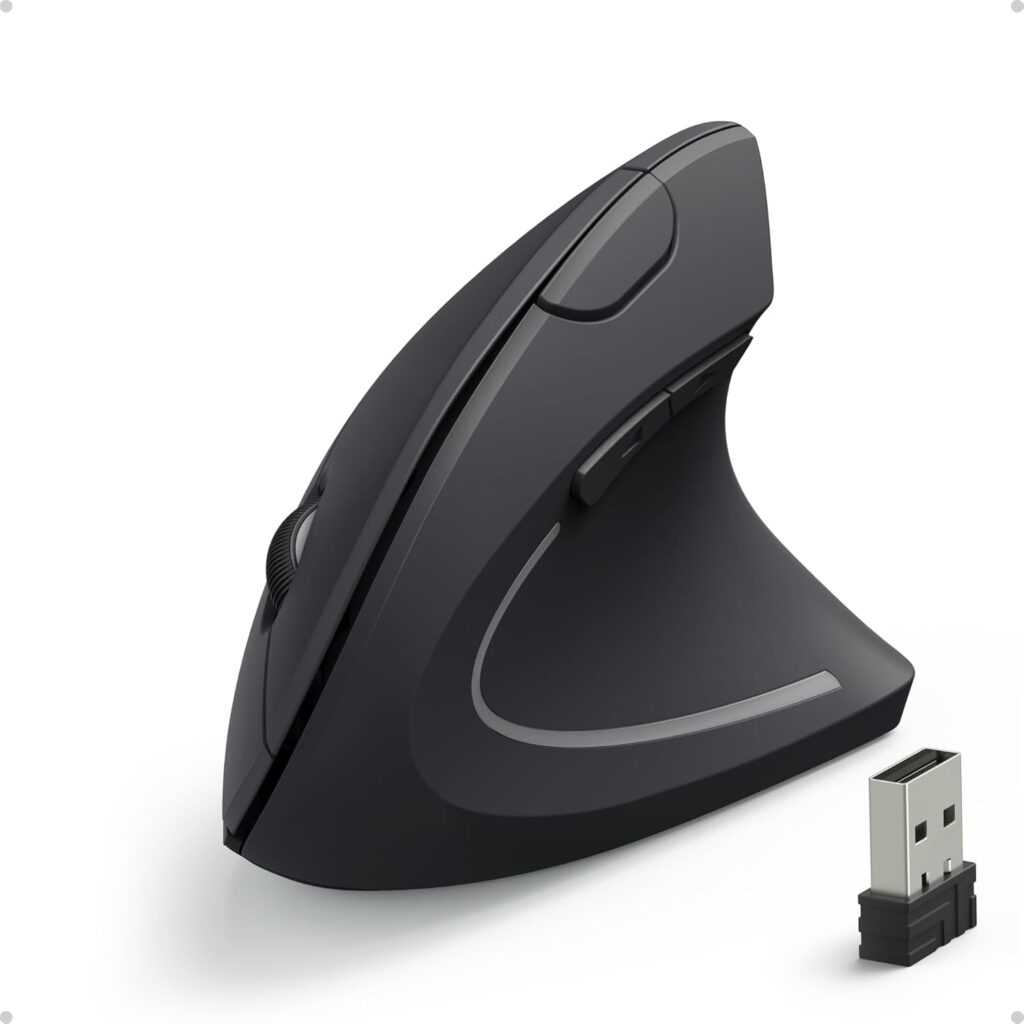
Official design of the Anker Wireless Vertical. (Image: Amazon US)
If you want to test the ergonomic waters but are operating strictly under a tight budget, the Anker Wireless Vertical Mouse is a legendary entry-level option.
Performance and Comfort
Priced significantly lower than premium models, this mouse still delivers a scientifically sound vertical shape that alleviates wrist tension immediately. It offers adjustable DPI settings (800, 1200, or 1600) via a convenient button on the top ridge, allowing you to change sensitivity on the fly. While the plastic build quality is basic and it lacks Bluetooth (relying solely on a 2.4GHz USB receiver), it is a highly durable and effective tool for users who need immediate wrist relief without a massive investment.
Ignoring wrist pain is a fast track to chronic injury. If you have medium to large hands and want the absolute best build quality, the Logitech MX Vertical is an investment in your long-term health. However, if you are simply looking to try an ergonomic shape for the first time, the Anker Wireless Vertical Mouse provides incredible value and immediate pain relief for your setup.
Meta Description: Discover the best new vertical mouse for wrist pain relief. Compare ergonomic picks from Logitech and Anker designed to improve your posture and comfort.
Summary: A detailed educational guide explaining how vertical mice prevent repetitive strain injuries. We analyze three top-rated ergonomic mice available on Amazon US, comparing their angles, sensor precision, and overall value for users suffering from wrist fatigue.
For decades, most desktop computers shipped with standard membrane keyboards. While membrane switches are cheap to manufacture, they offer a mushy typing feel, slow key registration, and inconsistent durability. Replacing an aging membrane board with a dedicated mechanical keyboard is one of the most rewarding upgrades you can make to your home setup.
A common misconception is that quality mechanical keyboards always cost $100 to $200. Thanks to advancements in manufacturing and switch engineering, the budget market has expanded dramatically. Today, you can acquire feature-packed mechanical boards with vibrant RGB lighting, hot-swappable switches, and compact layouts for under $50. In this guide, we evaluate the best new entry-level mechanical keyboards available on Amazon US.
⚠️ Affiliate Disclosure: TechPlayGrid is reader-supported. When you buy through links on our site, we may earn an affiliate commission at no extra cost to you.
Understanding Mechanical Switches and Form Factors
Detailed view of the front panel and connectivity ports on the mechanical keyboard (Image: www.theremingoat.com/blog/)
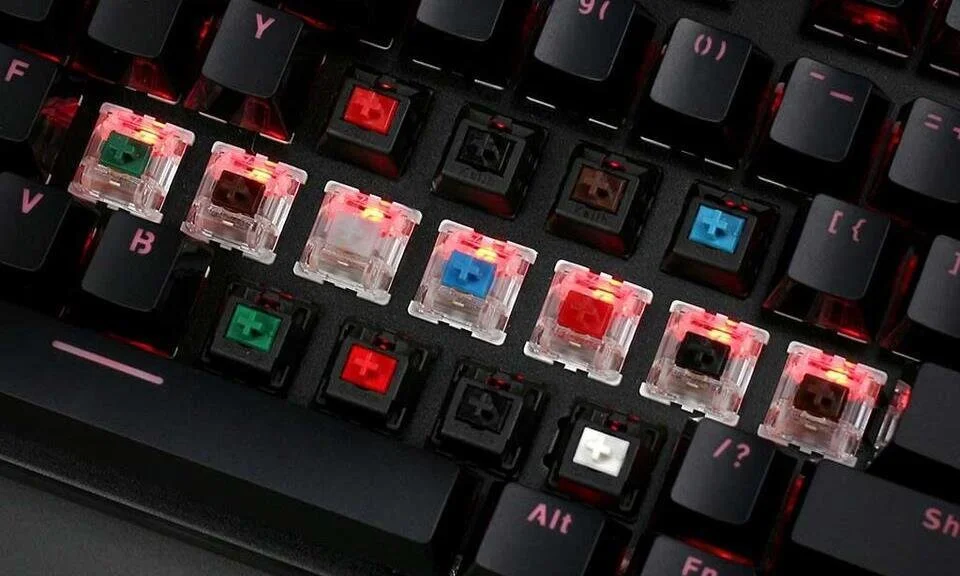
Switch Colors Explained
Red Switches (Linear): Smooth and quiet keypresses from top to bottom without a tactile bump. Highly favored by gamers for rapid key presses.
Blue Switches (Clicky): Feature a noticeable tactile bump and a loud, distinct clicking sound. Great for typing feedback, but can be noisy in shared rooms.
Brown Switches (Tactile): Offer a subtle physical bump at the actuation point without the loud click sound. A balanced hybrid for typing and gaming.
Form Factors: Full-Size vs TKL vs 60%
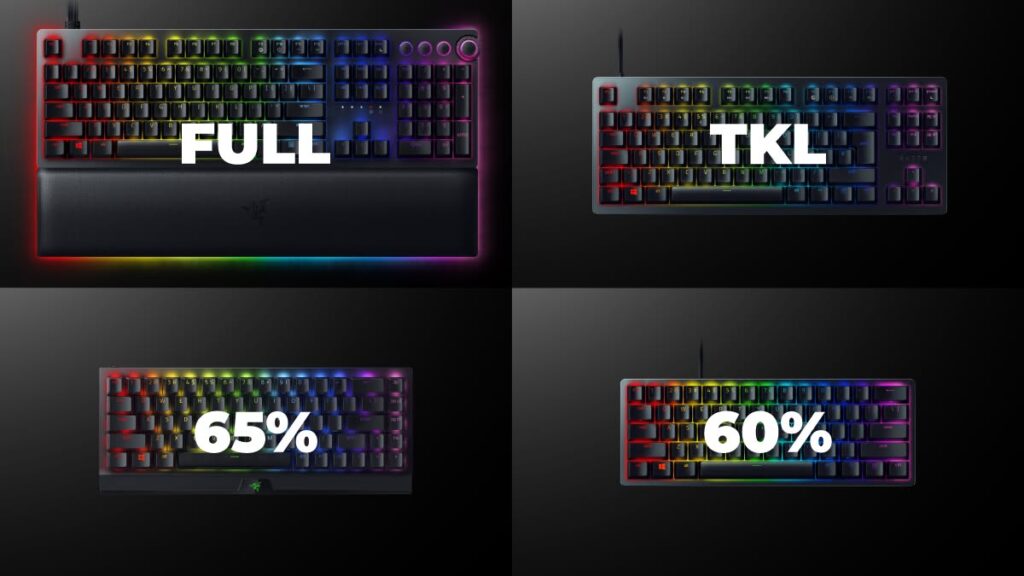
Models: Fullsize, TKL, 65% and 60%. (Image: TKL)
Traditional full-size keyboards have 104 keys, including a dedicated number pad. Tenkeyless (TKL / 80%) boards remove the number pad to free up valuable desk space for sweeping mouse movements. Compact 60% layouts remove the arrow keys and function row as well, offering maximum portability and desk real estate.
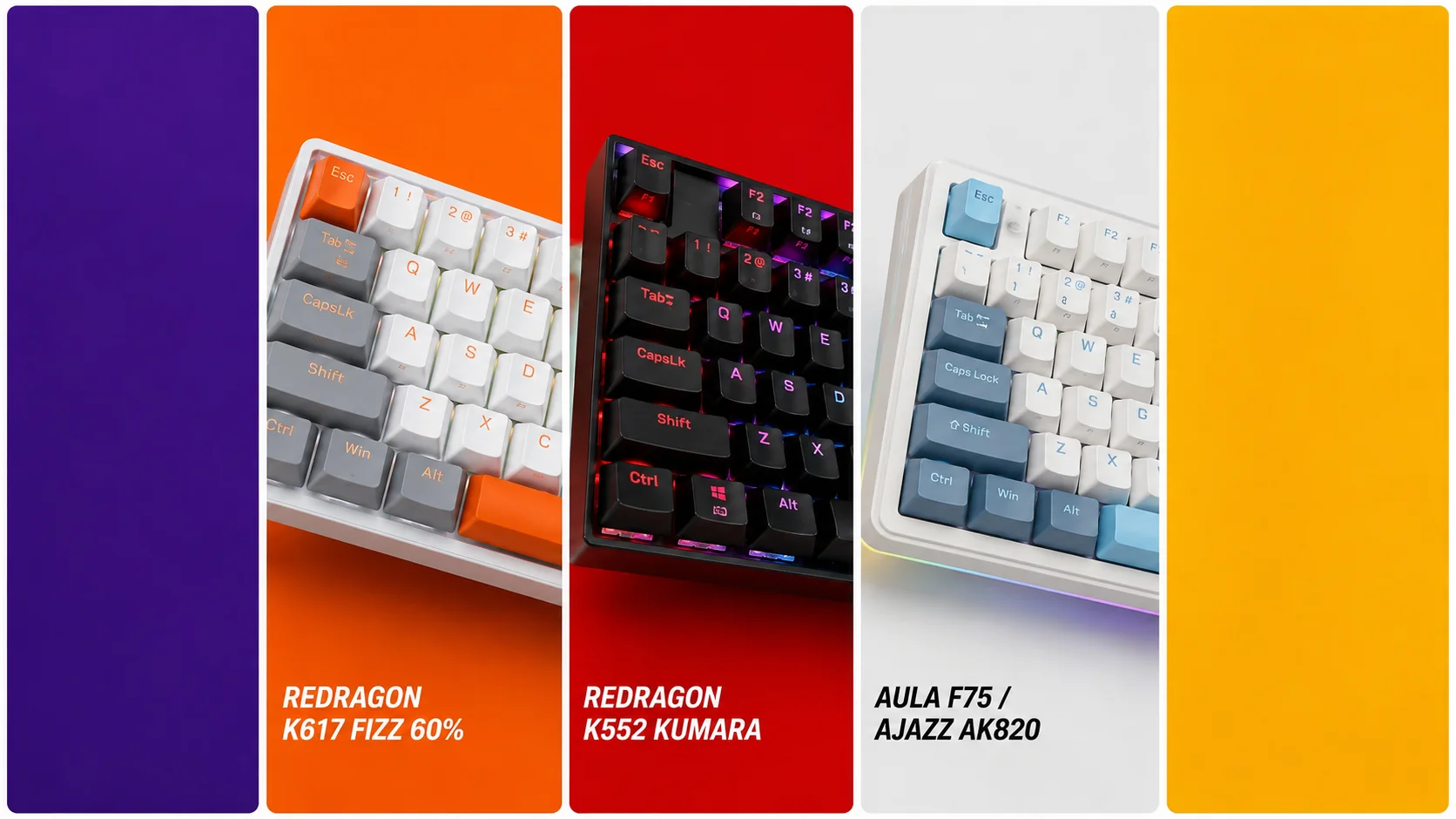
Top Contender 1: Redragon K552 Kumara
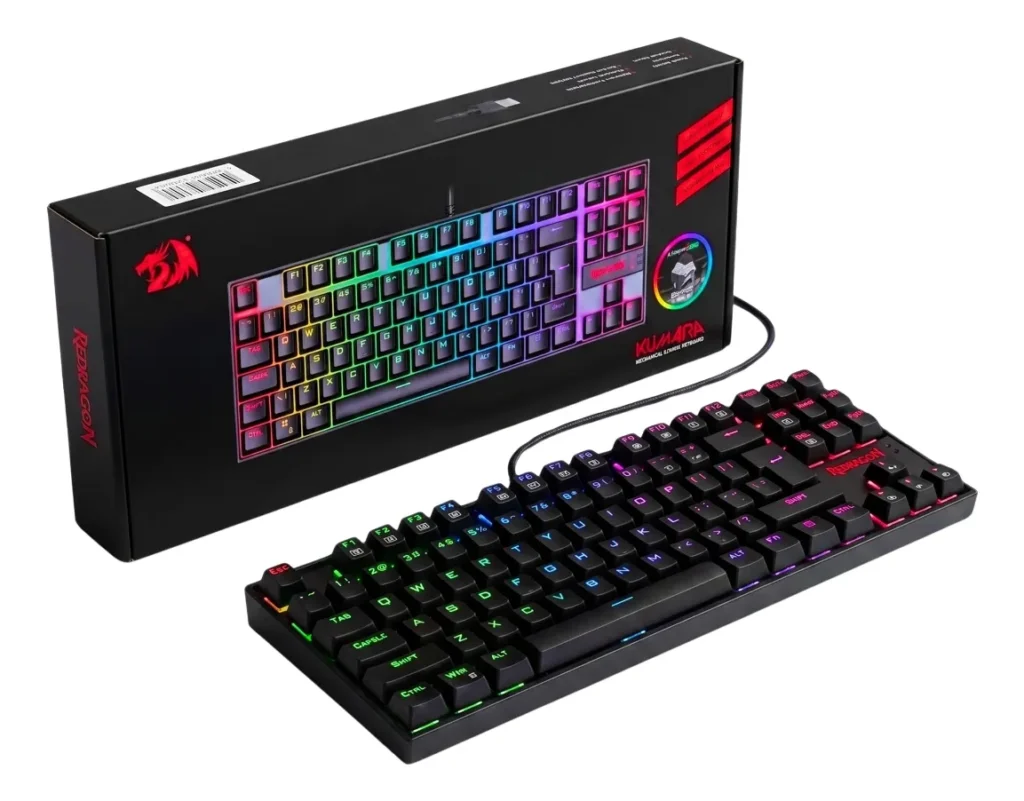
Official design of the Redragon K552 Kumara. (Image: Amazon US)
The Redragon K552 Kumara is widely regarded as one of the most durable budget keyboards on the market.
Construction and Performance
Featuring a metal-alloy and ABS structural chassis, the K552 is built like a tank. It utilizes dust-proof mechanical switches designed to mimic classic clicky switches. The TKL layout ensures you retain dedicated arrow keys while opening up extra space on your mousepad.
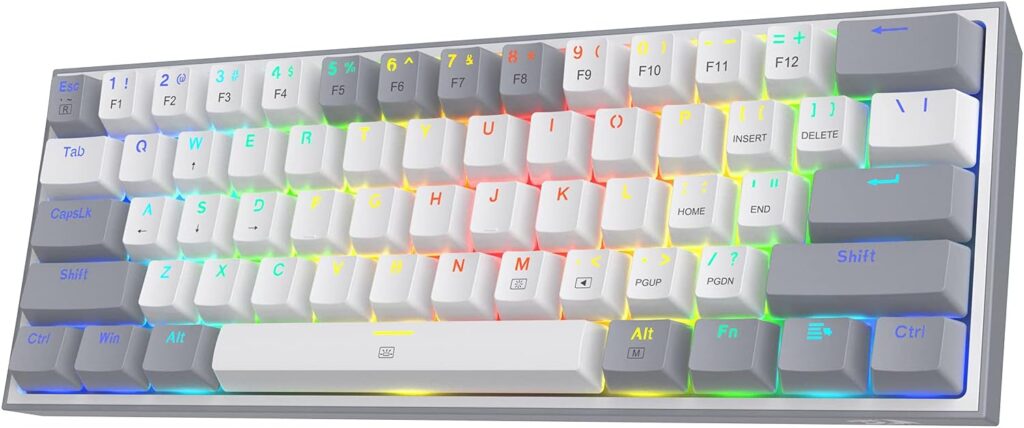
Official design of the Redragon K617. (Image: Amazon US)
If you want a modern, colorful 60% keyboard with detachable cables, the Redragon K617 Fizz is an outstanding compact option.
Construction and Performance
The K617 Fizz features a ultra-compact 61-key layout, vibrant RGB backlighting with customizable modes, and hot-swappable switch sockets. Hot-swap compatibility means you can pull out the original switches and replace them with alternative compatible switches in the future without any soldering.
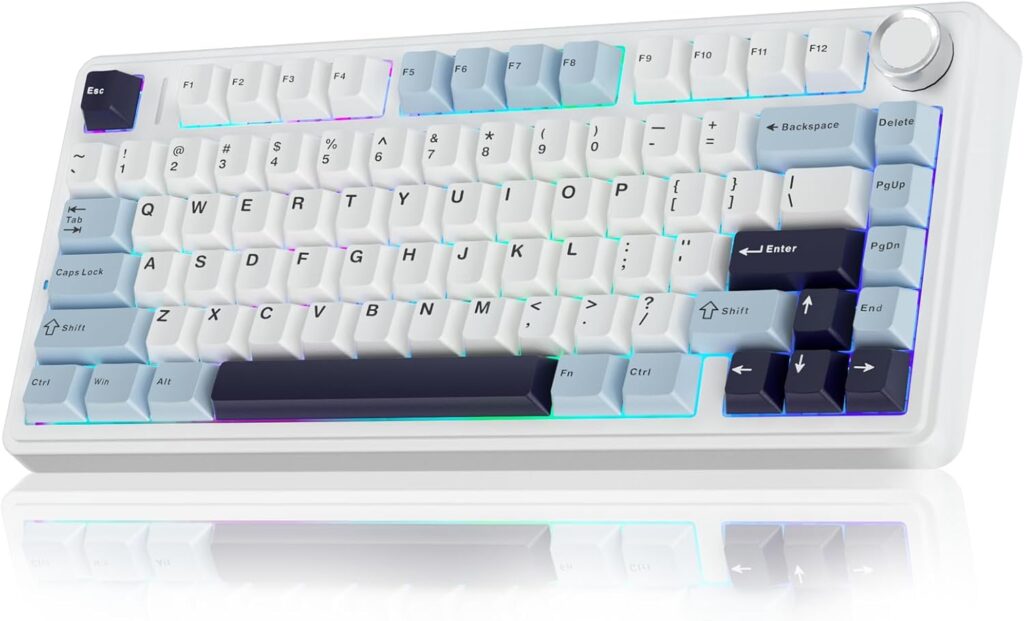
Official design of the AULA F75. (Image: Amazon US)
For enthusiasts who want a custom typing sound and feel straight out of the box, gasket-mounted budget boards like the AULA F75 series have redefined the $50 threshold.
Construction and Performance
Utilizing factory-lubed linear switches, sound-dampening internal foam, and a dedicated volume knob, these 75% boards provide a deep, satisfying “thocky” acoustic sound profile usually reserved for custom keyboards costing three times as much.
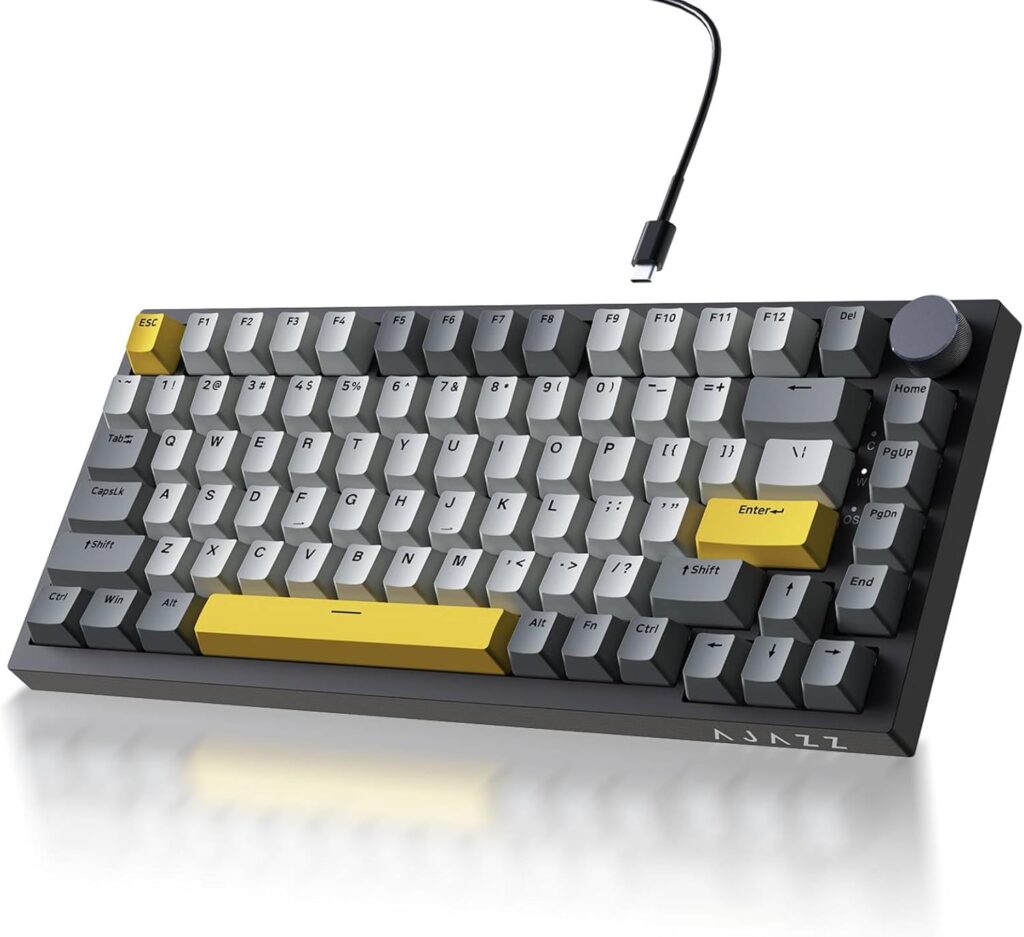
Official design of the AJAZZ AK820. (Image: Amazon US)
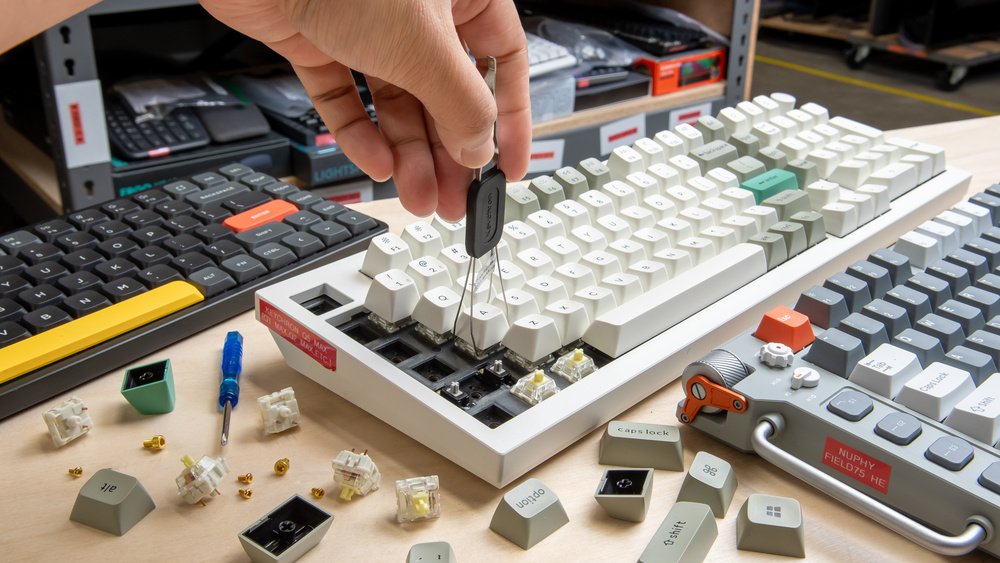
Hot-swappable means the switches are plugged into sockets on the circuit board rather than soldered. This allows you to replace broken switches or try different switch types using a simple plastic puller tool.
Are 60% keyboards good for daily work?
If your work involves heavy data entry or spreadsheet management, missing dedicated arrow keys and a number pad can be frustrating. However, for gaming and general web browsing, 60% keyboards are exceptionally comfortable.
If you require standard arrow keys and maximum structural rigidity, the Redragon K552 remains a timeless choice. However, if you want the smooth feel of pre-lubed linear switches, custom internal acoustic dampening, and a modern aesthetic, picking up a gasket-mounted 75% or 60% board for under $50 represents the absolute best value available today.
Meta Description: Looking for the best new mechanical keyboards under $50? Compare Redragon and AULA models featuring linear switches, hot-swap, and compact designs.
Summary: A clear, educational guide explaining swith mechanics, layouts, and build quality in budget mechanical keyboards. We analyze top options under $50 available on Amazon US to help new PC gamers upgrade their setups.
For years, competitive gamers refused to use wireless mice. The early wireless models were heavy, suffered from noticeable signal latency, and frequently disconnected mid-game. Today, that narrative has completely flipped. Modern wireless transmission technology is so fast that it matches—and in some cases beats—the response times of traditional wired connections.
However, finding a high-performance wireless mouse often comes with a steep price tag, with many flagship models costing $150 or more. The good news is that you do not need to spend fortune to enjoy untethered precision. In this comprehensive guide, we examine the best new options currently available under $100 on amazonense US that offer exceptional battery life, top-tier optical sensors, and flawless tracking for your gaming setup.
⚠️ Affiliate Disclosure: TechPlayGrid is reader-supported. When you buy through links on our site, we may earn an affiliate commission at no extra cost to you.
Key Features to Consider Before Buying
Weight and Ergonomics
The weight of a gaming mouse directly impacts your control and fatigue levels during extended sessions. Competitive first-person shooter (FPS) players generally prefer ultra-lightweight designs (under 70 grams) for quick flick shots, while players who enjoy strategy or MMO titles often prefer slightly heavier, feature-packed ergonomic shapes.
Optical Sensors and Polling Rates
A mouse sensor tracks physical movement across your desk pad. Look for sensors offering high DPI (Dots Per Inch) acceleration capabilities and zero mechanical spin-outs. The standard polling rate for modern gaming mice is 1000Hz (1ms response time), which is ideal for both casual and competitive play.
Top Contender 1: Razer Basilisk V3 X HyperSpeed
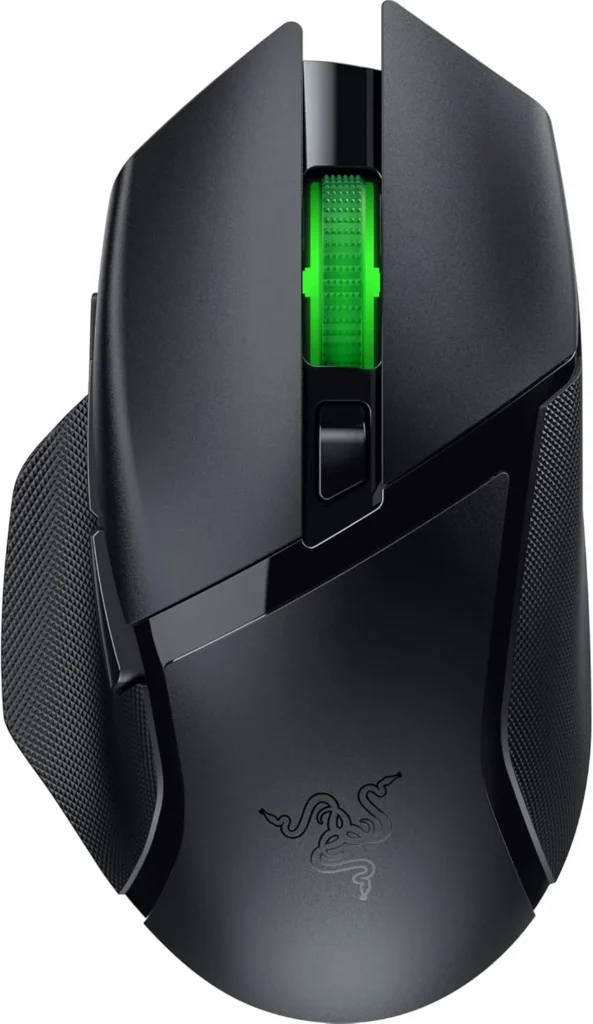
Official design of the Razer Basilisk V3 X HyperSpeed. (Image: Amazon US)
If you prefer an ergonomic, right-handed shape with thumb support, the Razer Basilisk V3 X HyperSpeed is one of the most versatile wireless mice available in this price bracket.
Performance and Battery Life
Equipped with Razer’s Advanced 18K Optical Sensor and Gen-2 Mechanical Switches, the Basilisk V3 X offers incredible accuracy. Its defining feature is battery versatility: using a single AA battery, it can last up to 235 hours on 2.4GHz ultra-fast wireless or up to 535 hours on Bluetooth mode.
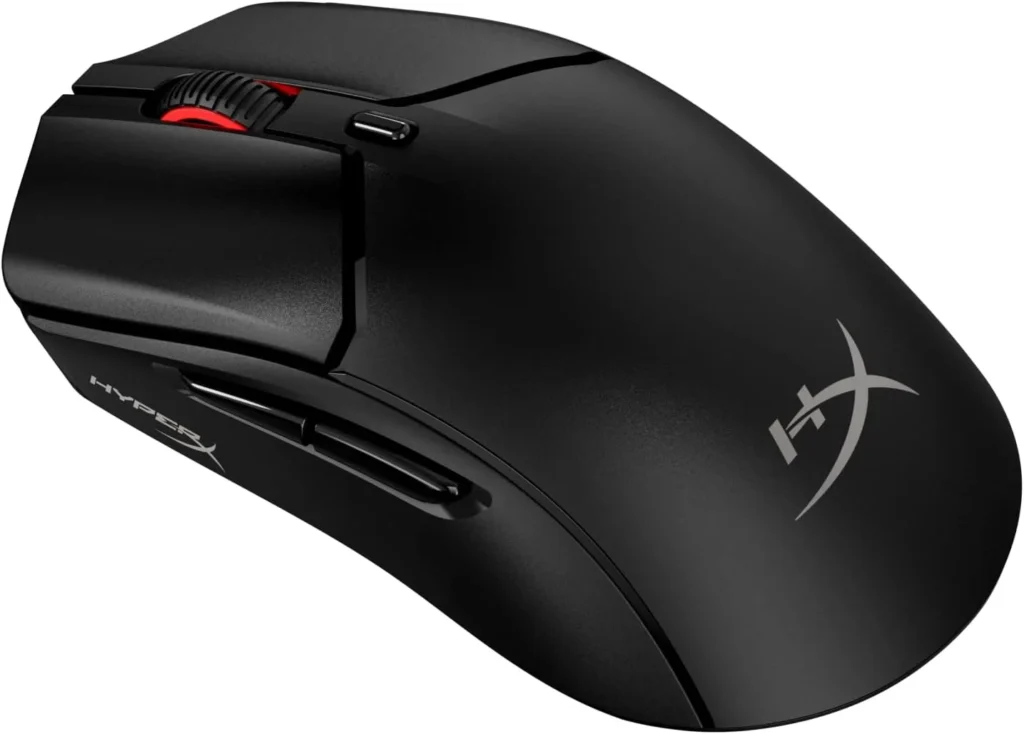
Top Contender 2: HyperX Pulsefire Haste 2 Wireless
Official design of the HyperX Pulsefire Haste 2 Wireless. (Image: Amazon US)
For gamers who prioritize speed and low weight above everything else, the HyperX Pulsefire Haste 2 Wireless delivers elite performance at a competitive price.
Performance and Ultra-Lightweight Design
Weighing in at just 61 grams without resorting to a honeycomb outer shell, the Haste 2 Wireless glides effortlessly. It features the custom HyperX 26K Sensor, custom micro switches rated for up to 100 million clicks, and offers up to 100 hours of battery life on a single USB-C charge.
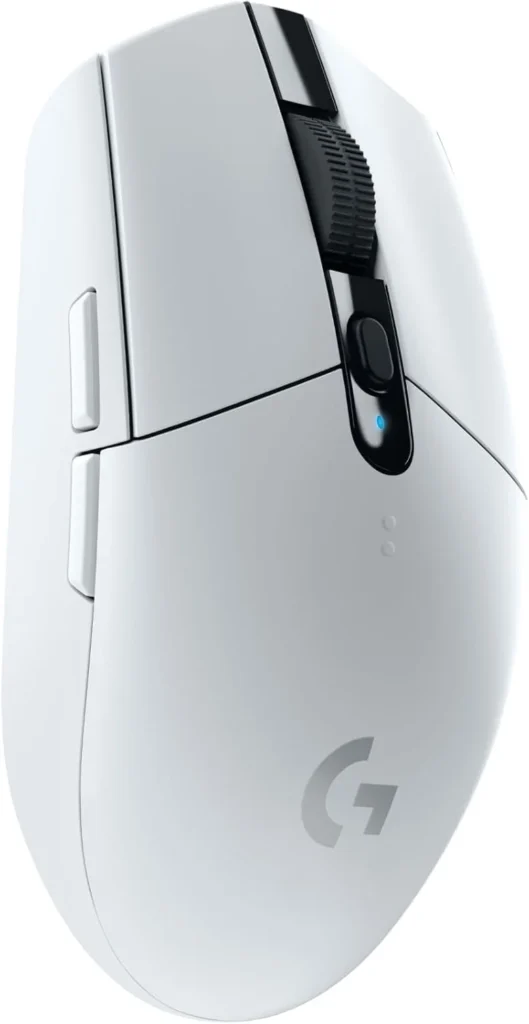
Official design of the Logitech G305 Lightspeed. (Image: Amazon US)
No discussion about budget wireless mice is complete without mentioning the iconic Logitech G305 LIGHTSPEED.
Performance and Value
Featuring Logitech’s legendary HERO sensor and classic symmetrical egg-shaped chassis, the G305 remains a staple in the gaming community. Powered by a single AA battery providing up to 250 hours of continuous gameplay, it offers unbeatable value for players seeking proven reliability.
No. Bluetooth has inherent latency and a lower polling rate (usually 125Hz). Always use the included 2.4GHz USB receiver (dongle) for playing fast-paced games. Save Bluetooth mode for productivity and laptop browsing to preserve battery life.
Should I choose AA batteries or an internal rechargeable battery?
AA battery models offer massive battery life and allow you to swap in a fresh battery instantly without needing a charging cable. Rechargeable models reduce continuous battery costs and allow the mouse to be built much lighter.
If you want an ultra-lightweight mouse tailored for competitive FPS games, the HyperX Pulsefire Haste 2 Wireless is the clear winner. However, if you want an all-around ergonomic mouse for work and long gaming sessions, the Razer Basilisk V3 X HyperSpeed offers unrivaled features and battery endurance for under $100.
Focus Keyword: best wireless gaming mouse under 100
Meta Description: Discover the best new wireless gaming mice under $100. Compare top picks from Razer, HyperX, and Logitech for low latency and high battery life.
Summary: An educational buyer’s guide reviewing high-performance wireless gaming mice under $100. We detail weight preferences, optical sensors, battery types, and compare top models on Amazon US to help gamers make an informed choice.
For years, PC gamers have been forced into a frustrating compromise. You had to choose between the lightning-fast response times of TN panels, the vibrant color accuracy of IPS, or the deep contrast of VA. No more. The new generation of OLED displays has completely shattered these boundaries, bringing infinite contrast, true blacks, and virtually instant pixel response times into a single package.
Which is the best part of this technological leap? The prices have finally dropped. You no longer need to spend a fortune to experience premium visuals. In this guide, we are looking at the best OLED gaming monitors available under $700. If you are building or upgrading your ultimate gaming setup, this is the single most impactful purchase you can make.
⚠️ Affiliate Disclosure: TechPlayGrid is reader-supported. When you buy through links on our site, we may earn an affiliate commission at no extra cost to you.
Why Choose OLED for Gaming?
OLED (Organic Light-Emitting Diode) technology works differently than traditional LED monitors. Instead of using a giant backlight to illuminate the pixels, every single pixel in an OLED panel generates its own light.
Infinite Contrast and True Blacks
Because pixels can turn themselves completely off, OLED monitors produce perfect black levels. This results in an “infinite” contrast ratio. When you play atmospheric games or explore dark dungeons, the shadows look incredibly realistic, devoid of the grayish glow seen on IPS panels.
Instant Response Times
Traditional LCD pixels take time to transition from one color to another (usually 1ms to 4ms). OLED pixels transition almost instantly (0.03ms). This means fast-moving objects in competitive shooters leave absolutely no motion blur or ghosting behind.
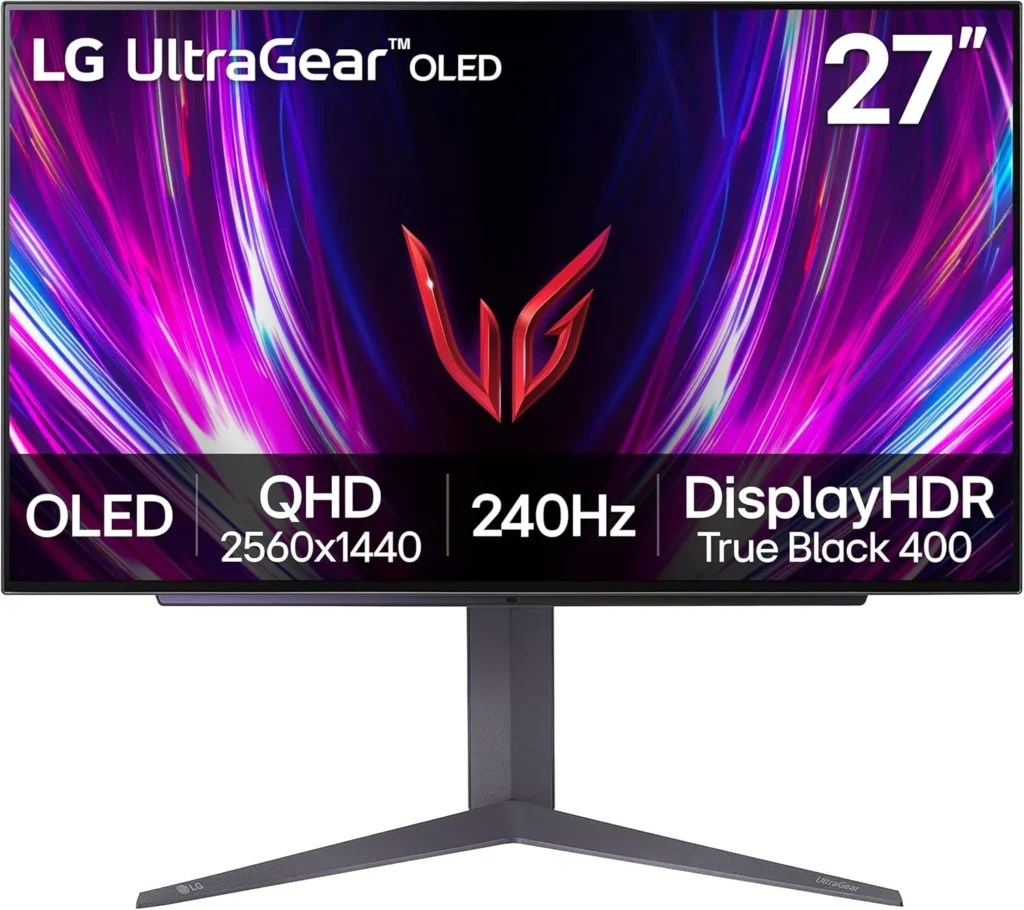
Top Contender 1: LG UltraGear 27GR95QE-B
Official design of the LG 27GR95QE-B. (Image: Amazon US)
LG is the pioneer of OLED gaming monitors, and the 27GR95QE-B remains a phenomenal choice that has recently dropped into the budget-friendly tier.
Specs and Performance
This 27-inch monitor features a 1440p resolution and a blisteringly fast 240Hz refresh rate. It uses LG’s WOLED panel technology. For competitive players, the motion clarity on this display feels like cheating. The matte coating divides opinions, but it does an excellent job of killing glare in brightly lit rooms.
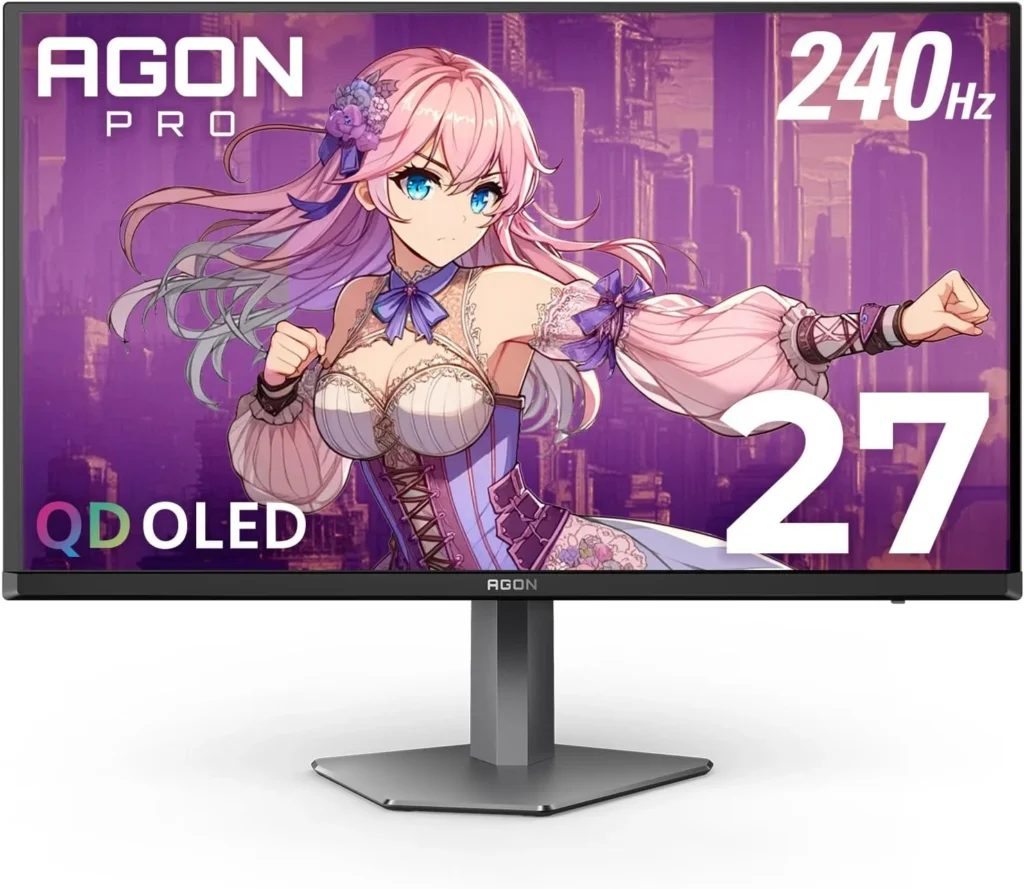
Official design of the AOC AGON PROAG276QZD. (Image: Amazon US)
AOC is known for aggressive pricing, and their entry into the OLED space does not disappoint.
Specs and Performance
Also sporting a 27-inch 1440p 240Hz WOLED panel, the AGON PRO often undercuts the competition on price. It features a unique asymmetrical stand design and customizable RGB on the back. It delivers the exact same instantaneous response times as the LG, making it a brilliant budget entry point.
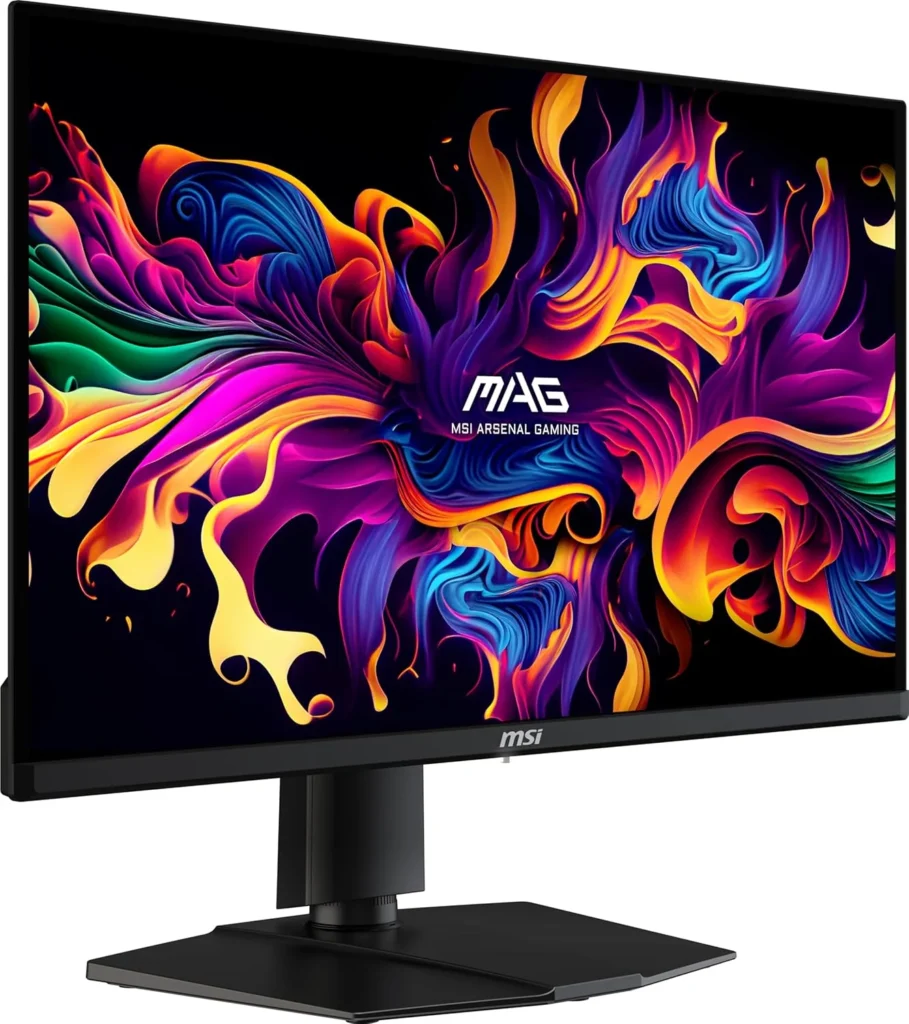
Official design of the MSI MAG271QPX. (Image: Amazon US)
MSI has pushed the boundaries by introducing QD-OLED (Quantum Dot OLED) technology into this price bracket during sales events.
Specs and Performance
Boasting a 1440p resolution and a staggering 360Hz refresh rate, this monitor is built for hardcore esports. The Quantum Dot layer allows for brighter colors and higher color volume compared to standard WOLED, resulting in a more vibrant image, especially in HDR content.
Burn-in is a valid concern, but modern OLEDs feature aggressive mitigation technologies (pixel cleaning, screen shifting, logo dimming). If you hide your Windows taskbar and turn off the monitor when not in use, the risk in 2026 is extremely low. Most brands now offer 3-year burn-in warranties.
Is 1440p enough in 2026?
Yes. At 27 inches, 1440p provides an excellent pixel density (109 PPI) that looks incredibly sharp while being much easier for your graphics card to run at high framerates compared to 4K.
If you value vibrant colors and maximum refresh rates, the MSI MAG 271QPX is an absolute steal when it hits the sub-$700 mark. However, for a proven, reliable, and widely available option, the LG UltraGear 27GR95QE-B remains the safest and most consistent recommendation for any gamer looking to make the OLED leap.
⚠️ Affiliate Disclosure: TechPlayGrid is reader-supported. When you buy through links on our site, we may earn an affiliate commission at no extra cost to you.
Tags: OLED Monitor, Gaming Monitor, LG UltraGear, 1440p Gaming, Budget OLED, PC Setup
Meta Description: Upgrade your setup with the best new OLED monitors under $700. Compare LG, AOC, and MSI 1440p displays for unbeatable colors and 240Hz gaming performance.
Summary: A comprehensive buyer’s guide exploring the most affordable and high-performing OLED gaming monitors currently priced under $700. We detail the benefits of OLED technology and compare top models to help you find the perfect display.
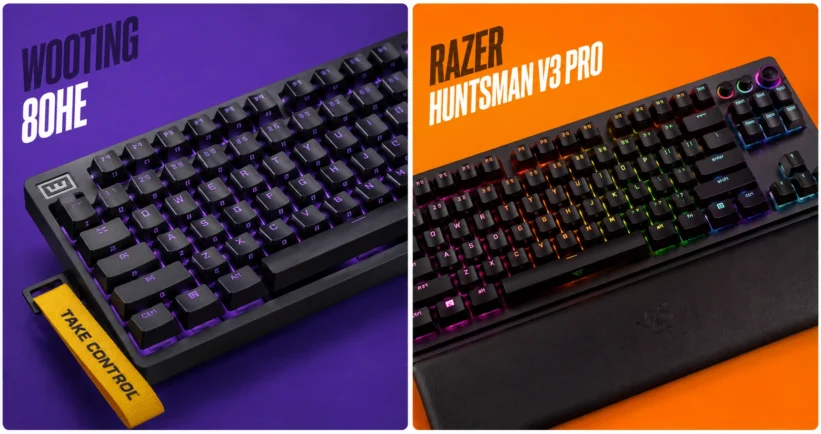
If you want to dominate in competitive tactical shooters like Valorant or Counter-Strike 2, relying on a standard mechanical keyboard is no longer enough. The new standard for esports professionals and aspiring ranked grinders is magnetic switches, specifically those equipped with Rapid Trigger technology. But when it comes to finding the absolute best performance for your desk, the conversation almost always boils down to a heavyweight matchup: the Wooting 80HE vs the Razer Huntsman V3 Pro.
In this comprehensive guide, we will break down everything you need to know about these two titans. We will look at their switch technology, software capabilities, build quality, and how they fit into the ultimate gaming setup in 2026.
⚠️ Affiliate Disclosure: TechPlayGrid is reader-supported. When you buy through links on our site, we may earn an affiliate commission at no extra cost to you.
What is Rapid Trigger Technology?
Video credit: rtings.com
Before diving into the comparison, it is crucial to understand what you are paying for. Traditional mechanical switches actuate (register a keypress) at a fixed point and must travel back up past a specific reset point before you can press the key again.
Rapid Trigger changes the game entirely. Using Hall Effect (magnetic) sensors, the keyboard constantly tracks the exact physical depth of the switch. The moment you start lifting your finger, the key resets. The moment you press down again, it actuates. This allows for near-instantaneous strafing, counter-strafing, and movement adjustments, which are critical in games where stopping perfectly still is required for accurate shooting.
Deep Dive: Wooting 80HE
Video credits: Wooting
The Wooting 80HE represents the pinnacle of community-driven keyboard design. Following the massive success of the 60HE, Wooting introduced the 80% layout (TKL without the wasted space) to cater to gamers who still need arrow keys and function rows.
Performance and Switches
The 80HE utilizes the Lekker magnetic switches. These switches offer an actuation range from 0.1mm to 4.0mm, adjustable per key. The tracking is incredibly smooth, and with an 8000Hz polling rate, the input delay is virtually nonexistent.
The Software: Wootility
Wooting’s biggest advantage is its software. Wootility is entirely web-based, meaning you do not need to install bloatware on your PC to configure your keyboard. You can adjust actuation curves, set up advanced macros, and save profiles directly to the keyboard’s onboard memory in seconds.
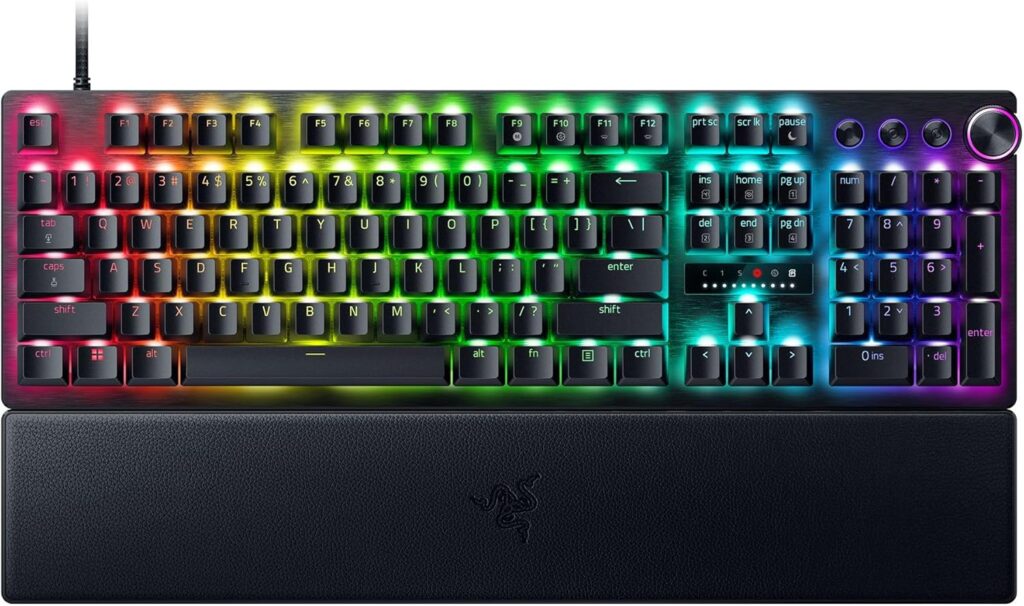
Official design of the Razer Huntsman V3 Pro. (Image: Amazon US)
Razer has been a staple in the peripheral market for decades, and the Huntsman V3 Pro is their definitive answer to the Hall Effect trend. Available in full-size, TKL, and Mini, it targets the premium gamer who wants high performance straight out of the box.
Performance and Switches
Razer uses its Analog Optical Gen-2 switches. While they use light instead of magnets to measure distance, the end result is the same: fully functional Rapid Trigger and adjustable actuation (from 0.1mm to 4.0mm).
Design and Extras
Where Razer shines is the physical hardware extras. The Huntsman V3 Pro features a beautiful brushed aluminum top plate, dedicated media controls (including a very satisfying multi-function dial), and a magnetic wrist rest. It looks and feels like a premium product sitting on your desk.
Cons: Razer Synapse software can be heavy, non-standard bottom row makes custom keycaps tricky.
Frequently Asked Questions (FAQ)
Does Rapid Trigger actually make you a better gamer?
While a keyboard cannot give you better game sense, Rapid Trigger objectively lowers the mechanical latency between your brain deciding to stop moving and your in-game character actually stopping. In tactical shooters, this translates to more accurate first shots.
Can I use these keyboards for typing and office work?
Yes! Both keyboards allow you to set different profiles. You can have a “Gaming Profile” with a hyper-sensitive 0.1mm actuation, and a “Typing Profile” with a standard 2.0mm actuation to prevent typos.
Final Verdict: Which One Should You Buy?
If you are looking for the absolute highest technical ceiling, love modifying your gear, and want the best software experience, the Wooting 80HE is the undisputed king. However, if you prefer the convenience of buying from Amazon today, want a premium unboxing experience with dedicated media controls, and don’t want to deal with wait times, the Razer Huntsman V3 Pro is an exceptional alternative.
⚠️ Affiliate Disclosure: TechPlayGrid is reader-supported. When you buy through links on our site, we may earn an affiliate commission at no extra cost to you.
Meta Description: Wooting 80HE vs Razer Huntsman V3 Pro: Which rapid trigger keyboard is best for new pros? Compare specs, performance, and features for your 2026 setup.
Summary: An in-depth comparison of the market’s leading rapid trigger keyboards. We break down the technology behind magnetic and optical switches, analyze software performance, and help competitive gamers choose the ultimate keyboard for their setup.
For years, buying a budget PC controller meant accepting one unavoidable tradeoff: stick drift. The potentiometer-based joysticks used in most controllers — including the official Xbox and PlayStation pads — wear out over time and start registering phantom inputs. It’s annoying in single-player games. It’s game-breaking in competitive ones.
In 2026, that tradeoff is gone. Hall effect technology, once locked behind enterprise-grade and high-end gaming peripherals, has finally trickled down to the sub-$50 market. You can now grab drift-resistant, wireless, programmable gamepads for less than a new AAA game, with performance that matches controllers costing twice as much.
This guide covers the best budget PC controllers under $50 with Hall effect sticks — all verified on Amazon US as of July 2026, all drift-proof by design.
⚠️ Affiliate Disclosure: TechPlayGrid is reader-supported. When you buy through links on our site, we may earn an affiliate commission at no extra cost to you.
🤔 Why Hall Effect Sticks Are the Only Thing That Matters in 2026
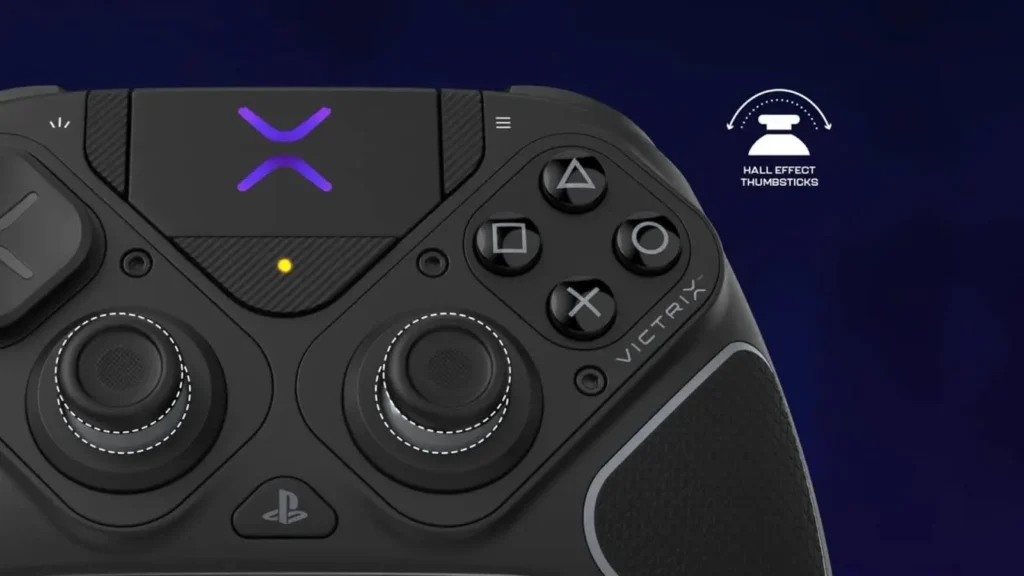
Photo credit: https://www.turtlebeach.com/blog.
Before jumping into picks, here’s the one spec you need to understand.
Traditional Potentiometer Sticks (Most Controllers)
Standard joysticks use a resistive contact between a wiper and a carbon track. Every movement wears down that contact. Nearly all $70+ controllers still use potentiometer sticks that eventually drift. Several sub-$50 controllers have already switched to Hall Effect technology — and that makes them better long-term investments than official gamepads at twice the price.
Hall Effect Sticks (The New Standard)
Hall effect joysticks use magnets and a sensor instead of physical contacts. There is no surface-to-surface wear. The stick reads position from the magnetic field without touching anything.
Feature
Potentiometer Sticks
Hall Effect Sticks
How it works
Resistive contact (wears down)
Magnetic field (no contact)
Drift risk
High after 6–18 months of heavy use
Virtually zero
Used in
Xbox Core, DualSense, most budget pads
GameSir, GuliKit, 8BitDo (2026)
Lifespan
2–4 years (heavy use)
5–10+ years
Price premium
—
Near-zero in 2026 sub-$50 market
💡 Pro Tip: If you’ve ever had a PS5 DualSense drift, you experienced potentiometer failure firsthand. Our PS5 Controller Drift guide covers the fixes — but with Hall effect controllers, that guide becomes irrelevant. The drift never happens.
🏆 Best Budget PC Controllers Under $50 — No Drift (Amazon US, July 2026)
🥇 Best Overall — GameSir Nova Lite 2
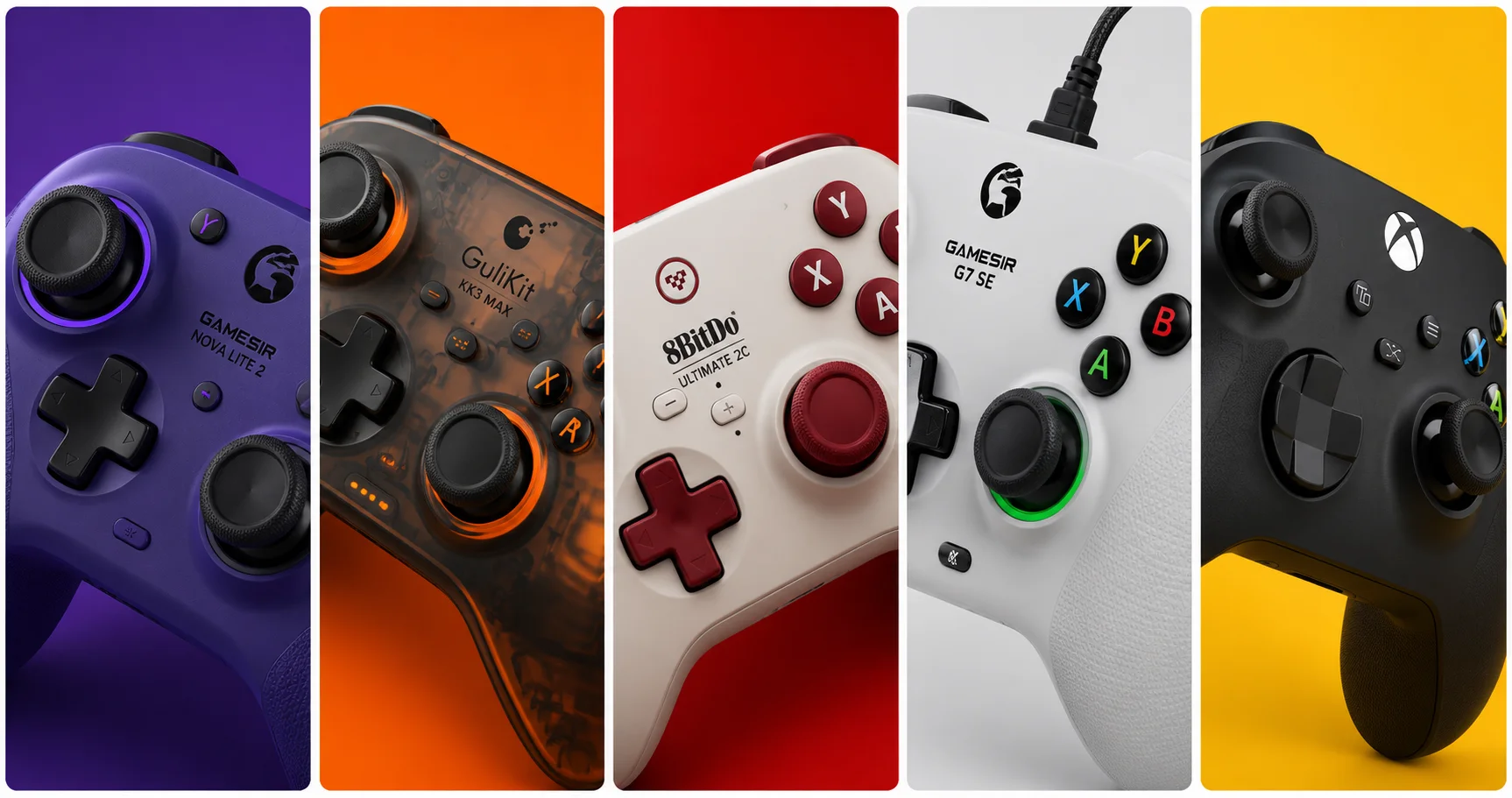
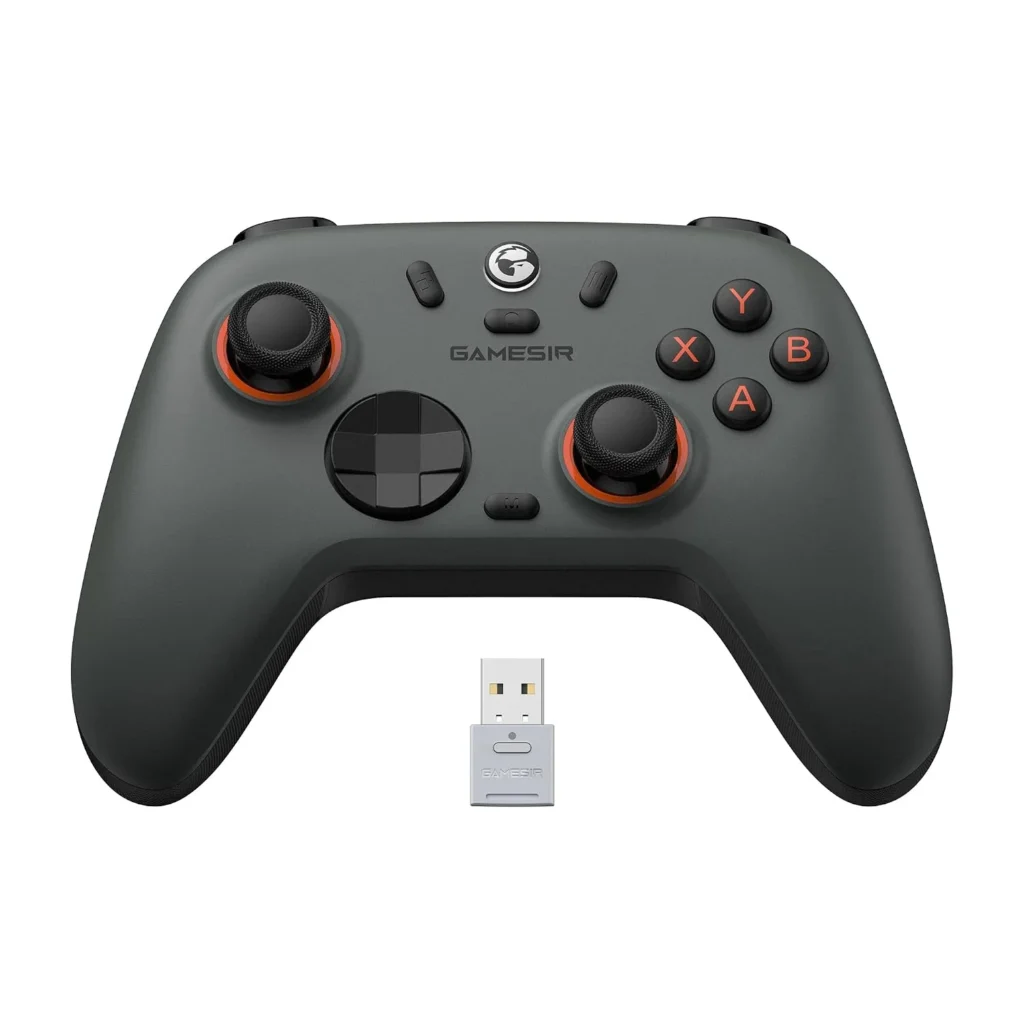
Official design of the GameSir Nova Lite 2 (Image: Amazon US)
Why it’s #1: The GameSir Nova Lite is the best budget controller for PC gaming, and that’s not just because it’s cheap. There are plenty of options in the sub-$30 price range, but few have as good a feature set. You get proper Hall effect thumbsticks, so stick drift will never be an issue. Plus, it comes with a low-latency 2.4GHz dongle, which is far more suitable for faster gaming than Bluetooth — which it also supports. The Nova Lite 2 builds on this with Hall effect triggers in addition to sticks, and a 1000Hz polling rate that matches premium controllers.
Spec
Detail
Hall Effect
Sticks ✅ + Triggers ✅
Connection
2.4GHz dongle + Wired USB-C
Polling Rate
1000Hz (wired and wireless)
Remappable Buttons
✅ Yes
Platform
PC / Switch / Steam Deck / Android
Weight
~205g
Price Range
~$27–$35
Pros:
Hall effect on both sticks AND triggers — rare at this price
1000Hz polling matches flagship controllers at 3–4x the cost
Triple connectivity: 2.4GHz dongle, USB-C wired, Bluetooth
Plug-and-play on Windows — no driver installation required
Remappable buttons via GameSir app
Cons:
No gyroscope
Primarily a PC/Switch controller — not Xbox-native for console
Best for: PC gamers who want the best performance per dollar and plan to use the controller for years without drift.
🥈 Best Feature Set — GuliKit KK3 Max
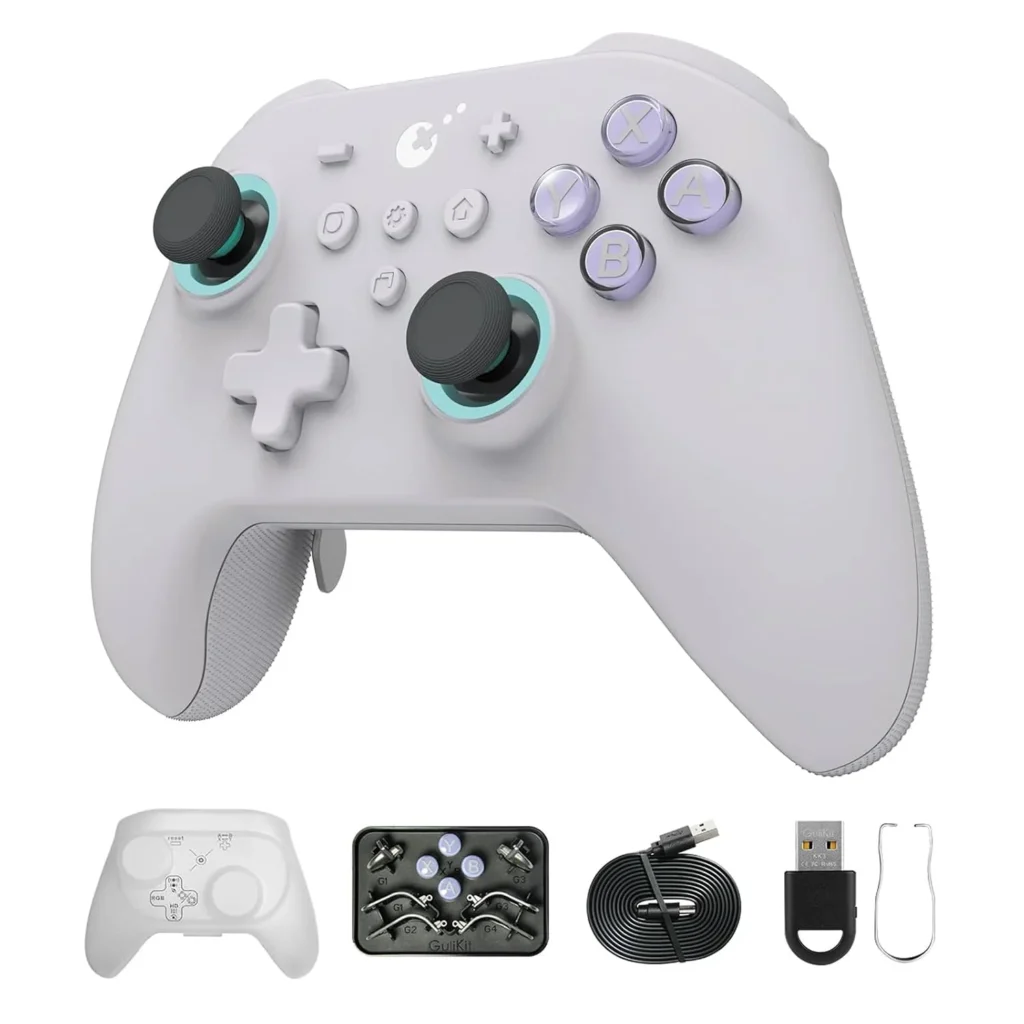
Official design of the GuliKit KK3 Max. (Image: Amazon US)
Why it’s here: The GuliKit KK3 Max is a “budget” PC and Nintendo Switch controller with magnetic thumbsticks, trigger locks, a comfortable layout, and a turbo button. At around $45–$50, it’s the most feature-rich controller under $50 on the market — and everything that makes it remarkable comes from GuliKit’s proprietary Hall effect technology.
GuliKit KK3 Max is equipped with new-gen Hall magnetic joysticks with anti-stick drift and smooth control, with high precision at level 2200 for more delicate micro-control. The patented SmartTrigger technology lets you instantly switch between digital triggers for ultra-fast firing in FPS games, and analog triggers for pressure-sensitive control in racing games.
Why it’s here: The 8BitDo Ultimate 2C is the most impressive budget controller of 2026. It packs Hall Effect sticks and triggers, 2.4GHz wireless via dongle, USB-C charging, and compatibility with PC, Switch, and Android. Build quality feels closer to $70 than $40 — the face buttons have crisp tactile feedback and the grips are textured well. Input lag via USB averages 4.8ms. Via 2.4GHz dongle it’s 7.2ms. Both figures match or beat the Nintendo Switch Pro Controller at less than half the price.
Spec
Detail
Hall Effect
Sticks ✅ + Triggers ✅
Connection
2.4GHz dongle + USB-C wired
Polling Rate
1000Hz
Remappable Bumpers
L4/R4 extra bumpers ✅
Platform
PC (Windows) / Android
Battery
USB-C rechargeable
Price Range
~$30–$40
Pros:
Hall effect sticks and triggers — virtually zero drift risk
1000Hz polling rate beats most $60–$80 controllers
Extra L4/R4 remappable bumpers
8BitDo’s software (Ultimate Software) is best-in-class for button remapping
Extremely competitive pricing — frequently under $30 on sale
Cons:
No Bluetooth (dongle only for wireless)
PC and Android only — no Nintendo Switch support on this specific model
No rumble in the 2C variant
Best for: PC-only gamers who want the best wireless latency at the lowest possible price.
🎯 Best Wired Budget Pick — GameSir G7 SE
Official design of the GameSir G7 SE. (Image: Amazon US)
Why it’s here: The G7 SE solves the most critical pain point for budget buyers: stick drift. During our testing marathon, it showed zero signs of drift after 35 hours of simulated gameplay — something most sub-$40 controllers can’t claim. Customers praise the controller’s value for money as a budget-friendly Hall effect device. One customer notes it feels like an Xbox controller in their hands.
If you don’t need wireless and want zero-latency wired performance, the G7 SE is the pick. It uses a standard Xbox layout, meaning Windows recognizes it instantly without any driver setup — the same plug-and-play experience as an official Xbox controller.
Spec
Detail
Hall Effect
Sticks ✅
Connection
Wired USB-A
Layout
Xbox-style (Windows native)
Customizable Face Plates
✅ Yes
Platform
PC / Xbox
Price Range
~$35–$45
Pros:
Wired means zero latency and no battery management
Xbox layout = instant Windows compatibility
Hall effect sticks eliminate drift entirely
Interchangeable face plates for personalization
Solid build quality for the price
Cons:
Wired only — no wireless option
Triggers are standard potentiometer (not Hall effect on this model)
Best for: Desk PC gamers who prefer a cable and want an Xbox-compatible controller without the Xbox price.
💡 Honorable Mention — Xbox Core Controller
Official design of the Xbox Core Controller. (Image: Amazon US)
A word on the “official” option: Our #1 pick for overall PC gaming in 2026 is the Xbox Core. It’s the best-supported controller on Windows, recognized by virtually every game, and the gold standard for layout comfort. However, at $60 and with standard potentiometer sticks, it costs more than every pick above while being more prone to drift. We include it here as a reference: if budget isn’t your concern and you want maximum game compatibility, it’s the safe choice. But for pure value and longevity, the Hall effect options above are objectively better investments.
📊 Full Comparison Table
Controller
Hall Effect
Wireless
Polling Rate
Back Paddles
Platform
Price
GameSir Nova Lite 2
Sticks + Triggers
2.4GHz + BT
1000Hz
❌
PC/Switch/Android
~$30
GuliKit KK3 Max
Sticks + Triggers
2.4GHz + BT
1000Hz
✅ 4 paddles
PC/Switch 2/Android/iOS
~$50
8BitDo Ultimate 2C
Sticks + Triggers
2.4GHz
1000Hz
✅ L4/R4
PC/Android
~$35
GameSir G7 SE
Sticks only
❌ Wired
Native USB
❌
PC/Xbox
~$40
Xbox Core
❌ Standard
✅ Wireless
Standard
❌
PC/Xbox/PS5
~$60
🤔 Which Controller Should You Buy?
Best all-around under $35: → GameSir Nova Lite 2 — Hall effect sticks and triggers, 1000Hz, three connection modes
Best feature set under $50: → GuliKit KK3 Max — back paddles, SmartTrigger, gyro, Switch 2 compatible
Best pure wireless for PC: → 8BitDo Ultimate 2C — lowest latency at this price, 1000Hz dongle wireless
Best wired option: → GameSir G7 SE — Xbox layout, instant Windows compatibility, zero drift
Best if game compatibility is paramount: → Xbox Core Controller (accepts the drift risk for plug-and-play ubiquity)
🎮 Which Games Need a Controller vs. Mouse and Keyboard?
Not every game benefits from a controller. Here’s the quick guide:
What is Hall effect and why does it prevent drift?
Hall effect joysticks use magnets instead of physical resistive contacts. Nearly all $70+ controllers still use potentiometer sticks that eventually drift. Several sub-$50 controllers have switched to Hall Effect technology — making them better long-term investments than official gamepads at twice the price. Since there’s no surface wear, the sensor never degrades and drift never develops.
Do Hall effect controllers work on all PC games?
Yes — these controllers present themselves to Windows as standard XInput or DirectInput devices. Any game that supports a controller works with them. Some (like the GameSir G7 SE) use native Xbox layout for the broadest compatibility.
Is 1000Hz polling rate actually noticeable in gaming?
For competitive games, yes. Standard controllers poll at 125Hz (8ms delay). 1000Hz polling means 1ms delay — a significant reduction in input lag that’s perceptible in fast-paced games like Fortnite, Rocket League, or fighting games where frame-perfect inputs matter.
Are budget controllers good for fighting games?
Fighting game communities are embracing Hall effect controllers for tournaments because they eliminate stick drift accusations. The GameSir Nova Lite 2 and GuliKit KK3 Max are both used by competitive players specifically because of their reliable, accurate inputs.
Can I use these controllers on Steam Deck?
Yes — the GameSir Nova Lite 2, GuliKit KK3 Max, and 8BitDo Ultimate 2C all support Steam Deck either via 2.4GHz dongle or USB-C wired connection.
Do these work with Nintendo Switch 2?
The GuliKit KK3 Max specifically includes Switch 2 Wake-Up function and full Switch 2 compatibility. The GameSir Nova Lite 2 works with Switch via Bluetooth and its 2.4GHz dongle. The 8BitDo Ultimate 2C is PC/Android only.
Last updated: July 2026 | Products verified on Amazon US
⚠️ Affiliate Disclosure: TechPlayGrid participates in the Amazon Associates Program and other affiliate programs. We earn a commission on qualifying purchases at no extra cost to you.
🏷️ SEO Metadata
Title : Best Budget PC Controller Under $50 — No Drift (2026)
Meta Description: Best budget PC controllers under $50 with no drift in 2026 — Hall effect sticks, 1000Hz polling, wireless. All picks verified on Amazon US. No more stick drift ever.
Tags: best budget pc controller 2026, gaming controller under 50, no drift pc controller, hall effect controller budget, gamesir nova lite 2, gulikit kk3 max, 8bitdo ultimate 2c, best cheap pc gamepad 2026
Post Summary: In 2026, you no longer have to spend $60–$80 on an official Xbox or PlayStation controller to get a reliable, drift-free gaming experience on PC. Hall effect joystick technology has reached the sub-$50 market, and the options are genuinely impressive. This guide covers four verified picks on Amazon US — the GameSir Nova Lite 2 (best overall under $35), GuliKit KK3 Max (best feature set with back paddles and SmartTrigger under $50), 8BitDo Ultimate 2C (best wireless latency for PC-only gamers), and GameSir G7 SE (best wired Xbox-layout option) — all with Hall effect sticks that eliminate stick drift permanently by design.
The Nintendo Switch 2 is out, you have it docked, and now you’re staring at monitor options. The console outputs up to 4K@60fps in docked mode. So does buying a 1440p monitor make sense — or are you leaving resolution on the table?
The honest answer is nuanced, and it depends on something most reviews don’t explain: how the Switch 2’s DLSS upscaling actually works on a 1440p panel. This guide breaks that down clearly, so you can make an informed decision before spending $200–$400 on a monitor.
⚠️ Affiliate Disclosure: TechPlayGrid is reader-supported. When you buy through links on our site, we may earn an affiliate commission at no extra cost to you.
🎮 What the Nintendo Switch 2 Actually Outputs in Docked Mode
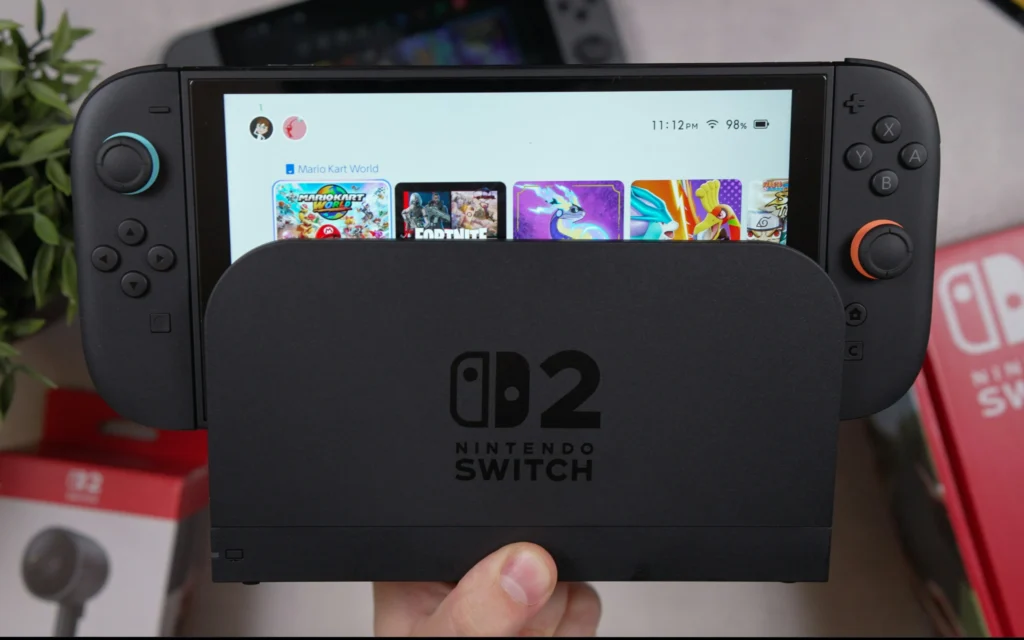
Nintendo Switch 2
Before comparing resolutions, you need to know exactly what signal the Switch 2 sends through the dock:
In docked mode, Switch 2 can output up to 120fps at 1080p or 1440p over HDMI to a TV or monitor. Nintendo has also confirmed that Switch 2 supports 4K resolution at 60fps over HDMI 2.0. In handheld mode, it supports up to 1080p at 120fps on the built-in 7.9-inch LCD panel. Switch 2 also supports VRR for smoother gameplay and HDR10 for an expanded range of color and luminance.
Output Mode
Resolution
Frame Rate
Notes
Docked — Performance
1080p
Up to 120fps
Native or DLSS upscaled
Docked — Quality
1440p
Up to 60fps
DLSS upscaled from 720p+
Docked — 4K
4K (2160p)
Up to 60fps
DLSS Light upscaled
Handheld
1080p
Up to 120fps
Built-in 7.9″ LCD
💡 Important: Not all Switch 2 games support every mode. Each game’s developer chooses which output modes to implement. Some games run at 1080p@120fps only; others offer a Quality mode at 1440p or 4K@60fps. Check each game’s supported modes before optimizing for them.
🧠 How Switch 2 Upscaling Actually Works — DLSS Light Explained
This is the part that matters most for the 1440p question. The Switch 2 doesn’t render games natively at 4K — it uses NVIDIA DLSS to upscale from a lower resolution.
Nintendo Switch 2 supports two DLSS versions: a PC-like CNN model upscaling to 1080p with high image quality, and a custom lightweight ‘DLSS Light’ for 1440p and 4K docked mode. The CNN model offers the best balance of performance and visual fidelity. Although static shots using DLSS Light look 1440p or 4K on the Switch 2, it’s a different story when there are objects in motion.
Here’s how the rendering pipeline works per mode:
Performance Mode (1080p@120fps)
Performance mode renders at 1080p and upscales to 4K, freeing GPU budget for higher frame rates or more visual effects. On a 1440p monitor, this signal gets displayed natively at 1080p — no scaling needed, perfectly sharp.
Quality Mode (1440p@60fps)
Quality mode renders at 1440p and upscales to 4K, preserving more detail. On a 1440p monitor, this is displayed pixel-for-pixel — the ideal scenario. No upscaling, no downscaling. A 1440p monitor displays the Switch 2’s 1440p signal pixel for pixel, preserving the original sharpness without artificial upscaling. This direct match eliminates the scaling guesswork that degrades the image on 4K TVs.
4K Mode (2160p@60fps)
On a 1440p monitor, the Switch 2’s 4K output is downscaled to fit the 1440p panel. The monitor’s scaler handles this, and the result is typically sharper than native 1080p — but you lose the benefit of true 4K pixels.
🖥️ The Core Question: Does 1440p Make Sense for Switch 2?
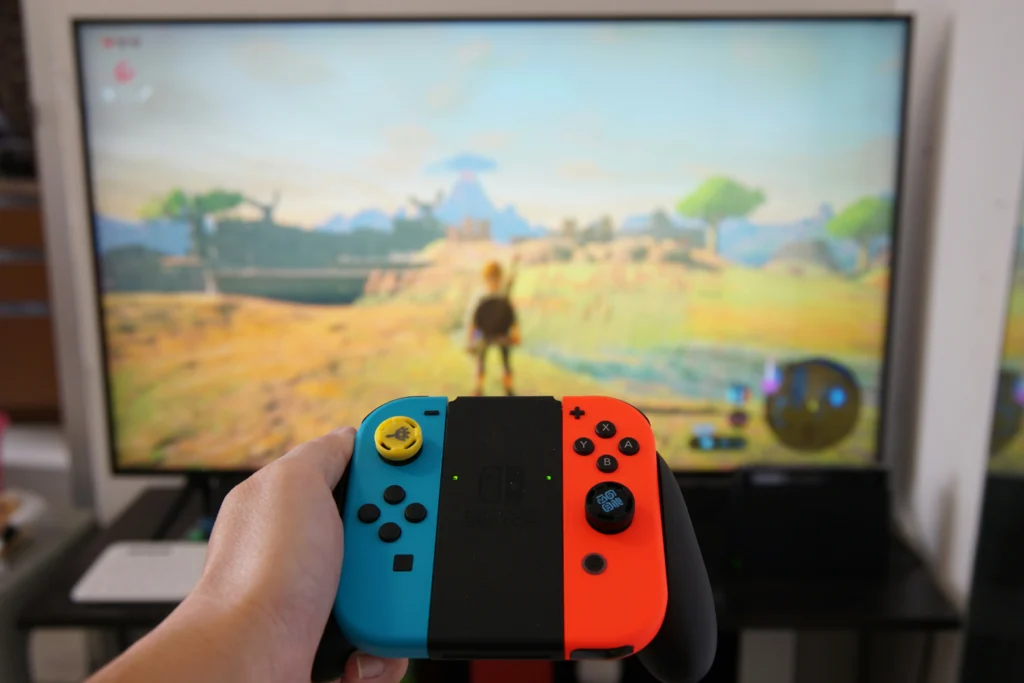
Nintendo Switch Controller
✅ YES — 1440p Is the Sweet Spot If:
You want the best image for Quality Mode games. When a Switch 2 game offers 1440p Quality Mode, a 1440p monitor receives and displays that signal perfectly — pixel-for-pixel accuracy, no scaling artifacts, no processing overhead. This direct match eliminates the scaling guesswork that degrades the image on 4K TVs.
You play at a desk. At 27 inches viewed from 60–80cm, 1440p sits at ~109 PPI — right at the threshold where pixels become invisible to the naked eye. A 27-inch 1440p monitor viewed at 60–80cm offers a pixel density of 109 PPI, perfectly suited to human vision. This configuration allows for the perception of all details without eye strain.
You care about competitive gaming. 1440p monitors at 144Hz–180Hz are significantly cheaper than 4K monitors at equivalent refresh rates. For games that run at 1080p@120fps, a fast 1440p monitor handles that perfectly while giving you a sharper display for everything else.
You game on PC or other consoles too. A 1440p monitor is the most versatile purchase for a mixed gaming setup. It works excellently with PC, PS5 (which also natively supports 1440p), Xbox Series X, and the Switch 2.
⚠️ CONSIDER 4K Instead If:
You primarily game on a large screen from the couch. At distances over 1.5 meters, 4K becomes more relevant — especially for cinematic games like Zelda or Metroid Prime 4 that support 4K Quality Mode.
You have a 4K-compatible TV already. If you’re using the Switch 2 on a 4K OLED TV, the 4K DLSS output genuinely shines. The TV handles the downscale from DLSS output gracefully and the result is visually impressive.
You want future-proof for games that get 4K patches. More Switch 2 games are receiving 4K mode updates, and that number will grow.
❌ AVOID 1080p Monitors For Switch 2 Docked:
On a 1080p screen, the extra detail from 1440p and 4K output will be lost entirely. The Switch 2’s DLSS Quality Mode outputs 1440p — a 1080p monitor has to downscale that, which eliminates the resolution advantage entirely. For a console that natively supports 1440p and 4K output, a 1080p monitor is the wrong pairing.
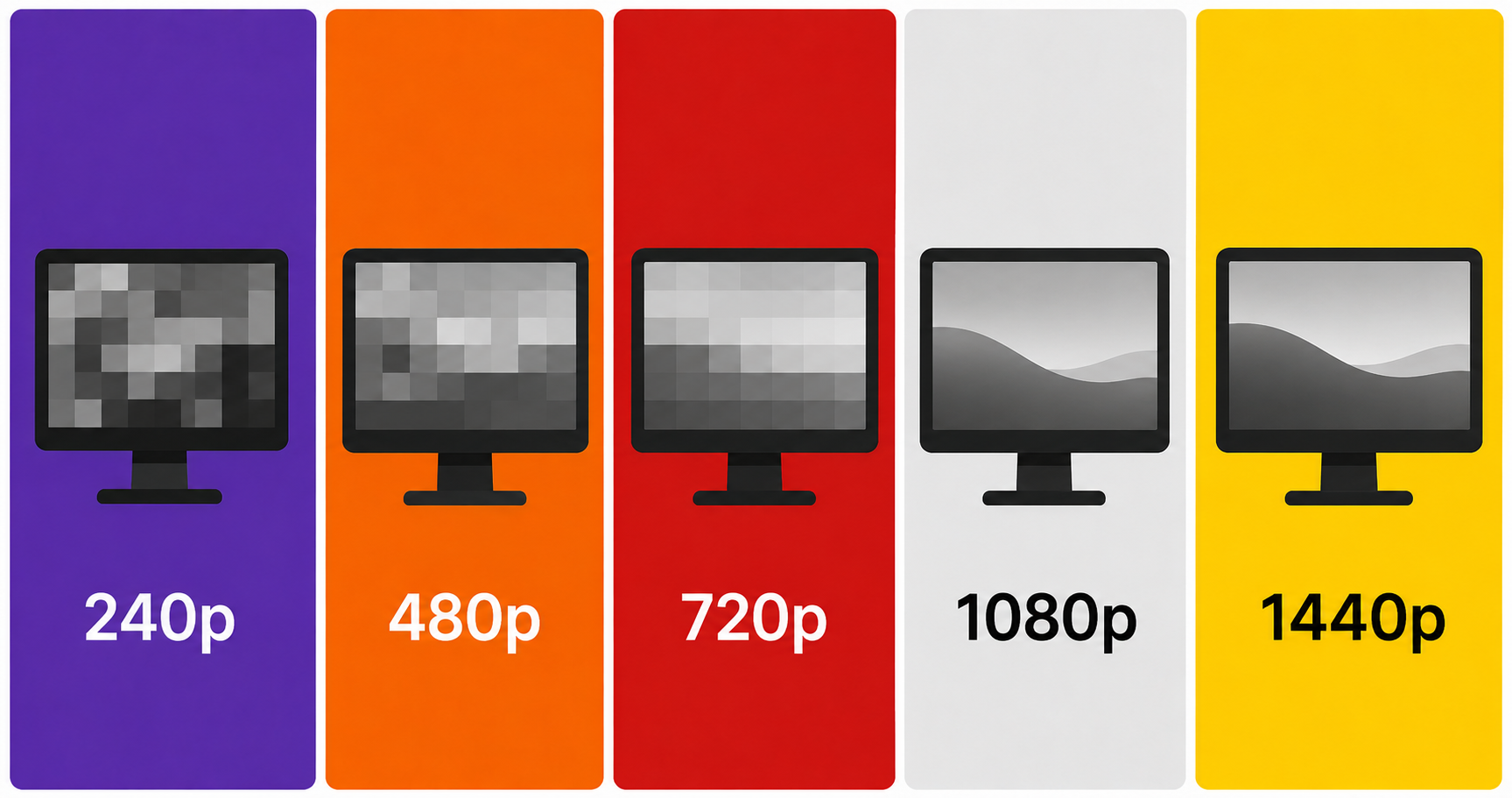
📐 1080p vs 1440p vs 4K on Switch 2 — The Full Comparison
Monitor Resolution
1080p Output
1440p Output
4K Output
Verdict
1080p monitor
Native ✅
Downscaled ⚠️
Heavily downscaled ❌
Not recommended
1440p monitor
Pillarboxed/upscaled ⚠️
Native ✅
Downscaled (looks good) ✅
Best value
4K monitor
Upscaled 4x ⚠️
Upscaled ⚠️
Native ✅
Best quality, higher cost
🏆 Best 1440p Monitors for Nintendo Switch 2 Dock (Amazon US, July 2026)
All picks verified on Amazon US. All support HDMI 2.0 (which is all the Switch 2 dock requires for 1440p@60fps).
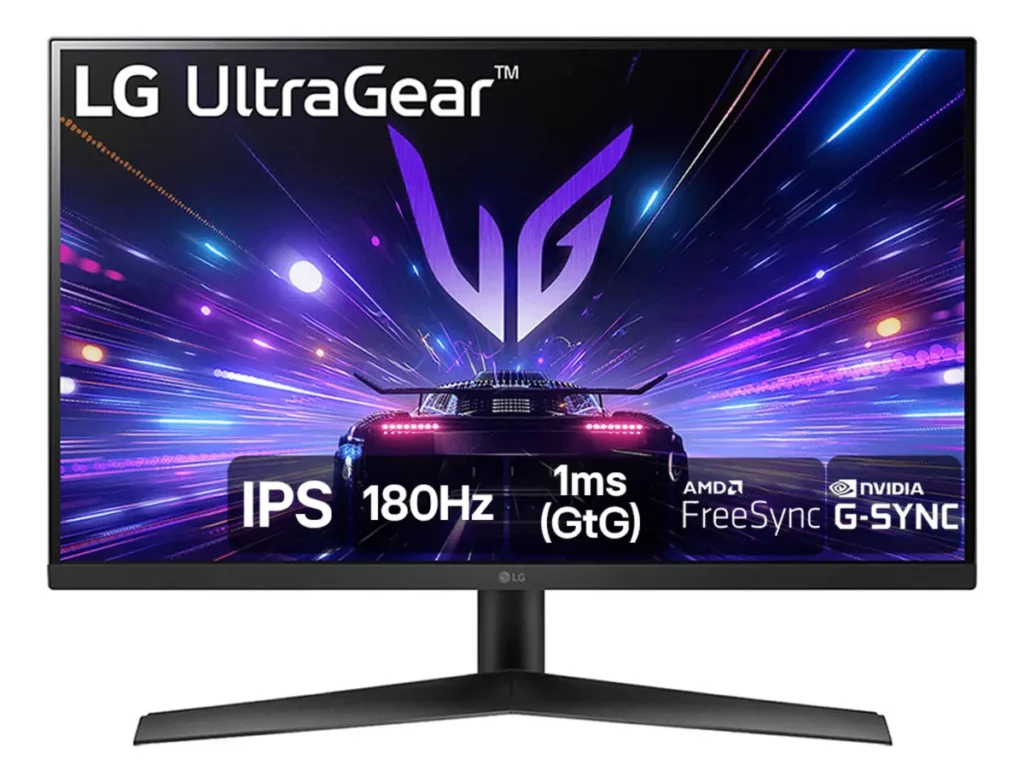
🥇 Best Overall — LG 27GP850-B Ultragear (27″ 1440p 165Hz Nano IPS)
Official design of the LG 27GP850-B. (Image: Amazon US)
Why it’s #1 for Switch 2: The 27GP850-B is consistently the top recommended 1440p monitor for console gaming. Its Nano IPS panel delivers exceptional color accuracy — critical for Switch 2’s vibrant Nintendo titles — with 1ms response time and 165Hz for Performance Mode games at 120fps.
165Hz → Switch 2 Performance Mode at 120fps displayed with headroom
HDR10 support → Switch 2’s HDR output properly displayed
Excellent color reproduction for Mario Kart World, Zelda, and Metroid
Pros: Best-in-class IPS colors, industry-leading response time for the price, great stand with full adjustment Cons: HDMI 2.0 only (fine for Switch 2’s actual bandwidth needs), HDR400 is entry-level HDR
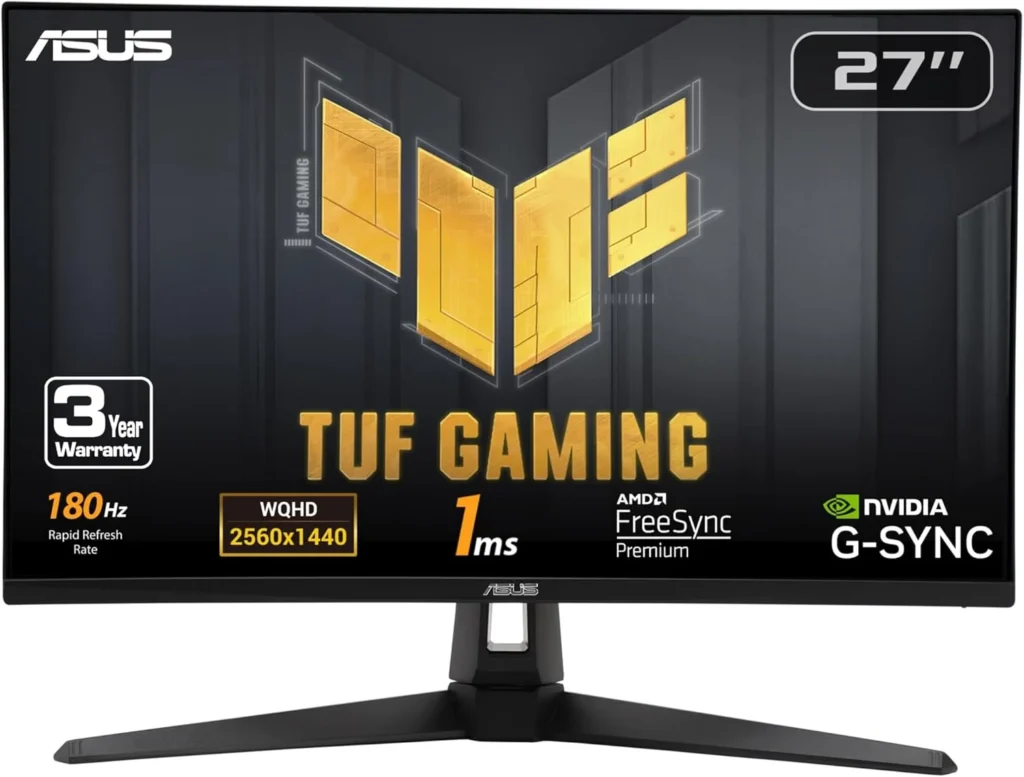
🥈 Best Budget — ASUS TUF Gaming VG27AQ3A (27″ 1440p 180Hz Fast IPS)
Official design of the ASUS VG7AQ3A. (Image: Amazon US)
Why it’s here: This 27-inch IPS panel with ELMB Sync technology makes moving objects appear sharper — perfect for Switch 2’s fast-paced titles. For gamers who prioritize a smooth, tear-free experience over maximum resolution, this monitor offers a high-end feel at a price that leaves plenty of room in your budget for the actual console and launch games.
Spec
Detail
Panel
Fast IPS
Resolution
2560×1440 (1440p)
Refresh Rate
180Hz
Response Time
1ms (ELMB)
HDR
DisplayHDR 400, 130% sRGB
Ports
2× HDMI 2.0, 1× DisplayPort 1.4
VRR
FreeSync Premium, G-Sync Compatible
Price Range
~$200–$240
Why it works perfectly with Switch 2: Native 1440p for Quality Mode games, 180Hz handles Performance Mode 120fps gaming with room to spare, built-in speakers (useful for Switch 2’s casual gaming sessions).
Pros: More affordable than LG, 180Hz refresh, built-in speakers, excellent ELMB motion clarity Cons: Slightly less accurate color than Nano IPS, no USB-C
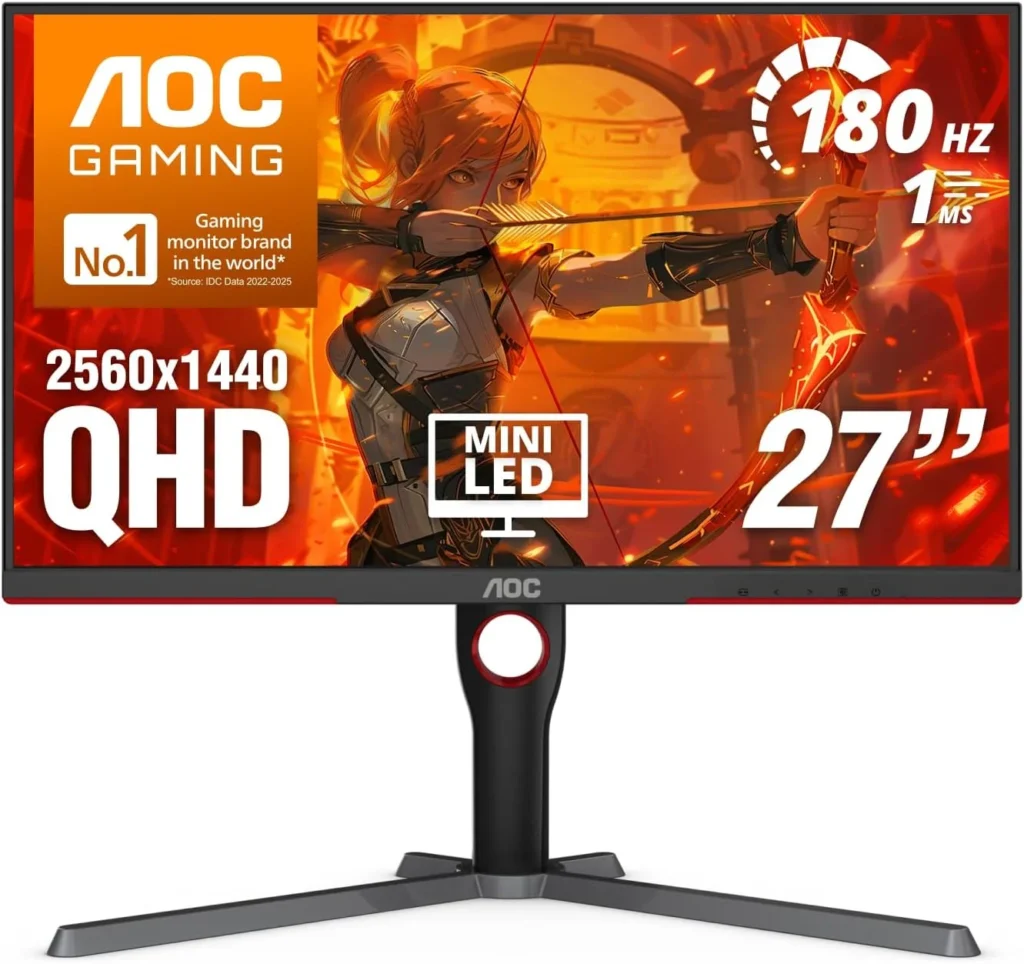
🥉 Best Premium — AOC Q27G3XMN (27″ 1440p 180Hz Mini LED)
Official design of the AOC Q27G3XMN. (Image: Amazon US)
Why it’s here: Mini LED backlighting dramatically improves HDR performance — making it the best choice for Switch 2 owners who want to experience HDR10 content properly. The AOC Q27G3XMN’s combination of Mini LED technology, high refresh rate, and excellent contrast makes it a standout choice in its price range.
Spec
Detail
Panel
Mini LED VA
Resolution
2560×1440 (1440p)
Refresh Rate
180Hz
Response Time
1ms
HDR
Mini LED HDR (significantly better than HDR400)
Ports
1× HDMI 2.0, 1× DisplayPort 1.4
VRR
Adaptive Sync
Price Range
~$260–$300
Why it works perfectly with Switch 2: Native 1440p, best HDR performance of any 1440p monitor under $300, stunning contrast for atmospheric games like Metroid Prime 4.
Pros: Best HDR in the 1440p category at this price, Mini LED contrast rivals OLED for dark scenes Cons: VA panel has narrower viewing angles than IPS, single HDMI port
📊 Full Comparison Table
Monitor
Resolution
Hz
Panel
HDR
HDMI
Price
LG 27GP850-B
1440p
165Hz
Nano IPS
HDR400
2× HDMI 2.0
~$260
ASUS TUF VG27AQ3A
1440p
180Hz
Fast IPS
HDR400
2× HDMI 2.0
~$220
AOC Q27G3XMN
1440p
180Hz
Mini LED VA
Mini LED HDR
1× HDMI 2.0
~$280
🤔 The Verdict
Is a 1440p monitor worth it for the Nintendo Switch 2 dock?
Yes — 1440p is the best value monitor choice for Switch 2 docked gaming in 2026.
Here’s why:
Switch 2 natively outputs 1440p in Quality Mode — a 1440p monitor handles this pixel-for-pixel, better than any other display
1440p monitors with 144Hz–180Hz are significantly cheaper than 4K equivalents, leaving budget for games
The downscale from 4K DLSS output to 1440p still looks better than 1080p native
1440p at 27″ looks sharp, even up close
The only reason to choose 4K over 1440p is if you primarily game from couch distance on a large screen — in which case a 4K OLED TV is the better tool entirely.
Does the Nintendo Switch 2 need HDMI 2.1 for 1440p?
No. Switch 2 supports 4K resolution at 60fps over HDMI 2.0. For 1440p gaming, HDMI 2.0 is more than sufficient — all three monitor picks on this list use HDMI 2.0 and are fully compatible.
Does 1440p look better than 1080p on a Switch 2?
Yes — significantly, especially at 27 inches. Switch 2’s Quality Mode outputs a native 1440p DLSS-upscaled signal, which a 1440p monitor displays pixel-for-pixel. A 1080p monitor would downscale that signal, losing sharpness.
Will 4K games look bad on a 1440p monitor?
No. A 1440p monitor displays the Switch 2’s signal pixel for pixel for 1440p content, and handles 4K-to-1440p downscaling cleanly. The result is sharper than native 1080p — you’re not losing much by not having a 4K panel for Switch 2 gaming.
Does Switch 2’s DLSS upscaling actually work well?
Static shots using DLSS Light look impressively sharp at 1440p or 4K, though motion clarity is a limitation compared to DLSS on PC. For most Nintendo titles — which tend to have deliberate art direction rather than ultra-fine detail — DLSS Light performs well enough that most players won’t notice the difference.
Can I use the Switch 2 dock with a 1440p monitor via USB-C?
The official Nintendo Switch 2 dock outputs via HDMI. For the cleanest results, use HDMI from dock to monitor and skip USB-C video for the console. Third-party USB-C docks exist but vary in quality — the official dock with a standard HDMI cable to your 1440p monitor is the recommended setup.
Last updated: July 2026 | Switch 2 firmware version 24.x | Monitors verified on Amazon US
⚠️ Affiliate Disclosure: TechPlayGrid participates in the Amazon Associates Program and other affiliate programs. We earn a commission on qualifying purchases at no extra cost to you.
🏷️ SEO Metadata
Title : Is a New 1440p Monitor Best for Nintendo Switch 2 Dock?
Meta Description : Is a 1440p monitor worth it for Nintendo Switch 2 docked gaming? We explain how DLSS upscaling works on non-4K screens — and which monitors to buy in 2026.
Tags: 1440p monitor nintendo switch 2, switch 2 monitor docked, nintendo switch 2 1440p worth it, best monitor for switch 2 dock, switch 2 dlss 1440p, switch 2 docked resolution guide, nintendo switch 2 monitor 2026
Post Summary: The Nintendo Switch 2 outputs up to 4K@60fps when docked using NVIDIA DLSS upscaling — but that doesn’t mean you need a 4K monitor. This guide explains exactly how the Switch 2’s DLSS Light technology handles 1440p and 4K signals, why a native 1440p monitor receives the Switch 2’s Quality Mode output pixel-for-pixel (better than any other panel size), and which 1440p monitors offer the best value for Switch 2 docked gaming in 2026. Three picks verified on Amazon US: LG 27GP850-B, ASUS TUF VG27AQ3A, and AOC Q27G3XMN.
You’re ready to upgrade your keyboard and the first question everyone asks is: mechanical or membrane? It sounds like a technical debate, but it’s really a practical one — and the answer depends on how you game, what you value, and how much you want to spend.
This guide cuts through the marketing noise and tells you exactly what the difference is, who each type is for, and which keyboards are worth buying in 2026.
⚠️ Affiliate Disclosure: TechPlayGrid is reader-supported. When you buy through links on our site, we may earn an affiliate commission at no extra cost to you.
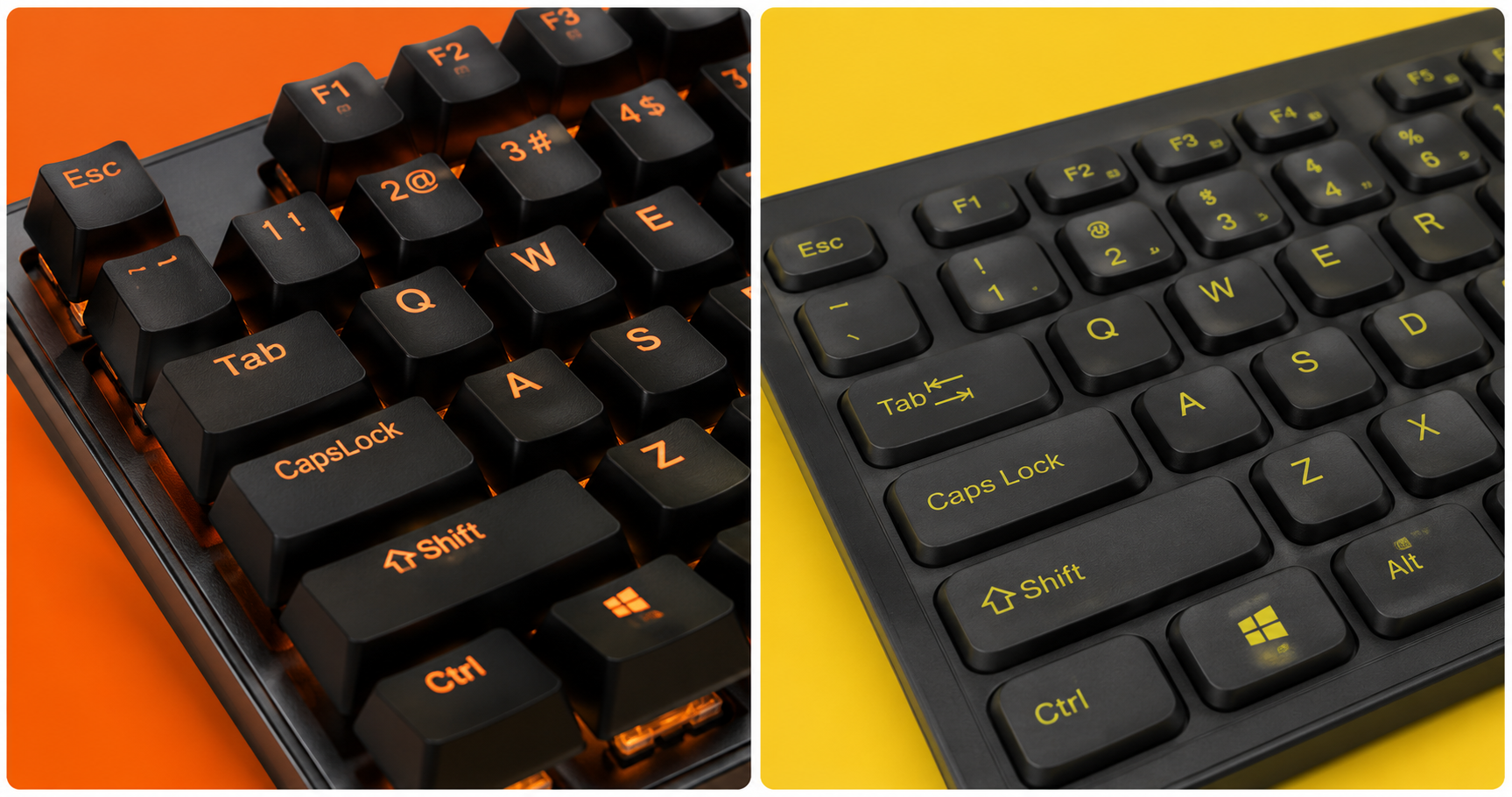
🔬 How They Actually Work
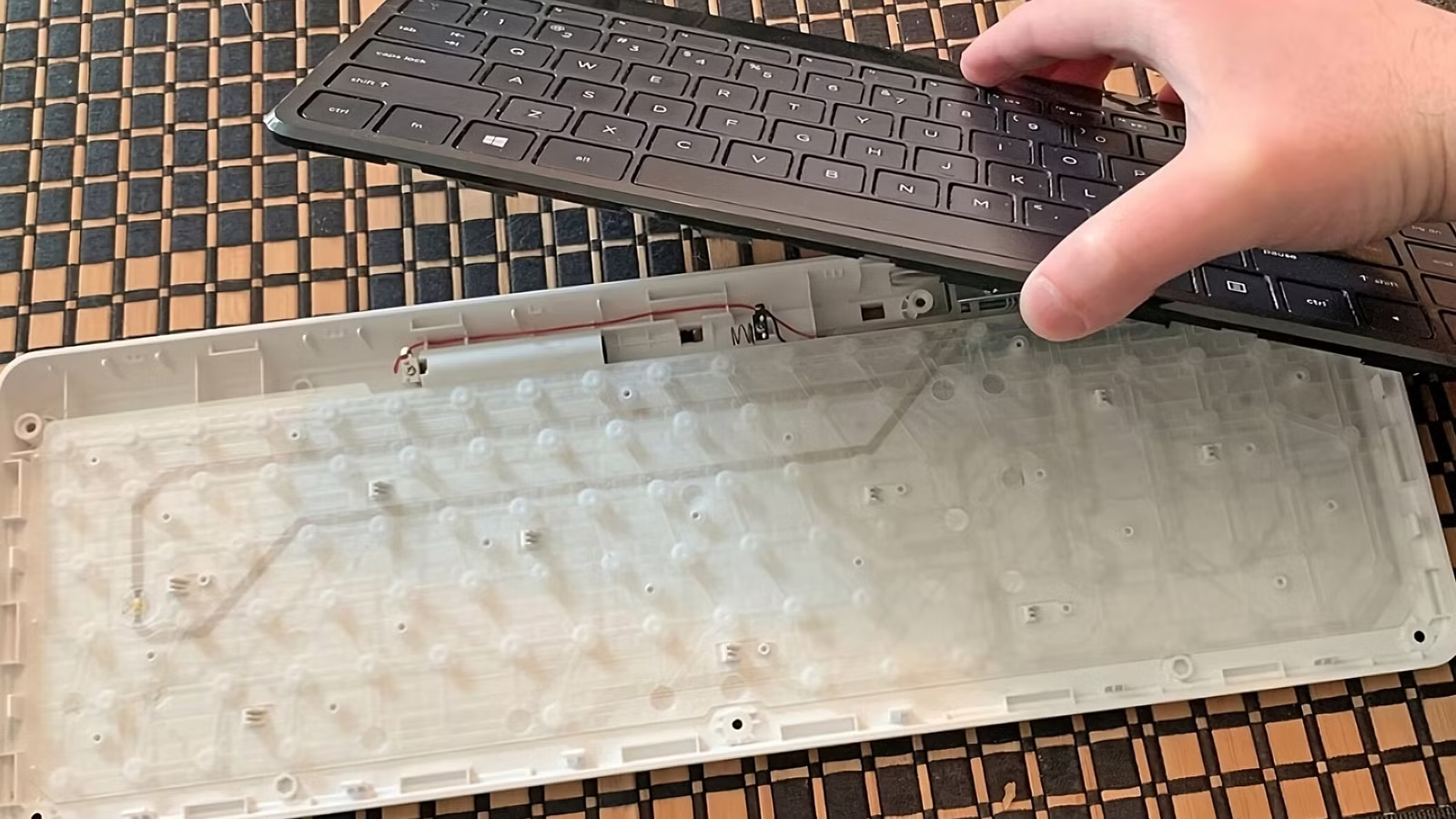
Membrane Keyboards
Membrane Keyboards
Membrane keyboards use a soft rubber dome under each key. When you press down, the dome collapses against a conductive membrane sheet, registering the keypress. Think of it like pressing a bubble wrap button.
Mechanical Keyboards
Mechanical Keyboards
Mechanical keyboards use individual physical switch mechanisms under each key — a spring-and-actuator system that produces a distinct tactile and/or audible response. Each switch is its own self-contained unit.
Feature
Membrane
Mechanical
Actuation mechanism
Rubber dome
Physical switch
Feel
Soft, mushy
Tactile or linear
Sound
Quiet
Click, thock, or silent
Durability
~5 million keystrokes
~50–100 million keystrokes
Repairability
Replace full keyboard
Replace individual switches
Price range
$10–$80
$40–$300+
🎮 Which Is Better for Gaming?
The honest answer: mechanical keyboards are better for gaming in almost every measurable way — but membrane keyboards are not useless, and for casual players, they’re often perfectly adequate.
Here’s where it actually matters:
Response Time and Actuation
Mechanical switches actuate at a specific, consistent point (usually 2mm of travel). Membrane domes actuate at inconsistent depths depending on wear. Over time, membrane keys develop uneven actuation — some keys feel snappier, some mushier.
💡 Pro Tip: In competitive gaming (CS2, Valorant, Apex), consistent actuation means consistent inputs. Mechanical switches give you that consistency match after match, year after year.
Anti-Ghosting and N-Key Rollover
Ghosting happens when you press multiple keys simultaneously and the keyboard registers incorrect inputs. N-Key Rollover (NKRO) means every keypress is detected independently, no matter how many keys are held at once.
Feature
Budget Membrane
Gaming Membrane
Mechanical
Anti-Ghosting
❌ Limited
✅ Usually
✅ Always
N-Key Rollover
❌ No
⚠️ Sometimes
✅ Yes
Durability
This is where mechanical keyboards truly shine. Most mechanical switches are rated for 50 to 100 million keystrokes per key. A membrane dome is typically rated for 5 to 10 million — and it degrades unevenly. Professional gamers who play 8–10 hours per day will wear out a membrane keyboard in months.
🔊 The Sound Question
Sound is the most personal factor in the mechanical vs membrane debate:
Switch Type
Sound
Feel
Best For
Membrane
Near silent
Soft, mushy
Quiet environments
Linear (e.g. Red)
Quiet thud
Smooth, no bump
Fast gaming, quiet preference
Tactile (e.g. Brown)
Moderate
Bump, no click
Typing + gaming balance
Clicky (e.g. Blue)
Loud click
Bump + click
Typing satisfaction, not recommended for roommates
💡 Pro Tip: If you’re gaming in a bedroom or office where noise matters, look for silent linear switches like Gateron Silent Red or Cherry MX Silent Red. They’re as quiet as membrane but retain all the mechanical advantages.
💰 Price Reality Check
Budget
Membrane Option
Mechanical Option
Under $30
Decent membrane available
Very limited, usually poor quality
$30–$60
Good gaming membrane
Entry mechanical (Redragon, Tecware)
$60–$100
Overkill for membrane
Mid-range mechanical (Keychron, Logitech G)
$100–$200
Not recommended
Premium mechanical (Razer, SteelSeries, Corsair)
$200+
—
Enthusiast/custom mechanical
The value inflection point is around $60–$80. Below that, a gaming membrane can make sense. Above $60, a mechanical keyboard is almost always the better investment.
🏆 Best Keyboards by Category
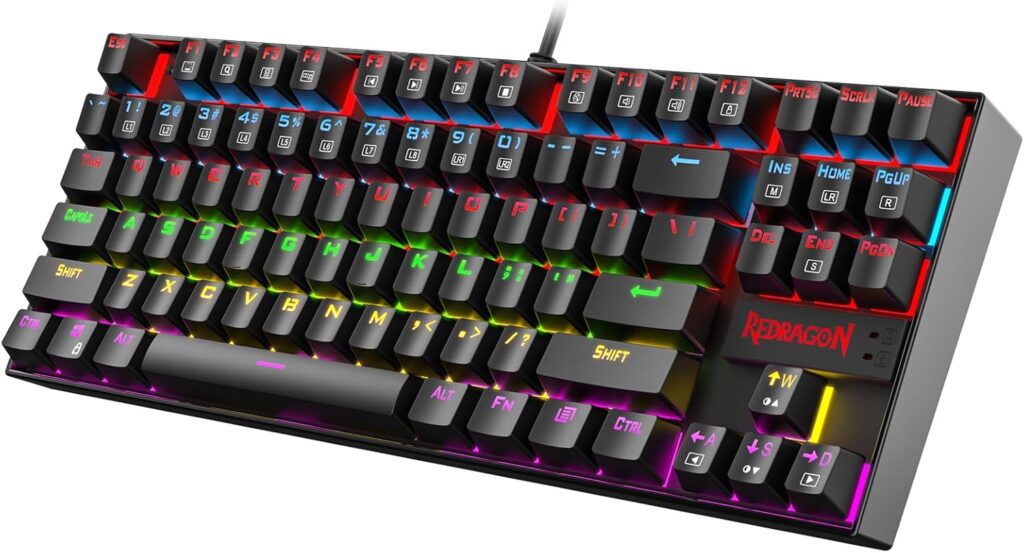
Best Budget Mechanical — Redragon K552 Kumara
Official design of the Redragon K552. (Image: Amazon US)
The most recommended entry-level mechanical keyboard on the market for a reason. Solid build, good switches for the price, and TKL layout saves desk space for your mouse.
Best Mid-Range — Keychron K3 V2 (Wireless)
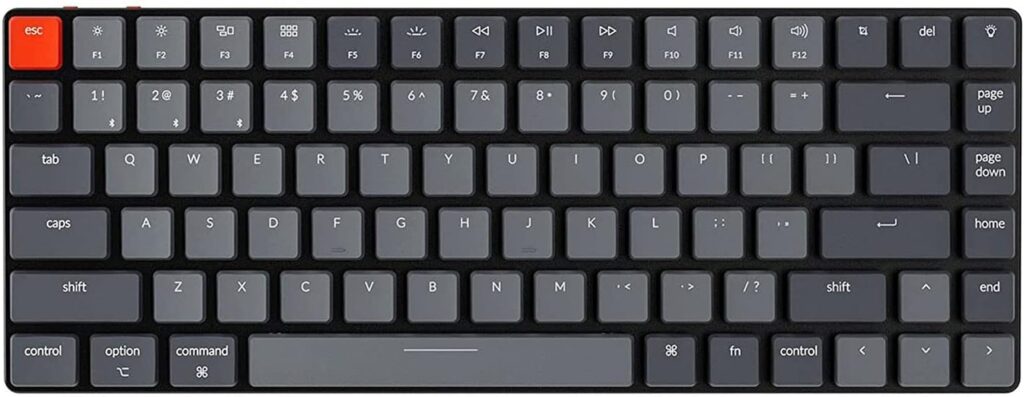
Official design of the Keychron K3 V2. (Image: Amazon US)
Switches: Gateron Red / Brown / Blue (hot-swappable option)
Form Factor: 75% compact
Connection: Bluetooth 5.1 + USB-C wired
Price: ~$80–$100
The Keychron K3 is the go-to recommendation for anyone serious about gaming and typing alike. The hot-swap version lets you try different switches without soldering — the best way to find your perfect feel.
Best Gaming Mechanical — Razer BlackWidow V4 Pro
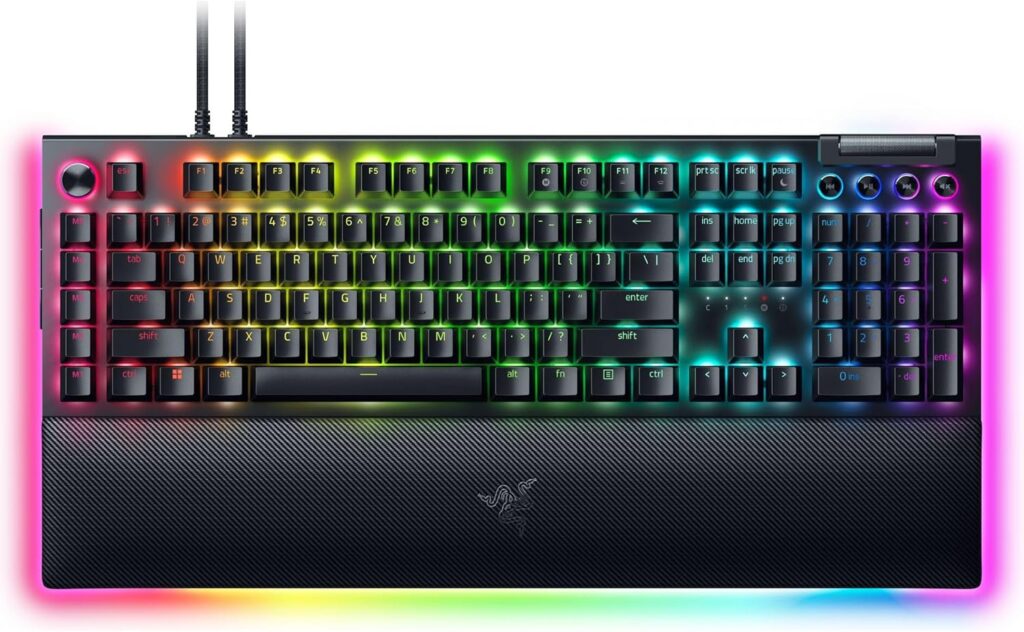
Official design of the Razer BlackWidow V4. (Image: Amazon US)
Features: Magnetic wrist rest, multi-function dial, USB passthrough
Price: ~$150–$200
The pinnacle of gaming-focused mechanical keyboards. Razer’s Yellow switches are among the smoothest linear options available, and the build quality matches the price tag. For competitive gamers who want everything, this is it.
Best Gaming Membrane — SteelSeries Apex 3
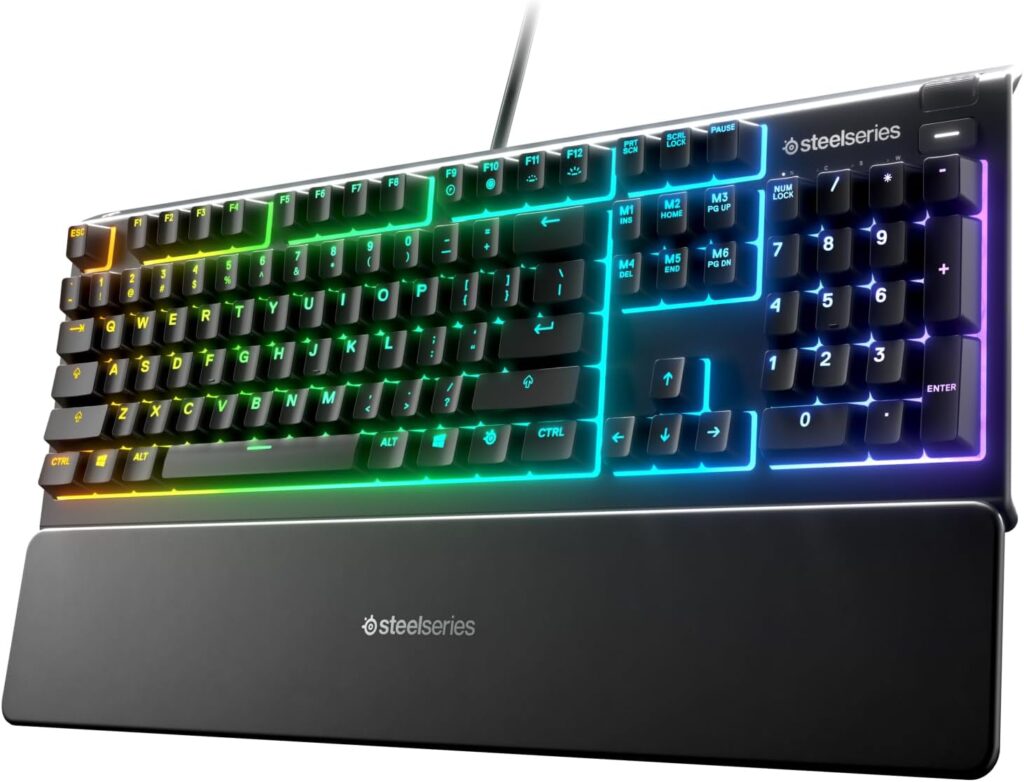
Official design of the SteelSeries Apex 3. (Image: Amazon US)
Features: Whisper quiet, IP32 water resistant, RGB
Price: ~$45–$60
If you specifically want membrane — for noise reasons, shared space, or preference — the Apex 3 is the best gaming membrane keyboard available. It has proper anti-ghosting, excellent software, and a build quality that embarrasses most keyboards at this price.
📊 Full Comparison Table
Keyboard
Type
Switches
Form Factor
Price
Redragon K552 Kumara
Mechanical
Linear/Clicky
TKL
~$40
Keychron K2 V2
Mechanical
Gateron (hot-swap)
75%
~$90
Razer BlackWidow V4 Pro
Mechanical
Razer Yellow/Green
Full
~$180
SteelSeries Apex 3
Membrane
QX2
Full
~$50
🤔 The Verdict: Who Should Buy What?
Buy mechanical if you:
Game more than 2 hours per day
Play competitive multiplayer games
Type a lot alongside gaming
Want a keyboard that lasts 5–10 years
Stick with membrane if you:
Game casually, 1–2 hours occasionally
Share a room and need near-total silence
Have a budget under $40
Already have a working membrane and don’t notice issues
Do pro gamers use mechanical keyboards? Virtually all competitive gamers use mechanical keyboards with linear switches (usually Red or equivalent). The consistency and durability are non-negotiable at that level.
Is membrane good enough for casual gaming? Absolutely. If you play story games, RPGs, or casual multiplayer a few hours a week, a quality membrane keyboard works perfectly fine.
What are hot-swap mechanical keyboards? Hot-swap keyboards let you pull out and replace individual switches without soldering. It’s the best feature for anyone new to mechanical keyboards — you can experiment with switch types without commitment.
Do mechanical keyboards help you aim better? No — keyboard type doesn’t affect mouse aiming. It affects typing speed, input consistency, and comfort during extended sessions.
Are 60% keyboards good for gaming? Yes, especially for FPS games where mouse space matters. However, you lose the numpad and function row, which can be inconvenient for productivity tasks.
Last updated: June 2026
⚠️ Affiliate Disclosure: TechPlayGrid participates in the Amazon Associates Program and affiliate programs including Razer and SteelSeries. We earn a commission on qualifying purchases at no extra cost to you.
🏷️ SEO Metadata
Title: Mechanical vs Membrane Keyboard: Which Is Worth It?
Meta Description: Mechanical or membrane keyboard for gaming — which actually matters? We break down performance, durability, price, and the best picks for every budget in 2026.
Tags: mechanical vs membrane keyboard, best gaming keyboard 2026, mechanical keyboard for gaming, membrane keyboard gaming, keychron k2, razer blackwidow, gaming keyboard buying guide
Post Summary: Mechanical vs membrane keyboards — it sounds like a spec debate, but it’s really a lifestyle question. This guide explains exactly how each type works, where the differences matter for gaming (and where they don’t), breaks down the best picks by budget from $35 to $200, and tells you clearly who should upgrade and who can save their money. If you’re buying your first gaming keyboard or considering an upgrade, this is the guide to read first.