Nothing is more frustrating than dropping into a match, gathering your favorite loot, and suddenly teleporting straight into an enemy’s crosshairs because of a lag spike. High ping can ruin your competitive experience, but you do not always need to spend money to solve it.
Before you rush to buy expensive gear, try these software and system tweaks to stabilize your connection.
⚠️ Affiliate Disclosure: TechPlayGrid is reader-supported. When you buy through links on our site, we may earn an affiliate commission at no extra cost to you.
Quick Fortnite Settings to Lower Ping
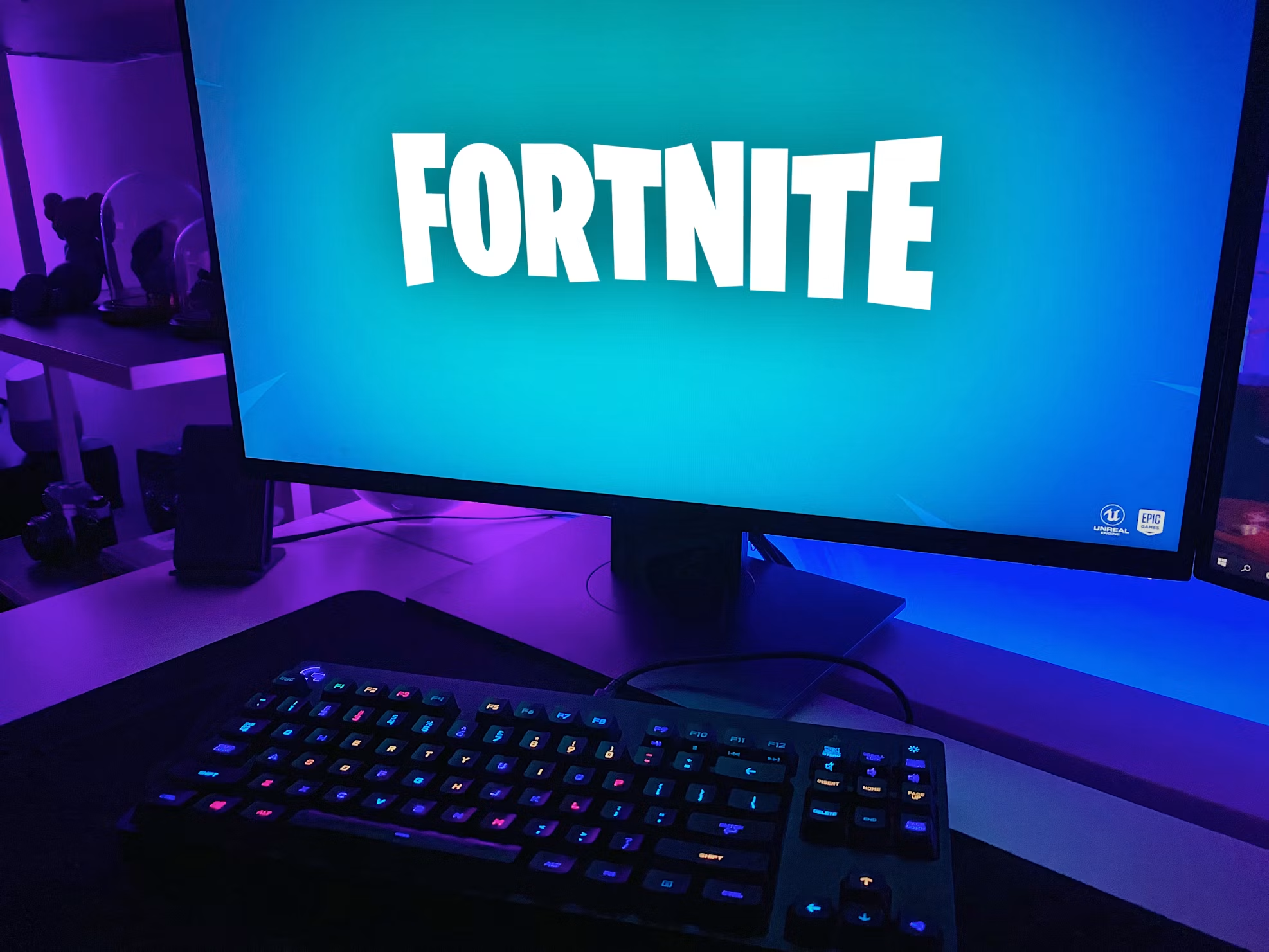
Photo credit: Fortnite website.
Your first stop should always be the in-game settings. Sometimes, the game itself is routing you inefficiently.
Choose the Right Matchmaking Region
Fortnite usually sets your server region to “Auto,” which is supposed to connect you to the closest server. However, during off-peak hours, it might route you to a server further away to find a match faster.
Open the Settings menu in Fortnite.
Go to the Game tab (the gear icon).
Under Language & Region, manually select the server with the lowest “ms” number.
Video Credits: EliteOryx
Close Bandwidth-Heavy Background Apps
Your game might be competing for bandwidth with other applications on your PC. Web browsers with dozens of tabs, game launchers downloading updates in the background, and voice chat software can cause major lag.
Pro Tip: If you use Discord to communicate with your squad and notice performance drops, make sure to read our complete guide on how to fix Discord lag while gaming to keep your system running smoothly.
Optimize Your Current Connection
You can make your existing internet setup more efficient without touching a single cable.
Flush Your DNS
Clearing your PC’s network cache can force a fresh, faster route to the Epic Games servers.
Type cmd in your Windows search bar, right-click, and select Run as administrator.
Type ipconfig /flushdns and press Enter.
Video Credits: Techademics
Switch to a Public DNS
Sometimes, your internet provider’s default DNS is slow. Switching to Google’s public DNS can reduce your ping slightly. Go to your Windows Network Settings, find your adapter properties, and change the IPv4 DNS servers to 8.8.8.8 and 8.8.4.4.
When You Actually Need Hardware Upgrades
If you have tried the steps above and your ping is still holding you back, your local hardware might be the bottleneck. Here is what to look for on Amazon US if you decide to upgrade.
Get the Best Ethernet Cable Under $15
The absolute best fix for high ping is getting off Wi-Fi. A wired connection is immune to wireless interference. You do not need anything expensive. The Amazon Basics RJ45 Cat-6 Ethernet Cable or the UGREEN Cat 6 Ethernet Cable are both highly rated, consistently in stock on Amazon US, and will deliver zero packet loss for under $15.
Consider a Budget Gaming Router
Photo credit: Fortnite website.
If you absolutely must use Wi-Fi (for example, if your console or PC is too far from the modem), and your router is more than 5 years old, an upgrade might be necessary. Look for routers with Wi-Fi 6 technology. The TP-Link Archer AX21 (AX1800) is a proven best-seller on Amazon US that offers excellent traffic prioritization for gaming without breaking the bank.
While a stable connection fixes your network delay, having a smooth visual experience is just as important. Check out our recommendations for the best 144Hz monitors under budget to ensure you see every frame clearly.
Small room. Limited budget. Big gaming ambitions. Sound familiar?
Whether you’re in a dorm, a studio apartment, or a shared bedroom, building a functional gaming setup in a tight space is completely doable under $500 — but only if you make the right choices. The wrong desk wastes floor space. The wrong monitor stand wastes desk space. And the wrong cable management turns everything into a mess.
This guide gives you a tier-based plan for every budget scenario, from a no-frills $200 starter to a complete $500 small-room battlestation, with all products verified on Amazon US as of July 2026.
⚠️ Affiliate Disclosure: TechPlayGrid is reader-supported. When you buy through links on our site, we may earn an affiliate commission at no extra cost to you.
📐 Before You Buy Anything — Measure First
This sounds obvious, but most people skip it and regret it.
Three measurements you must take before ordering:
Measurement
Why It Matters
Wall width available
Determines max desk width
Depth from wall to chair position
Ensures the desk fits without blocking foot traffic
Distance from seated eyes to wall
Confirms monitor distance will be comfortable
💡 Pro Tip: For most small rooms, a desk between 40–47 inches wide is the sweet spot. It provides enough room for a keyboard, mouse, and single monitor without eating your entire wall. Anything under 40″ feels cramped once peripherals are added.
🖥️ Choosing the Right Desk Shape for a Small Room
Desk Shape
Best For
Floor Footprint
Straight rectangular
Narrow walls, beside a bed
Minimal
L-shaped / corner
Empty corners, more surface area
Moderate
Wall-mounted floating
Absolute minimum space, renters OK
Lowest possible
For rooms under 10×10 feet, a corner desk or a compact straight desk (40–47″) is almost always the better choice than a large straight desk.
💰 Full Setup Builds by Budget
🟢 Tier 1 — The $200 Starter Setup
Perfect for: First gaming setup, dorm room, shared bedroom
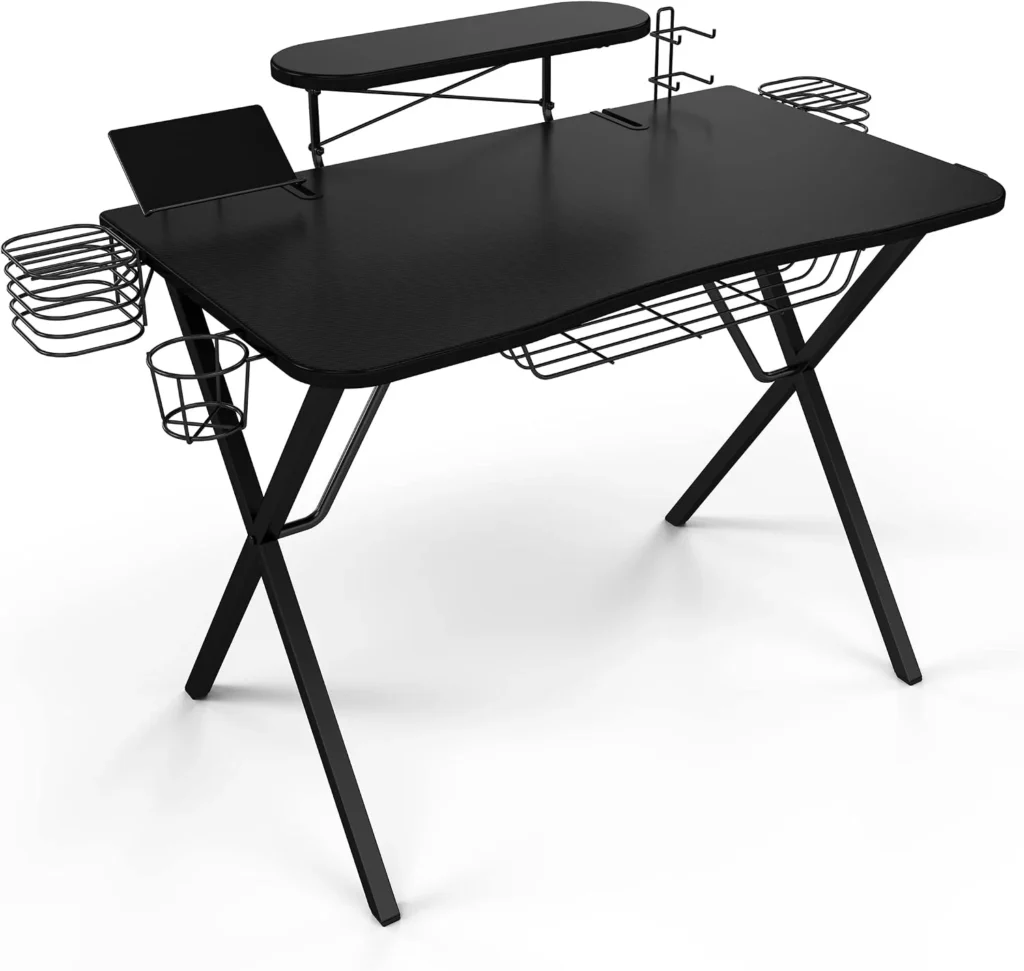
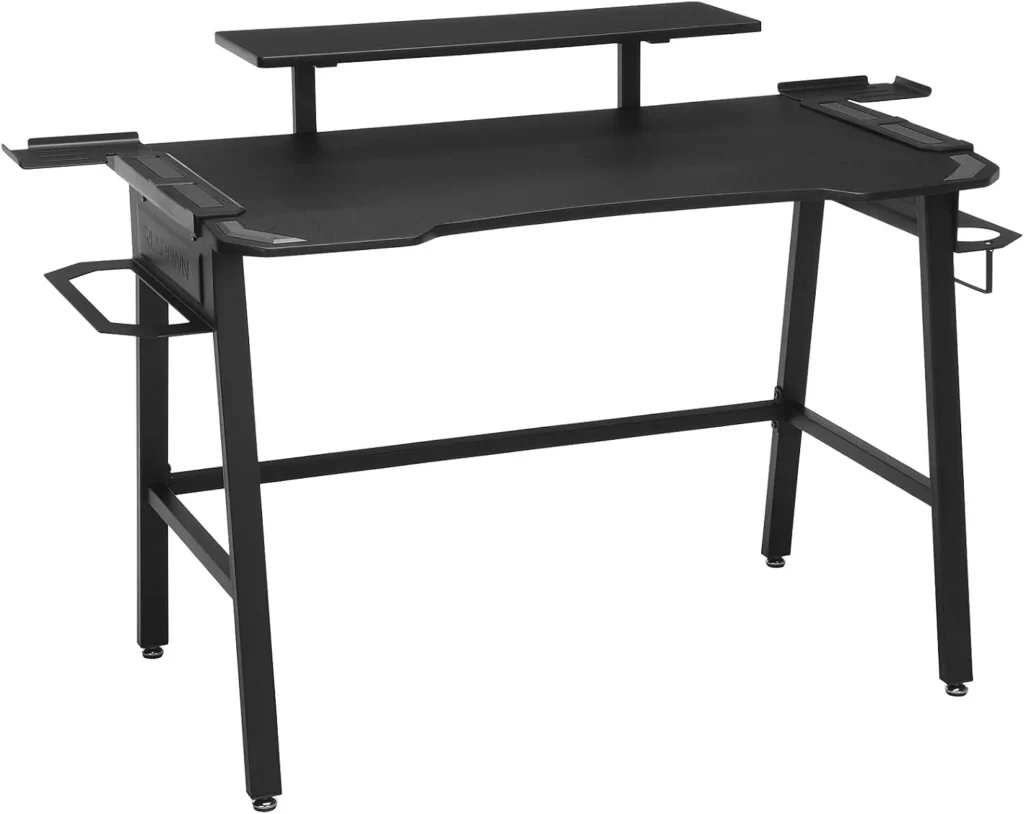
Official design of the Atlantic Gaming Desk Pro. (Image: Amazon US)
The most organized compact gaming desk under $100. Built-in monitor riser, 10 accessory hooks, controller holder, and cable management channels. The surface area is limited (~36″), but for a starter single-monitor setup it’s purposefully designed and far more organized than a generic desk.
Price: ~$70–$90
Size: ~36″ W × 22″ D
Best for: Single monitor, minimal setup
Monitor: Whatever you have, or start here If you don’t have a monitor yet and are on a tight budget, the 24″ 1080p 75Hz IPS category starts around $90–$110 on Amazon and represents the floor for a decent gaming experience.
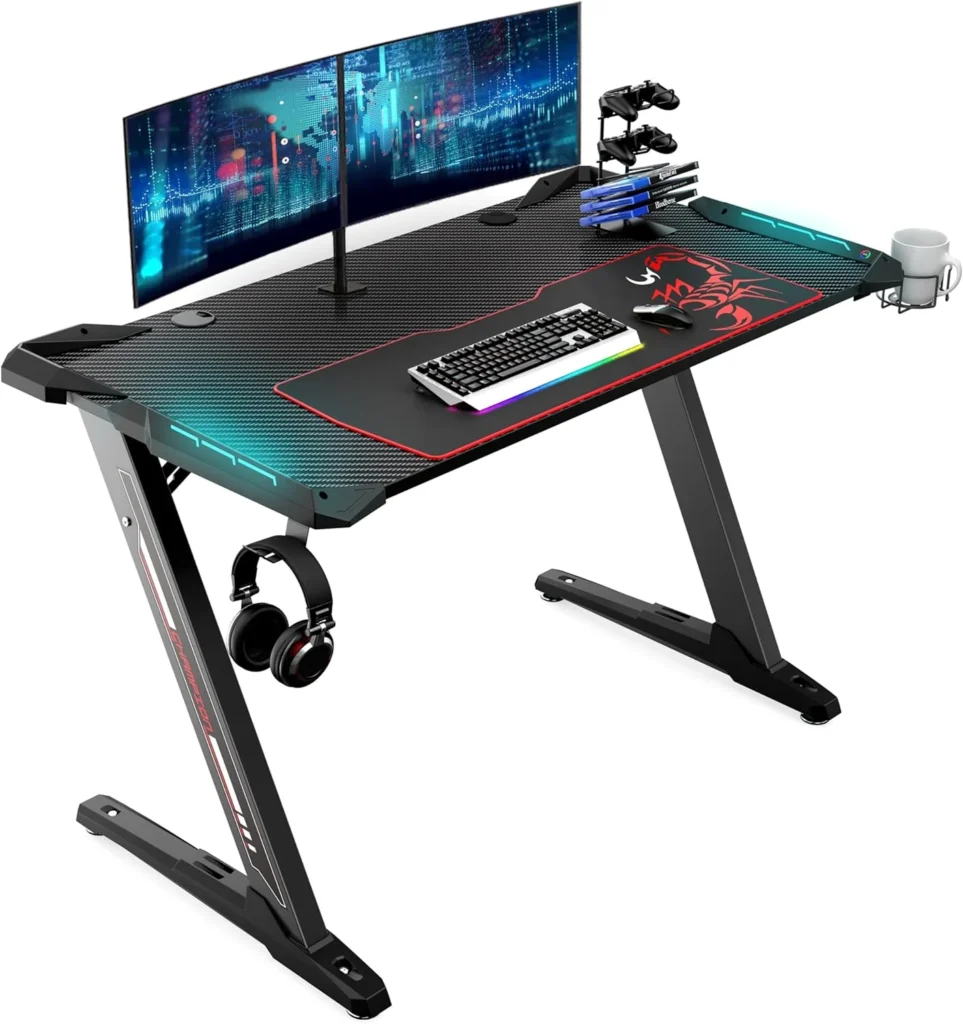
Official design of the Eureka Ergonomic Gaming Desk. (Image: Amazon US)
Z-shaped carbon fiber surface, RGB strip, full-length mouse pad surface built in, and a monitor riser that runs the entire width. At 40 inches, it fits most small rooms while still feeling like a “real” gaming desk. The built-in full-length mouse pad is a genuine convenience.
Price: ~$110–$140
Size: ~40″ W × 24″ D
Best for: Single-monitor gaming, streamer aesthetics on a budget
This is the highest-ROI purchase for a small desk. A monitor arm removes the monitor stand entirely, freeing 10–12 inches of usable desk space. The VIVO arm is one of the most consistently well-reviewed on Amazon at under $35.
Price: ~$25–$40
Compatibility: Most monitors with VESA 75×75 or 100×100mm mount
Official design of the Respawn Gaming Desk. (Image: Amazon US)
The best value L-shaped desk under $150 for small rooms. Carbon fiber texture, raised monitor shelf (frees desk surface below), integrated cup holder and headset hook. The L configuration fills a corner efficiently — the highest surface-area-to-floor-footprint ratio available.Categories
Price: ~$110–$150
Size: L-shape, ~56″ × 52″
Best for: Two-monitor setups, corner rooms, gamers who also work from home
Wall Shelves: IKEA LACK 2-Pack (above desk) Mounting two LACK shelves above the monitor keeps controllers, headsets, and decorative items off the desk entirely. Approximately $15–$20 total. Available at IKEA or via Amazon third-party.
Syncs to on-screen content in real time, reduces eye strain, creates premium atmosphere
Compact 65% Mechanical Keyboard Switching from a full-size keyboard to a 65% layout saves 4–5 inches of horizontal desk space. The Keychron K6 is the most recommended at this size.
What’s the best desk size for a small gaming room? 44–47 inches wide is the sweet spot for single-monitor setups in small rooms. It’s spacious enough to game comfortably but doesn’t dominate the wall.
Is an L-shaped desk good for small rooms? Yes, if you have a corner available. An L-shape uses corner space that’s usually wasted and gives you significantly more usable surface area per square foot of floor space consumed.
Do I need a monitor arm on a small desk? Highly recommended. A monitor arm removes the stand, freeing 10–12 inches of desk depth — transformative on compact desks.
How do I manage cables on a small gaming desk? Combine three things: a velcro cable bundle for the desk itself, an under-desk cable tray for power strips and excess length, and adhesive clips along the wall for the vertical run.
Can I build a good gaming setup in a 10×10 room? Absolutely. A corner desk with a monitor arm and smart vertical storage (wall shelves above the desk) makes a 10×10 room feel spacious. The key is keeping the floor clear and going vertical with storage.
Last updated: July 2026 | Products verified on Amazon US
⚠️ Affiliate Disclosure: TechPlayGrid participates in the Amazon Associates Program and other affiliate programs. We earn a commission on qualifying purchases at no extra cost to you.
🏷️ SEO Metadata
Title: Small Room Gaming Setup: Best Gear Under $500 (2026)
Meta Description: Cramped room, big gaming goals? This guide builds the perfect small-room gaming setup under $500 in 3 budget tiers — all products verified on Amazon US July 2026.
Tags: small room gaming setup, gaming setup under 500, compact gaming desk 2026, gaming setup small bedroom, best gaming desk small room, budget gaming setup, small gaming room ideas
Post Summary: A small room doesn’t have to mean a compromised gaming setup. This guide walks through three budget tiers — $200 starter, $350 mid-range, and $500 battlestation — with product picks verified on Amazon US as of July 2026. From choosing the right desk shape and size for tight spaces to the highest-ROI upgrades like monitor arms and under-desk cable management, every recommendation is built to maximize your setup without overwhelming your room or your wallet.
From $500 to $2,000+: Build your dream gaming setup at any budget
Estimated reading time: 12 minutes
Whether you’re a casual gamer who just wants a comfortable space to play after work or a competitive streamer looking to build a professional-grade battle station, one thing is clear: your gaming setup matters. The right gear doesn’t just look good — it reduces fatigue, improves reaction times, and makes every session more enjoyable.
In this guide, we break down everything you need to build the ultimate gaming setup in 2026, from the desk and chair to the monitor, lighting, and audio. We’ll cover three budget tiers so you can build smart at any price point.
Why Your Gaming Setup Matters More Than Ever
Gaming in 2026 isn’t a hobby you do at a cramped desk on a wobbly chair anymore. With the global gaming audience surpassing 3.6 billion players and the U.S. market leading in both revenue and innovation, the standards for what a proper gaming space should look like have risen dramatically.
More people are spending 3 to 6+ hours a day in front of their setups — and that kind of screen time demands real ergonomic investment. A bad chair can cause chronic back pain. A low-refresh monitor can literally make you lose competitive matches. Harsh lighting strains your eyes after an hour.
The good news? You don’t need to spend a fortune. Let’s break it down by tier.
🎮 Budget Tiers at a Glance
Tier
Budget
Who It’s For
🥉 Starter
~$500
First-time setup, casual gamers
🥈 Mid-Range
~$1,000–$1,200
Everyday competitive players
🥇 Premium
$1,800–$2,500+
Streamers, esports enthusiasts, WFH gamers
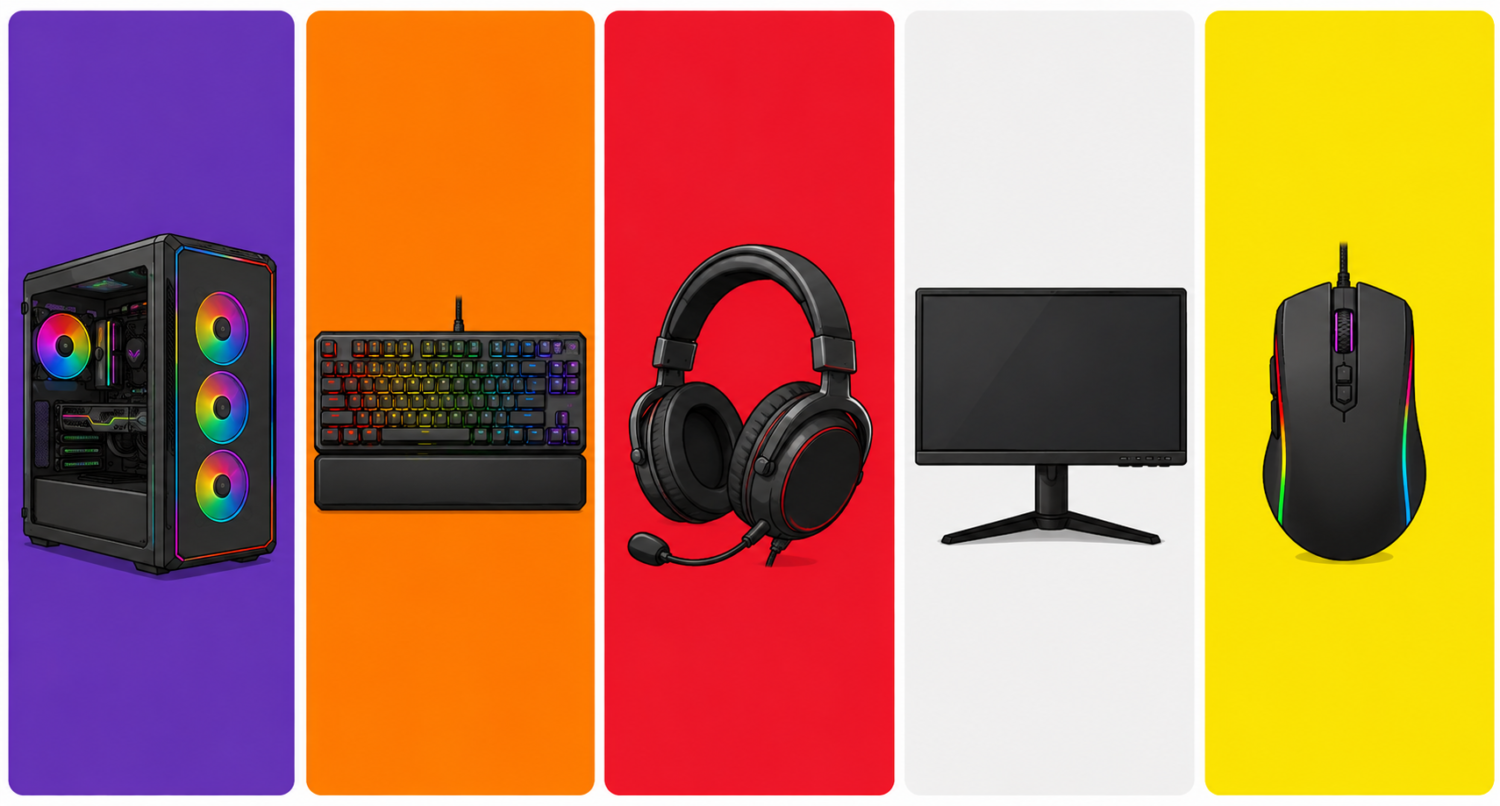
🖥️ 1. Gaming Monitor: The Most Important Purchase You’ll Make
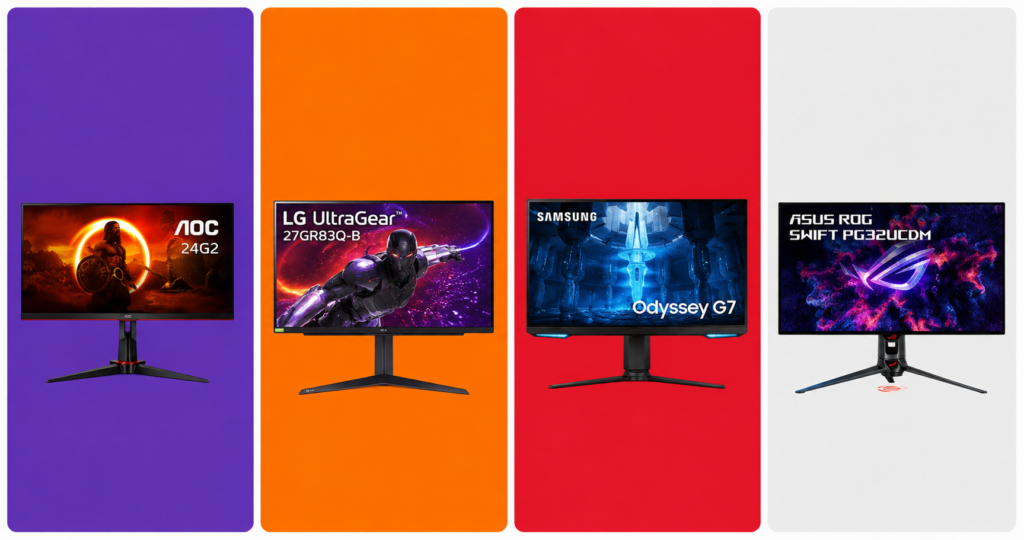
Monitors models AOC24G2, LG 27GR83Q-B, Samsung Odyssey G7 e ASUS PG32UCDM. (AI Image)
Your monitor is the window to every game you play. No other upgrade delivers as immediate and noticeable an improvement as going from a 60Hz standard screen to a high-refresh gaming display.
What to Look For in 2026
Refresh rate: 144Hz minimum for casual play; 240Hz or higher for competitive FPS titles like Valorant and CS2
Resolution: 1080p for budget builds, 1440p (QHD) for the sweet spot between performance and image quality, 4K for cinematic single-player experiences
Panel type: IPS for color accuracy and wide viewing angles; VA for deep blacks; TN for the fastest response times
Response time: 1ms is ideal for competitive gaming
HDR: HDR400 is the entry point; HDR600 and above actually makes a visible difference
Our Picks by Budget
🥉 Starter (~$150–$180) The AOC 24G2 remains one of the best value 1080p 144Hz IPS monitors on the market. Fast, accurate colors, and widely available. 👉 AOC 24G2 on Amazon
🥈 Mid-Range (~$300–$380) The LG 27GR83Q-B at 27-inch 1440p 240Hz IPS hits the perfect balance for competitive and story-driven gaming alike. Stunning colors out of the box. 👉 LG 27GR83Q-B on Amzon
🥇 Premium (~$600–$900) The Samsung Odyssey G7 32″ OLED or ASUS ROG Swift PG32UCDM deliver a jaw-dropping 4K experience with ultra-fast refresh rates for serious enthusiasts. 👉 Samsung Odyssey G7 / ASUS ROG Swift on Amazon
Pro Tip: Always prioritize refresh rate over resolution if you play competitive multiplayer games. A 1080p 240Hz monitor will beat a 4K 60Hz screen for your kill-death ratio every single time.
🪑 2. Gaming Chair: Your Back Will Thank You
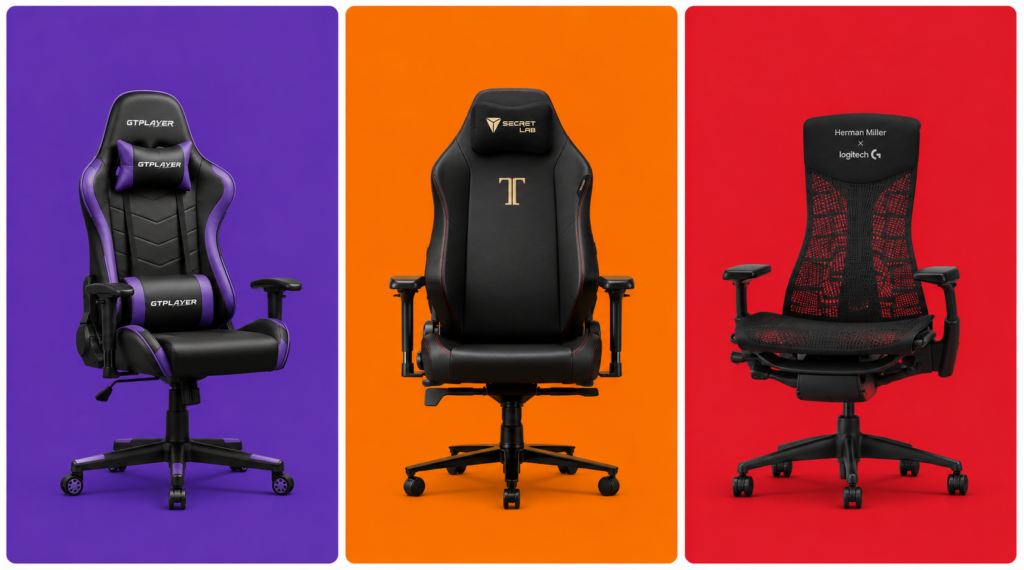
Designs of the GTPLAYER, Secretlab Titan Evo and Herman Miller Embody (AI Image)
After spending thousands on a PC and monitor, most gamers cheap out on their chair — and then spend years dealing with lower back pain. Don’t be that person.
What to Look For
Lumbar support: Adjustable, ideally with a separate pillow or built-in curve
Armrest adjustability: 4D armrests (up/down, side/side, forward/back, pivot) are the gold standard
Seat depth and width: Make sure it fits your body type
Material: Fabric breathes better than PU leather; PU leather is easier to clean
Tilt and recline: Look for at least 120–160° recline for gaming sessions that run long
Our Picks by Budget
🥉 Starter (~$150–$200) The GTPLAYER Gaming Chair offers surprisingly solid lumbar support and build quality at a very accessible price for a first gaming chair. 👉 GTPLAYER Gaming Chair on Amazon
🥈 Mid-Range (~$350–$500) The Secretlab Titan Evo is the most recommended chair in the gaming community for a reason — impeccable build quality, cold-cure foam that doesn’t flatten after a year, and genuinely good ergonomics. Available in multiple sizes (Small, Regular, XL). 👉 Secretlab Titan Evo on Amazon
🥇 Premium (~$700–$1,400) If you want to go full professional, the Herman Miller x Logitech Embody blends Herman Miller’s legendary ergonomics with gaming-specific design. Built to last 12+ years. 👉 Herman Miller Embody Gaming — Herman Miller or Amazon
Pro Tip: Measure your desk height before buying a chair. Ideally your elbows should rest at a 90° angle while your feet are flat on the floor. Add a footrest (~$30 on Amazon) if your desk isn’t height-adjustable.
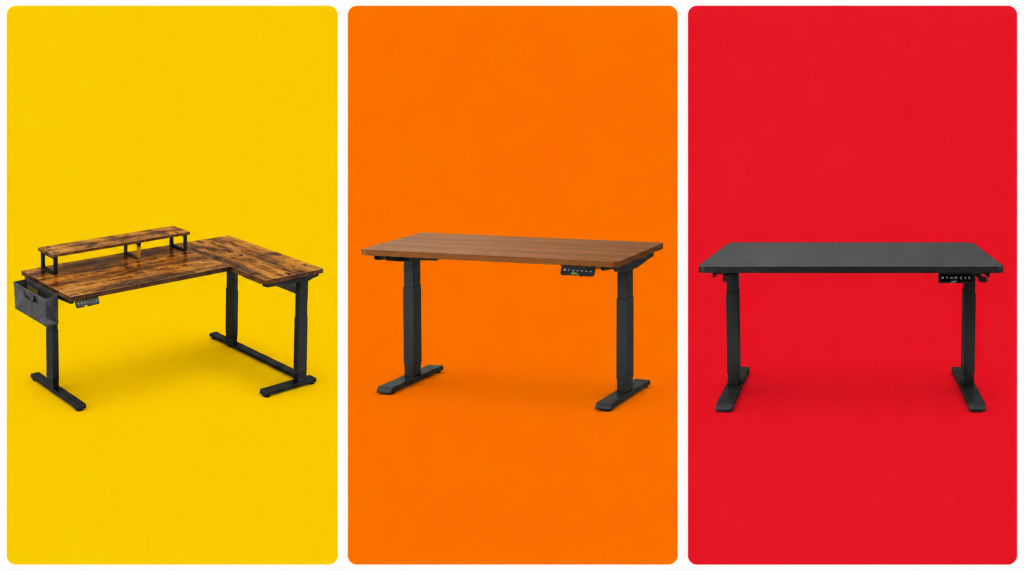
🗂️ 3. Gaming Desk: Your Command Center
Designs of the desks models Bestier L-Shaped, Flexispot E7 and Uplift V2 (AI Image)
Your desk anchors the entire setup. In 2026, the biggest trend is the rise of sit-stand desks (also called standing desks), which have moved from office furniture into gaming setups thanks to their flexibility and health benefits.
What to Look For
Size: At minimum 55 inches wide for a dual-monitor or ultrawide setup; 63+ inches if you want room to spare
Depth: 27–30 inches gives you proper monitor distance without feeling cramped
Cable management: Built-in grommets, under-desk trays, or cable channels are hugely valuable for keeping things clean
Weight capacity: If you’re mounting multiple monitors or a heavy setup, check the load rating
Motorized vs. fixed: A height-adjustable electric desk changes your life if you also work from home
Our Picks by Budget
🥉 Starter (~$80–$130) The Bestier L-Shaped Desk gives you maximum surface space at a budget price. Solid for most setups. Cable grommets included. 👉 Bestier L-Shaped Desk on Amazon
🥈 Mid-Range (~$300–$450) The Flexispot E7 is the go-to recommendation for gamers who want a motorized sit-stand desk without breaking the bank. Dual-motor system, quiet, and rock solid at full height. 👉 Flexispot E7 on Amazon or Flexispot.com
🥇 Premium (~$800–$1,200) The Uplift V2 Commercial or Autonomous SmartDesk Pro represent the premium tier — deeper customization, better build materials, and longer warranties. Worth it if you’ll be at your desk 8+ hours a day. 👉 Uplift V2 on Amazon
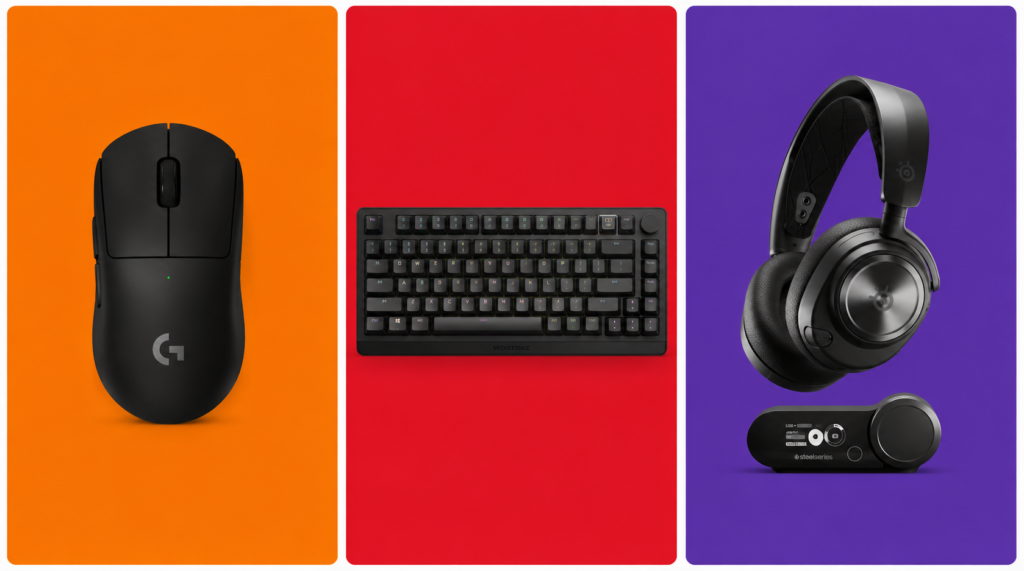
🖱️ 4. Peripherals: Mouse, Keyboard & Headset
Official designs of the Mouse Logitech G Pro X, Keyboard Wooting 80HE and SteelSeries Arctis Nova Pro headset (AI Image)
No gaming setup is complete without a great set of peripherals. These directly impact your performance and comfort every single session.
Gaming Mouse
Look for a mouse with a high-quality optical sensor, a weight that fits your grip style, and wireless if your budget allows (wireless gaming mice in 2026 have zero perceptible lag).
Mid-Range (~$80–$110):Razer DeathAdder V3 HyperSpeed — Ergonomic masterclass, ultra-accurate sensor, up to 300 hours battery life. 👉 Razer DeathAdder V3 on Amazon or Razer.com
Premium (~$150–$160):Logitech G Pro X Superlight 2 — The choice of top esports professionals. 60g, HERO 2 sensor, virtually flawless tracking. 👉 Logitech G Pro X Superlight 2 on Amazon
Gaming Keyboard
Starter (~$40–$60):Redragon K552 Kumara — Compact TKL layout, clicky blue switches, solid build for the price. 👉 Redragon K552 on Amazon
Mid-Range (~$130–$170):Razer Huntsman V3 Pro — Analog optical switches with rapid trigger support. A must-have for competitive FPS players. 👉 Razer Huntsman V3 Pro on Amazon
Premium (~$200–$250):Wooting 80HE — Hall effect rapid trigger, USB polling at 8000Hz, and a devoted esports following. The technical ceiling of mechanical keyboards in 2026. 👉 Wooting 80HE on Amazon
Gaming Headset
Starter (~$50–$70):HyperX Cloud Stinger 2 — Comfortable, decent sound stage, plug-and-play. Great for beginners. 👉 HyperX Cloud Stinger 2 on Amazon
Mid-Range (~$130–$180):SteelSeries Arctis Nova 7 — Wireless, 38-hour battery, solid surround sound. Works on PC, PS5, Switch 2, and mobile. 👉 SteelSeries Arctis Nova 7 on Amazon
Premium (~$280–$350):SteelSeries Arctis Nova Pro Wireless — Dual wireless (2.4GHz + Bluetooth), swappable battery system, and active noise cancellation. The flagship for serious gamers. 👉 SteelSeries Arctis Nova Pro Wireless on Amazon
💡 5. RGB Lighting: Set the Mood, Reduce Eye Strain
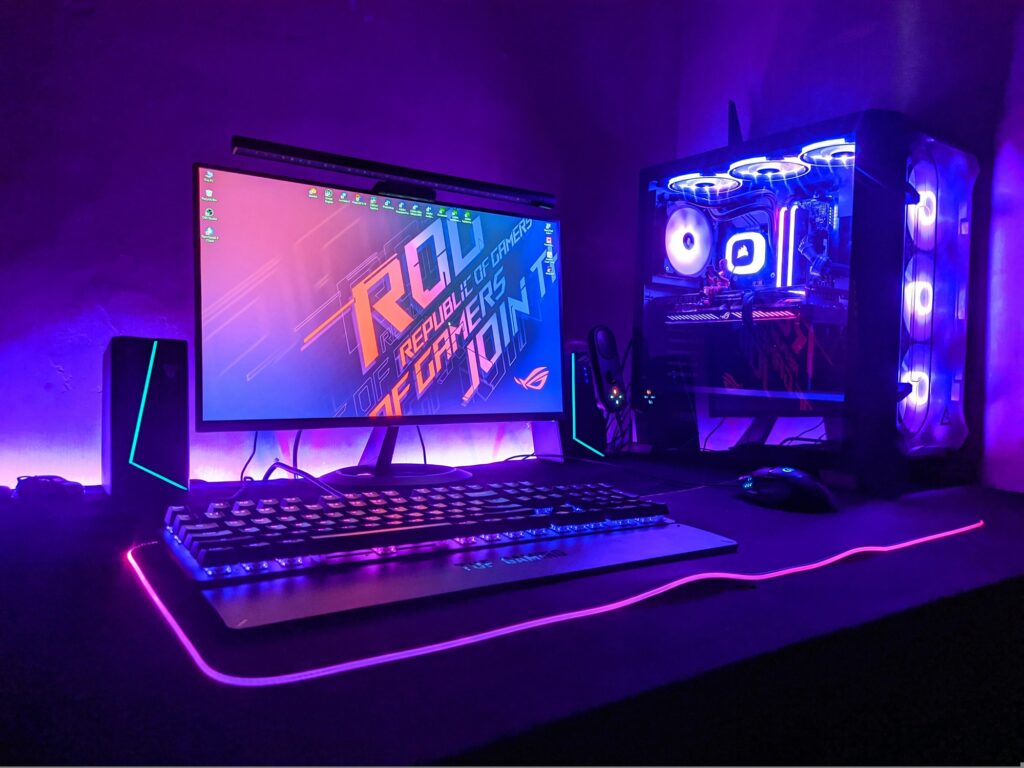
RGB gets a bad reputation for being purely cosmetic, but proper ambient lighting in a gaming room actually reduces eye strain significantly by balancing the brightness difference between your monitor and the surrounding environment.
Must-Have Lighting Pieces
Bias Lighting (behind your monitor): The Govee TV Backlight strips are affordable, sync with your on-screen content via camera or HDMI passthrough, and create a stunning halo effect that makes colors pop. 👉 Govee TV Backlight T2 on Amazon
Desk LED Strip:Govee M1 RGBIC Strips or Philips Hue Play Gradient offer millions of color combinations and app control for full customization. 👉 Govee M1 / Philips Hue Play on Amazon
Smart Key Light / Ring Light (for streamers): The Elgato Key Light Air is the industry standard for clean, even lighting that makes your face look professional on stream or video calls. 👉 Elgato Key Light Air on Amazon
Pro Tip: Set your bias lighting to a warm white or soft blue (~5500–6500K) during long sessions. It’s much easier on the eyes than pure RGB cycling effects, which look great in photos but cause fatigue over time.
🔌 6. Don’t Forget These Essentials
These are the often-overlooked items that complete a serious gaming setup:
Monitor Arm (~$30–$120): Frees up desk space and puts your screen at the perfect ergonomic height. The Ergotron LX is the community favorite. 👉 Ergotron LX on Amazon
Gaming Router (~$100–$300): For competitive online gaming, a Wi-Fi 6E or Wi-Fi 7 router makes a real difference. The ASUS ROG Rapture GT-BE98 is the top-tier pick for dedicated gamers. 👉 ASUS ROG Rapture on Amazon
UPS / Surge Protector: Protect your entire setup from power surges and unexpected outages. The APC Back-UPS Pro 1500VA is a reliable, trusted option. 👉 APC Back-UPS Pro on Amazon
XL Mousepad (~$20–$40): A large desk mat unifies your setup aesthetically and gives your mouse consistent tracking across the entire desk. The SteelSeries QcK XXL is the most popular choice among competitive players. 👉 SteelSeries QcK XXL on Amazon
🏆 Full Setup Recommendations by Budget
🥉 Starter Setup — ~$500
Item
Pick
Price
Monitor
AOC 24G2 (1080p 144Hz)
~$160
Chair
Homall Gaming Chair
~$180
Desk
Bestier L-Shaped
~$110
Mouse
Logitech G305
~$35
Keyboard
Redragon K552
~$45
Headset
HyperX Cloud Stinger 2
~$50
Mousepad
Amazon Basics XL
~$15
Total
~$595
🥈 Mid-Range Setup — ~$1,100
Item
Pick
Price
Monitor
LG 27GP850-B (1440p 165Hz)
~$330
Chair
Secretlab Titan Evo
~$450
Desk
Flexispot E7 (standing desk)
~$370
Mouse
Razer DeathAdder V3 HyperSpeed
~$90
Keyboard
Razer Huntsman V3 Pro
~$150
Headset
SteelSeries Arctis Nova 7
~$150
Lighting
Govee TV Backlight + Strips
~$60
Mousepad
SteelSeries QcK XXL
~$30
Total
~$1,630
🥇 Premium Setup — ~$2,500+
Item
Pick
Price
Monitor
Samsung Odyssey G7 32″ OLED
~$800
Chair
Herman Miller x Logitech Embody
~$995
Desk
Uplift V2 Commercial
~$950
Mouse
Logitech G Pro X Superlight 2
~$155
Keyboard
Wooting 80HE
~$220
Headset
SteelSeries Arctis Nova Pro Wireless
~$320
Lighting
Philips Hue Play Gradient + Key Light Air
~$250
Monitor Arm
Ergotron LX
~$120
Router
ASUS ROG Rapture GT-BE98
~$280
Total
~$4,090
Final Thoughts
Building a great gaming setup in 2026 doesn’t require spending $4,000 all at once. Start with the fundamentals — a decent monitor, a chair that won’t destroy your back, and a desk that fits your space. Then upgrade piece by piece as your budget allows.
The single best bang-for-your-buck upgrade for most gamers is the chair. It’s the one thing you’ll feel immediately, every single session. Once you sit in a proper gaming chair with lumbar support and 4D armrests, going back is painful — literally.
Happy gaming. Build smart.
This post contains affiliate links. If you purchase through our links, we may earn a small commission at no extra cost to you. We only recommend products we genuinely stand behind.