
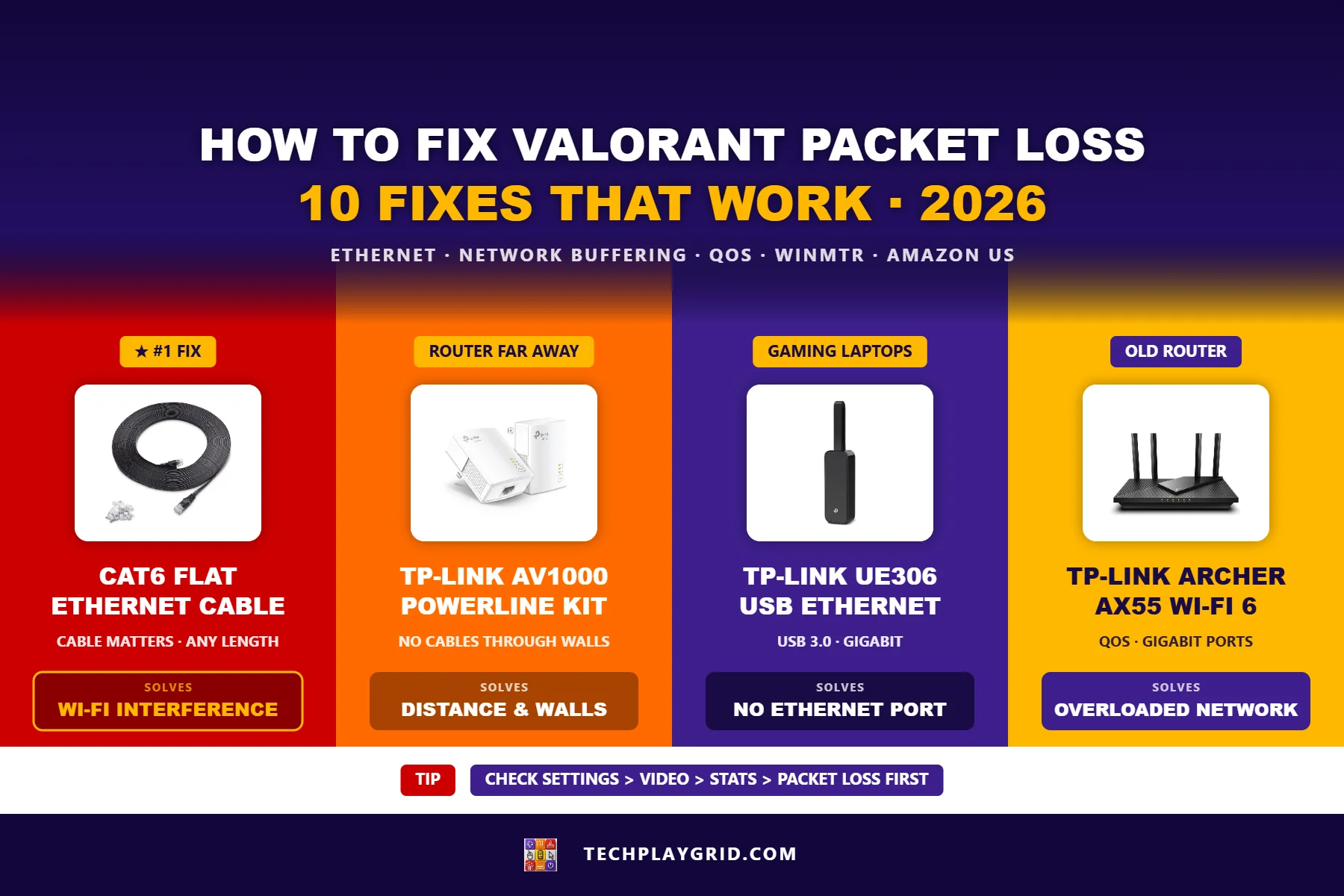
Valorant packet loss is one of the most frustrating problems in competitive gaming. Your ping can look fine, yet enemies teleport, shots do not register and your character rubber-bands back a few steps. That happens because some of the data packets between your PC and Riot’s servers never arrive. The good news: most cases of Valorant packet loss come from your own network, which means you can fix them.
This guide shows how to confirm the problem, find where it starts, and apply 10 fixes, from free settings changes to the hardware upgrades that make the biggest difference.
⚠️ Affiliate Disclosure: TechPlayGrid is reader-supported. When you buy through links on our site, we may earn an affiliate commission at no extra cost to you.
What Is Valorant Packet Loss?

Every action in a match, from moving to shooting, is sent to the server as small packets of data. Packet loss means a percentage of those packets is dropped along the way. Unlike high ping, which is a delay, packet loss is missing information. The game has to guess what happened, and you see the result as stutter, desync or “I definitely hit that.”
As a practical rule used in community guides:
| Packet loss | What you feel |
|---|---|
| 0% | Normal |
| Under 1% | Rare hitches, usually fine |
| 1–3% | Noticeable stutter and missed shots |
| Above 3–5% | Very hard to play competitively |
These thresholds are not official Riot numbers, but any Valorant packet loss that stays above zero during calm moments is worth fixing.
How to Check Valorant Packet Loss In-Game
Before changing anything, confirm the problem.
- Open Settings > Video > Stats.
- Set Network Round Trip Time and Packet Loss to show as text or graph.
- Play a Deathmatch or Swiftplay and watch the numbers.
If you see spikes of Valorant packet loss together with Network Problem indicator icons on screen, the issue is real. If it only appears on one server, it may be a routing issue between your provider and Riot.
Find Where the Packet Loss Starts
This step saves hours. Valorant packet loss can start in three places:
- Your home network: Wi-Fi interference, a bad cable, an overloaded router or background downloads.
- Your internet provider: congestion or a faulty route on the provider’s network.
- The server side: rare, and usually affects many players at once.
A quick test: open Command Prompt and run ping 8.8.8.8 -t for two minutes while nothing else is downloading. If you see “Request timed out” lines, the problem is likely local or with your provider. For a deeper look, the free tool WinMTR shows each hop between you and a server. If loss starts at the first hop (your router), the fix is at home. If it starts later and continues to the destination, collect the WinMTR log for your provider’s support team.
10 Fixes for Valorant Packet Loss
1. Switch from Wi-Fi to Ethernet
This is the single most effective fix for Valorant packet loss. Wi-Fi suffers from walls, microwaves, neighboring networks and other devices. A wired Cat6 connection removes almost all of that. If your PC is far from the router, a long flat cable is cheaper than any “gaming” software.
2. Turn On Network Buffering
Valorant includes a Network Buffering setting under General settings. Raising it trades a few milliseconds of delay for smoother play when packets arrive unevenly. If you have packet loss or jitter, set it to Moderate or Maximum. If your connection is stable, keep it at Minimum for the lowest delay.
3. Restart the Modem and Router Correctly
Power off the modem and the router, wait 30 seconds, turn on the modem first, then the router. It sounds basic, but routers that run for weeks can build up memory leaks that cause Valorant packet loss.
4. Stop Background Bandwidth Hogs
Cloud sync, Windows Update, game launchers, 4K streams on another TV and large downloads compete with your match. Pause them before playing, or schedule updates for the night.
5. Enable QoS on the Router
Many routers have Quality of Service (QoS) or a “gaming” priority mode. Give your PC priority so its traffic goes first when the network is busy.
6. Update Network Drivers and Router Firmware
Download the latest network driver from your motherboard or laptop maker, not only through Windows Update. Then check your router’s admin page for a firmware update.
7. Change DNS (It Helps Connection Stability)
DNS will not fix in-match packet loss directly, but a reliable DNS such as Cloudflare (1.1.1.1) or Google (8.8.8.8) can solve slow logins and connection drops. It takes two minutes in the network adapter settings.
8. Use 5 GHz If You Must Stay on Wi-Fi
If a cable is not possible, connect to the 5 GHz band, stay close to the router and avoid walls between you and the access point. A modern Wi-Fi 6 router also handles many devices better than an old model.
9. Try Powerline Adapters
Powerline adapters send internet through your home’s electrical wiring. They are a good middle ground when running a cable is impossible. Results depend on the wiring, so buy from a store with an easy return policy.
10. Contact Your Internet Provider
If your WinMTR log shows loss inside the provider’s network, call support and share the log. Ask for a line check. If the problem persists, a different plan or provider may be the only real cure for Valorant packet loss.
For high ping (delay rather than loss), see our separate guide on how to fix high ping in Valorant without a VPN.
Best Gear to Fix Valorant Packet Loss
You do not need expensive gaming hardware. These affordable products solve the most common causes of Valorant packet loss. Picks are based on specifications, prices and verified buyer reviews on Amazon US.
1. Cable Matters Cat6 Ethernet Cable (Flat)
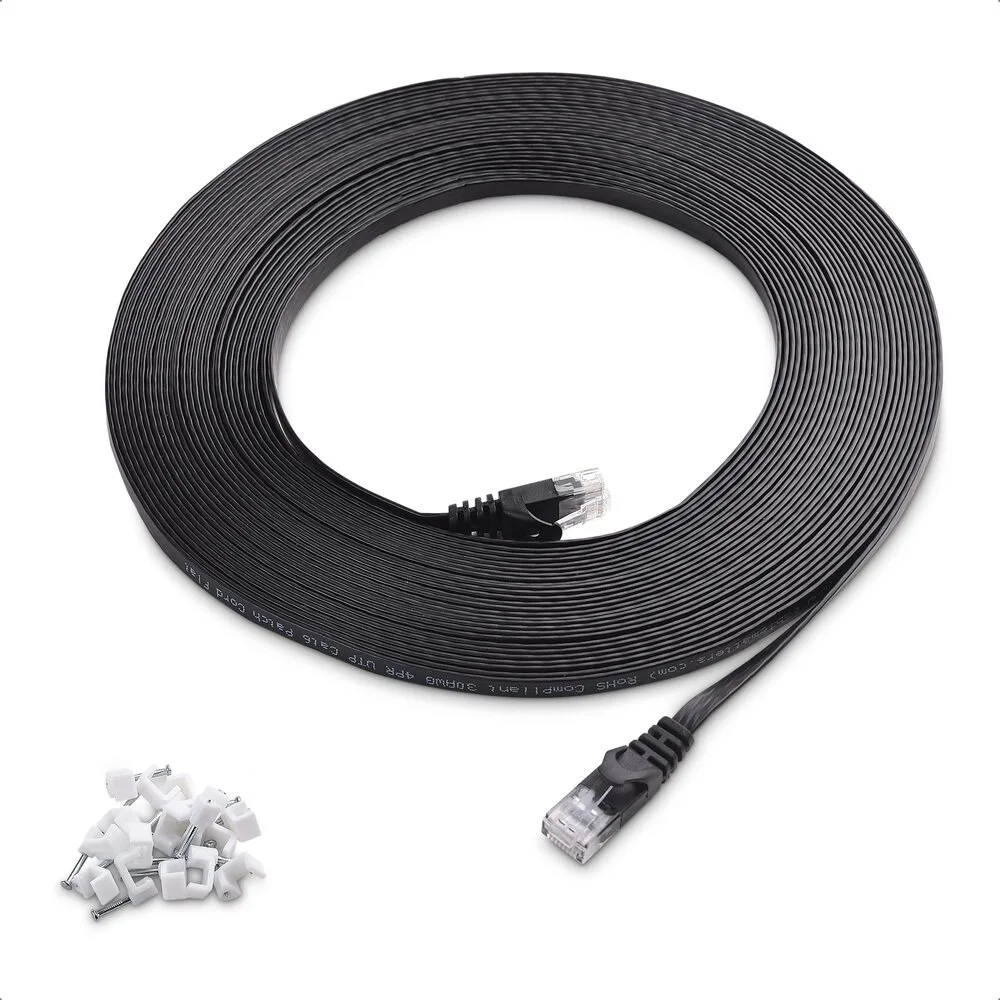
A flat Cat6 cable slides under rugs and doors, so you can run a wired connection across a room without drilling. It is the cheapest and most effective upgrade on this list.
- Cat6, more than enough for gigabit internet
- Flat design for easy routing
- Available in many lengths
👉 Where to Buy: Check Current Price on Amazon
2. TP-Link AV1000 Powerline Adapter Kit
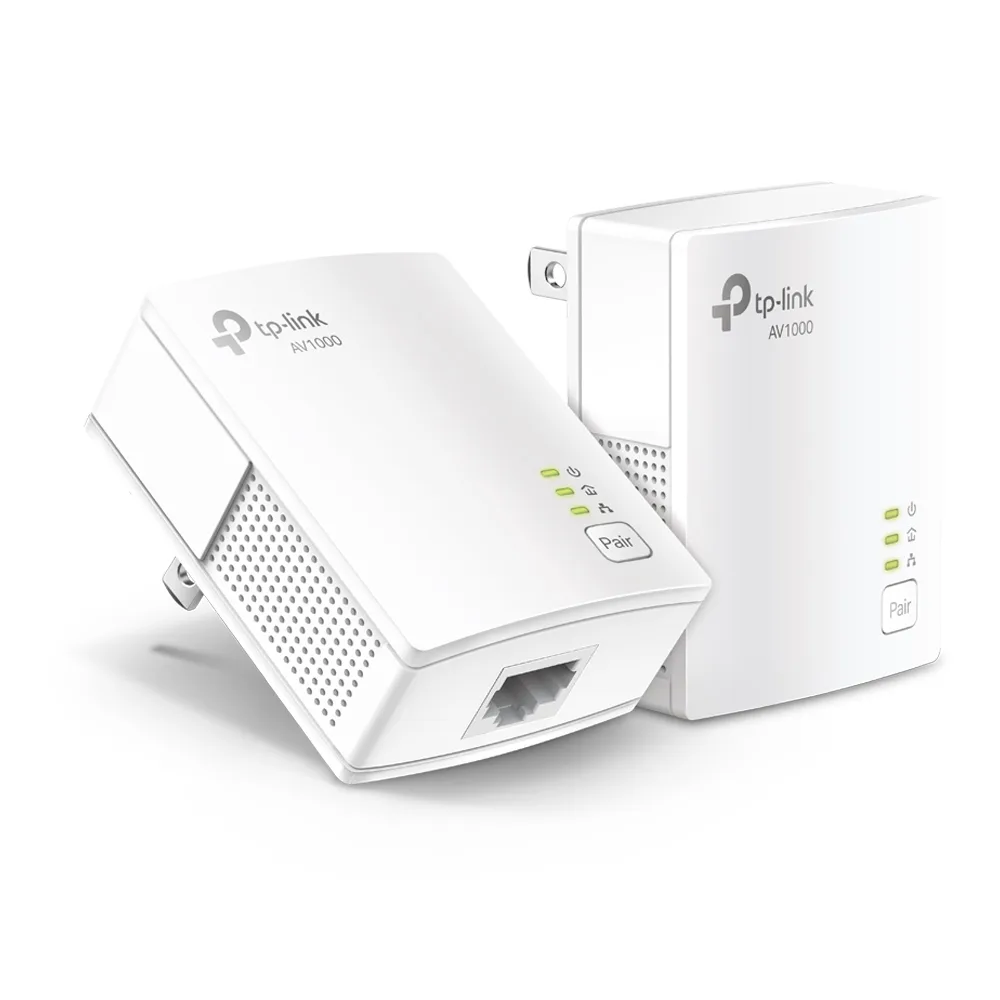
When the router is on another floor, a powerline kit carries the connection through your power outlets. Plug one adapter near the router and the other near your PC, then connect both with Ethernet.
- No new cables through walls
- Plug-and-play pairing
- Pass-through outlet on many models
👉 Where to Buy: Check Current Price on Amazon
3. TP-Link UE306 USB 3.0 to Gigabit Ethernet Adapter
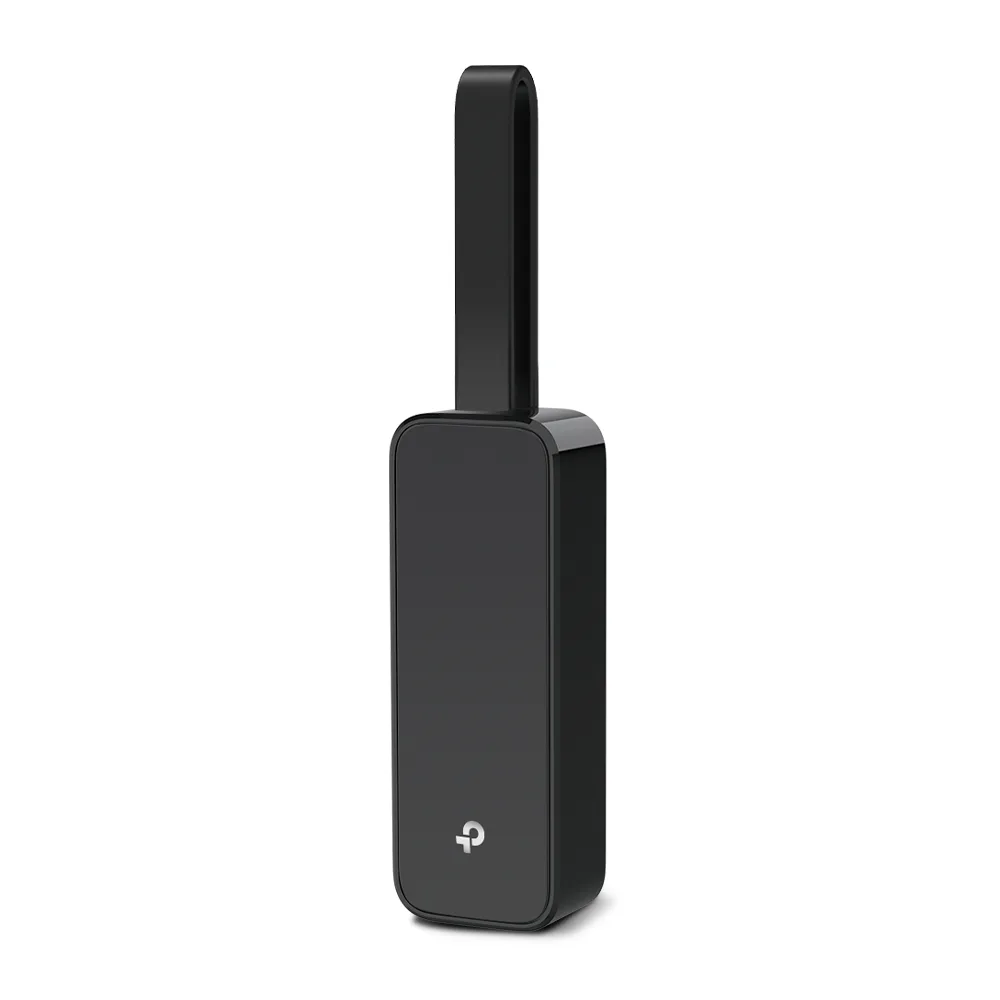
Many thin gaming laptops have no Ethernet port. This small USB adapter adds a gigabit wired connection in seconds and works without extra drivers on most Windows PCs.
- Gigabit Ethernet over USB 3.0
- Driver-free on most systems
- Compact and portable
👉 Where to Buy: Check Current Price on Amazon
4. TP-Link Archer AX55 Wi-Fi 6 Router
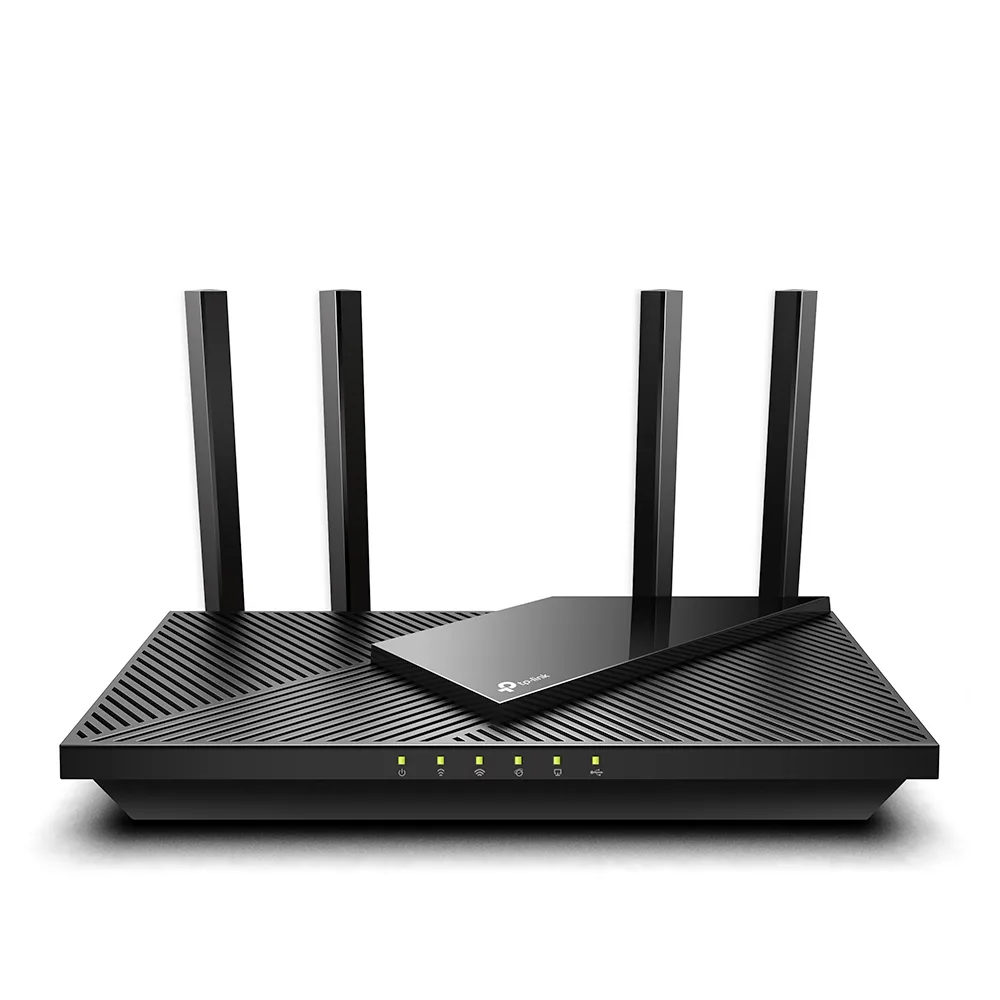
If your router is more than five years old, an upgrade can solve Valorant packet loss for every device in the house. The Archer AX55 is an affordable Wi-Fi 6 router with QoS and gigabit Ethernet ports.
- Wi-Fi 6 with better handling of many devices
- QoS to prioritize your gaming PC
- Gigabit ports for wired gaming
👉 Where to Buy: Check Current Price on Amazon
⚠️ Prices and product availability are subject to change without notice. Always verify the current price and stock on the retailer’s website before purchasing.
Quick Comparison
| Product | Solves | Best for |
|---|---|---|
| Cat6 flat cable | Wi-Fi interference | Router in the same or next room |
| Powerline kit | Distance and walls | Router on another floor |
| USB Ethernet adapter | No Ethernet port | Thin gaming laptops |
| Wi-Fi 6 router | Old or overloaded router | Busy homes with many devices |
FAQ
Is Valorant packet loss caused by my PC or by Riot? In most cases it starts on your home network or with your provider. If many players report problems at the same time, check Riot’s service status page.
Does a VPN fix Valorant packet loss? Sometimes, if the problem is a bad route at your provider. It can also add delay. Fix your home network first.
Can packet loss happen with good ping? Yes. Ping measures delay; packet loss measures missing data. You can have one without the other.
Is Wi-Fi 6 enough for Valorant? It is much better than older Wi-Fi, but a wired connection is still the most stable option.
Final Verdict
Most Valorant packet loss comes from Wi-Fi, an old router or background traffic, and those are fixable. Confirm the problem with in-game stats, find where it starts with a ping or WinMTR test, then move to a wired connection if you can. A cheap Cat6 cable or a USB Ethernet adapter solves more cases than any setting. If the loss starts at your provider, share the logs and push for a fix.
🔗 Related on TechPlayGrid
- 👉 Fix High Ping in Valorant Without a VPN (2026)
- 👉 Best Valorant Settings for Low-End PC — FPS Boost Guide
- 👉 How to Fix Discord Lag in Valorant — No New Hardware Needed
- 👉 Best Fix for Fortnite Ping — No New Router Under $50
Sources
- Riot Games Support — Valorant connection troubleshooting and service status
- Atriarch — “How to Fix Valorant Lag and Packet Loss”
- bo3.gg — “How to Fix Packet Loss in Valorant: A Complete Guide”
- PacketProbe — “Valorant Packet Loss: How to Fix It & Optimize Your Network”
- TP-Link and Cable Matters — official product specifications
💬 Did you enjoy this guide? Subscribe to TechPlayGrid and get the latest gaming tips, gear reviews, and tech guides delivered straight to your inbox — no spam, just content worth reading.