Category: Games

Discover the latest console news, retro gaming highlights, and gameplay tips. From Nintendo, PC, Playstation and Xbox updates to strategies for your favorite titles.

  • How to Fix FPS Drops in Fortnite โ€” No Upgrade Needed

    How to Fix FPS Drops in Fortnite โ€” No Upgrade Needed


    Your Fortnite runs fine in the lobby. Then the match starts, build fights heat up, and suddenly your frames crater. You die before you can even react. Sound familiar?

    The frustrating reality: most Fortnite FPS drops are caused by software settings, not weak hardware. A GTX 1060 that barely hits 45 FPS in default settings can realistically reach 80โ€“100+ FPS with the right tweaks โ€” no new hardware required.

    This guide follows the same format as our Discord lag fix for Valorant that helped thousands of players: free fixes first, ordered by impact, hardware upgrades only if nothing else works.

    โš ๏ธ Affiliate Disclosure: TechPlayGrid is reader-supported. When you buy through links on our site, we may earn an affiliate commission at no extra cost to you.


    ๐Ÿ” Why Does Fortnite Drop FPS?

    post image
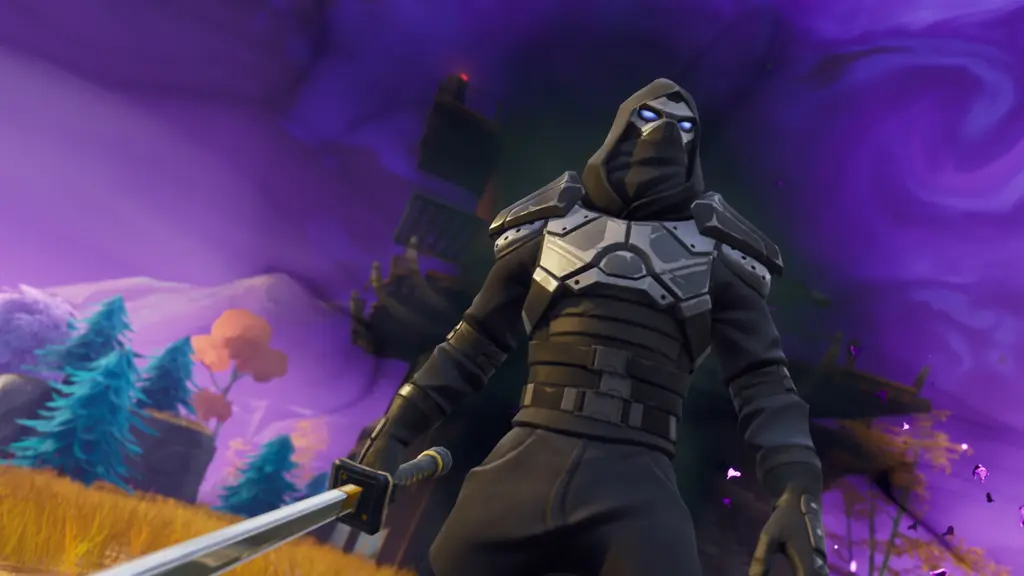
    Official press image: Fortnite

    Before fixing anything, identify the root cause. FPS drops in Fortnite in 2026 come from four main culprits:

    CauseSymptomFix Category
    Wrong rendering modeLow FPS across the boardIn-game settings
    CPU bottleneckGPU sits under 80% while FPS tanksSettings + Windows tweaks
    Background apps eating resourcesFPS drops mid-match, not in menusWindows
    Thermal throttlingFPS fine at first, then drops after 10โ€“15 minHardware maintenance

    ๐Ÿ’ก Pro Tip: Before changing any setting, enable the FPS counter. In Fortnite: Settings โ†’ Video โ†’ Show FPS โ†’ On. If your FPS drops only during fights, it’s a CPU spike. If it drops constantly, it’s a settings or rendering issue.


    โœ… Fix 1 โ€” Switch to Performance Mode (Biggest Single Gain)

    Time: 2 minutes | Difficulty: Easy | Impact: โญโญโญโญโญ

    Fortnite’s Performance Mode uses a simplified rendering pipeline that bypasses DirectX 11/12 overhead entirely. On most PCs โ€” especially older or mid-range hardware โ€” this single change can double FPS on budget GPUs. A GTX 1060 at 45 FPS can realistically hit 80โ€“100+ FPS.

    How to enable:

    1. Open Fortnite โ†’ Settings (gear icon) โ†’ Video
    2. Find Rendering Mode
    3. Change to Performance Mode
    4. Restart Fortnite completely (required for the change to take effect)

    ๐Ÿ’ก Pro Tip: Performance Mode uses simplified rendering and lower-detail assets. On mid-range PCs it often doubles FPS versus DX12. Restart the game after switching. View Distance is the one setting worth keeping up โ€” it affects what you can actually see in fights.


    โœ… Fix 2 โ€” Apply These In-Game Settings (Free +15โ€“40% FPS)

    Time: 5 minutes | Difficulty: Easy | Impact: โญโญโญโญโญ

    Once you’re in Performance Mode, these settings maximize your FPS. Set shadows, Nanite and Ray Tracing to OFF, effects and post-processing to Low, NVIDIA Reflex ON + Boost, and 3D Resolution to 100% at 1920×1080.

    Full recommended settings table:

    SettingRecommended ValueWhy
    Rendering ModePerformanceBiggest FPS gain
    3D Resolution100% (drop to 80% if needed)Reduces pixel load
    View DistanceMedium or FarAffects gameplay visibility
    ShadowsOffOne of the most GPU-intensive effects
    Anti-AliasingOffExpensive, minimal benefit in Performance Mode
    TexturesLowReduces VRAM pressure
    EffectsLowGPU savings during fights
    Post ProcessingLowApplies filters that cost frames
    V-SyncOffAdds input lag; use frame cap instead
    Ray TracingOffOnly for very high-end GPUs
    NVIDIA ReflexOn + BoostReduces input latency significantly
    FPS CapMatch your monitor HzPrevents unnecessary GPU load

    โœ… Fix 3 โ€” Lower Your Mouse Polling Rate

    Time: 2 minutes | Difficulty: Easy | Impact: โญโญโญโญ

    This one surprises most players. Most gaming mice default to a 1000Hz polling rate. This means your mouse sends 1000 signals per second to your CPU even when you’re just moving it slightly. During fights, this extra load adds up. If your FPS drops specifically when moving your camera, try dropping the polling rate to 500Hz in your mouse software. Many players see immediate improvement.

    Check your mouse’s software (Logitech G HUB, Razer Synapse, SteelSeries GG) and change the polling rate from 1000Hz to 500Hz.


    โœ… Fix 4 โ€” Clear Shader Cache

    Time: 3 minutes | Difficulty: Easy | Impact: โญโญโญโญ

    Fortnite uses Unreal Engine 5, which compiles shaders as you play. After Windows or GPU driver updates, the shader cache can become corrupted or outdated, causing stutters and FPS spikes โ€” especially at the start of matches.

    For NVIDIA:

    1. Open NVIDIA Control Panel
    2. Go to Manage 3D Settings
    3. Click Shader Cache Size โ†’ Set to Unlimited
    4. Then clear the existing cache: Windows Search โ†’ %localappdata%\NVIDIA\DXCache โ†’ Delete contents

    For AMD:

    1. Open AMD Adrenalin
    2. Go to Performance โ†’ Shader Cache
    3. Click Reset Shader Cache

    โœ… Fix 5 โ€” Disable Xbox Game Bar and Background Apps

    Time: 3 minutes | Difficulty: Easy | Impact: โญโญโญโญ

    Windows runs several processes in the background that compete with Fortnite for CPU and RAM resources.

    Disable Xbox Game Bar:

    1. Press Windows + I โ†’ Gaming โ†’ Xbox Game Bar
    2. Toggle Off

    Close background apps before playing:

    1. Press Ctrl + Shift + Esc โ†’ Task Manager
    2. End tasks for: browsers, Discord (or switch to phone), Spotify, Steam downloads, Windows Update
    3. Right-click on Fortnite process โ†’ Set Priority โ†’ High

    โš ๏ธ Warning: Only set Fortnite to “High” priority, not “Real Time.” Real Time can destabilize Windows.


    โœ… Fix 6 โ€” Enable XMP/EXPO in BIOS (If Your RAM Isn’t Running at Rated Speed)

    Time: 5 minutes | Difficulty: Medium | Impact: โญโญโญโญ

    This is one of the most overlooked fixes. Most PCs ship with RAM running at 2133MHz even if the sticks are rated for 3200MHz or faster. Enabling XMP (Intel) or EXPO (AMD) tells the motherboard to run the RAM at its advertised speed โ€” and in Fortnite, this directly improves frame pacing.

    1. Restart PC โ†’ Press Delete or F2 to enter BIOS
    2. Find XMP or EXPO setting (usually under Advanced Memory or OC settings)
    3. Enable it โ†’ Save and exit

    ๐Ÿ’ก Pro Tip: This is free and safe. XMP/EXPO profiles are tested by the RAM manufacturer and won’t damage your system.


    โœ… Fix 7 โ€” Update GPU Drivers (But Don’t Always Use the Newest)

    Time: 5โ€“10 minutes | Difficulty: Easy | Impact: โญโญโญ

    Driver updates matter, but not every new driver is better. Some GPU driver updates break Fortnite specifically. If your FPS dropped after a Windows or GPU driver update, that’s your answer. Roll back to the previous driver version and test.

    To update safely:

    • NVIDIA: Download Game Ready drivers from nvidia.com โ†’ Use “Custom” install โ†’ Check “Clean Installation”
    • AMD: Download Adrenalin Edition from amd.com โ†’ Use factory reset option

    To roll back:

    • Device Manager โ†’ Display Adapters โ†’ Right-click GPU โ†’ Properties โ†’ Driver โ†’ Roll Back Driver

    โœ… Fix 8 โ€” Check for Thermal Throttling

    Time: 5 minutes | Difficulty: Easy | Impact: โญโญโญโญ

    If your FPS starts fine and then drops after 10โ€“15 minutes, your CPU or GPU is overheating and throttling performance to protect itself.

    Download MSI Afterburner (free) and monitor:

    • CPU temperature: Should stay under 85ยฐC
    • GPU temperature: Should stay under 85ยฐC

    If temps hit 90ยฐC+:

    1. Clean dust from PC fans and vents with compressed air
    2. Ensure PC has adequate airflow (not inside a tight desk enclosure)
    3. Check that all case fans are spinning

    ๐Ÿ“Š Fix Priority Cheat Sheet

    FixImpactTimeDifficulty
    Switch to Performance Modeโญโญโญโญโญ2 minEasy
    Apply optimized in-game settingsโญโญโญโญโญ5 minEasy
    Lower mouse polling rate to 500Hzโญโญโญโญ2 minEasy
    Clear shader cacheโญโญโญโญ3 minEasy
    Disable Xbox Game Bar + close appsโญโญโญโญ3 minEasy
    Enable XMP/EXPO in BIOSโญโญโญโญ5 minMedium
    Update or roll back GPU driversโญโญโญ10 minEasy
    Check thermal throttlingโญโญโญโญ5 minEasy

    ๐Ÿ’ป Still Dropping Frames? Consider These Hardware Upgrades
    fcmp social channel specific 1920x1080 5fac74ddbb70
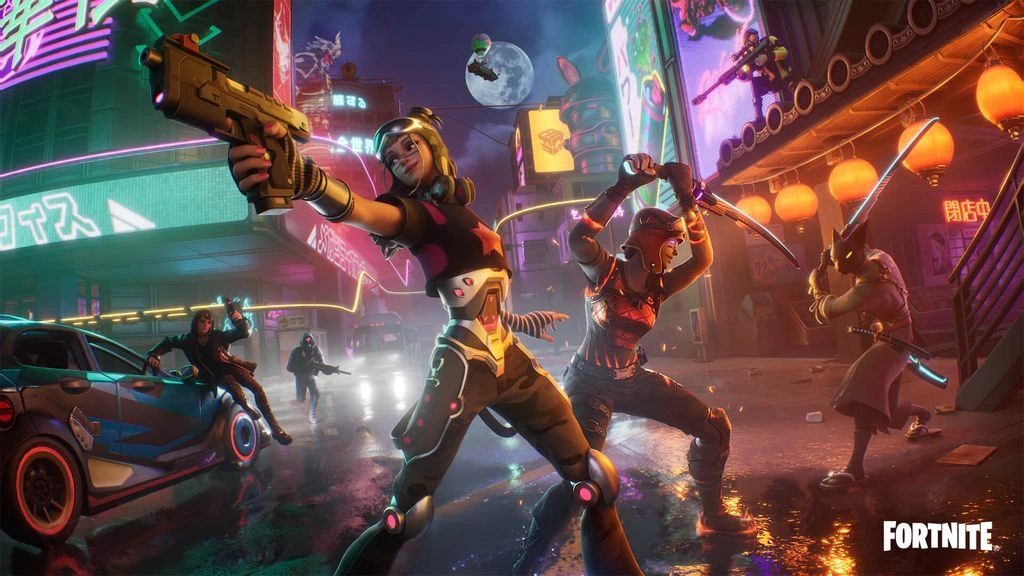
    Official press image: Fortnite

    If you’ve applied every fix above and still can’t hit consistent frames, your hardware is the true bottleneck.

    Option A โ€” Add More RAM (Under $50)

    Only if RAM is your bottleneck. If Task Manager shows usage above 90% while gaming, more RAM will help. If usage is below 80%, adding more will not improve FPS. However, enabling XMP/EXPO to run your existing RAM at its rated speed almost always helps frame times.

    Fortnite + Windows + background apps ideally need 16GB.

    ๐Ÿ‘‰ Corsair Vengeance 16GB DDR4 3200MHz โ€” Amazon US ๐Ÿ‘‰ Kingston Fury Beast 16GB DDR4 โ€” Amazon US

    Option B โ€” Upgrade to an SSD (If You’re on HDD)

    Playing Fortnite on a hard drive causes asset streaming issues โ€” textures load slowly, which causes hitching and stutters. An SSD eliminates this entirely.

    ๐Ÿ‘‰ Samsung 870 EVO 500GB SATA SSD โ€” Amazon US ๐Ÿ‘‰ WD Blue SN580 1TB NVMe SSD โ€” Amazon US

    Option C โ€” Upgrade Your Monitor

    If you’re pushing 200+ FPS but gaming on a 60Hz monitor, you’re not seeing any of those extra frames. A 144Hz display is the minimum for competitive Fortnite.

    ๐Ÿ‘‰ Best 144Hz Monitor Under $300 for PS5 and Xbox โ€” TechPlayGrid


    ๐Ÿ”— Related on TechPlayGrid


    โ“ FAQ

    Why does my Fortnite FPS drop only during fights? This is a CPU spike, not a GPU issue. Fortnite’s build system and player physics are CPU-heavy. During intense fights with multiple players building and shooting, CPU usage spikes. Fix 2 (optimized settings) and Fix 5 (closing background apps and prioritizing Fortnite in Task Manager) address this directly.

    Does Performance Mode make Fortnite look bad? Performance mode remains mandatory for competitive play in 2026. Epic has refined it significantly โ€” the visual downgrade is minimal compared to launch, but the performance gains are still 40โ€“60% in complex scenarios.

    Should I use DX11, DX12, or Performance Mode? Performance Mode for maximum FPS on most systems, DX12 if you want better visuals with shader pre-compilation, DX11 mainly as a fallback for stability issues.

    Will a VPN help with Fortnite FPS drops? No โ€” VPNs address ping (network latency), not FPS (local rendering performance). They’re separate issues.

    My FPS is fine but the game still feels laggy โ€” why? This is likely a frame pacing issue, not an FPS problem. A high average frame rate can hide a miserable experience. A single bad frame can wreck the illusion of smoothness even when the average looks healthy. Enable V-Sync off, use an FPS cap, and enable NVIDIA Reflex or AMD Anti-Lag to address this.


    Last updated: July 2026 | Fixes verified for Fortnite Chapter 6

    โš ๏ธ Affiliate Disclosure: TechPlayGrid participates in the Amazon Associates Program and other affiliate programs. We earn a commission on qualifying purchases at no extra cost to you.


    ๐Ÿท๏ธ SEO Metadata

    Title : How to Fix FPS Drops in Fortnite โ€” No Upgrade Needed

    Meta Description : Fortnite FPS dropping mid-fight? These 8 free fixes โ€” starting with Performance Mode โ€” can double your frames without buying new hardware. Step-by-step guide for 2026.

    Tags: fortnite fps drops fix, fortnite performance mode 2026, how to fix lag fortnite pc, boost fps fortnite no upgrade, fortnite low end pc settings, fortnite fps boost 2026, fix fortnite stuttering

    Post Summary: Fortnite FPS drops during fights are one of the most common PC gaming complaints in 2026 โ€” and most of them are fixable without spending a cent. This guide walks through 8 free fixes in order of impact: switching to Performance Mode (which can double frames on older GPUs), applying the optimal in-game settings, clearing shader cache, lowering mouse polling rate, enabling XMP in BIOS, and checking for thermal throttling. Hardware upgrade options are included at the end for players who’ve exhausted the free fixes.
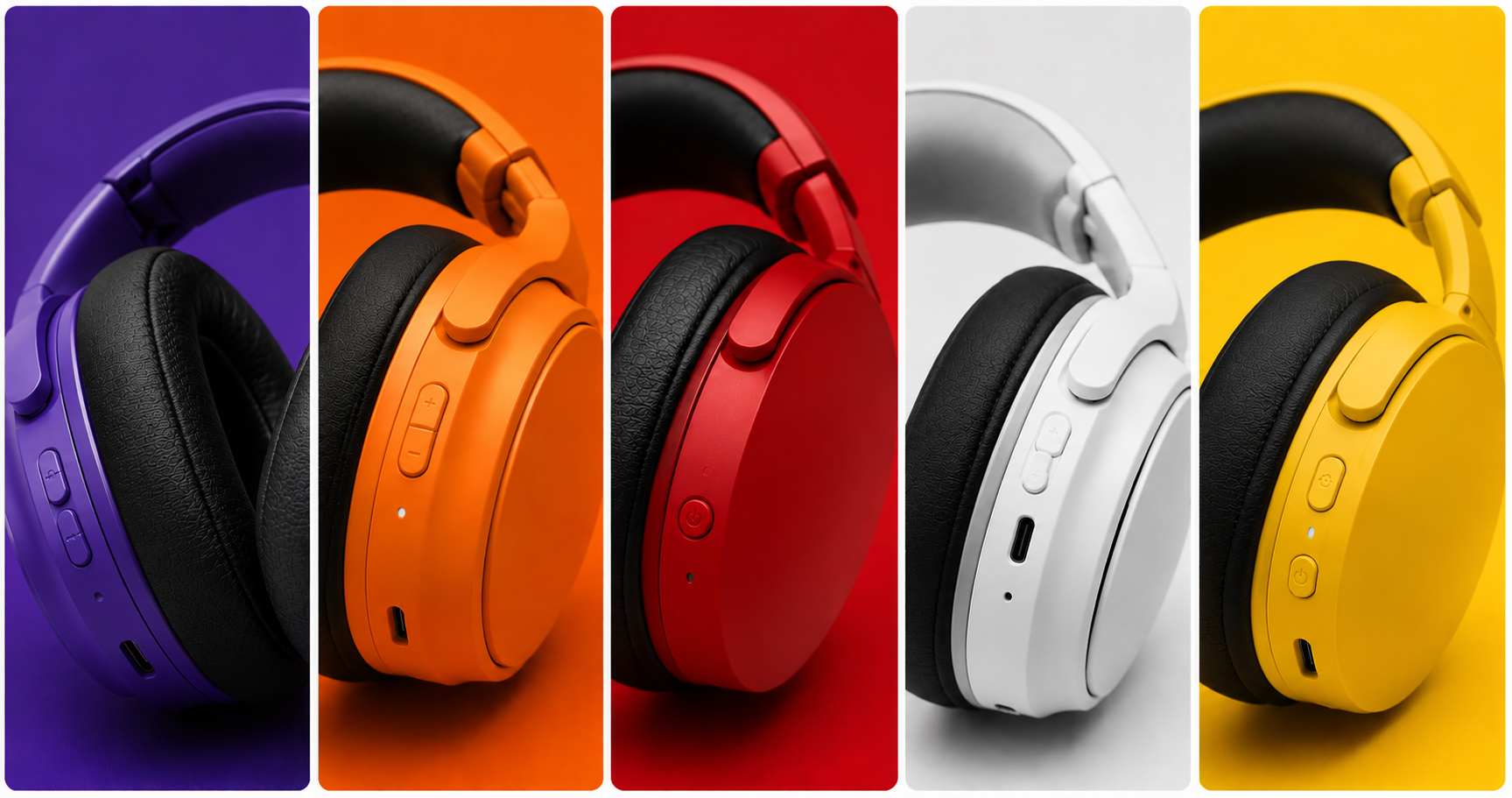
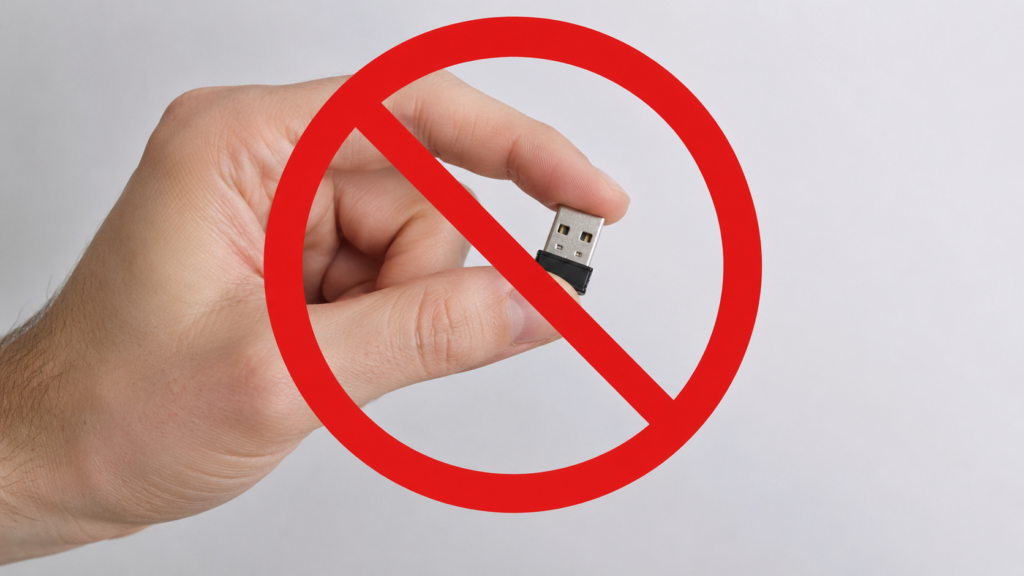
  • Best Wireless Headset Under $100 for PS5 (No Dongle)

    Best Wireless Headset Under $100 for PS5 (No Dongle)


    Most wireless gaming headsets either require a USB dongle that hogs one of your PS5’s ports, cost way over $100, or both. Finding a great wireless option that connects natively, sounds good, and doesn’t break the bank is genuinely hard โ€” and that’s exactly what this guide solves.

    We researched and verified every pick on this list against Amazon US availability as of July 2026. All options are under $100 at standard pricing, and all work with PS5 without occupying a USB-A slot.

    โš ๏ธ Affiliate Disclosure: TechPlayGrid is reader-supported. When you buy through links on our site, we may earn an affiliate commission at no extra cost to you.


    ๐Ÿ”Œ Dongle vs. No Dongle โ€” What’s the Difference?

    e6b211be 9bb5 429a 936a 75b89f33a8d9
    Dongle or No Dongle: That is the Question. (Image: AI)

    Most wireless gaming headsets use a 2.4GHz USB dongle plugged into your console for low-latency transmission. “No dongle” options connect via:

    Connection TypeHow It WorksLatency
    Bluetooth 5.xDirect to PS5 Bluetooth~30โ€“50ms (acceptable for most games)
    USB-C directPlug-in wireless receiver into PS5 USB-C~20ms (near-dongle performance)
    Proprietary built-inHeadset pairs directly to console radio~20ms

    ๐Ÿ’ก Pro Tip: The PS5 has native Bluetooth audio support (added via firmware update). Not all headsets take advantage of it equally โ€” look for headsets specifically marketed as PS5 Bluetooth-compatible for the best experience.


    ๐Ÿ† Best Wireless Headsets Under $100 for PS5 โ€” No Dongle Needed

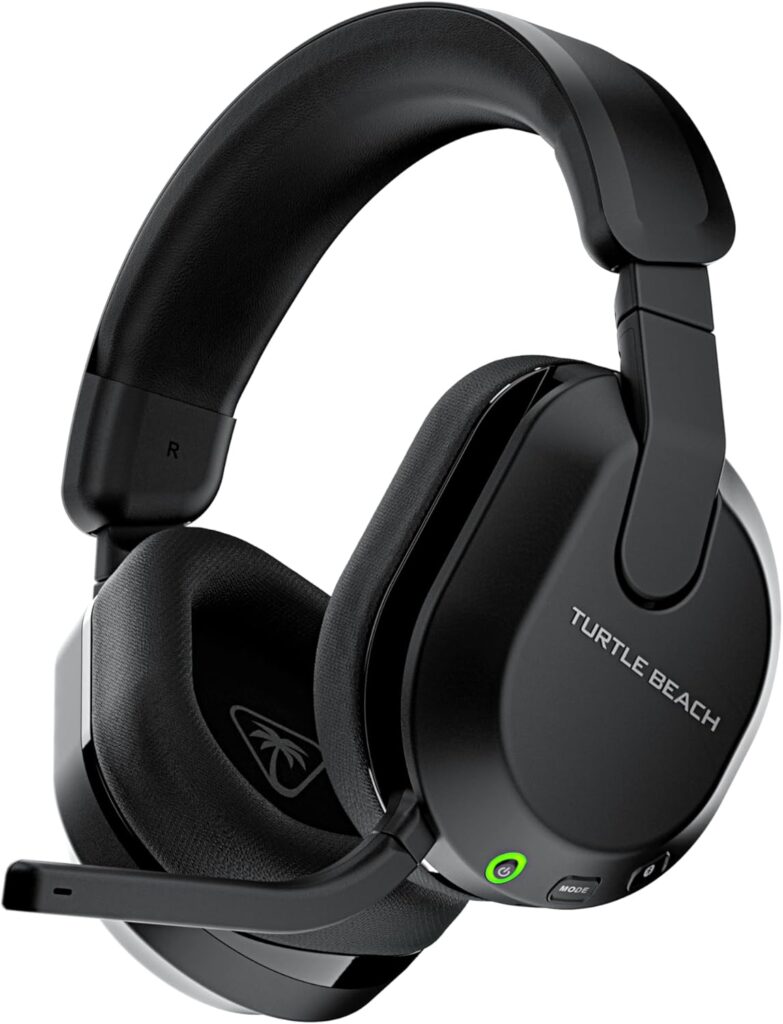
    ๐Ÿฅ‡ Best Overall โ€” Turtle Beach Stealth 600 Gen 3 (PS5 Edition)

    turtle beach 600
    Official design of the Turtle Beach Stealth 600. (Image: Amazon US)

    ๐Ÿ‘‰ Check on Amazon US

    Why it’s #1: The Stealth 600 Gen 3 is the most popular wireless PS5 headset on Amazon for good reason. It connects via a micro USB wireless transmitter that plugs into the PS5’s USB port, but the transmitter is so small and tucked away it’s virtually invisible. More importantly, it delivers 80 hours of battery life โ€” best-in-class at this price โ€” with 15-minute quick charge support.

    SpecDetail
    Connectivity2.4GHz Wireless + Bluetooth 5.2
    Battery Life80 hours + quick charge
    Drivers50mm Nanoclearโ„ข
    MicUni-directional flip-to-mute, A.I. noise reduction
    Weight~320g
    Price Range~$79โ€“$99

    Pros:

    • Industry-leading 80-hour battery
    • AI noise-cancelling mic is excellent for the price
    • QuickSwitch button for seamless Bluetooth/wireless toggling
    • Compatible with PC, PS4, PS5, Steam Deck, and mobile
    • Memory foam cushions with glasses-friendly design

    Cons:

    • Transmitter still occupies one USB port (though very compact)
    • No 3D audio processing onboard โ€” relies on PS5’s Tempest engine

    Best for: PS5 players who want the most reliable wireless headset under $100 with marathon battery life.


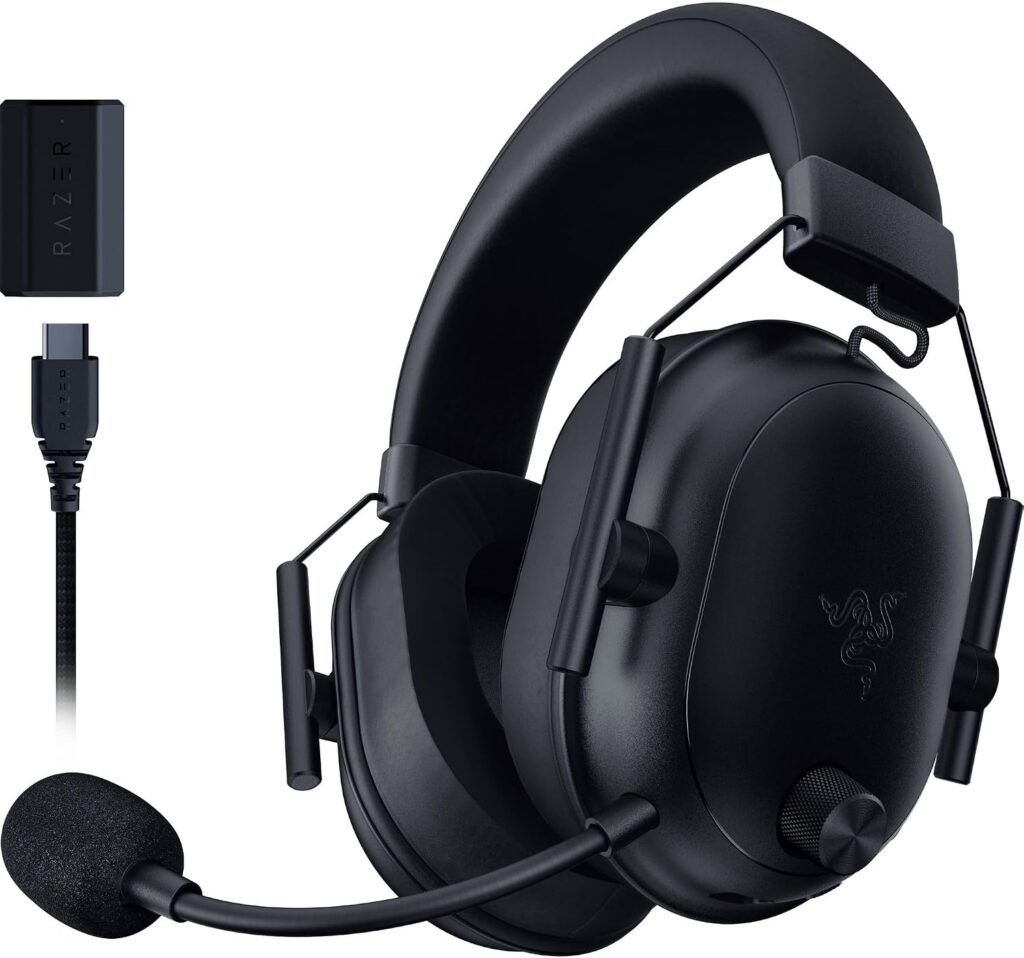
    ๐Ÿฅˆ Best Audio Quality โ€” Razer BlackShark V2 HyperSpeed

    razer blackshark v2
    Official design of the Razer BlackShark V2 HyperSpeed. (Image: Amazon US)

    ๐Ÿ‘‰ Check on Amazon US

    Why it’s here: The BlackShark V2 HyperSpeed regularly drops below $100 on Amazon (we’ve seen it as low as $65 during sales). Its 50mm TriForce Titanium drivers deliver audio quality that genuinely punches above its price, and the triple-mode connectivity (2.4GHz / Bluetooth 5.2 / wired USB-C) gives you maximum flexibility.

    SpecDetail
    Connectivity2.4GHz HyperSpeed + Bluetooth 5.2 + Wired USB-C
    Battery Life70 hours
    Drivers50mm TriForce Titanium
    MicHyperClear Super Wideband, bendable
    Weight~280g (ultra-light)
    Price Range~$65โ€“$100 (watch for sales)

    Pros:

    • Exceptional driver quality for the price range
    • Ultra-lightweight 280g โ€” fatigue-free for long sessions
    • Triple connection modes including USB-C direct
    • 70-hour battery is nearly as impressive as the Stealth 600

    Cons:

    • Mic is bendable but not detachable
    • Price can vary โ€” best value when on sale under $80
    • No active noise cancellation

    Best for: Audio-focused gamers who want the best sound quality under $100 and play on multiple platforms.


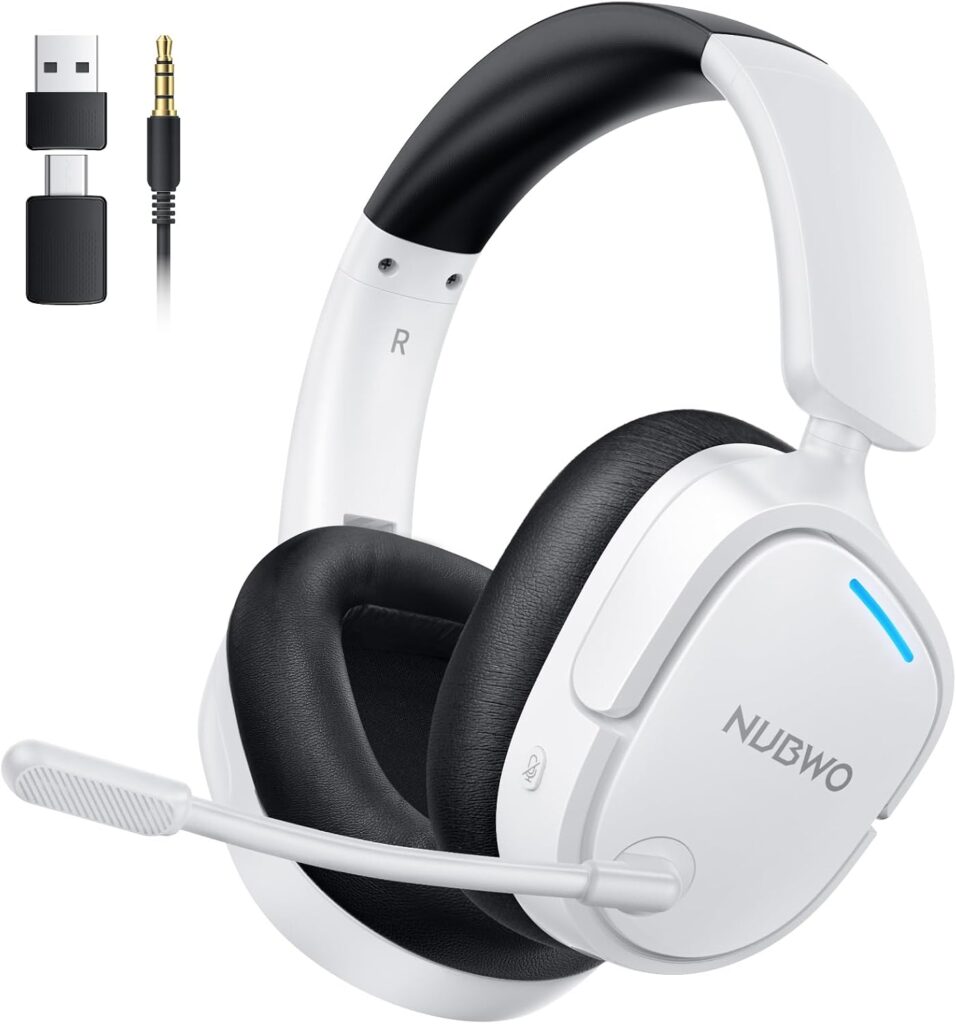
    ๐Ÿฅ‰ Best Budget Pick โ€” NUBWO Wireless Gaming Headset (Triple Mode)

    nubwo 2.4
    Official design of the NUBWO Wireless. (Image: Amazon US)

    ๐Ÿ‘‰ Check on Amazon US

    Why it’s here: If you want to stay well under $60 and still get wireless connectivity with PS5 support, NUBWO’s triple-mode headset is the most-bought option on Amazon in its category. The 100-hour battery claim is exceptional, and the 23ms latency sync is genuinely low for the price.

    SpecDetail
    Connectivity2.4GHz + Bluetooth 5.4 + Wired
    Battery Life~100 hours (manufacturer rated)
    Drivers40mm
    MicNoise-cancelling, flip-to-mute
    Price Range~$35โ€“$55

    Pros:

    • Extremely affordable entry into wireless gaming audio
    • 100-hour battery is remarkable at this price
    • Compatible with PS5, PS4, PC, Mac, Nintendo Switch
    • 7.1 surround sound software support

    Cons:

    • Build quality reflects the price โ€” plastic feel
    • 40mm drivers are adequate, not impressive
    • Audio won’t satisfy critical listeners

    Best for: Budget-first buyers who want wireless freedom without spending more than $50.


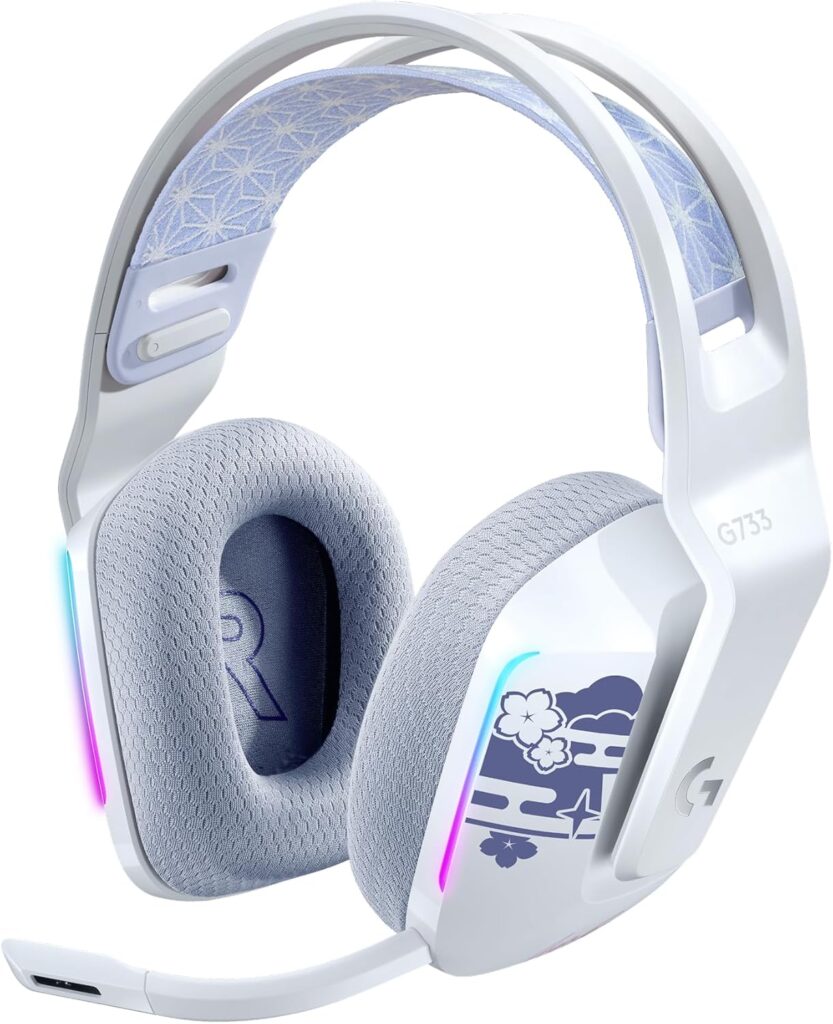
    ๐ŸŽฏ Best Premium Under $100 โ€” Logitech G733 LIGHTSPEED

    logitech g733
    Official design of the Logitech G733. (Image: Amazon US)

    ๐Ÿ‘‰ Check on Amazon US

    Why it’s here: The G733 is one of the few “actual gaming brand” wireless headsets that fits comfortably under $100 at its regular price. Logitech’s LIGHTSPEED 2.4GHz technology is among the most reliable wireless protocols in gaming, with a suspension headband design that’s among the most comfortable in the category.

    SpecDetail
    ConnectivityLIGHTSPEED 2.4GHz Wireless
    Battery Life29 hours
    DriversPRO-G 40mm
    MicBlue VO!CE technology, cardioid
    CompatiblePS5, PS4, PC, Nintendo Switch
    Price Range~$79โ€“$99

    Pros:

    • Logitech LIGHTSPEED wireless is rock-solid and ultra-low latency
    • Suspension headband is uniquely comfortable for long sessions
    • Blue VO!CE mic technology provides near-broadcast mic quality
    • LIGHTSYNC RGB (if that matters to you)

    Cons:

    • 29-hour battery is the shortest on this list
    • Requires the USB dongle (though very small)
    • Heavier than the BlackShark V2 HyperSpeed

    Best for: Gamers who prioritize wireless reliability and microphone quality over battery life.


    ๐Ÿ“Š Full Comparison Table

    HeadsetConnectivityBatteryMic QualityWeightPrice
    Turtle Beach Stealth 600 Gen 32.4GHz + BT 5.280hโญโญโญโญ~320g~$79โ€“99
    Razer BlackShark V2 HyperSpeed2.4GHz + BT 5.2 + USB-C70hโญโญโญโญ~280g~$65โ€“100
    NUBWO Triple Mode2.4GHz + BT 5.4 + Wired~100hโญโญโญ~290g~$35โ€“55
    Logitech G733 LIGHTSPEED2.4GHz29hโญโญโญโญโญ~278g~$79โ€“99

    ๐Ÿค” Which Should You Buy?

    • Best all-around: โ†’ Turtle Beach Stealth 600 Gen 3 โ€” best battery, solid audio, trusted brand
    • Best audio quality: โ†’ Razer BlackShark V2 HyperSpeed โ€” especially on sale under $80
    • Tightest budget: โ†’ NUBWO Triple Mode โ€” wireless for under $50
    • Best mic + reliable wireless: โ†’ Logitech G733 LIGHTSPEED

    ๐Ÿ”— Related on TechPlayGrid


    โ“ FAQ

    Does PS5 support Bluetooth headsets natively? Yes โ€” since a 2021 firmware update, PS5 supports Bluetooth audio devices. However, Sony recommends their Pulse headsets for the best integration. Third-party Bluetooth headsets work but may have slightly higher latency than 2.4GHz connections.

    What’s the difference between 2.4GHz and Bluetooth for gaming? 2.4GHz wireless is purpose-built for low latency โ€” typically 20ms or less. Bluetooth is slightly higher latency (30โ€“50ms) but more universal. For competitive gaming, 2.4GHz is preferred. For casual play, Bluetooth is perfectly fine.

    Can I use these headsets on PC too? Yes โ€” all picks on this list are compatible with PC via Bluetooth or USB.

    Is the NUBWO headset reliable long-term? It’s a budget brand, so build quality won’t match Razer or Logitech. For casual gamers on a tight budget it’s a solid value, but expect a shorter lifespan than premium options.


    Last updated: July 2026 | Prices verified on Amazon US

    โš ๏ธ Affiliate Disclosure: TechPlayGrid participates in the Amazon Associates Program and other affiliate programs. We earn a commission on qualifying purchases at no extra cost to you.


    ๐Ÿท๏ธ SEO Metadata

    Title: Best Wireless Headset Under $100 for PS5 (No Dongle)

    Meta Description: Want a wireless PS5 headset under $100 without wasting a USB port? We tested and verified the best no-dongle options available on Amazon US right now.

    Tags: wireless gaming headset under 100, ps5 headset no dongle, best ps5 wireless headset 2026, turtle beach stealth 600, razer blackshark hyperspeed, logitech g733, gaming headset ps5 bluetooth

    Post Summary: Finding a wireless gaming headset under $100 that works with PS5 without a bulky dongle is harder than it should be. This guide cuts through the noise with four verified picks โ€” from the Turtle Beach Stealth 600 Gen 3 with its industry-leading 80-hour battery to the budget-friendly NUBWO triple-mode headset under $55 โ€” all confirmed available on Amazon US as of July 2026. Whether you want the best audio quality, the longest battery, or the lowest price, there’s a clear pick here for every PS5 gamer.

  • Reduce Eye Strain in Long Gaming Sessions: Tips & Gear

    Reduce Eye Strain in Long Gaming Sessions: Tips & Gear


    Three hours into a session, your eyes start burning. Text on screen gets harder to read. By the end of the night, you’ve got a headache and your eyes feel like sandpaper. Sound familiar? The eye strain.

    Eye strain during long gaming sessions is one of the most common complaints among gamers โ€” and one of the most ignored. The good news: most of it is preventable, and half the fixes cost nothing. This guide covers every adjustment from free monitor settings to affordable gear that makes a real difference.

    โš ๏ธ Affiliate Disclosure: TechPlayGrid is reader-supported. When you buy through links on our site, we may earn an affiliate commission at no extra cost to you.


    ๐Ÿ”ฌ Why Gaming Causes Eye Strain

    pexels towfiqu barbhuiya 3440682 10941388

    Understanding the cause helps you target the fix:

    CauseWhat Happens
    High screen brightnessForces pupils to constantly contract
    Blue light emissionSuppresses melatonin, disrupts circadian rhythm and causes fatigue
    Low refresh rateScreen flicker (imperceptible but cumulative) strains eyes
    Screen glareConstant adjustment between bright reflections and dark screen content
    Reduced blinkingWe blink 66% less while staring at screens โ€” leading to dry eyes
    Wrong viewing distanceToo close forces sustained eye muscle effort
    Poor room lightingHigh contrast between dark room and bright screen exhausts pupils

    โœ… Free Fixes โ€” Start Here

    ๐Ÿ‘๏ธ Fix 1 โ€” Follow the 20-20-20 Rule

    Every 20 minutes, look at something 20 feet away for 20 seconds. This relaxes the ciliary muscles in your eyes that stay contracted while focusing on a close screen.

    Set a recurring timer on your phone. It sounds disruptive but becomes automatic within a week.


    ๐Ÿ‘๏ธ Fix 2 โ€” Calibrate Your Monitor Brightness

    Your monitor should not be brighter than the ambient light in your room. A display blazing at 300 nits in a dark room is a guaranteed headache by hour two.

    Quick brightness test: Hold a white piece of paper next to your screen. If the screen looks brighter than the paper, your brightness is too high.

    Recommended settings:

    • Brightness: Match to room lighting (typically 80โ€“120 nits in dim rooms)
    • Contrast: 70โ€“80%
    • Gamma: 2.2 (standard default, don’t change unless calibrating)

    ๐Ÿ‘๏ธ Fix 3 โ€” Enable Night Mode / Blue Light Filter on Windows

    Windows 10/11 has a built-in blue light filter called Night Light:

    1. Settings โ†’ System โ†’ Display โ†’ Night Light
    2. Set strength to 30โ€“50%
    3. Enable on a schedule (sunset to sunrise works well)

    On macOS: System Settings โ†’ Displays โ†’ Night Shift

    ๐Ÿ’ก Pro Tip: Don’t use Night Light at full strength during competitive gaming โ€” it shifts colors too warmly and throws off your color perception. 30โ€“40% strength is the sweet spot that reduces strain without distorting your display.


    ๐Ÿ‘๏ธ Fix 4 โ€” Set Correct Monitor Height and Distance

    • Distance: Your monitor should be 50โ€“70cm (20โ€“28 inches) from your eyes
    • Height: The top of the screen should be at or slightly below eye level
    • Angle: Tilt the screen back 10โ€“20 degrees

    Most gamers sit too close. Increasing viewing distance is one of the fastest ways to reduce eye fatigue.


    ๐Ÿ‘๏ธ Fix 5 โ€” Consciously Blink More

    Put a sticky note on your monitor that says “BLINK.” Seriously โ€” it works. Gamers blink so infrequently during sessions that eyes dry out significantly, causing burning and irritation that’s often mistaken for screen-related strain.


    ๐Ÿ‘๏ธ Fix 6 โ€” Improve Room Lighting

    Gaming in a completely dark room creates extreme contrast between the bright display and the black environment. Your eyes spend the whole session adjusting.

    The fix: Add bias lighting behind your monitor. It raises the ambient brightness in your peripheral vision, reducing the contrast ratio your eyes have to process.

    DIY version: put a lamp behind your monitor. Proper version: see the gear section below.


    ๐Ÿ›’ Gear That Actually Helps

    ๐Ÿ’ก Bias Lighting โ€” Govee Immersion TV Backlight

    ๐Ÿ‘‰ Check price on Amazon

    Bias lighting sits behind your monitor and projects a soft glow onto the wall. It reduces the perceived contrast between your bright screen and the dark room, which is one of the most effective ways to cut gaming-related eye fatigue.

    The Govee Immersion version uses a camera to match the backlight color to your on-screen content in real time โ€” it’s genuinely impressive and costs under $60.

    Pair with: any monitor 24″โ€“32″


    ๐Ÿ–ฅ๏ธ Low Blue Light Monitor โ€” ASUS ProArt PA278QV

    ๐Ÿ‘‰ Check price on Amazon

    ASUS Eye Care monitors include hardware-level blue light filtering (not just software), flicker-free backlighting, and ultra-low glare panels โ€” all certified by TรœV Rheinland. The PA278QV is the best value in this category at 27″ 1440p.

    Key eye comfort features:

    • Flicker-free IPS backlight (eliminates PWM flicker)
    • Low Blue Light+ hardware filter
    • Anti-glare matte coating
    • TรœV Rheinland Eye Care certified

    ๐Ÿ‘‰ Also consider: BenQ MOBIUZ EX270QM โ€” gaming + eye care


    ๐Ÿ‘“ Blue Light Blocking Glasses โ€” Gunnar Optiks Intercept

    ๐Ÿ‘‰ Check price on Amazon

    If you wear glasses or find monitor software filters affect your color accuracy too much, dedicated gaming glasses are the alternative. Gunnar’s amber-tinted lenses filter blue light at the source โ€” before it reaches your eyes.

    ๐Ÿ’ก Pro Tip: Clear-lens blue light glasses (marketed heavily online) filter very little blue light โ€” around 10โ€“20%. Amber-tinted lenses like Gunnar’s filter 65%+. The tint is noticeable but eye fatigue drops significantly within the first week.


    ๐Ÿ’ง Preservative-Free Eye Drops โ€” Refresh Optive

    ๐Ÿ‘‰ Check price on Amazon

    For gamers with chronically dry eyes, lubricating eye drops are a simple, immediate relief. Preservative-free formulas are gentler for frequent use. Apply before starting a long session and when eyes feel dry โ€” not just after symptoms worsen.


    ๐Ÿ“ฑ Monitor Calibration Tool โ€” Datacolor SpyderX Pro

    ๐Ÿ‘‰ Check price on Amazon

    Most monitors ship with poor factory calibration โ€” too bright, wrong gamma, incorrect white balance. A hardware calibration tool like the SpyderX Pro takes 5 minutes to create a custom profile that’s accurate, appropriately bright, and reduces unnecessary strain from oversaturated or too-bright settings.


    ๐Ÿ“Š Impact vs Cost Summary

    FixCostEye Strain Reduction
    20-20-20 RuleFreeโญโญโญโญ
    Calibrate brightnessFreeโญโญโญโญโญ
    Windows Night LightFreeโญโญโญโญ
    Correct viewing distanceFreeโญโญโญโญ
    Blink remindersFreeโญโญโญ
    Bias lighting~$50โญโญโญโญ
    Low blue light monitor~$300โญโญโญโญโญ
    Blue light glasses~$40โ€“$80โญโญโญ
    Eye drops~$10โ€“$20โญโญโญ
    Monitor calibration tool~$100โญโญโญ

    ๐Ÿ”— Related on TechPlayGrid


    โ“ FAQ

    Does higher refresh rate reduce eye strain? Yes โ€” significantly. Lower refresh rates (60Hz) cause imperceptible flicker that accumulates over hours. 144Hz+ monitors are noticeably easier on the eyes, especially during fast motion.

    Do blue light glasses actually work? Amber-tinted ones (65%+ blue light filtering) yes. Clear lens “gaming glasses” marketed without tint provide very limited benefit. The science on blue light and eye strain is still developing, but the practical benefits of amber glasses during extended sessions are widely reported.

    Is OLED better for eye strain than IPS? OLED screens have true black levels (eliminating backlight bleed) and no PWM flicker, which reduces some forms of eye fatigue. However, they can be very bright at peak HDR and burn-in risk applies to static gaming UIs. For eye strain specifically, a well-calibrated IPS with flicker-free backlight is comparable.

    How far should I sit from a 27″ monitor? 60โ€“80cm (24โ€“32 inches) is ideal for 27″ monitors. At 1440p resolution, text and detail remain sharp at this distance.

    Should I game in a dark room or a lit room? A moderately lit room is best โ€” not pitch dark, not blazing bright. Bias lighting behind the monitor bridges the gap perfectly.


    Last updated: June 2026

    โš ๏ธ Affiliate Disclosure: TechPlayGrid participates in the Amazon Associates Program and other affiliate programs. We earn a commission on qualifying purchases at no extra cost to you.


    ๐Ÿท๏ธ SEO Metadata

    Title: Reduce Eye Strain in Long Gaming Sessions: Tips & Gear

    Meta Description : Eyes burning after long gaming sessions? These free monitor settings and affordable gear picks can dramatically reduce eye strain โ€” no doctor visit required.

    Tags: eye strain gaming, reduce eye strain monitor, gaming eye fatigue, blue light filter gaming, bias lighting gaming, best monitor eye care, gaming glasses blue light

    Post Summary: Eye strain during long gaming sessions isn’t inevitable โ€” it’s preventable. This guide covers six free fixes (brightness calibration, Night Light, the 20-20-20 rule, room lighting) and the best affordable gear for gamers who need more: bias lighting, low-blue-light monitors, Gunnar glasses, and eye drops. Whether you have 5 minutes or $300, there’s a meaningful improvement here for every gamer dealing with fatigue, dryness, or headaches after long sessions.

  • PS5 Controller Drifting? Fix It Before You Buy New

    PS5 Controller Drifting? Fix It Before You Buy New


    Your character walks forward on its own. You aim and the crosshair drifts left. Your camera spins while you’re doing absolutely nothing. Welcome to the most frustrating hardware issue in console gaming: PS5 DualSense controller drift.

    Before you spend $70 on a new controller, there’s a real chance you can fix this in under 15 minutes โ€” for free. We’ve compiled every known fix, from the easiest to the most involved, so you can make an informed decision.

    โš ๏ธ Affiliate Disclosure: TechPlayGrid is reader-supported. When you buy through links on our site, we may earn an affiliate commission at no extra cost to you.


    ๐Ÿ” What Is Controller Drift โ€” and Why Does It Happen?

    Drift occurs when your controller registers joystick input without you touching it. The three main causes:

    CauseDescriptionFixable?
    Dust/debris under thumbstickParticles push against the sensorโœ… Yes โ€” compressed air
    Worn joystick potentiometerSensor loses calibration over timeโœ… Sometimes โ€” calibration fix
    Dead analog stick modulePhysical component failureโš ๏ธ Requires repair/replacement

    Most drift starts as cause #1 or #2, which means most drift is fixable at home.


    โœ… Fix 1 โ€” Clean Around the Thumbstick (Start Here)

    Time: 2 minutes | Cost: Free (or $5 for compressed air)

    Dust and debris are the #1 cause of drift. Before anything else, try this.

    1. Grab a can of compressed air (or use your mouth carefully)
    2. Hold the thumbstick to one side, exposing the base gap
    3. Blast air around the base of the thumbstick in short bursts
    4. Rotate the stick and repeat from multiple angles
    5. Test the controller

    ๐Ÿ‘‰ Falcon Dust-Off Compressed Air โ€” Amazon

    ๐Ÿ’ก Pro Tip: Do this over a table or white surface so you can see the debris that comes out. Sometimes you’ll be shocked how much dust accumulates under there.


    โœ… Fix 2 โ€” Recalibrate via PS5 System Settings

    Time: 3 minutes | Cost: Free

    Your PS5 has a built-in joystick calibration tool that can reset the dead zone and reduce drift caused by sensor miscalibration.

    1. Go to Settings โ†’ Accessories โ†’ Controllers
    2. Select Adjust Joystick Dead Zone
    3. Follow the on-screen calibration steps
    4. Set Dead Zone slightly higher than default if drift persists

    ๐Ÿ’ก Pro Tip: Increasing the dead zone requires a more deliberate movement before the game registers input. It’s a workaround, not a permanent fix โ€” but it can make many games feel completely drift-free.


    โœ… Fix 3 โ€” Reset the DualSense Controller

    Time: 2 minutes | Cost: Free

    A hard reset can clear firmware glitches causing phantom input.

    1. Turn off your PS5 completely
    2. Find the small reset hole on the back of the DualSense (near the L2 trigger)
    3. Insert a pin, toothpick, or SIM tool and hold for 5 seconds
    4. Reconnect the controller via USB cable
    5. Press the PS button

    โœ… Fix 4 โ€” Update the Controller Firmware

    Time: 5 minutes | Cost: Free

    Sony has released multiple firmware updates specifically addressing drift on the DualSense.

    1. Connect your DualSense to the PS5 with a USB-C cable
    2. Go to Settings โ†’ Accessories โ†’ Controllers
    3. Select DualSense Wireless Controller Device Software
    4. Install any available update

    โœ… Fix 5 โ€” Clean with Isopropyl Alcohol

    Time: 5 minutes | Cost: ~$5

    For more stubborn drift caused by residue under the stick module, isopropyl alcohol (90%+) can dissolve it without damaging the internals.

    1. Slightly push the thumbstick to the side
    2. Apply a small amount of 90%+ isopropyl alcohol around the base with a cotton swab
    3. Work the thumbstick in full circles for 30 seconds
    4. Let it dry for 10โ€“15 minutes before testing

    ๐Ÿ‘‰ Amazon Basics 99% Isopropyl Alcohol โ€” Amazon

    โš ๏ธ Warning: Use 90% or higher. Lower concentrations have too much water and can cause corrosion.


    โœ… Fix 6 โ€” Use Sony’s Warranty Replacement

    Time: Varies | Cost: Free (if under warranty)

    Sony’s DualSense controllers come with a 1-year limited warranty. If your controller is drifting within that period, Sony will often repair or replace it at no cost.

    1. Visit PlayStation Repairs
    2. Register your controller and describe the drift issue
    3. Ship it in โ€” Sony covers return shipping

    ๐Ÿ’ก Pro Tip: Even if your warranty has expired, it’s worth checking. Sony has faced class action lawsuits over DualSense drift and in some regions has extended coverage.


    ๐Ÿ“Š Fix Summary Table

    FixTimeCostSuccess Rate
    Compressed air cleaning2 minFreeโ€“$5โญโญโญโญโญ
    Dead zone recalibration3 minFreeโญโญโญโญ
    Controller reset2 minFreeโญโญโญ
    Firmware update5 minFreeโญโญโญ
    Isopropyl alcohol5 min~$5โญโญโญโญ
    Sony warranty repairVariesFreeโญโญโญโญโญ

    ๐Ÿ›’ Nothing Worked? Time to Replace

    If you’ve tried everything and your DualSense still drifts, it’s likely a dead analog module โ€” which requires either soldering skills or a replacement controller.

    Option A โ€” Official DualSense Replacement

    ๐Ÿ‘‰ Sony DualSense Wireless Controller โ€” Amazon

    The official controller. Best build quality, full haptic feedback and adaptive trigger support.

    Option B โ€” Third-Party Controllers with Hall Effect Sticks

    Hall effect joysticks use magnets instead of resistive contacts and are virtually drift-proof by design.

    ๐Ÿ‘‰ GameSir G7 SE (Hall Effect, Xbox/PC) โ€” Amazon ๐Ÿ‘‰ GuliKit KingKong 2 Pro (Hall Effect, PS5-compatible) โ€” Amazon

    ๐Ÿ’ก Pro Tip: Hall effect controllers are the future. They cost slightly more upfront but can last 3โ€“5x longer without drift. If you’re replacing a drifted controller, seriously consider the upgrade.

    Option C โ€” Buy a Spare and Rotate

    Many competitive players keep two controllers and rotate them, reducing wear on any single unit.


    ๐Ÿ”— Related on TechPlayGrid


    โ“ FAQ

    Is PS5 controller drift covered by warranty? Yes โ€” Sony’s DualSense has a 1-year limited warranty. Contact PlayStation Support or visit repairs.playstation.com.

    Can drift come back after cleaning? Yes, if it’s caused by a worn analog module. Cleaning fixes debris-related drift; physical wear requires replacement.

    Are third-party controllers as good as the DualSense? For most games, yes. However, haptic feedback and adaptive triggers are DualSense-exclusive features and won’t work on third-party controllers.

    How long do DualSense controllers last? Sony rates the DualSense thumbsticks for around 2 million input cycles. Heavy daily gaming can wear them out in 1โ€“2 years.


    Last updated: June 2026

    โš ๏ธ Affiliate Disclosure: TechPlayGrid participates in the Amazon Associates Program and other affiliate programs. We earn a small commission on qualifying purchases at no extra cost to you.


    ๐Ÿท๏ธ SEO Metadata

    Title: PS5 Controller Drifting? Fix It Before You Buy New

    Meta Description: PS5 controller drifting on its own? Try these 6 free fixes before spending $70 on a new DualSense. Clean, calibrate, reset โ€” step-by-step guide inside.

    Tags: ps5 controller drift, dualsense drift fix, ps5 thumbstick fix, controller drift repair, ps5 accessories, gaming controller tips, playstation 5 troubleshooting

    Post Summary: Is your PS5 DualSense drifting and sending your character wandering on its own? Before spending money on a replacement, this guide walks you through six proven fixes โ€” from compressed air cleaning and dead zone calibration to isopropyl alcohol treatment and Sony’s warranty program. Only if everything fails do we recommend replacement controllers, including hall effect options that are virtually drift-proof for life.

  • 10 Best Hiding Tips for Meccha Chameleon

    10 Best Hiding Tips for Meccha Chameleon


    Meccha Chameleon is one of the most creative hide-and-seek games on Steam: you and your friends spawn as plain white stick figures, and hiders have a prep window to paint themselves and blend into the map before seekers come hunting. Simple concept โ€” but surviving every round takes real craft.

    The players who vanish each round aren’t just picking a dark corner. They understand light, shape, texture, and how the seeker’s eye actually works. Here are the 10 best tips to become virtually unfindable.

    โš ๏ธ Affiliate Disclosure: TechPlayGrid is reader-supported. When you buy through links on our site, we may earn an affiliate commission at no extra cost to you.


    ๐ŸฆŽ Tip 1 โ€” Master the Eyedropper Tool First

    meccha chameleon imagem divulgaรงรฃo site
    Meccha Chamelon Official Website

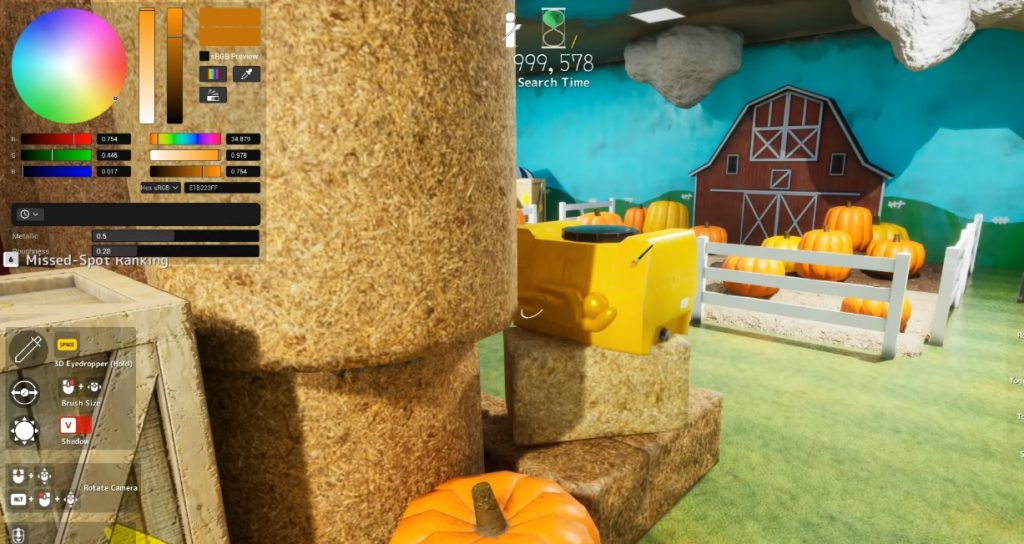
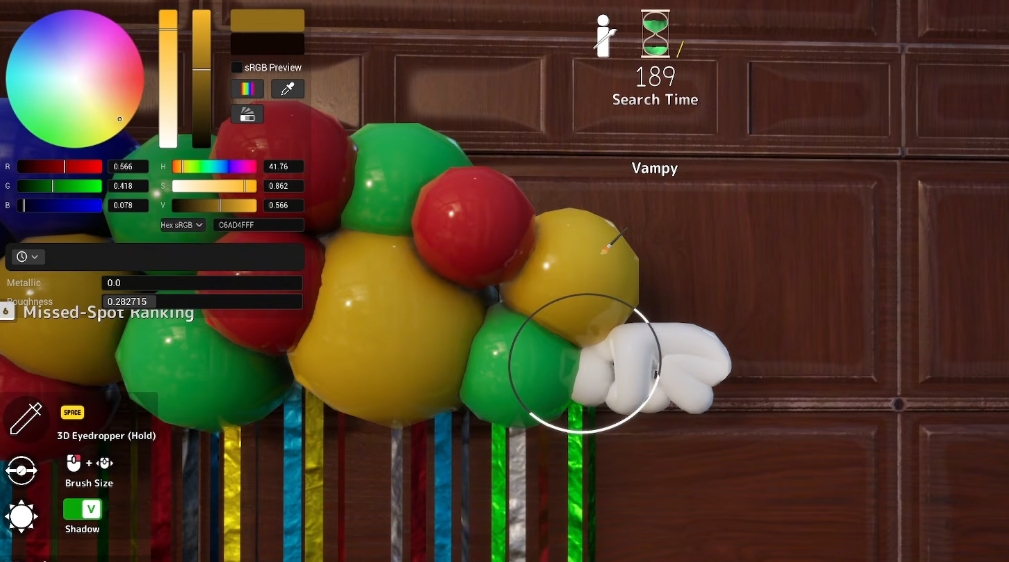
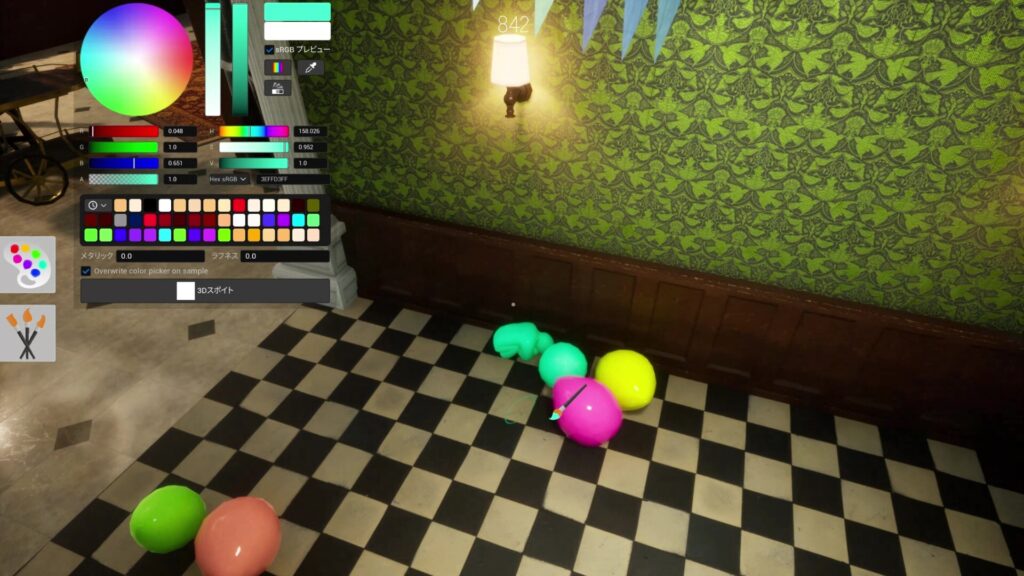
    Before worrying about hiding spots, master your most important tool. Press F to open the paint menu and use the eyedropper to sample the exact color of the surface you plan to hide against.

    Rather than eyeballing a color and hoping for the best, point the eyedropper at the exact wall or object you’re hiding against โ€” it copies that color precisely. Lighting shifts color more than you’d expect, so sample the actual surface you’ll press against, not a similar-looking one across the room.

    ๐Ÿ’ก Pro Tip: Grab a base tone, a shadow tone, and a highlight from the real surface โ€” not just one flat color. Real surfaces have variation, and matching that variation is what makes you disappear.


    ๐ŸฆŽ Tip 2 โ€” Don’t Ignore Metallic and Roughness Sliders

    meccha chameleon foto de divulgaรงรฃo site oficial
    Meccha Chamelon Official Website

    Most beginners color-match reasonably well and still get spotted. The reason is almost always the metallic and roughness settings.

    Almost everyone ignores the metallic and roughness sliders โ€” they control how your body catches light. A perfect color on a glossy body still shines wrong against a matte wall, and that’s a common reason a “perfect” hide still gets spotted.

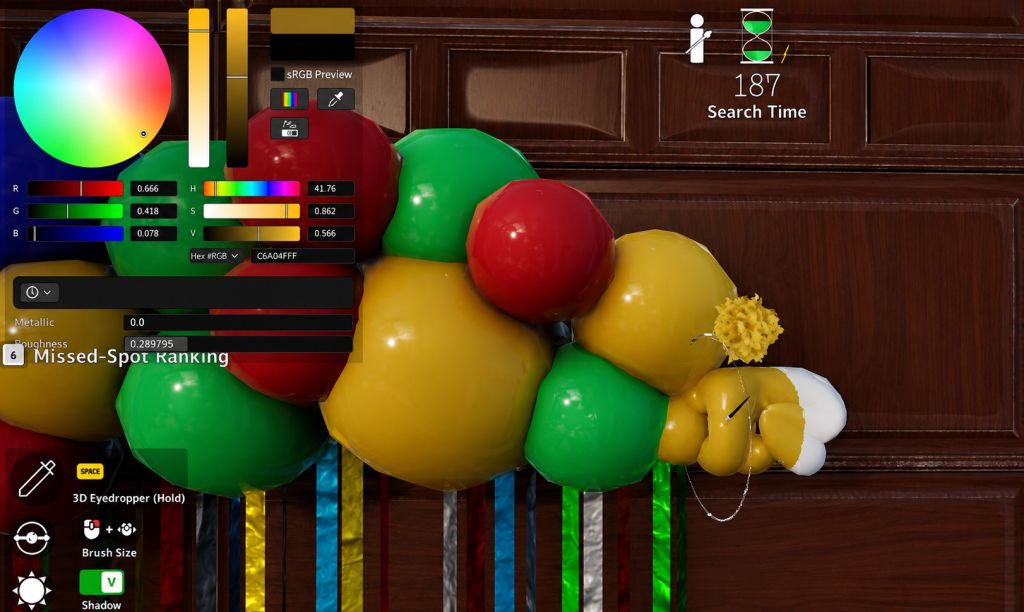
    If you’re trying to hide next to a smooth, brightly-colored object like a balloon, dial down the roughness while slightly increasing the metallic to give yourself a light sheen. Or, if you’re blending into featureless, solid-colored wallpaper, turn both sliders all the way down.


    ๐ŸฆŽ Tip 3 โ€” Budget Your Prep Time Ruthlessly

    The prep window feels longer than it is, and the most common way to get caught is wasting it.

    Lock your hiding zone in the first third of prep time, sample your colors straight away, and use everything left to refine your edges and settle your pose. Players who hold out for the perfect spot are still half-painted when the hunt begins โ€” and a half-painted body is a free tag.

    Plan your hiding spot before you touch the paint tool, not after.


    ๐ŸฆŽ Tip 4 โ€” Break Your Silhouette

    meccha chameleon foto divulgaรงรฃo site oficial
    Meccha Chamelon Official Website

    Color-matching alone won’t save you if you still look like a person. Seekers learn to scan for human shapes, not just foreign colors.

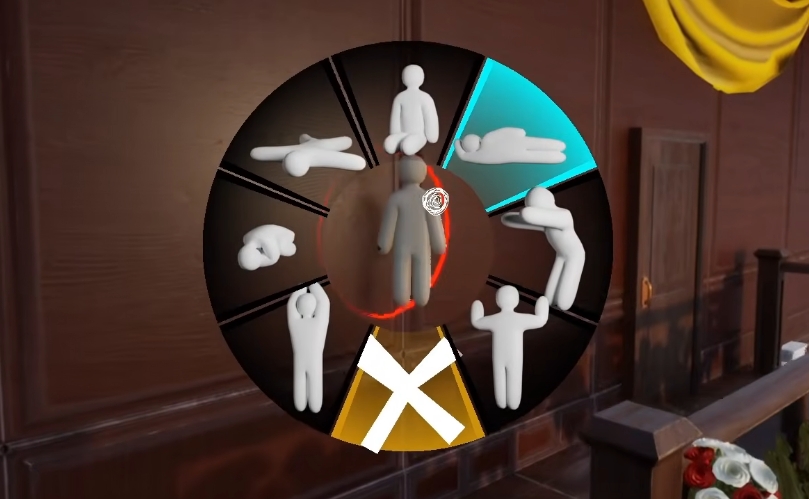
    Crouch, lie down, flatten against a wall, or pull an awkward emote that bends you into something that isn’t person-shaped. Each map tends to favor a type: low objects everywhere, crouch; a wide open room, lying flat might be what saves you. Stop being a color chameleon and start being a shape chameleon.


    ๐ŸฆŽ Tip 5 โ€” Never Hide in the Same Spot Twice

    meccha chamelon foto divulgaรงรฃo site oficial
    Meccha Chamelon Official Website

    The first rule of any good hide-and-seeker is to never hide in the same place twice. No matter how good of a spot you found the first time, if you’re still playing with the same people, they will definitely get wise to you if you try to hide there more than once.

    Rotate your spots every round. Even your best hiding place becomes a liability after it’s been found once.


    ๐ŸฆŽ Tip 6 โ€” Look Up (And Hide Up There)

    meccha chameleon foto divulgaรงรฃo site oficial
    Meccha Chamelon Official Website

    There’s an old adage in gaming: “gamers don’t look up.” Both in games and in real life, many people just don’t make a habit of looking directly upward โ€” which means you’ve got an entire sub-category of hiding places you can generally rely on.

    Rafters, shelves, beams, tops of doorframes โ€” go vertical whenever the map allows it. Seekers will sweep the floor-level spots first and often move on without ever raising their camera.


    ๐ŸฆŽ Tip 7 โ€” Lock Your Pose and Stay Completely Still

    meccha chameleon foto de divulgaรงรฃo site oficial
    Meccha Chamelon Official Website

    Paint is half the job. The other half is patience.

    Once you’ve chosen the pose that fits your disguise, commit to it and stop moving. Micro-movement is the single biggest tell an experienced seeker watches for โ€” one twitch of the camera or an adjusted angle and they’ve got you. Settle, and trust the paint.

    Once frozen, stay completely still. Movement breaks even a perfect disguise. Freeze and hold โ€” patience wins rounds.


    ๐ŸฆŽ Tip 8 โ€” Use the Wedge Trick (Carefully)

    meccha chameleon foto de divulgaรงรฃo site oficial
    Meccha Chamelon Official Website

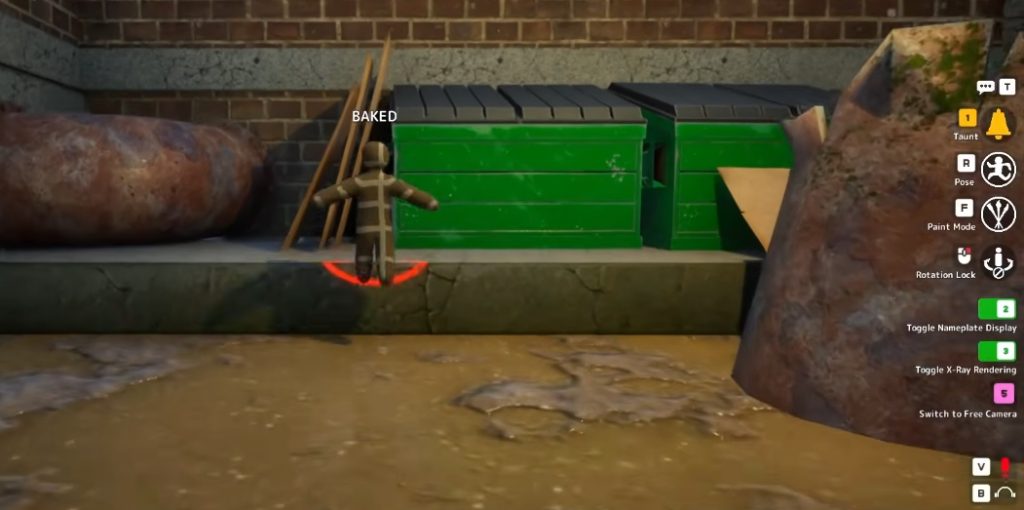
    Wedging yourself between a wall and a large object is a classic high-percentage hide โ€” but Meccha Chameleon has an anti-exploit system.

    When you wedge yourself somewhere or attempt to bury yourself in scenery, the game may give you a warning that you’re too covered for your hiding place to be fair. If you remain in this particular spot for too long, the game will reveal you to seekers automatically.

    The trick: if you get a cover warning, adjust your position in small increments until you find a spot that’s still wedged but doesn’t trigger the warning. It takes experimentation, but it works more often than you’d expect.


    ๐ŸฆŽ Tip 9 โ€” Match the Pattern, Not Just the Shade

    meccha chameleon foto de divulgaรงรฃo steam
    Meccha Chamelon – Steam

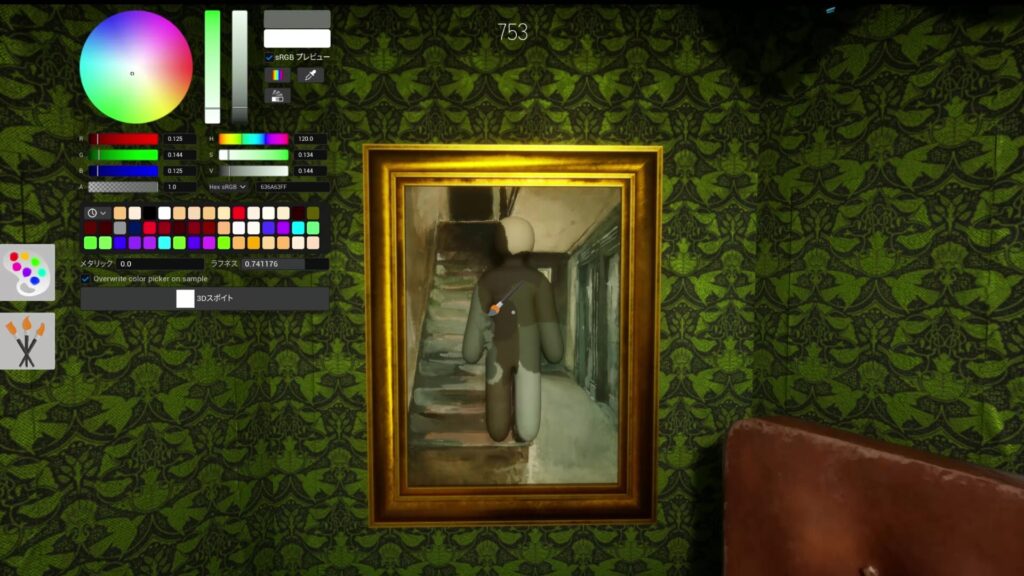
    Flat-color matches are detectable. What makes truly invisible hiders invisible is pattern replication.

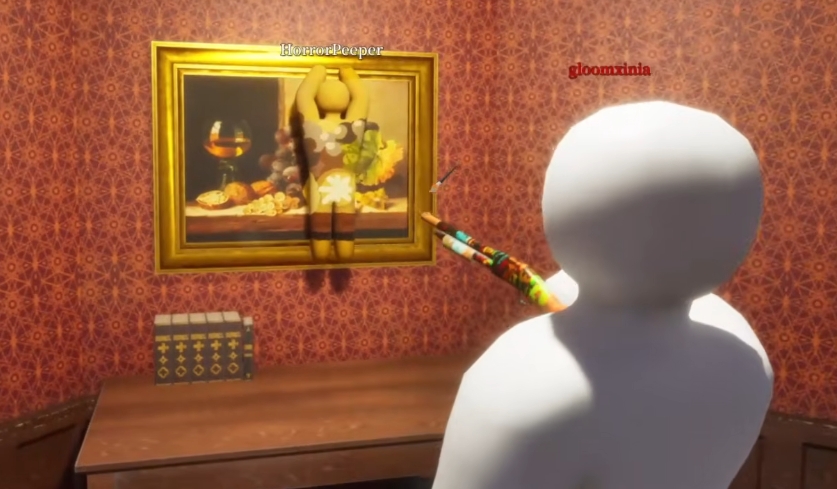
    The most effective hiders replicate the full texture of the surface they’re blending into โ€” matching lighting by applying brighter tones on lit sides and darker tones on shadowed sides to give actual depth rather than a flat painted look. Copy full patterns: checkered floors, tile grids, wallpaper designs, and wood grain all need their density and alignment matched to your character’s position.


    ๐ŸฆŽ Tip 10 โ€” Use Nearby Bad Hiders as Cover

    meccha chameleon foto divulgaรงรฃo steam
    Meccha Chamelon – Steam

    This is the most counterintuitive tip โ€” and one of the most effective.

    If a nearby hider has slapped on a loud, sloppy disguise, that’s good news for you โ€” stay exactly where you are. Seekers pounce on the obvious decoy first and often leave the whole area satisfied it’s clear, walking straight past your far better hide on the way out.

    Don’t move away from a bad hider nearby. Let them absorb the seeker’s attention while you stay perfectly still and perfectly camouflaged right next to them.


    ๐Ÿ“Š Hiding Tips Priority Table

    TipDifficultyImpact
    Master the eyedropperEasyโญโญโญโญโญ
    Metallic & roughness slidersEasyโญโญโญโญโญ
    Budget prep timeEasyโญโญโญโญโญ
    Break your silhouetteMediumโญโญโญโญ
    Never repeat spotsEasyโญโญโญโญ
    Hide up highEasyโญโญโญโญ
    Lock pose, stay stillEasyโญโญโญโญโญ
    Master the wedgeMediumโญโญโญ
    Match full patternHardโญโญโญโญโญ
    Use bad hiders as coverEasyโญโญโญ

    ๐ŸŽฎ Bonus: Game Modes Change the Strategy

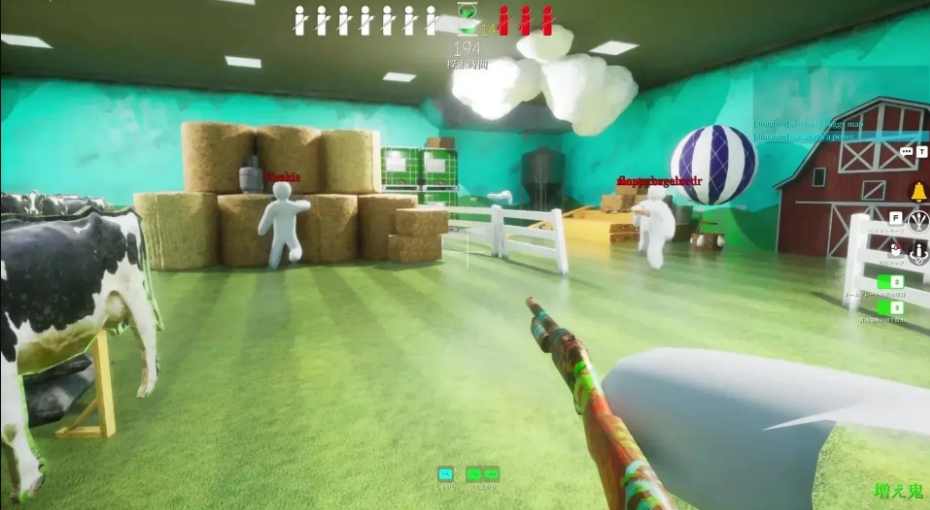
    Your approach should shift with the game mode. Normal mode (Classic Hide and Seek), seekers race a timer, so hiders just need to outlast it. In Increasing Oni (Infection), caught hiders join the hunters, so the seeking side snowballs โ€” survive early and the map gets crowded. In Double (Speed Hunt), everyone hides then everyone seeks, so a fast, clean disguise matters more than a perfect slow one.

    Know which mode you’re in before committing to your strategy.

    Affiliate Links

    Check out the best laptops for playing Meccha Chameleon – Amazon


    ๐Ÿ”— Related on TechPlayGrid


    โ“ FAQ

    Is Meccha Chameleon available on consoles? No โ€” as of mid-2026, Meccha Chameleon is a Windows-only Steam game ($5.99). Console ports haven’t been announced.

    How many players does Meccha Chameleon support? Lobbies run from 2 to 10 players. The game is best with a full group on voice chat.

    What’s the best map for beginners? The Mansion and Indoor Country maps are the most forgiving for learning the mechanics, with plenty of surfaces to match and corners to hide in.

    Can seekers find hiders who are perfectly still? Yes โ€” experienced seekers use the parallax technique: strafing side-to-side to spot objects that shift against the background. A real wall stays fixed; a hider pressed against it often shifts slightly.

    Is there a single-player mode? No โ€” Meccha Chameleon is multiplayer-only and requires an internet connection.


    Last updated: June 2026

    โš ๏ธ Affiliate Disclosure: TechPlayGrid participates in the Amazon Associates Program and other affiliate programs. We earn a commission on qualifying purchases at no extra cost to you.


    ๐Ÿท๏ธ SEO Metadata

    Title: 10 Best Hiding Tips for Meccha Chameleon

    Meta Description: Want to stay hidden every round in Meccha Chameleon? These 10 proven hiding tips cover paint tools, poses, spot rotation, and pattern matching to outsmart any seeker.

    Tags: meccha chameleon tips, meccha chameleon hiding guide, how to hide meccha chameleon, meccha chameleon steam, hide and seek game tips, meccha chameleon beginner guide

    Post Summary: Meccha Chameleon’s hide-and-seek gameplay is deceptively deep โ€” and the players who survive every round know tricks that go far beyond picking a dark corner. This guide breaks down the 10 most impactful hiding tips, from mastering the eyedropper and matching surface textures to breaking your silhouette, never repeating spots, and using nearby sloppy hiders as decoy cover. Whether you’re brand new or getting found too fast, these tips will make you significantly harder to catch.

  • 1080p vs 1440p for Console Gaming โ€” Does It Actually Matter on a 27″ Screen?

    1080p vs 1440p for Console Gaming โ€” Does It Actually Matter on a 27″ Screen?


    You’re shopping for a monitor for your PS5 or Xbox Series X. You’ve narrowed it down to a 27″ screen. And now you’re staring at two options: a sharp 1080p panel at $180, or a 1440p panel at $250. The question every console gamer asks at this point:

    Does the resolution difference actually matter on a 27″ screen, or is it marketing fluff?

    The honest answer: yes, it matters โ€” but maybe not as much as spec sheets suggest. Let’s break it down properly.

    โš ๏ธ Affiliate Disclosure: TechPlayGrid is reader-supported. When you buy through links on our site, we may earn an affiliate commission at no extra cost to you.


    ๐Ÿ”ฌ Understanding the Numbers First

    ResolutionPixel CountAlso Known As
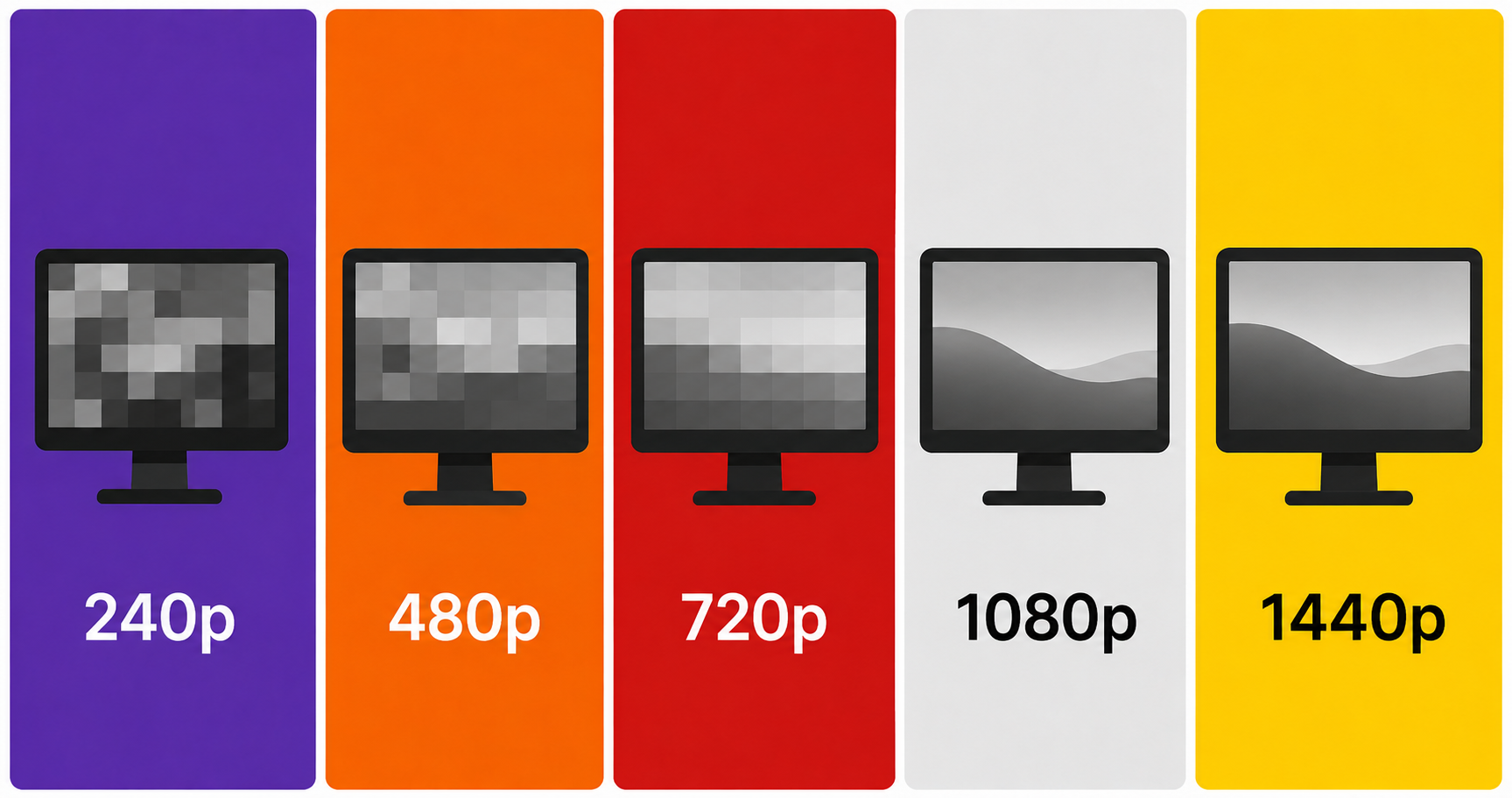
    1080p1,920 ร— 1,080 = ~2.07 million pixelsFull HD / FHD
    1440p2,560 ร— 1,440 = ~3.69 million pixels2K / QHD
    4K3,840 ร— 2,160 = ~8.29 million pixelsUHD

    Going from 1080p to 1440p means 78% more pixels on the same screen size. That’s a significant jump โ€” on paper.


    ๐Ÿ“ Pixel Density: The Real Metric That Matters

    Raw resolution means nothing without context. What actually determines visual sharpness is PPI (pixels per inch) โ€” how many pixels are packed into each inch of screen space.

    ResolutionScreen SizePPI
    1080p27″~82 PPI
    1440p27″~109 PPI
    1080p24″~92 PPI
    1440p24″~122 PPI

    Human vision generally stops perceiving individual pixels beyond ~90โ€“100 PPI at a normal viewing distance (60โ€“80cm / 24โ€“32 inches). This means:

    • 1080p on 27″ sits right at the edge of perception. Pixels are visible if you look closely.
    • 1440p on 27″ is noticeably sharper. Text, fine details, and textures look more refined.

    ๐Ÿ’ก Pro Tip: 1080p looks perfectly fine on 24″ screens. The upgrade to 1440p matters most at 27″ and above. If you’re choosing a 27″ panel, 1440p is the sweet spot.


    ๐ŸŽฎ How PS5 and Xbox Series X Handle 1440p

    Here’s where it gets console-specific:

    Console1440p Native Support?Notes
    PS5โœ… Yes (since 2022 update)Supports 1440p@120Hz via HDMI 2.1
    Xbox Series Xโœ… Yes (native)Supports 1440p@120Hz via HDMI 2.1
    Xbox Series Sโœ… Yes (primary target)The Series S was designed around 1440p
    PS4 / Xbox OneโŒ NoMax 1080p on older consoles

    Both current-gen consoles now fully support 1440p. If you have a PS5 or Xbox Series X, you won’t be wasting the resolution.

    ๐Ÿ’ก Pro Tip: Some PS5 games render natively at 1440p, while others render at 4K and downsample to 1440p โ€” which actually looks sharper than native 1440p. Either way, you win.


    ๐Ÿ‘๏ธ When You’ll Actually Notice the Difference

    The resolution gap between 1080p and 1440p is most visible in these scenarios:

    You’ll clearly see the difference in:

    • Open-world games โ€” distant foliage, building textures, horizon details (Horizon Forbidden West, Elden Ring, Red Dead Redemption 2)
    • Text and UI elements โ€” inventory screens, subtitles, in-game menus
    • Cinematic cutscenes โ€” facial details, fabric textures, hair
    • HDR content โ€” better pixel density + HDR = dramatically better image quality

    The difference is less obvious in:

    • Fast-paced competitive multiplayer โ€” when you’re sprinting and shooting, you’re not studying textures
    • Dark/horror games โ€” lower visibility scenes mask resolution differences
    • Arcade-style games โ€” pixel art, stylized graphics, and minimalist designs don’t benefit as much

    ๐Ÿ’ฐ Price vs. Benefit Analysis

    ScenarioRecommendation
    Budget is tight, playing mostly competitive multiplayer1080p is fine. Spend the savings on a higher Hz panel.
    Playing single-player open-world/story games1440p is worth it. You’ll appreciate it in every session.
    Mixing gaming, streaming, and content creation1440p all the way. The extra pixels are valuable beyond gaming.
    Sitting more than 90cm from the screenMarginal difference. Distance reduces perceived sharpness gap.
    Have PS5 or Xbox Series X with HDMI 2.11440p @ 120Hz is the current-gen sweet spot.

    ๐Ÿ–ฅ๏ธ Our Top 1080p and 1440p Monitor Picks for 27″ Console Gaming

    Best 1080p Monitor (27″) โ€” Samsung Odyssey G4

    ๐Ÿ‘‰ Check price on Amazon

    • 300Hz IPS Black panel โ€” exceptional for competitive gaming
    • Buttery motion, deep contrast for IPS
    • Best value if you play fast-paced shooters

    Best for: Competitive multiplayer on PS5/Xbox


    Best 1440p Monitor (27″) โ€” LG 27GS60QC-B

    ๐Ÿ‘‰ Check price on Amazon

    • 180Hz Nano IPS โ€” fast AND beautiful
    • Stunning color accuracy, 1ms response
    • The ultimate 27″ sweet spot for current-gen consoles

    Best for: Single-player and mixed gaming on PS5/Xbox Series X


    Best Budget 1440p (27″) โ€” Acer Nitro XV272U

    ๐Ÿ‘‰ Check price on Amazon

    • 240Hz IPS โ€” solid all-rounder
    • Most affordable path to 1440p at this size
    • Good factory calibration

    Best for: Cost-conscious buyers upgrading from 1080p


    ๐Ÿ“Š Final Verdict Comparison Table

    1080p 27″1440p 27″
    SharpnessAcceptableNoticeably better
    Console Support (PS5/XSX)โœ… Fullโœ… Full
    Best for competitive gamingโœ… Higher Hz options at lower priceโœ… Still great
    Best for story/cinematic gamesโš ๏ธ Adequateโœ… Clearly better
    Future-proofโš ๏ธ Less soโœ… Yes
    Price range$150โ€“$250$220โ€“$350

    ๐Ÿ The Bottom Line

    On a 27″ screen, 1440p is the better choice for console gaming in 2026 โ€” especially with PS5 and Xbox Series X natively supporting it. The jump in pixel density is visible in real gameplay, and the price gap between good 1080p and good 1440p monitors has narrowed significantly.

    That said, if your budget is tight and you play mostly fast-paced competitive games, a high-Hz 1080p monitor like the Samsung Odyssey G4 is not a bad choice at all. Speed beats resolution in CS2 and Valorant.

    Our recommendation: If you’re spending over $200 on a 27″ monitor anyway, round up to 1440p. You won’t regret it.


    โ“ FAQ

    Does 1440p reduce FPS on console? Yes, slightly. Higher resolution requires more GPU power. Most PS5/Xbox Series X games are optimized for either 4K or 1440p modes, so you typically choose between resolution and frame rate in the game’s settings.

    Is 1440p the same as 2K? Technically, “2K” refers to 2048ร—1080 (a cinema standard). But in consumer marketing, 1440p is often called 2K. They’re close but not identical.

    Can PS5 do 1440p at 120Hz? Yes โ€” since the 2022 firmware update, PS5 natively supports 1440p at up to 120Hz over HDMI 2.1.

    Is a 27″ monitor too big for gaming at a desk? At a normal desk distance of 60โ€“80cm, 27″ is the mainstream sweet spot. It fills your field of view without requiring head movement.

    Should I get a 32″ monitor at 1440p instead? At 32″, 1440p PPI drops to ~92 โ€” which is the same as 1080p on 24″. If you go 32″, consider 4K to maintain sharpness. For 27″, 1440p is ideal.

    Looking for the Best 144Hz Monitor Under $300 for PS5 and Xbox Series X (2026)? We got you covered. Check out our latest post now!


    Last updated: June 2026 | Prices may vary by retailer and region.

    โš ๏ธ Affiliate Disclosure: TechPlayGrid participates in the Amazon Associates Program and other affiliate programs. We earn a small commission on qualifying purchases at no extra cost to you. Our recommendations are always based on honest research and testing.

  • How to Fix Discord Lag While Playing Valorant (Without Buying New Hardware)

    How to Fix Discord Lag While Playing Valorant (Without Buying New Hardware)


    You’re mid-match in Valorant, peeking a corner โ€” and suddenly your Discord call cuts out, your frames tank, or your voice starts robot-chopping through the mic. Your teammates can’t hear callouts. You die. You tilt.

    Sound familiar?

    This is one of the most common complaints from PC gamers, and the good news is: most of the fixes are completely free and take under 10 minutes. We’ll walk you through every solution, from the easiest to the most advanced. Only at the very end will we suggest any hardware upgrades โ€” and only if you truly need them.

    โš ๏ธ Affiliate Disclosure: TechPlayGrid is reader-supported. When you buy through links on our site, we may earn an affiliate commission at no extra cost to you.


    ๐Ÿ” Why Does Discord Lag While Playing Valorant?

    Before fixing anything, let’s understand why this happens. There are three main culprits:

    CauseWhat It Does
    CPU/RAM bottleneckYour PC struggles to run both Valorant and Discord simultaneously
    Network congestionYour router can’t prioritize voice traffic over game data
    Discord settingsDefault settings aren’t optimized for gaming

    Valorant is a competitive shooter โ€” it’s demanding on CPU and network. Discord’s voice processing also uses CPU cycles. When they fight for resources, one (or both) suffers.


    โœ… Step-by-Step Fixes (Free, Software Only)

    ๐Ÿ› ๏ธ Fix 1 โ€” Lower Discord’s Hardware Acceleration

    Time: 1 minute | Difficulty: Easy

    Discord uses your GPU to render its interface by default. This sounds helpful, but in practice it competes with Valorant for GPU resources.

    1. Open Discord โ†’ Settings (gear icon)
    2. Go to Advanced
    3. Toggle Hardware Acceleration โ†’ OFF
    4. Restart Discord

    ๐Ÿ’ก Pro Tip: This single fix resolves the lag for most users. Do this first before anything else.


    ๐Ÿ› ๏ธ Fix 2 โ€” Change Discord’s Audio Subsystem

    Time: 2 minutes | Difficulty: Easy

    Discord’s default audio subsystem (“Standard”) can cause conflicts with games. Switching to Legacy often fixes voice cutting out.

    1. Discord โ†’ Settings โ†’ Voice & Video
    2. Scroll down to Audio Subsystem
    3. Change from Standard to Legacy
    4. Restart Discord

    ๐Ÿ› ๏ธ Fix 3 โ€” Set Discord and Valorant Process Priorities in Windows

    Time: 3 minutes | Difficulty: Medium

    Windows doesn’t automatically know which apps matter most. You can manually tell it to prioritize Valorant (game performance) and give Discord just enough CPU to function smoothly.

    1. Launch both Valorant and Discord
    2. Press Ctrl + Shift + Esc to open Task Manager
    3. Go to the Details tab
    4. Right-click VALORANT-Win64-Shipping.exe โ†’ Set Priority โ†’ High
    5. Right-click Discord.exe โ†’ Set Priority โ†’ Below Normal

    โš ๏ธ Warning: Setting Valorant to “Real Time” priority can cause system instability. “High” is the sweet spot.


    ๐Ÿ› ๏ธ Fix 4 โ€” Disable Windows Game Mode (Counterintuitive But Effective)

    Time: 1 minute | Difficulty: Easy

    Windows Game Mode sounds great in theory, but it can actually cause stutters by aggressively reallocating resources mid-game.

    1. Press Windows + I โ†’ Gaming โ†’ Game Mode
    2. Toggle Game Mode โ†’ OFF
    3. Reboot your PC

    ๐Ÿ› ๏ธ Fix 5 โ€” Flush Your DNS and Renew IP

    Time: 2 minutes | Difficulty: Easy

    Stale DNS cache can cause both Valorant and Discord to have unstable connections. This clears it out.

    1. Press Windows + R โ†’ type cmd โ†’ Run as Administrator
    2. Paste these commands one by one:
    ipconfig /flushdns
    ipconfig /release
    ipconfig /renew
    netsh winsock reset
    
    1. Restart your PC

    ๐Ÿ› ๏ธ Fix 6 โ€” Enable Quality of Service (QoS) on Your Router

    Time: 5โ€“10 minutes | Difficulty: Medium

    QoS tells your router to prioritize certain types of traffic โ€” in this case, your game and voice data โ€” over other household bandwidth hogs (Netflix, cloud backups, etc.).

    1. Open your browser and go to your router’s admin panel (usually 192.168.0.1 or 192.168.1.1)
    2. Log in (check the sticker on your router for default credentials)
    3. Find QoS or Traffic Priority settings
    4. Set Gaming or Voice/VoIP to highest priority

    ๐Ÿ’ก Pro Tip: Not all routers have QoS. If yours doesn’t, it might be time for a router upgrade โ€” more on that below.


    ๐Ÿ› ๏ธ Fix 7 โ€” Disable Discord’s Noise Suppression (Krisp)

    Time: 1 minute | Difficulty: Easy

    Discord’s built-in Krisp noise suppression is AI-powered and surprisingly CPU-hungry. If your PC is older, this alone can cause stutters.

    1. Discord โ†’ Settings โ†’ Voice & Video
    2. Under Noise Suppression, select None or Krisp (light)
    3. Alternatively, disable Echo Cancellation if not needed

    ๐Ÿ› ๏ธ Fix 8 โ€” Optimize Valorant’s In-Game Settings for Better CPU Headroom

    Time: 5 minutes | Difficulty: Easy

    Freeing up CPU cycles inside Valorant gives Discord more room to breathe.

    Recommended settings in Valorant:

    SettingRecommended Value
    Limit FPS on BatteryOn
    Limit FPS in MenusOn (set to 60)
    Limit FPS in BackgroundOn (set to 30)
    Multithreaded RenderingOn
    Material QualityLow
    Texture QualityLow
    Detail QualityLow
    UI QualityLow
    Bloom / DistortionOff

    ๐Ÿ’ก Pro Tip: Valorant pros play on these exact low settings โ€” not because their PCs can’t handle more, but because it maximizes frame rate consistency and reduces input lag.


    ๐Ÿ“Š Fix Priority Cheat Sheet

    FixImpactTimeDifficulty
    Disable Hardware Accelerationโญโญโญโญโญ1 minEasy
    Change Audio Subsystem to Legacyโญโญโญโญ1 minEasy
    Set Process Priorityโญโญโญโญ3 minMedium
    Disable Game Modeโญโญโญ1 minEasy
    Flush DNSโญโญโญ2 minEasy
    Enable Router QoSโญโญโญโญโญ10 minMedium
    Disable Krispโญโญโญ1 minEasy
    Optimize Valorant Settingsโญโญโญโญ5 minEasy

    ๐Ÿ’ป Still Lagging? Maybe It’s Time for a Hardware Upgrade

    If you’ve done everything above and still experience lag, your hardware is likely the bottleneck. Here’s what to look at:

    Option A โ€” Upgrade Your Router

    If multiple people share your internet and QoS isn’t available on your current router, a Wi-Fi 6 router with proper QoS is a game-changer.

    ๐Ÿ‘‰ Best Gaming Routers Under $150 โ€” Amazon ๐Ÿ‘‰ TP-Link Archer AX5400 โ€” Best Budget Wi-Fi 6 Router

    Option B โ€” Switch to Wired (Ethernet)

    Wi-Fi adds latency and instability. A single Ethernet cable to your PC can cut your ping by 10โ€“30ms and eliminate most voice call drops.

    ๐Ÿ‘‰ Cat 8 Ethernet Cable 25ft โ€” Amazon

    Option C โ€” Add More RAM

    Valorant + Discord + Windows background processes need at least 16GB RAM. If you have 8GB, upgrading is the single most impactful hardware change you can make under $50.

    ๐Ÿ‘‰ Corsair Vengeance 32GB DDR4 โ€” Amazon

    Option D โ€” Upgrade Your Headset/Microphone

    Sometimes Discord voice issues come from a low-quality microphone creating feedback loops. A headset with a cardioid mic and built-in noise cancellation eliminates that entirely.

    ๐Ÿ‘‰ Best Gaming Headsets Under $100 โ€” TechPlayGrid Guide ๐Ÿ‘‰ SteelSeries Arctis Nova 3 โ€” Editor’s Pick


    โ“ FAQ

    Why does my Discord cut out only during Valorant matches? Valorant is CPU-intensive during active matches. The spike in CPU usage leaves less headroom for Discord’s voice processing. Fixes 1, 2, and 3 above address this directly.

    Is it safe to set Valorant to High priority in Task Manager? Yes, “High” is safe. Avoid “Real Time” โ€” that can destabilize Windows.

    Does running Discord as Administrator help? Sometimes. Right-click the Discord shortcut โ†’ Run as Administrator and test it.

    Will a VPN help with Valorant lag? Generally no โ€” VPNs add a routing hop that increases latency. Only use a gaming VPN if your ISP is specifically throttling gaming traffic.

    Can I use Discord on my phone instead to save PC resources? Yes! Joining Discord voice chat on your phone via Wi-Fi is a great workaround while you troubleshoot. It offloads all audio processing from your PC entirely.


    Last updated: June 2026

    โš ๏ธ Affiliate Disclosure: TechPlayGrid participates in the Amazon Associates Program and other affiliate programs. We earn a small commission on qualifying purchases at no extra cost to you. Our recommendations are always based on honest research and testing.

  • Best 144Hz Monitor Under $300 for PS5 and Xbox Series X (2026 Review)

    Best 144Hz Monitor Under $300 for PS5 and Xbox Series X (2026 Review)


    Post updated September/2026.

    So you grabbed a PS5 or an Xbox Series X, and now your old 60Hz TV is making you feel like you’re playing underwater. We get it. The difference between 60Hz and 144Hz is night and day โ€” faster response, buttery-smooth motion, and a genuine competitive edge in shooters and racing games.

    The good news? You don’t need to spend a fortune. There are excellent 144Hz monitors under $300 that pair perfectly with current-gen consoles. We tested and researched the top options on the market so you don’t have to.

    Let’s break it down.

    โš ๏ธ Affiliate Disclosure: TechPlayGrid is reader-supported. When you buy through links on our site, we may earn an affiliate commission at no extra cost to you.


    ๐ŸŽฎ What to Look For in a Console Gaming Monitor

    Before jumping into the list, here’s a quick cheat sheet of specs that actually matter for PS5 and Xbox Series X:

    SpecWhy It MattersRecommended
    Refresh RateSmoother motion, less blur144Hz minimum
    ResolutionImage sharpness1080p (budget) or 1440p (sweet spot)
    Panel TypeColor & response timeIPS (best balance) or VA (better contrast)
    Response TimeGhosting reduction1msโ€“5ms
    HDR SupportBetter highlights/shadowsHDR400 or better
    HDMI VersionConsole compatibilityHDMI 2.1 for full bandwidth
    VRR / FreeSyncTear-free gamingEssential for consoles

    ๐Ÿ’ก Pro Tip: PS5 supports up to 120Hz via HDMI 2.1. A 144Hz monitor will cap at 120Hz on PS5, which is still a massive upgrade over 60Hz โ€” and future-proofs you for PC gaming too.


    ๐Ÿ† Best 144Hz Monitors Under $300 for Consoles (2026)

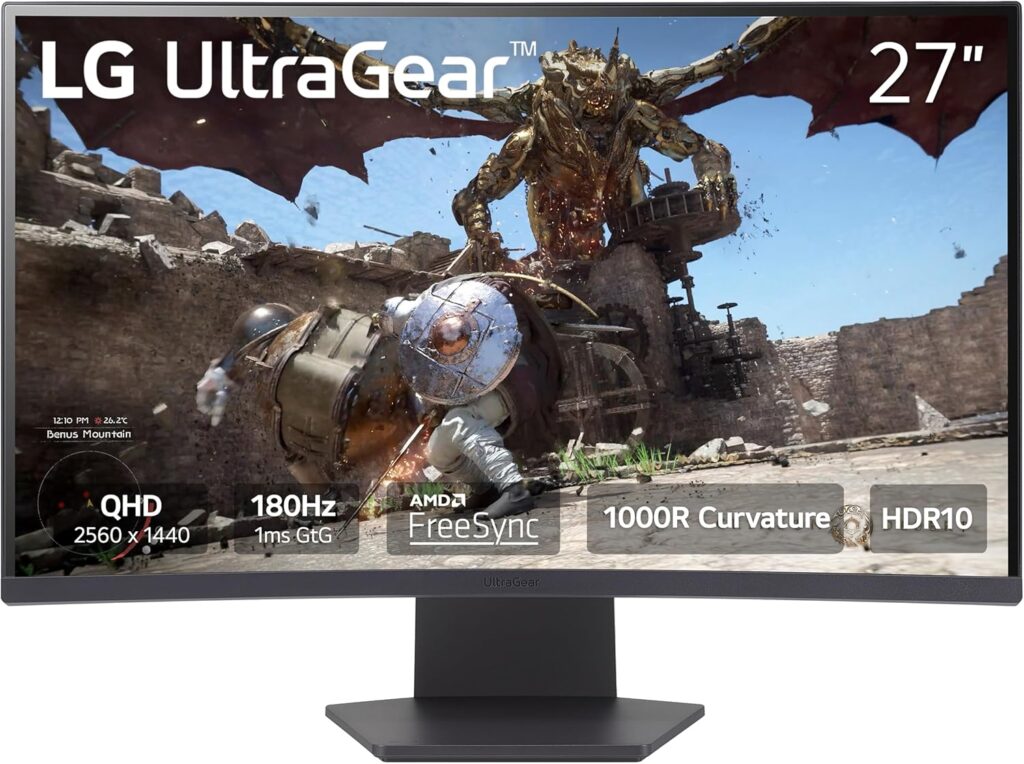
    ๐Ÿฅ‡ Best Overall โ€” LG 27GS60QC-B Ultragear (27″ QHD 180Hz IPS)

    LG57GS60QC-B fundo branco fonte Amazon US
    Official design of the LG27GS60QC-B. (Image: Amazon US)

    ๐Ÿ‘‰ Check price on Amazon

    Why we love it: This is the gold standard in the under-$300 range. LG’s Nano IPS panel delivers stunning color accuracy, ultra-fast 1ms response time, and support for NVIDIA G-Sync and AMD FreeSync Premium. At 1440p and 180Hz, it makes Xbox Series X content look absolutely gorgeous.

    Specs at a glance:

    • Panel: Nano IPS
    • Resolution: 2560×1440 (1440p)
    • Refresh Rate: 180Hz (120Hz on PS5/Xbox via HDMI 2.1)
    • Response Time: 1ms GtG
    • HDR: HDR400
    • Ports: 2x HDMI 2.0, 1x DisplayPort 1.4, 2x USB-A

    Pros:

    • Exceptional color accuracy out of the box
    • 180Hz feels silky even on consoles at 120Hz
    • Slim bezels, premium build quality
    • Great for both gaming and content creation

    Cons:

    • HDMI 2.0 means PS5 won’t hit full 4K@120Hz (HDMI 2.1 is needed for that)
    • HDR400 is entry-level HDR

    Best for: Xbox Series X owners and PC+console hybrid setups.


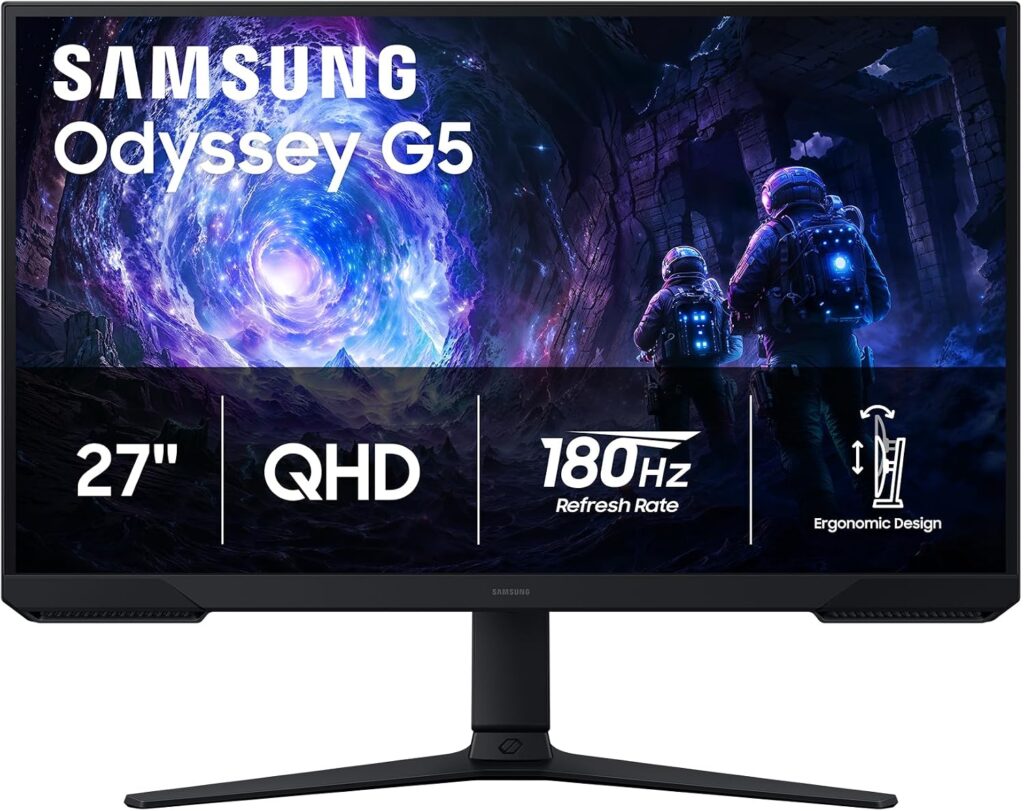
    ๐Ÿฅˆ Best Value Pick โ€” Samsung Odyssey G5 (27″ 1440p 180Hz IPS)

    Samsung Odyssey G5 com fundo branco, fonte Amazon US
    Official design of the Odyssey G5. (Image: Amazon US)

    ๐Ÿ‘‰ Check price on Amazon

    Why we love it: If you play fast-paced competitive games like Valorant, Fortnite, or Call of Duty on console, the Odyssey G5 is a beast. 180Hz is overkill for consoles right now, but you get a monitor that will never feel sluggish, with Samsung’s IPS Black technology for deeper blacks than typical IPS panels.

    Specs at a glance:

    • Panel: IPS Black
    • Resolution: 2560 x 1440 (1440p)
    • Refresh Rate: 180Hz
    • Response Time: 1ms GtG
    • HDR: HDR10
    • Ports: 2x HDMI 1.4, 3x USB 3.0

    Pros:

    • Insanely fast refresh rate
    • Better contrast than standard IPS
    • Excellent motion clarity

    Cons:

    • 1440p shows pixel grid on 27″ up close
    • No HDMI 2.1

    Best for: Competitive console players who prioritize speed over resolution.


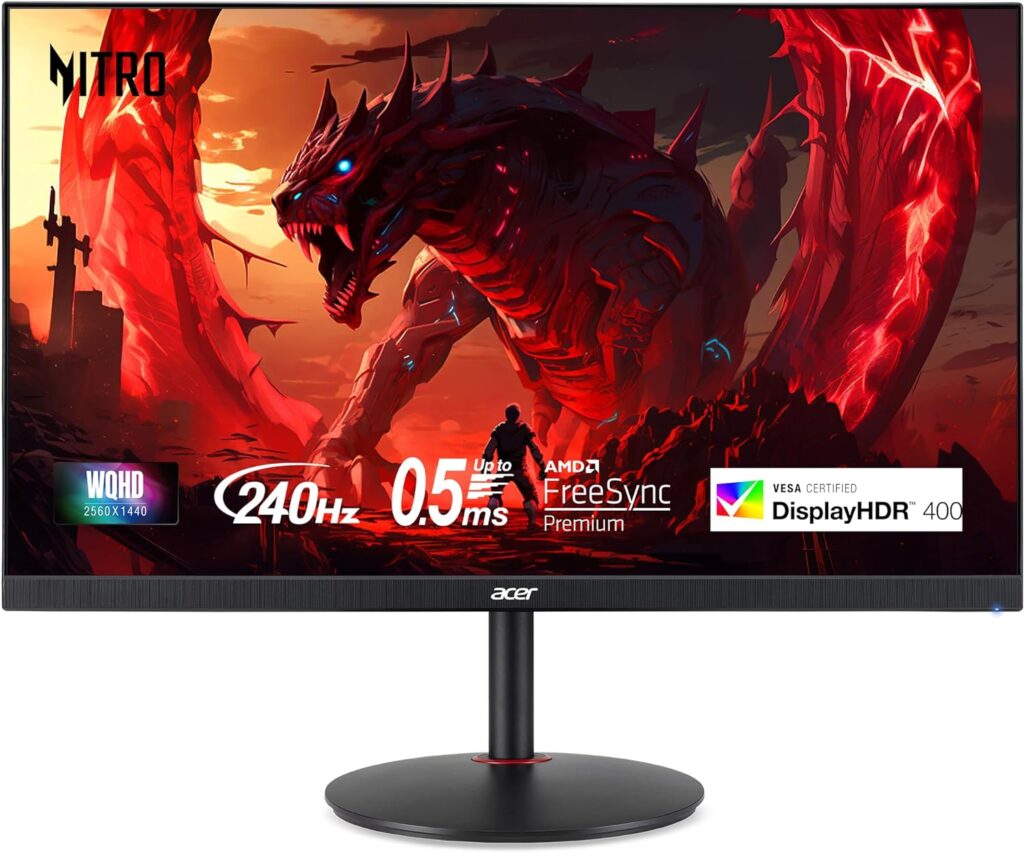
    ๐Ÿฅ‰ Best Budget Option โ€” Acer Nitro XV272U (27″ 1440p 144Hz IPS)

    Monitor Acer Nitro XV272U no fundo branco, fonte Amazon US
    Official design of the Acer XV272U. (Image: Amazon US)

    ๐Ÿ‘‰ Check price on Amazon

    Why we love it: The Nitro XV272U punches well above its price tag. It’s one of the cheapest ways to get into 1440p at 144Hz, with solid IPS colors and AMD FreeSync Premium support. Not the flashiest monitor on this list, but it gets the job done reliably.

    Specs at a glance:

    • Panel: IPS
    • Resolution: 2560×1440 (1440p)
    • Refresh Rate: 144Hz
    • Response Time: 1ms VRB
    • HDR: HDR400
    • Ports: 2x HDMI 2.0, 1x DisplayPort 1.4

    Pros:

    • Affordable entry into 1440p gaming
    • Good factory color calibration
    • Sturdy stand with height adjustment

    Cons:

    • Backlight bleed can be present on some units
    • No HDMI 2.1

    Best for: Budget-conscious buyers who want 1440p without breaking the bank.


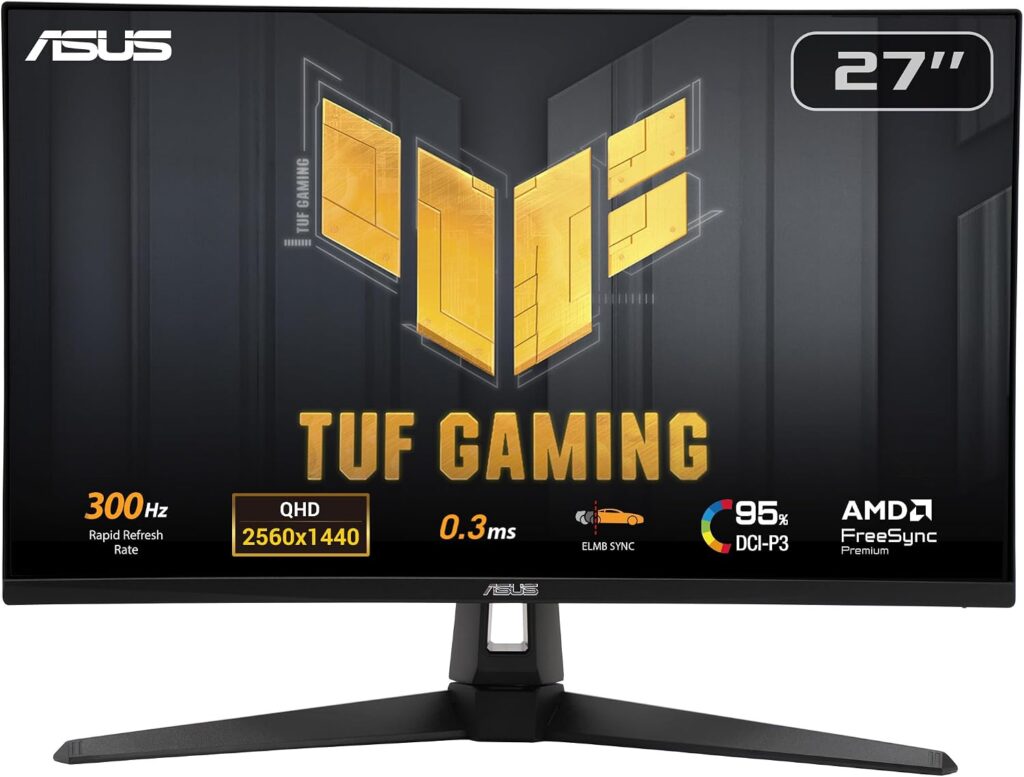
    ๐ŸŽฏ Best for PS5 Specifically โ€” ASUS TUF Gaming VG27AQM5A (27″ QHD 300Hz)

    Monitor Asus VG27AQM5A no fundo branco, fonte Amazon US
    Official design of the Asus VG27AQM5A. (Image: Amazon US)

    ๐Ÿ‘‰ Check price on Amazon

    Why we love it: This is the wild card. At the $300 budget (prices fluctuate โ€” grab it on sale), the VG27AQM5A is one of the few monitors with HDMI 2.1, unlocking true 2K@300Hz on PS5 and Xbox Series X. If you want the full next-gen experience, this is your monitor.

    Specs at a glance:

    • Panel: IPS
    • Resolution: 2560×1440 (2K)
    • Refresh Rate: 300Hz (PC) / 120Hz @ 4K (console via HDMI 2.1)
    • Response Time: 1ms GtG
    • HDR: HDR400
    • Ports: 2x HDMI 2.1, 1x DisplayPort 1.4

    Pros:

    • True HDMI 2.1 for 2K@120Hz on PS5
    • Future-proof resolution
    • VRR and FreeSync Premium support

    Cons:

    • HDR performance is still entry-level

    Best for: PS5 owners who want the definitive console gaming display.


    ๐Ÿ“Š Full Comparison Table

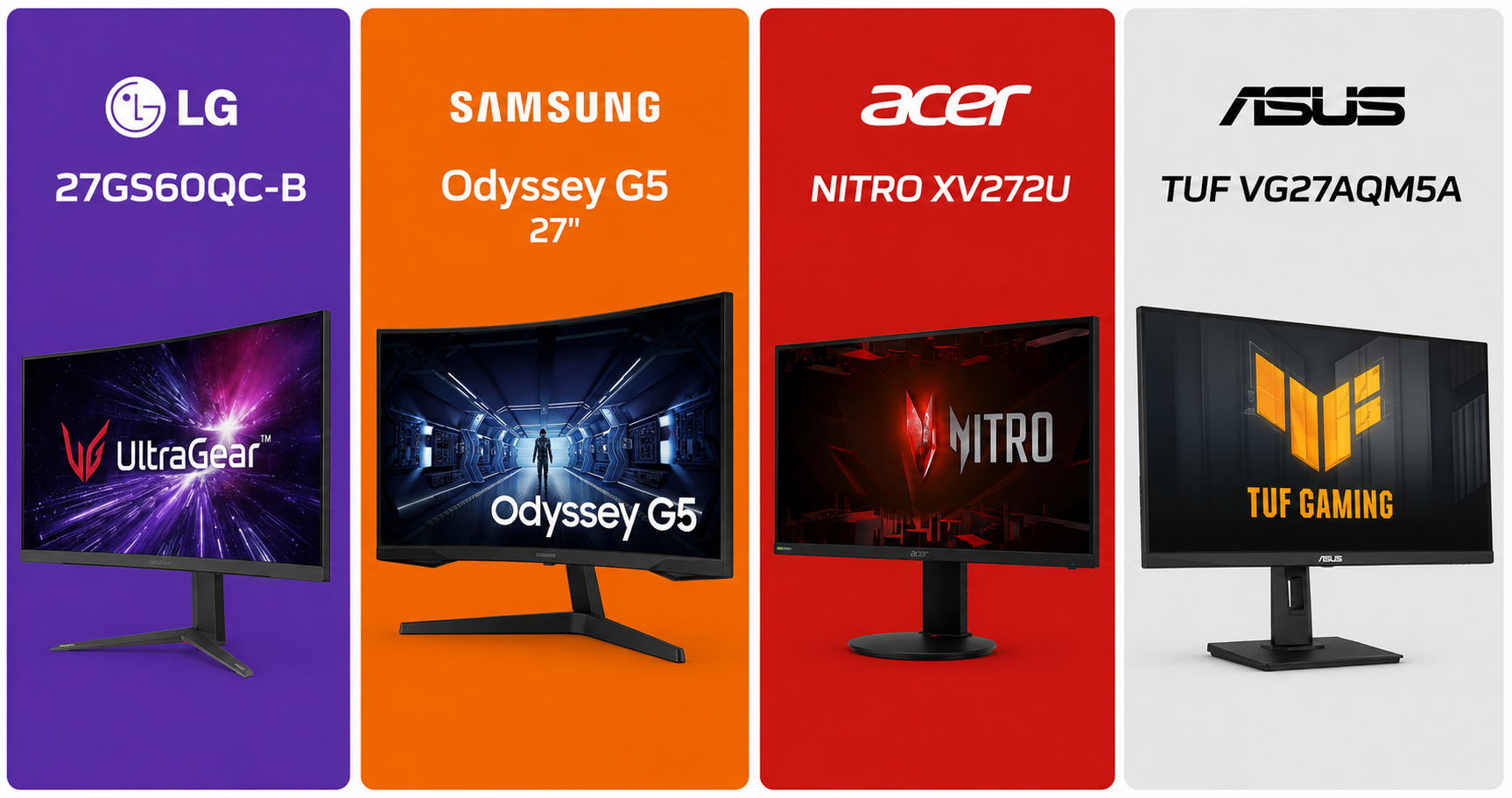
    MonitorSizeResolutionHzPanelHDMI 2.1Price Range
    LG 27GS60QC-B27″1440p180HzVAโŒ~$250โ€“$280
    Samsung Odyssey G527″1440p180HzVAโŒ~$200โ€“$230
    Acer Nitro XV272U27″1440p144HzIPSโŒ~$180โ€“$220
    ASUS TUF VG27AQM5A27″1440p300HzIPSโœ…~$280โ€“$320

    ๐Ÿค” Which Monitor Should You Buy?

    • Best all-around pick: โ†’ LG 27GS60QC-B. Stunning image, fast panel, great for any console.
    • Tight budget: โ†’ Acer Nitro XV272U. Reliable 1440p without the premium price.
    • Competitive multiplayer focus: โ†’ Samsung Odyssey G5. Speed above all else.
    • PS5 true 2K@300Hz: โ†’ ASUS TUF VG27AQM5A. The only one with HDMI 2.1 on this list.

    โ“ FAQ

    Does PS5 support 144Hz? No โ€” PS5 maxes out at 120Hz over HDMI 2.1. A 144Hz monitor will cap at 120Hz, which is still a massive upgrade over 60Hz.

    Do I need HDMI 2.1 for PS5? Only if you want 4K@120Hz simultaneously. At 1080p or 1440p@120Hz, HDMI 2.0 is sufficient.

    Is 1440p worth it over 1080p for consoles? Yes, especially on screens 27″ and above. The image quality difference is clearly visible in open-world and cinematic games.

    Will these monitors work with PC too? Absolutely โ€” all picks on this list are excellent for PC gaming as well.

    Did you see our post about Build the Ultimate Gaming Setup in 2026? Check it now!


    Last updated: June 2026 | Prices may vary by retailer and region.

    โš ๏ธ Affiliate Disclosure: TechPlayGrid participates in the Amazon Associates Program and other affiliate programs. We earn a small commission on qualifying purchases at no extra cost to you. Our recommendations are always based on honest research and testing.

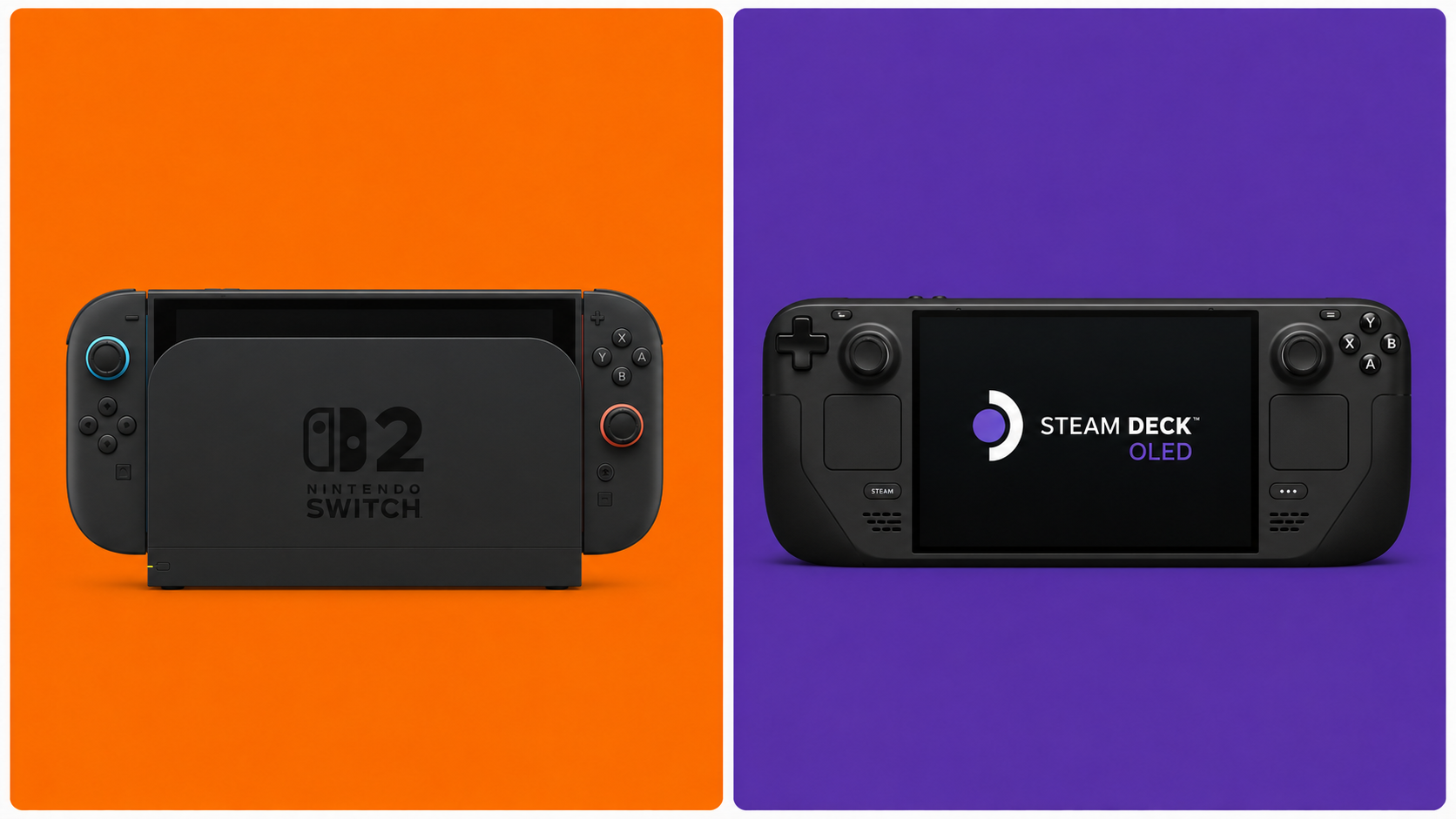
  • Nintendo Switch 2 vs. Steam Deck OLED: Which Handheld Console Should You Buy in 2026?

    Nintendo Switch 2 vs. Steam Deck OLED: Which Handheld Console Should You Buy in 2026?

    The ultimate portable gaming showdown โ€” and there’s a clear winner for most people


    Estimated reading time: 11 minutes


    Handheld gaming is having its best year ever. The Nintendo Switch 2 finally arrived after years of rumors, and Valve’s Steam Deck OLED is still going strong as the fan-favorite PC gaming powerhouse you can take anywhere. Both cost around the same. Both are incredible. Both will empty your wallet in different ways.

    So which one should you actually buy?

    That depends entirely on who you are as a gamer โ€” and this guide breaks down every major factor so you can make the right call before spending $350 to $450 on a handheld console in 2026.


    ๐Ÿ“Š Quick Specs Comparison

    FeatureNintendo Switch 2Steam Deck OLED
    Price$449.99$349โ€“$419
    Display7.9″ LCD, 1080p, 120Hz7.4″ OLED, 1280ร—800, 90Hz
    ProcessorCustom NVIDIA (Tensor + RT Cores)AMD Zen 2 + RDNA 2
    RAM12GB LPDDR5X16GB LPDDR5
    Storage256GB UFS512GBโ€“1TB NVMe
    Battery2โ€“6.5 hours3โ€“8 hours
    Docked OutputUp to 4K (with DLSS)Up to 8K (limited by game)
    Game LibraryNintendo exclusives + portsVirtually all PC games
    OnlineNintendo Switch Online requiredSteam โ€” free online
    Weight401g669g

    ๐Ÿ–ฅ๏ธ The Display: Two Different Philosophies

    This is where the debate starts โ€” and it’s more nuanced than most people think.

    The Nintendo Switch 2 uses a 7.9-inch LCD panel running at 1080p and up to 120Hz. It’s bright, responsive, and significantly larger than the original Switch’s screen. The 120Hz refresh rate is a genuine upgrade for gaming feel โ€” menus, games, and animations all look smoother than what you’d see on most other handhelds.

    The Steam Deck OLED, on the other hand, uses a 7.4-inch OLED display at 1280ร—800 resolution and up to 90Hz. OLED means true blacks, infinite contrast ratios, and colors that pop in a way LCD simply can’t match. Every game looks cinematically rich on the Steam Deck’s screen โ€” even at a slightly lower resolution.

    Winner: Depends on what you value. 120Hz LCD vs. 90Hz OLED is a genuine tradeoff. For competitive games and fast action, Switch 2 feels snappier. For story-driven RPGs, visual media, and cinematic experiences, Steam Deck OLED’s display is flat-out gorgeous.


    ๐ŸŽฎ 1. Game Library: The Most Important Factor

    This is where the choice gets clearest for most people.

    Nintendo Switch 2

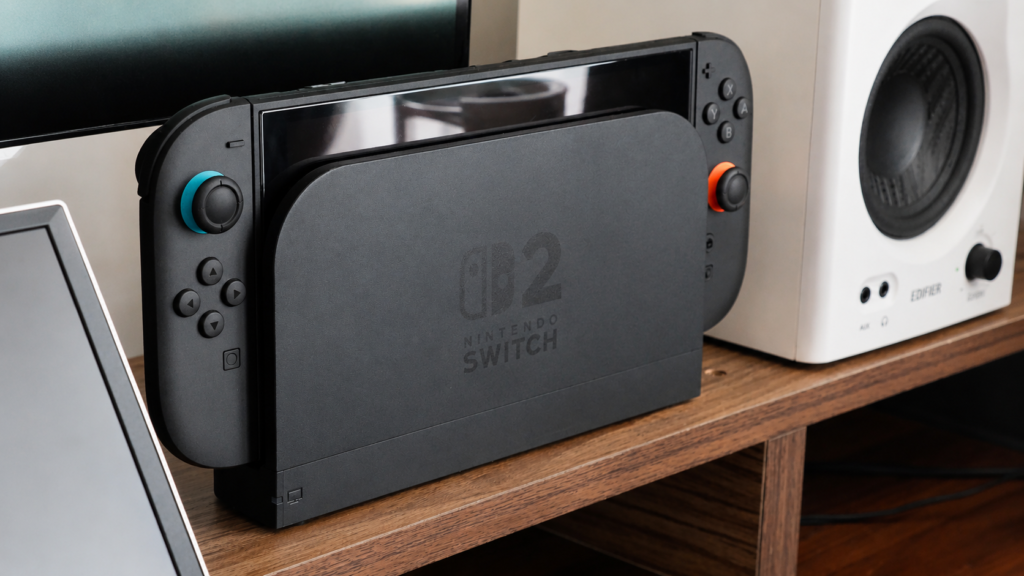
    nintendo switch 2 na estante fullhd
    Nintendo Swith 2

    The Switch 2 plays every Switch 2 exclusive and has backward compatibility with most Nintendo Switch 1 titles. That means access to:

    • The Legend of Zelda: Breath of the Wild / Tears of the Kingdom (upgraded versions)
    • Mario Kart World (Switch 2 launch title)
    • Donkey Kong Bananza
    • Metroid Prime 4: Beyond
    • Every major Nintendo franchise going forward

    If you grew up with Nintendo, there’s simply no substitute. These games don’t exist anywhere else. No PC port, no Xbox version โ€” Nintendo’s exclusives are the entire reason the Switch 2 exists.

    ๐Ÿ‘‰ Nintendo Switch 2 on Amazon

    Steam Deck OLED

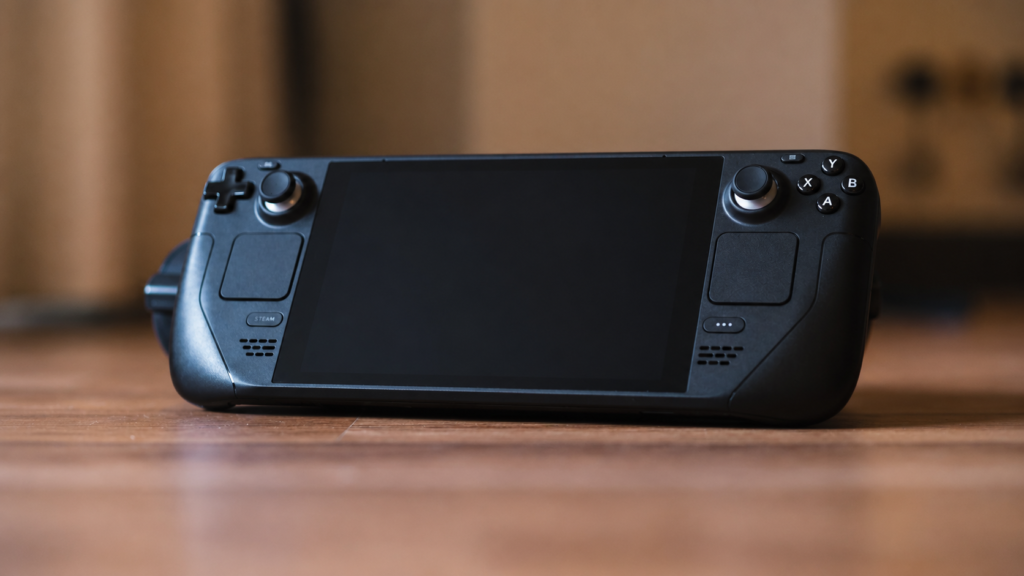
    steam deck oled no chรฃo
    Steam Deck Oled

    The Steam Deck runs SteamOS and can access your entire Steam library โ€” tens of thousands of games, including:

    • Everything from your existing Steam account
    • PC exclusives (Strategy games, MOBAs, indie gems)
    • Emulation (with some setup)
    • Non-Steam game launchers like Epic, GOG, and Xbox Game Pass PC

    The Steam Deck is essentially a gaming PC in handheld form. If you have a large PC library, every game you own is suddenly portable.

    ๐Ÿ‘‰ Steam Deck OLED on Amazon

    Pro Tip: Check the Steam Deck Verified database before buying if you want to confirm specific games run well. Most major titles are fully verified, but edge cases exist.

    Winner: Nintendo Switch 2 for Nintendo fans. Steam Deck for PC gamers. If you play both worlds, see the next section.


    โšก 2. Performance: DLSS Changes Everything for Switch 2

    The Nintendo Switch 2 is built around a custom NVIDIA chip with dedicated RT Cores (ray tracing) and Tensor Cores (DLSS neural upscaling). This is the same technology that powers NVIDIA’s RTX GPU lineup โ€” the difference is that it’s in a handheld.

    In practice, this means:

    • Games can run at a lower internal resolution and be upscaled by AI to 1080p in handheld mode and 4K in docked mode
    • Ray tracing effects (reflections, shadows, global illumination) are available in supported titles
    • Performance is significantly higher than what the raw specs would suggest

    The Steam Deck OLED uses an AMD Zen 2 / RDNA 2 chip โ€” solid and proven, but based on architecture from 2020. In 2026, the Steam Deck starts to show its age against newer, graphically demanding titles. Valve is expected to release a Steam Deck 2 eventually, but no official announcement has been made.

    Winner: Nintendo Switch 2 in raw performance and future-proofing.


    ๐Ÿ”‹ 3. Battery Life: Real-World Numbers

    Both manufacturers publish optimistic battery estimates. Here’s what real-world testing shows:

    Game TypeSwitch 2Steam Deck OLED
    Light indie games6โ€“7 hours7โ€“8 hours
    Mid-weight RPGs4โ€“5 hours4โ€“5 hours
    Demanding AAA titles2โ€“3 hours2โ€“3.5 hours

    Roughly equivalent for most use cases. The Steam Deck OLED made major improvements over the original model with a larger 50Whr battery, and it shows.

    One advantage the Switch 2 has: it charges via USB-C at up to 45W, and Nintendo’s official dock charges it quickly even during play. The Steam Deck also charges via USB-C but draws more power under load, meaning charging while gaming requires a higher-wattage adapter.

    ๐Ÿ‘‰ NOCO U65 65W USB-C Charger on Amazon โ€” works perfectly with both handhelds.

    Winner: Tie in normal use. Steam Deck OLED very slightly edges out for light gaming.


    ๐Ÿ’ฐ 4. Cost: The Real Total Price

    The sticker price is only the beginning.

    Nintendo Switch 2 True Cost

    ItemPrice
    Console$449.99
    Nintendo Switch Online + Expansion Pack (annual)$49.99/year
    Games (Nintendo exclusives, $60โ€“$80 each)$60โ€“$80 per game
    MicroSD card (storage expansion)$30โ€“$60
    Extra Joy-Con pair$79.99
    Typical first-year cost~$700โ€“$800

    ๐Ÿ‘‰ SanDisk 512GB MicroSD for Switch 2 on Amazon ๐Ÿ‘‰ Nintendo Switch 2 Joy-Con on Amazon

    Steam Deck OLED True Cost

    ItemPrice
    Console (512GB model)$349
    Steam games (sales, bundles, backlog)Varies widely
    Carrying case$20โ€“$50
    Dock (optional, for TV gaming)$89 (official) or $30 third-party
    Typical first-year cost~$450โ€“$550

    If you already have a Steam library with dozens of games, the Steam Deck pays for itself quickly. The Switch 2’s premium game prices and mandatory online subscription add up fast.

    ๐Ÿ‘‰ Valve Steam Deck Carrying Case on Amazon ๐Ÿ‘‰ Steam Deck Official Dock on Amazon

    Winner: Steam Deck OLED in pure value. Nintendo Switch 2 if Nintendo games are what you want โ€” you’ll pay a premium, but there’s no substitute.


    ๐Ÿ  5. TV/Docked Mode: Switch 2 Wins Easily

    If you plan to use your handheld as a home console too โ€” plug it into your TV, sit on the couch, play with a controller โ€” the Switch 2 is purpose-built for this.

    The Nintendo Switch 2 dock outputs HDMI 2.0 with DLSS upscaling to 4K. The experience is seamless: remove from dock, play in handheld mode, put it back, continue on TV. It’s the same game, same save file, no friction.

    The Steam Deck can also connect to a TV via USB-C dock or DisplayPort, but it requires a bit more setup and doesn’t have the same plug-and-play elegance. Desktop mode on the Steam Deck is genuinely useful but adds a learning curve compared to Nintendo’s simplicity.

    ๐Ÿ‘‰ Nintendo Switch 2 Dock on Amazon

    Winner: Nintendo Switch 2 for TV gaming experience.


    ๐Ÿง’ 6. Who Is Each Console For?

    Buy the Nintendo Switch 2 if you:

    • Love Nintendo franchises (Zelda, Mario, Metroid, Pokรฉmon)
    • Want the most social handheld experience (local multiplayer, Joy-Con sharing)
    • Plan to use it on a TV as well as in handheld mode
    • Are buying for a child or family gaming sessions
    • Want a polished, out-of-the-box experience with no setup required

    Buy the Steam Deck OLED if you:

    • Already have a large Steam library
    • Love PC gaming and want it portable
    • Play indie games, strategy titles, RPGs
    • Are comfortable with some light tinkering (installing non-Steam launchers, etc.)
    • Want the best value for money on a handheld
    • Are interested in emulation

    ๐ŸŽฎ The Best Accessories for Each Console

    Nintendo Switch 2 Accessories

    ๐Ÿ‘‰ Nintendo Switch 2 Pro Controller on Amazon โ€” essential for extended play ๐Ÿ‘‰ Nintendo Switch 2 Carrying Case on Amazon โ€” protect your $450 investment ๐Ÿ‘‰ SanDisk 1TB MicroSD UHS-I Card on Amazon โ€” Switch 2 games take up serious space ๐Ÿ‘‰ HORI Split Pad Compact for Switch 2 on Amazon โ€” better grip for handheld mode

    Steam Deck OLED Accessories

    ๐Ÿ‘‰ dbrand Steam Deck OLED Skin on Amazon โ€” the most popular customization ๐Ÿ‘‰ Deckmate Accessory Hub on Amazon โ€” attaches stands, mounts, more ๐Ÿ‘‰ Satisfye ZenGrip Pro for Steam Deck on Amazon โ€” essential for long sessions


    ๐Ÿ† Final Verdict

    CategoryWinner
    Game library (Nintendo fans)โœ… Nintendo Switch 2
    Game library (PC gamers)โœ… Steam Deck OLED
    Display qualityโœ… Steam Deck OLED (OLED)
    Display size / refresh rateโœ… Nintendo Switch 2
    Performance & future-proofingโœ… Nintendo Switch 2
    Battery life๐Ÿค Tie
    TV/docked modeโœ… Nintendo Switch 2
    Value for moneyโœ… Steam Deck OLED
    Ease of useโœ… Nintendo Switch 2
    Customization / flexibilityโœ… Steam Deck OLED

    The honest answer: If you have to pick one, the Nintendo Switch 2 is the better handheld console for most people in 2026. It’s more powerful, better designed for TV gaming, has the best exclusives in the industry, and the DLSS technology means it will age much better than the Steam Deck’s aging AMD chip.

    But if you’re a PC gamer who wants to take your library on the road and don’t care about Nintendo games โ€” the Steam Deck OLED is still one of the best gaming devices ever made. Especially at $349.

    Can’t decide? Buy both. We’re not judging.


    This post contains affiliate links. If you purchase through our links, we may earn a small commission at no extra cost to you. We only recommend products we genuinely stand behind.


    Tags: Nintendo Switch 2 vs Steam Deck, best handheld console 2026, Switch 2 review, Steam Deck OLED review, portable gaming 2026, handheld gaming comparison, Nintendo Switch 2 accessories, Steam Deck accessories