Category: Games

Discover the latest console news, retro gaming highlights, and gameplay tips. From Nintendo, PC, Playstation and Xbox updates to strategies for your favorite titles.

  • How to Fix Discord Lag Valorant While Playing (Without Buying New Hardware)

    How to Fix Discord Lag Valorant While Playing (Without Buying New Hardware)

    Discord Lag Valorant? We can help!

    (Last Updated: November 2026)


    You’re mid-match in Valorant, peeking a corner โ€” and suddenly your Discord call cuts out, your frames tank, or your voice starts robot-chopping through the mic. Your teammates can’t hear callouts. You die. You tilt.

    Sound familiar?

    This is one of the most common complaints from PC gamers, and the good news is: most of the fixes are completely free and take under 10 minutes. We’ll walk you through every solution, from the easiest to the most advanced. Only at the very end will we suggest any hardware upgrades โ€” and only if you truly need them.

    โš ๏ธ Affiliate Disclosure: TechPlayGrid is reader-supported. When you buy through links on our site, we may earn an affiliate commission at no extra cost to you.


    ๐Ÿ” Why Does Discord Lag While Playing Valorant?

    How to Fix Discord Lag Valorant

    Before fixing anything, let’s understand why this happens. There are three main culprits:

    CauseWhat It Does
    CPU/RAM bottleneckYour PC struggles to run both Valorant and Discord simultaneously
    Network congestionYour router can’t prioritize voice traffic over game data
    Discord settingsDefault settings aren’t optimized for gaming

    Valorant is a competitive shooter โ€” it’s demanding on CPU and network. Discord’s voice processing also uses CPU cycles. When they fight for resources, one (or both) suffers.


    โœ… Step-by-Step Fixes (Free, Software Only) – Discord Lag Valorant

    ๐Ÿ› ๏ธ Fix 1 โ€” Lower Discord’s Hardware Acceleration

    Problem: Discord Lag Valorant

    Time: 1 minute | Difficulty: Easy

    Discord uses your GPU to render its interface by default. This sounds helpful, but in practice it competes with Valorant for GPU resources.

    1. Open Discord โ†’ Settings (gear icon)
    2. Go to Advanced
    3. Toggle Hardware Acceleration โ†’ OFF
    4. Restart Discord

    ๐Ÿ’ก Pro Tip: This single fix resolves the lag for most users. Do this first before anything else.


    ๐Ÿ› ๏ธ Fix 2 โ€” Change Discord’s Audio Subsystem

    Problem: Discord Lag Valorant

    Time: 2 minutes | Difficulty: Easy

    Discord’s default audio subsystem (“Standard”) can cause conflicts with games. Switching to Legacy often fixes voice cutting out.

    1. Discord โ†’ Settings โ†’ Voice & Video
    2. Scroll down to Audio Subsystem
    3. Change from Standard to Legacy
    4. Restart Discord

    ๐Ÿ› ๏ธ Fix 3 โ€” Set Discord and Valorant Process Priorities in Windows

    Problem: Discord Lag Valorant

    Time: 3 minutes | Difficulty: Medium

    Windows doesn’t automatically know which apps matter most. You can manually tell it to prioritize Valorant (game performance) and give Discord just enough CPU to function smoothly.

    1. Launch both Valorant and Discord
    2. Press Ctrl + Shift + Esc to open Task Manager
    3. Go to the Details tab
    4. Right-click VALORANT-Win64-Shipping.exe โ†’ Set Priority โ†’ High
    5. Right-click Discord.exe โ†’ Set Priority โ†’ Below Normal

    โš ๏ธ Warning: Setting Valorant to “Real Time” priority can cause system instability. “High” is the sweet spot.


    ๐Ÿ› ๏ธ Fix 4 โ€” Disable Windows Game Mode (Counterintuitive But Effective)

    Problem: Discord Lag Valorant

    Time: 1 minute | Difficulty: Easy

    Windows Game Mode sounds great in theory, but it can actually cause stutters by aggressively reallocating resources mid-game.

    1. Press Windows + I โ†’ Gaming โ†’ Game Mode
    2. Toggle Game Mode โ†’ OFF
    3. Reboot your PC

    ๐Ÿ› ๏ธ Fix 5 โ€” Flush Your DNS and Renew IP

    Problem: Discord Lag Valorant

    Time: 2 minutes | Difficulty: Easy

    Stale DNS cache can cause both Valorant and Discord to have unstable connections. This clears it out.

    1. Press Windows + R โ†’ type cmd โ†’ Run as Administrator
    2. Paste these commands one by one:
    ipconfig /flushdns
    ipconfig /release
    ipconfig /renew
    netsh winsock reset
    
    1. Restart your PC

    ๐Ÿ› ๏ธ Fix 6 โ€” Enable Quality of Service (QoS) on Your Router

    Problem: Discord Lag Valorant

    Time: 5โ€“10 minutes | Difficulty: Medium

    QoS tells your router to prioritize certain types of traffic โ€” in this case, your game and voice data โ€” over other household bandwidth hogs (Netflix, cloud backups, etc.).

    1. Open your browser and go to your router’s admin panel (usually 192.168.0.1 or 192.168.1.1)
    2. Log in (check the sticker on your router for default credentials)
    3. Find QoS or Traffic Priority settings
    4. Set Gaming or Voice/VoIP to highest priority

    ๐Ÿ’ก Pro Tip: Not all routers have QoS. If yours doesn’t, it might be time for a router upgrade โ€” more on that below.


    ๐Ÿ› ๏ธ Fix 7 โ€” Disable Discord’s Noise Suppression (Krisp)

    Problem: Discord Lag Valorant

    Time: 1 minute | Difficulty: Easy

    Discord’s built-in Krisp noise suppression is AI-powered and surprisingly CPU-hungry. If your PC is older, this alone can cause stutters.

    1. Discord โ†’ Settings โ†’ Voice & Video
    2. Under Noise Suppression, select None or Krisp (light)
    3. Alternatively, disable Echo Cancellation if not needed

    ๐Ÿ› ๏ธ Fix 8 โ€” Optimize Valorant’s In-Game Settings for Better CPU Headroom

    Problem: Discord Lag Valorant

    Time: 5 minutes | Difficulty: Easy

    Freeing up CPU cycles inside Valorant gives Discord more room to breathe.

    Recommended settings in Valorant:

    SettingRecommended Value
    Limit FPS on BatteryOn
    Limit FPS in MenusOn (set to 60)
    Limit FPS in BackgroundOn (set to 30)
    Multithreaded RenderingOn
    Material QualityLow
    Texture QualityLow
    Detail QualityLow
    UI QualityLow
    Bloom / DistortionOff

    ๐Ÿ’ก Pro Tip: Valorant pros play on these exact low settings โ€” not because their PCs can’t handle more, but because it maximizes frame rate consistency and reduces input lag.


    ๐Ÿ“Š Fix Priority Cheat Sheet

    FixImpactTimeDifficulty
    Disable Hardware Accelerationโญโญโญโญโญ1 minEasy
    Change Audio Subsystem to Legacyโญโญโญโญ1 minEasy
    Set Process Priorityโญโญโญโญ3 minMedium
    Disable Game Modeโญโญโญ1 minEasy
    Flush DNSโญโญโญ2 minEasy
    Enable Router QoSโญโญโญโญโญ10 minMedium
    Disable Krispโญโญโญ1 minEasy
    Optimize Valorant Settingsโญโญโญโญ5 minEasy

    ๐Ÿ’ป Still Lagging? Maybe It’s Time for a Hardware Upgrade

    If you’ve done everything above and still experience lag, your hardware is likely the bottleneck. Here’s what to look at:

    ๐Ÿ“‹ How we research: Tech Play Grid doesnโ€™t test products hands-on. Our recommendations are based on specifications, prices and verified buyer feedback, cross-checked across multiple sources (you can find them at the end of our post). We also explain the trade-offs of each product, so you can decide what fits your needs and budget. Learn more on our About page.

    Option A โ€” Upgrade Your Router

    If multiple people share your internet and QoS isn’t available on your current router, a Wi-Fi 6 router with proper QoS is a game-changer.

    ๐Ÿ‘‰ Best Gaming Routers Under $150 โ€” Amazon ๐Ÿ‘‰ TP-Link Archer AX5400 โ€” Best Budget Wi-Fi 6 Router

    Option B โ€” Switch to Wired (Ethernet)

    Wi-Fi adds latency and instability. A single Ethernet cable to your PC can cut your ping by 10โ€“30ms and eliminate most voice call drops.

    ๐Ÿ‘‰ Cat 8 Ethernet Cable 25ft โ€” Amazon

    Option C โ€” Add More RAM

    Valorant + Discord + Windows background processes need at least 16GB RAM. If you have 8GB, upgrading is the single most impactful hardware change you can make under $50.

    ๐Ÿ‘‰ Corsair Vengeance 32GB DDR4 โ€” Amazon

    Option D โ€” Upgrade Your Headset/Microphone

    Sometimes Discord voice issues come from a low-quality microphone creating feedback loops. A headset with a cardioid mic and built-in noise cancellation eliminates that entirely.

    ๐Ÿ‘‰ Best Gaming Headsets Under $100 โ€” TechPlayGrid Guide ๐Ÿ‘‰ SteelSeries Arctis Nova 3 โ€” Editor’s Pick


    โ“ FAQ

    Why does my Discord cut out only during Valorant matches? Valorant is CPU-intensive during active matches. The spike in CPU usage leaves less headroom for Discord’s voice processing. Fixes 1, 2, and 3 above address this directly.

    Is it safe to set Valorant to High priority in Task Manager? Yes, “High” is safe. Avoid “Real Time” โ€” that can destabilize Windows.

    Does running Discord as Administrator help? Sometimes. Right-click the Discord shortcut โ†’ Run as Administrator and test it.

    Will a VPN help with Valorant lag? Generally no โ€” VPNs add a routing hop that increases latency. Only use a gaming VPN if your ISP is specifically throttling gaming traffic.

    Can I use Discord on my phone instead to save PC resources? Yes! Joining Discord voice chat on your phone via Wi-Fi is a great workaround while you troubleshoot. It offloads all audio processing from your PC entirely.


    Last updated: October 2026

    โš ๏ธ Affiliate Disclosure: TechPlayGrid participates in the Amazon Associates Program and other affiliate programs. We earn a small commission on qualifying purchases at no extra cost to you. Our recommendations are always based on honest, independent research.
  • Best 144Hz Monitor Under $300 in 2026 (PS5 & Xbox)

    Best 144Hz Monitor Under $300 in 2026 (PS5 & Xbox)


    Best 144Hz Monitor Under $300 in 2026: 4 Options Compared for Console Gaming

    (Last updated November/2026)

    Finding the best 144Hz monitor under $300 for console gaming is harder than it looks. The difference between 60Hz and 144Hz is night and day โ€” faster response, buttery-smooth motion, and a genuine competitive edge in shooters and racing games.

    The good news? You don’t need to spend a fortune. There are excellent 144Hz monitors under $300 that pair perfectly with current-gen consoles. We researched and compared the top options on the market so you donโ€™t have to.

    Let’s break it down.

    โš ๏ธ Affiliate Disclosure: TechPlayGrid is reader-supported. When you buy through links on our site, we may earn an affiliate commission at no extra cost to you.

    ๐Ÿ“‹ How we research: Tech Play Grid doesnโ€™t test products hands-on. Our recommendations are based on specifications, prices and verified buyer feedback, cross-checked across multiple sources (you can find them at the end of our post). We also explain the trade-offs of each product, so you can decide what fits your needs and budget. Learn more on our About page.


    ๐ŸŽฎ What to Look For in a Console Gaming Monitor

    Best 144Hz Monitor Under $300

    Before jumping into the list, here’s a quick cheat sheet of specs that actually matter for PS5 and Xbox Series X:

    SpecWhy It MattersRecommended
    Refresh RateSmoother motion, less blur144Hz minimum
    ResolutionImage sharpness1080p (budget) or 1440p (sweet spot)
    Panel TypeColor & response timeIPS (best balance) or VA (better contrast)
    Response TimeGhosting reduction1msโ€“5ms
    HDR SupportBetter highlights/shadowsHDR400 or better
    HDMI VersionConsole compatibilityHDMI 2.1 for full bandwidth
    VRR / FreeSyncTear-free gamingEssential for consoles

    ๐Ÿ’ก Pro Tip: PS5 supports up to 120Hz via HDMI 2.1. A 144Hz monitor will cap at 120Hz on PS5, which is still a massive upgrade over 60Hz โ€” and future-proofs you for PC gaming too.


    ๐Ÿ† Best 144Hz Monitors Under $300 for Consoles (2026 Picks)

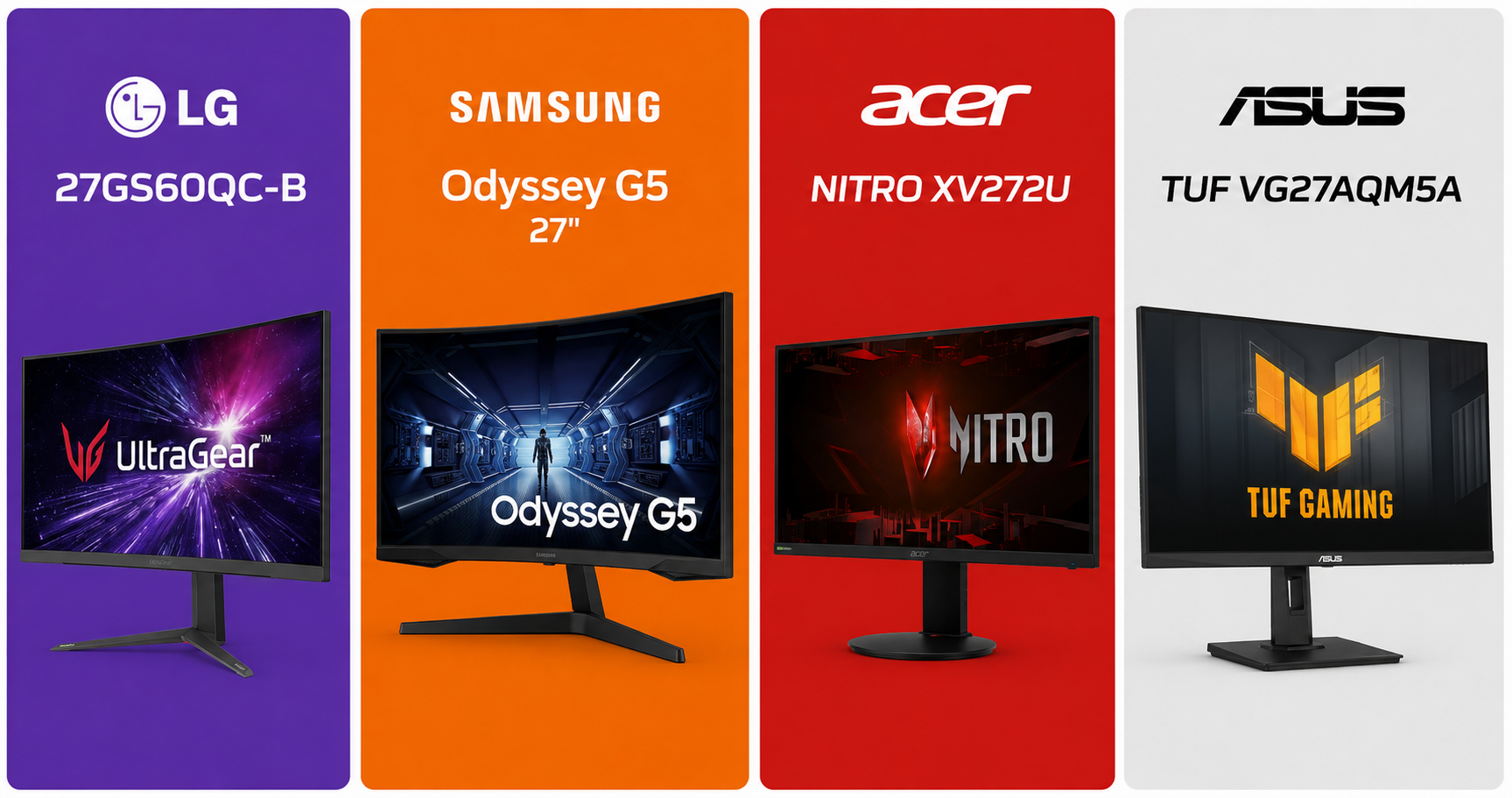
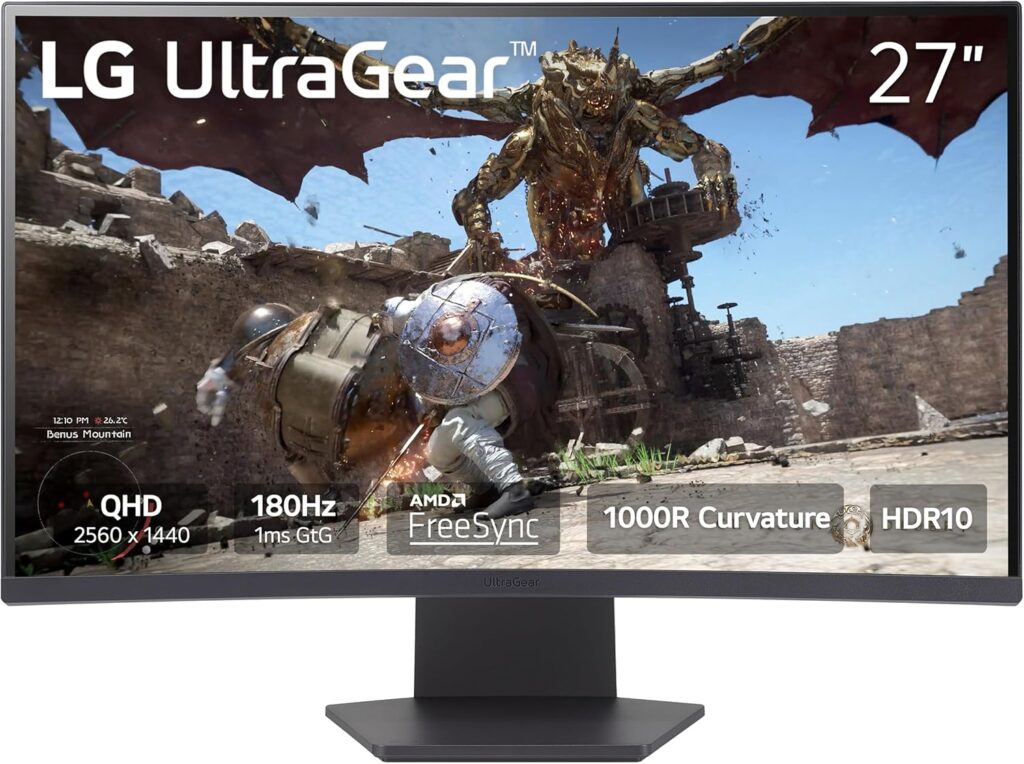
    ๐Ÿฅ‡ Best Overall โ€” LG 27GS60QC-B Ultragear (27″ QHD 180Hz IPS)

    LG57GS60QC-B fundo branco fonte Amazon US
    Official design of the LG27GS60QC-B. (Image: Amazon US)

    ๐Ÿ‘‰ Check price on Amazon

    Why we love it: This is the gold standard in the under-$300 range. LG’s Nano IPS panel delivers stunning color accuracy, ultra-fast 1ms response time, and support for NVIDIA G-Sync and AMD FreeSync Premium. At 1440p and 180Hz, it makes Xbox Series X content look absolutely gorgeous.

    Specs at a glance:

    • Panel: Nano IPS
    • Resolution: 2560×1440 (1440p)
    • Refresh Rate: 180Hz (120Hz on PS5/Xbox via HDMI 2.1)
    • Response Time: 1ms GtG
    • HDR: HDR400
    • Ports: 2x HDMI 2.0, 1x DisplayPort 1.4, 2x USB-A

    Pros:

    • Exceptional color accuracy out of the box
    • 180Hz feels silky even on consoles at 120Hz
    • Slim bezels, premium build quality
    • Great for both gaming and content creation

    Cons:

    • HDMI 2.0 means PS5 won’t hit full 4K@120Hz (HDMI 2.1 is needed for that)
    • HDR400 is entry-level HDR

    Best for: Xbox Series X owners and PC+console hybrid setups.


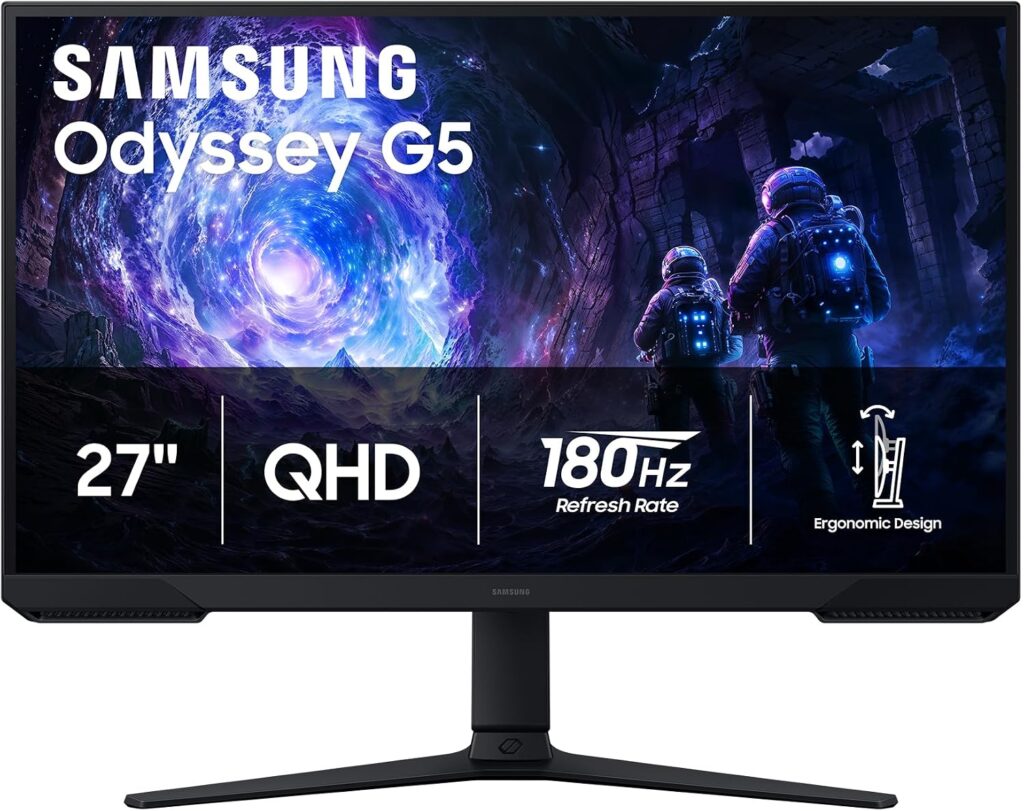
    ๐Ÿฅˆ Best Value Pick โ€” Samsung Odyssey G5 (27″ 1440p 180Hz IPS)

    Samsung Odyssey G5 com fundo branco, fonte Amazon US
    Official design of the Odyssey G5. (Image: Amazon US)

    ๐Ÿ‘‰ Check price on Amazon

    Why we love it: If you play fast-paced competitive games like Valorant, Fortnite, or Call of Duty on console, the Odyssey G5 is a beast. 180Hz is overkill for consoles right now, but you get a monitor that will never feel sluggish, with Samsung’s IPS Black technology for deeper blacks than typical IPS panels.

    Specs at a glance:

    • Panel: IPS Black
    • Resolution: 2560 x 1440 (1440p)
    • Refresh Rate: 180Hz
    • Response Time: 1ms GtG
    • HDR: HDR10
    • Ports: 2x HDMI 1.4, 3x USB 3.0

    Pros:

    • Insanely fast refresh rate
    • Better contrast than standard IPS
    • Excellent motion clarity

    Cons:

    • 1440p shows pixel grid on 27″ up close
    • No HDMI 2.1

    Best for: Competitive console players who prioritize speed over resolution.


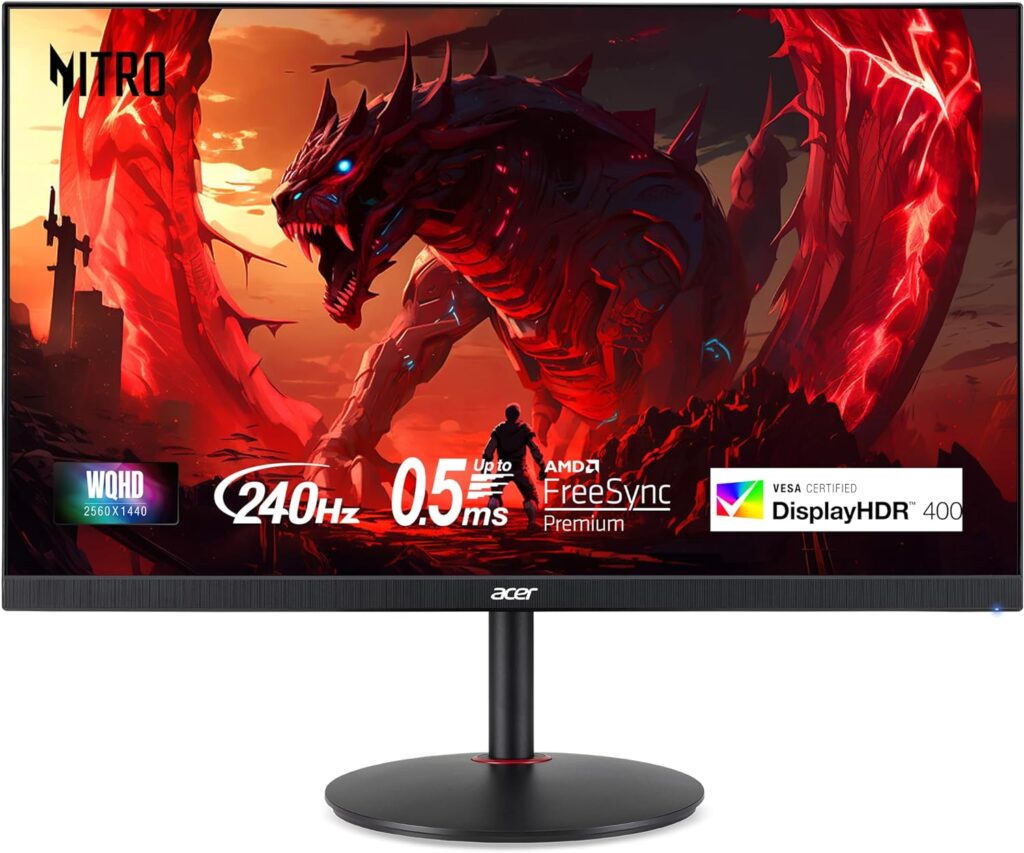
    ๐Ÿฅ‰ Best Budget Option โ€” Acer Nitro XV272U (27″ 1440p 144Hz IPS)

    Monitor Acer Nitro XV272U no fundo branco, fonte Amazon US
    Official design of the Acer XV272U. (Image: Amazon US)

    ๐Ÿ‘‰ Check price on Amazon

    Why we love it: The Nitro XV272U punches well above its price tag. It’s one of the cheapest ways to get into 1440p at 144Hz, with solid IPS colors and AMD FreeSync Premium support. Not the flashiest monitor on this list, but it gets the job done reliably.

    Specs at a glance:

    • Panel: IPS
    • Resolution: 2560×1440 (1440p)
    • Refresh Rate: 144Hz
    • Response Time: 1ms VRB
    • HDR: HDR400
    • Ports: 2x HDMI 2.0, 1x DisplayPort 1.4

    Pros:

    • Affordable entry into 1440p gaming
    • Good factory color calibration
    • Sturdy stand with height adjustment

    Cons:

    • Backlight bleed can be present on some units
    • No HDMI 2.1

    Best for: Budget-conscious buyers who want 1440p without breaking the bank.


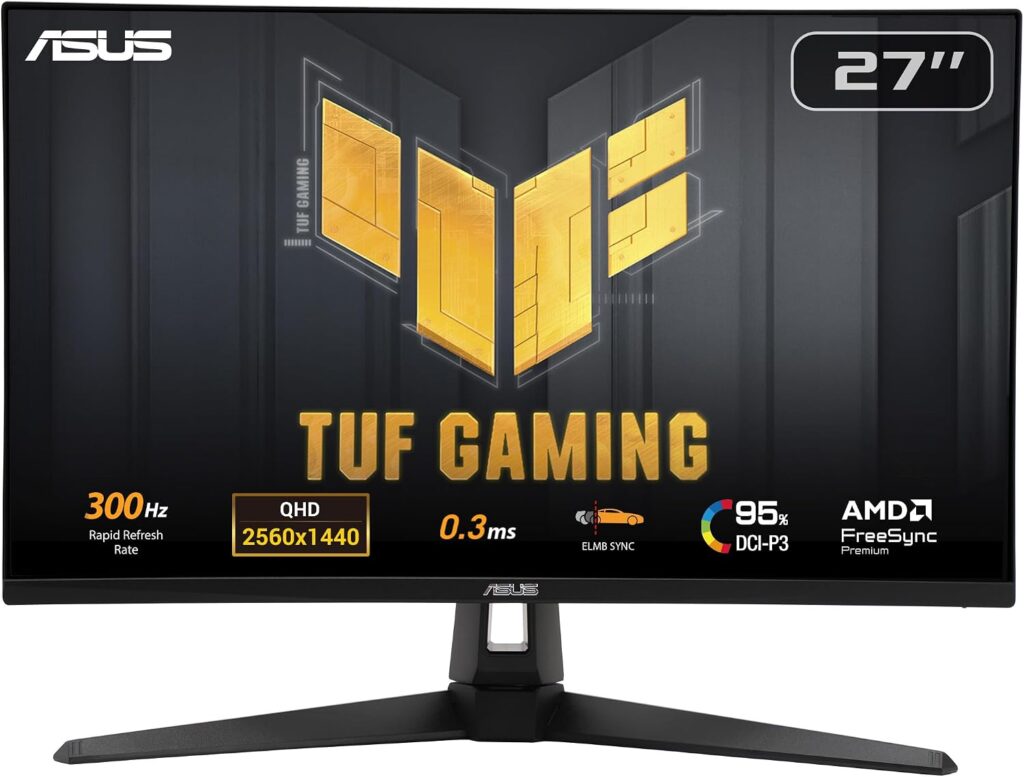
    ๐ŸŽฏ Best for PS5 Specifically โ€” ASUS TUF Gaming VG27AQM5A (27″ QHD 300Hz)

    Monitor Asus VG27AQM5A no fundo branco, fonte Amazon US
    Official design of the Asus VG27AQM5A. (Image: Amazon US)

    ๐Ÿ‘‰ Check price on Amazon

    Why we love it: This is the wild card. At the $300 budget (prices fluctuate โ€” grab it on sale), the VG27AQM5A is one of the few monitors with HDMI 2.1, unlocking true 2K@300Hz on PS5 and Xbox Series X. If you want the full next-gen experience, this is your monitor.

    Specs at a glance:

    • Panel: IPS
    • Resolution: 2560×1440 (2K)
    • Refresh Rate: 300Hz (PC) / 120Hz @ 4K (console via HDMI 2.1)
    • Response Time: 1ms GtG
    • HDR: HDR400
    • Ports: 2x HDMI 2.1, 1x DisplayPort 1.4

    Pros:

    • True HDMI 2.1 for 2K@120Hz on PS5
    • Future-proof resolution
    • VRR and FreeSync Premium support

    Cons:

    • HDR performance is still entry-level

    Best for: PS5 owners who want the definitive console gaming display.


    ๐Ÿ“Š Full Comparison Table

    MonitorSizeResolutionHzPanelHDMI 2.1Price Range
    LG 27GS60QC-B27″1440p180HzNano IPSโŒ~$250โ€“$280
    Samsung Odyssey G527″1440p180HzIPS BlackโŒ~$200โ€“$230
    Acer Nitro XV272U27″1440p144HzIPSโŒ~$180โ€“$220
    ASUS TUF VG27AQM5A27″1440p300HzIPSโœ…~$280โ€“$320

    ๐Ÿค” Which Monitor Should You Buy?

    Still not sure which the best 144Hz monitor under $300 is right for you? Hereโ€™s our quick guide:

    • Best all-around pick: โ†’ LG 27GS60QC-B. Stunning image, fast panel, great for any console.
    • Tight budget: โ†’ Acer Nitro XV272U. Reliable 1440p without the premium price.
    • Competitive multiplayer focus: โ†’ Samsung Odyssey G5. Speed above all else.
    • PS5 true 2K@300Hz: โ†’ ASUS TUF VG27AQM5A. The only one with HDMI 2.1 on this list.

    โ“ FAQ

    Does PS5 support 144Hz? No โ€” PS5 maxes out at 120Hz over HDMI 2.1. A 144Hz monitor will cap at 120Hz, which is still a massive upgrade over 60Hz.

    Do I need HDMI 2.1 for PS5? Only if you want 4K@120Hz simultaneously. At 1080p or 1440p@120Hz, HDMI 2.0 is sufficient.

    Is 1440p worth it over 1080p for consoles? Yes, especially on screens 27″ and above. The image quality difference is clearly visible in open-world and cinematic games.

    Will these monitors work with PC too? Absolutely โ€” all picks on this list are excellent for PC gaming as well.

    What is the best 144Hz monitor under $300 in 2026?
    Our top pick is the LG 27GS60QC-B. It offers the best balance of image quality, speed and value for both PS5 and Xbox Series X gamers on a budget.

    Did you see our post about Build the Ultimate Gaming Setup in 2026? Check it now!


    Last updated: October 2026 | Prices may vary by retailer and region.

    โš ๏ธ Affiliate Disclosure: TechPlayGrid participates in the Amazon Associates Program and other affiliate programs. We earn a small commission on qualifying purchases at no extra cost to you. Our recommendations are always based on honest, independent research.
  • Nintendo Switch 2 vs. Steam Deck OLED: Which Handheld Console Should You Buy in 2026?

    Nintendo Switch 2 vs. Steam Deck OLED: Which Handheld Console Should You Buy in 2026?

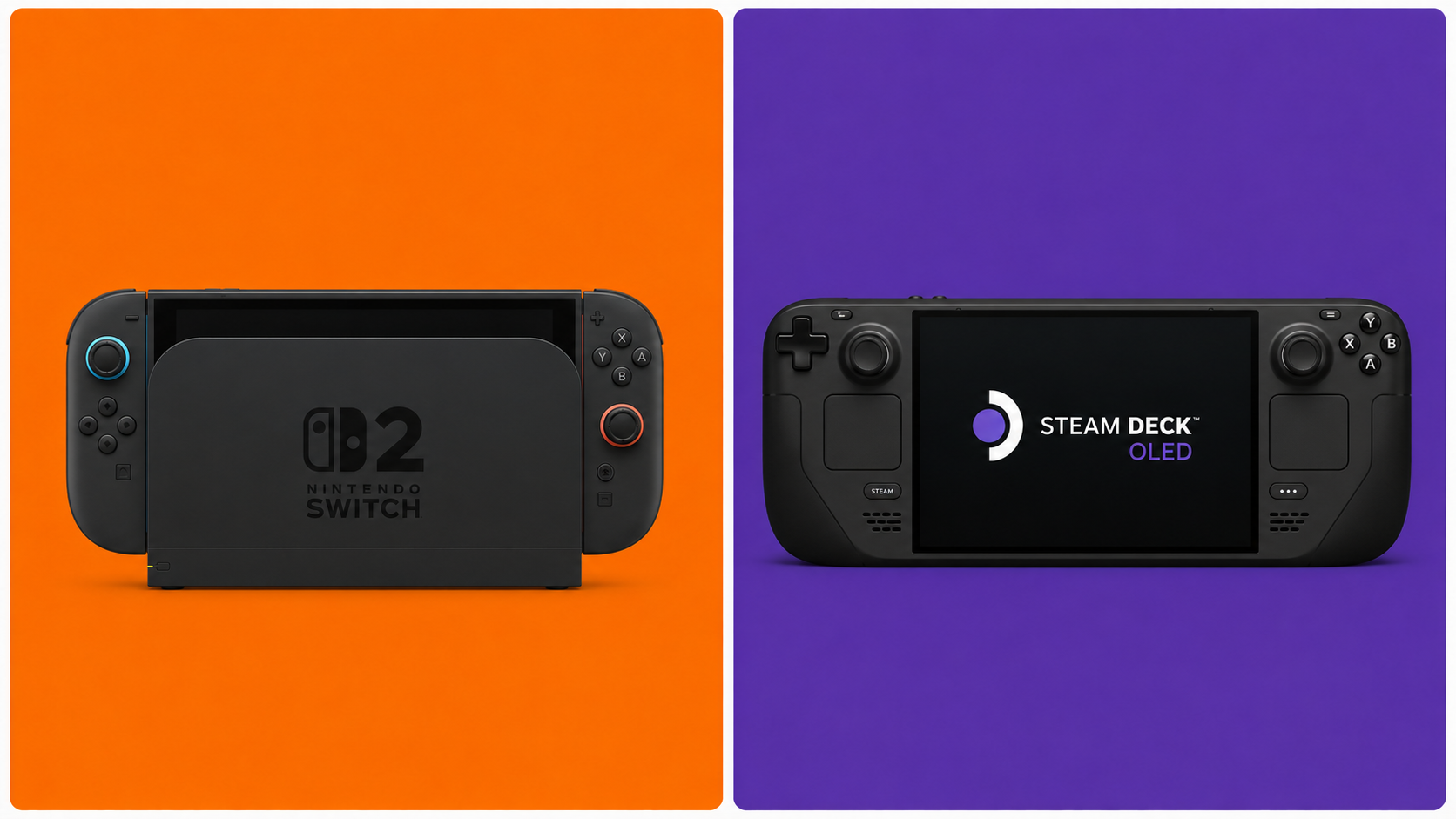
    Nintendo Switch 2 vs. Steam Deck OLED: The ultimate portable gaming showdown โ€” and there’s a clear winner for most people

    (Last Updated: November 2026)


    Estimated reading time: 11 minutes


    Handheld gaming is having its best year ever. The Nintendo Switch 2 finally arrived after years of rumors, and Valve’s Steam Deck OLED is still going strong as the fan-favorite PC gaming powerhouse you can take anywhere. Both cost around the same. Both are incredible. Both will empty your wallet in different ways.

    So which one should you actually buy?

    That depends entirely on who you are as a gamer โ€” and this guide breaks down every major factor so you can make the right call before spending $350 to $450 on a handheld console in 2026.

    โš ๏ธThis post contains affiliate links. If you purchase through our links, we may earn a small commission at no extra cost to you. We only recommend products we genuinely stand behind.

    ๐Ÿ“‹ How we research: Tech Play Grid doesnโ€™t test products hands-on. Our recommendations are based on specifications, prices and verified buyer feedback, cross-checked across multiple sources (you can find them at the end of our post). We also explain the trade-offs of each product, so you can decide what fits your needs and budget. Learn more on our About page.


    ๐Ÿ“Š Nintendo Switch 2 vs. Steam Deck OLED: Quick Specs Comparison

    FeatureNintendo Switch 2Steam Deck OLED
    Price$449.99$349โ€“$419
    Display7.9″ LCD, 1080p, 120Hz7.4″ OLED, 1280ร—800, 90Hz
    ProcessorCustom NVIDIA (Tensor + RT Cores)AMD Zen 2 + RDNA 2
    RAM12GB LPDDR5X16GB LPDDR5
    Storage256GB UFS512GBโ€“1TB NVMe
    Battery2โ€“6.5 hours3โ€“8 hours
    Docked OutputUp to 4K (with DLSS)Up to 8K (limited by game)
    Game LibraryNintendo exclusives + portsVirtually all PC games
    OnlineNintendo Switch Online requiredSteam โ€” free online
    Weight401g669g

    ๐Ÿ–ฅ๏ธ Nintendo Switch 2 vs. Steam Deck OLED: The Display: Two Different Philosophies

    This is where the debate starts โ€” and it’s more nuanced than most people think.

    The Nintendo Switch 2 uses a 7.9-inch LCD panel running at 1080p and up to 120Hz. It’s bright, responsive, and significantly larger than the original Switch’s screen. The 120Hz refresh rate is a genuine upgrade for gaming feel โ€” menus, games, and animations all look smoother than what you’d see on most other handhelds.

    The Steam Deck OLED, on the other hand, uses a 7.4-inch OLED display at 1280ร—800 resolution and up to 90Hz. OLED means true blacks, infinite contrast ratios, and colors that pop in a way LCD simply can’t match. Every game looks cinematically rich on the Steam Deck’s screen โ€” even at a slightly lower resolution.

    Winner: Depends on what you value. 120Hz LCD vs. 90Hz OLED is a genuine tradeoff. For competitive games and fast action, Switch 2 feels snappier. For story-driven RPGs, visual media, and cinematic experiences, Steam Deck OLED’s display is flat-out gorgeous.


    ๐ŸŽฎ Nintendo Switch 2 vs. Steam Deck OLED 1. Game Library: The Most Important Factor

    This is where the choice gets clearest for most people.

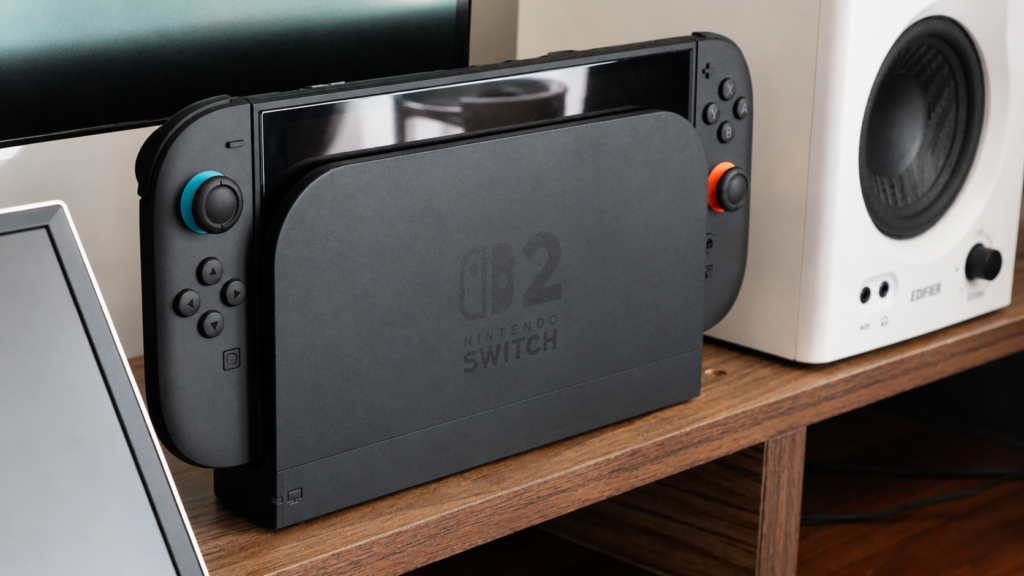
    Nintendo Switch 2

    Nintendo Switch 2 vs. Steam Deck OLED
    Nintendo Swith 2

    The Switch 2 plays every Switch 2 exclusive and has backward compatibility with most Nintendo Switch 1 titles. That means access to:

    • The Legend of Zelda: Breath of the Wild / Tears of the Kingdom (upgraded versions)
    • Mario Kart World (Switch 2 launch title)
    • Donkey Kong Bananza
    • Metroid Prime 4: Beyond
    • Every major Nintendo franchise going forward

    If you grew up with Nintendo, there’s simply no substitute. These games don’t exist anywhere else. No PC port, no Xbox version โ€” Nintendo’s exclusives are the entire reason the Switch 2 exists.

    ๐Ÿ‘‰ Nintendo Switch 2 on Amazon

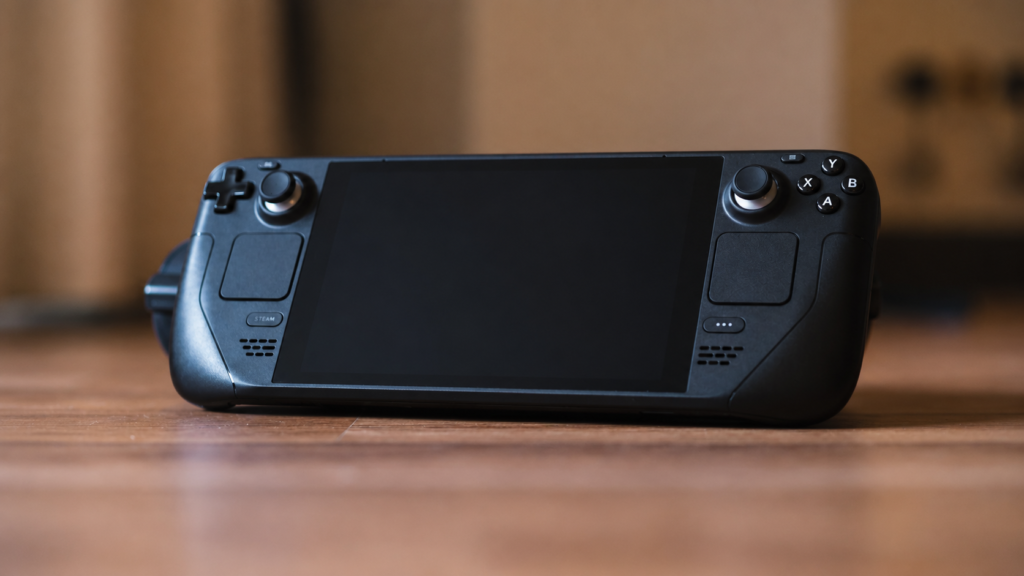
    Steam Deck OLED

    steam deck oled no chรฃo
    Steam Deck Oled

    The Steam Deck runs SteamOS and can access your entire Steam library โ€” tens of thousands of games, including:

    • Everything from your existing Steam account
    • PC exclusives (Strategy games, MOBAs, indie gems)
    • Emulation (with some setup)
    • Non-Steam game launchers like Epic, GOG, and Xbox Game Pass PC

    The Steam Deck is essentially a gaming PC in handheld form. If you have a large PC library, every game you own is suddenly portable.

    ๐Ÿ‘‰ Steam Deck OLED on Amazon

    Pro Tip: Check the Steam Deck Verified database before buying if you want to confirm specific games run well. Most major titles are fully verified, but edge cases exist.

    Winner: Nintendo Switch 2 for Nintendo fans. Steam Deck for PC gamers. If you play both worlds, see the next section.


    โšก Nintendo Switch 2 vs. Steam Deck OLED 2. Performance: DLSS Changes Everything for Switch 2

    The Nintendo Switch 2 is built around a custom NVIDIA chip with dedicated RT Cores (ray tracing) and Tensor Cores (DLSS neural upscaling). This is the same technology that powers NVIDIA’s RTX GPU lineup โ€” the difference is that it’s in a handheld.

    In practice, this means:

    • Games can run at a lower internal resolution and be upscaled by AI to 1080p in handheld mode and 4K in docked mode
    • Ray tracing effects (reflections, shadows, global illumination) are available in supported titles
    • Performance is significantly higher than what the raw specs would suggest

    The Steam Deck OLED uses an AMD Zen 2 / RDNA 2 chip โ€” solid and proven, but based on architecture from 2020. In 2026, the Steam Deck starts to show its age against newer, graphically demanding titles. Valve is expected to release a Steam Deck 2 eventually, but no official announcement has been made.

    Winner: Nintendo Switch 2 in raw performance and future-proofing.


    ๐Ÿ”‹ Nintendo Switch 2 vs. Steam Deck OLED 3. Battery Life: Real-World Numbers

    Both manufacturers publish optimistic battery estimates. Hereโ€™s what independent reviews report for real-world battery life:

    Game TypeSwitch 2Steam Deck OLED
    Light indie games6โ€“7 hours7โ€“8 hours
    Mid-weight RPGs4โ€“5 hours4โ€“5 hours
    Demanding AAA titles2โ€“3 hours2โ€“3.5 hours

    Roughly equivalent for most use cases. The Steam Deck OLED made major improvements over the original model with a larger 50Whr battery, and it shows.

    One advantage the Switch 2 has: it charges via USB-C at up to 45W, and Nintendo’s official dock charges it quickly even during play. The Steam Deck also charges via USB-C but draws more power under load, meaning charging while gaming requires a higher-wattage adapter.

    ๐Ÿ‘‰ NOCO U65 65W USB-C Charger on Amazon โ€” works perfectly with both handhelds.

    Winner: Tie in normal use. Steam Deck OLED very slightly edges out for light gaming.


    ๐Ÿ’ฐ Nintendo Switch 2 vs. Steam Deck OLED 4. Cost: The Real Total Price

    The sticker price is only the beginning.

    Nintendo Switch 2 True Cost

    ItemPrice
    Console$449.99
    Nintendo Switch Online + Expansion Pack (annual)$49.99/year
    Games (Nintendo exclusives, $60โ€“$80 each)$60โ€“$80 per game
    MicroSD card (storage expansion)$30โ€“$60
    Extra Joy-Con pair$79.99
    Typical first-year cost~$700โ€“$800

    ๐Ÿ‘‰ SanDisk 512GB MicroSD for Switch 2 on Amazon ๐Ÿ‘‰ Nintendo Switch 2 Joy-Con on Amazon

    Steam Deck OLED True Cost

    ItemPrice
    Console (512GB model)$349
    Steam games (sales, bundles, backlog)Varies widely
    Carrying case$20โ€“$50
    Dock (optional, for TV gaming)$89 (official) or $30 third-party
    Typical first-year cost~$450โ€“$550

    If you already have a Steam library with dozens of games, the Steam Deck pays for itself quickly. The Switch 2’s premium game prices and mandatory online subscription add up fast.

    ๐Ÿ‘‰ Valve Steam Deck Carrying Case on Amazon ๐Ÿ‘‰ Steam Deck Official Dock on Amazon

    Winner: Steam Deck OLED in pure value. Nintendo Switch 2 if Nintendo games are what you want โ€” you’ll pay a premium, but there’s no substitute.


    ๐Ÿ  Nintendo Switch 2 vs. Steam Deck OLED 5. TV/Docked Mode: Switch 2 Wins Easily

    If you plan to use your handheld as a home console too โ€” plug it into your TV, sit on the couch, play with a controller โ€” the Switch 2 is purpose-built for this.

    The Nintendo Switch 2 dock outputs HDMI 2.0 with DLSS upscaling to 4K. The experience is seamless: remove from dock, play in handheld mode, put it back, continue on TV. It’s the same game, same save file, no friction.

    The Steam Deck can also connect to a TV via USB-C dock or DisplayPort, but it requires a bit more setup and doesn’t have the same plug-and-play elegance. Desktop mode on the Steam Deck is genuinely useful but adds a learning curve compared to Nintendo’s simplicity.

    ๐Ÿ‘‰ Nintendo Switch 2 Dock on Amazon

    Winner: Nintendo Switch 2 for TV gaming experience.


    ๐Ÿง’Nintendo Switch 2 vs. Steam Deck OLED 6. Who Is Each Console For?

    Buy the Nintendo Switch 2 if you:

    • Love Nintendo franchises (Zelda, Mario, Metroid, Pokรฉmon)
    • Want the most social handheld experience (local multiplayer, Joy-Con sharing)
    • Plan to use it on a TV as well as in handheld mode
    • Are buying for a child or family gaming sessions
    • Want a polished, out-of-the-box experience with no setup required

    Buy the Steam Deck OLED if you:

    • Already have a large Steam library
    • Love PC gaming and want it portable
    • Play indie games, strategy titles, RPGs
    • Are comfortable with some light tinkering (installing non-Steam launchers, etc.)
    • Want the best value for money on a handheld
    • Are interested in emulation

    ๐ŸŽฎ Nintendo Switch 2 vs. Steam Deck OLED: The Best Accessories for Each Console

    Nintendo Switch 2 Accessories

    ๐Ÿ‘‰ Nintendo Switch 2 Pro Controller on Amazon โ€” essential for extended play ๐Ÿ‘‰ Nintendo Switch 2 Carrying Case on Amazon โ€” protect your $450 investment ๐Ÿ‘‰ SanDisk 1TB MicroSD UHS-I Card on Amazon โ€” Switch 2 games take up serious space ๐Ÿ‘‰ HORI Split Pad Compact for Switch 2 on Amazon โ€” better grip for handheld mode

    Steam Deck OLED Accessories

    ๐Ÿ‘‰ dbrand Steam Deck OLED Skin on Amazon โ€” the most popular customization ๐Ÿ‘‰ Deckmate Accessory Hub on Amazon โ€” attaches stands, mounts, more ๐Ÿ‘‰ Satisfye ZenGrip Pro for Steam Deck on Amazon โ€” essential for long sessions


    ๐Ÿ† Nintendo Switch 2 vs. Steam Deck OLED: Final Verdict

    CategoryWinner
    Game library (Nintendo fans)โœ… Nintendo Switch 2
    Game library (PC gamers)โœ… Steam Deck OLED
    Display qualityโœ… Steam Deck OLED (OLED)
    Display size / refresh rateโœ… Nintendo Switch 2
    Performance & future-proofingโœ… Nintendo Switch 2
    Battery life๐Ÿค Tie
    TV/docked modeโœ… Nintendo Switch 2
    Value for moneyโœ… Steam Deck OLED
    Ease of useโœ… Nintendo Switch 2
    Customization / flexibilityโœ… Steam Deck OLED

    The honest answer: If you have to pick one, the Nintendo Switch 2 is the better handheld console for most people in 2026. It’s more powerful, better designed for TV gaming, has the best exclusives in the industry, and the DLSS technology means it will age much better than the Steam Deck’s aging AMD chip.

    But if you’re a PC gamer who wants to take your library on the road and don’t care about Nintendo games โ€” the Steam Deck OLED is still one of the best gaming devices ever made. Especially at $349.

    Can’t decide? Buy both. We’re not judging.