
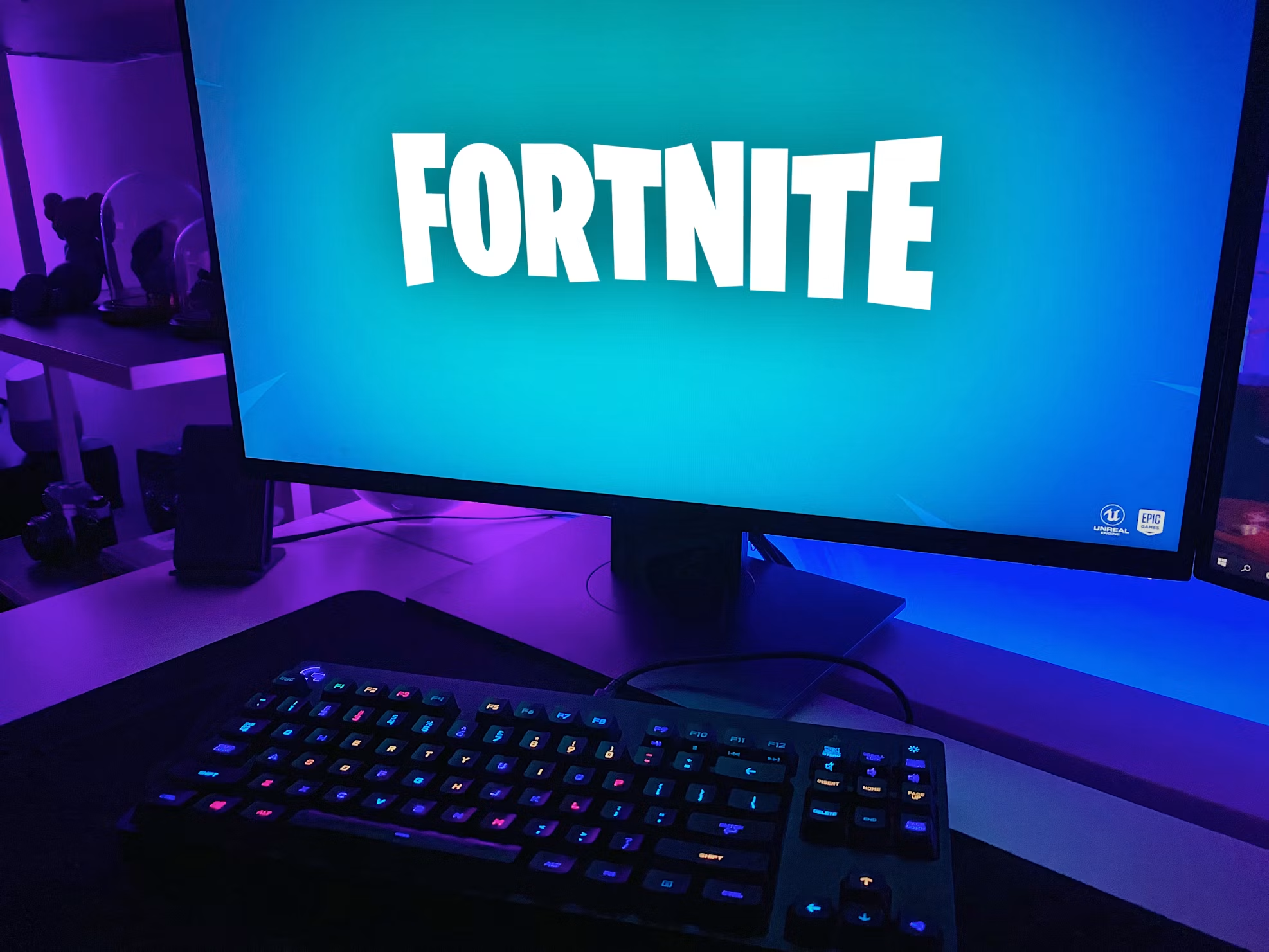
Your Fortnite runs fine in the lobby. Then the match starts, build fights heat up, and suddenly your frames crater. You die before you can even react. Sound familiar?
The frustrating reality: most Fortnite FPS drops are caused by software settings, not weak hardware. A GTX 1060 that barely hits 45 FPS in default settings can realistically reach 80–100+ FPS with the right tweaks — no new hardware required.
This guide follows the same format as our Discord lag fix for Valorant that helped thousands of players: free fixes first, ordered by impact, hardware upgrades only if nothing else works.
⚠️ Affiliate Disclosure: TechPlayGrid is reader-supported. When you buy through links on our site, we may earn an affiliate commission at no extra cost to you.
🔍 Why Does Fortnite Drop FPS?
Before fixing anything, identify the root cause. FPS drops in Fortnite in 2026 come from four main culprits:
| Cause | Symptom | Fix Category |
|---|---|---|
| Wrong rendering mode | Low FPS across the board | In-game settings |
| CPU bottleneck | GPU sits under 80% while FPS tanks | Settings + Windows tweaks |
| Background apps eating resources | FPS drops mid-match, not in menus | Windows |
| Thermal throttling | FPS fine at first, then drops after 10–15 min | Hardware maintenance |
💡 Pro Tip: Before changing any setting, enable the FPS counter. In Fortnite: Settings → Video → Show FPS → On. If your FPS drops only during fights, it’s a CPU spike. If it drops constantly, it’s a settings or rendering issue.
✅ Fix 1 — Switch to Performance Mode (Biggest Single Gain)
Time: 2 minutes | Difficulty: Easy | Impact: ⭐⭐⭐⭐⭐
Fortnite’s Performance Mode uses a simplified rendering pipeline that bypasses DirectX 11/12 overhead entirely. On most PCs — especially older or mid-range hardware — this single change can double FPS on budget GPUs. A GTX 1060 at 45 FPS can realistically hit 80–100+ FPS.
How to enable:
- Open Fortnite → Settings (gear icon) → Video
- Find Rendering Mode
- Change to Performance Mode
- Restart Fortnite completely (required for the change to take effect)
💡 Pro Tip: Performance Mode uses simplified rendering and lower-detail assets. On mid-range PCs it often doubles FPS versus DX12. Restart the game after switching. View Distance is the one setting worth keeping up — it affects what you can actually see in fights.
✅ Fix 2 — Apply These In-Game Settings (Free +15–40% FPS)
Time: 5 minutes | Difficulty: Easy | Impact: ⭐⭐⭐⭐⭐
Once you’re in Performance Mode, these settings maximize your FPS. Set shadows, Nanite and Ray Tracing to OFF, effects and post-processing to Low, NVIDIA Reflex ON + Boost, and 3D Resolution to 100% at 1920×1080.
Full recommended settings table:
| Setting | Recommended Value | Why |
|---|---|---|
| Rendering Mode | Performance | Biggest FPS gain |
| 3D Resolution | 100% (drop to 80% if needed) | Reduces pixel load |
| View Distance | Medium or Far | Affects gameplay visibility |
| Shadows | Off | One of the most GPU-intensive effects |
| Anti-Aliasing | Off | Expensive, minimal benefit in Performance Mode |
| Textures | Low | Reduces VRAM pressure |
| Effects | Low | GPU savings during fights |
| Post Processing | Low | Applies filters that cost frames |
| V-Sync | Off | Adds input lag; use frame cap instead |
| Ray Tracing | Off | Only for very high-end GPUs |
| NVIDIA Reflex | On + Boost | Reduces input latency significantly |
| FPS Cap | Match your monitor Hz | Prevents unnecessary GPU load |
✅ Fix 3 — Lower Your Mouse Polling Rate
Time: 2 minutes | Difficulty: Easy | Impact: ⭐⭐⭐⭐
This one surprises most players. Most gaming mice default to a 1000Hz polling rate. This means your mouse sends 1000 signals per second to your CPU even when you’re just moving it slightly. During fights, this extra load adds up. If your FPS drops specifically when moving your camera, try dropping the polling rate to 500Hz in your mouse software. Many players see immediate improvement.
Check your mouse’s software (Logitech G HUB, Razer Synapse, SteelSeries GG) and change the polling rate from 1000Hz to 500Hz.
✅ Fix 4 — Clear Shader Cache
Time: 3 minutes | Difficulty: Easy | Impact: ⭐⭐⭐⭐
Fortnite uses Unreal Engine 5, which compiles shaders as you play. After Windows or GPU driver updates, the shader cache can become corrupted or outdated, causing stutters and FPS spikes — especially at the start of matches.
For NVIDIA:
- Open NVIDIA Control Panel
- Go to Manage 3D Settings
- Click Shader Cache Size → Set to Unlimited
- Then clear the existing cache: Windows Search →
%localappdata%\NVIDIA\DXCache→ Delete contents
For AMD:
- Open AMD Adrenalin
- Go to Performance → Shader Cache
- Click Reset Shader Cache
✅ Fix 5 — Disable Xbox Game Bar and Background Apps
Time: 3 minutes | Difficulty: Easy | Impact: ⭐⭐⭐⭐
Windows runs several processes in the background that compete with Fortnite for CPU and RAM resources.
Disable Xbox Game Bar:
- Press Windows + I → Gaming → Xbox Game Bar
- Toggle Off
Close background apps before playing:
- Press Ctrl + Shift + Esc → Task Manager
- End tasks for: browsers, Discord (or switch to phone), Spotify, Steam downloads, Windows Update
- Right-click on Fortnite process → Set Priority → High
⚠️ Warning: Only set Fortnite to “High” priority, not “Real Time.” Real Time can destabilize Windows.
✅ Fix 6 — Enable XMP/EXPO in BIOS (If Your RAM Isn’t Running at Rated Speed)
Time: 5 minutes | Difficulty: Medium | Impact: ⭐⭐⭐⭐
This is one of the most overlooked fixes. Most PCs ship with RAM running at 2133MHz even if the sticks are rated for 3200MHz or faster. Enabling XMP (Intel) or EXPO (AMD) tells the motherboard to run the RAM at its advertised speed — and in Fortnite, this directly improves frame pacing.
- Restart PC → Press Delete or F2 to enter BIOS
- Find XMP or EXPO setting (usually under Advanced Memory or OC settings)
- Enable it → Save and exit
💡 Pro Tip: This is free and safe. XMP/EXPO profiles are tested by the RAM manufacturer and won’t damage your system.
✅ Fix 7 — Update GPU Drivers (But Don’t Always Use the Newest)
Time: 5–10 minutes | Difficulty: Easy | Impact: ⭐⭐⭐
Driver updates matter, but not every new driver is better. Some GPU driver updates break Fortnite specifically. If your FPS dropped after a Windows or GPU driver update, that’s your answer. Roll back to the previous driver version and test.
To update safely:
- NVIDIA: Download Game Ready drivers from nvidia.com → Use “Custom” install → Check “Clean Installation”
- AMD: Download Adrenalin Edition from amd.com → Use factory reset option
To roll back:
- Device Manager → Display Adapters → Right-click GPU → Properties → Driver → Roll Back Driver
✅ Fix 8 — Check for Thermal Throttling
Time: 5 minutes | Difficulty: Easy | Impact: ⭐⭐⭐⭐
If your FPS starts fine and then drops after 10–15 minutes, your CPU or GPU is overheating and throttling performance to protect itself.
Download MSI Afterburner (free) and monitor:
- CPU temperature: Should stay under 85°C
- GPU temperature: Should stay under 85°C
If temps hit 90°C+:
- Clean dust from PC fans and vents with compressed air
- Ensure PC has adequate airflow (not inside a tight desk enclosure)
- Check that all case fans are spinning
📊 Fix Priority Cheat Sheet
| Fix | Impact | Time | Difficulty |
|---|---|---|---|
| Switch to Performance Mode | ⭐⭐⭐⭐⭐ | 2 min | Easy |
| Apply optimized in-game settings | ⭐⭐⭐⭐⭐ | 5 min | Easy |
| Lower mouse polling rate to 500Hz | ⭐⭐⭐⭐ | 2 min | Easy |
| Clear shader cache | ⭐⭐⭐⭐ | 3 min | Easy |
| Disable Xbox Game Bar + close apps | ⭐⭐⭐⭐ | 3 min | Easy |
| Enable XMP/EXPO in BIOS | ⭐⭐⭐⭐ | 5 min | Medium |
| Update or roll back GPU drivers | ⭐⭐⭐ | 10 min | Easy |
| Check thermal throttling | ⭐⭐⭐⭐ | 5 min | Easy |
💻 Still Dropping Frames? Consider These Hardware Upgrades
If you’ve applied every fix above and still can’t hit consistent frames, your hardware is the true bottleneck.
Option A — Add More RAM (Under $50)
Only if RAM is your bottleneck. If Task Manager shows usage above 90% while gaming, more RAM will help. If usage is below 80%, adding more will not improve FPS. However, enabling XMP/EXPO to run your existing RAM at its rated speed almost always helps frame times.
Fortnite + Windows + background apps ideally need 16GB.
👉 Corsair Vengeance 16GB DDR4 3200MHz — Amazon US 👉 Kingston Fury Beast 16GB DDR4 — Amazon US
Option B — Upgrade to an SSD (If You’re on HDD)
Playing Fortnite on a hard drive causes asset streaming issues — textures load slowly, which causes hitching and stutters. An SSD eliminates this entirely.
👉 Samsung 870 EVO 500GB SATA SSD — Amazon US 👉 WD Blue SN580 1TB NVMe SSD — Amazon US
Option C — Upgrade Your Monitor
If you’re pushing 200+ FPS but gaming on a 60Hz monitor, you’re not seeing any of those extra frames. A 144Hz display is the minimum for competitive Fortnite.
👉 Best 144Hz Monitor Under $300 for PS5 and Xbox — TechPlayGrid
🔗 Related on TechPlayGrid
- 👉 How to Fix Discord Lag While Playing Valorant
- 👉 Best Valorant Settings for Low-End PC to Boost FPS (2026)
- 👉 1080p vs 1440p for Console Gaming — Does It Actually Matter?
- 👉 Mechanical vs Membrane Keyboard: Which Is Worth It?
❓ FAQ
Why does my Fortnite FPS drop only during fights? This is a CPU spike, not a GPU issue. Fortnite’s build system and player physics are CPU-heavy. During intense fights with multiple players building and shooting, CPU usage spikes. Fix 2 (optimized settings) and Fix 5 (closing background apps and prioritizing Fortnite in Task Manager) address this directly.
Does Performance Mode make Fortnite look bad? Performance mode remains mandatory for competitive play in 2026. Epic has refined it significantly — the visual downgrade is minimal compared to launch, but the performance gains are still 40–60% in complex scenarios.
Should I use DX11, DX12, or Performance Mode? Performance Mode for maximum FPS on most systems, DX12 if you want better visuals with shader pre-compilation, DX11 mainly as a fallback for stability issues.
Will a VPN help with Fortnite FPS drops? No — VPNs address ping (network latency), not FPS (local rendering performance). They’re separate issues.
My FPS is fine but the game still feels laggy — why? This is likely a frame pacing issue, not an FPS problem. A high average frame rate can hide a miserable experience. A single bad frame can wreck the illusion of smoothness even when the average looks healthy. Enable V-Sync off, use an FPS cap, and enable NVIDIA Reflex or AMD Anti-Lag to address this.
Last updated: July 2026 | Fixes verified for Fortnite Chapter 6
⚠️ Affiliate Disclosure: TechPlayGrid participates in the Amazon Associates Program and other affiliate programs. We earn a commission on qualifying purchases at no extra cost to you.
🏷️ SEO Metadata
Title : How to Fix FPS Drops in Fortnite — No Upgrade Needed
Meta Description : Fortnite FPS dropping mid-fight? These 8 free fixes — starting with Performance Mode — can double your frames without buying new hardware. Step-by-step guide for 2026.
Tags: fortnite fps drops fix, fortnite performance mode 2026, how to fix lag fortnite pc, boost fps fortnite no upgrade, fortnite low end pc settings, fortnite fps boost 2026, fix fortnite stuttering
Post Summary: Fortnite FPS drops during fights are one of the most common PC gaming complaints in 2026 — and most of them are fixable without spending a cent. This guide walks through 8 free fixes in order of impact: switching to Performance Mode (which can double frames on older GPUs), applying the optimal in-game settings, clearing shader cache, lowering mouse polling rate, enabling XMP in BIOS, and checking for thermal throttling. Hardware upgrade options are included at the end for players who’ve exhausted the free fixes.