Tag: ps5 overheating fix 2026

  • How to Fix PS5 Overheating — No Repair Shop Needed (2026)

    How to Fix PS5 Overheating — No Repair Shop Needed (2026)

    How to Fix PS5 Overheating in 2026 Without Visiting a Repair Shop

    Knowing how to fix PS5 overheating without sending your console away or voiding your warranty is more useful than it sounds. The majority of overheating cases — the loud fan, the sudden shutdown, the “PS5 is too hot” warning on screen — are caused by dust accumulation or blocked airflow, not hardware failure. Both are fixable at home in under 30 minutes without any tools.

    This guide follows the same structure as our PS5 loud fan guide and our Discord lag fix: free fixes in order of impact, hardware solutions only at the end, and professional repair only when everything else has been tried.

    ⚠️ Affiliate Disclosure: TechPlayGrid is reader-supported. When you buy through links on our site, we may earn an affiliate commission at no extra cost to you.

    How to Identify the Type of Overheating Your PS5 Has
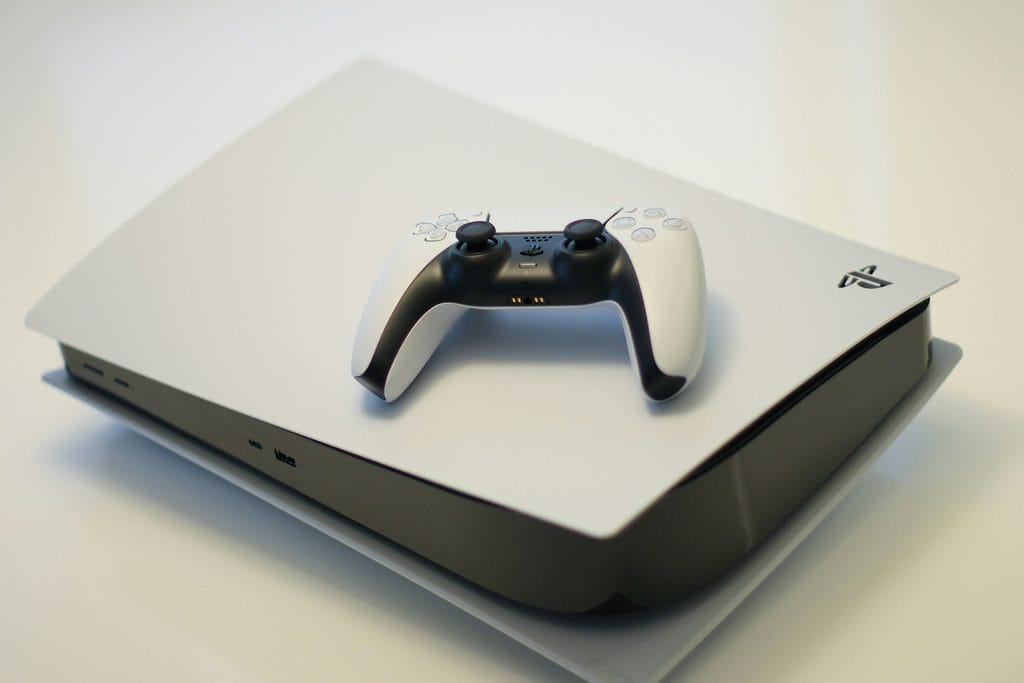
    How to Fix PS5 Overheating
    How to Fix PS5 Overheating

    Before applying any fix, confirm what type of problem you are dealing with. Different symptoms point to different root causes.

    SymptomMost Likely CauseStart With
    Fan gets louder after 20–30 minutesDust buildup on heatsinkFix 2 — Clean dust ports
    “PS5 is too hot” warning on screenBlocked airflow or dustFix 1 + Fix 2
    Shuts down suddenly during gamesThermal protection triggeredFix 1 + Fix 2 + Fix 3
    Loud fan even in the PS5 menuPlacement or serious thermal issueFix 1 first
    Fine for months, started after an updateFirmware or database issueFix 4 + Fix 5

    Fix 1 — Correct Placement and Airflow (Start Here, Always)

    Time: 2 minutes | Cost: Free | Impact: ⭐⭐⭐⭐⭐

    The PS5’s cooling system pulls air in from the front and sides and exhausts hot air from the top and rear. Any obstruction to either pathway causes the internal temperature to rise, the fan to speed up, and eventually the thermal protection to trigger a shutdown.

    Minimum clearance requirements:

    • Sides: At least 10cm on each side
    • Rear: At least 10cm from any wall or surface
    • Top (horizontal placement): Must not be beneath other electronics or objects
    • Bottom: Never place on carpet, thick rugs, or soft surfaces that block the base vents

    The most common placement mistakes that cause overheating: inside an enclosed TV cabinet without ventilation, beneath a soundbar or another console, on carpet in horizontal position, and against a wall with the rear exhaust facing the wall.

    Moving the PS5 to an open, ventilated location resolves a meaningful portion of overheating complaints entirely.

    Fix 2 — Clean the Dust Ports (No Screwdriver Needed)

    RJS1doWXGB4kK24a
    Credits: https://pt.ifixit.com/

    Time: 10 minutes | Cost: Free or ~$10 for compressed air | Impact: ⭐⭐⭐⭐⭐

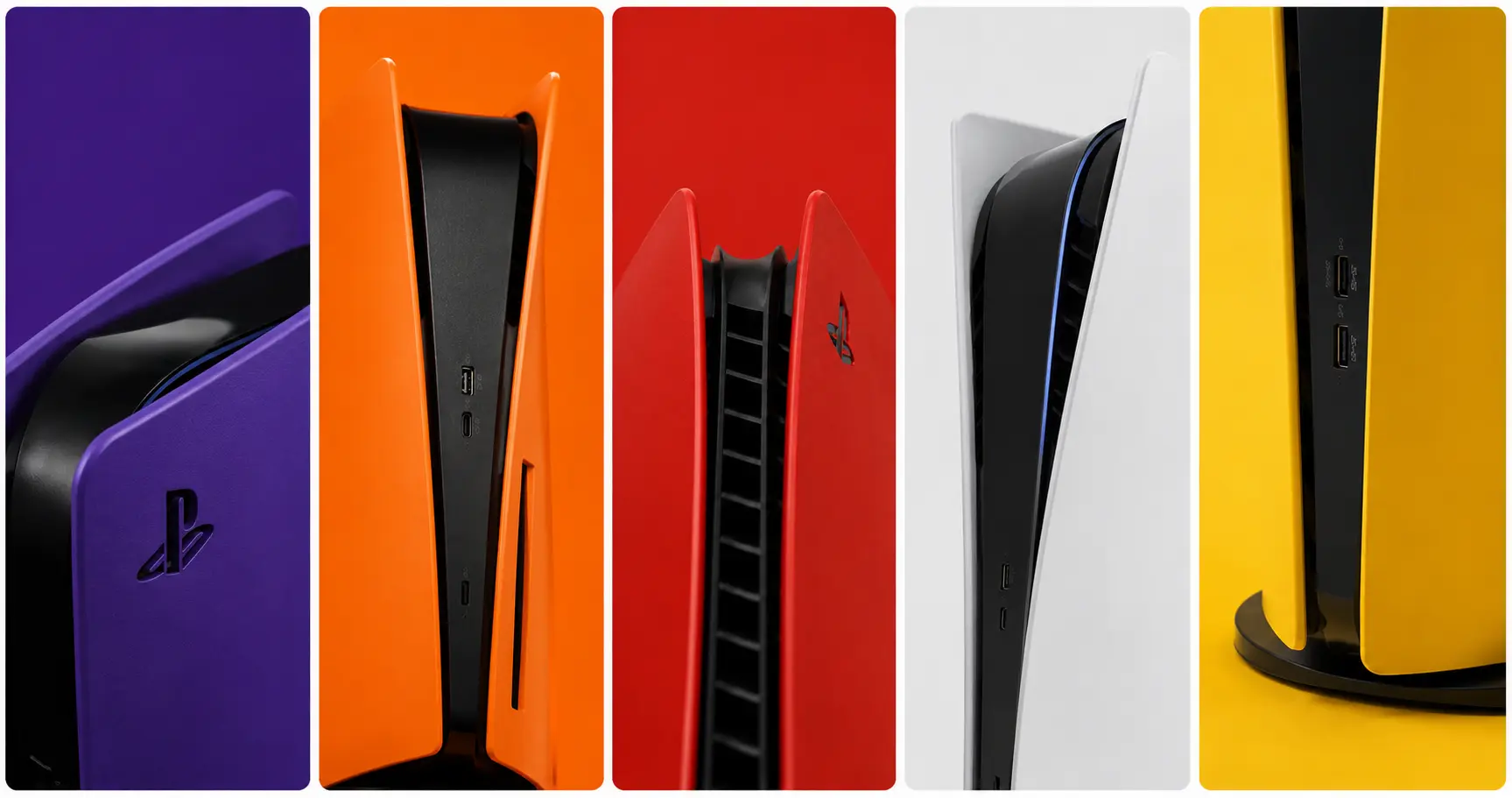
    Sony designed the PS5 with two circular dust collection ports accessible without opening the console. The white side covers slide off by hand, exposing the ports and allowing safe cleaning with compressed air.

    Step-by-step:

    1. Power off the PS5 completely and unplug all cables

    2. Wait 15–20 minutes for internal components to cool

    3. Stand the PS5 vertically and slide off both white side covers

    4. Locate the two circular dust collection ports (recessed black openings)

    5. Insert a compressed air nozzle and use short bursts, angling to blow dust outward

    6. Also clean the rear exhaust vent from the outside with short bursts

    7. Reattach covers, reconnect cables, and test

    Removing the white side covers does not void the PS5 warranty — Sony explicitly designed this access for user maintenance.

    Recommended products verified on Amazon US:

    👉 Where to Buy (Electric Air Duster): [[Check Current Price on Amazon]]

    👉 Where to Buy (Compressed Air Cans): [[Check Current Price on Amazon]]

    ⚠️ Hold compressed air cans upright at all times. Tilting releases liquid propellant that can damage electronics.

    Fix 3 — Update PS5 System Software

    support ps5 ss update
    Credits: https://www.playstation.com/en-us/support/hardware/ps5/system-software/

    Time: 5 minutes | Cost: Free | Impact: ⭐⭐⭐

    Sony has released multiple firmware updates that include thermal management improvements. Running outdated firmware can mean the console’s cooling behavior is less efficient than the current optimized version.

    As of September 2026, the current PS5 system software is version 26.03-13.20.00.

    To update:

    1. Connect the PS5 to the internet

    2. Go to Settings → System → System Software → System Software Update and Settings

    3. Select Update via Internet

    4. Install and restart

    Fix 4 — Rebuild the PS5 Database

    support ps5 backup 1
    Credits: https://www.playstation.com/en-us/support/hardware/back-up-ps5-data-USB/

    Time: 5–30 minutes | Cost: Free | Impact: ⭐⭐⭐

    If overheating behavior started after a system update or unexpected power loss, corrupted system data can cause abnormal thermal behavior. Rebuilding the database clears corrupted files without deleting games or save data.

    1. Power off the PS5 completely (not Rest Mode)

    2. Hold the power button until you hear two beeps (approximately 7 seconds) — Safe Mode activates

    3. Connect a controller via USB-C

    4. Select Option 5: Rebuild Database

    5. Wait for the process to complete (5–30 minutes depending on storage)

    Fix 5 — Switch to Resolution Mode in Demanding Games

    Time: 1 minute per game | Cost: Free | Impact: ⭐⭐⭐

    Some PS5 games push the GPU extremely hard in Performance Mode (targeting 60–120 FPS), causing the fan to run at maximum speed to maintain temperature. Switching to Resolution Mode reduces GPU load and can meaningfully lower fan noise and internal temperatures.

    For each game: highlight it on the PS5 home screen → press Options → Game Presets → Resolution Mode

    This is a trade-off (lower frame rate) and is most useful for single-player atmospheric games where consistent high frame rates are less critical.

    Fix Priority Summary

    FixTimeCostWorks Without Opening Console
    Correct placement2 minFree✅
    Clean dust ports10 minFree–$10✅
    Update system software5 minFree✅
    Rebuild database5–30 minFree✅
    Switch to Resolution Mode1 minFree✅

    When to Consider Professional Repair

    After applying all five fixes above, professional service is warranted if:

    • The PS5 shuts down within minutes even with correct placement and clean vents
    • The fan makes grinding, clicking, or rattling sounds — the fan bearing may be failing
    • Overheating persists in the PS5 menu with no game running

    ⚠️ The PS5 uses liquid metal thermal compound between the APU and heatsink — not standard thermal paste. This is electrically conductive and extremely dangerous to apply incorrectly. Do not attempt to reapply the thermal compound yourself. This is the one PS5 repair that requires a qualified technician.

    Check your warranty status first at PlayStation Repairs. The PS5 has a one-year limited warranty from Sony, and extended coverage may apply depending on your retailer and region.

    📸 Follow us on Instagram at @techplaygrid for more PS5 tips, gaming guides, and setup inspiration.

    🔗 Related on TechPlayGrid

    Sources

    • Tech-Insider, “PS5 Overheating Fix Guide: Also Xbox & Switch 2 [2026]” — tech-insider.org (September 2026)
    • Tech-Insider, “How to Clean a PS5: 12 Steps, 45 Min [2026]” — tech-insider.org (September 2026)
    • Currys, “PS5 overheating: causes, fixes & prevention” — currys.co.uk
    • Eneba, “Why Is My PS5 Overheating? Causes, Signs, and Fixes” — eneba.com

    💬 Did you enjoy this guide? Subscribe below to TechPlayGrid and get the latest gaming tips, gear reviews, and tech guides delivered straight to your inbox — no spam, just content worth reading.

  • Why Is My PS5 So Loud? The Best New Fixes Before You Send for Repair

    Why Is My PS5 So Loud? The Best New Fixes Before You Send for Repair


    Your PS5 used to be quiet. Now it sounds like a jet engine mid-session, or worse — it starts loud, then shuts down on its own. Before you pack it up and ship it for repair, you need to know something: the majority of loud PS5 cases are fixable at home in under 20 minutes, for free.

    This guide covers every safe fix in order of likelihood and impact — from dust cleaning to firmware updates — and only recommends professional repair when genuinely necessary.

    💡 Important: The PS5 uses liquid metal (not standard thermal paste) between the APU and heatsink. Do NOT attempt to open the PS5 or reapply thermal material yourself. This is electrically conductive and can permanently damage your motherboard. That’s what repair shops are for. Everything in this guide is safe to do at home without opening the console.

    ⚠️ Affiliate Disclosure: TechPlayGrid is reader-supported. When you buy through links on our site, we may earn an affiliate commission at no extra cost to you.


    🔍 Why Is Your PS5 Fan So Loud?

    pexels kseverin 5961216
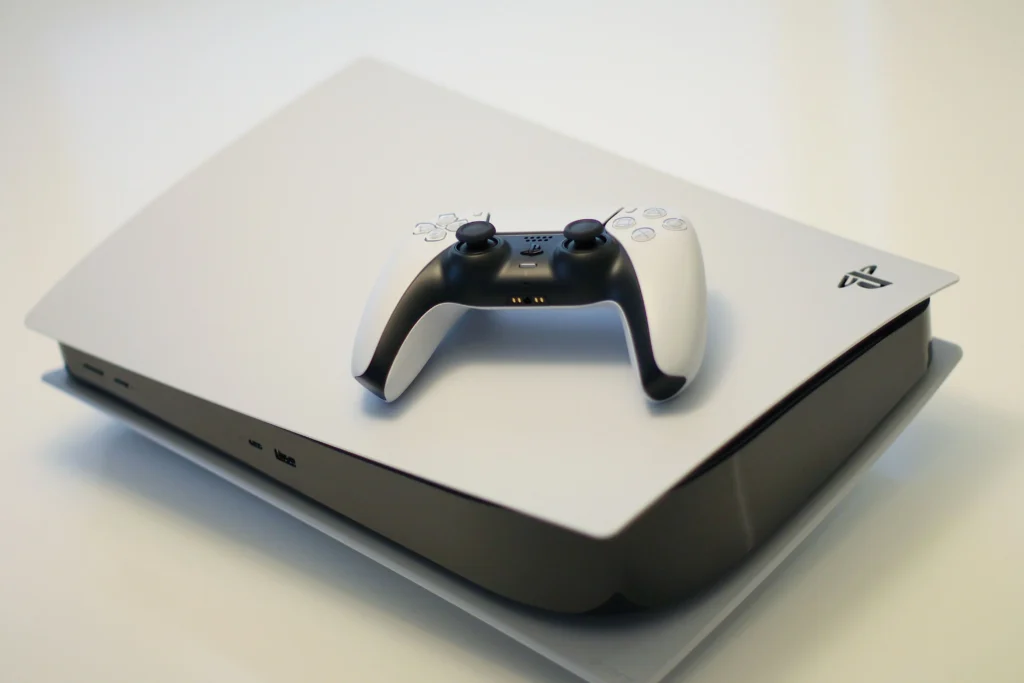
    Playstation 5

    Extremely loud fan noise, hot air output feeling excessive, performance drops, games crashing — these are the most common symptoms. The most common cause: dust builds up on the heatsink and fans over time, reducing airflow and insulating components that need to stay cool.

    Here’s the full diagnosis map:

    SymptomMost Likely CauseFix
    Loud fan from the startPlacement/airflow blockedFix 1
    Fan gets loud after 20–30 minDust buildup or thermal issueFix 2 + 3
    Loud then shuts offThermal protection triggeredFix 2 + 3
    Grinding or clicking soundFan bearing degradingProfessional repair needed
    Loud in ALL games since updateFirmware issueFix 4
    Loud only in demanding gamesNormal behavior (monitor temps)Fix 5

    ✅ Fix 1 — Check Placement and Airflow (Start Here)

    Time: 2 minutes | Cost: Free | Impact: ⭐⭐⭐⭐⭐

    Soundbars laid directly on top of the console are a common cause of overheating reports. Also check that the front intake isn’t blocked by cables or other peripherals. The console pulls air in from the front and pushes it out the back and top; restricting either end disrupts the whole airflow path.

    PS5 clearance requirements:

    • Sides: Minimum 10cm clearance on each side
    • Back: Minimum 10cm from wall
    • Top (horizontal): Must not be stacked under other electronics
    • Stand: Always use the included stand — never lay PS5 flat on carpet

    Worst placement mistakes:

    • Inside an enclosed TV cabinet without ventilation
    • Flat on carpet (blocks bottom intake)
    • Against a wall with the vents facing the wall
    • Under another console or soundbar

    Move the PS5 to an open, well-ventilated area before doing anything else. This alone resolves the issue for a significant portion of users.


    ✅ Fix 2 — Clean the Dust Ports (Safe, No Screwdriver Needed)

    Time: 10 minutes | Cost: Free–$15 | Impact: ⭐⭐⭐⭐⭐

    Sony actually designed the PS5 for customer-cleanable intake vents. The white side covers slide off easily. Stand the PS5 vertically, slide each white side cover up and off. You’ll see two circular intake dust ports. Use compressed air to blast dust out of them. Hold the can upright and use short bursts.

    Step-by-step:

    1. Power off completely and unplug from the wall
    2. Wait 15–20 minutes for components to cool
    3. Stand the PS5 vertically
    4. Slide the white covers off — push one corner, lift the opposite corner
    5. You’ll see two circular dust collection ports (black recessed holes)
    6. Insert the nozzle of compressed air and blast in short bursts
    7. Also clean the rear exhaust vent with short bursts from the outside
    8. Replace covers and test

    Recommended products — verified on Amazon US:

    👉 Electric Air Duster Cordless — 110,000 RPM, LED Light, PS5-Compatible (Rechargeable, no propellant, safe for electronics — best long-term value)

    👉 DULOBLUF Compressed Air Duster 2-Pack — Canned, High Pressure (Traditional canned air — effective and affordable for occasional use)

    ⚠️ Important: Hold the compressed air can upright at all times. Tilting it releases liquid propellant that can damage internal electronics.


    ✅ Fix 3 — Add a Dust Filter Kit (Prevents Recurrence)

    Time: 5 minutes | Cost: $10–$20 | Impact: ⭐⭐⭐⭐

    After cleaning, adding a mesh dust filter to the PS5’s intake ports stops dust from accumulating as quickly. High-density mesh filters cover the PS5’s air intake vents, blocking debris while keeping airflow smooth, reducing dust buildup, enhancing the heatsink barrier effect, and maintaining the console’s operation.

    👉 GRAUGEAR PS5 Dust Cover Kit — Compatible with PS5 Pro, Slim, Disc & Digital

    👉 PS5 Dust Cover Set with Cleaning Brush and Heatsink Barrier

    💡 Pro Tip: Dust filters slightly reduce airflow, so clean them every 2–3 months. The tradeoff is worth it — you’ll need to deep-clean the console far less often.


    ✅ Fix 4 — Update PS5 System Software

    Time: 5 minutes | Cost: Free | Impact: ⭐⭐⭐

    Sony has shipped fan-behavior tweaks in past updates, so an out-of-date console can run hotter or louder than it needs to. As of April 2026, the current firmware is PS5 system software 26.03-13.20.00. If you’re not on the latest version, updating can directly improve fan behavior.

    1. Connect PS5 to the internet
    2. Go to Settings → System → System Software → System Software Update and Settings
    3. Select Update System Software → Update via Internet
    4. Install any available update and restart

    ✅ Fix 5 — Change Performance Mode in PS5 Settings

    Time: 2 minutes | Cost: Free | Impact: ⭐⭐⭐

    Some PS5 games push the hardware very hard in “Performance Mode” (high frame rate at 60–120 FPS), which causes the fan to spin faster to keep up. Switching to “Resolution Mode” (4K, lower frame rate) often runs the GPU at a more consistent load — which paradoxically can be quieter because there are fewer sudden load spikes.

    To change per-game:

    1. On the PS5 home screen, highlight the game
    2. Press Options → Game Presets → Performance Mode or Resolution Mode
    3. Select Resolution Mode and test if fan noise reduces

    💡 Pro Tip: This is a tradeoff — you’ll lose frame rate for quieter operation. Most single-player games look and feel excellent at 30–40fps resolution mode, so it’s worth trying for story games.


    ✅ Fix 6 — Rebuild PS5 Database (Clears Software Corruption)

    Time: 5–10 minutes | Cost: Free | Impact: ⭐⭐⭐

    If the fan behavior changed after a system update or power outage, corrupted system files can cause abnormal fan behavior. Rebuilding the database fixes this without deleting your saves.

    1. Turn off the PS5 completely (not rest mode)
    2. Hold the power button until you hear two beeps (about 7 seconds) — Safe Mode starts
    3. Connect a controller via USB-C
    4. Select Rebuild Database (Option 5)
    5. Wait for it to complete — can take 5–30 minutes depending on storage

    💡 Pro Tip: This does NOT delete your games or saves. It reorganizes the drive index, similar to defragmenting a traditional hard drive.


    📊 Fix Priority Summary

    FixCostImpactTime
    Check placement and airflowFree⭐⭐⭐⭐⭐2 min
    Clean dust ports with compressed airFree–$15⭐⭐⭐⭐⭐10 min
    Add dust filter kit~$10–20⭐⭐⭐⭐5 min
    Update system softwareFree⭐⭐⭐5 min
    Switch to Resolution ModeFree⭐⭐⭐2 min
    Rebuild PS5 databaseFree⭐⭐⭐10 min

    🔧 When to Send It for Repair

    rapaz com maleta Playstation 5

    After trying everything above, your PS5 may need professional service if:

    • Fan makes grinding, clicking, or buzzing sounds — the fan bearing is failing
    • Console shuts down within minutes even in a clean, open setup
    • Fan is loud even in PS5 menus with no game loaded
    • The PS5 uses liquid metal instead of traditional thermal paste, which is great when fresh and terrible when it dries up or pumps out of position. When liquid metal goes bad, the APU loses thermal contact with the heatsink — the fan can be brand new and it won’t matter. This requires professional repair.

    Check if your PS5 is still under warranty first:

    • PS5 comes with a 1-year limited warranty from Sony
    • Extended warranties via retailers may cover up to 3 years
    • Visit PlayStation Repairs to check your status

    🔗 Related on TechPlayGrid


    ❓ FAQ

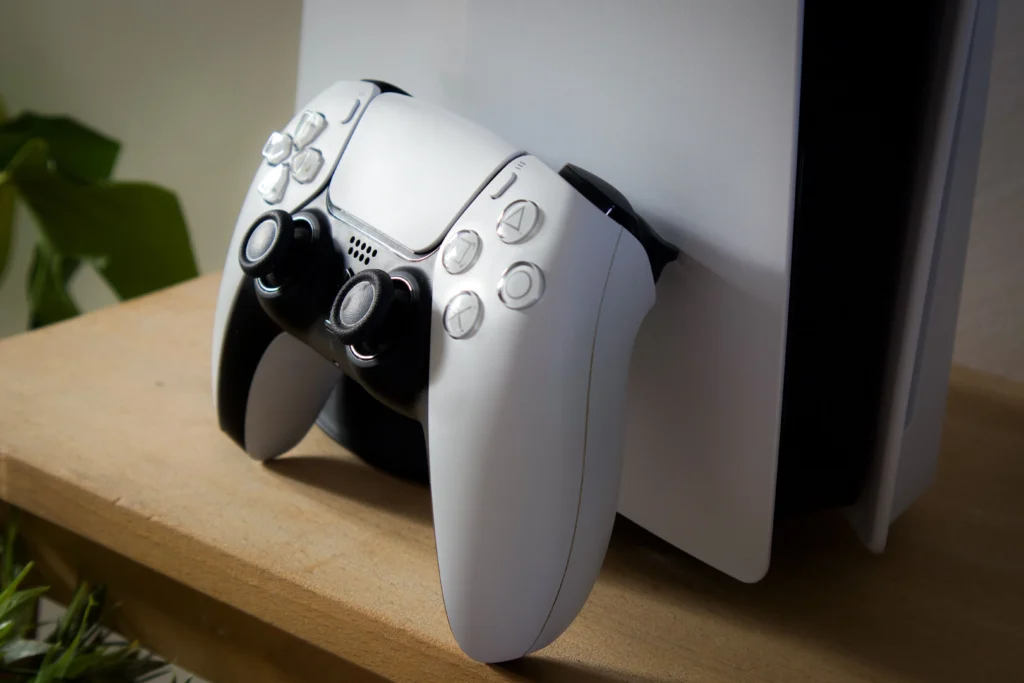
    dualsense e playstation 5 em mesa
    DualSense Controller PS5

    Is it normal for the PS5 fan to be loud? Some fan noise is normal during demanding games. However, if the PS5 is significantly louder than when it was new, or makes grinding or clicking sounds, that indicates dust buildup or a hardware issue that needs attention.

    How often should I clean my PS5? A PS5 in a dusty room or with pets will accumulate dust faster. For most households, cleaning the dust ports every 3–4 months is sufficient. If you have pets or live in a dusty environment, every 6–8 weeks.

    Can I use a vacuum cleaner to clean my PS5? Avoid regular household vacuums — the static electricity they generate can damage electronics. Use compressed air or a specialized electric air duster instead.

    Will cleaning my PS5 void the warranty? Removing the outer white covers to access the dust ports is safe and does not void the warranty — Sony designed it for this. Opening the inner chassis with screwdrivers does void the warranty.

    My PS5 is loud even with no game running — what does that mean? If the fan runs at high speed even in the PS5 menu, it usually indicates a thermal sensor or airflow issue. Try Fix 1 (placement) and Fix 2 (dust cleaning) first. If neither helps, it may be a failing fan or degraded liquid metal — professional repair is recommended.


    Last updated: July 2026 | Verified for PS5, PS5 Slim, and PS5 Pro

    ⚠️ Affiliate Disclosure: TechPlayGrid participates in the Amazon Associates Program and other affiliate programs. We earn a commission on qualifying purchases at no extra cost to you.