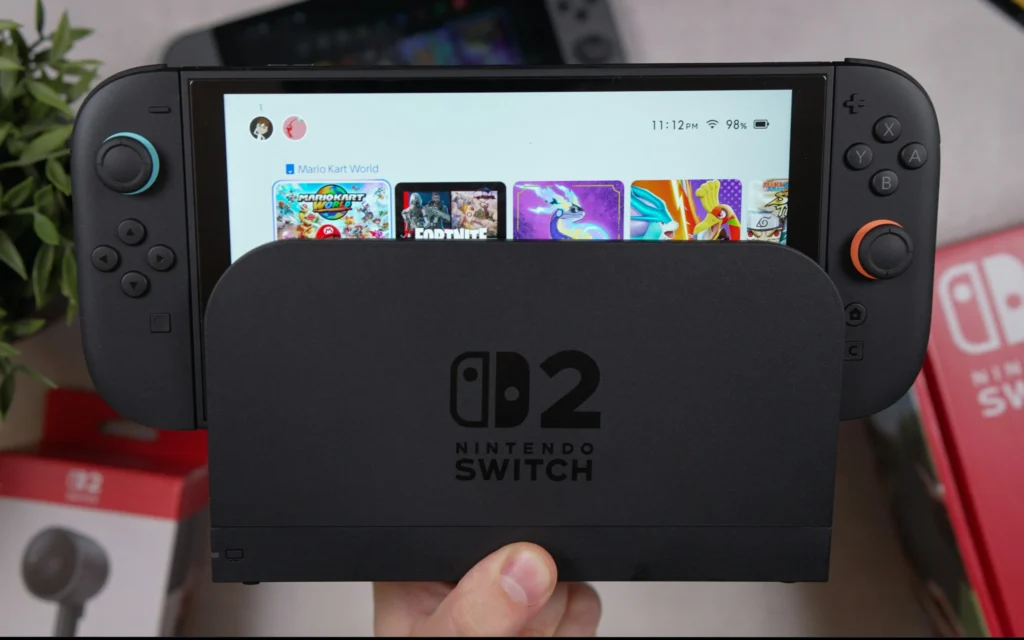
The Switch 2 docked resolution is one of the most searched topics about Nintendo’s new console, and also one of the most confusing. The box says “up to 4K,” your TV says 2160p, yet some games look softer than you expected. The reason is simple: the resolution the console outputs is not always the resolution the game renders. This guide explains every Switch 2 docked resolution option, how DLSS fits in, and which screen and cable you need to see the difference.
⚠️ Affiliate Disclosure: TechPlayGrid is reader-supported. When you buy through links on our site, we may earn an affiliate commission at no extra cost to you.
How we research: Tech Play Grid doesn’t test products hands-on. Our recommendations are based on specifications, prices and verified buyer feedback, cross-checked across multiple sources (you can find them at the end of our post). We also explain the trade-offs of each product, so you can decide what fits your needs and budget. Learn more on our About page.
Nintendo lists three main output modes for TV mode. Here is the official Switch 2 docked resolution table compared with handheld play:
Mode
Max resolution
Max refresh / FPS
HDR
Handheld (7.9″ screen)
1080p
120Hz
✅
Docked — 4K
3840 × 2160
60 FPS
✅
Docked — 1440p
2560 × 1440
120 FPS
✅
Docked — 1080p
1920 × 1080
120 FPS
✅
The key detail: 120 FPS is only possible at 1080p or 1440p. If you choose 4K, the console caps output at 60 FPS. So the “best” Switch 2 docked resolution depends on whether a game supports high frame rates and what kind of screen you own.
This is where most of the confusion comes from. The Switch 2 docked resolution setting controls the signal sent to your TV. Each game then decides its own internal render resolution, which is often lower.
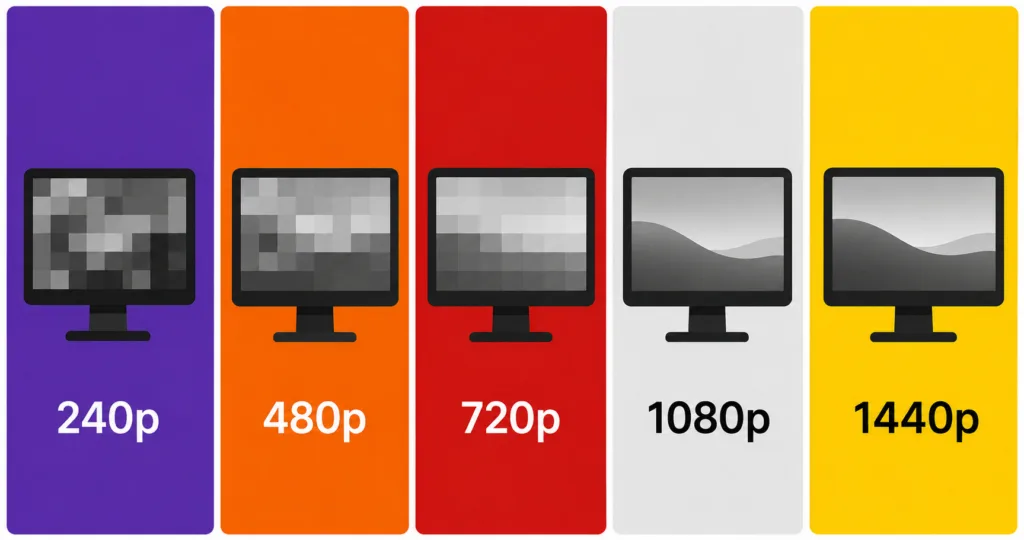
Most demanding Switch 2 games render somewhere between 720p and 1440p internally and use upscaling to fill a 4K screen. That is completely normal. PS5 and Xbox games do the same thing. A game that renders at 1080p and upscales to 4K can still look very clean on a TV, but it will never be as sharp as a native 4K image.
How DLSS changes the picture
The Switch 2 uses an NVIDIA chip with support for DLSS, an AI upscaling technique. Reports from Digital Foundry and Nintendo’s developer documentation describe two flavors:
Standard DLSS, which is typically used to reach 1080p with very good motion clarity.
A lighter DLSS mode, used by some games to reach 1440p or 4K with a lower performance cost.
For you as a player, DLSS means the Switch 2 docked resolution on screen looks better than the raw render numbers suggest. A game rendering at 1080p with DLSS on a 4K TV often looks closer to 1440p than to 1080p.
Which Switch 2 Docked Resolution Should You Use?
Go to System Settings > TV Output > TV Resolution. You can leave it on “Automatic” or pick a specific value. Here is our recommendation for each type of screen:
4K TV (60Hz): choose 4K. You lose nothing, because the TV cannot show 120Hz anyway.
4K TV with HDMI 2.1 and 120Hz: use 4K for slower adventure games and switch to 1440p or 1080p for games that support 120 FPS.
1440p gaming monitor: choose 1440p. This is the sweet spot. You avoid scaling artifacts and unlock 120 FPS in supported games.
1080p monitor or TV: choose 1080p. Sending a 4K signal to a 1080p screen only adds a downscaling step.
If you only remember one thing, remember this: match the Switch 2 docked resolution to the native resolution of your screen. That gives the sharpest image with the lowest input lag.
The Hidden Cable Problem
Many players never get 1440p at 120Hz because of the HDMI cable. 4K at 60 FPS with HDR and 1440p at 120Hz need a high-bandwidth connection. Use the HDMI cable that comes in the box (it is a high-speed cable) or a certified Ultra High Speed HDMI 2.1 cable if you need a longer run. Old HDMI cables from a previous console can silently limit the Switch 2 docked resolution to 1080p.
Also check your TV settings. On many TVs, you must turn on “Input Signal Plus,” “HDMI Enhanced Format” or a similar option for the HDMI port before 4K HDR or 120Hz is unlocked.
Best Gear to Get the Most From Switch 2 Docked Resolution
These picks help you see the full Switch 2 docked resolution range on your desk or in a second room. All are widely available on Amazon US.
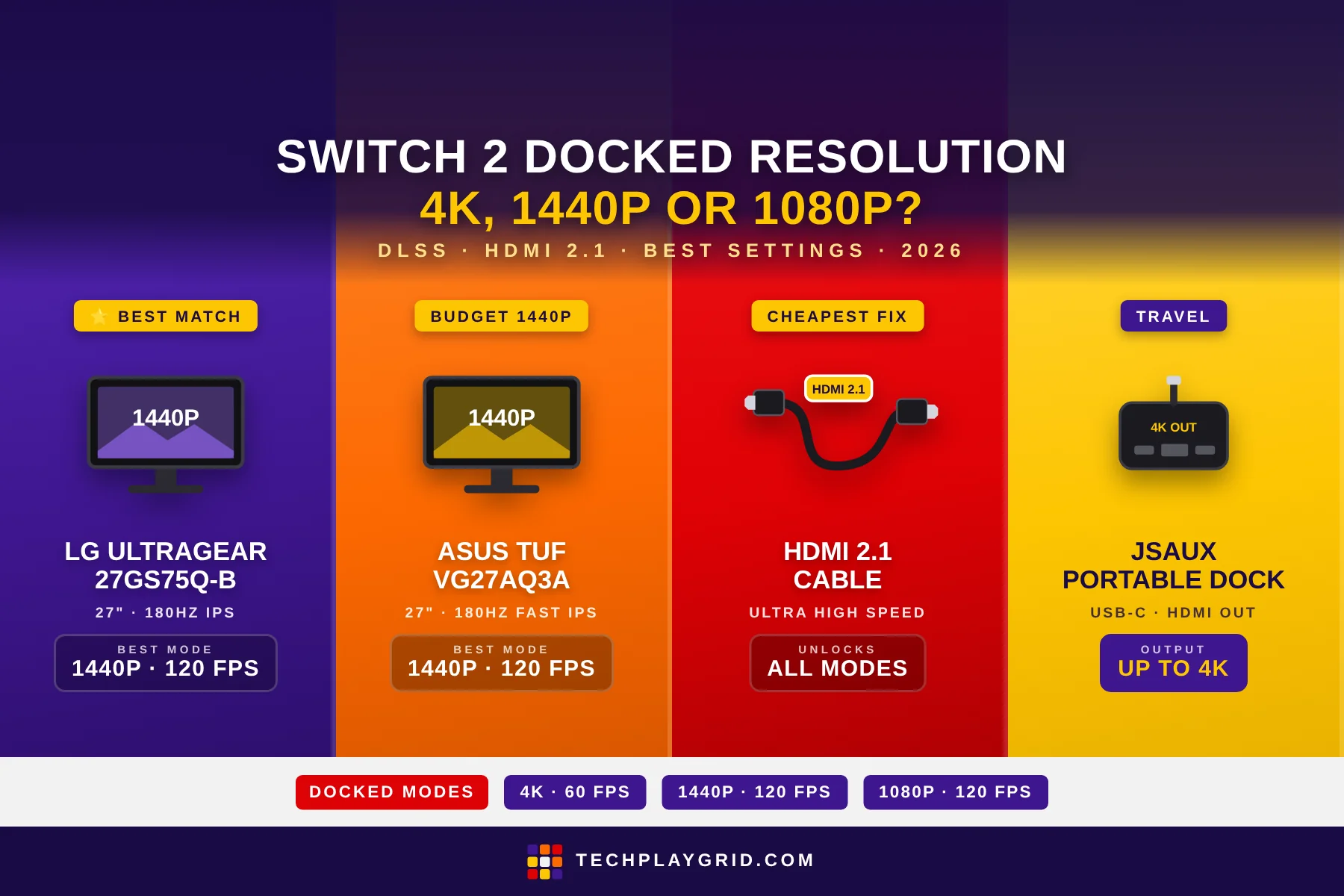
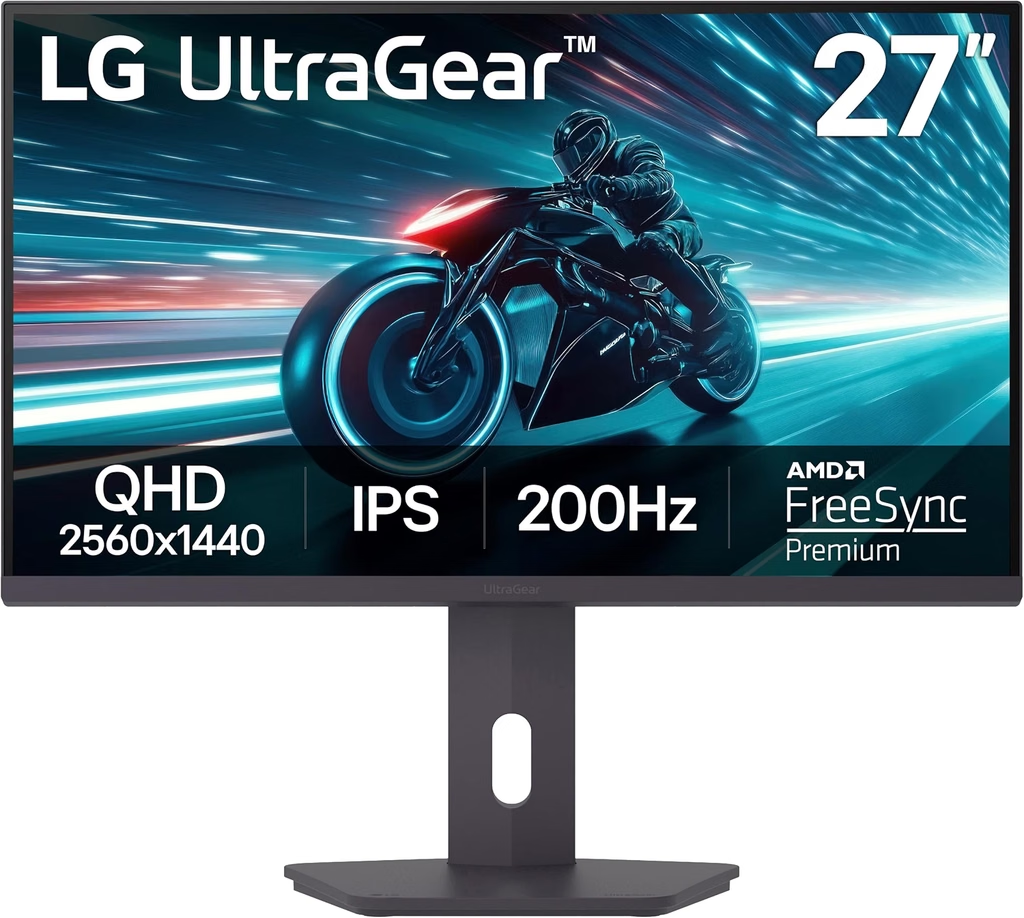
1. LG UltraGear 27GS75Q-B (27″, 1440p, 180Hz)
Official design of the LG UltraGear 27GS75Q-B. (Image: Amazon US)
A 27-inch 1440p IPS monitor is the ideal match for the 1440p Switch 2 docked resolution. The LG UltraGear 27GS75Q-B accepts a 1440p signal over HDMI and has fast response times, so 120 FPS games look smooth and sharp. It is also a great PC monitor, which makes it a smart two-in-one purchase.
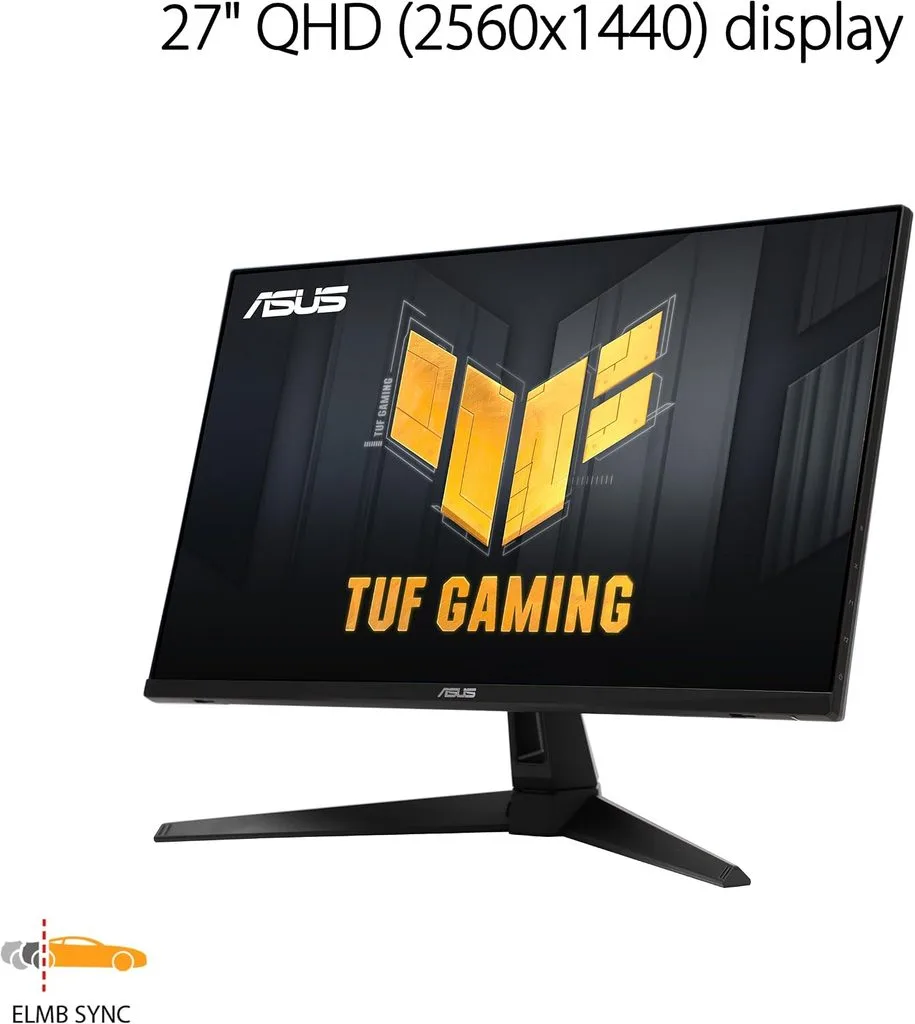
Official design of the ASUS TUF Gaming VG27AQ3A. (Image: Amazon US)
The ASUS TUF VG27AQ3A is a strong alternative with a similar 27-inch 1440p Fast IPS panel. It often drops in price during Black Friday sales, which makes it one of the cheapest ways to unlock the 1440p Switch 2 docked resolution at a desk.
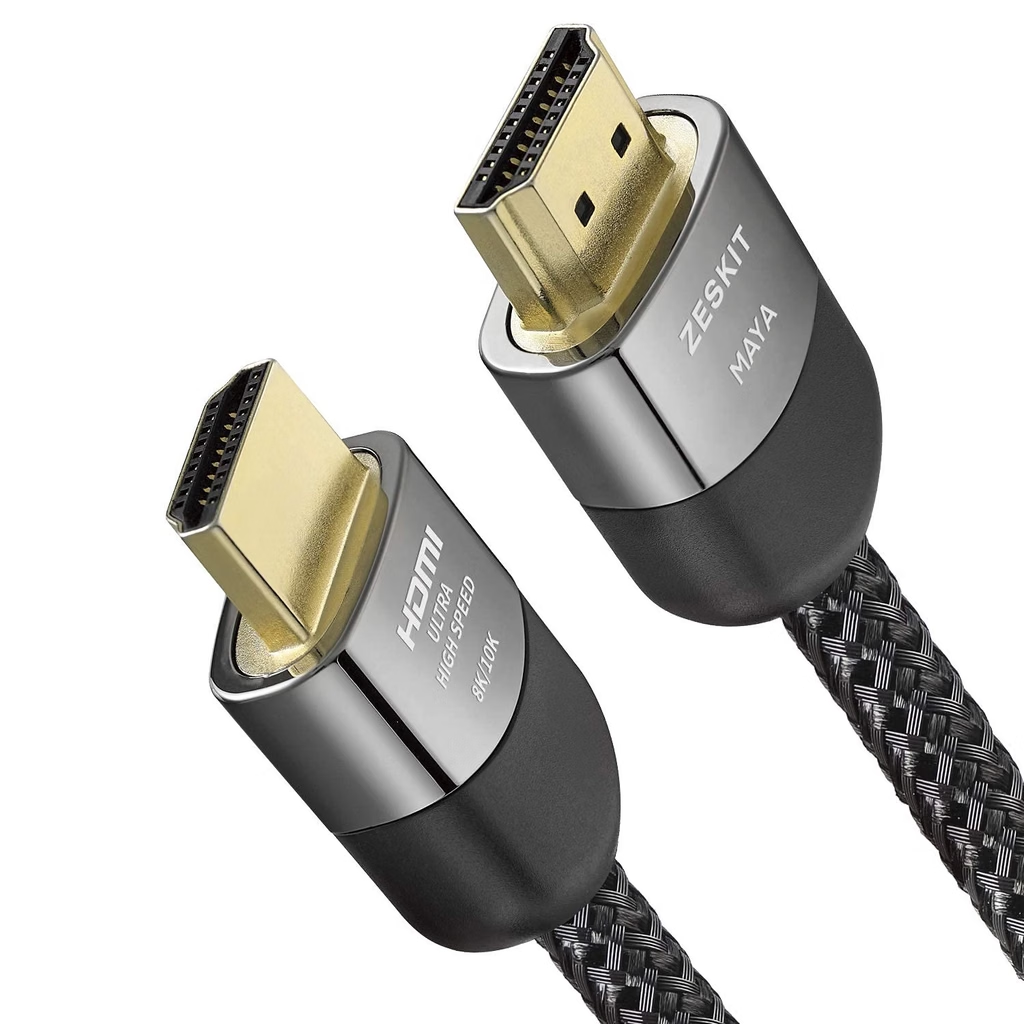
Example of a certified Ultra High Speed HDMI cable. (Image: Amazon US)
If your dock sits far from the TV or you lost the original cable, a certified Ultra High Speed HDMI cable guarantees enough bandwidth for every Switch 2 docked resolution mode, including 4K HDR and 1440p at 120Hz. Look for the official certification label on the package.
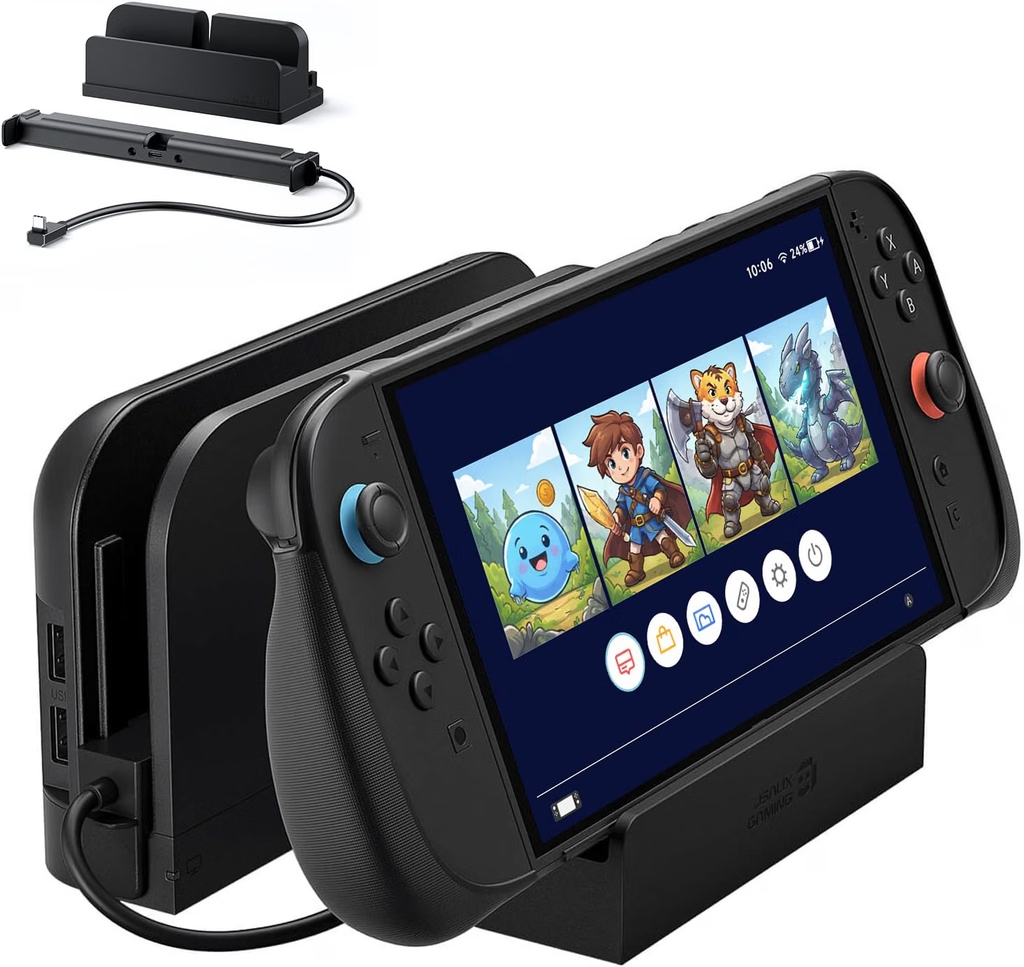
Official design of the JSAUX portable dock. (Image: Amazon US)
Want TV mode at a friend’s house or a second monitor? A compact USB-C dock like the JSAUX model keeps 4K HDMI output and power delivery in a pocket-sized package. Check the product page for Switch 2 compatibility before buying, because not every third-party dock supports every mode.
⚠️ Prices and product availability are subject to change without notice. Always verify the current price and stock on the retailer’s website before purchasing.
Quick Comparison
Product
Best Switch 2 docked resolution
Best for
LG UltraGear 27GS75Q-B
1440p up to 120 FPS
Desk setup, PC + console
ASUS TUF VG27AQ3A
1440p up to 120 FPS
Budget 1440p option
Ultra High Speed HDMI cable
All modes
Fixing bandwidth issues
JSAUX portable dock
Up to 4K
Travel and second screens
Troubleshooting: Why Is My Switch 2 Stuck at 1080p?
If you cannot select a higher Switch 2 docked resolution, check these points in order:
The cable. Swap to the original Nintendo cable or a certified Ultra High Speed one.
The HDMI port. Some TVs only offer 4K 120Hz or HDR on one or two ports. Check the labels.
TV settings. Enable the enhanced HDMI signal option for that input.
Third-party docks. Some portable docks limit output to 4K at 30Hz or 1080p. Test with the official dock.
The game itself. Some games are capped at 1080p or 60 FPS no matter what the system setting says.
FAQ
Does the Switch 2 really run games in 4K?
It can output 4K at 60 FPS. Most demanding games render at a lower resolution and upscale with DLSS or other techniques.
Is 1440p better than 4K for the Switch 2?
On a 1440p monitor, yes. It matches the panel and unlocks 120 FPS in supported games. On a 4K TV, 4K output usually looks better.
Does handheld mode support 120Hz?
Yes. The 7.9-inch screen is 1080p and supports up to 120Hz with HDR.
Do I need HDMI 2.1 for the Switch 2?
You need a cable with enough bandwidth for 4K HDR and 1440p at 120Hz. The included cable works; replacements should be certified Ultra High Speed.
Final Verdict
The Switch 2 docked resolution is not a single number. It is a choice between sharpness and frame rate: 4K at 60 FPS for big TVs, or 1440p and 1080p at up to 120 FPS for monitors and fast games. For most desk setups, a 27-inch 1440p monitor is the best match, and a proper HDMI cable is the cheapest upgrade you can make. Set the Switch 2 docked resolution to your screen’s native resolution and let DLSS do the rest.
Nintendo — Nintendo Switch 2 technical specifications (TV mode output and refresh rates)
Tom’s Hardware — “Nintendo Switch 2 supports two different types of NVIDIA DLSS”
ShopSavvy — “What resolution does the Nintendo Switch 2 support?”
HDMI Licensing Administrator — Ultra High Speed HDMI cable certification program
💬 Did you enjoy this guide? Subscribe to TechPlayGrid and get the latest gaming tips, gear reviews, and tech guides delivered straight to your inbox — no spam, just content worth reading.


Leave a Reply